Automated schema generation
Stay organized with collections
Save and categorize content based on your preferences.
Document AI's automated schema generation lets you automatically generate a
document's schema from a test document you supply. Then, you can approve or
decline the schema and edit it manually. This saves time and effort when defining
the document schema for your custom processor and lets you focus on refining the
schema.
Automated schema generation also has a wider knowledge base on creating high
quality schemas. This can potentially improve document extraction quality.
Generate a schema
If you haven't already snapshotted or fine-tuned your processor, take the following steps.
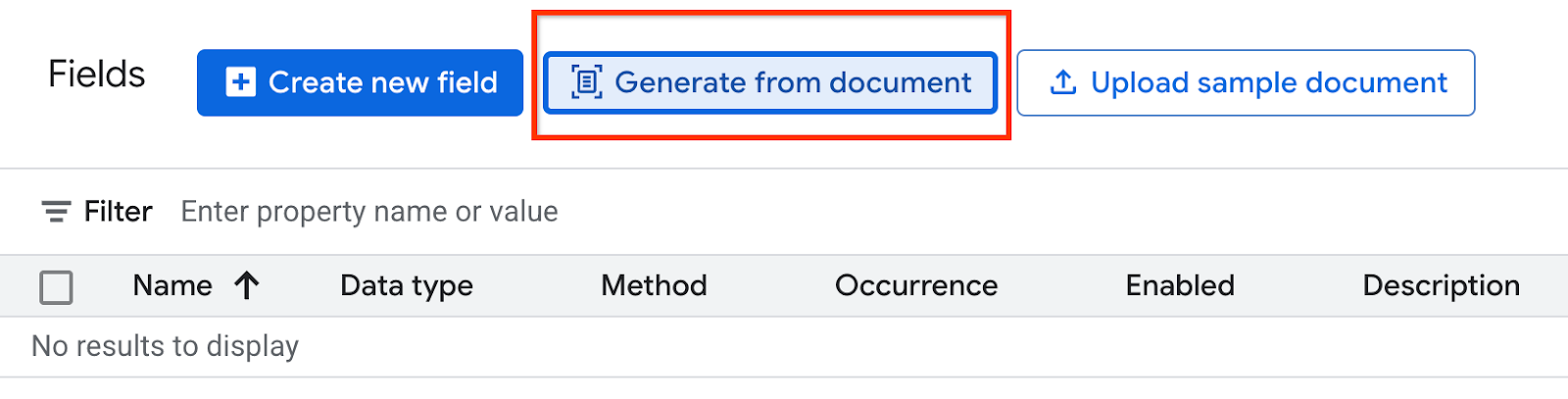
On the Get started tab, select Generate schema from document. The
Edit schema page opens.
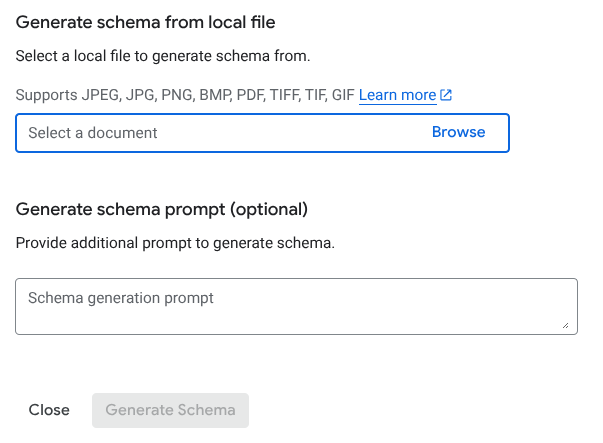
Use the input field to select a local file file to generate the schema, or
use the Browse option to upload a sample document.
Select Generate Schema.
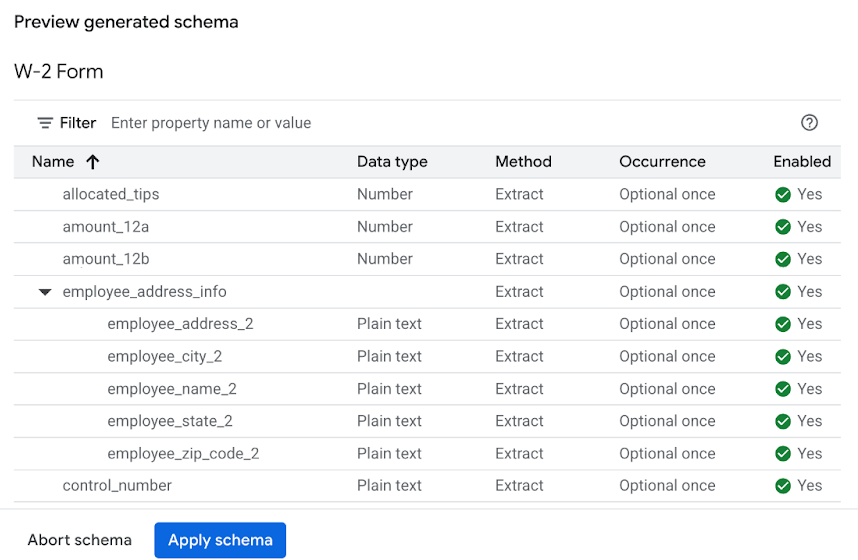
Review the generated schema preview. You can choose accept or reject the
schema with Apply schema or Abort schema, to try again with a different
sample document or prompt.
Optional: If the resulting schema doesn't serve your
needs, or requires more than manual editing, you can enter a prompt in Generate
a schema prompt to provide additional input and direction for the generator.
Try prompts such as: specifying the document type, stating the most important
parts of the document, or suggesting a target number of entities.
[[["Easy to understand","easyToUnderstand","thumb-up"],["Solved my problem","solvedMyProblem","thumb-up"],["Other","otherUp","thumb-up"]],[["Hard to understand","hardToUnderstand","thumb-down"],["Incorrect information or sample code","incorrectInformationOrSampleCode","thumb-down"],["Missing the information/samples I need","missingTheInformationSamplesINeed","thumb-down"],["Other","otherDown","thumb-down"]],["Last updated 2026-07-17 UTC."],[],[]]