

This document is intended for administrators setting up the Google Distributed Cloud (GDC) air-gapped appliance. Since this appliance is built for securely isolated environments, it doesn't have external network access by default. To fully provision the appliance and deploy your software stack, you'll first need to establish a direct, local management connection. By connecting a laptop directly to the top-of-rack (TOR) switch, you'll gain the secure administrative access required to authenticate the hardware, configure your initial network settings, and prepare the device for production.
Before you begin
Before you power on the device and configure your network, ensure you've completed this crucial step:
- Insert the YubiKeys: You must insert the provided YubiKeys into the designated servers before starting the boot sequence. These hardware security keys serve as a strict cryptographic requirement—they unlock the encrypted storage volumes and authenticate the hardware while the system starts up. If the YubiKeys aren't inserted properly, the servers won't boot securely. Consequently, you'll be unable to establish an SSH connection or proceed with configuring the device.
Power on the device
Follow these instructions to connect the laptop to the switch using an adapter and log into the terminal:
Use the included power cables to supply power to the device, and power on all three servers and the TOR switch.
Connect a laptop to the uplink management port (port 10) on the switch.
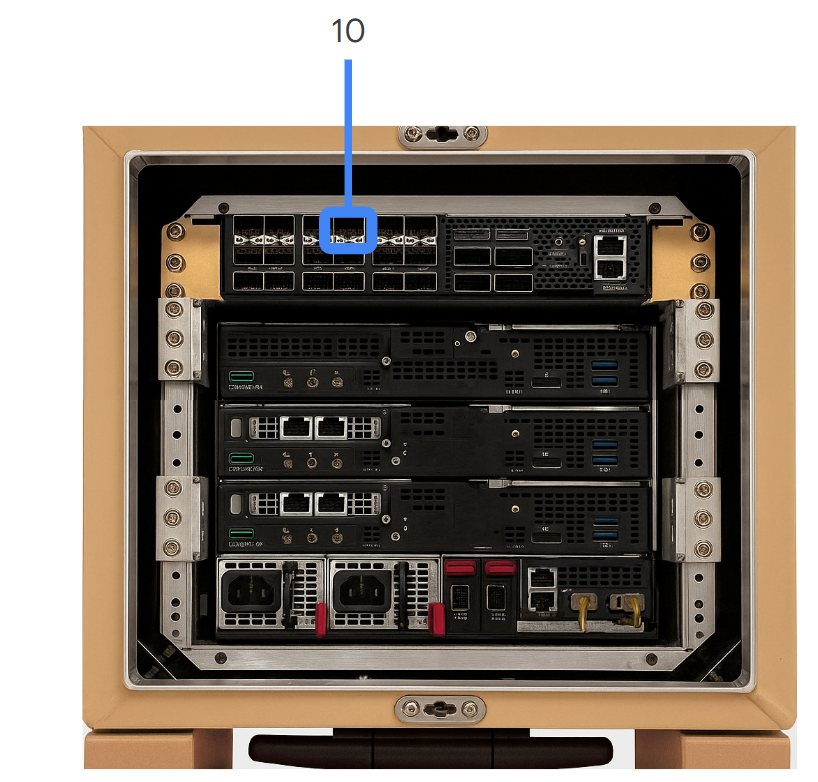
Set the networking configuration of the laptop:
- Set the Internet protocol (IP) address of the link on the laptop to
198.18.0.30. - The subnet mask is
255.255.255.224. - The default gateway is
198.18.0.1. - DNS fields can be left blank, as you must connect to
198.18.0.6by using the IP address and not a hostname.
- Set the Internet protocol (IP) address of the link on the laptop to
Verify that you can access the device by establishing a Secure Shell (SSH) connection to the server assigned the IP
198.18.0.6using the usernameapplianceusrand default passwordBosco08!.ssh applianceusr@198.18.0.6
What's next
Create an input configuration file