

The conversation history tool provides an interface for browsing and analyzing actual production conversations between your agent and end-users. You can use this tool to evaluate the functional performance of your agent or to debug issues.
Flow and page analysis lets you understand traffic and escalations through the flow graph of an agent. This analysis lets you analyze traffic flow, discover issue hotspots (for example, to pinpoint high escalations), and drill down to the specific pages and intents causing issues. You can use flow and page analysis along with conversation history filters to study a relevant subset of traffic.
Limitations
Loading the flow analysis table and flow analysis graph views can be slow for agents with large configurations. To improve load times, use an intent filter and a date range of one week.
The system logs a maximum of 500 turns for each conversation.
Permissions required
Using this tool requires the dialogflow.conversations permission. You can add
this permission to a custom role. It is also
available in the administrator role
and other Dialogflow CX roles.
Enable and disable conversation history
The conversation history tool displays conversations from your agent. To enable or disable this feature, go to the Enable conversation history setting.
You can also manage how long data is retained by using the
retention_window_days security setting.
Audio playback
Conversation history provides audio playback of conversations. You can enable this feature in the general settings. If you don't enable this feature before you load a conversation, the console shows a notification that audio playback is unavailable.
This feature lets you listen to conversation audio directly in the console using signed URLs. Audio playback uses signed URLs to provide authenticated, time-limited access to audio files stored in your Cloud Storage buckets, removing the need to grant users direct access to Cloud Storage buckets.
To play audio, you must have permission to generate signed audio URLs. You must also have imported voice conversations into the console with audio URIs pointing to audio files in a Cloud Storage bucket.
Browse conversation history
To use the conversation history tool:
- Go to the Conversational Agents console.
- Select your project.
- Select your agent.
- In the navigation menu, select Conversation history.
- View the conversations in the table.
- Optionally apply filters using the filter control above the table.
- Select one of the tabs described later in this document.
Download conversation history to a CSV file
You can download a maximum of 50 conversations to a CSV file. Use the Filter conversations field on the Conversation history page to select the specific conversations you want to export. To export larger batches of conversations, use BigQuery.
- In the navigation menu, select Conversation history.
Select a conversation session, then click Open conversation in preview panel.
Click Export all conversations. A CSV file containing the conversations downloads to your computer.
Conversations
You can view conversations in the Conversation summary view and the Conversation details view.
Conversation summary view
The Conversation summary view lists all conversations and provides the following metadata for each conversation:
| X | Item |
|---|---|
| Conversation ID | An identifier for the conversation. |
| Duration | The duration of the conversation. |
| Turns | The number of conversational turns. |
| Channel | Either chat (text), voice, or undetermined (no end-user input has been provided to the conversation yet). |
| Language | The language for the conversation. |
| Environment | The agent's environment. |
| Start time | The start time of the conversation. |
| Flags | Can be set to Live Agent Handoff flag (if conversation escalated to a human agent) or Abandoned (if end-user left the incomplete conversation) or TU,TD flag (if answer in the conversation got end-user rating). |
You can filter the results by metadata (except environment and duration) and by the following additional filter options:
| X | Item |
|---|---|
| Intent | The provided intent was matched at some point in the conversation. |
| No Match | Some subset of conversational turns resulted in an intent no-match. |
| Flow | The provided flow is the final active flow at the end of some conversation turn. |
| Page | The provided page is the final active page at the end of some conversation turn. |
| Is Live Agent Handoff | The Live Agent Handoff flag is set. |
| Is Abandoned | The Abandoned flag is set. |
| Conversation ID | A specific conversation is chosen. |
| Start Time | A date range is provided. |
| Agent Utterance | The provided text is a substring of an utterance that the agent used at some point in the conversation. The substring must contain complete words, bounded by space characters or either end of the string, as found in the utterance. |
| User Utterance | The provided text is a substring of a user utterance. The substring must contain complete words, bounded by space characters or either end of the string, as found in the utterance. |
| Has Thumbs Up Feedback | Thumbs Up feedback provided for a response in the conversation; the TU flag is set. |
| Has Thumbs Down Feedback | Thumbs Down feedback provided for a response in the conversation; the TD flag is set. |
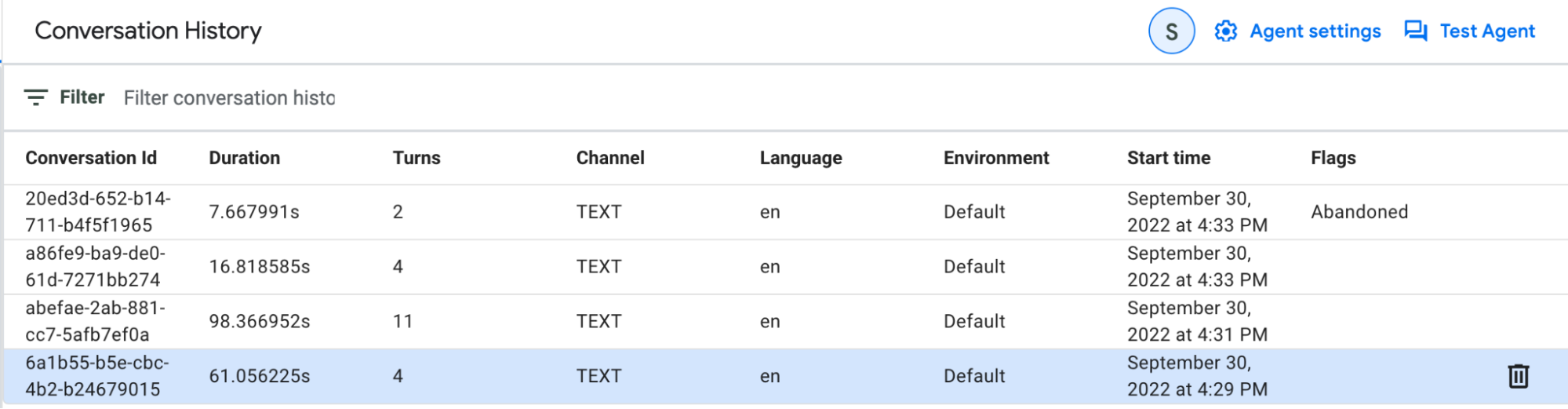
Conversation details view
You can browse the turn-by-turn view of a specific conversation in the Conversation details view. Each turn provides the end-user message, the agent message, and the following metadata:
| X | Item |
|---|---|
| Intent | An intent display name that was matched or a no-match. |
| Page | The final active page name. |
| Flow | The final active flow name. |
| Play conversation | Conversation playback control, including audio if available. |
| Parameters | The parameters collected during the conversational turn. |
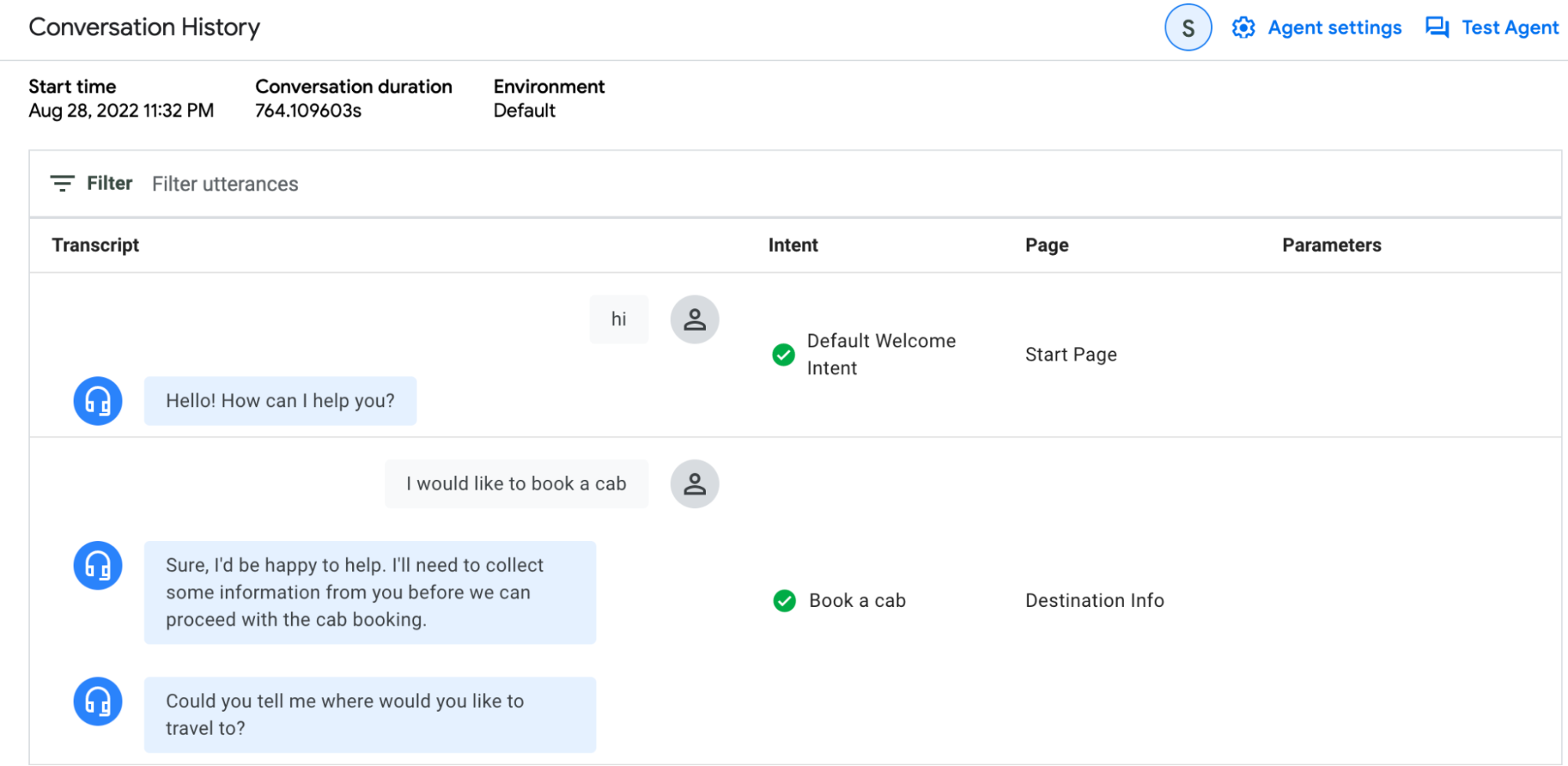
Example use case
Identify agent issues that result in escalations to a human agent. From the Conversation summary view, apply the Is Live Agent Handoff filter for Yes.
Examine some of these conversations to find common patterns. For example, you might find that in most of the conversations, a No Match flag appears for turns on a specific page. This indicates that you need to create an intent route, or that an existing intent route is not in scope when it needs to be.
Flow analysis table
The Flow Analysis - Table tab lets you analyze traffic and exits in flows and pages in tabular form.
The following metrics are shown:
| X | Item |
|---|---|
| Flow name | The flow name for each flow in your agent. |
| Relative traffic | The number of conversations that went through this flow. |
| Escalation rate | Percentage of conversations that result in a request for human escalation, out of all conversations that went through this flow. |
| Exit rate | Percentage of conversations that ended after this flow or transitioned to SESSION_END from this flow, out of all conversations that went through this flow. |
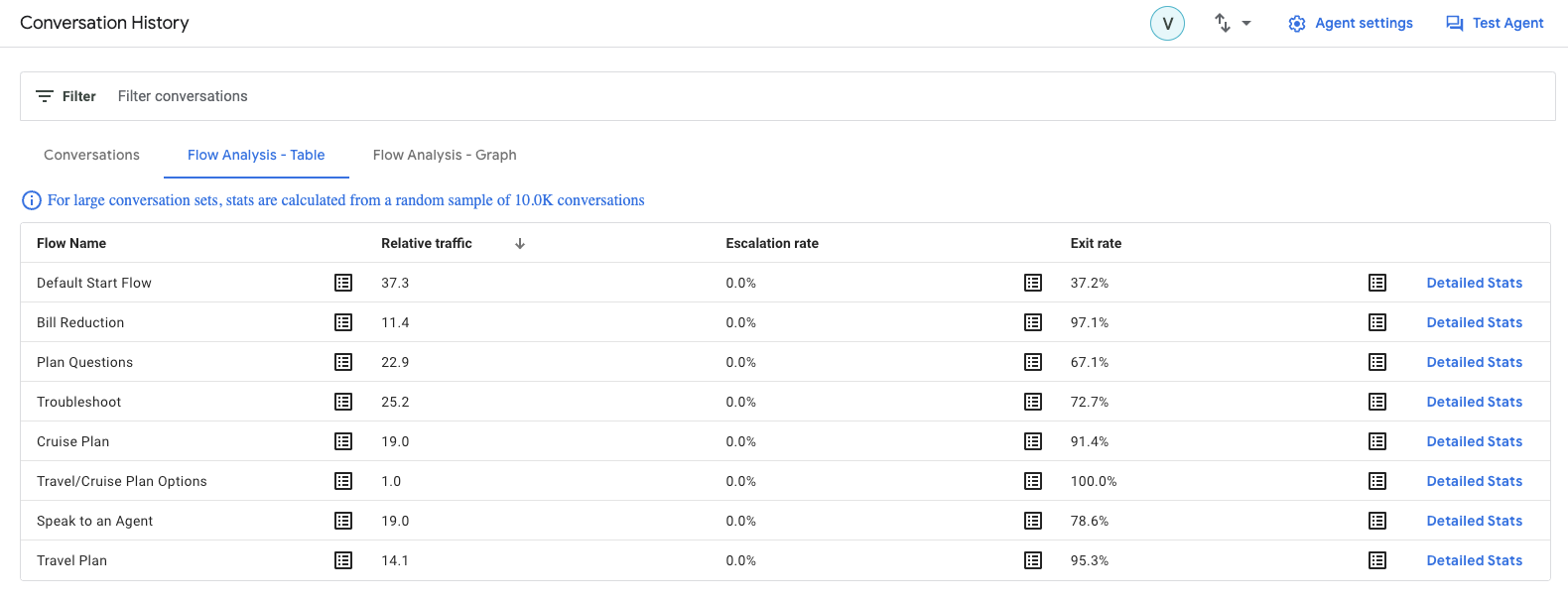
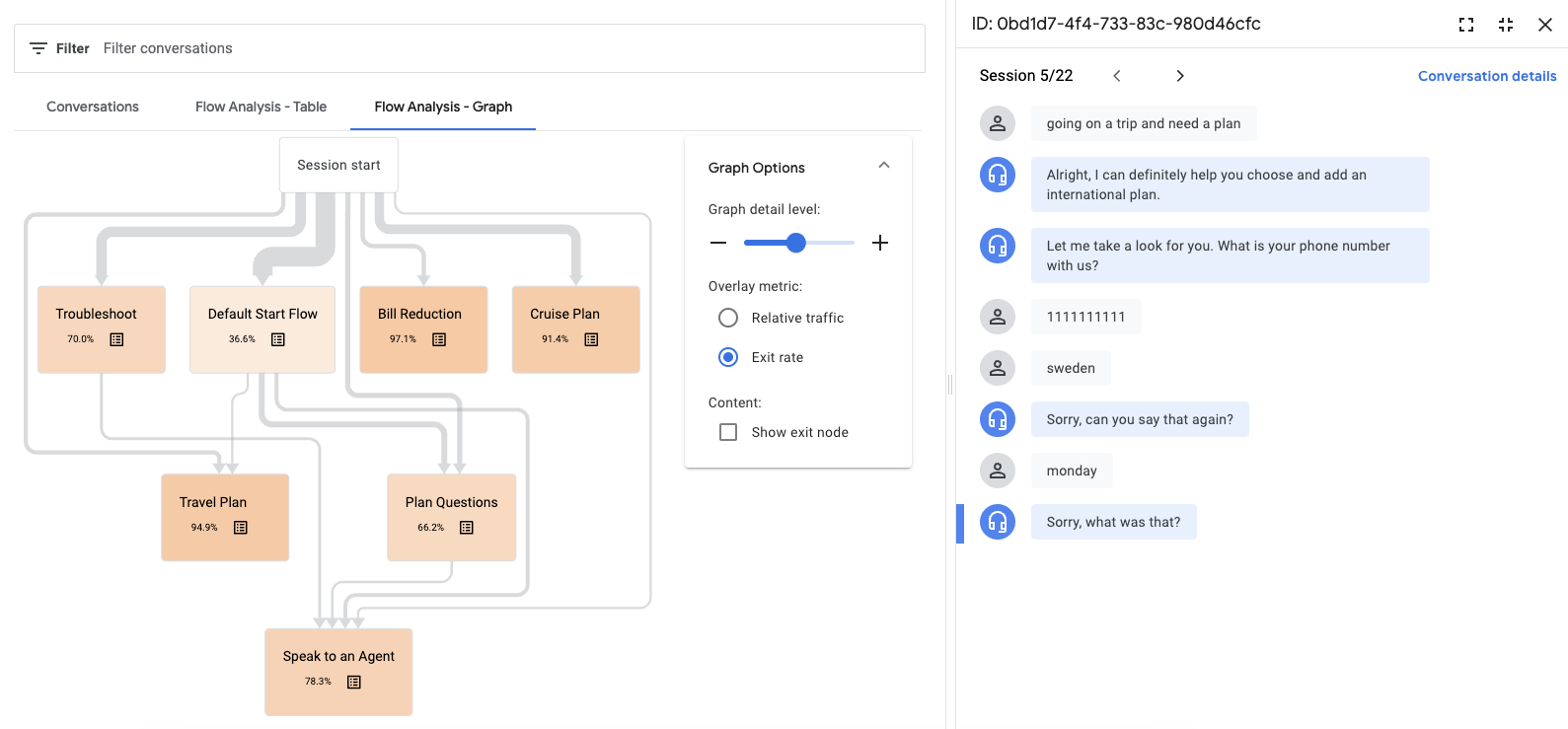
Click the list button to open a sample of relevant conversations for the row. You can read through the samples to better understand specific and nuanced issues. For example, you can examine why escalations are happening. To view the full details of a sample, click the Conversation details link.

Click Detailed Stats for a flow to view flow transition statistics for the selected flow.
The following metrics are shown:
| X | Item |
|---|---|
| Next flow | Stats for transitions from selected flow to another flow. |
| Previous flow | Stats for transitions from another flow to the selected flow. |
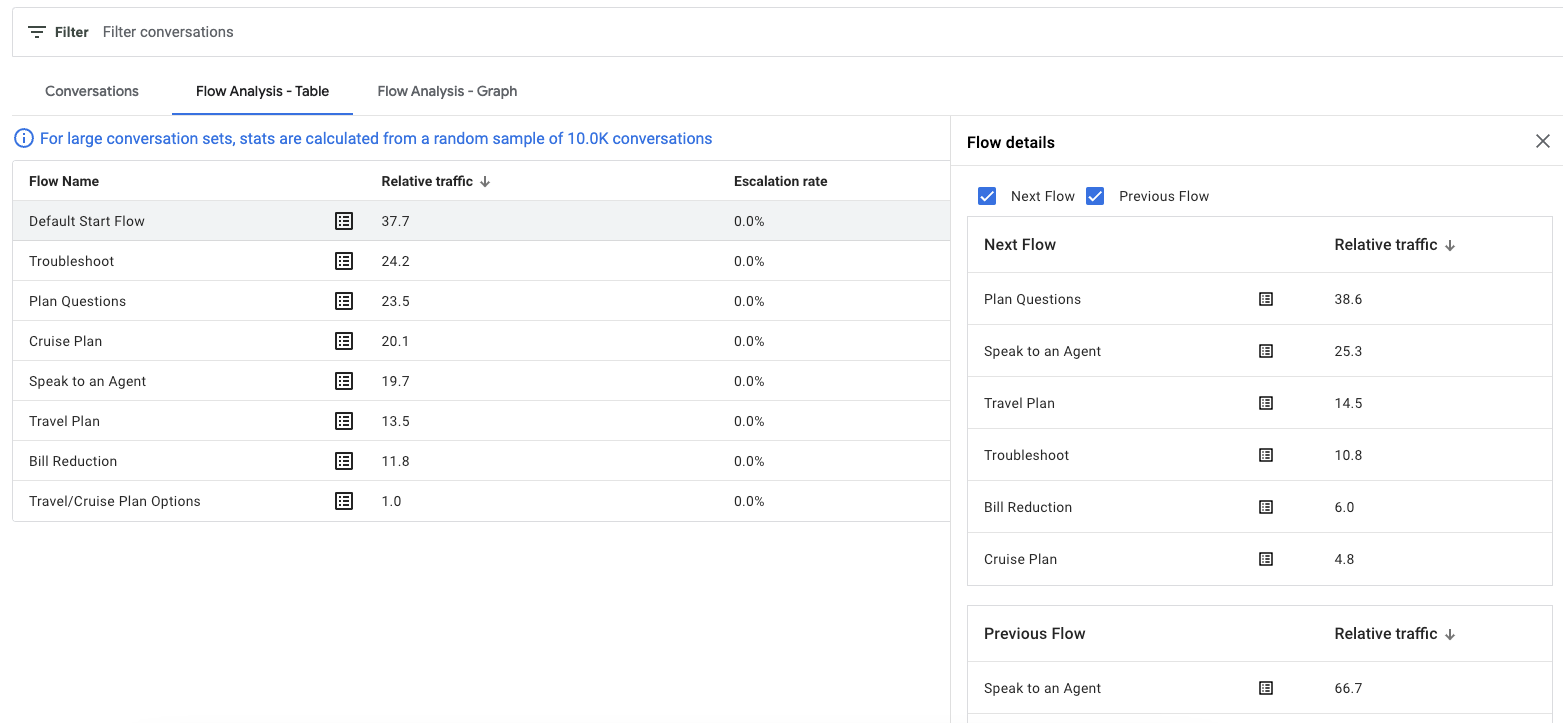
Click any flow row to drill down into the pages that make up that flow.
The following metrics are shown:
| X | Item |
|---|---|
| Relative traffic | The number of conversations that visited this page. |
| Escalation rate | Percentage of conversations that result in a request for human escalation, out of all conversations that visited this page. |
| Exit rate | Percentage of conversations that exit the flow or exit the session (END_SESSION) directly after visiting this page, out of all conversations that visited this page. |
| No match rate | Percentage of conversations that resulted in a no match, out of all conversations that visited this page. |
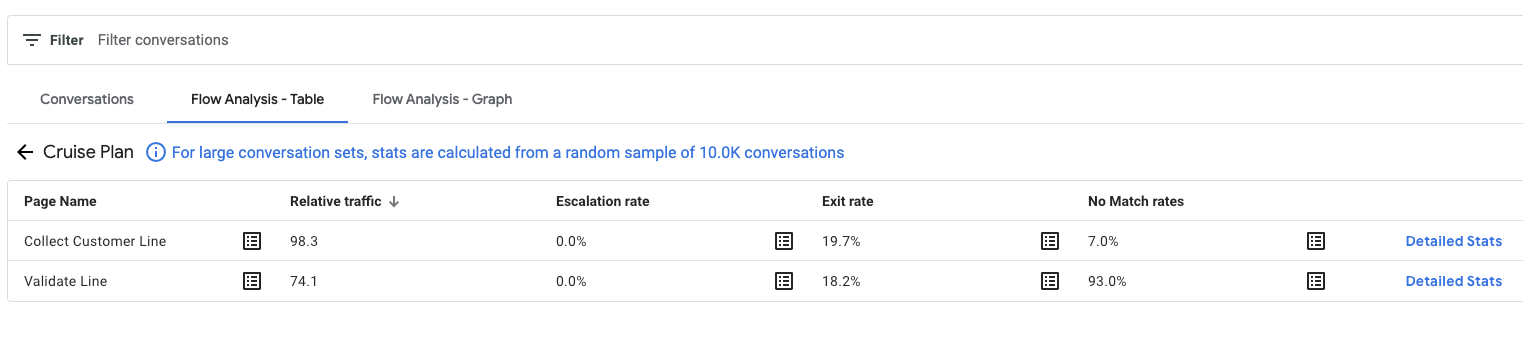
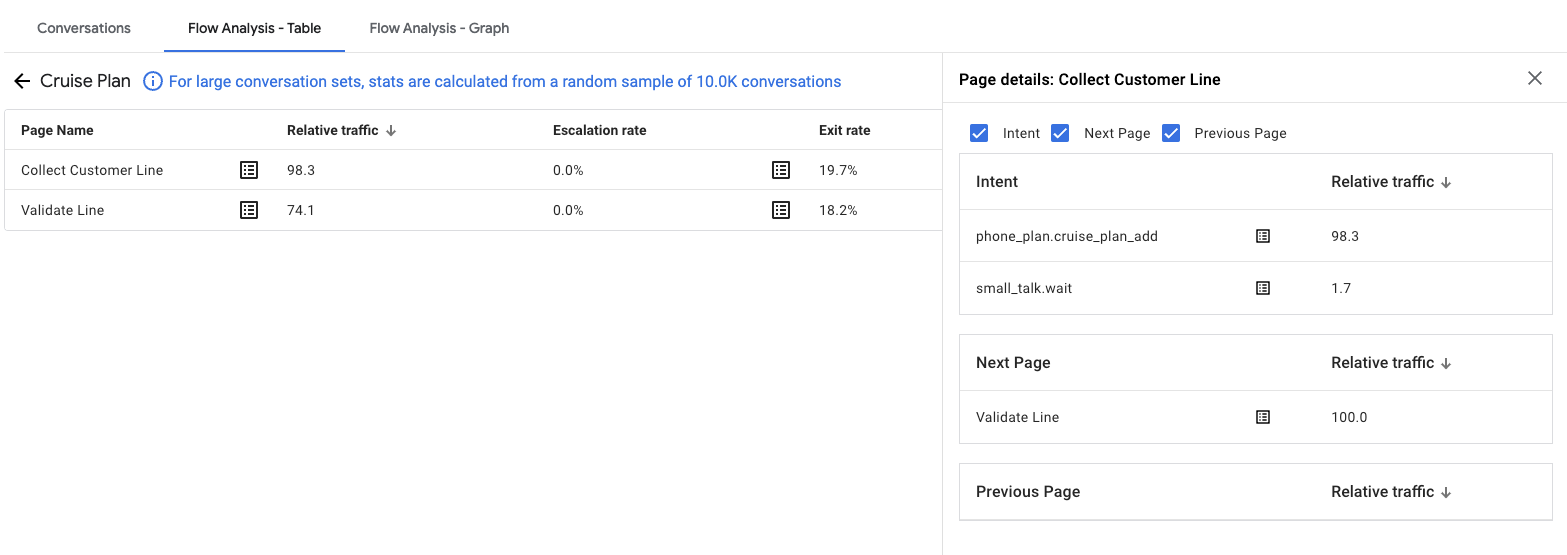
Click Detailed Stats for a page to view the traffic statistics, which show page transition stats from and to the selected page.
The following metrics are shown:
| X | Item |
|---|---|
| Intent | Stats for intent matches for the page. |
| Next page | Stats for transitions from selected page to another page. |
| Previous page | Stats for transitions from another page to the selected page. |
Flow analysis graph
The Flow Analysis Graph tab lets you analyze traffic and exits in flows and pages.
Click any flow to drill down into the traffic for the pages within that flow.
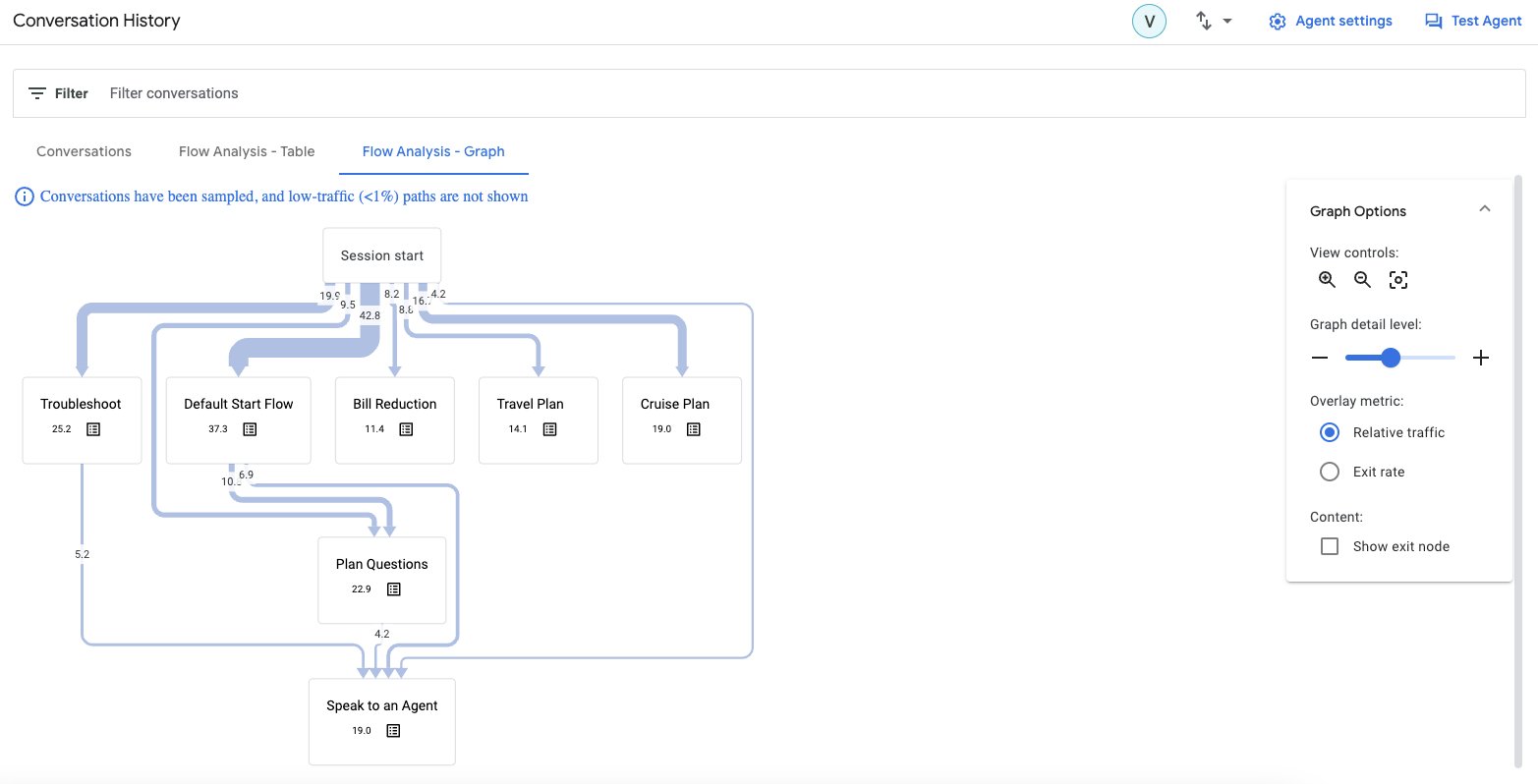
Use the zoom slider to vary the level of detail on the graph. Low volume paths are hidden from the visualization at lower zoom levels. Even at higher settings, very low volume paths are always hidden.
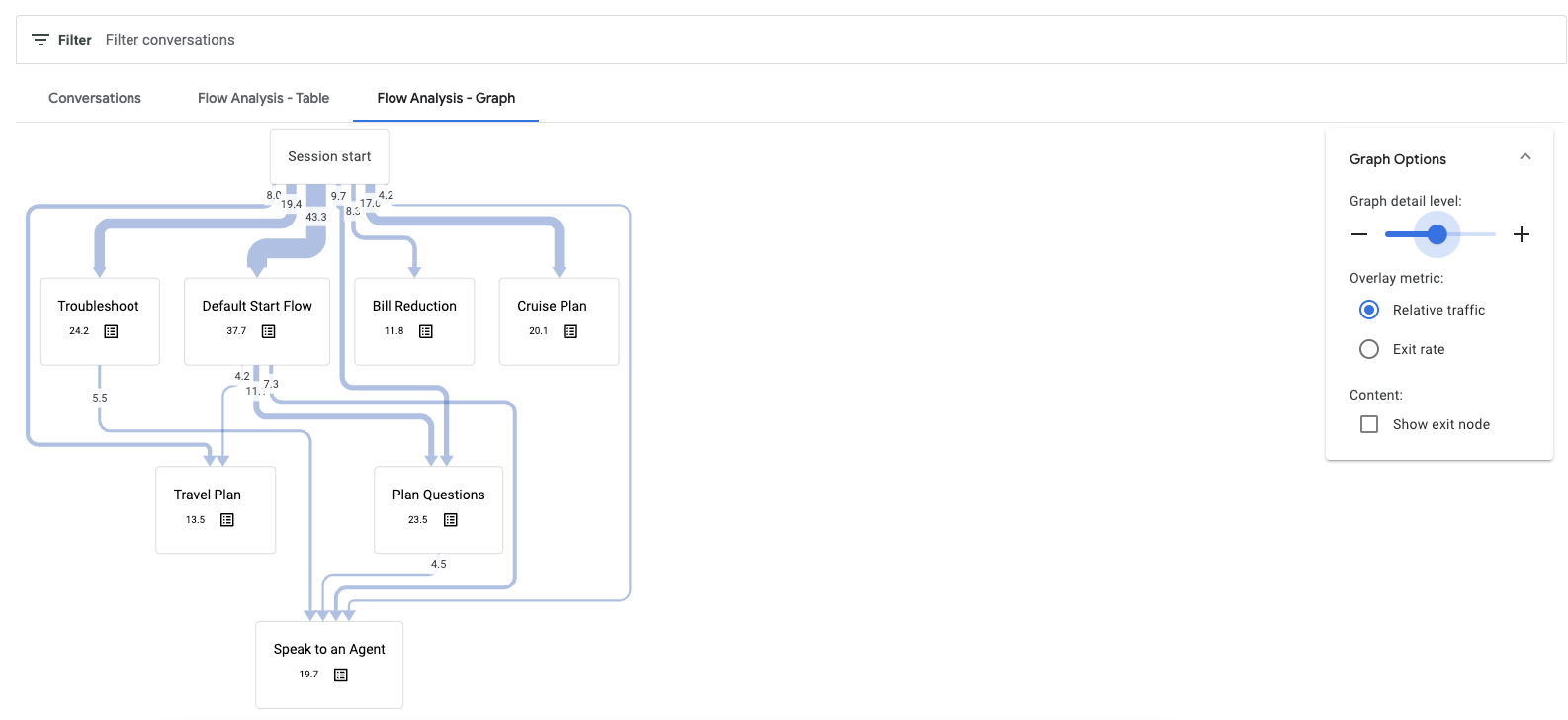
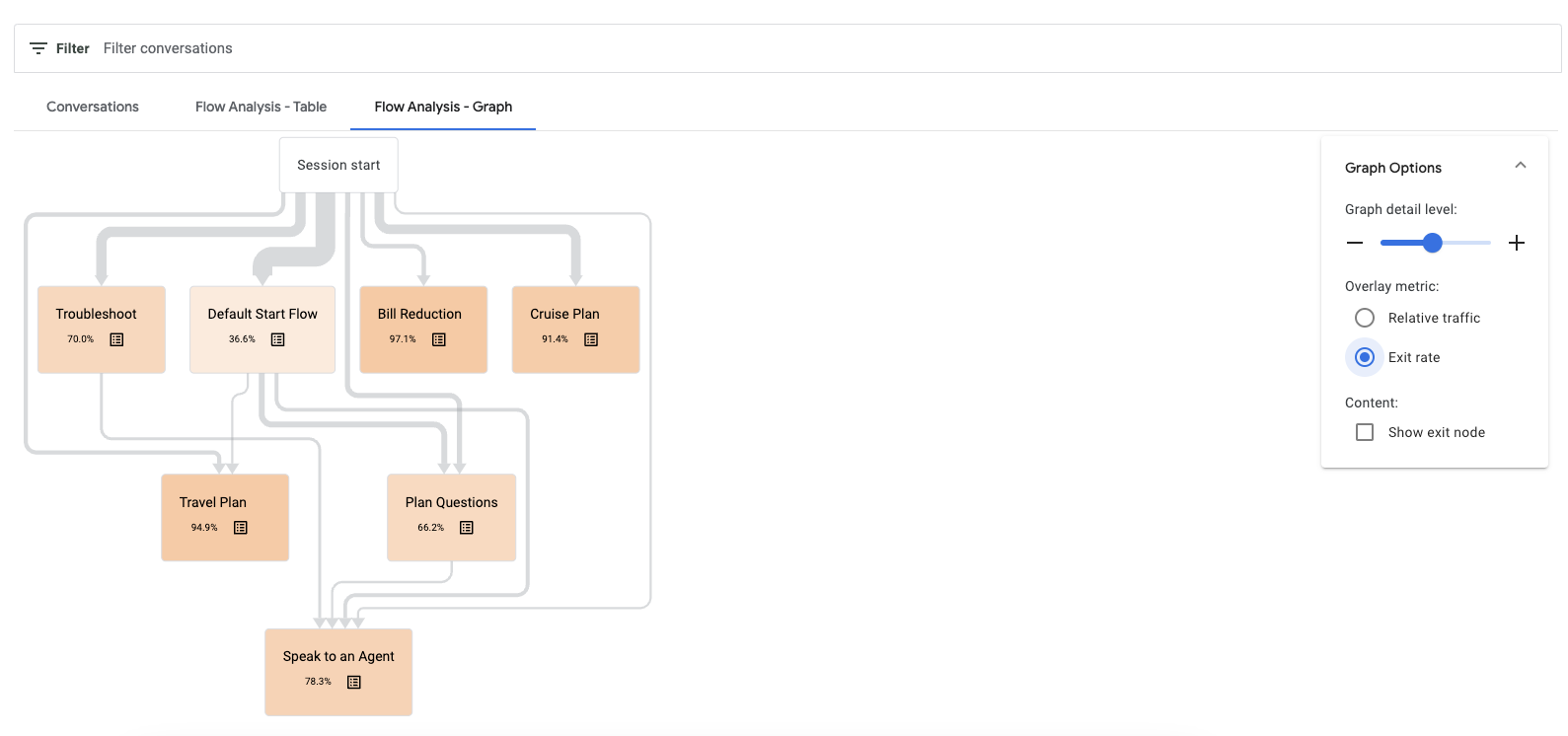
Metrics are color-coded to help you identify high severity issues.
Click the list button to show you relevant conversations.
Select a flow to view the pages within that flow. The following overlay metrics are available: relative traffic, no match rate, escalation rate, and exit rate.

Access conversation history with API
You can access conversation history with the API. See the V3beta1 reference documentation.
Privacy
When you enable conversation history, Google collects and stores your
conversation data for a period of time before permanently deleting it. The
default is 365 days, but you can shorten this time period using the
retention_window_days field in
SecuritySettings.
You retain full ownership of your data while it's stored. Google won't use your data or access it for any purposes other than customer support.