

This document explains how to manage your payment methods for your self-serve, online Cloud Billing account. Specifically, it explains how you can add, remove, or update credit cards and bank accounts when your needs change or to fix payment errors.
The payment methods described in this document apply only to self-serve, online Cloud Billing accounts. If your Cloud Billing account is set up as an invoiced account and you want to learn how to pay for your Google Cloud costs, visit Make a payment to an invoiced Cloud Billing account.
To remain in good standing, each self-serve, online Cloud Billing account must have at least one valid form of payment attached to the linked Postpay Google payments account, even if your balance due every billing cycle is $0.00. Without a valid form of payment, your Cloud Billing account is suspended until you resolve the issue on your linked Postpay payments account. If your Cloud Billing account is suspended for any reason, all APIs, services, and other resources are stopped in ALL of the projects that are linked to the Cloud Billing account, including any services that are paid for using Prepay credits. Learn more about split charging cycles for self-serve (online) Cloud Billing accounts.
About Cloud Billing accounts and Google payments accounts
A Cloud Billing account accrues and calculates costs for your usage of resources and services in Google Cloud, Google Maps Platform, Firebase, and Google AI Studio. The Cloud Billing account is associated with a Google payments profile (the legal entity responsible for paying the bills) and is linked to a Google payments account (which contains information about when and how you pay, and includes the payment instruments that costs are charged to).
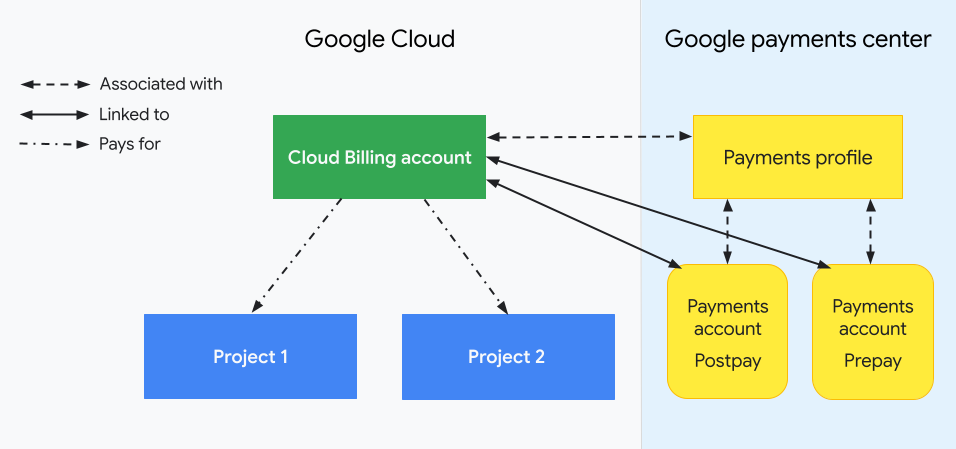
The Cloud Billing account is managed in the Google Cloud console. The payments profile and payments account are located in the Google payments center, a Google-level resource accessed and managed outside of Google Cloud. You use Identity and Access Management (IAM) roles to control access to a Cloud Billing account. Your Google payments profile and payments account require different permissions to access and manage.
Payment methods you can add to your Google payments account
Your Cloud Billing account is linked to a Google payments account that contains the payment methods you use to pay for your charges. The payment methods available for your self-serve (online) Cloud Billing account depend on your currency and country. In many countries, you can set up a credit card, debit card, or bank account as a primary payment method.
You can also set up a backup credit or debit card to act as a safety net; if your primary payment method fails, we'll charge your costs to your backup payment method. This ensures that your Google APIs, services, and other resources in your Google Cloud projects keep running. Note that you can't set up a bank account as a backup payment method. For more information about adding a backup payment method, see Add a payment method on this page.
Bank account payments (also known as direct debit or ACH) let you specify a bank account to use as the primary funding source for your Google payments account. Your payments account isn't active until you verify your bank account. The verification process for your bank account might take up to 10 days. For information about instant bank verification, see Verify your bank account.
Be aware of the following important points:
- By default, payments for a Postpay payments account
are processed automatically, so you don't have to worry that your service
will stop running if you forget to make a payment. If you prefer to make a
payment in advance, you can do so at any time.
- For more information about making advance payments to a Postpay payments account, see Make a manual payment or pay early.
- For information about when you'll be billed, see Find out your Cloud Billing account type and charging cycle.
- If you entered your Cloud Billing account information recently, it may take a few hours for your account to become active. If you have a problem finding the verification email or verifying your account, see Verify your email address.
- If your Google Cloud services are restricted, you can enable them by making a manual payment or paying early.
Supported payment methods
The types of payment instruments Google services let you add to Google payments profiles and payments accounts vary by your location and by the Google product you are using. See the payment options tool for more information.
The following sections list the supported payment methods that you can use with a Cloud Billing account.
Credit and debit cards
- American Express
- MasterCard
- Visa
- Debit cards with the Visa or MasterCard logo
- Discover (US only)
- JCB (Japan and US only)
- Visa Electron (Outside the US only)
- Elo credit cards (Brazil only; We don't allow you to add Elo debit cards)
- Boleto bancário (Brazil only) is available as a backup payment method for Google Cloud accounts. You can create up to three payments per day using boleto as the form of payment.
- Pix (Brazil only) Only available for manual payments in Brazilian Reals. If you sign up for your Google Cloud subscription using Pix as your payment method, you get an email each month reminding you to make a manual monthly payment.
- UPI (India only) Unified Payments Interface (UPI) is available for qualified organizations in India who pay for Google Cloud subscription with Indian Rupees (INR).
The types of cards that Google services lets you add to payments profiles and accounts vary by your location and which types of products and services that you use.
Bank account
If supported in your country, you can add a bank account to your Google payments account to pay your accrued Cloud Billing account charges.
Depending on your country, you might have to accept a direct debit mandate, which gives Google permission to charge your bank account.
PayPal
If supported in your country, you can add a PayPal account as a payment method for your Cloud Billing account.
PayPal is supported in Spain, Italy, and Mexico, with the following restrictions:
- PayPal is supported for Google Cloud services (1P services) in Spain, Italy, and Mexico.
- PayPal isn't supported for users who use Bring Your Own Identity (BYOID) authentication with the Gemini Enterprise - Business edition product.
- For Google Cloud Marketplace (3P marketplace), PayPal is supported in Spain and Italy, but isn't supported in Mexico.
Unsupported payment methods
The following payment methods aren't accepted for payment for a Cloud Billing account:
- Debit cards that require two-factor authentication aren't accepted for payment.
- Prepaid cards aren't accepted for payment.
- Bank accounts that only support disbursements aren't accepted for payment.
- Payments using wire transfer aren't supported for Prepay accounts, or Postpay threshold billing or monthly charge accounts. You can pay with a bank account by adding it as a payment method, if supported in your country.
- Except for limited use in Spain, Italy, and Mexico, PayPal isn't supported to pay for Cloud Billing accounts.
For more payment options, consider working with a local reseller, who might be able to accept more forms of payment, or help you switch to invoiced billing. Find a list of resellers on the Google partners page.
Prepayment requirements for Postpay Google payments accounts
For some Cloud Billing accounts with a Postpay charging cycle, certain types of payment methods require a one-time prepayment to activate the account. The prepayment differs by country and currency. Prepayments to a Postpay Google payments account will be refunded if unused by the time of account closure.
To pay your Cloud Billing prepayment amount, go to the Payment overview page for your Cloud Billing account:
In the Google Cloud console, go to the Payment overview page.
At the prompt, choose the Cloud Billing account that requires the prepayment. The Payment overview page opens for the selected billing account.
On the Prepayment pending banner, click Pay now.
Permissions required to manage payment methods
Payment methods are stored and managed on the Google payments profile that is associated with your Cloud Billing account. With the appropriate permissions, you can manage the payment methods while working in the Cloud Billing console, or directly in the Google payments center. The permissions required to manage payment methods depend on which interface you are using to complete your updates, and which type of task you are doing.
Permissions to add, edit, or fix a payment method
If you're working in the Cloud Billing console, to add, edit, or fix a form of payment that is used to pay for a self-service, online Cloud Billing account, you need a role on your Cloud Billing account that includes the following permissions:
billing.accounts.getPaymentInfobilling.accounts.updatePaymentInfo
To gain these permissions using a predefined billing IAM role, you must be a Billing Account Administrator on the Cloud Billing account.
Permissions to remove a payment method
If you're working in the Cloud Billing console, to remove a payment method from the Google payments profile and linked payments account, you need permissions on both the Cloud Billing account and the Google payments profile.
On the Cloud Billing account, you must be at least a Billing Account Viewer or have a custom a role on your Cloud Billing account that grants the
billing.accounts.getPaymentInfopermission.On the associated Google payments profile, you must be a payments user with at least the Edit payments profile level of permissions.
Add a payment method
You can add additional payment methods to your Cloud Billing account at any time. Each linked Google payments account stores a primary (required) and backup (optional) payment method. You can assign different payment methods to each of your Google payments accounts.
- Postpay payments accounts are managed from the Billing pages in the Google Cloud console. Postpay payments accounts require at least one valid payment method assigned as the Primary form of payment.
Prepay payments accounts are managed from the Billing page in Google AI Studio. Prepay payments accounts with auto-reload enabled require at least one valid payment method assigned as the Primary form of payment.
Postpay account
Follow these steps to access the Payment method page for your Postpay Google payments account:
In the Google Cloud console, go to the Payment method page.
At the prompt, choose the Cloud Billing account you want to update.
The Payment method page opens for the Postpay payments account.
Prepay account
Follow these steps to access the Payment method page for your Prepay Google payments account:
In the Google AI Studio console, go to the Billing page.
Locate the How you pay card and click Manage payment methods.
The Payment method page opens for the Prepay payments account.
On the Payment method page, do the following to add a new payment method:
- Click Add payment method. The types of payment methods available to you are based on your business address and the currency of your Cloud Billing account.
- Enter your payment information, and then click Save.
- Optional: If you added an additional credit or debit card to use as a
backup payment method, after you save the payment method, set that card as
a backup. Bank accounts can't be used as a backup payment method.
- In the payment method card, you see a list in the bottom-left of the card (the list might display None by default).
- Expand the list, and then select Backup.
If your new payment method is a US bank account, you can instantly verify your bank account rather than use the challenge deposit which takes 2-5 days. For information about challenge deposits and instant bank verification, see Verify your bank account.
If your new payment method is a non-US bank account, you might need to accept a direct debit mandate, which authorizes Google to charge your bank account. You can download a copy of your mandate by returning to the Payment method page and clicking Download mandate next to your bank account.
If you receive an error message when you attempt to set up or change a payment method, see A billing account change wasn't allowed for more information.
Update a payment method
You might want to update your payment information or set a credit or debit card as a backup payment method.
A backup payment method is a credit card or debit card that you designate to be used if your primary payment method fails. With a backup payment method, if your primary payment method is declined when processing a payment, we'll automatically try to charge the payment to your backup method instead. This helps ensure that your service runs uninterrupted. A backup credit card will be charged only if your primary form of payment doesn't work.
Before updating your payment method, consider the following:
- You can edit all the details for your payment method, except for the credit card or bank account number.
- Your Cloud Billing account always needs at least one payment method on file. If you want to remove a payment method, add a new payment method first.
- If your credit card has expired and you receive a new credit card with the same account number and an updated expiration date and CVV number, just update your card details. You don't need to add it as a new payment method.
- If the number of your credit card or bank account has changed, we consider it a new credit card or bank account. You'll need to add it as a new payment method. After you add the new payment method, you can remove the outdated payment method.
How to update a payment method
Each linked Google payments account stores a primary (required) and backup (optional) payment method. You can assign different payment methods to each of your Google payments accounts.
- Postpay payments accounts are managed from the Billing pages in the Google Cloud console. Postpay payments accounts require at least one valid payment method assigned as the Primary form of payment.
Prepay payments accounts are managed from the Billing page in Google AI Studio. Prepay payments accounts with auto-reload enabled require at least one valid payment method assigned as the Primary form of payment.
Postpay account
Follow these steps to access the Payment method page for your Postpay Google payments account:
In the Google Cloud console, go to the Payment method page.
At the prompt, choose the Cloud Billing account you want to manage.
The Payment method page opens for the Postpay payments account.
Prepay account
Follow these steps to access the Payment method page for your Prepay Google payments account:
In the Google AI Studio console, go to the Billing page.
Locate the How you pay card and click Manage payment methods.
The Payment method page opens for the Prepay payments account.
On the Payment method page do any of the following to update the payment method on your Google payments account:
To update your credit or debit card information, such as the expiration date or the billing address, do the following:
- Locate the payment method you want to update, click Edit or Fix, and then make the updates.
- When you are finished, click Update.
To change which payment method is the primary payment method:
- First, before you can change your primary payment method, ensure that you have at least two payment methods on your account. If needed, add a second payment method.
- In the payment method info card for the non-primary payment method, you see a list in the bottom-left of the card (it might display Other or Backup).
- Expand the list, and then select Primary. The payment method previously marked as Primary will be marked as Other, and the payment method info cards will shuffle on the page, so that the Primary payment method is displayed first.
Optionally, you might want to set a secondary form of payment to be a Backup payment method.
Remove a payment method
Before you try to remove a payment method, keep in mind the following requirements:
- Your Cloud Billing account's linked Postpay payments account always needs at least one valid payment method assigned. If you have only one payment method on the Postpay Google payments account, you can't remove it. If you want to remove a payment method, you need to add another payment method first.
- You can't remove a payment method marked as the Primary method of payment. If the payment method you want to remove is the Primary method of payment, first select a different payment method to be the Primary method, and then you can remove the non-primary payment method.
- Your Cloud Billing account must have a valid payment method at all times. If you have an invalid payment method and you can't replace a failing payment method with a different, valid payment method, you can disable Cloud Billing on your project. Be aware that even when Cloud Billing is disabled, your credit card information is retained on your account and Google Cloud can't remove it. Credit card information is retained for reporting and auditing purposes only.
How to remove a payment method
Each linked Google payments account stores a primary (required) and backup (optional) payment method. You can assign different payment methods to each of your Google payments accounts.
- Postpay payments accounts are managed from the Billing pages in the Google Cloud console. Postpay payments accounts require at least one valid payment method assigned as the Primary form of payment.
Prepay payments accounts are managed from the Billing page in Google AI Studio. Prepay payments accounts with auto-reload enabled require at least one valid payment method assigned as the Primary form of payment.
Postpay account
Follow these steps to access the Payment method page for your Postpay Google payments account:
In the Google Cloud console, go to the Payment method page.
At the prompt, choose the Cloud Billing account you want to manage.
The Payment method page opens for the Postpay payments account.
Prepay account
Follow these steps to access the Payment method page for your Prepay Google payments account:
In the Google AI Studio console, go to the Billing page.
Locate the How you pay card and click Manage payment methods.
The Payment method page opens for the Prepay payments account.
On the Payment method page, to remove a payment method, do the following:
- Locate the payment method info card displaying the payment method that you want to remove.
- Click Remove.
- On the Remove payment method dialog, follow the prompts. You might be required to choose a new payment method before you can remove a payment method.
- When finished, click Save and remove.
Add a new payment method after your account has been suspended
If your account was suspended because of an invalid payment method, you need to add a valid payment method before your account can be reactivated.
To add a payment method:
In the Google Cloud console, go to the Manage billing accounts page.
By default, when you first access the list of Cloud Billing accounts, the account list is filtered to display Active accounts.
In the Filter row, clear the Status: Active filter.
All Cloud Billing accounts are displayed.
Click the name of the suspended billing account to access all of the account information for the Cloud Billing account.
In the Billing menu, in the Payments section, click Payment method.
On the Payment method page, click Add payment method. The types of payment methods available to you are based on your business address and your account's currency.
Enter your payment information, and then click Save.
After you save the new payment method, set that payment method as Primary:
- In the payment method card, you see a list in the bottom-left of the card (it might display Other by default).
- Expand the list, and then select Primary.
To remove the invalid payment method, locate the info card displaying the payment method you want to remove, and then click Remove.
If your new payment method is a US bank account, you can instantly verify your bank account rather than use the challenge deposit which takes 2-5 days. For information about challenge deposits and instant bank verification, see Verify your bank account.
Resolve errors when adding or updating a payment method
When you're adding a form of payment, you might receive an error such as:
- Your card does not support automatic recurring payments.
or - General decline of the card. No other information was provided by the issuing bank.
You might encounter these errors if you're using a debit card that requires 2-step verification to complete an online transaction (for example, entry of a one-time password sent by your bank directly to you using SMS).
2-step verification requires you to be in-session at the time of the transaction. Cards that require you to be in-session can't be used for subscriptions or similar recurring automatic transactions.
When you enter a debit card as your form of payment, Google checks whether your issuing bank approves subscriptions or recurring payments using that card. If your bank doesn't approve, this card won't work for automatic recurring payments.
If you receive an error such as Your card does not support automatic recurring payments or General decline of the card, select a different form of payment or consider working with a local reseller who might be able to accept more forms of payment, or help you switch to invoiced billing. Find a list of resellers on the Google partners page.
You can also contact Cloud Billing Support for help.
Try it for yourself
If you're new to Google Cloud, create an account to evaluate how our products perform in real-world scenarios. New customers also get $300 in free credits to run, test, and deploy workloads.
Get started for free