

This document explains how to create, edit, and delete spend cap budgets on projects linked to a Cloud Billing account.
About spend cap budgets
Spend Caps in Cloud Billing Budgets help reduce unexpected or runaway costs for eligible services. To help you stay informed about how your spend is tracking against your budget, alert emails are sent when your spend exceeds 50% and 80% of your spend cap budget amount.
The spend cap is enforced when your usage costs exceed 100% of your budget amount. When a spend cap budget is enforced, usage of your specified services is automatically paused until you manually lift the spend cap. Enforcement also triggers alerts, including email notifications and banners in the billing console UI, with information and guidance about how to lift the cap.
How spend cap budgets work to help you control spend
For faster enforcement, spend caps use gross, estimated costs to trigger alerts and enforce the spend cap.
Automatic pause of usage and cost accrual when the spend cap is triggered
In the specified project, when your gross, estimated usage costs for the specific service exceed your budget target amount, the spend cap is triggered and enforced. While enforced, all new usage for the specific service in the specified project is blocked, pausing usage associated with the specific service, including on-demand, pay-as-you-go usage and usage covered by commitments such as Committed use discounts (CUDs) and Provisioned Throughput (PT). Any in-flight requests of the specified service are processed to completion, accruing charges as applicable.
Spend caps don't pause any on-going, fixed usage associated with persistent resources (such as compute and storage services), which remain active and continue to accrue charges.
Manual intervention required to restore services and spending
When a spend cap is enforced, the usage block is reversed only when you manually lift the spend cap. Lifting a spend cap restores normal function to the API calls. To unblock the usage, in the billing console, edit the budget to manually lift the cap.
Alerts sent when the spend cap is triggered
When a spend cap is triggered, an email alert is sent to all billing account administrators and project owners with details about how to lift the cap. You'll also see banners in the billing console UI, on the Budgets page and the Billing Overview page.
Services that are eligible for spend cap budgets
Spend caps are available for specific API-based services, including:
Limitations of spend cap budgets
Spend cap budgets are subject to the following limitations:
- Spend caps are limited to budgets that are scoped to a single Google Cloud project and a single eligible service within the specified project.
- The time range budget period for a spend cap budget is limited to Monthly, starting on the first day of each month (such as May 1).
- The cost calculations for spend caps are based on gross costs and don't include savings and credits.
- Folders, Organizations, Labels, and multi-project or multi-service budgets are out of scope.
- Spend cap budgets are limited to first-party Google Cloud customers. Reseller accounts are out of scope.
- Spend caps apply to on-demand, pay-as-you-go usage and usage covered by commitments such as Committed use discounts (CUDs) and Provisioned Throughput (PT). Subscription-based costs (such as for Gemini Enterprise subscriptions) are out of scope.
Faster enforcement, delayed reporting: Since spend caps are enforced using estimated, gross costs, alerts and caps are triggered much faster than the actual costs that appear on billing reports. Due to the complexity of our billing and processing systems, your actual cost details are typically available within a day, but can sometimes take more than 24 hours to process and appear on billing reports.
Even though faster than reports, the enforcement of spend caps aren't instant and any cost overages are billed as normal.
Permissions required to manage spend cap budgets
To create and manage spend cap budgets, you need a role that provides admin-level access to projects and their associated Cloud Billing account.
The following predefined roles provide the required permissions:
Billing Account Administrator on the Cloud Billing account.
or
Project Owner role on each project where you want to configure spend cap budgets.
You can also use a combination of billing account and project roles to gain the required permissions to manage spend cap budgets:
Billing Account Costs Manager on the Cloud Billing account.
and
Project Editor role on each project where you want to configure spend cap budgets.
Configure a spend cap budget
Complete the following steps to create a spend cap budget:
In the Google Cloud console, navigate to the Budgets & alerts page using the procedure that fits your level of access to Cloud Billing accounts.
On the Budgets & alerts page, click Create new budget.
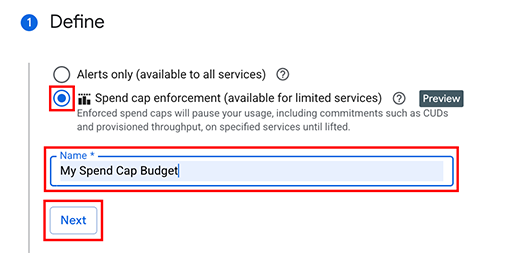
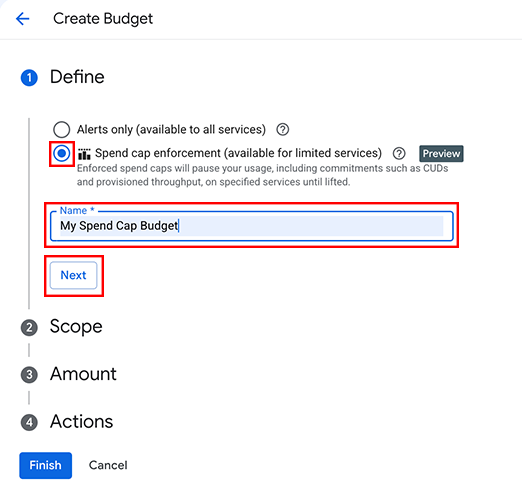
Define section
- Select the Spend cap enforcement option (instead of Alerts only).
- Enter a Name for your budget, then click Next.
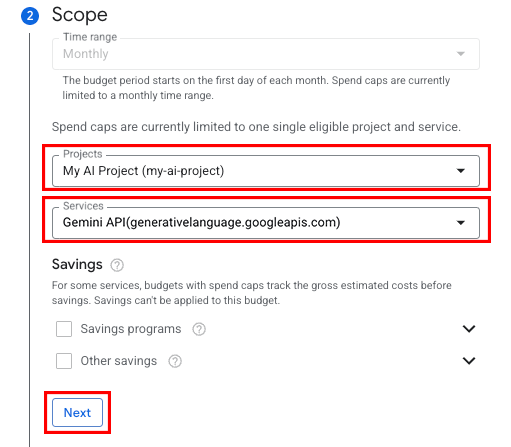
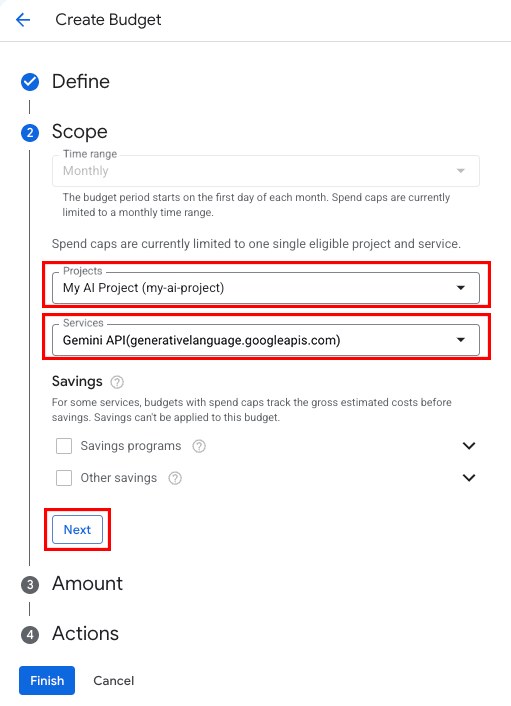
Scope section
- For spend cap budgets, the Time range selector is automatically set to Monthly. You can't edit this setting.
- Select a single Project and a single eligible Service for the spend cap.
For spend cap budgets, you can't edit the Savings settings.
- For certain services, we can estimate directional costs faster than we can calculate the actual costs. For those services, the spend amount we use to enforce a spend cap budget is based on estimated gross costs, excluding savings.
- For the remaining services, we calculate the spend amount using actual costs, inclusive of all savings.
Click Next.
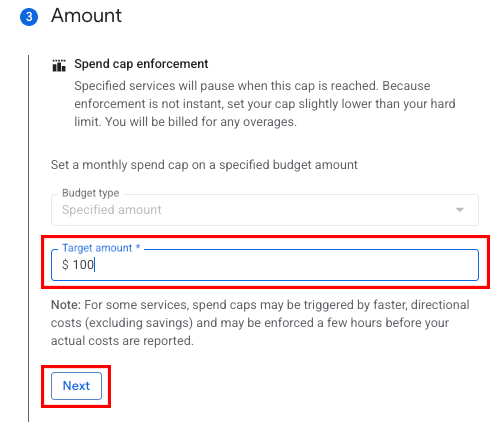
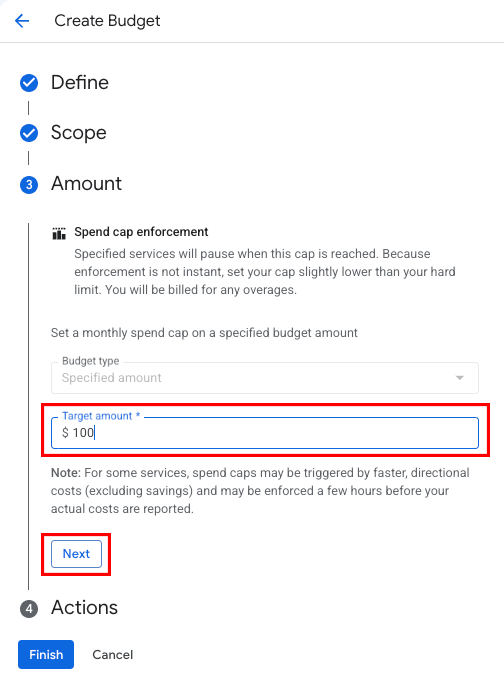
Amount section
- For spend cap budgets, the Budget type selector is automatically set to Specified amount. You can't edit this setting.
Enter the Target amount of the spend cap.
- When this spending threshold is reached, usage for the selected service is paused.
- Due to latency in usage and cost reporting, spend cap enforcement isn't instantaneous. Consider setting your budget slightly below your absolute limit. You remain responsible for any overage costs accrued due to reporting latency.
Click Next.
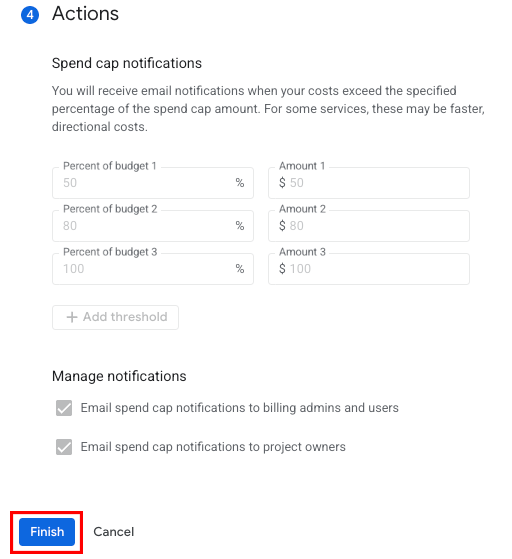
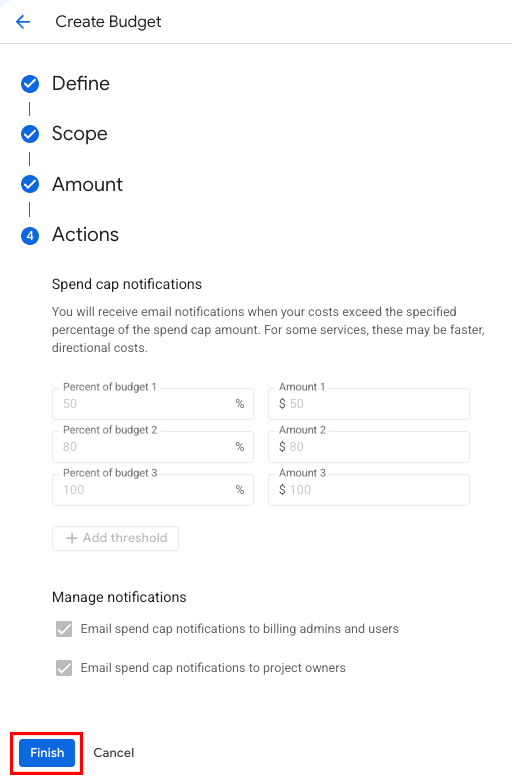
Actions section
- Spend cap notifications are automatically configured to notify all billing administrators and project owners at 50%, 80%, and 100% of the budget amount.
- For spend cap budgets, the alerts and recipients can't be customized.
- Click Finish to save and enable your spend cap budget.
View a list of budgets
After budgets are created, you can view the Budgets dashboard to see a list of budgets for a Cloud Billing account. Each budget in the list includes an overview of the budget settings and a Spend and budget amount progress bar—a visual gauge of how your Google Cloud spend is tracking against the target amount of the budget.
To help you understand the status of your budgets, refer to the Spend cap status column in the Budgets dashboard. Possible values include:
- Not applicable – For Alerts-only budgets that don't trigger a spend cap.
- Configured – For Spend cap budgets that are active during the budget time period, but not yet enforced.
- Enforced – For Spend cap budgets that are triggered during the budget time period when the usage costs exceed the budget's Target amount. When enforced, the specified services are paused until you manually lift the cap.
- Lifted – For Spend cap budgets that were enforced during the budget time period, and then subsequently lifted to resume using the services that were paused. After lifting the spend cap, the affected services might take up to one hour to fully resume normal function. After a spend cap is lifted, the cap automatically resets for the next budget time period.
Lift an enforced spend cap
When a spend cap budget is triggered, new usage for the specific service is blocked until you manually lift the spend cap. You'll receive email notifications and see banners in the billing console, as described in the How spend cap budgets work section. Lifting the cap restores normal function to the API calls.
To lift a spend cap, edit the budget where the spend cap is enforced.
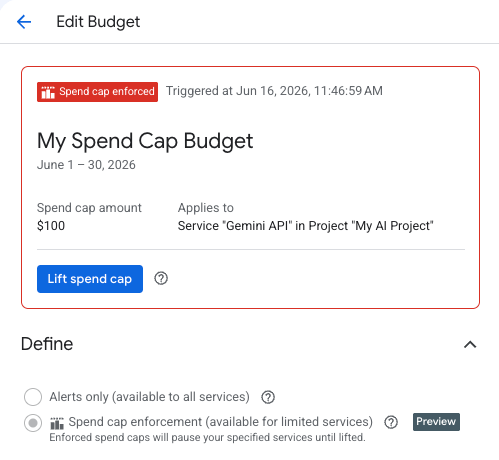
In the Google Cloud console, navigate to the Budgets & alerts page using the procedure that fits your level of access to Cloud Billing accounts.
On the Budgets & alerts page, look for the spend caps informational banner, and select View spend cap details to view the Budgets dashboard filtered to display the spend cap budgets that are enforced.
Click the budget name to open the budget for edit.
On the Edit budget page, select Lift spend cap to unpause services and resume usage.
Click Confirm to lift the spend cap.
- If the cap was enforced and lifted within the same billing month, it won't trigger again for the rest of the month, unless you increase the target amount of the cap.
If the cap was enforced in a previous month, the spend cap is reset and will trigger again if your costs breach the budget threshold in the current budget period.
Frequently asked questions (FAQ)
- What are spend caps?
- What can I set spend caps on?
- Will my resources or data be deleted when a cap triggers?
- What happens to my in-flight requests?
- How am I billed during a spend cap?
- For spend caps, are there any changes to the cost reporting latency?
- What happens if multiple users create overlapping spend caps from the budgets tool?
- What is the difference between the spend capped budget available within AI Studio and the Cloud Billing console?
- What happens if a user creates a spend capped budget for Gemini API from both AI Studio and the Cloud Billing console?
- What happens if a project with a spend cap is moved from one billing account to another?
- What are spend caps?
Spend caps are a cost control mechanism. A spend cap is enforced when usage costs exceed your budget target amount. When enforced, any new request to the eligible service(s), within the specified project, are paused and no further usage costs are accrued. No other projects or other services are impacted.
Spend caps typically use estimated costs to trigger the alerts and caps, enforcing a cap much faster than the actual costs are processed and appear on billing reports. Even though faster than reports, the enforcement of spend caps isn't instant and any cost overages are billed as normal.
- What can I set spend caps on?
In your Cloud Billing account, you can set a cap on your budgets that are scoped to specific eligible services within a project. Spend cap budgets can only be set on one project and one service at a time. In this release, the eligible services include Gemini API, Agent Platform (formerly known as Vertex AI), Cloud Run, and Cloud Run functions. Additional services will be included in subsequent releases.
- Will my resources or data be deleted when a cap triggers?
No, resources or data aren't deleted. Only usage of specific services is paused when the cap triggers. All other services and projects should work as normal.
- What happens to my in-flight requests?
Only new usage is blocked when the spend cap is enforced. In-flight usage is processed to completion.
- How am I billed during a spend cap?
Any overage due to cost reporting latency is billed as usual. Additionally, any ongoing fixed costs needed to retain the services are billed as normal.
- For spend caps, are there any changes to the cost reporting latency?
For certain services, we're able to estimate directional costs faster than the actual costs. For these services, we enforce the spend cap if the estimated directional costs reach the budget target amount. Directional costs don't appear on the cost reports. The actual costs for these services are published on cost reports, subject to the same latency as today. Services for which we don't have estimated directional costs follow the regular cost reporting latency.
- What happens if multiple users create overlapping spend caps from the budgets tool?
We have a deduplication policy that prevents users from creating more than one budget with the same scope.
- What is the difference between the spend capped budget available within AI Studio and the Cloud Billing console?
Spend caps on Google Cloud Budgets brings the same spending protection offered in AI Studio, and expands it to the broader cloud platform with spend cap coverage on additional services.
Additionally, spend cap budgets in Cloud Billing trigger spending alerts as your accrued costs reach 50%, 80%, and 100% of your target budget amount.
- What happens if a user creates a spend capped budget for Gemini API from both AI Studio and the Cloud Billing console?
If a user or multiple users create spend capped budgets from both AI Studio and the Cloud Billing console, the budget that receives usage cost faster is triggered first. However, regardless of where the cap is triggered from, usage for Gemini API is blocked for the project, across all platforms.
- What happens if a project with a spend cap is moved from one billing account to another?
On the old billing account, all spend cap budgets for the project are deleted. To be active within the new billing account, the spend caps on the project must be re-created in the new billing account. If the project is moved while the spend cap is in an enforced state, the spend cap is automatically lifted, restoring normal function to the API calls that were paused, and enabling new charges to accrue.