

Cloud Billing is a collection of tools that help you track and understand your Google Cloud spending, pay your bill, and optimize your costs.
This document covers the following topics:
An introduction to Cloud Billing accounts, and the relationship between Cloud Billing accounts, Google payments profiles, and Google payments accounts. Your Cloud Billing account accrues and calculates costs for your usage of resources and services in Google Cloud, Google Maps Platform, Firebase, and Google AI Studio. These costs are routed to a Google payments account to pay your bill.
- An overview of resource management in Google Cloud. The way you organize your Google Cloud resources depends on your organization's structure and affects how you analyze your costs in the Cloud Billing reports.
About Cloud Billing tools
The tools in Cloud Billing help you monitor your usage costs, forecast your spending, and identify opportunities to save on costs.
Get started
Take an interactive tour of Cloud Billing. If you're new to Google Cloud, this tutorial walks you through the basics of understanding and managing your costs using the Google Cloud console.
View your billing reports and cost trends. The billing report helps you answer questions like "Which Google Cloud services (such as Compute Engine or Cloud Storage) cost me the most?".
Pay your bill
Get an invoice, statement, or payment receipt. You can access most of your Cloud Billing documents in the Google Cloud console.
Pay your invoice. Make a payment to your Google Cloud monthly invoiced account.
Manage payment methods on your self-serve, automatically paid accounts. You can add, remove, or update credit cards, bank accounts, and other supported payment methods.
Make a manual payment or pay early your self-serve, automatically paid accounts. You can make a manual payment to your Postpay Google payments account that is linked to your self-serve, online Cloud Billing account.
Learn more about making a manual payment to a Postpay account
Monitor costs
Export your billing data to BigQuery. Export your usage and cost data to a BigQuery dataset, and use the dataset for detailed analyses. You can also visualize your exported data in tools such as Data Studio.
We recommend enabling the BigQuery export as early as possible, so that the data reflects your Google Cloud usage from the beginning.
Create a budget and set up spending alerts. Use budgets to track your actual Google Cloud spend against your planned spending. Then, set up alerts to stay informed of your spending.
Review anomalies for your projects. Anomalies are spikes or deviations in usage costs that differ from your expected spend, when compared to historical spending patterns. The Anomalies dashboard displays all cost anomalies associated with your projects, within the linked billing account.
Optimize and control costs
Create a spend cap budget to automatically pause usage and cost accrual. Spend cap budgets help reduce unexpected or runaway costs for eligible services. When a spend cap budget is enforced, usage of your specified services is automatically paused until you manually lift the spend cap, stopping charges for the service in the project where you set the spend cap budget.
View the FinOps hub for recommendations and utilization insights. With the FinOps hub, you can monitor and communicate your current savings, explore recommended opportunities to optimize costs, gain utilization insights for potential wasted usage, and plan your optimization goals.
Sign up for Committed use discounts (CUDs). If your workloads have predictable resource needs, you can purchase a Google Cloud commitment, which gives you discounted prices in exchange for your commitment to use a minimum level of resources for a specific term.
Learn about CUDs for the services that you use.
If your organization has already signed up for CUDs, learn about analyzing the effectiveness of your commitments.
Automate cost controls with programmatic notifications. Use programmatic notifications to automate cost control responses when you get a budget or anomaly alert, such as forwarding alerts to other channels, or controlling your resource usage by adjusting quotas.
Launch the tutorial for automated responses to budget notifications
About Cloud Billing accounts and Google payments profiles
A Cloud Billing account is set up in Google Cloud and defines who pays for a given set of Google Cloud resources and Google Maps Platform APIs.
This account is used to track all of the costs (charges and savings) incurred by your Google Cloud usage in all projects linked to the Cloud Billing account.
Access control to a Cloud Billing account is established by IAM roles.
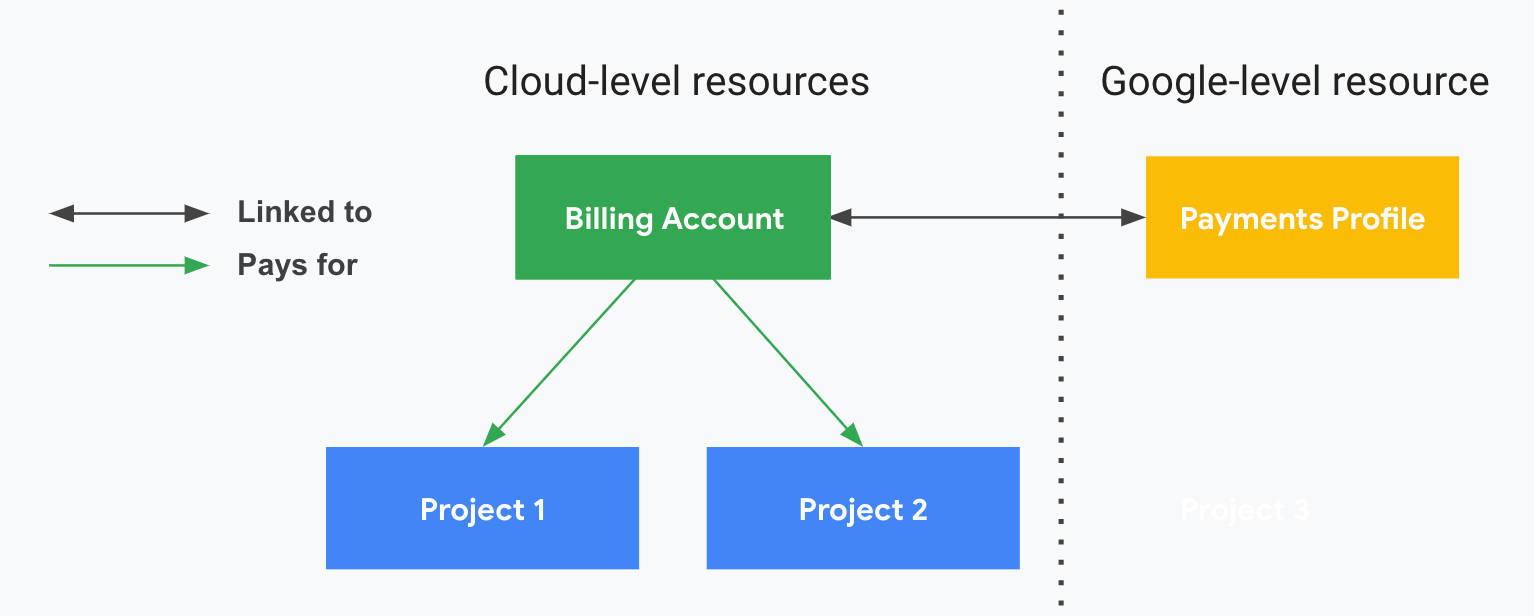
A Cloud Billing account is associated with a Google payments profile.The Google payments account includes a payment instrument to which costs are charged.
| Cloud Billing account | Google payments center |
|---|---|
|
A Cloud Billing account:
|
A Google payments profile:
A Google payments account:
|
Cloud Billing account types
There are two types of Cloud Billing accounts:
Self-serve (or Online) account
- The billable status of a self-serve account is either Free trial account or Paid account.
- Payment instrument is a credit or debit card or ACH direct debit, depending on availability in each country or region.
- If the billable status of the account is Paid account, and the charging cycle is Postpay, costs are charged automatically to the payment instrument connected to the Cloud Billing account.
- For Gemini API in AI Studio users, if the billable status of the account is Paid account, and the charging cycle is Prepay, if you enable auto-reload on your payments account, your reload amount is charged automatically to the payment instrument connected to the Google payments account. Learn more about Prepay and auto-reload.
- You can sign up for self-serve accounts online. Your charging cycle is assigned to your account when you first set up billing.
The documents generated for self-serve accounts include statements, payment receipts, and tax invoices, and are accessible in the Google Cloud console*.
*If you have a Prepay payments account that you use to pay for Gemini API in AI Studio, your documents for your Prepay account are accessible in Google AI Studio in Dashboard > Usage.
Invoiced (or Offline) account
- The billable status of an invoiced account is Paid account.
- Payment instrument can be check or wire transfer.
- Invoices are sent by mail or electronically.
- Invoices are also accessible in the Google Cloud console, as are payment receipts.
- You must be eligible for invoiced billing. Learn more about invoiced billing eligibility.
Google payments profile types
When you create a new Cloud Billing account, you are guided through a process to connect the Cloud Billing account to a Google payments profile. You can choose to use an existing payments profile, or create a new profile.
When you're creating a new Google payments profile, you'll be asked to specify the profile type. This information must be accurate for tax and identity verification. After you create your payments profile, this setting can't be changed. When you set up your Google payments profile, make sure to choose the type that best fits how you plan to use your profile.
There are two types of Google payments profiles:
Individual
- You're using your account for your own personal payments.
- If you register your payments profile as an individual, then only you can manage the profile. You won't be able to add or remove users, or change permissions on the profile.
- You are limited to one Individual type of payments profile per your Google user account or Workforce Identity Federation user account.
Organization (also referred to as Business)
- You're paying on behalf of a business, organization, partnership, or educational institution.
- You use Google payments center to pay for Google products or services such as Play apps and games, and services like Google Cloud, Google Maps Platform, Google Workspace, Google Ads, and Fi phone service.
- An Organization (or Business) profile lets you add other users to the Google payments profile you manage, so that more than one person can access or manage a payments profile.
- All users who are added to an Organization (or Business) profile can see the payment information on that profile.
- You can create multiple payments profiles with the Organization type.
Google payments accounts
When you create a new Cloud Billing account, you are guided through a process to connect the Cloud Billing account to a Google payments profile. The payments profile is associated with one or more Google payments accounts. The Cloud Billing account is linked to a Google payments account to pay for your charges.
Google payments profile: The payments profile represents the legal entity responsible for bills associated with a Google payments account. The legal entity is the organization or individual to which a payments account is registered. A Google payments profile stores information like your account type, your country or region, the currency of the account, the organization or individual name and address, and various payment methods.
Google payments account: The payments account contains information about how and when you pay, including your billing account type (invoiced or online), the forms of payment in use on the payments account (such as a credit card or bank account), and your charging cycle (such as invoice terms, or Prepay or Postpay charges), as well as your document delivery addresses.
Charging cycle
The charging cycle on your Cloud Billing account determines how and when you pay for your Google Cloud services and other eligible services, such as Gemini API in AI Studio, Google Maps Platform, and Firebase.
For self-serve Cloud Billing accounts, your Google Cloud costs are charged in the following ways, depending on the charging cycle assigned to the Google payments account:
- Postpay (with monthly automatic payments): Costs are charged on a regular monthly cycle.
- Postpay (with automatic payments triggered by threshold billing): Costs are charged when your account has accrued a specific amount.
- Prepay: Costs are automatically deducted from your prepaid credit balance as you incur charges (available for Gemini API in AI Studio usage).
For self-serve Cloud Billing accounts, your charging cycle is automatically assigned when you create the account. Every self-serve account is assigned a Postpay charging cycle. Depending on the services you use, your self-serve account might also be assigned a Prepay charging cycle that is used to pay for certain services. Learn more about split charging cycles. You don't get to choose your Postpay charging cycle type, and you can't edit the charging cycle type.
For invoiced Cloud Billing accounts, you typically receive one invoice per month, except when split invoicing applies. The amount of time you have to pay your invoice (your payment terms) is determined by the agreement you made with Google.
- Find your charging cycle
- Learn more about threshold billing
- Learn more about split charging cycles for online billing accounts
Billing contacts
A Cloud Billing account includes one or more contacts that are defined on the Google payments profile and payments account that is connected to the Cloud Billing account. These contacts are people who are designated to receive billing information specific to the payment instrument on file (for example, when a credit card needs to be updated). To access and manage this list of contacts, you can use the Google payments center or you can use the Google Cloud console.
Subaccounts
Subaccounts are intended for resellers. If you are a reseller, you can use subaccounts to represent your customers' charges for the purpose of chargebacks.
Cloud Billing subaccounts allow you to group charges from projects together on a separate section of your invoice. A billing subaccount is a Cloud Billing account that is owned by a reseller's parent Cloud Billing account. The usage charges for all billing subaccounts are paid for by the reseller's parent Cloud Billing account. Note that the parent Cloud Billing account must be on invoiced billing.
A subaccount behaves like a Cloud Billing account in most ways: it can have projects linked to it, Cloud Billing data exports can be configured on it, and it can have IAM roles defined on it. Any charges made to projects linked to the subaccount are grouped and subtotalled on the invoice, or multiple invoices when split invoicing applies, and the effect on resource management is that access control policy can be entirely segregated on the subaccount to allow for customer separation and management.
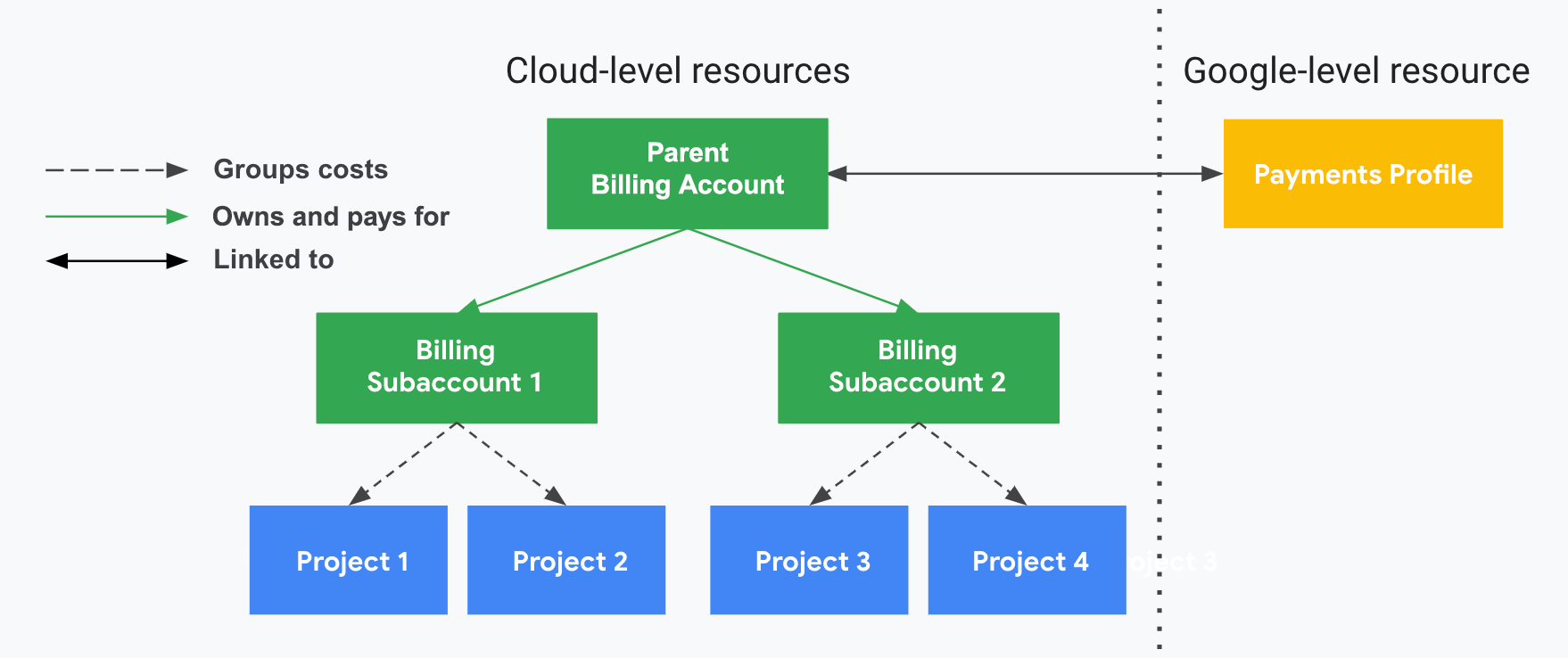
The Cloud Billing Account API lets you create and manage subaccounts. Use the API to connect to your existing systems and provision new customers or chargeback groups programmatically.
About resource management for billing
You can configure billing on Google Cloud in a variety of ways to meet different needs. This section introduces the core concepts for your organization and for billing, and discusses how to use them effectively.
For information on organizing your resources to effectively monitor your costs, see the Guide to Cloud Billing Resource Organization & Access Management.
About resources
In the context of Google Cloud, a resource can refer to service-level resources that are used to process your workloads, such as virtual machines and databases, or to account-level resources that sit above the services, such as projects, folders, and the organization.
Resource management
Resource management focuses on how you should configure and grant access to the various cloud resources for your company/team, specifically the setup and organization of the account-level resources that sit above the service-level resources. Account-level resources are the resources involved in setting up and administering your Google Cloud account.
Resource hierarchy
Google Cloud resources are organized hierarchically. This hierarchy lets you map your organization's operational structure to Google Cloud, and to manage access control and permissions for groups of related resources. The resource hierarchy provides logical attachment points for access management policies (Identity and Access Management) and Organization policies.
Both IAM and Organization policies are inherited through the hierarchy, and the effective policy at each node of the hierarchy is the result of policies directly applied at the node and policies inherited from its ancestors.
The following diagram shows an example resource hierarchy illustrating the core account-level resources involved in administering your Google Cloud account.

Domain
- Your company Domain is the primary identity of your organization and establishes your company's identity with Google services, including Google Cloud.
- You use the Domain to manage the users in your organization.
- At the domain level, you define which users should be associated with your organization when using Google Cloud.
- Domain is also where you can universally administer policy for your users and devices (for example, enable 2-step verification or reset passwords for any users in your organization).
- The Domain is linked to either a Google Workspace or Cloud Identity account.
- The Google Workspace or Cloud Identity account is associated with exactly one Organization.
- You manage the domain-level functionality using the Google Admin Console (admin.google.com).
For more information on the hierarchy of resources, see the Resource Manager documentation.
Organization
- An organization is the root node of the Google Cloud hierarchy of resources.
- All Google Cloud resources that belong to an organization are grouped under the organization node, allowing you to define settings, permissions, and policies for all projects, folders, resources, and Cloud Billing accounts it parents.
- An organization is associated with exactly one Domain (established with either a Google Workspace or Cloud Identity account), and is created automatically when you set up your Domain in Google Cloud.
- Using an organization, you can centrally manage your Google Cloud
resources and your users' access to those resources. This includes:
- Proactive management: reorganize resources as needed (for example, restructuring or spinning up a new division may require new projects and folders).
- Reactive management: an organization resource provides a safety net to regain access to lost resources (for example, if one of your team members loses their access or leaves the company).
- The various roles and resources that are related to Google Cloud (including the organization, projects, folders, resources, and Cloud Billing accounts) are managed within the Google Cloud console.
For more information on organizations, see the following documentation:
- Creating and managing organizations
- Viewing and managing organization resources
- Managing multiple organizations
Folders
- Folders are a grouping mechanism and can contain projects, other folders, or a combination of both.
- To use folders, you must have an organization node.
- Folders and projects are all mapped under the organization node.
- Folders can be used to group resources that share common IAM policies.
- While a folder can contain multiple folders or resources, a given folder or resource can have exactly one parent.
For more details about using folders, see Creating and managing folders.
Projects
- All service-level resources are parented by projects, the base-level organizing entity in Google Cloud.
- Projects are required to use service-level resources (such as Compute Engine virtual machines, Pub/Sub topics, and Cloud Storage buckets).
- You can use projects to represent logical projects, teams, environments, or other collections that map to a business function or structure.
- Projects form the basis for enabling services, APIs, and IAM permissions.
- Any given resource can only exist in one project.
For more details about projects, see the following documentation:
Resources
- Google Cloud service-level resources are the fundamental components that make up all Google Cloud services, such as Compute Engine virtual machines, Pub/Sub topics, and Cloud Storage buckets.
- For billing and access control purposes, resources exist at the lowest level of a hierarchy that also includes projects and an organization.
Labels
- Labels help you categorize your Google Cloud resources (such as Compute Engine instances).
- A label is a key-value pair.
- You can attach labels to each resource, then filter the resources based on their labels.
- Labels are great for cost tracking at a granular level. Information about labels is forwarded to the billing system, so you can analyze your charges by label.
For more details about using labels, see Creating and managing labels.
Relationships between resources, Cloud Billing accounts, and Google payments profiles
Two types of relationships govern the interactions between organizations, Cloud Billing accounts, and projects: ownership and payment linkage.
- Ownership refers to IAM permission inheritance.
- Payment linkages define which Cloud Billing account pays for a given project.
Ownership of a Cloud Billing account is limited to a single organization. Payment linkage of a project linked to a Cloud Billing account is not limited by organization ownership. It is possible for a Cloud Billing account to pay for projects that belong to an organization that is different than the organization that owns the Cloud Billing account. For more information on managing the Cloud Billing account for your projects, see Enable, disable, or change billing for a project.
The following diagram shows the relationship of ownership and payment linkages for a sample organization.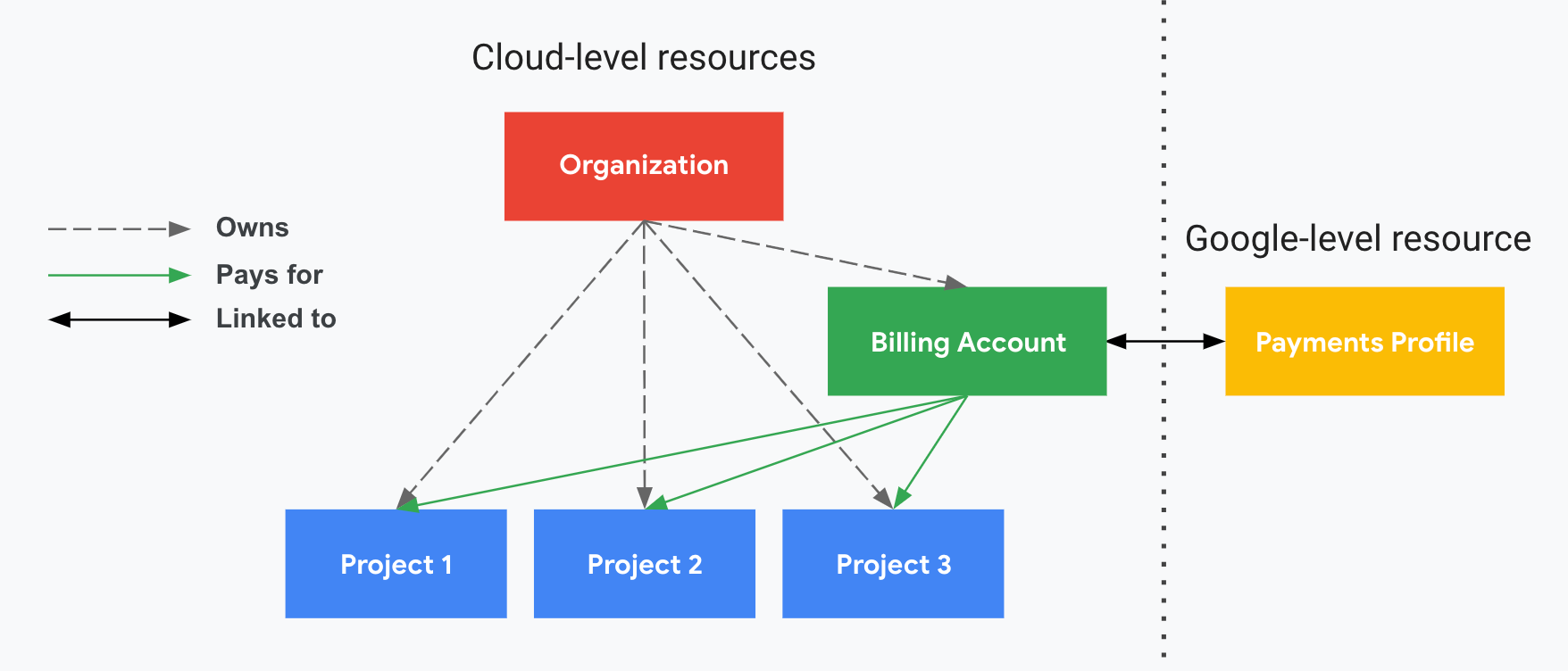
In the diagram, the Organization node has ownership over Projects 1, 2, and 3, meaning that it is the IAM permissions parent of the three projects.
The Cloud Billing account is linked to Projects 1, 2, and 3, meaning that it pays for costs incurred by the three projects.
The Cloud Billing account is also associated with a Google payments profile and linked to a Google payments account to pay the bills.
In this example, any users who are granted IAM billing roles on the organization also have those roles on the Cloud Billing account or the projects.
For information about granting IAM billing roles, see Overview of Cloud Billing access control.
Related topics
- Organize your resources for effective cost management
- Split invoicing for agency model transactions
Split charging cycles for Postpay and Prepay payments accounts
Video library: Best practices for monitoring and managing your costs.
Try it for yourself
If you're new to Google Cloud, create an account to evaluate how our products perform in real-world scenarios. New customers also get $300 in free credits to run, test, and deploy workloads.
Get started for free