

Cloud Workstations 可讓您建立及使用工作站的自訂映像檔。使用自訂映像檔後,建議自動重建自訂映像檔,以便從基本映像檔中提取修正檔和更新。
在本教學課程中,您將瞭解如何建構自動化管道,確保自訂工作站映像檔包含安全性更新和修補程式。
目標
按照本教學課程的步驟,為基本映像檔建構自動化管道:
- 建立 Artifact Registry 存放區,用於儲存及掃描自訂映像檔。
- 設定 GitHub Google Cloud ,儲存圖片設定。
- 建立 Cloud Build 觸發條件,自動建立自訂映像檔並部署至 Artifact Registry。
- 設定 Cloud Scheduler,定期啟動建構作業。
- 查看自動化程序的結果。
費用
在本文件中,您會使用下列 Google Cloud的計費元件:
您可以使用 Pricing Calculator,根據預測用量估算費用。
完成本文所述工作後,您可以刪除建立的資源,避免繼續計費,詳情請參閱「清除所用資源」。
事前準備
- Sign in to your Google Cloud account. If you're new to Google Cloud, create an account to evaluate how our products perform in real-world scenarios. New customers also get $300 in free credits to run, test, and deploy workloads.
-
In the Google Cloud console, on the project selector page, select or create a Google Cloud project.
Roles required to select or create a project
- Select a project: Selecting a project doesn't require a specific IAM role—you can select any project that you've been granted a role on.
-
Create a project: To create a project, you need the Project Creator role
(
roles/resourcemanager.projectCreator), which contains theresourcemanager.projects.createpermission. Learn how to grant roles.
-
Verify that billing is enabled for your Google Cloud project.
-
Enable the Artifact Registry, Container Scanning API, Cloud Build, and Cloud Scheduler APIs.
Roles required to enable APIs
To enable APIs, you need the Service Usage Admin IAM role (
roles/serviceusage.serviceUsageAdmin), which contains theserviceusage.services.enablepermission. Learn how to grant roles. -
Install the Google Cloud CLI.
-
若您採用的是外部識別資訊提供者 (IdP),請先 使用聯合身分登入
gcloudCLI。 -
執行下列指令,初始化
gcloudCLI:gcloud init -
In the Google Cloud console, on the project selector page, select or create a Google Cloud project.
Roles required to select or create a project
- Select a project: Selecting a project doesn't require a specific IAM role—you can select any project that you've been granted a role on.
-
Create a project: To create a project, you need the Project Creator role
(
roles/resourcemanager.projectCreator), which contains theresourcemanager.projects.createpermission. Learn how to grant roles.
-
Verify that billing is enabled for your Google Cloud project.
-
Enable the Artifact Registry, Container Scanning API, Cloud Build, and Cloud Scheduler APIs.
Roles required to enable APIs
To enable APIs, you need the Service Usage Admin IAM role (
roles/serviceusage.serviceUsageAdmin), which contains theserviceusage.services.enablepermission. Learn how to grant roles. -
Install the Google Cloud CLI.
-
若您採用的是外部識別資訊提供者 (IdP),請先 使用聯合身分登入
gcloudCLI。 -
執行下列指令,初始化
gcloudCLI:gcloud init 設定要使用的雲端專案的專案 ID:
PROJECT_ID=$PROJECT_ID設定 GitHub 使用者名稱,您打算將存放區儲存在該處:
GITHUB_USER=$GITHUB_ID設定要在程序中使用的
PROJECT_NUMBER和REGION變數:PROJECT_NUMBER=$(gcloud projects describe $PROJECT_ID \ --format='value(projectNumber)') REGION=$REGION在先前的範例中,請將 $REGION 替換為您打算使用的區域名稱,例如
us-central1。如要進一步瞭解可用區域,請參閱「Cloud Workstations 服務據點」。
使用下列指令建立存放區:
gcloud artifacts repositories create custom-images \
      --repository-format=docker \
      --location=$REGION \
      --description="Docker repository"
將 $REGION 替換為您打算使用的區域名稱。
設定 Docker,在存取 Artifact Registry 時使用
gcloudCLI 憑證。gcloud auth configure-docker $REGION-docker.pkg.dev如要關閉構件分析功能,請執行下列指令:
gcloud services disable containerscanning.googleapis.com- 按一下這個連結,即可建立新的分支。
software-delivery-workshop存放區。 - 如果系統提示,請登入 GitHub。
- 選取您的 GitHub 使用者名稱做為擁有者。存放區名稱會顯示為「
software-delivery-workshop」。 - 按一下「建立分叉」,然後等待幾秒鐘,讓程序完成。
gcloudCLI 指令會在 Cloud Build 中建立名為custom-image-trigger的手動觸發條件,如第二行的name標記所示。- 接下來的三行包含與來源 GitHub 存放區相關的標記:
- 存放區路徑
- 存放區類型
- 要建構的 Git 分支版本
build-config標記表示 Git 存放區中 Cloud Build 檔案的路徑。如要讓工作成為動態工作,請使用
substitutions旗標。這項工作會透過指令傳遞下列變數:- 區域,
$_REGION - Artifact Registry 存放區名稱
$_AR_REPO_NAME - 容器映像檔名稱,
$_AR_IMAGE_NAME - 要建構的 Dockerfile 位置,
$_IMAGE_DIR
查看 cloudbuild.yaml 檔案,瞭解程序中如何使用這些變數。
- 區域,
建立觸發程序後,系統會擷取觸發程序的專屬名稱,並儲存在
$TRIGGER_ID環境變數中,以供後續使用。將必要角色授予預設服務帳戶,以叫用 Cloud Build 觸發條件:
gcloud projects add-iam-policy-binding $PROJECT_ID \ --member="serviceAccount:$PROJECT_NUMBER-compute@developer.gserviceaccount.com" \ --role="roles/cloudbuild.builds.editor"將必要角色授予 Cloud Build 服務帳戶,以便將映像檔上傳至 Artifact Registry:
gcloud projects add-iam-policy-binding $PROJECT_ID \ --member=serviceAccount:$PROJECT_NUMBER@cloudbuild.gserviceaccount.com \ --role="roles/artifactregistry.admin"使用下列指令建立 Cloud Scheduler 工作:
gcloud scheduler jobs create http run-build \ --schedule='0 1 * * *' \ --uri=https://cloudbuild.googleapis.com/v1/projects/$PROJECT_ID/locations/global/triggers/$TRIGGER_ID:run \ --location=us-central1 \ --oauth-service-account-email=$PROJECT_NUMBER-compute@developer.gserviceaccount.com \ --oauth-token-scope=https://www.googleapis.com/auth/cloud-platform這項工作設定為每天執行一次,但如要立即測試這項功能,請從 Cloud Scheduler 手動執行工作:
- 在 Cloud Scheduler 頁面中,找出您剛建立的項目,名為 run-build。
- 在「動作」欄中,按一下該列的「更多」more_vert選項選單。
- 按一下「強制執行工作」,手動測試系統。
指令順利執行後,請切換至 Cloud Build 記錄頁面,查看進度:
開啟 Artifact Registry 存放區頁面:
在存放區清單中,按一下存放區。
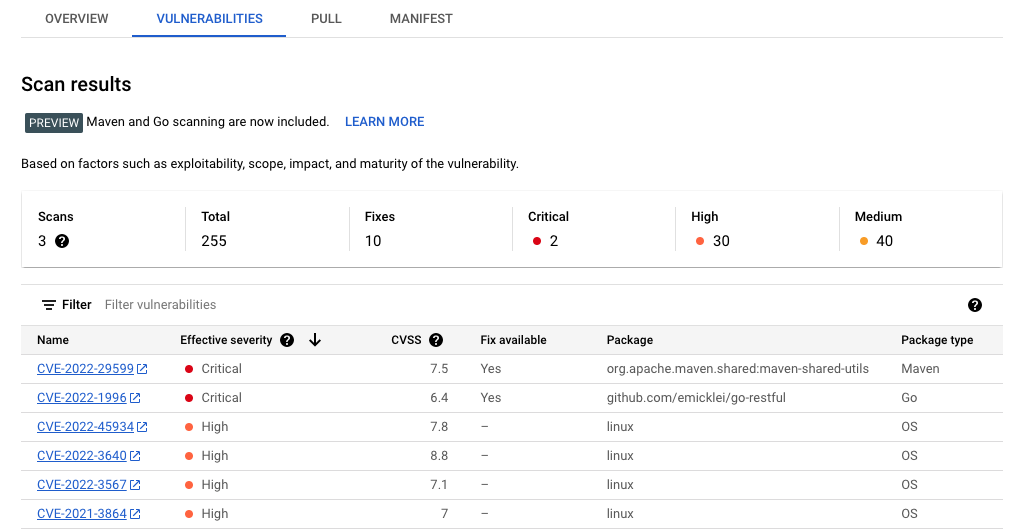
按一下圖片名稱。每個映像檔摘要的安全漏洞總數會顯示在「Vulnerabilities」(安全漏洞) 資料欄中。

如要查看映像檔的安全漏洞清單,請按一下「Vulnerabilities」(安全漏洞) 資料欄中的連結。安全漏洞清單會顯示嚴重性、修正可用性以及內含安全漏洞的套件名稱。
- In the Google Cloud console, go to the Manage resources page.
- In the project list, select the project that you want to delete, and then click Delete.
- In the dialog, type the project ID, and then click Shut down to delete the project.
- In the Google Cloud console, go to the Manage resources page.
- In the project list, select the project that you want to delete, and then click Delete.
- In the dialog, type the project ID, and then click Shut down to delete the project.
- 查看可用的預先設定基本映像檔清單。
- 自訂容器映像檔。
- 查看可用的機器類型。
- 設定安全性最佳做法。
- 查看 Google Cloud 的參考架構、圖表和最佳做法。 歡迎瀏覽我們的 Cloud Architecture Center。
準備環境
請務必先設定下列環境變數,再繼續操作。
建立 Artifact Registry 存放區
在本教學課程中,您將使用 Artifact Registry 儲存及掃描映像檔。
設定 GitHub 存放區
在實務上,您會將自訂映像檔的 Dockerfile 保存在 Git 存放區中。自動化程序會在建構程序期間存取該存放區,以提取相關設定和 Dockerfile。
建立範例存放區分支
如要分叉提供容器定義的範例存放區,請按照下列步驟操作:
將 Cloud Build 連線至 GitHub
接著,使用內建的 GitHub 連線功能,將該存放區連結至 Cloud Build。按一下 GitHub 存放區的連結,然後按照操作說明完成程序。您不需要在精靈的最後一個步驟中建立觸發程序,而且可以略過最後幾個步驟,因為您稍後可以從指令列執行這些步驟。
如果您使用其他 Git 存放區解決方案,也可以按照將 Cloud Build 連結至 GitLab 或 Bitbucket 的操作說明進行。
建立 Cloud Build 觸發條件
範例存放區包含容器定義和 Cloud Build 設定,用於建構容器映像檔。在這個步驟中,您會建立 Cloud Build 觸發條件,執行 labs/cloudbuild-scheduled-jobs/code-oss-java 資料夾中的 cloudbuild.yaml 檔案內含的指令。
gcloud builds triggers create manual \
    --name=custom-image-trigger \
    --repo=$GITHUB_USER/software-delivery-workshop \
    --repo-type=GITHUB \
    --branch=main \
    --build-config=labs/cloudbuild-scheduled-jobs/code-oss-java/cloudbuild.yaml \
    --substitutions=_REGION=$REGION,_AR_REPO_NAME=custom-images,_AR_IMAGE_NAME=code-oss-java,_IMAGE_DIR=labs/cloudbuild-scheduled-jobs/code-oss-java

TRIGGER_ID=$(gcloud builds triggers list \
    --filter=name="custom-image-trigger" --format="value(id)")
這個範例會設定下列項目:
設定 Cloud Scheduler
為確保映像檔已套用最新更新和修補程式,請使用 Cloud Scheduler 依固定頻率執行 Cloud Build 觸發程序。在本教學課程中,這項工作每天都會執行。實務上,請根據貴機構的需求設定頻率,確保一律納入最新更新。
查看結果
由於您在設定過程中啟用了 Container Scanning API,Artifact Registry 會自動掃描映像檔,找出安全漏洞。
如要查看安全漏洞,請按照下列步驟操作:
清除所用資源
為避免因為本教學課程所用資源,導致系統向 Google Cloud 帳戶收取費用,請刪除含有相關資源的專案,或者保留專案但刪除個別資源。
如要避免系統向您的 Google Cloud 帳戶收取本頁面所用資源的費用,請務必刪除不再需要的資源。
如要從 Google Cloud 控制台或 gcloudCLI 刪除專案,請按照下列步驟操作: Google Cloud
控制台
gcloud