


במדריך הזה מוסבר איך ליצור קבוצת מוצרים שמכילה קבוצה של מוצרים עם תמונות לדוגמה של המוצרים האלה. ההדרכה מראה למשתמשים איך ליצור קבוצת מוצרים באמצעות ייבוא אונליין (בנפרד). אחרי שהמערכת תבצע אינדוקס של קבוצת המוצרים, תוכלו לשלוח שאילתה לקבוצת המוצרים באמצעות התכונה 'חיפוש מוצרים' ב-Vision API.
במדריך הזה תלמדו איך:
- יצירת קבוצת מוצרים באמצעות ייבוא אונליין (בודד)
- יצירת מוצר בודד
- הוספת מוצר לקבוצת מוצרים
- עדכון מוצר
- יצירת תמונה לדוגמה
- חיפוש מוצרים דומים
לפני שמתחילים
לפני שמתחילים את המדריך הזה, צריך לוודא שהתקנתם את ספריות הלקוח המתאימות, הפעלתם את החיוב ואת ה-API בפרויקט והגדרתם את האימות בצורה נכונה.
ייבוא ספריות
כדי להשתמש ב-Google Product Search ב-Vision API, צריך לייבא את המודולים הבאים אחרי שמורידים ומתקינים את ספריית הלקוח:
Go
מידע על התקנת ספריית הלקוח של Vision API Product Search והשימוש בה מופיע במאמר ספריות הלקוח של Vision API Product Search. מידע נוסף מופיע במאמרי העזרה של Vision API Product Search Go API.
כדי לבצע אימות ב-Google Product Search של Vision API, צריך להגדיר את Application Default Credentials. מידע נוסף זמין במאמר הגדרת אימות לסביבת פיתוח מקומית.
Java
מידע על התקנת ספריית הלקוח של Vision API Google Product Search והשימוש בה מופיע במאמר ספריות הלקוח של Vision API Google Product Search. מידע נוסף מופיע במאמרי העזרה של Vision API Product Search Java API.
כדי לבצע אימות ב-Google Product Search של Vision API, צריך להגדיר את Application Default Credentials. מידע נוסף זמין במאמר הגדרת אימות לסביבת פיתוח מקומית.
Node.js
מידע על התקנת ספריית הלקוח של Vision API Google Product Search והשימוש בה מופיע במאמר ספריות הלקוח של Vision API Google Product Search. מידע נוסף מופיע במאמרי העזרה של Vision API Product Search Node.js API.
כדי לבצע אימות ב-Vision API Product Search, צריך להגדיר את Application Default Credentials. מידע נוסף זמין במאמר הגדרת אימות לסביבת פיתוח מקומית.
Python
מידע על התקנת ספריית הלקוח של Vision API Google Product Search והשימוש בה מופיע במאמר ספריות הלקוח של Vision API Google Product Search. מידע נוסף מופיע במאמרי העזרה של Vision API Product Search Python API.
כדי לבצע אימות ב-Google Product Search של Vision API, צריך להגדיר את Application Default Credentials. מידע נוסף זמין במאמר הגדרת אימות לסביבת פיתוח מקומית.
שפות נוספות
C#: צריך לפעול לפי הוראות ההגדרה של C# בדף של ספריות הלקוח ואז לעבור אל מאמרי העזרה בנושא Google Product Search של Vision API ל- .NET.
PHP: עליכם לפעול לפי הוראות ההגדרה של PHP בדף של ספריות הלקוח ואז לעבור אל מסמכי העזר של Vision API Product Search ל-PHP.
Ruby: צריך לפעול לפי ההוראות להגדרה של Ruby בדף של ספריות הלקוח ואז לעבור אל מסמכי העזר של Vision API Product Search ל-Ruby.
הפעלת האפליקציה
שלב 1: יצירת קטלוג מוצרים
יש למשתמשים שתי אפשרויות ליצירת קטלוג מוצרים: ייבוא באצווה באמצעות קובץ CSV, שמאפשר לייבא קטלוג מוצרים שלם בקריאה אחת ל-API, או ייבוא אונליין, שמאפשר לכם לשלוט בערכות המוצרים ולנהל משאב או קשר אחד בכל פעם. המשמעות העיקרית היא יצירה של קבוצות מוצרים, מוצרים ותמונות להמחשה בנפרד. ייבוא אונליין מאפשר גם לעדכן באופן מצטבר קטלוג מוצרים שכבר יצרתם באמצעות ייבוא באצ'ינג.
במדריך הזה תלמדו איך לייבא נתונים אונליין. במדריך למתחילים מופיעה דוגמה לייבוא קבוצתי באמצעות קובץ CSV.
ייבוא אונליין (אישי)
1. יצירת קבוצת מוצרים
יוצרים קבוצת מוצרים ריקה, שהיא מאגר פשוט לקבוצת מוצרים.
בקשה
יוצרים קבוצת מוצרים ריקה בשם PS_CLOTH-SHOE_070318 באמצעות הפעלת הבקשה הבאה בשיטה create_product_set().
מעבירים את מזהה קבוצת המוצרים ואת השם לתצוגה כארגומנטים.
REST
לפני שמשתמשים בנתוני הבקשה, צריך להחליף את הנתונים הבאים:
- PROJECT_ID: מזהה הפרויקט ב- Google Cloud .
- LOCATION_ID: מזהה מיקום תקין. מזהי מיקום תקינים:
us-west1,us-east1,europe-west1ו-asia-east1. - DISPLAY_NAME: שם מוצג במחרוזת שאתם בוחרים.
ה-method של ה-HTTP וכתובת ה-URL:
POST https://vision.googleapis.com/v1/projects/project-id/locations/location-id/productSets
גוף בקשת JSON:
{
  "displayName": "display-name"
}
כדי לשלוח את הבקשה עליכם לבחור אחת מהאפשרויות הבאות:
curl
שומרים את גוף הבקשה בקובץ בשם request.json ומריצים את הפקודה הבאה:
curl -X POST \
     -H "Authorization: Bearer $(gcloud auth print-access-token)" \
     -H "x-goog-user-project: project-id" \
     -H "Content-Type: application/json; charset=utf-8" \
     -d @request.json \
     "https://vision.googleapis.com/v1/projects/project-id/locations/location-id/productSets"
PowerShell
שומרים את גוף הבקשה בקובץ בשם request.json ומריצים את הפקודה הבאה:
$cred = gcloud auth print-access-token
$headers = @{ "Authorization" = "Bearer $cred"; "x-goog-user-project" = "project-id" }

Invoke-WebRequest `
    -Method POST `
    -Headers $headers `
    -ContentType: "application/json; charset=utf-8" `
    -InFile request.json `
    -Uri "https://vision.googleapis.com/v1/projects/project-id/locations/location-id/productSets" | Select-Object -Expand Content
אם הבקשה תתבצע בהצלחה, השרת יחזיר קוד סטטוס 200 OK של HTTP ואת התשובה בפורמט JSON.
הפלט שיוצג אמור להיות דומה לזה שמופיע בהמשך. אפשר להשתמש במזהה קבוצת המוצרים (b6d809615b6dd675 במקרה הזה) כדי לבצע פעולות אחרות בקבוצת המוצרים.
{
  "name": "projects/project-id/locations/location-id/productSets/b6d809615b6dd675",
  "displayName": "new-product-set"
}
Go
מידע על התקנת ספריית הלקוח של Vision API Product Search והשימוש בה מופיע במאמר ספריות הלקוח של Vision API Product Search. מידע נוסף מופיע במאמרי העזרה של Vision API Product Search Go API.
כדי לבצע אימות ב-Google Product Search של Vision API, צריך להגדיר את Application Default Credentials. מידע נוסף זמין במאמר הגדרת אימות לסביבת פיתוח מקומית.
Java
מידע על התקנת ספריית הלקוח של Vision API Product Search והשימוש בה מופיע במאמר ספריות הלקוח של Vision API Product Search. מידע נוסף מופיע במאמרי העזרה של Vision API Product Search Java API.
כדי לבצע אימות ב-Google Product Search של Vision API, צריך להגדיר את Application Default Credentials. מידע נוסף זמין במאמר הגדרת אימות לסביבת פיתוח מקומית.
Node.js
מידע על התקנת ספריית הלקוח של Vision API Product Search והשימוש בה מופיע במאמר ספריות הלקוח של Vision API Product Search. מידע נוסף מופיע במאמרי העזרה של Vision API Product Search Node.js API.
כדי לבצע אימות ב-Google Product Search של Vision API, צריך להגדיר את Application Default Credentials. מידע נוסף זמין במאמר הגדרת אימות לסביבת פיתוח מקומית.
Python
מידע על התקנת ספריית הלקוח של Vision API Product Search והשימוש בה מופיע במאמר ספריות הלקוח של Vision API Product Search. מידע נוסף מופיע במאמרי העזרה של Vision API Product Search Python API.
כדי לבצע אימות ב-Google Product Search של Vision API, צריך להגדיר את Application Default Credentials. מידע נוסף זמין במאמר הגדרת אימות לסביבת פיתוח מקומית.
שפות נוספות
C#: צריך לפעול לפי הוראות ההגדרה של C# בדף של ספריות הלקוח ואז לעבור אל מסמכי העיון בנושא Vision API Product Search ל- .NET.
PHP: עליכם לפעול לפי הוראות ההגדרה של PHP בדף של ספריות הלקוח ואז לעבור אל מסמכי העזר של Vision API Google Product Search ל-PHP.
Ruby: צריך לפעול לפי ההוראות להגדרה של Ruby בדף של ספריות הלקוח ואז לעבור אל מסמכי העזר של Vision API Google Product Search ל-Ruby.
תשובה
Product set name: projects/prj-prod-search-tutorials/locations/us-east1/productSets/PS_CLOTH-SHOE_070318
Product set id: PS_CLOTH-SHOE_070318
Product set display name: CLOTH-SHOE
2. יצירת מוצר
אחרי שיוצרים קבוצת מוצרים, השלב הבא הוא ליצור מוצר. יוצרים מוצר באמצעות הפעלת הבקשה הבאה.
REST
לפני שמשתמשים בנתוני הבקשה, צריך להחליף את הנתונים הבאים:
- PROJECT_ID: מזהה הפרויקט ב- Google Cloud .
- LOCATION_ID: מזהה מיקום תקין. מזהי מיקום תקינים:
us-west1,us-east1,europe-west1ו-asia-east1. - DISPLAY_NAME: שם מוצג במחרוזת שאתם בוחרים.
- PRODUCT_DESCRIPTION: תיאור במחרוזת לפי בחירתכם.
- product-category: קטגוריית מוצר תקינה. קטגוריות המוצרים שזמינות כרגע הן:
homegoods-v2,apparel-v2,toys-v2,packagedgoods-v1ו-general-v1. -
productLabels: צמד מפתח/ערך אחד או יותר שמשויכים למוצר. לכל KEY_STRING צריך להיות VALUE_STRING משויך.
ה-method של ה-HTTP וכתובת ה-URL:
POST https://vision.googleapis.com/v1/projects/project-id/locations/location-id/products
גוף בקשת JSON:
{
  "displayName": "display-name",
  "description": "product-description",
  "productCategory": "product-category",
  "productLabels": [
      {
        "key": "key-string",
        "value": "value-string"
      }
  ]
}
כדי לשלוח את הבקשה עליכם לבחור אחת מהאפשרויות הבאות:
curl
שומרים את גוף הבקשה בקובץ בשם request.json ומריצים את הפקודה הבאה:
curl -X POST \
     -H "Authorization: Bearer $(gcloud auth print-access-token)" \
     -H "x-goog-user-project: project-id" \
     -H "Content-Type: application/json; charset=utf-8" \
     -d @request.json \
     "https://vision.googleapis.com/v1/projects/project-id/locations/location-id/products"
PowerShell
שומרים את גוף הבקשה בקובץ בשם request.json ומריצים את הפקודה הבאה:
$cred = gcloud auth print-access-token
$headers = @{ "Authorization" = "Bearer $cred"; "x-goog-user-project" = "project-id" }

Invoke-WebRequest `
    -Method POST `
    -Headers $headers `
    -ContentType: "application/json; charset=utf-8" `
    -InFile request.json `
    -Uri "https://vision.googleapis.com/v1/projects/project-id/locations/location-id/products" | Select-Object -Expand Content
גוף בקשה לדוגמה:
{
  "displayName": "sample-product-1234",
  "description": "Athletic shorts",
  "productCategory": "apparel-v2",
  "productLabels": [
      {
        "key": "style",
        "value": "womens"
      },
      {
        "key": "color",
        "value": "blue"
      }
  ]
}
אם הבקשה תתבצע בהצלחה, השרת יחזיר קוד סטטוס 200 OK של HTTP ואת התשובה בפורמט JSON.
הפלט שיוצג אמור להיות דומה לזה שמופיע בהמשך. אפשר להשתמש במזהה המוצר (37b9811d308c4e42 במקרה הזה) כדי לבצע פעולות אחרות על המוצר.
{
  "name": "projects/project-id/locations/location-id/products/37b9811d308c4e42",
  "displayName": "sample-product-456",
  "description": "Athletic shorts",
  "productCategory": "apparel-v2",
  "productLabels": [
    {
      "key": "style",
      "value": "womens"
    },
    {
      "key": "color",
      "value": "blue"
    }
  ]
}
Go
מידע על התקנת ספריית הלקוח של Vision API Google Product Search והשימוש בה מופיע במאמר ספריות הלקוח של Vision API Google Product Search. מידע נוסף מופיע במאמרי העזרה של Vision API Product Search Go API.
כדי לבצע אימות ב-Google Product Search של Vision API, צריך להגדיר את Application Default Credentials. מידע נוסף זמין במאמר הגדרת אימות לסביבת פיתוח מקומית.
Java
מידע על התקנת ספריית הלקוח של Vision API Google Product Search והשימוש בה מופיע במאמר ספריות הלקוח של Vision API Google Product Search. מידע נוסף מופיע במאמרי העזרה של Vision API Product Search Java API.
כדי לבצע אימות ב-Google Product Search של Vision API, צריך להגדיר את Application Default Credentials. מידע נוסף זמין במאמר הגדרת אימות לסביבת פיתוח מקומית.
Node.js
מידע על התקנת ספריית הלקוח של Vision API Product Search והשימוש בה מופיע במאמר ספריות הלקוח של Vision API Product Search. מידע נוסף מופיע במאמרי העזרה של Vision API Product Search Node.js API.
כדי לבצע אימות ב-Vision API Product Search, צריך להגדיר את Application Default Credentials. מידע נוסף זמין במאמר הגדרת אימות לסביבת פיתוח מקומית.
Python
מידע על התקנת ספריית הלקוח של Vision API Product Search והשימוש בה מופיע במאמר ספריות הלקוח של Vision API Product Search. מידע נוסף מופיע במאמרי העזרה של Vision API Product Search Python API.
כדי לבצע אימות ב-Google Product Search של Vision API, צריך להגדיר את Application Default Credentials. מידע נוסף זמין במאמר הגדרת אימות לסביבת פיתוח מקומית.
שפות נוספות
C#: צריך לפעול לפי הוראות ההגדרה של C# בדף של ספריות הלקוח ואז לעבור אל מאמרי העזרה בנושא Google Product Search של Vision API ל- .NET.
PHP: עליכם לפעול לפי הוראות ההגדרה של PHP בדף של ספריות הלקוח ואז לעבור אל מסמכי העזר של Vision API Product Search ל-PHP.
Ruby: צריך לפעול לפי ההוראות להגדרה של Ruby בדף של ספריות הלקוח ואז לעבור אל מסמכי העזר של Vision API Product Search ל-Ruby.
תשובה
Product name: projects/prj-prod-search-tutorials/locations/us-east1/products/P_CLOTH-SHOE_46903668_070318
Product id: P_CLOTH-SHOE_46903668_070318
Product display name: Blue Dress
Product category: apparel
Product description: Short sleeved and 1950s style satin dress
Product labels:
  Product label 1:
        key: style
        value: women
  Product label 2:
        key: category
        value: dress
  Product label 3:
        key: color
        value: dark-blue
3. הוספת מוצר לקבוצת מוצרים
אחרי שיוצרים קבוצת מוצרים ומוצר, אפשר להוסיף את המוצר לקבוצת המוצרים.
REST
לפני שמשתמשים בנתוני הבקשה, צריך להחליף את הנתונים הבאים:
- PROJECT_ID: מזהה הפרויקט ב- Google Cloud .
- LOCATION_ID: מזהה מיקום תקין. מזהי מיקום תקינים:
us-west1,us-east1,europe-west1ו-asia-east1. - PRODUCT_SET_ID: המזהה של קבוצת המוצרים שרוצים להריץ עליה את הפעולה.
- PRODUCT_NAME: שם המשאב המלא של המוצר.
פורמט:
projects/PROJECT_ID/locations/LOCATION_ID/products/PRODUCT_ID
ה-method של ה-HTTP וכתובת ה-URL:
POST https://vision.googleapis.com/v1/projects/project-id/locations/location-id/productSets/product-set-id:addProduct
גוף בקשת JSON:
{
  "product": "product-name"
}
כדי לשלוח את הבקשה עליכם לבחור אחת מהאפשרויות הבאות:
curl
שומרים את גוף הבקשה בקובץ בשם request.json ומריצים את הפקודה הבאה:
curl -X POST \
     -H "Authorization: Bearer $(gcloud auth print-access-token)" \
     -H "x-goog-user-project: project-id" \
     -H "Content-Type: application/json; charset=utf-8" \
     -d @request.json \
     "https://vision.googleapis.com/v1/projects/project-id/locations/location-id/productSets/product-set-id:addProduct"
PowerShell
שומרים את גוף הבקשה בקובץ בשם request.json ומריצים את הפקודה הבאה:
$cred = gcloud auth print-access-token
$headers = @{ "Authorization" = "Bearer $cred"; "x-goog-user-project" = "project-id" }

Invoke-WebRequest `
    -Method POST `
    -Headers $headers `
    -ContentType: "application/json; charset=utf-8" `
    -InFile request.json `
    -Uri "https://vision.googleapis.com/v1/projects/project-id/locations/location-id/productSets/product-set-id:addProduct" | Select-Object -Expand Content
אתם אמורים לקבל תגובת JSON שדומה לזו:
{}
Go
מידע על התקנת ספריית הלקוח של Vision API Google Product Search והשימוש בה מופיע במאמר ספריות הלקוח של Vision API Google Product Search. מידע נוסף מופיע במאמרי העזרה של Vision API Product Search Go API.
כדי לבצע אימות ב-Vision API Product Search, צריך להגדיר את Application Default Credentials. מידע נוסף זמין במאמר הגדרת אימות לסביבת פיתוח מקומית.
Java
מידע על התקנת ספריית הלקוח של Vision API Product Search והשימוש בה מופיע במאמר ספריות הלקוח של Vision API Product Search. מידע נוסף מופיע במאמרי העזרה של Vision API Product Search Java API.
כדי לבצע אימות ב-Google Product Search של Vision API, צריך להגדיר את Application Default Credentials. מידע נוסף זמין במאמר הגדרת אימות לסביבת פיתוח מקומית.
Node.js
מידע על התקנת ספריית הלקוח של Vision API Google Product Search והשימוש בה מופיע במאמר ספריות הלקוח של Vision API Google Product Search. מידע נוסף מופיע במאמרי העזרה של Vision API Product Search Node.js API.
כדי לבצע אימות ב-Google Product Search של Vision API, צריך להגדיר את Application Default Credentials. מידע נוסף זמין במאמר הגדרת אימות לסביבת פיתוח מקומית.
Python
מידע על התקנת ספריית הלקוח של Vision API Google Product Search והשימוש בה מופיע במאמר ספריות הלקוח של Vision API Google Product Search. מידע נוסף מופיע במאמרי העזרה של Vision API Product Search Python API.
כדי לבצע אימות ב-Google Product Search של Vision API, צריך להגדיר את Application Default Credentials. מידע נוסף זמין במאמר הגדרת אימות לסביבת פיתוח מקומית.
שפות נוספות
C#: צריך לפעול לפי הוראות ההגדרה של C# בדף של ספריות הלקוח ואז לעבור אל מסמכי העיון בנושא Vision API Product Search ל- .NET.
PHP: עליכם לפעול לפי הוראות ההגדרה של PHP בדף של ספריות הלקוח ואז לעבור אל מסמכי העזר של Vision API Google Product Search ל-PHP.
Ruby: צריך לפעול לפי ההוראות להגדרה של Ruby בדף של ספריות הלקוח ואז לעבור אל מסמכי העזר של Vision API Product Search ל-Ruby.
תשובה
Product added to product set.
4. עדכון מוצר
אם אתם צריכים לעדכן מוצר או קבוצת מוצרים אחרי שהם נוצרו, אתם יכולים להשתמש בשיטות העדכון שלנו. בדוגמה הזו מוצג עדכון מוצר שבו התוויות משתנות:
שורת פקודה
כששולחים בקשת PATCH, כל השדות הקודמים והערכים שלהם נמחקים, למעט השדה productCategory, שהוא קבוע.
כששולחים את PATCH בקשת העדכון, צריך לשלוח את כל השדות הנדרשים עם ערכים.
לפני שמשתמשים בנתוני הבקשה, צריך להחליף את הנתונים הבאים:
- PROJECT_ID: מזהה הפרויקט ב- Google Cloud .
- LOCATION_ID: מזהה מיקום תקין. מזהי מיקום תקינים:
us-west1,us-east1,europe-west1ו-asia-east1. - PRODUCT_ID: המזהה של המוצר שמשויך לתמונה לדוגמה. המזהה הזה מוגדר באופן אקראי או מצוין על ידי המשתמש בזמן יצירת המוצר.
- display-name: שם מוצג במחרוזת שאתם בוחרים. הערך יכול להיות זהה לשם המוצג הקודם או ערך מעודכן.
- description: תיאור במחרוזת לפי בחירתכם. הערך יכול להיות זהה לשם המוצג הקודם או ערך מעודכן. אם אין לכם צורך בשדה
descriptionובערך שלו, אל תכללו אותם. -
productLabels: צמד מפתח/ערך אחד או יותר שמשויכים למוצר. לכל KEY_STRING צריך להיות VALUE_STRING משויך.
ה-method של ה-HTTP וכתובת ה-URL:
PATCH https://vision.googleapis.com/v1/projects/project-id/locations/location-id/products/product-id
גוף בקשת JSON:
{
  "displayName": "display-name",
  "description": "description",
  "productLabels": [
    {
      "key": "key-string",
      "value": "value-string"
    },
    {
      "key": "key-string",
      "value": "value-string"
    }
  ]
}
כדי לשלוח את הבקשה עליכם לבחור אחת מהאפשרויות הבאות:
curl
שומרים את גוף הבקשה בקובץ בשם request.json ומריצים את הפקודה הבאה:
curl -X PATCH \
     -H "Authorization: Bearer $(gcloud auth print-access-token)" \
     -H "x-goog-user-project: project-id" \
     -H "Content-Type: application/json; charset=utf-8" \
     -d @request.json \
     "https://vision.googleapis.com/v1/projects/project-id/locations/location-id/products/product-id"
PowerShell
שומרים את גוף הבקשה בקובץ בשם request.json ומריצים את הפקודה הבאה:
$cred = gcloud auth print-access-token
$headers = @{ "Authorization" = "Bearer $cred"; "x-goog-user-project" = "project-id" }

Invoke-WebRequest `
    -Method PATCH `
    -Headers $headers `
    -ContentType: "application/json; charset=utf-8" `
    -InFile request.json `
    -Uri "https://vision.googleapis.com/v1/projects/project-id/locations/location-id/products/product-id" | Select-Object -Expand Content
אתם אמורים לקבל תגובת JSON שדומה לזו:
{
  "name": "projects/project-id/locations/location-id/products/product-id",
  "displayName": "display-name",
  "description": "description",
  "productCategory": "apparel-v2",
  "productLabels": [
    {
      "key": "style",
      "value": "womens"
    },
    {
      "key": "onSale",
      "value": "true"
    }
  ]
}
Go
מידע על התקנת ספריית הלקוח של Vision API Google Product Search והשימוש בה מופיע במאמר ספריות הלקוח של Vision API Google Product Search. מידע נוסף מופיע במאמרי העזרה של Vision API Product Search Go API.
כדי לבצע אימות ב-Google Product Search של Vision API, צריך להגדיר את Application Default Credentials. מידע נוסף זמין במאמר הגדרת אימות לסביבת פיתוח מקומית.
Java
מידע על התקנת ספריית הלקוח של Vision API Google Product Search והשימוש בה מופיע במאמר ספריות הלקוח של Vision API Google Product Search. מידע נוסף מופיע במאמרי העזרה של Vision API Product Search Java API.
כדי לבצע אימות ב-Google Product Search של Vision API, צריך להגדיר את Application Default Credentials. מידע נוסף זמין במאמר הגדרת אימות לסביבת פיתוח מקומית.
Node.js
מידע על התקנת ספריית הלקוח של Vision API Google Product Search והשימוש בה מופיע במאמר ספריות הלקוח של Vision API Google Product Search. מידע נוסף מופיע במאמרי העזרה של Vision API Product Search Node.js API.
כדי לבצע אימות ב-Vision API Product Search, צריך להגדיר את Application Default Credentials. מידע נוסף זמין במאמר הגדרת אימות לסביבת פיתוח מקומית.
Python
מידע על התקנת ספריית הלקוח של Vision API Product Search והשימוש בה מופיע במאמר ספריות הלקוח של Vision API Product Search. מידע נוסף מופיע במאמרי העזרה של Vision API Product Search Python API.
כדי לבצע אימות ב-Vision API Product Search, צריך להגדיר את Application Default Credentials. מידע נוסף זמין במאמר הגדרת אימות לסביבת פיתוח מקומית.
שפות נוספות
C#: צריך לפעול לפי הוראות ההגדרה של C# בדף של ספריות הלקוח ואז לעבור אל מסמכי העיון בנושא Vision API Product Search ל- .NET.
PHP: עליכם לפעול לפי הוראות ההגדרה של PHP בדף של ספריות הלקוח ואז לעבור אל מסמכי העזר של Vision API Product Search ל-PHP.
Ruby: צריך לפעול לפי ההוראות להגדרה של Ruby בדף של ספריות הלקוח ואז לעבור אל מסמכי העזר של Vision API Google Product Search ל-Ruby.
תשובה
Product name: projects/prj-prod-search-tutorials/locations/us-east1/products/P_CLOTH-SHOE_46903668_070318
Product id: P_CLOTH-SHOE_46903668_070318
Product display name: Blue Dress
Updated product labels:
  Product label 1:
        key: style
        value: women
  Product label 2:
        key: category
        value: dress
  Product label 3:
        key: color
        value: blue
Product description: Short sleeved and 1950s style satin dress
5. יצירת תמונת הפניה של מוצר
יצירת תמונה לדוגמה של מוצר מסוים מאפשרת ל-Vision API Product Search לחפש את המוצר לפי התמונה הזו אחרי שהיא נוספה לאינדקס. אתם יכולים להוסיף כמה תמונות לדוגמה של מוצר, במיוחד אם אתם רוצים שהתמונות מה-AI יהיו באיכות גבוהה יותר.
אפשר להוסיף תמונת רפרנס למוצר בכל שלב.
כשיוצרים תמונת רפרנס, אפשר לכלול בה קואורדינטות של פוליגון תיחום. פוליגון תחום תוחם מזהה אזור עניין בתמונת ההפניה. לדוגמה, אם יוצרים תמונה לדוגמה של מוצר שהוא מעיל, אפשר לספק את הקואורדינטות של המעיל בארגומנט של הפוליגון התוחם, והמערכת תתייחס רק למעיל כשתחפש התאמות למוצר. הערה: אפשר לספק כמה פוליגונים של תיבות תוחמות בזמן האינדוקס, אבל בזמן השאילתה ה-API תומך רק בפוליגון אחד של תיבה תוחמת.
דרך נוחה לקבל את הקואורדינטות של הפוליגון התוחם של תמונה היא באמצעות איתור אובייקטים ב-Vision API. למידע נוסף על לוקליזציה של אובייקטים, אפשר לעיין במאמר זיהוי של כמה אובייקטים.
REST
לפני שמשתמשים בנתוני הבקשה, צריך להחליף את הנתונים הבאים:
- PROJECT_ID: מזהה הפרויקט ב- Google Cloud .
- LOCATION_ID: מזהה מיקום תקין. מזהי מיקום תקינים:
us-west1,us-east1,europe-west1ו-asia-east1. - PRODUCT_ID: המזהה של המוצר שמשויך לתמונה לדוגמה. המזהה הזה מוגדר באופן אקראי או מצוין על ידי המשתמש בזמן יצירת המוצר.
- CLOUD_STORAGE_IMAGE_URI: הנתיב לקובץ תמונה תקין בקטגוריה של Cloud Storage. צריכות להיות לכם לפחות הרשאות קריאה לקובץ.
דוגמה:
gs://storage-bucket/filename.jpg
ה-method של ה-HTTP וכתובת ה-URL:
POST https://vision.googleapis.com/v1/projects/project-id/locations/location-id/products/product-id/referenceImages
גוף בקשת JSON:
{
  "uri": "cloud-storage-image-uri",
  "boundingPolys": [
    {
      "vertices": [
        {
          "x": X_MIN,
          "y": Y_MIN
        },
        {
          "x": X_MAX,
          "y": Y_MIN
        },
        {
          "x": X_MAX,
          "y": Y_MAX
        },
        {
          "x": X_MIN,
          "y": Y_MAX
        }
      ]
    }
  ]
}
כדי לשלוח את הבקשה עליכם לבחור אחת מהאפשרויות הבאות:
curl
שומרים את גוף הבקשה בקובץ בשם request.json ומריצים את הפקודה הבאה:
curl -X POST \
     -H "Authorization: Bearer $(gcloud auth print-access-token)" \
     -H "x-goog-user-project: project-id" \
     -H "Content-Type: application/json; charset=utf-8" \
     -d @request.json \
     "https://vision.googleapis.com/v1/projects/project-id/locations/location-id/products/product-id/referenceImages"
PowerShell
שומרים את גוף הבקשה בקובץ בשם request.json ומריצים את הפקודה הבאה:
$cred = gcloud auth print-access-token
$headers = @{ "Authorization" = "Bearer $cred"; "x-goog-user-project" = "project-id" }

Invoke-WebRequest `
    -Method POST `
    -Headers $headers `
    -ContentType: "application/json; charset=utf-8" `
    -InFile request.json `
    -Uri "https://vision.googleapis.com/v1/projects/project-id/locations/location-id/products/product-id/referenceImages" | Select-Object -Expand Content
אם הבקשה תתבצע בהצלחה, השרת יחזיר קוד סטטוס 200 OK של HTTP ואת התשובה בפורמט JSON.
הפלט שיוצג אמור להיות דומה לזה שמופיע בהמשך. בדוגמה של הבקשה צוין boundingPoly אחד בתמונה. הקודקודים של התיבה התוחמת לא מנורמלים. ערכי הקודקודים הם ערכי הפיקסלים בפועל, והם לא יחסיים לתמונה המקורית ומוגדרים בקנה מידה של 0 עד 1. הקודקודים האלה מקבלים את הערכים הבאים: [(33,22),(282,22),(282,278),(33,278)].
{
  "name": "projects/project-id/locations/location-id/products/product-id/referenceImages/image-id",
  "uri": "gs://storage-bucket/filename.jpg",
  "boundingPolys": [
    {
      "vertices": [
        {
          "x": 33,
          "y": 22
        },
        {
          "x": 282,
          "y": 22
        },
        {
          "x": 282,
          "y": 278
        },
        {
          "x": 33,
          "y": 278
        }
      ]
    }
  ]
}
Go
מידע על התקנת ספריית הלקוח של Vision API Google Product Search והשימוש בה מופיע במאמר ספריות הלקוח של Vision API Google Product Search. מידע נוסף מופיע במאמרי העזרה של Vision API Product Search Go API.
כדי לבצע אימות ב-Vision API Product Search, צריך להגדיר את Application Default Credentials. מידע נוסף זמין במאמר הגדרת אימות לסביבת פיתוח מקומית.
Java
מידע על התקנת ספריית הלקוח של Vision API Product Search והשימוש בה מופיע במאמר ספריות הלקוח של Vision API Product Search. מידע נוסף מופיע במאמרי העזרה של Vision API Product Search Java API.
כדי לבצע אימות ב-Google Product Search של Vision API, צריך להגדיר את Application Default Credentials. מידע נוסף זמין במאמר הגדרת אימות לסביבת פיתוח מקומית.
Node.js
מידע על התקנת ספריית הלקוח של Vision API Product Search והשימוש בה מופיע במאמר ספריות הלקוח של Vision API Product Search. מידע נוסף מופיע במאמרי העזרה של Vision API Product Search Node.js API.
כדי לבצע אימות ב-Vision API Product Search, צריך להגדיר את Application Default Credentials. מידע נוסף זמין במאמר הגדרת אימות לסביבת פיתוח מקומית.
Python
מידע על התקנת ספריית הלקוח של Vision API Product Search והשימוש בה מופיע במאמר ספריות הלקוח של Vision API Product Search. מידע נוסף מופיע במאמרי העזרה של Vision API Product Search Python API.
כדי לבצע אימות ב-Google Product Search של Vision API, צריך להגדיר את Application Default Credentials. מידע נוסף זמין במאמר הגדרת אימות לסביבת פיתוח מקומית.
שפות נוספות
C#: צריך לפעול לפי הוראות ההגדרה של C# בדף של ספריות הלקוח ואז לעבור אל מסמכי העיון בנושא Vision API Product Search ל- .NET.
PHP: עליכם לפעול לפי הוראות ההגדרה של PHP בדף של ספריות הלקוח ואז לעבור אל מסמכי העזר של Vision API Google Product Search ל-PHP.
Ruby: צריך לפעול לפי ההוראות להגדרה של Ruby בדף של ספריות הלקוח ואז לעבור אל מסמכי העזר של Vision API Product Search ל-Ruby.
תשובה
Reference image name: projects/prj-prod-search-tutorials/locations/us-east1/products/P_CLOTH-SHOE_46903668_070318/referenceImages/I_469a896b70ba11e8be97d20059124800_070418
Reference image id: I_469a896b70ba11e8be97d20059124800_070418
Reference image uri: gs://product-search-tutorial/dress-shoe-dataset/469a896b70ba11e8be97d20059124800.jpg
Reference image bounding polygons:
vertices {
  x: 80
  y: 50
}
vertices {
  x: 80
  y: 660
}
vertices {
  x: 300
  y: 50
}
vertices {
  x: 430
  y: 660
}
שלב 2: מחפשים מוצרים תואמים
הממשק הזה מאפשר לכם לשלוח שאילתות לקטלוג המוצרים שיצרתם. כדי לעשות זאת, אתם יכולים להזין תמונה חדשה ולחפש את המוצר שהכי מתאים לה.
בדומה ליצירת תמונה לדוגמה, כשמחפשים תמונות תואמות, אפשר לכלול קואורדינטות של פוליגון תיחום. פוליגון תיחום מזהה את האזור הרלוונטי בתמונת המקור שרוצים למצוא לו התאמות. לדוגמה, אם תמונת המקור מכילה גם שמלה וגם תיק, ואתם רוצים למצוא התאמות רק לשמלה, אתם יכולים לציין את קואורדינטות הפוליגון התוחם של האזור בתמונה שמכיל רק את השמלה. כברירת מחדל, אם לא מציינים פוליגון תיחום, ה-API קובע את פוליגון התיחום הגדול ביותר ומבצע עליו שאילתה באופן אוטומטי.
דרך נוחה לקבל את הקואורדינטות של הפוליגון התוחם של תמונה היא באמצעות איתור אובייקטים ב-Vision API. למידע נוסף על לוקליזציה של אובייקטים, אפשר לעיין במאמר זיהוי של כמה אובייקטים. לדוגמה, אפשר לשלוח שאילתה מפורשת לגבי תמונה מלאה על ידי ציון פוליגון תיחום של תיבת התמונה כולה: [(0, 0), (0, 1), (1, 1), (1, 0)].
הבקשה מחזירה תגובת API שכוללת את המוצר התואם ביותר לתמונה עם הציון והתמונה התואמת. התמונה הזו מוחזרת עם ערך המהימנות הגבוה ביותר.
REST
לפני שמשתמשים בנתוני הבקשה, צריך להחליף את הנתונים הבאים:
- BASE64_ENCODED_IMAGE: ייצוג base64 (מחרוזת ASCII) של נתוני התמונה הבינאריים. המחרוזת הזו צריכה להיראות כמו המחרוזת הבאה:
/9j/4QAYRXhpZgAA...9tAVx/zDQDlGxn//2Q==
- PROJECT_ID: מזהה הפרויקט ב- Google Cloud .
- LOCATION_ID: מזהה מיקום תקין. מזהי מיקום תקינים:
us-west1,us-east1,europe-west1ו-asia-east1. - PRODUCT_SET_ID: המזהה של קבוצת המוצרים שרוצים להריץ עליה את הפעולה.
שיקולים ספציפיים לשדה:
-
features.maxResults– המספר המקסימלי של התוצאות שיוחזרו. -
imageContext.productCategories– קטגוריית המוצרים שבה רוצים לחפש. בשלב הזה אפשר לציין רק קטגוריית מוצרים אחת (מוצרים לבית, ביגוד, צעצועים, מוצרים ארוזים וכללי). -
imageContext.filter– (אופציונלי) ביטוי סינון של מפתח/ערך (או כמה ביטויים) לתווית מוצר. פורמט: "key=value". סינון: אפשר לקשר בין זוגות של מפתח-ערך באמצעות הביטויים AND או OR: "color=blueANDstyle=mens" או "color=blueORcolor=black". אם משתמשים בביטוי OR, כל המפתחות בביטוי צריכים להיות זהים.
ה-method של ה-HTTP וכתובת ה-URL:
POST https://vision.googleapis.com/v1/images:annotate
גוף בקשת JSON:
{
  "requests": [
    {
      "image": {
        "content": base64-encoded-image
      },
      "features": [
        {
          "type": "PRODUCT_SEARCH",
          "maxResults": 5
        }
      ],
      "imageContext": {
        "productSearchParams": {
          "productSet": "projects/project-id/locations/location-id/productSets/product-set-id",
          "productCategories": [
               "apparel"
          ],
          "filter": "style = womens"
        }
      }
    }
  ]
}
כדי לשלוח את הבקשה עליכם לבחור אחת מהאפשרויות הבאות:
curl
שומרים את גוף הבקשה בקובץ בשם request.json ומריצים את הפקודה הבאה:
curl -X POST \
     -H "Authorization: Bearer $(gcloud auth print-access-token)" \
     -H "x-goog-user-project: project-id" \
     -H "Content-Type: application/json; charset=utf-8" \
     -d @request.json \
     "https://vision.googleapis.com/v1/images:annotate"
PowerShell
שומרים את גוף הבקשה בקובץ בשם request.json ומריצים את הפקודה הבאה:
$cred = gcloud auth print-access-token
$headers = @{ "Authorization" = "Bearer $cred"; "x-goog-user-project" = "project-id" }

Invoke-WebRequest `
    -Method POST `
    -Headers $headers `
    -ContentType: "application/json; charset=utf-8" `
    -InFile request.json `
    -Uri "https://vision.googleapis.com/v1/images:annotate" | Select-Object -Expand Content
אם הבקשה תתבצע בהצלחה, השרת יחזיר קוד סטטוס 200 OK של HTTP ואת התשובה בפורמט JSON.
קובץ ה-JSON של התגובה כולל את שני סוגי התוצאות הבאים:
-
productSearchResults– מכיל רשימה של מוצרים תואמים לכל התמונה. בדוגמה לתשובה, המוצרים התואמים הם: product_id65, product_id35, product_id34, product_id62, product_id32. -
productGroupedResults– מכיל קואורדינטות של תיבת תוחמת ופריטים תואמים לכל מוצר שמזוהה בתמונה. בתגובה הבאה יש רק מוצר אחד שזוהה, ואחריו מוצרים תואמים מתוך קבוצת המוצרים לדוגמה: product_id65, product_id35, product_id34, product_id93, product_id62.
שימו לב: יש חפיפה בין שני סוגי התוצאות, אבל יכולים להיות גם הבדלים (למשל, product_id32 ו-product_id93 בתגובה).
Go
מידע על התקנת ספריית הלקוח של Vision API Google Product Search והשימוש בה מופיע במאמר ספריות הלקוח של Vision API Google Product Search. מידע נוסף מופיע במאמרי העזרה של Vision API Product Search Go API.
כדי לבצע אימות ב-Google Product Search של Vision API, צריך להגדיר את Application Default Credentials. מידע נוסף זמין במאמר הגדרת אימות לסביבת פיתוח מקומית.
Java
מידע על התקנת ספריית הלקוח של Vision API Google Product Search והשימוש בה מופיע במאמר ספריות הלקוח של Vision API Google Product Search. מידע נוסף מופיע במאמרי העזרה של Vision API Product Search Java API.
כדי לבצע אימות ב-Vision API Product Search, צריך להגדיר את Application Default Credentials. מידע נוסף זמין במאמר הגדרת אימות לסביבת פיתוח מקומית.
Node.js
מידע על התקנת ספריית הלקוח של Vision API Product Search והשימוש בה מופיע במאמר ספריות הלקוח של Vision API Product Search. מידע נוסף מופיע במאמרי העזרה של Vision API Product Search Node.js API.
כדי לבצע אימות ב-Google Product Search של Vision API, צריך להגדיר את Application Default Credentials. מידע נוסף זמין במאמר הגדרת אימות לסביבת פיתוח מקומית.
Python
מידע על התקנת ספריית הלקוח של Vision API Google Product Search והשימוש בה מופיע במאמר ספריות הלקוח של Vision API Google Product Search. מידע נוסף מופיע במאמרי העזרה של Vision API Product Search Python API.
כדי לבצע אימות ב-Google Product Search של Vision API, צריך להגדיר את Application Default Credentials. מידע נוסף זמין במאמר הגדרת אימות לסביבת פיתוח מקומית.
שפות נוספות
C#: צריך לפעול לפי הוראות ההגדרה של C# בדף של ספריות הלקוח ואז לעבור אל מסמכי העיון בנושא Vision API Product Search ל- .NET.
PHP: עליכם לפעול לפי הוראות ההגדרה של PHP בדף של ספריות הלקוח ואז לעבור אל מסמכי העזר של Vision API Google Product Search ל-PHP.
Ruby: צריך לפעול לפי ההוראות להגדרה של Ruby בדף של ספריות הלקוח ואז לעבור אל מסמכי העזר של Vision API Product Search ל-Ruby.
דוגמה לתגובה בנושא ביגוד
Search Image:
  D:/product/final/images-20180618T073733Z-01/images/469355b570ba11e88ff2d20059124800.jpg
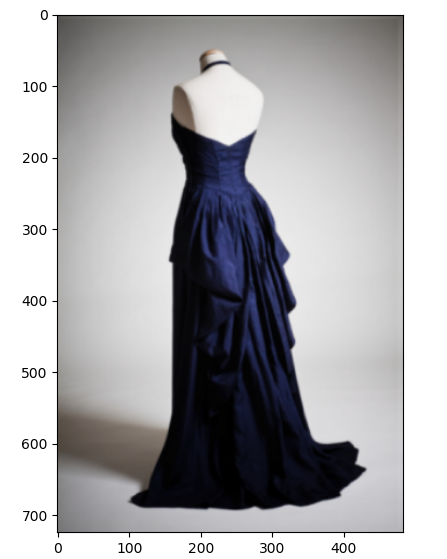
Similar product information:
 Product id: 46930b6b
 Product display name: Evening gown
 Product description: Blue evening gown in 1940s style
 Product category: apparel
 style: women
 category: dress
 color: blue
חיפוש באמצעות תווית
בדוגמה הבאה לחיפוש יש מסנן שמבוסס על צבע.
בקשה
שולחים בקשת חיפוש על ידי הפעלת הבקשה הבאה עם method get_similar_products_file() או get_similar_products_uri(). מזהה של קבוצת מוצרים, נתיב לקובץ תמונה מקומי ומסנן מועברים כארגומנטים. תמונת הקלט הזו נמצאת גם בתיקייה resources/input/.
Python
python product_search.py get_similar_products_file "12000002" "D:/product/final/images-20180618T073733Z-001/images/469355b570ba11e88ff2d20059124800.jpg" "color=white"
תשובה
Search Image:
  D:/product/final/images-20180618T073733Z-001/images/469355b570ba11e88ff2d20059124800.jpg
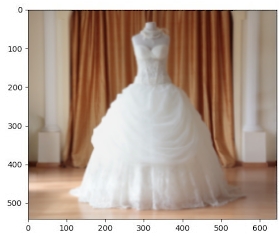
Similar product information:
 Product id: p569d4e7a1
 Product display name: Wedding Dress
 Product description: Elegant Wedding Dress for women
 Product category: apparel
 style: women
 category: dress
 color: white