偵測標誌

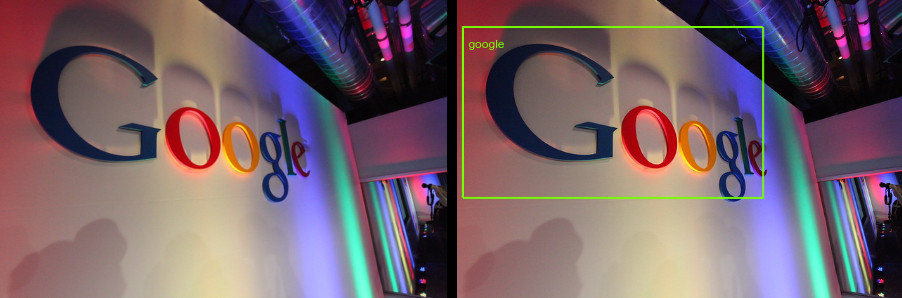
標誌偵測功能可偵測圖片中的熱門產品標誌。

附帶備註的 Google 標誌
圖片來源Robert Scoble (CC BY 2.0已新增註解)。

標誌偵測要求

設定 Google Cloud 專案和驗證

偵測本機圖片中的標誌

您可以使用 Vision API 對本機圖片檔執行特徵偵測。

如果是 REST 要求,請在要求主體中,以 base64 編碼字串的形式傳送圖片檔案內容。

如果是 gcloud 和用戶端程式庫要求,請在要求中指定本機圖片的路徑。

REST

使用任何要求資料之前,請先修改下列項目的值:

  • BASE64_ENCODED_IMAGE:二進位圖片資料的 Base64 表示法 (ASCII 字串)。這個字串應類似下列字串:
    • /9j/4QAYRXhpZgAA...9tAVx/zDQDlGxn//2Q==
    詳情請參閱「base64 編碼」主題。
  • PROJECT_ID: Google Cloud 專案 ID。

HTTP 方法和網址:

POST https://vision.googleapis.com/v1/images:annotate

JSON 要求內文:

{
  "requests": [
    {
      "image": {
        "content": "BASE64_ENCODED_IMAGE"
      },
      "features": [
        {
          "type": "LOGO_DETECTION"
        },
      ]
    }
  ]
}

如要傳送要求,請選擇以下其中一個選項:

curl

將要求主體儲存在名為 request.json 的檔案中,然後執行下列指令:

curl -X POST \
-H "Authorization: Bearer $(gcloud auth print-access-token)" \
-H "x-goog-user-project: PROJECT_ID" \
-H "Content-Type: application/json; charset=utf-8" \
-d @request.json \
"https://vision.googleapis.com/v1/images:annotate"

PowerShell

將要求主體儲存在名為 request.json 的檔案中,然後執行下列指令:

$cred = gcloud auth print-access-token
$headers = @{ "Authorization" = "Bearer $cred"; "x-goog-user-project" = "PROJECT_ID" }

Invoke-WebRequest `
-Method POST `
-Headers $headers `
-ContentType: "application/json; charset=utf-8" `
-InFile request.json `
-Uri "https://vision.googleapis.com/v1/images:annotate" | Select-Object -Expand Content

如果要求成功,伺服器會傳回 200 OK HTTP 狀態碼與 JSON 格式的回應。

回覆:

{
  "responses": [
    {
      "logoAnnotations": [
        {
          "mid": "/m/045c7b",
          "description": "google",
          "score": 0.980325,
          "boundingPoly": {
            "vertices": [
              {
                "x": 12,
                "y": 42
              },
              {
                "x": 439,
                "y": 42
              },
              {
                "x": 439,
                "y": 285
              },
              {
                "x": 12,
                "y": 285
              }
            ]
          }
        }
      ]
    }
  ]
}

Go

在試用這個範例之前,請先按照「使用用戶端程式庫的 Vision 快速入門導覽課程」中的 Go 設定說明操作。詳情請參閱 Vision Go API 參考文件

如要向 Vision 進行驗證,請設定應用程式預設憑證。詳情請參閱「為本機開發環境設定驗證機制」。


// detectLogos gets logos from the Vision API for an image at the given file path.
func detectLogos(w io.Writer, file string) error {
	ctx := context.Background()

	client, err := vision.NewImageAnnotatorClient(ctx)
	if err != nil {
		return err
	}

	fileBytes, err := os.ReadFile(file)
	if err != nil {
		return err
	}

	image := &visionpb.Image{
		Content: fileBytes,
	}

	feature := &visionpb.Feature{
		Type:       visionpb.Feature_LOGO_DETECTION,
		MaxResults: 10,
	}

	request := &visionpb.BatchAnnotateImagesRequest{
		Requests: []*visionpb.AnnotateImageRequest{
			{
				Image:    image,
				Features: []*visionpb.Feature{feature},
			},
		},
	}

	response, err := client.BatchAnnotateImages(ctx, request)
	if err != nil {
		return err
	}

	for _, resp := range response.Responses {
		if resp.Error != nil {
			fmt.Fprintf(w, "Error: %v\n", resp.Error)
			continue
		}
		if len(resp.LogoAnnotations) == 0 {
			fmt.Fprintln(w, "No logos found.")
		} else {
			fmt.Fprintln(w, "Logos:")
			for _, annotation := range resp.LogoAnnotations {
				fmt.Fprintln(w, annotation.Description)
			}
		}
	}

	return nil
}

Java

在試用這個範例之前,請先按照使用用戶端程式庫的 Vision API 快速入門導覽課程中的 Java 設定操作說明進行操作。詳情請參閱 Vision API Java 參考文件


import com.google.cloud.vision.v1.AnnotateImageRequest;
import com.google.cloud.vision.v1.AnnotateImageResponse;
import com.google.cloud.vision.v1.BatchAnnotateImagesResponse;
import com.google.cloud.vision.v1.EntityAnnotation;
import com.google.cloud.vision.v1.Feature;
import com.google.cloud.vision.v1.Image;
import com.google.cloud.vision.v1.ImageAnnotatorClient;
import com.google.protobuf.ByteString;
import java.io.FileInputStream;
import java.io.IOException;
import java.util.ArrayList;
import java.util.List;

public class DetectLogos {
  public static void detectLogos() throws IOException {
    // TODO(developer): Replace these variables before running the sample.
    String filePath = "path/to/your/image/file.jpg";
    detectLogos(filePath);
  }

  // Detects logos in the specified local image.

  public static void detectLogos(String filePath) throws IOException {
    List<AnnotateImageRequest> requests = new ArrayList<>();

    ByteString imgBytes = ByteString.readFrom(new FileInputStream(filePath));

    Image img = Image.newBuilder().setContent(imgBytes).build();
    Feature feat = Feature.newBuilder().setType(Feature.Type.LOGO_DETECTION).build();
    AnnotateImageRequest request =
        AnnotateImageRequest.newBuilder().addFeatures(feat).setImage(img).build();
    requests.add(request);

    // Initialize client that will be used to send requests. This client only needs to be created
    // once, and can be reused for multiple requests. After completing all of your requests, call
    // the "close" method on the client to safely clean up any remaining background resources.
    try (ImageAnnotatorClient client = ImageAnnotatorClient.create()) {
      BatchAnnotateImagesResponse response = client.batchAnnotateImages(requests);
      List<AnnotateImageResponse> responses = response.getResponsesList();

      for (AnnotateImageResponse res : responses) {
        if (res.hasError()) {
          System.out.format("Error: %s%n", res.getError().getMessage());
          return;
        }

        // For full list of available annotations, see http://g.co/cloud/vision/docs
        for (EntityAnnotation annotation : res.getLogoAnnotationsList()) {
          System.out.println(annotation.getDescription());
        }
      }
    }
  }
}

Node.js

在試用這個範例之前,請先按照「使用用戶端程式庫的 Vision 快速入門導覽課程」中的 Node.js 設定說明操作。詳情請參閱 Vision Node.js API 參考文件

如要向 Vision 進行驗證,請設定應用程式預設憑證。詳情請參閱「為本機開發環境設定驗證機制」。

const vision = require('@google-cloud/vision');
const fs = require('fs');

// Creates a client
const client = new vision.ImageAnnotatorClient();

/**
 * TODO(developer): Uncomment the following line before running the sample.
 */
// const fileName = 'Local image file, e.g. /path/to/image.png';

const imageBuffer = fs.readFileSync(fileName);
const base64Image = imageBuffer.toString('base64');

const request = {
  requests: [
    {
      image: {
        content: base64Image,
      },
      features: [
        {
          type: 'LOGO_DETECTION',
        },
      ],
    },
  ],
};

// Performs logo detection on the local file
const [response] = await client.batchAnnotateImages(request);

response.responses.forEach(res => {
  if (res.logoAnnotations) {
    console.log('Logos:');
    res.logoAnnotations.forEach(logo => console.log(logo));
  }

  if (res.error) {
    console.error(` - Error: ${res.error.message}`);
  }
});

Python

在試用這個範例之前,請先按照「使用用戶端程式庫的 Vision 快速入門導覽課程」中的 Python 設定說明操作。詳情請參閱 Vision Python API 參考文件

如要向 Vision 進行驗證,請設定應用程式預設憑證。詳情請參閱「為本機開發環境設定驗證機制」。

def detect_logos(path):
    """Detects logos in the file."""
    from google.cloud import vision

    client = vision.ImageAnnotatorClient()

    with open(path, "rb") as image_file:
        content = image_file.read()

    image = vision.Image(content=content)

    request = {
        "image": image,
        "features": [{"type_": vision.Feature.Type.LOGO_DETECTION}],
    }

    response = client.annotate_image(request=request)
    logos = response.logo_annotations
    print("Logos:")

    for logo in logos:
        print(logo.description)

    if response.error.message:
        raise Exception(
            "{}\nFor more info on error messages, check: "
            "https://cloud.google.com/apis/design/errors".format(response.error.message)
        )

其他語言

C#:請按照用戶端程式庫頁面上的 C# 設定操作說明完成相關步驟,然後參閱「.NET 適用的 Vision 參考文件」。

PHP:請按照用戶端程式庫頁面上的 PHP 設定操作說明完成相關步驟,然後參閱「PHP 適用的 Vision 參考文件」。

Ruby:請按照用戶端程式庫頁面上的 Ruby 設定操作說明完成相關步驟,然後參閱「Ruby 適用的 Vision 參考文件」。

偵測遠端圖片中的標誌

您可以透過 Vision API,對位於 Cloud Storage 或網路上的遠端圖片檔案執行特徵偵測。如要傳送遠端檔案要求,請在要求內文中指定檔案的網址或 Cloud Storage URI。

REST

使用任何要求資料之前,請先修改下列項目的值:

  • CLOUD_STORAGE_IMAGE_URI:Cloud Storage bucket 中有效圖片檔案的路徑。您至少必須具備檔案的讀取權限。範例:
    • gs://cloud-samples-data/vision/logo/google_logo.jpg
  • PROJECT_ID: Google Cloud 專案 ID。

HTTP 方法和網址:

POST https://vision.googleapis.com/v1/images:annotate

JSON 要求內文:

{
  "requests": [
    {
      "image": {
        "source": {
          "gcsImageUri": "CLOUD_STORAGE_IMAGE_URI"
        }
      },
      "features": [
        {
          "type": "LOGO_DETECTION"
        },
      ]
    }
  ]
}

如要傳送要求,請選擇以下其中一個選項:

curl

將要求主體儲存在名為 request.json 的檔案中,然後執行下列指令:

curl -X POST \
-H "Authorization: Bearer $(gcloud auth print-access-token)" \
-H "x-goog-user-project: PROJECT_ID" \
-H "Content-Type: application/json; charset=utf-8" \
-d @request.json \
"https://vision.googleapis.com/v1/images:annotate"

PowerShell

將要求主體儲存在名為 request.json 的檔案中,然後執行下列指令:

$cred = gcloud auth print-access-token
$headers = @{ "Authorization" = "Bearer $cred"; "x-goog-user-project" = "PROJECT_ID" }

Invoke-WebRequest `
-Method POST `
-Headers $headers `
-ContentType: "application/json; charset=utf-8" `
-InFile request.json `
-Uri "https://vision.googleapis.com/v1/images:annotate" | Select-Object -Expand Content

如果要求成功,伺服器會傳回 200 OK HTTP 狀態碼與 JSON 格式的回應。

回覆:

{
  "responses": [
    {
      "logoAnnotations": [
        {
          "mid": "/m/045c7b",
          "description": "google",
          "score": 0.980325,
          "boundingPoly": {
            "vertices": [
              {
                "x": 12,
                "y": 42
              },
              {
                "x": 439,
                "y": 42
              },
              {
                "x": 439,
                "y": 285
              },
              {
                "x": 12,
                "y": 285
              }
            ]
          }
        }
      ]
    }
  ]
}

Go

在試用這個範例之前,請先按照「使用用戶端程式庫的 Vision 快速入門導覽課程」中的 Go 設定說明操作。詳情請參閱 Vision Go API 參考文件

如要向 Vision 進行驗證,請設定應用程式預設憑證。詳情請參閱「為本機開發環境設定驗證機制」。


// detectLogos gets logos from the Vision API for an image at the given file path.
func detectLogosURI(w io.Writer, file string) error {
	ctx := context.Background()

	client, err := vision.NewImageAnnotatorClient(ctx)
	if err != nil {
		return err
	}

	image := &visionpb.Image{
		Source: &visionpb.ImageSource{
			// Use GcsImageUri for gs:// links
			// Use ImageUri for public https:// links
			GcsImageUri: file,
		},
	}

	feature := &visionpb.Feature{
		Type:       visionpb.Feature_LOGO_DETECTION,
		MaxResults: 10,
	}

	request := &visionpb.BatchAnnotateImagesRequest{
		Requests: []*visionpb.AnnotateImageRequest{
			{
				Image:    image,
				Features: []*visionpb.Feature{feature},
			},
		},
	}

	response, err := client.BatchAnnotateImages(ctx, request)
	if err != nil {
		return err
	}

	for _, resp := range response.Responses {
		if resp.Error != nil {
			fmt.Fprintf(w, "Error: %v\n", resp.Error)
			continue
		}
		if len(resp.LogoAnnotations) == 0 {
			fmt.Fprintln(w, "No logos found.")
		} else {
			fmt.Fprintln(w, "Logos:")
			for _, annotation := range resp.LogoAnnotations {
				fmt.Fprintln(w, annotation.Description)
			}
		}
	}

	return nil
}

Java

在試用這個範例之前,請先按照「使用用戶端程式庫的 Vision 快速入門導覽課程」中的 Java 設定說明操作。詳情請參閱 Vision Java API 參考文件

如要向 Vision 進行驗證,請設定應用程式預設憑證。詳情請參閱「為本機開發環境設定驗證機制」。


import com.google.cloud.vision.v1.AnnotateImageRequest;
import com.google.cloud.vision.v1.AnnotateImageResponse;
import com.google.cloud.vision.v1.BatchAnnotateImagesResponse;
import com.google.cloud.vision.v1.EntityAnnotation;
import com.google.cloud.vision.v1.Feature;
import com.google.cloud.vision.v1.Image;
import com.google.cloud.vision.v1.ImageAnnotatorClient;
import com.google.cloud.vision.v1.ImageSource;
import java.io.IOException;
import java.util.ArrayList;
import java.util.List;

public class DetectLogosGcs {

  public static void detectLogosGcs() throws IOException {
    // TODO(developer): Replace these variables before running the sample.
    String filePath = "gs://your-gcs-bucket/path/to/image/file.jpg";
    detectLogosGcs(filePath);
  }

  // Detects logos in the specified remote image on Google Cloud Storage.
  public static void detectLogosGcs(String gcsPath) throws IOException {
    List<AnnotateImageRequest> requests = new ArrayList<>();

    ImageSource imgSource = ImageSource.newBuilder().setGcsImageUri(gcsPath).build();
    Image img = Image.newBuilder().setSource(imgSource).build();
    Feature feat = Feature.newBuilder().setType(Feature.Type.LOGO_DETECTION).build();
    AnnotateImageRequest request =
        AnnotateImageRequest.newBuilder().addFeatures(feat).setImage(img).build();
    requests.add(request);

    // Initialize client that will be used to send requests. This client only needs to be created
    // once, and can be reused for multiple requests. After completing all of your requests, call
    // the "close" method on the client to safely clean up any remaining background resources.
    try (ImageAnnotatorClient client = ImageAnnotatorClient.create()) {
      BatchAnnotateImagesResponse response = client.batchAnnotateImages(requests);
      List<AnnotateImageResponse> responses = response.getResponsesList();

      for (AnnotateImageResponse res : responses) {
        if (res.hasError()) {
          System.out.format("Error: %s%n", res.getError().getMessage());
          return;
        }

        // For full list of available annotations, see http://g.co/cloud/vision/docs
        for (EntityAnnotation annotation : res.getLogoAnnotationsList()) {
          System.out.println(annotation.getDescription());
        }
      }
    }
  }
}

Node.js

在試用這個範例之前,請先按照「使用用戶端程式庫的 Vision 快速入門導覽課程」中的 Node.js 設定說明操作。詳情請參閱 Vision Node.js API 參考文件

如要向 Vision 進行驗證,請設定應用程式預設憑證。詳情請參閱「為本機開發環境設定驗證機制」。

const vision = require('@google-cloud/vision');

// Creates a client
const client = new vision.ImageAnnotatorClient();

/**
 * TODO(developer): Uncomment the following lines before running the sample.
 */
// const bucketName = 'Bucket where the file resides, e.g. my-bucket';
// const fileName = 'Path to file within bucket, e.g. path/to/image.png';

const request = {
  requests: [
    {
      image: {
        source: {
          imageUri: `gs://${bucketName}/${fileName}`,
        },
      },
      features: [
        {
          type: 'LOGO_DETECTION',
        },
      ],
    },
  ],
};

// Performs logo detection on the gcs file
const [response] = await client.batchAnnotateImages(request);

response.responses.forEach(res => {
  if (res.logoAnnotations) {
    console.log('Logos:');
    res.logoAnnotations.forEach(logo => console.log(logo));
  }

  if (res.error) {
    console.error(` - Error: ${res.error.message}`);
  }
});

Python

在試用這個範例之前,請先按照「使用用戶端程式庫的 Vision 快速入門導覽課程」中的 Python 設定說明操作。詳情請參閱 Vision Python API 參考文件

如要向 Vision 進行驗證,請設定應用程式預設憑證。詳情請參閱「為本機開發環境設定驗證機制」。

def detect_logos_uri(uri):
    """Detects logos in the file located in Google Cloud Storage or on the Web."""
    from google.cloud import vision

    client = vision.ImageAnnotatorClient()
    image = vision.Image()
    image.source.image_uri = uri

    request = {
        "image": image,
        "features": [{"type_": vision.Feature.Type.LOGO_DETECTION}],
    }

    response = client.annotate_image(request=request)

    logos = response.logo_annotations
    print("Logos:")

    for logo in logos:
        print(logo.description)

    if response.error.message:
        raise Exception(
            "{}\nFor more info on error messages, check: "
            "https://cloud.google.com/apis/design/errors".format(response.error.message)
        )

gcloud

如要執行圖片屬性偵測,請使用 gcloud ml vision detect-logos 指令,如下列範例所示:

gcloud ml vision detect-logos gs://cloud-samples-data/vision/logo/google_logo.jpg

其他語言

C#:請按照用戶端程式庫頁面上的 C# 設定操作說明完成相關步驟,然後參閱「.NET 適用的 Vision 參考文件」。

PHP:請按照用戶端程式庫頁面上的 PHP 設定操作說明完成相關步驟,然後參閱「PHP 適用的 Vision 參考文件」。

Ruby:請按照用戶端程式庫頁面上的 Ruby 設定操作說明完成相關步驟,然後參閱「Ruby 適用的 Vision 參考文件」。

試試看

請在下方試用標誌偵測功能。你可以使用已指定的圖片 (gs://cloud-samples-data/vision/logo/google_logo.jpg),也可以指定自己的圖片。選取「Execute」傳送要求。

附帶備註的 Google 標誌
圖片來源Robert Scoble (CC BY 2.0已新增註解)。

要求主體:

{
  "requests": [
    {
      "features": [
        {
          "type": "LOGO_DETECTION"
        }
      ],
      "image": {
        "source": {
          "imageUri": "gs://cloud-samples-data/vision/logo/google_logo.jpg"
        }
      }
    }
  ]
}

開啟 Google APIs Explorer 並傳送要求

  1. 如要開啟 Google APIs Explorer,請按一下「試用!」

  2. 選用。修改現有要求主體。

  3. 如要傳送要求,請按一下「執行」