


ローカル コンピュータから Cloud SQL for MySQL に接続する
Google Cloud コンソールとクライアント アプリケーションを使用して、MySQL インスタンスに接続している Linux、macOS、または Windows ベースのローカル コンピュータにサンプルアプリをデプロイする方法を学習します。
すべてのステップを適切なタイミングで完了した場合、通常、このクイックスタートで作成されるリソースにかかる費用は 1 ドル(USD)未満です。
始める前に
- Google Cloud アカウントにログインします。 Google Cloudを初めて使用する場合は、 アカウントを作成して、実際のシナリオでの Google プロダクトのパフォーマンスを評価してください。新規のお客様には、ワークロードの実行、テスト、デプロイができる無料クレジット $300 分を差し上げます。
-
In the Google Cloud console, on the project selector page, select or create a Google Cloud project.
Roles required to select or create a project
- Select a project: Selecting a project doesn't require a specific IAM role—you can select any project that you've been granted a role on.
-
Create a project: To create a project, you need the Project Creator role
(
roles/resourcemanager.projectCreator), which contains theresourcemanager.projects.createpermission. Learn how to grant roles.
-
Verify that billing is enabled for your Google Cloud project.
-
In the Google Cloud console, on the project selector page, select or create a Google Cloud project.
Roles required to select or create a project
- Select a project: Selecting a project doesn't require a specific IAM role—you can select any project that you've been granted a role on.
-
Create a project: To create a project, you need the Project Creator role
(
roles/resourcemanager.projectCreator), which contains theresourcemanager.projects.createpermission. Learn how to grant roles.
-
Verify that billing is enabled for your Google Cloud project.
- このクイックスタートを完了するために必要な権限があることを確認します。
-
ローカル コンピュータで Cloud SQL サンプルアプリを実行するために必要な Cloud APIs を有効にします。
コンソール
[API を有効にする] ボタンをクリックして、このクイックスタートで必要な API を有効にします。
これにより、次の API が有効になります。
- Cloud SQL Admin API
- IAM API
gcloud
gcloud CLI をインストールします。これにより、コマンドラインから Google Cloud リソースにアクセスできます。gcloud CLI を使用して、このクイックスタートで紹介する
gcloud CLIコマンドを実行します。すべてのコマンドは、Linux/macOS ターミナルまたは Windows Powershell で実行できるようにフォーマットされています。ターミナルを開いて、次の
gcloudコマンドを実行します。gcloud services enable sqladmin.googleapis.com iam.googleapis.com
このコマンドにより、次の API が有効になります。
- Cloud SQL Admin API
- IAM API
必要なロール
ローカル コンピュータから Cloud SQL を設定するために必要な権限を取得するには、作成して接続するプロジェクトに対する次の IAM ロールを付与するよう管理者に依頼してください。
-
インスタンス、データベース、ユーザーの作成または削除: Cloud SQL 管理者ロール(
roles/cloudsql.admin)。 -
IAM サービス アカウントの作成または削除: IAM サービス アカウント管理者ロール(
roles/iam.serviceAccountAdmin)。 -
IAM ポリシー バインディングを追加または削除する: プロジェクト IAM 管理者ロール(
roles/resourcemanager.projectIamAdmin)。 - サービス アカウント キーの作成、管理、ローテーション: サービス アカウント キー管理者(roles/iam.serviceAccountKeyAdmin)。
ロールの付与については、プロジェクト、フォルダ、組織へのアクセス権の管理をご覧ください。
必要な権限は、カスタムロールや他の事前定義ロールから取得することもできます。
Cloud SQL の設定
Cloud SQL インスタンスを作成する手順は次のとおりです。
-
Google Cloud コンソールで、Cloud SQL の [インスタンス] ページに移動します。
- [MySQL] タブを選択し、[サンドボックス] ボックスで [サンドボックス インスタンスを作成] をクリックします。または、[インスタンスを作成] をクリックして、次の操作を行います。
- [MySQL を選択] をクリックします。
- [Enterprise] エディションを選択します。
- [サンドボックス] プリセットを選択します。
- Compute API を有効にするように求められたら、[API を有効にする] ボタンをクリックします。
- [インスタンスの情報] セクションに、インスタンス ID として「
quickstart-instance」と入力します。 - root ユーザーのパスワードを入力して後で必要になるため、このパスワードをメモしておきます。
- [リージョンとゾーンの可用性の選択] セクションで、[シングルゾーン] オプションを選択します。
- [インスタンスを作成] をクリックします。
データベースの作成
コンソール
-
Google Cloud コンソールで、Cloud SQL の [インスタンス] ページに移動します。
- [
quickstart-instance] を選択します。 - [データベース] タブを開きます。
- [データベースを作成] をクリックします。
- [データベースの作成] ダイアログ ボックスで、データベースの名前として「
quickstart_db」と入力します。文字セットと照合順を指定することもできます。 - [作成] をクリックします。
gcloud
gcloud
  sql databases create
コマンドを実行してデータベースを作成します。
gcloud sql databases create quickstart_db --instance=quickstart-instance
ユーザーを作成する
コンソール
-
Google Cloud コンソールで、Cloud SQL の [インスタンス] ページに移動します。
- インスタンスの [概要] ページを開くには、インスタンス名をクリックします。
- [SQL] ナビゲーション メニューから [ユーザー] を選択します。
- [ユーザー アカウントを追加] をクリックします。
- [ユーザー アカウントをインスタンス instance_name に追加] ページで、次の情報を追加します。
- ユーザー名:
quickstart-userに設定します。 - パスワード: データベース ユーザーのパスワードを指定します。このクイックスタートの後半で使用するので、メモしておいてください。
- [ホスト名] セクションのデフォルト値は [すべてのホストを許可] です。つまり、ユーザーは任意の IP アドレスから接続できます。
必要に応じて、[IP アドレスまたはアドレス範囲でホストを制限する] を選択し、[ホスト] セクションに IP アドレスまたはアドレス範囲を入力します。これで、ユーザーは指定した IP アドレスからのみ接続できます。
- ユーザー名:
- [追加] をクリックします。
gcloud
次のように置き換えます。
- PASSWORD はデータベース ユーザーのパスワードに置き換えます。このクイックスタートの後半で使用するので、メモしておいてください。
gcloud sql users create コマンドを実行してリソースを作成します。
gcloud sql users create quickstart-user --instance=quickstart-instance --password=PASSWORD
ユーザー名の長さの上限は、Cloud SQL とオンプレミス MySQL で同じです。MySQL 8.0 以降では 32 文字、それより前のバージョンでは 16 文字です。
サービス アカウントを設定する
コンソール
サービス アカウントを作成する
- Google Cloud コンソールで、[サービス アカウントの作成] ページに移動します。
- Google Cloud プロジェクトを選択します。
- サービス アカウント名として「
quickstart-service-account」と入力します。 - (省略可)サービス アカウントの説明を入力します。
- [作成して続行] をクリックして、次の手順に進みます。
- プロジェクトのサービス アカウントに付与する Cloud SQL クライアントのロールを選択します。
- [続行] をクリックします。
- [完了] をクリックして、サービス アカウントの作成を完了します。
サービス アカウント キー ファイルを作成してダウンロードする
- Google Cloud コンソールで、[サービス アカウント] ページに移動します。
- プロジェクトを選択します。
- キーを作成する
quickstart-service-accountサービス アカウントのメールアドレスをクリックします。 - [キー] タブをクリックします。
- [鍵を追加] プルダウン メニューをクリックして、[新しい鍵を作成] を選択します。
- 鍵のタイプとして [JSON] を選択し、[作成] をクリックします。
[作成] をクリックすると、サービス アカウント キーファイルがダウンロードされます。鍵ファイルをダウンロードした後、再度ダウンロードすることはできません。
鍵ファイルは、サービス アカウントとしての認証で使用できるため、安全な場所に保管してください。このファイルは任意の場所に移動できます。名前の変更も可能です。
gcloud
サービス アカウントを作成する
- サービス アカウントを作成するには、
gcloud iam service-accounts createコマンドを実行します。 DESCRIPTION: サービスの説明(省略可)- サービス アカウントにプロジェクトの Cloud SQL クライアントのロールを付与するには、
gcloud projects add-iam-policy-bindingコマンドを実行します。PROJECT_ID は、実際の Google Cloud プロジェクト ID に置き換えます。gcloud projects add-iam-policy-binding PROJECT_ID --member="serviceAccount:quickstart-service-account@PROJECT_ID.iam.gserviceaccount.com" --role="roles/cloudsql.client"
gcloud iam service-accounts create quickstart-service-account --description="DESCRIPTION" --display-name="quickstart-service-account"
次の値を置き換えます。
サービス アカウント キー ファイルを作成してダウンロードする
ローカル コンピュータから作成したサービス アカウントを使用するには、サンプル アプリケーションをサービス アカウントとして認証するためのサービス アカウント キー ファイルが必要です。サービス アカウント キー ファイルを作成してダウンロードするには、gcloud iam service-accounts keys create コマンドを実行します。
gcloud iam service-accounts keys create KEY_FILE --iam-account=quickstart-service-account@PROJECT_ID.iam.gserviceaccount.com
次の値を置き換えます。
KEY_FILE: 秘密鍵の新しい出力ファイルのパス(例:~/sa-private-key.json)。PROJECT_ID: Google Cloud プロジェクト ID。
これで、サービス アカウント キーファイルがローカル コンピュータにダウンロードされます。鍵ファイルをダウンロードした後、再度ダウンロードすることはできません。
鍵ファイルを使うと、誰でもサービス アカウントとしての認証に使用できるため、安全な場所に保管してください。このファイルは任意の場所に移動できます。名前の変更も可能です。
プログラミング言語の開発環境の設定
ローカル コンピュータに、選択したプログラミング言語の開発環境を設定します。
Go
Go のサンプルアプリを実行する開発環境を設定するには、次の手順を行います。
- Go 開発環境の設定ガイドに移動します。
- Go のインストール セクションの手順を完了します。
Java
Java のサンプルアプリを実行する開発環境を設定するには、次の手順を行います。
- Java 開発環境の設定ガイドに移動します。
- JDK(Java Development Kit)をインストールするセクションの手順を完了します。
- ビルド自動化ツールをインストールするの手順を完了して、Apache Maven を設定します。
Node.js
Node.js サンプルアプリを実行するように開発環境を設定するには、次の手順を行います。
- Node.js 開発環境の設定ガイドに移動します。
- Node.js と npm のインストールの手順を完了します。
Python
Python のサンプルアプリを実行する開発環境を設定するには、次の手順を行います。
- Python 開発環境の設定ガイドに移動します。
- Python のインストールの手順を完了します。
Git のインストール
オープンソースのバージョン管理システムである Git をインストールします。
サンプルアプリのクローンを作成する
git clone コマンドを使用して、ローカル コンピュータにサンプルアプリのクローンを作成します。
Go
次のコマンドを実行して、Go サンプルアプリのクローンをローカル コンピュータに作成し、サンプルアプリを含むディレクトリに移動します。
- サンプルアプリのクローンを作成します。
git clone https://github.com/GoogleCloudPlatform/golang-samples
-
サンプルアプリを含むディレクトリに移動します。
cd golang-samples/cloudsql/mysql/database-sql
Java
次のコマンドを実行して、Java サンプルアプリのクローンをローカル コンピュータに作成し、サンプルアプリを含むディレクトリに移動します。
- サンプルアプリのクローンを作成します。
git clone https://github.com/GoogleCloudPlatform/java-docs-samples
-
サンプルアプリを含むディレクトリに移動します。
cd java-docs-samples/cloud-sql/mysql/servlet
Node.js
次のコマンドを実行して、Node.js サンプルアプリのクローンをローカル コンピュータに作成し、サンプルアプリを含むディレクトリに移動します。
- サンプルアプリのクローンを作成します。
git clone https://github.com/GoogleCloudPlatform/nodejs-docs-samples
-
サンプルアプリを含むディレクトリに移動します。
cd nodejs-docs-samples/cloud-sql/mysql/mysql
Python
次のコマンドを実行して、Python サンプルアプリのクローンをローカル コンピュータに作成し、サンプルアプリを含むディレクトリに移動します。
- サンプルアプリのクローンを作成します。
git clone https://github.com/GoogleCloudPlatform/python-docs-samples
-
サンプルアプリを含むディレクトリに移動します。
cd python-docs-samples/cloud-sql/mysql/sqlalchemy
サンプルアプリを構成して実行する
サンプルアプリを構成して実行します。
Linux / macOS
Go
ターミナルを開いて次のコマンドを実行し、サンプルアプリの実行に必要な環境変数を初期化します。コマンドの実行前に、次のように置き換えます。
- CREDENTIALS_JSON_FILE は、サービス アカウントの JSON 認証情報鍵ファイルのパスに置き換えます(
/path/to/service/account/key.jsonのような形式を使用します)。 - INSTANCE_CONNECTION_NAME は、Cloud SQL インスタンスの [概要] ページに表示されるインスタンスの接続名に置き換えます。
- YOUR_DB_PASSWORD は、前のユーザーの作成クイックスタートの手順で作成した
quickstart-userのパスワードに置き換えます。
export GOOGLE_APPLICATION_CREDENTIALS=CREDENTIALS_JSON_FILE
export INSTANCE_CONNECTION_NAME='INSTANCE_CONNECTION_NAME'
export DB_PORT='3306'
export DB_NAME='quickstart_db'
export DB_USER='quickstart-user'
export DB_PASS='YOUR_DB_PASSWORD'
次のコマンドを実行して、ローカル コンピュータで Go のサンプルアプリの依存関係を取得し、サンプルアプリを実行します。
-
サンプルアプリの実行に必要な依存関係を取得します。
go get ./...
- サンプルアプリを実行します。
go run cmd/app/main.go
-
実行中のサンプルアプリを表示します。ブラウザ ウィンドウを開き、
http://127.0.0.1:8080に移動します。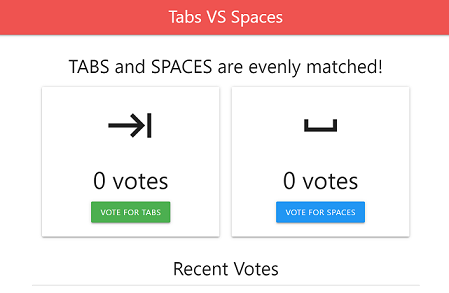
- サンプルアプリを停止するには、サンプルアプリを起動したターミナル ウィンドウで Ctrl+C キーを押します。
Java
次のコマンドを実行して、サンプルアプリの実行に必要な環境変数を初期化します。コマンドの実行前に、次のように置き換えます。
- CREDENTIALS_JSON_FILE は、サービス アカウントの JSON 認証情報鍵ファイルのパスに置き換えます(
/path/to/service/account/key.jsonのような形式を使用します)。 - INSTANCE_CONNECTION_NAME は、Cloud SQL インスタンスの [概要] ページに表示されるインスタンスの接続名に置き換えます。
- YOUR_DB_PASSWORD は、前のユーザーの作成クイックスタートの手順で作成した
quickstart-userのパスワードに置き換えます。
export GOOGLE_APPLICATION_CREDENTIALS=CREDENTIALS_JSON_FILE
export INSTANCE_CONNECTION_NAME='INSTANCE_CONNECTION_NAME'
export DB_PORT='3306'
export DB_NAME='quickstart_db'
export DB_USER='quickstart-user'
export DB_PASS='YOUR_DB_PASSWORD'
-
次のコマンドを実行して、ローカル コンピュータで Java サンプルアプリの依存関係を取得し、サンプルアプリを実行します。
mvn jetty:run -
実行中のサンプルアプリを表示します。ブラウザ ウィンドウを開き、
http://127.0.0.1:8080に移動します。 - サンプルアプリを停止するには、サンプルアプリを起動したターミナル ウィンドウで Ctrl+C キーを押します。
Node.js
-
次のコマンドを実行して、サンプルアプリの実行に必要な環境変数を初期化します。コマンドの実行前に、次のように置き換えます。
- CREDENTIALS_JSON_FILE は、サービス アカウントの JSON 認証情報鍵ファイルのパスに置き換えます(
/path/to/service/account/key.jsonのような形式を使用します)。 - YOUR_DB_PASSWORD は、前のユーザーの作成クイックスタートの手順で作成した
quickstart-userのパスワードに置き換えます。
export GOOGLE_APPLICATION_CREDENTIALS=CREDENTIALS_JSON_FILE
export INSTANCE_HOST='127.0.0.1'
export DB_PORT='3306'
export DB_NAME='quickstart_db'
export DB_USER='quickstart-user'
export DB_PASS='YOUR_DB_PASSWORD'
- CREDENTIALS_JSON_FILE は、サービス アカウントの JSON 認証情報鍵ファイルのパスに置き換えます(
- Cloud SQL Auth Proxy をダウンロードします。
curl -o cloud-sql-proxy \
https://storage.googleapis.com/cloud-sql-connectors/cloud-sql-proxy/v2.0.0/cloud-sql-proxy.linux.amd64
- Cloud SQL Auth Proxy をバックグラウンド プロセスとして実行します。INSTANCE_CONNECTION_NAME は、Cloud SQL インスタンスの [概要] ページに表示されるインスタンスの接続名に置き換えます。
./cloud-sql-proxy \
--credentials-file $GOOGLE_APPLICATION_CREDENTIALS \
INSTANCE_CONNECTION_NAME &
次のコマンドを実行して、必要な Node.js パッケージをローカル コンピュータに取得し、サンプルアプリを実行します。
-
アプリをローカルで実行するために必要な Node.js パッケージをインストールします。
npm install - サンプルアプリを実行します。
npm start -
実行中のサンプルアプリを表示します。ブラウザ ウィンドウを開き、
http://127.0.0.1:8080に移動します。 - サンプルアプリを停止するには、サンプルアプリを起動したターミナル ウィンドウで Ctrl+C キーを押します。
Python
次のコマンドを実行して、サンプルアプリの実行に必要な環境変数を初期化します。コマンドの実行前に、次のように置き換えます。
- CREDENTIALS_JSON_FILE は、サービス アカウントの JSON 認証情報鍵ファイルのパスに置き換えます(
/path/to/service/account/key.jsonのような形式を使用します)。 - INSTANCE_CONNECTION_NAME は、Cloud SQL インスタンスの [概要] ページに表示されるインスタンスの接続名に置き換えます。
- YOUR_DB_PASSWORD は、前のユーザーの作成クイックスタートの手順で作成した
quickstart-userのパスワードに置き換えます。
export GOOGLE_APPLICATION_CREDENTIALS=CREDENTIALS_JSON_FILE
export INSTANCE_CONNECTION_NAME='INSTANCE_CONNECTION_NAME'
export DB_PORT='3306'
export DB_NAME='quickstart_db'
export DB_USER='quickstart-user'
export DB_PASS='YOUR_DB_PASSWORD'
次のコマンドを実行して、ローカル コンピュータで Python サンプルアプリの実行要件を取得し、サンプルアプリを実行します。
-
仮想環境を初期化し、サンプルアプリの実行要件をインストールします。
python3 -m venv env
source env/bin/activate
pip install -r requirements.txt
- サンプルアプリを実行します。
python app.py -
実行中のサンプルアプリを表示します。ブラウザ ウィンドウを開き、
http://127.0.0.1:8080に移動します。 - サンプルアプリを停止するには、サンプルアプリを起動したターミナル ウィンドウで Ctrl+C キーを押します。
Windows
Go
次のコマンドを実行して、サンプルアプリの実行に必要な環境変数を初期化します。コマンドの実行前に、次のように置き換えます。
- CREDENTIALS_JSON_FILE は、サービス アカウントの JSON 認証情報鍵ファイルのパスに置き換えます(
C:\Users\Your-Username\Downloads\key.jsonのような形式を使用します)。 - INSTANCE_CONNECTION_NAME は、Cloud SQL インスタンスの [概要] ページに表示されるインスタンスの接続名に置き換えます。
- YOUR_DB_PASSWORD は、前のユーザーの作成クイックスタートの手順で作成した
quickstart-userのパスワードに置き換えます。
$env:GOOGLE_APPLICATION_CREDENTIALS="CREDENTIALS_JSON_FILE"
$env:INSTANCE_CONNECTION_NAME="INSTANCE_CONNECTION_NAME"
$env:DB_PORT="3306"
$env:DB_NAME="quickstart_db"
$env:DB_USER="quickstart-user"
$env:DB_PASS="YOUR_DB_PASSWORD"
次のコマンドを実行して、ローカル コンピュータで Go のサンプルアプリの依存関係を取得し、サンプルアプリを実行します。
-
サンプルアプリの実行に必要な依存関係を取得します。
go get ./...
- サンプルアプリを実行します。
go run cmd\app\main.go
-
実行中のサンプルアプリを表示します。ブラウザ ウィンドウを開き、
http://127.0.0.1:8080に移動します。 - サンプルアプリを停止するには、サンプルアプリを起動した Powershell ウィンドウで Ctrl+C キーを押します。
Java
次のコマンドを実行して、サンプルアプリの実行に必要な環境変数を初期化します。コマンドの実行前に、次のように置き換えます。
- CREDENTIALS_JSON_FILE は、サービス アカウントの JSON 認証情報鍵ファイルのパスに置き換えます(
C:\Users\Your-Username\Downloads\key.jsonのような形式を使用します)。 - INSTANCE_CONNECTION_NAME は、Cloud SQL インスタンスの [概要] ページに表示されるインスタンスの接続名に置き換えます。
- YOUR_DB_PASSWORD は、前のユーザーの作成クイックスタートの手順で作成した
quickstart-userのパスワードに置き換えます。
$env:GOOGLE_APPLICATION_CREDENTIALS="CREDENTIALS_JSON_FILE"
$env:INSTANCE_CONNECTION_NAME="INSTANCE_CONNECTION_NAME"
$env:DB_PORT="3306"
$env:DB_NAME="quickstart_db"
$env:DB_USER="quickstart-user"
$env:DB_PASS="YOUR_DB_PASSWORD"
-
次のコマンドを実行して、ローカル コンピュータで Java サンプルアプリの依存関係を取得し、サンプルアプリを実行します。
mvn jetty:run -
実行中のサンプルアプリを表示します。ブラウザ ウィンドウを開き、
http://127.0.0.1:8080に移動します。 - サンプルアプリを停止するには、サンプルアプリを起動した Powershell ウィンドウで Ctrl+C キーを押します。
Node.js
-
次のコマンドを実行して、サンプルアプリの実行に必要な環境変数を初期化します。コマンドの実行前に、次のように置き換えます。
- CREDENTIALS_JSON_FILE は、サービス アカウントの JSON 認証情報鍵ファイルのパスに置き換えます(
C:\Users\Your-Username\Downloads\key.jsonのような形式を使用します)。 - YOUR_DB_PASSWORD は、前のユーザーの作成クイックスタートの手順で作成した
quickstart-userのパスワードに置き換えます。
$env:GOOGLE_APPLICATION_CREDENTIALS="CREDENTIALS_JSON_FILE"
$env:INSTANCE_HOST="127.0.0.1"
$env:DB_PORT="3306"
$env:DB_NAME="quickstart_db"
$env:DB_USER="quickstart-user"
$env:DB_PASS="YOUR_DB_PASSWORD"
- CREDENTIALS_JSON_FILE は、サービス アカウントの JSON 認証情報鍵ファイルのパスに置き換えます(
- Cloud SQL Auth Proxy をダウンロードします。
wget https://storage.googleapis.com/cloud-sql-connectors/cloud-sql-proxy/v2.0.0/cloud-sql-proxy.x64.exe
-O cloud-sql-proxy.exe
- Cloud SQL Auth Proxy をバックグラウンド プロセスとして実行します。INSTANCE_CONNECTION_NAME は、Cloud SQL インスタンスの [概要] ページに表示されるインスタンスの接続名に置き換えます。
Start-Process -filepath  ".\cloud-sql-proxy.exe" -ArgumentList `
"--credentials-file $env:GOOGLE_APPLICATION_CREDENTIALS" INSTANCE_CONNECTION_NAME
次のコマンドを実行して、必要な Node.js パッケージをローカル コンピュータに取得し、サンプルアプリを実行します。
-
アプリをローカルで実行するために必要な Node.js パッケージをインストールします。
npm install - サンプルアプリを実行します。
npm start -
実行中のサンプルアプリを表示します。ブラウザ ウィンドウを開き、
http://127.0.0.1:8080に移動します。 - サンプルアプリを停止するには、サンプルアプリを起動した Powershell ウィンドウで Ctrl+C キーを押します。
Python
次のコマンドを実行して、サンプルアプリの実行に必要な環境変数を初期化します。コマンドの実行前に、次のように置き換えます。
- CREDENTIALS_JSON_FILE は、サービス アカウントの JSON 認証情報鍵ファイルのパスに置き換えます(
C:\Users\Your-Username\Downloads\key.jsonのような形式を使用します)。 - INSTANCE_CONNECTION_NAME は、Cloud SQL インスタンスの [概要] ページに表示されるインスタンスの接続名に置き換えます。
- YOUR_DB_PASSWORD は、前のユーザーの作成クイックスタートの手順で作成した
quickstart-userのパスワードに置き換えます。
$env:GOOGLE_APPLICATION_CREDENTIALS="CREDENTIALS_JSON_FILE"
$env:INSTANCE_CONNECTION_NAME="INSTANCE_CONNECTION_NAME"
$env:DB_PORT="3306"
$env:DB_NAME="quickstart_db"
$env:DB_USER="quickstart-user"
$env:DB_PASS="YOUR_DB_PASSWORD"
次のコマンドを実行して、ローカル コンピュータで Python サンプルアプリの実行要件を取得し、サンプルアプリを実行します。
-
仮想環境を初期化し、サンプルアプリの実行要件をインストールします。
virtualenv --python python3 env
.\env\Scripts\activate
pip install -r requirements.txt
- サンプルアプリを実行します。
python app.py -
実行中のサンプルアプリを表示します。ブラウザ ウィンドウを開き、
http://127.0.0.1:8080に移動します。 - サンプルアプリを停止するには、サンプルアプリを起動した Powershell ウィンドウで Ctrl+C キーを押します。
クリーンアップ
このページで使用したリソースについて、 Google Cloud アカウントに課金されないようにするには、次の手順を実施します。
-
Google Cloud コンソールで、Cloud SQL の [インスタンス] ページに移動します。
quickstart-instanceインスタンスを選択して [インスタンスの詳細] ページを開きます。- ページ上部にあるアイコンバーで、[削除] をクリックします。
- [インスタンスの削除] ダイアログ ボックスで「
quickstart-instance」と入力し、[削除] をクリックしてインスタンスを削除します。
省略可能なクリーンアップ手順
quickstart-service-account サービス アカウントに割り当てた Cloud SQL クライアントのロールを使用しない場合は、削除できます。
-
Google Cloud コンソールで、[サービス アカウント] ページに移動します。
- quickstart-service-account という IAM アカウントの編集アイコン(鉛筆のような形)をクリックします。
- Cloud SQL クライアントのロールを削除します。
- [保存] をクリックします。
このクイックスタートで有効にした API を使用しない場合は、無効にすることができます。
- このクイックスタートで有効にした API:
- Cloud SQL Admin API
- Identity and Access Management API
Google Cloud コンソールで、[API] ページに移動します。
無効にする API を選択し、[API を無効にする] ボタンをクリックします。
次のステップ
必要に応じて、Cloud SQL インスタンスの作成で詳細をご確認ください。Cloud SQL インスタンスの MySQL ユーザーとデータベースの作成についても学習できます。
料金の詳細については、Cloud SQL for MySQL の料金をご覧ください。
以下の詳細を確認してください。
また、他の Google Cloud アプリケーションから Cloud SQL インスタンスへの接続についても確認できます。