

The Google Cloud resource hierarchy provides a structured way to organize your cloud resources. All resources except for the highest resource in a hierarchy have exactly one parent. The hierarchy consists of the organization (root) at the top, followed by folders (optional) for grouping, and then projects, which contain the actual service resources like Compute Engine virtual machines and storage buckets.
Using a structured hierarchy offers the following advantages:
- Ownership: It binds the lifecycle of a resource to its immediate parent. Projects belong to the organization, not the individual employee who created them. If an employee leaves, the project remains active and secure.
- Inheritance: It provides attachment points for access control and organization policies, which flow down the hierarchy. You can grant roles at a high level (like the organization or a folder). These roles are inherited by all child resources, reducing the need to manually configure permissions for every individual project.
The following diagram illustrates the Google Cloud resource hierarchy.
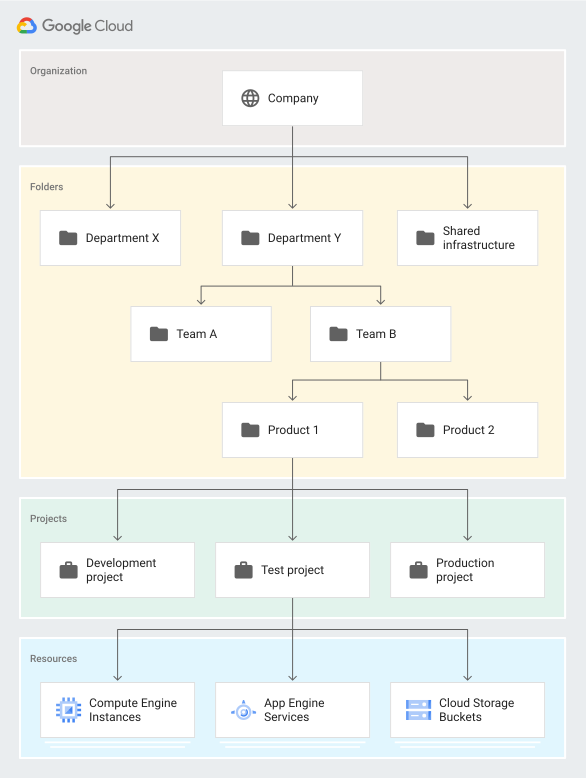
The organization resource
The organization resource represents an entity (such as a company) and serves as the root node of the Google Cloud resource hierarchy. It provides the following key functions:
- The organization acts as the parent to all folder and project resources.
- Access control policies (such as Identity and Access Management (IAM) roles) and organization policies applied at this level are inherited by every resource in the organization.
- While not strictly required for all Google Cloud users, an organization resource is necessary to use specific Resource Manager features.
Association with Google Workspace or Cloud Identity accounts
A Google Workspace or Cloud Identity account is a prerequisite to have access to the organization resource.
- A Google Workspace or Cloud Identity account can be associated with exactly one organization resource.
- When a user with a Google Workspace or Cloud Identity account creates a Google Cloud project resource, an organization resource is automatically provisioned for them.
The following image shows the link between the Google Workspace account, Cloud Identity, and the Google Cloud resource hierarchy.
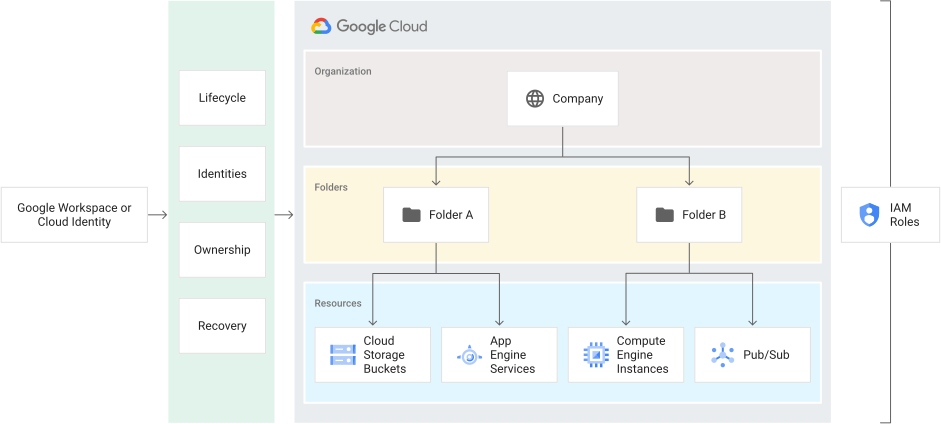
The Google Workspace super admin is the individual responsible for domain ownership verification and the contact in cases of recovery. For this reason, the Google Workspace super admin is granted the ability to assign IAM roles by default. The Google Workspace super admin's main duty with respect to Google Cloud is to assign the Organization Administrator IAM role to appropriate users in their domain. This will create the separation between Google Workspace and Google Cloud administration responsibilities that users typically seek.
Project creation rules for managed users
Once an organization resource exists for a domain, strict rules apply to project creation:
- Managed users (members of the account domain) must create projects within an organization. It's not possible for accounts associated with an organization resource to create project resources that aren't associated with an organization resource.
- By default, new projects belong to the organization associated with the user.
- If a user has the appropriate permissions, they can specify a different organization resource during project creation; otherwise, it defaults to their home organization.
Benefits of the organization resource
With an organization resource, your project resources belong to your organization, not to the employee who created them. This means that your organization retains project resources when an employee leaves the company. The project resources follow the organization resource's lifecycle on Google Cloud.
In addition, Organization administrators control all resources centrally. They can view and manage all project resources in your company. This prevents shadow projects or rogue administrators.
You can also grant roles at the organization level, which all project and folder resources under the organization resource inherit. For example, you can grant the Network Admin role to your networking team at the organization level, which lets them manage all networks in all project resources in your company, instead of granting the role for each individual project resource.
An organization resource is defined by the following attributes:
- An organization resource ID, which is a unique identifier for an organization.
- A display name, generated from the primary domain name in Google Workspace or Cloud Identity.
- The creation time of the organization resource.
- The last modified time of the organization resource.
- The owner of the organization resource, which is the Google Workspace customer ID from the Directory API. You specify the owner when you create the organization resource, and you can't change it.
The following code snippet shows the structure of an organization resource:
{
  "creationTime": "2020-01-07T21:59:43.314Z",
  "displayName": "my-organization",
  "lifecycleState": "ACTIVE",
  "name": "organizations/34739118321",
  "owner": {
    "directoryCustomerId": "C012ba234"
  }
}
The initial allow policy for a new organization resource grants the Project Creator and Billing Account Creator roles to the entire Google Workspace domain. This means users can continue creating project resources and billing accounts as they did before the organization resource existed. No other resources are created when an organization resource is created. Allow, deny, and organization policies are inherited through the hierarchy, and the effective policy for each resource in the hierarchy results from policies applied directly to the resource and policies inherited from its ancestors.
The folder resource
Folder resources are an optional grouping mechanism between organization resources and project resources. An organization resource is required to use folders. Folder resources and their child project resources reside under the organization resource.
Folder resources can provide isolation boundaries between projects. They function as sub organizations within the organization resource. Folder resources can model different legal entities, departments, and teams within a company. For example, a first level of folders can represent the main departments in your organization. Because folders can contain projects and other folders, each folder can then include subfolders to represent different teams. Each team folder can contain additional subfolders to represent different applications. For more details about using folder resources, see Create folders.
If your organization resource has folder resources and you have appropriate viewing permissions, you can view them in the Google Cloud console. For more detailed instructions, see View, update, and delete folders.
Folder resources let you delegate administration rights. For example, you can grant each department head full ownership of all Google Cloud resources in their departments. Similarly, folder resources can limit access to resources, which means users in one department can only access and create Google Cloud resources within that folder resource.
The following code snippet shows the structure of a folder resource:
{
  "createTime": "2030-01-07T21:59:43.314Z",
  "displayName": "Engineering",
  "lifecycleState": "ACTIVE",
  "name": "folders/634792535758",
  "parent": "organizations/34739118321"
}
Like organization and project resources, folder resources act as a policy inheritance point for allow, deny, and organization policies. IAM roles granted on a folder resource are inherited by all project and folder resources in that folder.
The project resource
The project resource is the fundamental organizing entity. Organization and folder resources can contain multiple projects. You need a project resource to use Google Cloud. It is essential for creating, enabling, and using all Google Cloud services, managing APIs, enabling billing, adding and removing collaborators, and managing permissions.
All project resources consist of the following:
- Two identifiers:
- Project resource ID, which is a unique identifier for the project resource.
- Project resource number, which is automatically assigned when you create the project. It is read-only.
- One mutable display name.
- The lifecycle state of the project resource; for example, ACTIVE or DELETE_REQUESTED.
- A collection of labels that can be used for filtering projects.
- The time when the project resource was created.
The following code snippet shows the structure of a project resource:
{
  "createTime": "2020-01-07T21:59:43.314Z",
  "lifecycleState": "ACTIVE",
  "name": "my-project",
  "parent": {
    "id": "634792535758",
    "type": "folder"
  },
  "projectId": "my-project",
  "labels": {
     "my-label": "prod"
  },
  "projectNumber": "464036093014"
}
To interact with most Google Cloud resources, you must provide the project
resource identifiers for every request. You can identify a project resource in
two ways: by its project resource ID or its project resource number. In the code
snippet, these are projectId and projectNumber.
A project resource ID is the customized name you choose when you create a
project. If you activate an API that requires a project, you can create a new
one or select an existing project using its project resource ID. The name
string, which appears in the UI, is not the same as the project resource ID.
Google Cloud automatically generates a project resource number. You can find the project resource ID and number on the project's dashboard in the Google Cloud console. For information on getting project identifiers and other management tasks for project resources see Create projects.
The initial IAM policy for the newly created project resource grants the owner role to the creator of the project.
All users, including free trial users, free tier users, and Google Workspace and Cloud Identity customers, can create project resources. Users of the Google Cloud Free Program can only create project resources and service resources within projects. Project resources can be the top of their hierarchy, but only if created by a free trial user or free tier user. Google Workspace and Cloud Identity customers have access to additional features of the Google Cloud resource hierarchy, such as organization and folder resources. Learn more in the overview of Cloud Identity. Project resources at the top of their hierarchy don't have parent resources, but they can be migrated into an organization resource once it has been created for the domain. For more details about migrating project resources, see Migrate projects between organization resources.
What's next
- Learn how to create your Google Cloud resource hierarchy
- Learn how to list all projects, folders, and organizations in your hierarchy