

This page describes how to create Google Cloud folders to group and organize projects in a resource hierarchy. You can use folders to delegate administrative duties, enforce environment-specific organization policies, and streamline cost management across your departments.
Folders are nodes in the Cloud Platform Resource Hierarchy. A folder can contain projects, other folders, or a combination of both. Organization resources can use folders to group projects under the organization resource node in a hierarchy. For example, your organization resource might contain multiple departments, each with its own set of Google Cloud resources. Folders allow you to group these resources on a per-department basis. Folders are used to group resources that share common allow or deny policies. While a folder can contain multiple folders or resources, a given folder or resource can have exactly one parent.
In the following diagram, the organization resource, "Company", has folders representing "Standard Workloads", "Regulated Workloads", and "Shared infrastructure". Under "Regulated Workloads", folders are organized by environment into "Non-Prod Environment" and "Production Environment". The "Production Environment" folder is further organized into "Customer-Facing (Restricted)" and "Internal-Only (Standard)" folders to enforce policy-centric access controls. Projects such as "Test project", "Development project", and "Production project" contain the resources needed for the project. This provides a high degree of flexibility in assigning allow, deny, or organization policies at the right level of granularity.
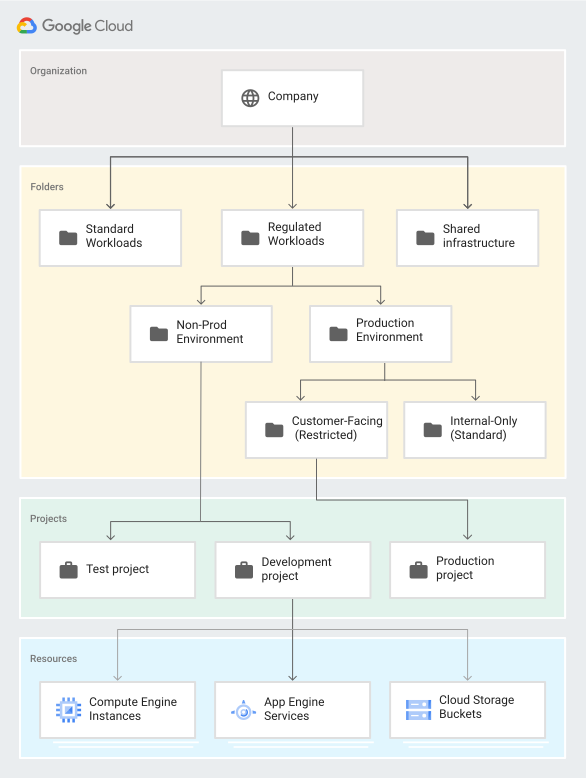
You can use folder-level allow and deny policies to control access to the resources the folder contains. For example, if a user is granted the Compute Instance Admin role on a folder, that user has the Compute Instance Admin role for all of the projects in the folder.
Before you begin
Folder functionality is only available to Google Workspace and Cloud Identity customers that have an organization resource. For more information about acquiring an organization resource, see Get an organization resource.
If you're exploring how to best use folders, we recommend that you:
- Review Access Control for Folders Using IAM. The topic describes how you can control who has what access to folders and the resources they contain.
- Understand how to set folder permissions. Folders support a number of different Identity and Access Management (IAM) roles. If you want to broadly set up permissions so users can see the structure of their projects, grant the entire domain the Organization Viewer and Folder Viewer roles at the organization resource level. To restrict visibility to branches of your folder hierarchy, grant the Folder Viewer role on the folder or folders you want users to see.
- Create folders. As you plan how to organize your Cloud resources, we recommend that you start with a single folder as a sandbox where you can experiment with which hierarchy makes the most sense for your organization resource. Think of folders in terms of isolation boundaries between resources and attach points for access and configuration policies. You may choose to create folders to contain resources that belong to different departments and assign Admin roles on folders to delegate administrator privilege. Folders can also be used to group resources that belong to applications or different environments, such as development, production, test. Use nested folders to model these different scenarios.
A common situation is to create folders that in turn contain additional folders or projects, as shown in the resource hierarchy earlier. This structure is referred to as a folder hierarchy. When creating a folder hierarchy, keep in mind the following:
- You can nest folders up to 10 (ten) levels deep.
- A parent folder cannot contain more than 300 folders. This refers to direct child folders only. Those child folders can, in turn, contain additional folders or projects.
- Folder display names must be unique within the same level of the hierarchy.
Set up permissions to manage folders
To access and manage folders, you assign folder-specific IAM roles to specific groups of users. To learn more about these roles, see Access Control for Folders using IAM. We also recommend you review our best practices to help you identify the optimal configuration for your folder permissions.
To manage folders for your entire organization resource, you need the Folder Admin role. This role grants the user permission to create, edit, delete, move, and change IAM permissions on folders, as well as permission to move projects between folders.
Initially, only the Organization Admin can assign the Folder Admin role for the organization resource. Subsequent accounts that are assigned this role can grant it to other accounts.
To set up folder permissions, follow these steps:
Console
- In the Google Cloud console, open the Manage resources page.
- If the info panel isn't open, click Show info panel.
- In the Resources table, expand the Organization that contains the folder.
- From the list of resources under the Organization, select the folder that you want to manage.
- In the info panel, click Add principal.
- In the Add principals field, enter the email address that you want to grant permissions to.
- In the Select a role menu, select the Resource Manager category, then select the role that you want to grant, such as Folder Admin.
- Click Save to grant the new role.
gcloud
To grant the Folder Admin role to a principal using Google Cloud CLI, run the following command:
    gcloud organizations add-iam-policy-binding ORGANIZATION_ID \
    --member=user:USER_ID \
    --role=roles/resourcemanager.folderAdmin
REST
The request JSON:
request_json= '{ policy: { version: "1", bindings: [ { role: "roles/folderAdmin",
members: [ "user:admin@myorganization.com", ] }, { role: "roles/folderCreator",
members: [ "user:admin@myorganization.com", ] } , { role: "roles/folderMover",
members: [ "user:admin@myorganization.com", ] } , ] } }'
The curl request:
curl -X POST -H "Content-Type: application/json" \
-H "Authorization: Bearer ${bearer_token}" \
-d "$request_json" \
https://cloudresourcemanager.googleapis.com/v3/ORGANIZATION_NAME:setIamPolicy
Replace ORGANIZATION_NAME with the name of the organization whose allow policy is being
set, for example organizations/123.
Create folders
To create folders, you must have the Folder Admin or Folder Creator role at the parent level. For example, to create folders at the organization level, you must have one of these roles at the organization level.
As part of creating a folder, you must assign it a name. Folder names must meet the following requirements:
- The name may contain letters, digits, spaces, hyphens and underscores.
- The folder's display name must start and end with a letter or digit.
- The name must be between 3 and 30 characters.
- The name must be distinct from all other folders that share its parent.
To create a folder, follow these steps:
Console
To create folders, do the following:
Go to the Manage resources page in the Google Cloud console:
Click Create folder, and select one of the following options:
- Standard Google Cloud folder: A standard folder resource.
- Compliant folder: An Assured Workloads folder, which provides additional regulatory, regional, or sovereign controls for Google Cloud resources. Selecting this option will take you to Assured Workloads to create a folder.
In the Folder name box, enter your new folder's name.
Under Parent resource, click Browse, then select the organization resource or folder under which you want to create your new folder.
- Click Create.
gcloud
Folders can be created programmatically using the Google Cloud CLI.
To create a folder under the organization resource using the gcloud
command-line tool, run the following command.
gcloud resource-manager folders create \
   --display-name=DISPLAY_NAME \
   --organization=ORGANIZATION_ID
To create a folder whose parent is another folder:
gcloud resource-manager folders create \
   --display-name=DISPLAY_NAME \
   --folder=FOLDER_ID
Replace the following:
- DISPLAY_NAME: the folder's display name. No two folders with the same parent can share a display name. The display name must start and end with a letter or digit, may contain letters, digits, spaces, hyphens and underscores, and can be no longer than 30 characters.
- ORGANIZATION_ID: the ID of the parent organization resource if the parent is an organization resource.
- FOLDER_ID: the ID of the parent folder, if the parent is a folder.
API
Folders can be created with an API request.
The request JSON:
request_json= '{
  display_name: DISPLAY_NAME,
  parent: ORGANIZATION_NAME
}'
The Create Folder curl request:
curl -X POST -H "Content-Type: application/json" \
-H "Authorization: Bearer ${bearer_token}" \
-d "$request_json" \
https://cloudresourcemanager.googleapis.com/v3/folders
Where:
- DISPLAY_NAME: the new folder's display name, for example "My Awesome Folder."
- ORGANIZATION_NAME: the name of the organization resource under which
you're creating the folder, for example
organizations/123.
The Create Folder response:
If a call successfully registers an operation, the response body contains an instance of Operation.
{
  "name": "operations/fc.123456789",
  "metadata": {
    "@type": "type.googleapis.com/google.cloud.resourcemanager.v3.FolderOperation",
    "displayName": "DISPLAY_NAME",
    "operationType": "CREATE"
  }
}
The Get Operation curl request:
curl -H "Authorization: Bearer ${bearer_token}" \
https://cloudresourcemanager.googleapis.com/v3/operations/fc.123456789
The Get Operation response:
{
  "name": "operations/fc.123456789",
  "metadata": {
    "@type": "type.googleapis.com/google.cloud.resourcemanager.v3.FolderOperation",
    "displayName": "DISPLAY_NAME",
    "operationType": "CREATE"
  },
  "done": true,
  "response": {
    "@type": "type.googleapis.com/google.cloud.resourcemanager.v3.Folder",
    "name": "folders/12345",
    "parent": "organizations/123",
    "displayName": "DISPLAY_NAME",
    "lifecycleState": "ACTIVE",
    "createTime": "2017-07-19T23:29:26.018Z",
    "updateTime": "2017-07-19T23:29:26.046Z"
  }
}
Add tags during folder creation
Tags provide a way to create annotations for resources. You can add tags at the time of creating folders. To do this, you must grant the Tag User role. For more information on the permissions contained in this role, see Create and manage tags. You can only add the namespace for the tag key-value pairs in one of the following ways:
gcloud
To add tags during folder creation, run the following command:
  gcloud resource-manager folders create \
      --display-name=DISPLAY_NAME \
      --organization=ORGANIZATION_ID\
      --tags=KEY_VALUE_PAIRS
Replace the following:
DISPLAY_NAME: the folder's display name.ORGANIZATION_ID: the unique identifier of the parent organization resource.KEY_VALUE_PAIRS: a comma-separated list of key-value pairs that you can assign to your resource. An example of comma-separated key-value pairs is123/environment=production, 456/create=testresource.
REST
The following snippet is a JSON request that creates a folder and adds tags to it.
  POST https://cloudresourcemanager.googleapis.com/v3/folders/
  Authorization: *************
  Content-Type: application/json

  {
    "display_name": "our-folder-456",
    "parent": "organizations/123",
    "tags": {
      "123/environment": "production",
      "123/costCenter": "marketing"
    }
  }
Retrieve your folder ID
You can retrieve the ID of a folder using the Google Cloud console or Google Cloud CLI.
Console
- In the Google Cloud console, open the Manage resources page.
- Locate your folder in the resource list. The folder ID is displayed in the ID column next to the folder's display name.
gcloud
To locate your folder ID, run the following command:
gcloud resource-manager folders list --organization=ORGANIZATION_ID
Propagation delay
When you create a new folder, it might take some time for the folder to
propagate through our global systems and become visible in the Google Cloud console.
This propagation delay typically resolves within a few minutes, but in rare
cases can take longer. You can verify the folder's creation immediately using
the gcloud command-line tool or the API.
Delete folders
To delete a folder, you must have the Folder Admin role
(roles/resourcemanager.folderAdmin) or Folder Editor role
(roles/resourcemanager.folderEditor). The folder must be empty before you can
delete it. For detailed instructions, see
Delete folders.
Configure access to folders
To configure access to folders, you must have the Folder IAM Administrator or Folder Admin role at the parent level.
Console
In the Google Cloud console, open the Manage Resources page.
Click the Organization drop-down list in the upper left and then select your organization resource.
Select the checkbox next to the project for which you want to change permissions.
On the right side Info panel, under Permissions, enter the email addresses of the members you want to add.
In the Select a role drop-down list, select the role you want to grant to those members.
Click Add. A notification appears to confirm the addition or update of the members' new role.
gcloud
You can configure access to folders programmatically using the Google Cloud CLI or the REST API.
gcloud resource-manager folders \
    add-iam-policy-binding FOLDER_ID \
    --member=user:email1@example.com \
    --role=roles/resourcemanager.folderEditor
gcloud resource-manager folders \
    add-iam-policy-binding FOLDER_ID \
    --member=user:email1@example.com \
    --role=roles/resourcemanager.folderViewer
Alternatively:
gcloud resource-manager folders \
    set-iam-policy FOLDER_ID POLICY_FILE
Replace the following:
- FOLDER_ID: the ID of the new folder
- POLICY_FILE: the path to a policy file for the folder
API
The setIamPolicy method sets the access control policy on a folder,
replacing any existing policy. The resource field should be the folder's
resource name, for example, folders/1234.
 request_json= '{
   policy: {
     version: "1",
     bindings: [
       {
         role: "roles/resourcemanager.folderEditor",
         members: [
           "user:email1@example.com",
           "user:email2@example.com",
         ]
       }
     ]
   }
 }'
The curl request:
   curl -X POST -H "Content-Type: application/json" \
   -H "Authorization: Bearer ${bearer_token}" \
   -d "$request_json" \
   https://cloudresourcemanager.googleapis.com/v3/FOLDER_ID:setIamPolicy
Replace FOLDER_ID with the name of the folder whose IAM policy is being set, for example folders/123.
Handle long-running operations
Certain folder operations, such as creation or migration, are processed asynchronously
by Google Cloud because they require global propagation. To avoid blocking your
terminal or automation scripts, you can use the --async flag.
When this flag is used, the command returns a Long-Running Operation (LRO) object
immediately. You can then use the operation_id to poll for completion at your
convenience. The --async flag is supported for the folders create and folders move commands
only.
To use the flag, follow these steps:
Start an asynchronous task. Refer to following sample command:
gcloud resource-manager folders create \
    --display-name="Test Async Folder" \
    --organization=2518 \
    --async
The output provides an operation name (e.g., fc.8572) and shows
done: false.Sample response:
name: operations/fc.8572
metadata:
operation_type: CREATE
display_name: Awe-Inspiring Async Folder
destination_parent: organizations/2518
done: false
Check operation status. To verify if the task has finished, use the
operations describecommand with the ID provided in the previous step.gcloud beta resource-manager operations describe fc.8572Once
doneis true, the response block will contain the full details of the newly created resource.name: operations/fc.8572 done: true response: name: folders/6428 display_name: Awe-Inspiring Async Folder lifecycle_state: ACTIVE create_time: '2024-03-20T10:00:00Z'
What's next
- Learn about viewing and updating folders.
- Learn about managing projects within folders.
- Learn about roles and permissions for folders.
- Learn about listing all folders and projects in your resource hierarchy.