

This document shows the implementation path of Fraud Defense to protect your websites, mobile applications, APIs, or content served by a web application firewall (WAF).
Fraud Defense workflow for websites
The following illustration provides a high-level overview of the implementation of Fraud Defense on websites:
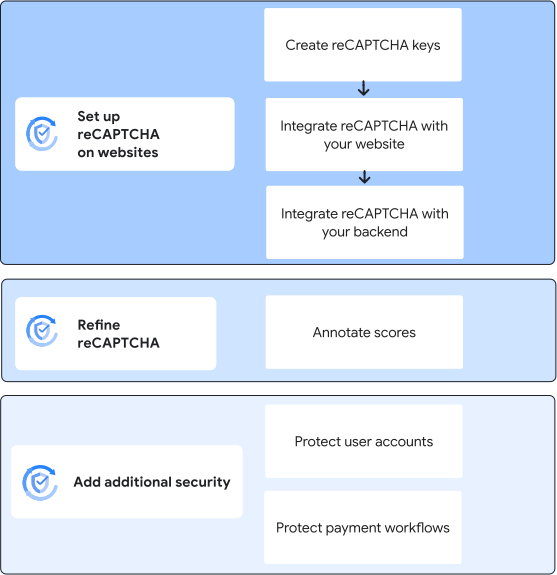
Setting up Fraud Defense on websites involves the following steps:
Create reCAPTCHA keys: Choose the reCAPTCHA key type that is best for your use case and create the keys.
Integrate Fraud Defense with your website: To collect information about the user actions and send it to Fraud Defense, install the keys that you created on your web pages by using the reCAPTCHA JavaScript API.
Integrate Fraud Defense with your backend: From your backend server, create assessments to verify the token sent by Fraud Defense and assess the risk. Interpret the assessment scores and the associated risk, and define how to handle users—for example, allow the user to sign in only when the score is high, which indicates low risk.
After you set up Fraud Defense, we recommend that you annotate the assessments whenever you have more information about the user interactions. This helps Fraud Defense to tune your site-specific model and improve the risk detection.
You can also set up additional security to protect user accounts and payment workflows on your websites.
For instructions, see Set up Fraud Defense on websites.
Fraud Defense workflow for mobile applications
The following illustration provides a high-level overview of the implementation of Fraud Defense on mobile applications:
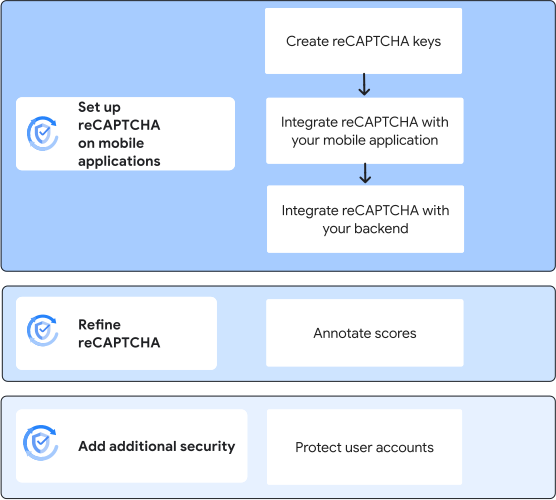
Setting up Fraud Defense on mobile applications involves the following steps:
- Create reCAPTCHA keys: Create score-based keys for your mobile applications.
- Integrate with your mobile application: To collect information about the user actions and send it to Fraud Defense, install the keys that you created on your mobile application by using the Fraud Defense SDK.
- Integrate with your backend: From your backend server, create assessments to verify the token sent by Fraud Defense and assess the risk. Interpret the assessment scores and the associated risk, and define how to handle users—for example, allow the user to sign in only when the score is high, which indicates low risk.
After you set up Fraud Defense, we recommend that you annotate the assessments whenever you have more information about the user interactions. This helps Fraud Defense to tune your site-specific model and improve the risk detection.
You can also set up additional security to protect user accounts on your mobile applications.
For instructions, see Set up Fraud Defense on mobile applications.
Fraud Defense workflow for WAF
The following illustration provides a high-level overview of the implementation of Fraud Defense at the WAF layer:
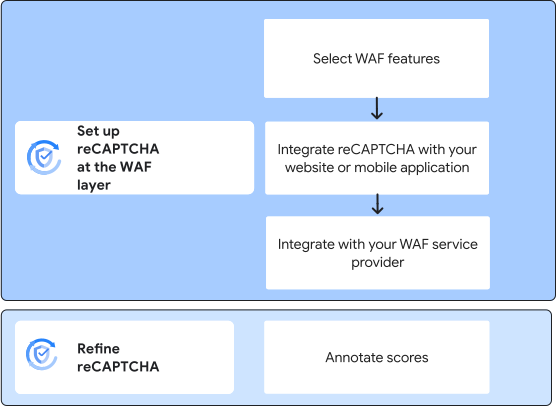
Setting up Fraud Defense at the WAF layer involves the following steps:
- Select WAF features: Understand the WAF features and choose one or more WAF features that suit your use case.
- Integrate with your website or mobile application: Create reCAPTCHA keys for WAF. To collect information about the user actions and send it to Fraud Defense, install the keys that you created on your web pages by using the reCAPTCHA JavaScript API or on mobile applications by using the Fraud Defense SDK.
- Integrate with your WAF service provider: To let your WAF service provider manage the incoming user requests, configure policies based on the scores returned by Fraud Defense.
After you set up Fraud Defense, we recommend that you annotate the assessments whenever you have more information about the user interactions. This helps Fraud Defense to tune your site-specific model and improve the risk detection.
For instructions, see Set up Fraud Defense at the WAF layer.
reCAPTCHA express workflow for application servers
The following illustration provides a high-level overview of the implementation of reCAPTCHA express on application servers.
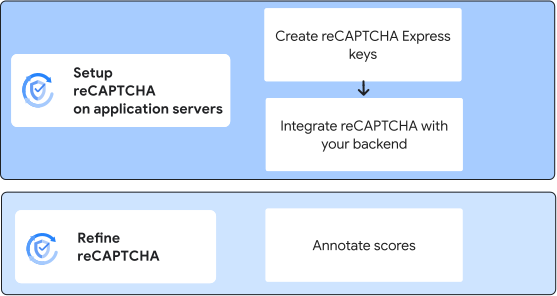
Setting up reCAPTCHA express on application servers involves the following steps:
- Create express keys for your application server.
- Integrate with your backend: From your backend server, create assessments to assess the risk. Interpret the assessment scores and the associated risk, and define how to handle users—for example, allow the user to sign in only when the score is high, which indicates low risk.
After you set up Fraud Defense, we recommend that you annotate the assessments whenever you have more information about the user interactions. This helps Fraud Defense to tune your site-specific model and improve the risk detection.
For instructions, see Set up reCAPTCHA express on application servers.
What's next
- Set up Fraud Defense on websites
- Set up Fraud Defense on mobile applications
- Set up Fraud Defense at the WAF layer
- Set up reCAPTCHA express on application servers