


Transmita mensagens do Pub/Sub através do Dataflow e do Cloud Storage
O Dataflow é um serviço totalmente gerido para transformar e enriquecer dados nos modos de streaming (em tempo real) e em lote com igual fiabilidade e expressividade. Oferece um ambiente de desenvolvimento de pipeline simplificado através do SDK do Apache Beam, que tem um conjunto avançado de primitivas de análise de janelas e sessões, bem como um ecossistema de conetores de origem e destino. Este início rápido mostra como usar o Dataflow para:
- Ler mensagens publicadas num tópico do Pub/Sub
- Agrupar as mensagens por indicação de tempo
- Escreva as mensagens no Cloud Storage
Este início rápido apresenta a utilização do Dataflow em Java e Python. O SQL também é suportado. Este início rápido também é oferecido como um tutorial do Google Cloud Skills Boost que oferece credenciais temporárias para começar.
Também pode começar por usar modelos do Dataflow baseados na IU se não pretender fazer o tratamento de dados personalizado.
Antes de começar
- Sign in to your Google Cloud account. If you're new to Google Cloud, create an account to evaluate how our products perform in real-world scenarios. New customers also get $300 in free credits to run, test, and deploy workloads.
-
Install the Google Cloud CLI.
-
Se estiver a usar um fornecedor de identidade (IdP) externo, tem primeiro de iniciar sessão na CLI gcloud com a sua identidade federada.
-
Para inicializar a CLI gcloud, execute o seguinte comando:
gcloud init -
Create or select a Google Cloud project.
Roles required to select or create a project
- Select a project: Selecting a project doesn't require a specific IAM role—you can select any project that you've been granted a role on.
-
Create a project: To create a project, you need the Project Creator role
(
roles/resourcemanager.projectCreator), which contains theresourcemanager.projects.createpermission. Learn how to grant roles.
-
Create a Google Cloud project:
gcloud projects create PROJECT_ID
Replace
PROJECT_IDwith a name for the Google Cloud project you are creating. -
Select the Google Cloud project that you created:
gcloud config set project PROJECT_ID
Replace
PROJECT_IDwith your Google Cloud project name.
-
Verify that billing is enabled for your Google Cloud project.
-
Enable the Dataflow, Compute Engine, Cloud Logging, Cloud Storage, Google Cloud Storage JSON API, Pub/Sub, Resource Manager, and Cloud Scheduler APIs:
Roles required to enable APIs
To enable APIs, you need the Service Usage Admin IAM role (
roles/serviceusage.serviceUsageAdmin), which contains theserviceusage.services.enablepermission. Learn how to grant roles.gcloud services enable dataflow.googleapis.com
compute.googleapis.com logging.googleapis.com storage-component.googleapis.com storage-api.googleapis.com pubsub.googleapis.com cloudresourcemanager.googleapis.com cloudscheduler.googleapis.com -
Set up authentication:
-
Ensure that you have the Create Service Accounts IAM role
(
roles/iam.serviceAccountCreator) and the Project IAM Admin role (roles/resourcemanager.projectIamAdmin). Learn how to grant roles. -
Create the service account:
gcloud iam service-accounts create SERVICE_ACCOUNT_NAME
Replace
SERVICE_ACCOUNT_NAMEwith a name for the service account. -
Grant roles to the service account. Run the following command once for each of the following IAM roles:
roles/dataflow.worker, roles/storage.objectAdmin, roles/pubsub.admin:gcloud projects add-iam-policy-binding PROJECT_ID --member="serviceAccount:SERVICE_ACCOUNT_NAME@PROJECT_ID.iam.gserviceaccount.com" --role=ROLE
Replace the following:
SERVICE_ACCOUNT_NAME: the name of the service accountPROJECT_ID: the project ID where you created the service accountROLE: the role to grant
-
Grant the required role to the principal that will attach the service account to other resources.
gcloud iam service-accounts add-iam-policy-binding SERVICE_ACCOUNT_NAME@PROJECT_ID.iam.gserviceaccount.com --member="user:USER_EMAIL" --role=roles/iam.serviceAccountUser
Replace the following:
SERVICE_ACCOUNT_NAME: the name of the service accountPROJECT_ID: the project ID where you created the service accountUSER_EMAIL: the email address for a Google Account
-
Ensure that you have the Create Service Accounts IAM role
(
-
Install the Google Cloud CLI.
-
Se estiver a usar um fornecedor de identidade (IdP) externo, tem primeiro de iniciar sessão na CLI gcloud com a sua identidade federada.
-
Para inicializar a CLI gcloud, execute o seguinte comando:
gcloud init -
Create or select a Google Cloud project.
Roles required to select or create a project
- Select a project: Selecting a project doesn't require a specific IAM role—you can select any project that you've been granted a role on.
-
Create a project: To create a project, you need the Project Creator role
(
roles/resourcemanager.projectCreator), which contains theresourcemanager.projects.createpermission. Learn how to grant roles.
-
Create a Google Cloud project:
gcloud projects create PROJECT_ID
Replace
PROJECT_IDwith a name for the Google Cloud project you are creating. -
Select the Google Cloud project that you created:
gcloud config set project PROJECT_ID
Replace
PROJECT_IDwith your Google Cloud project name.
-
Verify that billing is enabled for your Google Cloud project.
-
Enable the Dataflow, Compute Engine, Cloud Logging, Cloud Storage, Google Cloud Storage JSON API, Pub/Sub, Resource Manager, and Cloud Scheduler APIs:
Roles required to enable APIs
To enable APIs, you need the Service Usage Admin IAM role (
roles/serviceusage.serviceUsageAdmin), which contains theserviceusage.services.enablepermission. Learn how to grant roles.gcloud services enable dataflow.googleapis.com
compute.googleapis.com logging.googleapis.com storage-component.googleapis.com storage-api.googleapis.com pubsub.googleapis.com cloudresourcemanager.googleapis.com cloudscheduler.googleapis.com -
Set up authentication:
-
Ensure that you have the Create Service Accounts IAM role
(
roles/iam.serviceAccountCreator) and the Project IAM Admin role (roles/resourcemanager.projectIamAdmin). Learn how to grant roles. -
Create the service account:
gcloud iam service-accounts create SERVICE_ACCOUNT_NAME
Replace
SERVICE_ACCOUNT_NAMEwith a name for the service account. -
Grant roles to the service account. Run the following command once for each of the following IAM roles:
roles/dataflow.worker, roles/storage.objectAdmin, roles/pubsub.admin:gcloud projects add-iam-policy-binding PROJECT_ID --member="serviceAccount:SERVICE_ACCOUNT_NAME@PROJECT_ID.iam.gserviceaccount.com" --role=ROLE
Replace the following:
SERVICE_ACCOUNT_NAME: the name of the service accountPROJECT_ID: the project ID where you created the service accountROLE: the role to grant
-
Grant the required role to the principal that will attach the service account to other resources.
gcloud iam service-accounts add-iam-policy-binding SERVICE_ACCOUNT_NAME@PROJECT_ID.iam.gserviceaccount.com --member="user:USER_EMAIL" --role=roles/iam.serviceAccountUser
Replace the following:
SERVICE_ACCOUNT_NAME: the name of the service accountPROJECT_ID: the project ID where you created the service accountUSER_EMAIL: the email address for a Google Account
-
Ensure that you have the Create Service Accounts IAM role
(
-
Create local authentication credentials for your user account:
gcloud auth application-default login
If an authentication error is returned, and you are using an external identity provider (IdP), confirm that you have signed in to the gcloud CLI with your federated identity.
Configure o seu projeto Pub/Sub
-
Crie variáveis para o seu contentor, projeto e região. Os nomes dos contentores do Cloud Storage têm de ser globalmente exclusivos. Selecione uma região do Dataflow perto de onde executa os comandos neste início rápido. O valor da variável
REGIONtem de ser um nome de região válido. Para mais informações sobre regiões e localizações, consulte o artigo Localizações do Dataflow.BUCKET_NAME=BUCKET_NAME PROJECT_ID=$(gcloud config get-value project) TOPIC_ID=TOPIC_ID REGION=DATAFLOW_REGION SERVICE_ACCOUNT=SERVICE_ACCOUNT_NAME@PROJECT_ID.iam.gserviceaccount.com
-
Crie um contentor do Cloud Storage pertencente a este projeto:
gcloud storage buckets create gs://$BUCKET_NAME
-
Crie um tópico Pub/Sub neste projeto:
gcloud pubsub topics create $TOPIC_ID
-
Crie um trabalho do Cloud Scheduler neste projeto. A tarefa publica uma mensagem num tópico Pub/Sub em intervalos de 1 minuto.
Se não existir uma app do App Engine para o projeto, este passo cria uma.
gcloud scheduler jobs create pubsub publisher-job --schedule="* * * * *" \
    --topic=$TOPIC_ID --message-body="Hello!" --location=$REGION
Inicie a tarefa.
gcloud scheduler jobs run publisher-job --location=$REGION
-
Use os seguintes comandos para clonar o repositório de início rápido e navegar para o diretório de código de exemplo:
Java
git clone https://github.com/GoogleCloudPlatform/java-docs-samples.git
cd java-docs-samples/pubsub/streaming-analytics
Python
git clone https://github.com/GoogleCloudPlatform/python-docs-samples.git
cd python-docs-samples/pubsub/streaming-analytics
pip install -r requirements.txt  # Install Apache Beam dependencies
Transmita mensagens do Pub/Sub para o Cloud Storage
Exemplo de código
Este exemplo de código usa o Dataflow para:
- Ler mensagens do Pub/Sub.
- Divida as mensagens em intervalos de tamanho fixo por indicações de tempo de publicação.
Escrever as mensagens em cada janela para ficheiros no Cloud Storage.
Java
Python
Inicie a conduta
Para iniciar o pipeline, execute o seguinte comando:
Java
mvn compile exec:java \
  -Dexec.mainClass=com.examples.pubsub.streaming.PubSubToGcs \
  -Dexec.cleanupDaemonThreads=false \
  -Dexec.args=" \
    --project=$PROJECT_ID \
    --region=$REGION \
    --inputTopic=projects/$PROJECT_ID/topics/$TOPIC_ID \
    --output=gs://$BUCKET_NAME/samples/output \
    --gcpTempLocation=gs://$BUCKET_NAME/temp \
    --runner=DataflowRunner \
    --windowSize=2 \
    --serviceAccount=$SERVICE_ACCOUNT"
Python
python PubSubToGCS.py \
  --project=$PROJECT_ID \
  --region=$REGION \
  --input_topic=projects/$PROJECT_ID/topics/$TOPIC_ID \
  --output_path=gs://$BUCKET_NAME/samples/output \
  --runner=DataflowRunner \
  --window_size=2 \
  --num_shards=2 \
  --temp_location=gs://$BUCKET_NAME/temp \
  --service_account_email=$SERVICE_ACCOUNT
O comando anterior é executado localmente e inicia uma tarefa do Dataflow que é executada na nuvem. Quando o comando devolver JOB_MESSAGE_DETAILED: Workers
have started successfully, saia do programa local com Ctrl+C.
Observe o progresso do trabalho e do pipeline
Pode observar o progresso da tarefa na consola do Dataflow.
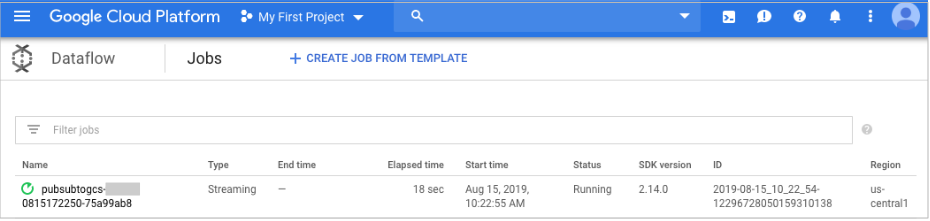
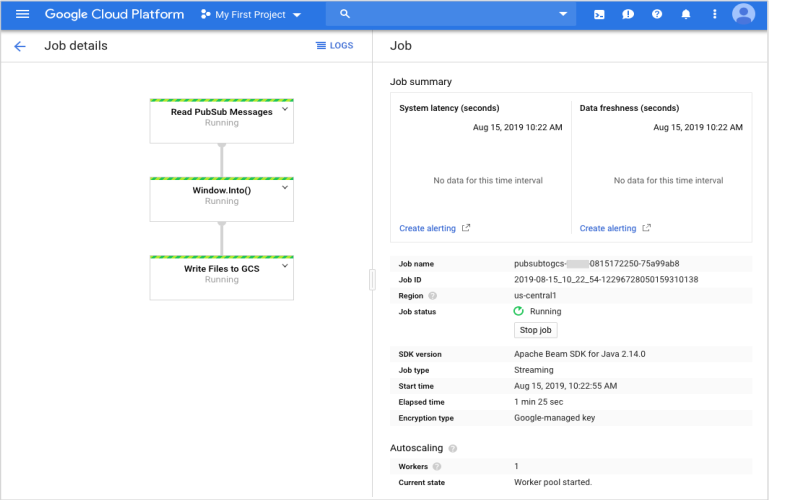
Abra a vista de detalhes do trabalho para ver:
- Estrutura do trabalho
- Registos de tarefas
- Métricas de palco
Pode ter de aguardar alguns minutos para ver os ficheiros de saída no Cloud Storage.
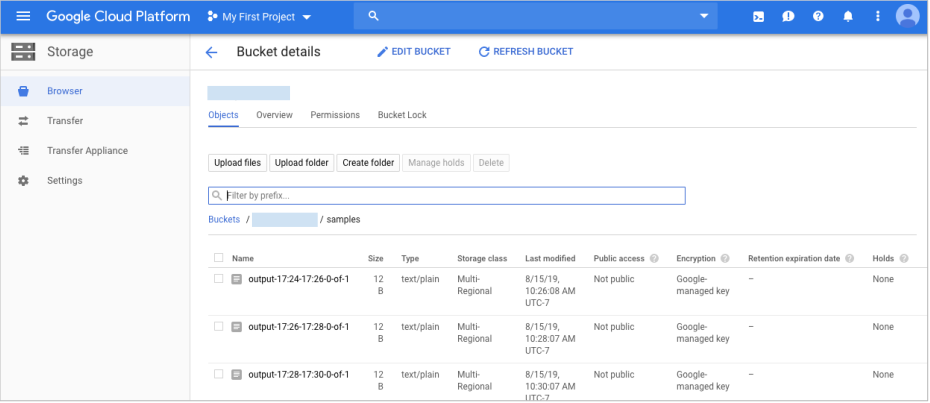
Em alternativa, use a linha de comando abaixo para verificar que ficheiros foram escritos.
gcloud storage ls gs://${BUCKET_NAME}/samples/
O resultado deve ter o seguinte aspeto:
Java
gs://{$BUCKET_NAME}/samples/output-22:30-22:32-0-of-1
gs://{$BUCKET_NAME}/samples/output-22:32-22:34-0-of-1
gs://{$BUCKET_NAME}/samples/output-22:34-22:36-0-of-1
gs://{$BUCKET_NAME}/samples/output-22:36-22:38-0-of-1
Python
gs://{$BUCKET_NAME}/samples/output-22:30-22:32-0
gs://{$BUCKET_NAME}/samples/output-22:30-22:32-1
gs://{$BUCKET_NAME}/samples/output-22:32-22:34-0
gs://{$BUCKET_NAME}/samples/output-22:32-22:34-1
Limpar
Para evitar incorrer em custos na sua Google Cloud conta pelos recursos usados nesta página, elimine o Google Cloud projeto com os recursos.
Elimine a tarefa do Cloud Scheduler.
gcloud scheduler jobs delete publisher-job --location=$REGION
Na consola do Dataflow, pare a tarefa. Cancele o pipeline sem o esvaziar.
Elimine o tópico.
gcloud pubsub topics delete $TOPIC_ID
Elimine os ficheiros criados pelo pipeline.
gcloud storage rm "gs://${BUCKET_NAME}/samples/output*" --recursive --continue-on-error
gcloud storage rm "gs://${BUCKET_NAME}/temp/*" --recursive --continue-on-error
Remova o contentor do Cloud Storage.
gcloud storage rm gs://${BUCKET_NAME} --recursive
-
Elimine a conta de serviço:
gcloud iam service-accounts delete SERVICE_ACCOUNT_EMAIL
-
Optional: Revoke the authentication credentials that you created, and delete the local credential file.
gcloud auth application-default revoke
-
Optional: Revoke credentials from the gcloud CLI.
gcloud auth revoke
O que se segue?
Se quiser colocar as mensagens do Pub/Sub numa janela por uma data/hora personalizada, pode especificar a data/hora como um atributo na mensagem do Pub/Sub e, em seguida, usar a data/hora personalizada com o do PubsubIO.
withTimestampAttributeConsulte os modelos de código aberto do Dataflow da Google concebidos para streaming.
Leia mais sobre como o Dataflow se integra com o Pub/Sub.
Consulte este tutorial que lê a partir do Pub/Sub e escreve no BigQuery através de modelos flexíveis do Dataflow.
Para saber mais sobre a criação de janelas, consulte o exemplo Apache Beam Mobile Gaming Pipeline.