使用 Dataflow 和 Cloud Storage 串流 Pub/Sub 訊息

Dataflow 是一項全代管服務,能夠轉換並充實串流 (即時) 模式和批次模式的資料,讓資料維持同等的穩定與明確性,並利用 Apache Beam SDK 提供簡化的管道開發環境。這個 SDK 具備多項時間區間設定與工作階段分析基元,以及來源與接收連接器生態系統。本快速入門導覽課程說明如何使用 Dataflow 執行下列作業:

  • 讀取發布至 Pub/Sub 主題的訊息
  • 依時間戳記建立訊息視窗或分組
  • 將訊息寫入 Cloud Storage

本快速入門導覽課程將介紹如何使用 Java 和 Python 中的 Dataflow。也支援 SQL。這項快速入門導覽課程也提供 Google Cloud Skills Boost 教學課程,提供臨時憑證供您入門。

如果您不打算進行自訂資料處理,也可以先使用以 UI 為基礎的 Dataflow 範本

事前準備

  1. Sign in to your Google Cloud account. If you're new to Google Cloud, create an account to evaluate how our products perform in real-world scenarios. New customers also get $300 in free credits to run, test, and deploy workloads.
  2. Install the Google Cloud CLI.

  3. 若您採用的是外部識別資訊提供者 (IdP),請先使用聯合身分登入 gcloud CLI

  4. 執行下列指令,初始化 gcloud CLI:

    gcloud init
  5. Create or select a Google Cloud project.

    Roles required to select or create a project

    • Select a project: Selecting a project doesn't require a specific IAM role—you can select any project that you've been granted a role on.
    • Create a project: To create a project, you need the Project Creator role (roles/resourcemanager.projectCreator), which contains the resourcemanager.projects.create permission. Learn how to grant roles.
    • Create a Google Cloud project:

      gcloud projects create PROJECT_ID

      Replace PROJECT_ID with a name for the Google Cloud project you are creating.

    • Select the Google Cloud project that you created:

      gcloud config set project PROJECT_ID

      Replace PROJECT_ID with your Google Cloud project name.

  6. Verify that billing is enabled for your Google Cloud project.

  7. Enable the Dataflow, Compute Engine, Cloud Logging, Cloud Storage, Google Cloud Storage JSON API, Pub/Sub, Resource Manager, and Cloud Scheduler APIs:

    Roles required to enable APIs

    To enable APIs, you need the Service Usage Admin IAM role (roles/serviceusage.serviceUsageAdmin), which contains the serviceusage.services.enable permission. Learn how to grant roles.

    gcloud services enable dataflow.googleapis.com  compute.googleapis.com  logging.googleapis.com  storage-component.googleapis.com  storage-api.googleapis.com  pubsub.googleapis.com  cloudresourcemanager.googleapis.com  cloudscheduler.googleapis.com
    
  8. Set up authentication:

    1. Ensure that you have the Create Service Accounts IAM role (roles/iam.serviceAccountCreator) and the Project IAM Admin role (roles/resourcemanager.projectIamAdmin). Learn how to grant roles.
    2. Create the service account:

      gcloud iam service-accounts create SERVICE_ACCOUNT_NAME

      Replace SERVICE_ACCOUNT_NAME with a name for the service account.

    3. Grant roles to the service account. Run the following command once for each of the following IAM roles: roles/dataflow.worker, roles/storage.objectAdmin, roles/pubsub.admin:

      gcloud projects add-iam-policy-binding PROJECT_ID --member="serviceAccount:SERVICE_ACCOUNT_NAME@PROJECT_ID.iam.gserviceaccount.com" --role=ROLE

      Replace the following:

      • SERVICE_ACCOUNT_NAME: the name of the service account
      • PROJECT_ID: the project ID where you created the service account
      • ROLE: the role to grant
    4. Grant the required role to the principal that will attach the service account to other resources.

      gcloud iam service-accounts add-iam-policy-binding SERVICE_ACCOUNT_NAME@PROJECT_ID.iam.gserviceaccount.com --member="user:USER_EMAIL" --role=roles/iam.serviceAccountUser

      Replace the following:

      • SERVICE_ACCOUNT_NAME: the name of the service account
      • PROJECT_ID: the project ID where you created the service account
      • USER_EMAIL: the email address for a Google Account
  9. Install the Google Cloud CLI.

  10. 若您採用的是外部識別資訊提供者 (IdP),請先使用聯合身分登入 gcloud CLI

  11. 執行下列指令,初始化 gcloud CLI:

    gcloud init
  12. Create or select a Google Cloud project.

    Roles required to select or create a project

    • Select a project: Selecting a project doesn't require a specific IAM role—you can select any project that you've been granted a role on.
    • Create a project: To create a project, you need the Project Creator role (roles/resourcemanager.projectCreator), which contains the resourcemanager.projects.create permission. Learn how to grant roles.
    • Create a Google Cloud project:

      gcloud projects create PROJECT_ID

      Replace PROJECT_ID with a name for the Google Cloud project you are creating.

    • Select the Google Cloud project that you created:

      gcloud config set project PROJECT_ID

      Replace PROJECT_ID with your Google Cloud project name.

  13. Verify that billing is enabled for your Google Cloud project.

  14. Enable the Dataflow, Compute Engine, Cloud Logging, Cloud Storage, Google Cloud Storage JSON API, Pub/Sub, Resource Manager, and Cloud Scheduler APIs:

    Roles required to enable APIs

    To enable APIs, you need the Service Usage Admin IAM role (roles/serviceusage.serviceUsageAdmin), which contains the serviceusage.services.enable permission. Learn how to grant roles.

    gcloud services enable dataflow.googleapis.com  compute.googleapis.com  logging.googleapis.com  storage-component.googleapis.com  storage-api.googleapis.com  pubsub.googleapis.com  cloudresourcemanager.googleapis.com  cloudscheduler.googleapis.com
    
  15. Set up authentication:

    1. Ensure that you have the Create Service Accounts IAM role (roles/iam.serviceAccountCreator) and the Project IAM Admin role (roles/resourcemanager.projectIamAdmin). Learn how to grant roles.
    2. Create the service account:

      gcloud iam service-accounts create SERVICE_ACCOUNT_NAME

      Replace SERVICE_ACCOUNT_NAME with a name for the service account.

    3. Grant roles to the service account. Run the following command once for each of the following IAM roles: roles/dataflow.worker, roles/storage.objectAdmin, roles/pubsub.admin:

      gcloud projects add-iam-policy-binding PROJECT_ID --member="serviceAccount:SERVICE_ACCOUNT_NAME@PROJECT_ID.iam.gserviceaccount.com" --role=ROLE

      Replace the following:

      • SERVICE_ACCOUNT_NAME: the name of the service account
      • PROJECT_ID: the project ID where you created the service account
      • ROLE: the role to grant
    4. Grant the required role to the principal that will attach the service account to other resources.

      gcloud iam service-accounts add-iam-policy-binding SERVICE_ACCOUNT_NAME@PROJECT_ID.iam.gserviceaccount.com --member="user:USER_EMAIL" --role=roles/iam.serviceAccountUser

      Replace the following:

      • SERVICE_ACCOUNT_NAME: the name of the service account
      • PROJECT_ID: the project ID where you created the service account
      • USER_EMAIL: the email address for a Google Account
  16. Create local authentication credentials for your user account:

    gcloud auth application-default login

    If an authentication error is returned, and you are using an external identity provider (IdP), confirm that you have signed in to the gcloud CLI with your federated identity.

設定 Pub/Sub 專案

  1. 為 bucket、專案和區域建立變數。 Cloud Storage bucket 名稱不得重複。選取最接近您執行本快速入門指令位置的 Dataflow區域REGION 變數的值必須是有效的區域名稱。如要進一步瞭解地區和位置,請參閱「Dataflow 位置」。

    BUCKET_NAME=BUCKET_NAME
    PROJECT_ID=$(gcloud config get-value project)
    TOPIC_ID=TOPIC_ID
    REGION=DATAFLOW_REGION
    SERVICE_ACCOUNT=SERVICE_ACCOUNT_NAME@PROJECT_ID.iam.gserviceaccount.com
  2. 建立這個專案擁有的 Cloud Storage bucket:

    gcloud storage buckets create gs://$BUCKET_NAME
  3. 在本專案中建立 Pub/Sub 主題:

    gcloud pubsub topics create $TOPIC_ID
  4. 在本專案建立 Cloud Scheduler 工作,這項工作會每隔一分鐘將訊息發布至 Pub/Sub 主題。

    如果專案沒有 App Engine 應用程式,這個步驟會建立一個。

    gcloud scheduler jobs create pubsub publisher-job --schedule="* * * * *" \
        --topic=$TOPIC_ID --message-body="Hello!" --location=$REGION

    啟動工作。

    gcloud scheduler jobs run publisher-job --location=$REGION
  5. 使用下列指令複製快速入門存放區,並前往程式碼範例目錄:

    Java

    git clone https://github.com/GoogleCloudPlatform/java-docs-samples.git
    cd java-docs-samples/pubsub/streaming-analytics

    Python

    git clone https://github.com/GoogleCloudPlatform/python-docs-samples.git
    cd python-docs-samples/pubsub/streaming-analytics
    pip install -r requirements.txt  # Install Apache Beam dependencies

將訊息從 Pub/Sub 串流至 Cloud Storage

程式碼範例

這個程式碼範例會使用 Dataflow 執行下列作業:

  • 讀取 Pub/Sub 訊息。
  • 根據發布時間戳記,建立訊息視窗或將訊息分組至固定長度的時間間隔。
  • 將每個視窗中的訊息寫入 Cloud Storage 的檔案。

Java


import java.io.IOException;
import org.apache.beam.examples.common.WriteOneFilePerWindow;
import org.apache.beam.sdk.Pipeline;
import org.apache.beam.sdk.io.gcp.pubsub.PubsubIO;
import org.apache.beam.sdk.options.Default;
import org.apache.beam.sdk.options.Description;
import org.apache.beam.sdk.options.PipelineOptionsFactory;
import org.apache.beam.sdk.options.StreamingOptions;
import org.apache.beam.sdk.options.Validation.Required;
import org.apache.beam.sdk.transforms.windowing.FixedWindows;
import org.apache.beam.sdk.transforms.windowing.Window;
import org.joda.time.Duration;

public class PubSubToGcs {
  /*
   * Define your own configuration options. Add your own arguments to be processed
   * by the command-line parser, and specify default values for them.
   */
  public interface PubSubToGcsOptions extends StreamingOptions {
    @Description("The Cloud Pub/Sub topic to read from.")
    @Required
    String getInputTopic();

    void setInputTopic(String value);

    @Description("Output file's window size in number of minutes.")
    @Default.Integer(1)
    Integer getWindowSize();

    void setWindowSize(Integer value);

    @Description("Path of the output file including its filename prefix.")
    @Required
    String getOutput();

    void setOutput(String value);
  }

  public static void main(String[] args) throws IOException {
    // The maximum number of shards when writing output.
    int numShards = 1;

    PubSubToGcsOptions options =
        PipelineOptionsFactory.fromArgs(args).withValidation().as(PubSubToGcsOptions.class);

    options.setStreaming(true);

    Pipeline pipeline = Pipeline.create(options);

    pipeline
        // 1) Read string messages from a Pub/Sub topic.
        .apply("Read PubSub Messages", PubsubIO.readStrings().fromTopic(options.getInputTopic()))
        // 2) Group the messages into fixed-sized minute intervals.
        .apply(Window.into(FixedWindows.of(Duration.standardMinutes(options.getWindowSize()))))
        // 3) Write one file to GCS for every window of messages.
        .apply("Write Files to GCS", new WriteOneFilePerWindow(options.getOutput(), numShards));

    // Execute the pipeline and wait until it finishes running.
    pipeline.run().waitUntilFinish();
  }
}

Python

import argparse
from datetime import datetime
import logging
import random

from apache_beam import (
    DoFn,
    GroupByKey,
    io,
    ParDo,
    Pipeline,
    PTransform,
    WindowInto,
    WithKeys,
)
from apache_beam.options.pipeline_options import PipelineOptions
from apache_beam.transforms.window import FixedWindows


class GroupMessagesByFixedWindows(PTransform):
    """A composite transform that groups Pub/Sub messages based on publish time
    and outputs a list of tuples, each containing a message and its publish time.
    """

    def __init__(self, window_size, num_shards=5):
        # Set window size to 60 seconds.
        self.window_size = int(window_size * 60)
        self.num_shards = num_shards

    def expand(self, pcoll):
        return (
            pcoll
            # Bind window info to each element using element timestamp (or publish time).
            | "Window into fixed intervals"
            >> WindowInto(FixedWindows(self.window_size))
            | "Add timestamp to windowed elements" >> ParDo(AddTimestamp())
            # Assign a random key to each windowed element based on the number of shards.
            | "Add key" >> WithKeys(lambda _: random.randint(0, self.num_shards - 1))
            # Group windowed elements by key. All the elements in the same window must fit
            # memory for this. If not, you need to use `beam.util.BatchElements`.
            | "Group by key" >> GroupByKey()
        )


class AddTimestamp(DoFn):
    def process(self, element, publish_time=DoFn.TimestampParam):
        """Processes each windowed element by extracting the message body and its
        publish time into a tuple.
        """
        yield (
            element.decode("utf-8"),
            datetime.utcfromtimestamp(float(publish_time)).strftime(
                "%Y-%m-%d %H:%M:%S.%f"
            ),
        )


class WriteToGCS(DoFn):
    def __init__(self, output_path):
        self.output_path = output_path

    def process(self, key_value, window=DoFn.WindowParam):
        """Write messages in a batch to Google Cloud Storage."""

        ts_format = "%H:%M"
        window_start = window.start.to_utc_datetime().strftime(ts_format)
        window_end = window.end.to_utc_datetime().strftime(ts_format)
        shard_id, batch = key_value
        filename = "-".join([self.output_path, window_start, window_end, str(shard_id)])

        with io.gcsio.GcsIO().open(filename=filename, mode="w") as f:
            for message_body, publish_time in batch:
                f.write(f"{message_body},{publish_time}\n".encode())


def run(input_topic, output_path, window_size=1.0, num_shards=5, pipeline_args=None):
    # Set `save_main_session` to True so DoFns can access globally imported modules.
    pipeline_options = PipelineOptions(
        pipeline_args, streaming=True, save_main_session=True
    )

    with Pipeline(options=pipeline_options) as pipeline:
        (
            pipeline
            # Because `timestamp_attribute` is unspecified in `ReadFromPubSub`, Beam
            # binds the publish time returned by the Pub/Sub server for each message
            # to the element's timestamp parameter, accessible via `DoFn.TimestampParam`.
            # https://beam.apache.org/releases/pydoc/current/apache_beam.io.gcp.pubsub.html#apache_beam.io.gcp.pubsub.ReadFromPubSub
            | "Read from Pub/Sub" >> io.ReadFromPubSub(topic=input_topic)
            | "Window into" >> GroupMessagesByFixedWindows(window_size, num_shards)
            | "Write to GCS" >> ParDo(WriteToGCS(output_path))
        )


if __name__ == "__main__":
    logging.getLogger().setLevel(logging.INFO)

    parser = argparse.ArgumentParser()
    parser.add_argument(
        "--input_topic",
        help="The Cloud Pub/Sub topic to read from."
        '"projects/<PROJECT_ID>/topics/<TOPIC_ID>".',
    )
    parser.add_argument(
        "--window_size",
        type=float,
        default=1.0,
        help="Output file's window size in minutes.",
    )
    parser.add_argument(
        "--output_path",
        help="Path of the output GCS file including the prefix.",
    )
    parser.add_argument(
        "--num_shards",
        type=int,
        default=5,
        help="Number of shards to use when writing windowed elements to GCS.",
    )
    known_args, pipeline_args = parser.parse_known_args()

    run(
        known_args.input_topic,
        known_args.output_path,
        known_args.window_size,
        known_args.num_shards,
        pipeline_args,
    )

啟動管道

如要啟動管道,請執行下列指令:

Java

mvn compile exec:java \
  -Dexec.mainClass=com.examples.pubsub.streaming.PubSubToGcs \
  -Dexec.cleanupDaemonThreads=false \
  -Dexec.args=" \
    --project=$PROJECT_ID \
    --region=$REGION \
    --inputTopic=projects/$PROJECT_ID/topics/$TOPIC_ID \
    --output=gs://$BUCKET_NAME/samples/output \
    --gcpTempLocation=gs://$BUCKET_NAME/temp \
    --runner=DataflowRunner \
    --windowSize=2 \
    --serviceAccount=$SERVICE_ACCOUNT"

Python

python PubSubToGCS.py \
  --project=$PROJECT_ID \
  --region=$REGION \
  --input_topic=projects/$PROJECT_ID/topics/$TOPIC_ID \
  --output_path=gs://$BUCKET_NAME/samples/output \
  --runner=DataflowRunner \
  --window_size=2 \
  --num_shards=2 \
  --temp_location=gs://$BUCKET_NAME/temp \
  --service_account_email=$SERVICE_ACCOUNT

上述指令會在本地端執行,並啟動在雲端執行的 Dataflow 工作。指令傳回 JOB_MESSAGE_DETAILED: Workers have started successfully 時,請使用 Ctrl+C 結束本機程式。

觀察工作和管道進度

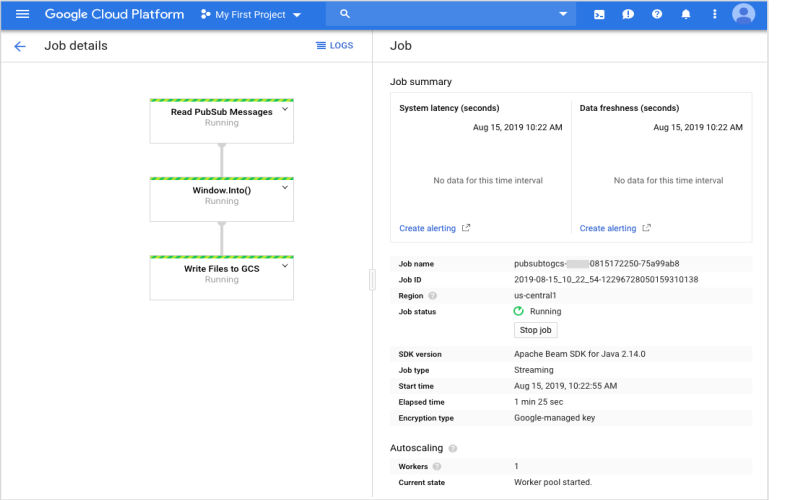
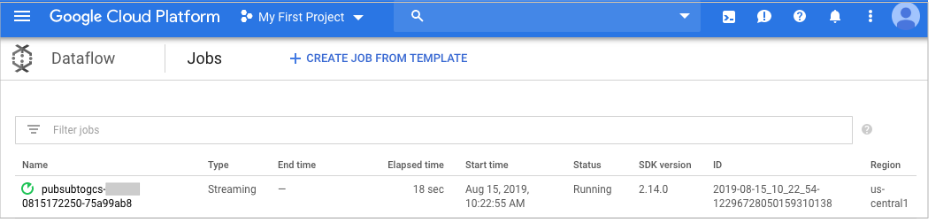
您可以在 Dataflow 控制台中查看工作進度。
前往 Dataflow 控制台

觀察工作進度

開啟工作詳細資料檢視畫面,即可查看:

  • 工作結構
  • 工作記錄
  • 階段指標

觀察工作進度

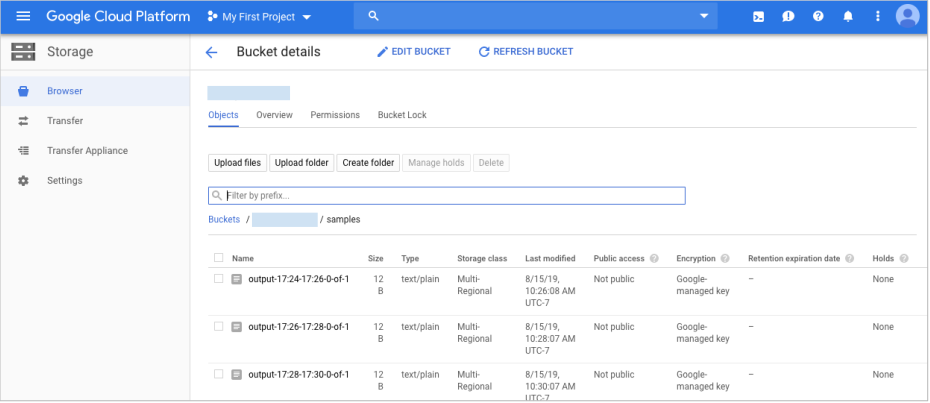
您可能需要稍候幾分鐘,才能在 Cloud Storage 看到輸出檔案。

觀察工作進度

或者,使用下列指令列檢查哪些檔案已寫入。

gcloud storage ls gs://${BUCKET_NAME}/samples/

輸出內容應如下所示:

Java

gs://{$BUCKET_NAME}/samples/output-22:30-22:32-0-of-1
gs://{$BUCKET_NAME}/samples/output-22:32-22:34-0-of-1
gs://{$BUCKET_NAME}/samples/output-22:34-22:36-0-of-1
gs://{$BUCKET_NAME}/samples/output-22:36-22:38-0-of-1

Python

gs://{$BUCKET_NAME}/samples/output-22:30-22:32-0
gs://{$BUCKET_NAME}/samples/output-22:30-22:32-1
gs://{$BUCKET_NAME}/samples/output-22:32-22:34-0
gs://{$BUCKET_NAME}/samples/output-22:32-22:34-1

清除所用資源

為了避免系統向您的 Google Cloud 帳戶收取本頁面所用資源的費用,請刪除含有這些資源的 Google Cloud 專案。

  1. 刪除 Cloud Scheduler 工作。

    gcloud scheduler jobs delete publisher-job --location=$REGION
  2. 在 Dataflow 控制台中停止工作。取消管道,但不要排空管道。

  3. 刪除主題。

    gcloud pubsub topics delete $TOPIC_ID
  4. 刪除管道建立的檔案。

    gcloud storage rm "gs://${BUCKET_NAME}/samples/output*" --recursive --continue-on-error
    gcloud storage rm "gs://${BUCKET_NAME}/temp/*" --recursive --continue-on-error
  5. 移除 Cloud Storage bucket。

    gcloud storage rm gs://${BUCKET_NAME} --recursive

  6. 刪除服務帳戶:
    gcloud iam service-accounts delete SERVICE_ACCOUNT_EMAIL
  7. Optional: Revoke the authentication credentials that you created, and delete the local credential file.

    gcloud auth application-default revoke
  8. Optional: Revoke credentials from the gcloud CLI.

    gcloud auth revoke

後續步驟