

Tag workloads for RaMP incentives
Google Cloud RaMP is an end-to-end migration and modernization program to help customers use expertise and best practices, lower risk, control costs, and simplify their path to cloud success.
RaMP accelerates customer workload migrations to Google Cloud through partner expertise and commercial incentives. This document outlines the workload tagging requirements customers must follow for RaMP incentive eligibility.
Workload tagging - incentive requirements
To qualify for incentives, the following requirements must be met:
- Identify project(s): Select a Google Cloud project for deploying your RaMP workload. You may spread a single Workload ID across multiple projects, but don't mix resources from different RaMP Workload IDs within the same project.
- Google curated tag key: The curated RaMP workload tag key
google/deployment-wl-id, which is a Google managed Dynamic Tag Key available in your Google Cloud organization, must be used to identify the RaMP workload. Google systems won't recognize a manually created tag, even if the RaMP workload tag key is used. - Tag binding at project level: RaMP incentives are based on the project level tag. Resources that are tagged differently within a project won't affect incentive calculations.
- Tag value: For the Google curated tag, ensure the tag value is identical to the Workload ID found in the RaMP Agreement.
The following sections cover how to perform each of these required steps.
Workload identification: use tags to identify RaMP Workloads
A key operational step of the migration and modernization phase is the RaMP workload tagging. This step ensures Google Cloud can track the workload, and is a necessary step to qualify for RaMP incentives.
The Workload Identifier (pre-fixed by WL-) has been generated and assigned
to each workload deployment described in your RaMP Agreement. Once the RaMP
Agreement has been executed, the Workload Identifiers are also available in
your Google Cloud Console (organization).
As part of the migration and modernization phase,you can tag each RaMP workload with the Workload Identifier assigned to that workload. This Workload Identification process ensures accurate tracking between the anticipated deployment described in the contract and the actual deployment.
Tag Workloads
To qualify for RaMP incentives customers must select an existing, or create new Google Cloud projects for each RaMP Workload ID. Every project must be tagged with the correct Workload Identifier. While a single workload may span multiple projects, each project must be dedicated exclusively to one RaMP workload.
After creating the RaMP workload projects, customers must bind the curated tag to the projects using the Workload Identifier. This identifier can be found in the RaMP Agreement or the Google Cloud console.
RaMP Agreement (Workload Identifier is found in section 3 of the Agreement):

To view the tagged RaMP workload, go to Cloud Billing > Workloads.
Go to Workloads in Cloud Billing console
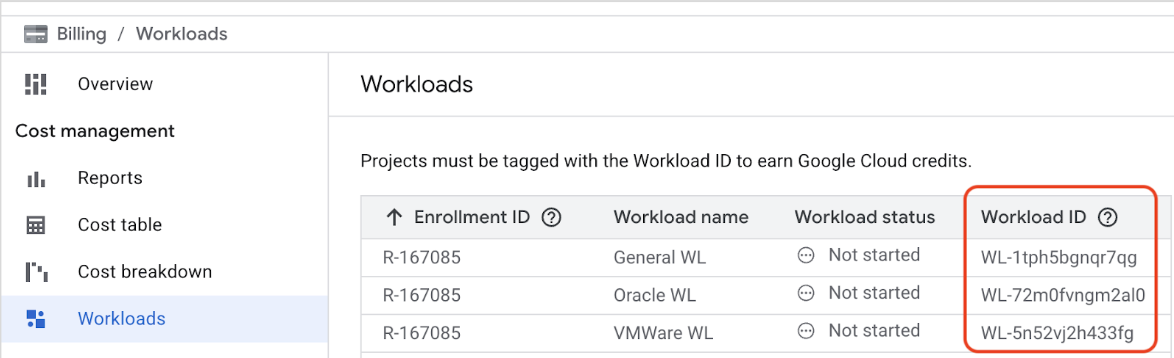
Workloads billing page.
The curated tag key google/deployment-wl-id has been pre-created by Google and
is already available in your Google Cloud organization. You don't need to
create a new key.
Google Cloud tag binding is a feature that links tags to resources, such as an organization, folder, project. For the purpose of RaMP incentives, tag binding must be done at the project level.
For each relevant project, create a tag binding using the following parameters:
- Tag key:
google/deployment-wl-id - Tag value: WORKLOAD_IDENTIFIER
To bind the tag, the user needs the
resourcemanager.hierarchyNodes.createTagBinding permission on the project.
This permission is included in the following roles:
- Standard roles:
Tag User,Owner, orEditor. - Custom roles: Any custom role configured with the
resourcemanager.hierarchyNodes.createTagBindingpermission.
The tag key google/deployment-wl-id is public, so you only need permissions on
the project, not on the tag key itself.
You can bind the tag to your project in one of the following ways:
gcloud
To create a
google/deployment-wl-idtag binding, run the following command:gcloud resource-manager tags bindings create --parent="//cloudresourcemanager.googleapis.com/projects/PROJECT_ID" --tag-value="google/deployment-wl-id/WORKLOAD_IDENTIFIER"To verify that the tag binding was successfully created, run the following command:
gcloud resource-manager tags bindings list --parent="//cloudresourcemanager.googleapis.com/projects/PROJECT_ID"Replace the following:
- PROJECT_ID: the ID of your Google Cloud project.
- WORKLOAD_IDENTIFIER: the Workload Identifier assigned to the workload in your RaMP agreement.
Terraform
To bind the google/deployment-wl-id tag to a project with Terraform,
use the following configuration:
  resource "google_tags_tag_binding" "binding" {
    parent = "//cloudresourcemanager.googleapis.com/projects/PROJECT_NUMBER"
    tag_value = "google/deployment-wl-id/WORKLOAD_IDENTIFIER"
  }
Replace the following:
- PROJECT_NUMBER: the number of your Google Cloud project.
- WORKLOAD_IDENTIFIER: the Workload Identifier assigned to the workload in your RaMP Agreement.
Troubleshoot workload tagging errors
If you have applied an incorrect tag to a project, bind the correct tag to that project. Cloud Billing uses the last tag applied to calculate incentives.
Correct a tag bound to the wrong project
If a tag is bound to the wrong project, do the following:
- Bind the RaMP tag to the correct project.
- Unbind the tag from the incorrect project.
gcloud CLI supports both create and delete actions for managing
these tag bindings. For more information, see
Tag Workloads.
What's next
- Learn how to get started with Google Cloud Migration Center.
- Learn how to generate a rapid cost estimate.
- Learn more about creating and managing Resource Manager tags.
- Learn more about RaMP.
- Explore the Cloud Architecture Center.