

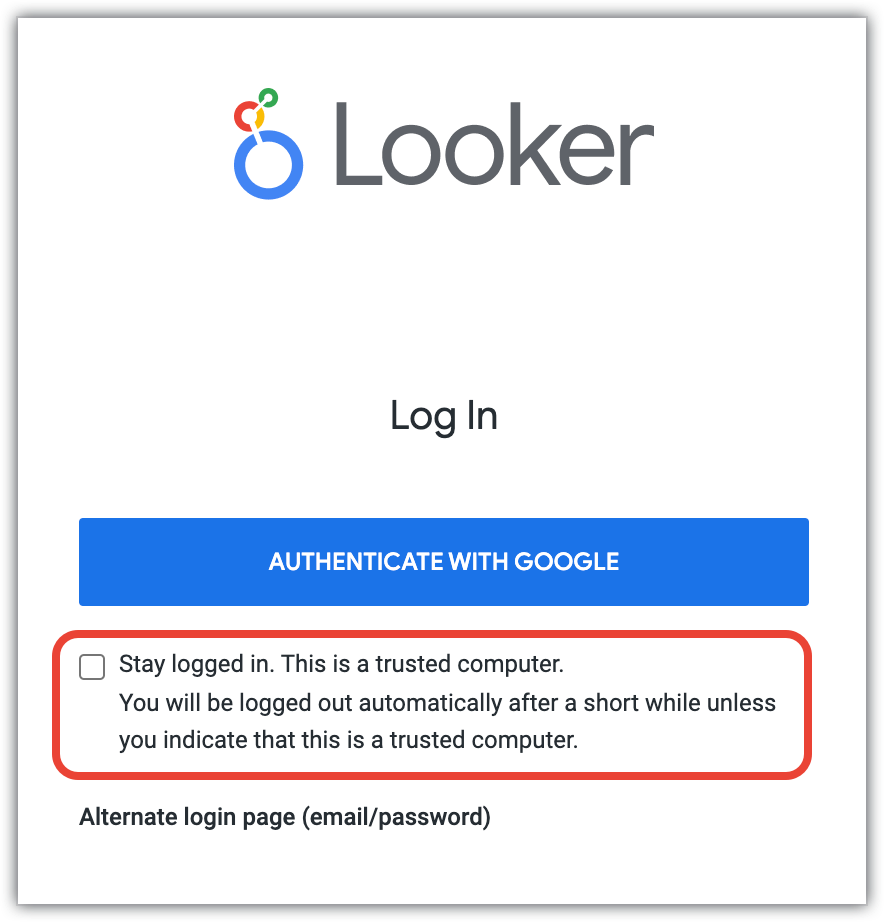
By default, when a user logs in to Looker, they are given an option to stay logged in. This option appears as a checkbox at the bottom of the login page.
The Sessions page, in the Authentication section of the Admin menu, lets you configure whether users have the option to stay logged in, how long they stay logged in if they don't choose that option, and whether they can stay logged in from multiple devices.
Inactivity Logout
By default, a user stays logged in to Looker for a set length of time that is determined by the Persistent Sessions and Session Duration settings, regardless of whether the user is actively using Looker.
If you enable Inactivity Logout, users are automatically logged out of Looker after 15 minutes of inactivity. Activity is defined as a user clicking anywhere in Looker, or touching the screen in the case of touchscreens, or typing anything into Looker. Therefore, if this setting is enabled, a user is logged out if they don't click or type anything for 15 minutes.
Two minutes before the user will be logged out, Looker displays a dialog to warn the user and give them the opportunity to stay logged in.
When a user is forcibly logged out as a result of inactivity, they are logged out of their inactive session. A session is unique to each browser, so if a user has multiple tabs open and logged in to Looker, they are logged out on all tabs. But, if they are logged in through multiple browsers, they are logged out only of the session on the inactive browser.
Any unsaved changes in the Looker IDE are stored. When the user logs back in and loads a file that has any unsaved changes in it, they are given the option to restore the unsaved changes.
When Inactivity Logout is enabled, Persistent Sessions is automatically disabled. In addition, Session Duration is set to a default of one day. The Session Duration setting can still be changed. The value set in Session Duration remains the maximum length of time a user can stay logged in, even if they are active the entire time.
For example, if Inactivity Logout is enabled and Session Duration is set to 5 hours, a user will be logged out under these circumstances:
- If the user remains inactive for 15-minutes at any time during the 5-hour period, they will be logged out after the 15-minute inactivity period.
- If the user has been active during the entire 5-hour session, a dialog screen will prompt them to re-authenticate to continue working. If the user doesn't re-authenticate, they will be logged out.
Additionally, with these settings, a user who has been active for 4 hours and 50 minutes before becoming inactive for 10 minutes will still be logged out after the 10-minute inactivity period. Session Duration remains the maximum time a user can stay logged in. Users who access Looker using either the Looker API or a signed embed are not affected by Inactivity Logout.
Persistent Sessions
When a user selects the option to stay logged in, they will be authorized to access Looker for 30 days. When they close and reopen their browser, they can navigate to Looker without being required to log in again.
Disabling Persistent Sessions removes the "Stay logged in" option from the login screen. Users will be automatically logged out after the amount of time specified in the Session Duration section, or whenever they close their browser. This forces users to re-authenticate the next time they access Looker.
Persistent Sessions is automatically disabled when Inactivity Logout is enabled.
Session Duration
By default, when a user does not select the option to stay logged in, their session will expire after 30 minutes.
Two minutes before a session expires, the user is given the option to extend the session. If the user doesn't extend their session, their session ends and they are logged out of Looker.
The Session Duration field lets you change the amount of time a user can stay logged in before they will be notified and their session will expire. You can set this value from 5 minutes to 30 days.
- If the Session Duration is 30 minutes or less, then the extended session will be the same duration as the session duration. For example, if the Session Duration is 5 minutes, then the extended session will also be 5 minutes.
- If the Session Duration is more than 30 minutes, then the extended session will still be 30 minutes. For example, if the Session Duration is 1 day, then the extended session will be 30 minutes.
If Inactivity Logout is enabled, Session Duration must be set to a value between 15 minutes and 1 day. If Session Duration is set to a value outside of this range, the value will be set to 1 day.
Session duration and identity provider policies in Looker (Google Cloud core)
For Looker (Google Cloud core) instances that use Workforce Identity Federation or Google OAuth for user authentication, the validity of the identity provider's refresh token takes precedence over the Session Duration and Persistent Sessions settings if the refresh token expires sooner:
Workforce Identity Federation: User sessions require an active access token and refresh token from the workforce identity pool. If the refresh token validity that's configured in your workforce identity pool policy is shorter than the session duration that's configured in Looker, users are logged out and must sign in again when the refresh token expires. To prevent premature session expiration, set a 90-day refresh token validity by using an extended session length policy.
Session duration and token validity settings in Workforce Identity Federation also affect other Looker features:
- Scheduled deliveries and alerts: Background jobs run as long as the user's IdP token is valid. Users must sign in to the instance at least once every 90 days (or within the configured workforce identity pool session duration) to keep their offline sessions active and prevent scheduled deliveries or alerts from pausing.
- Connectors: Integrations that use the Looker OAuth server (such as Data Studio, Connected Sheets, and third-party connectors) use a 30-day refresh token (or a non-expiring refresh token in Data Studio). If the workforce pool session duration is less than 90 days, users might need to re-authenticate with Looker when the session duration expires.
- User API keys: User API tokens require an active user IdP session. Users must sign in to the instance at least once every 90 days (or within the configured workforce identity pool session duration) to continue using their API keys.
Service account API keys: Service account API access tokens are unaffected.
Google OAuth: User sessions require an active Google access token and refresh token. Google Accounts support infinite refresh token validity by default. If your organization configures a Google Cloud session length policy, that policy takes precedence over the Looker session duration if it expires sooner. Don't set an explicit refresh token expiration unless your organization's security policy requires it.
Concurrent Sessions
By default, users can remain logged in to Looker from multiple browsers and devices simultaneously. Disabling Concurrent Sessions lets you require users to log in from only one browser and device at a time. When Concurrent Sessions is disabled, a user is automatically logged out of any other browser session when they log in from a different browser or device.
Session Location
If Session Location is enabled, a user's location will be tracked when they log in to Looker. This location information is based on the user's browser IP address and is available to users and admins on the Sessions page for visibility and management of sessions. The location information can help admins determine which sessions are current and which sessions should be deleted.
If Session Location is disabled, whenever a user logs in to Looker, their location won't be tracked.