

This document describes how you query, view, and analyze log entries by using the Google Cloud console. There are two interfaces available to you, the Logs Explorer and Observability Analytics. You can query, view, and analyze logs with both interfaces; however, they use different query languages and they have different capabilities:
For troubleshooting and exploration of log data, use the Logs Explorer.
To join your log and trace data, or to generate insights and trends, use Observability Analytics.
You can query your logs and save your queries by issuing Logging API commands. You can also query your logs by using Google Cloud CLI.
Use Logs Explorer
The Logs Explorer is designed to help you troubleshoot and analyze the performance of your services and applications. For example, a histogram displays the rate of errors. If you see a spike in errors or something that is interesting, you can locate and view the corresponding log entries. When a log entry is associated with an error group, the log entry is annotated with a menu of options that let you access more information about the error group.
The same query language is supported by the Cloud Logging API, the Google Cloud CLI, and the Logs Explorer. To simplify query construction when you are using the Logs Explorer, you can build queries by using menus, by entering text, and, in some cases, by using options included with the display of an individual log entry.
The Logs Explorer doesn't support aggregate operations, like counting the number of log entries that contain a specific pattern. To perform aggregate operations, enable analytics on the log bucket and then use Observability Analytics.
For details about searching and viewing logs with the Logs Explorer, see View logs by using the Logs Explorer.
Explore Observability Analytics
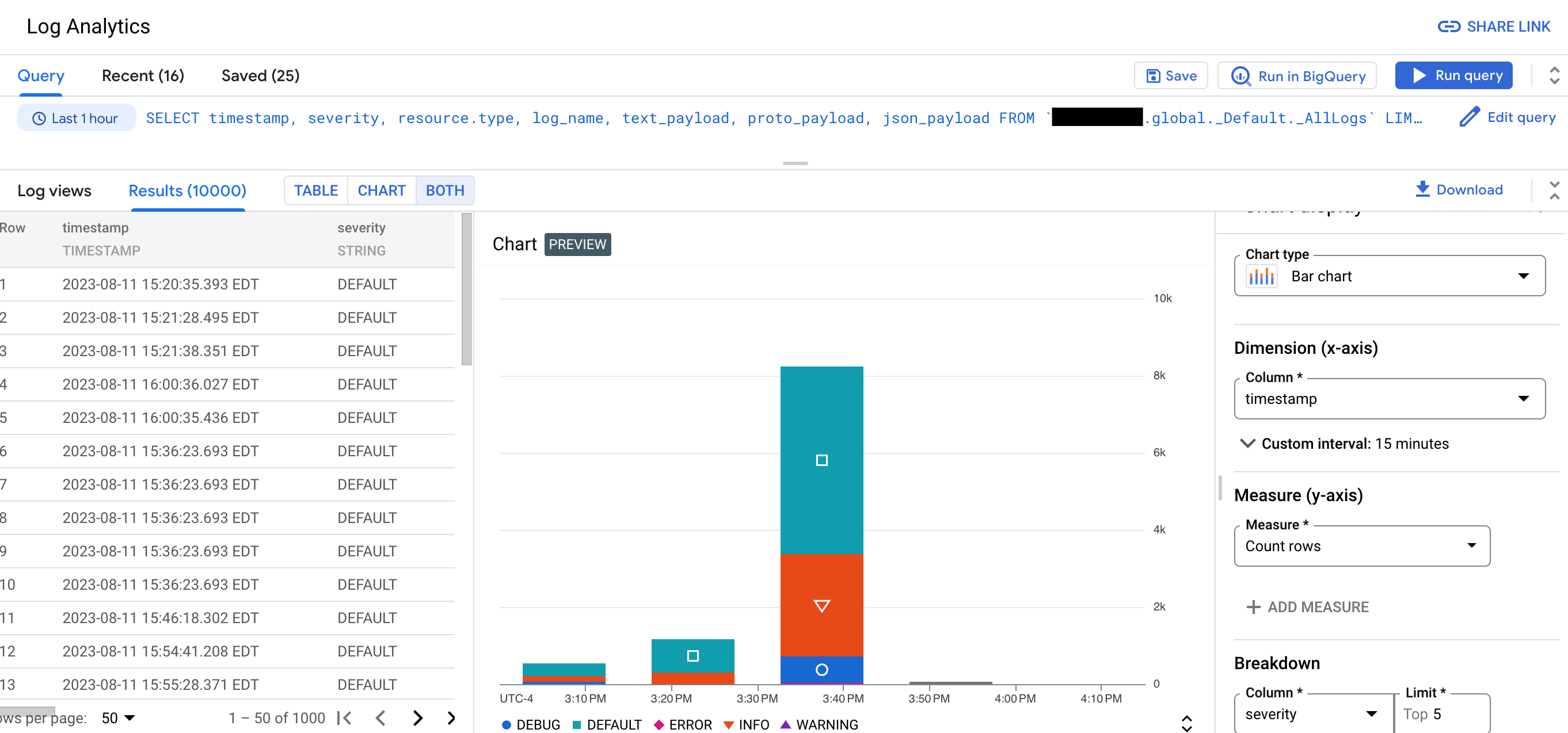
Using Observability Analytics, you can generate insights by running queries that group and aggregate your log data. These insights can help reduce the time you spend troubleshooting issues. To view your query results, use a table, a chart, or both. Charts can help you identify patterns and trends in your log data. For example, the following screenshot shows a query result being displayed as a table and a chart:
Observability Analytics supports the following:
Grouping and aggregating log data.
For example, you can run a SQL query that groups log entries by the hour, and then computes for each group, the average latency for HTTP requests issued to a specific URL.
SQL queries that use pipe syntax.
Queries of log views and analytics views.
Log views have a system-defined schema. You define the schema for analytics views.
Joins of log and trace data.
For information about querying your trace data, see Query and analyze traces.
Cloud Logging also lets you query your log data from BigQuery, without exporting that data to BigQuery. After you upgrade your log bucket to use Observability Analytics, create a linked BigQuery dataset. You can query the linked BigQuery dataset by using BigQuery services.
Upgrading a log bucket doesn't affect your usage of the Logs Explorer. The Logs Explorer only requires that your log data be stored in a log bucket.
Restrictions
To upgrade an existing log bucket to use Observability Analytics, the following restrictions apply:
- The log bucket was created at the Google Cloud project level.
- The log bucket is unlocked unless it is the
_Requiredbucket. - There aren't pending updates to the bucket.
Log entries written before a bucket is upgraded aren't immediately available. However, when the backfill operation completes, you can analyze these log entries. The backfill process might take several days.
You can't use the Observability Analytics page to query log views when the log bucket has field-level access controls configured. However, you can issue queries through the Logs Explorer page, and you can query a linked BigQuery dataset. Because BigQuery doesn't honor field-level access controls, if you query a linked BigQuery dataset, then you can query all fields in the log entries.
Duplicate log entries aren't removed before a query is run. This behavior is different than when you query log entries by using the Logs Explorer, which removes duplicate entries by comparing the log names, timestamps, and insert ID fields. For more information, see Troubleshoot: There are duplicate log entries in my Observability Analytics results.
Restrictions on joins
To join views, the following restrictions apply:
-
The locations of the views satisfy one of the following:
- All views have the same location.
- All views are in either the
globaloruslocation.
-
When storage resources use customer managed encryption keys (CMEK), one of the following is be true:
- Storage resources that use CMEK use the same Cloud KMS key.
- Storage resources that use CMEK have a common ancestor, and that ancestor specifies a default Cloud KMS key that is in the same location as the storage resources.
When one or more storage resources uses CMEK, the system encrypts temporary data generated by the join with either the common Cloud KMS key or the ancestor's default Cloud KMS key.
For example, suppose that you have two views that reside in the same location. Then you can join these views when any of the following are true:
- The storage resources don't use CMEK.
- One storage resource uses CMEK and the other doesn't.
- Both storage resources use CMEK and both use the same Cloud KMS key.
Both storage resources use CMEK but they use different keys. However, the resources share an ancestor that specifies a default Cloud KMS key that is in the same location as the storage resources.
For example, suppose that the resource hierarchy for a log bucket and observability bucket includes the same organization. You can join views on those buckets when, for that organization, you've configured the default resource settings for Cloud Logging and for observability buckets with the same default Cloud KMS key for the storage location.
Pricing
For pricing information, see Google Cloud Observability pricing page. If you route log data to other Google Cloud services, then see the following documents:
There are no BigQuery ingestion or storage costs when you upgrade a bucket to use Observability Analytics and then create a linked BigQuery dataset. When you create a linked BigQuery dataset for a log bucket, you don't ingest your log data into BigQuery. Instead, you get read access to the log data stored in your log bucket through the linked BigQuery dataset.
BigQuery analysis charges apply when you run SQL queries on BigQuery linked BigQuery datasets, which includes using the BigQuery Studio page, the BigQuery API, and the BigQuery command-line tool.
Blogs
For more information about Observability Analytics, see the following blog posts:
- For an overview of Observability Analytics, see Observability Analytics in Cloud Logging is now GA.
- To learn about creating charts generated by Observability Analytics queries and saving those charts to custom dashboards, see Announcing Observability Analytics charts and dashboards in Cloud Logging in public preview.
- To learn about analyzing audit logs by using Observability Analytics, see Gleaning security insights from audit logs with Observability Analytics.
- If you route logs to BigQuery and want to understand the difference between that solution and using Observability Analytics, then see Moving to Observability Analytics for BigQuery export users.
What's next
- Create a log bucket and upgrade it to use Observability Analytics
- Upgrade an existing bucket to use Observability Analytics
Query and view logs:
Sample queries: