

This document describes how you can request missing permissions when you encounter a permission error message.
If you don't have permission to modify access-related policies in your organization, you must send an administrator an access request using the context from the error message. You can't resolve the permission errors on your own.
You can request access in the following ways:
Request the required permissions. This resolution is effective for all types of permission errors.
Request a grant against a Privileged Access Manager entitlement. This resolution is only effective if the permission error is caused by your allow policies and if you have a Privileged Access Manager entitlement with the required permissions.
Request a role with the required permissions. This resolution is only effective if the permission error is caused by your allow policies.
If you're using the Google Cloud console and you have the permissions required to grant roles, then you can grant yourself the role directly from the error message instead of requesting it. For more information, see Self-grant a role in the Google Cloud console.
Request the required permissions
To request the required permissions, do the following:
Console
In the list of missing permissions, click Request permissions.
In the Request Access panel, choose how you want to notify your administrator:
If your organization supports Essential Contacts and allows auto-generated access request emails, then you can send an auto-generated email to your organization's technical Essential Contact. To send this email, do the following:
- Select Send auto-generated email.
- Add any context about the request that you want to include.
- Click Send request.
To copy the access request and paste it into your preferred request management system, do the following:
- If your organization supports Essential Contacts and allows auto-generated emails but you want to send the notification manually, select Notify manually.
- Add any context about the request that you want to include.
- Click Copy message.
- Paste the request into your preferred request management system.
Your administrator receives your access request, along with any additional context that you provided.
gcloud
Copy the error_info_id, if available, and the list of missing permissions from
the error message, then use your preferred request management system to ask an
administrator to give you these permissions.
REST
Copy the error_info_id, if available, and the list of missing permissions from
the error message, then use your preferred request management system to ask an
administrator to give you these permissions.
Request a grant against a Privileged Access Manager entitlement
Privileged Access Manager entitlements define a set of IAM roles that you can request at any time. If your request is successful, then you're granted the requested roles temporarily.
This resolution option is only available if the permission error is caused by your allow policies and if you have a Privileged Access Manager entitlement with the required permissions.
To request a grant against an existing entitlement, do the following:
Console
When you encounter an error message, find the Request temporary access section. This section lists all of the Privileged Access Manager entitlements that contain a role with the required permissions.
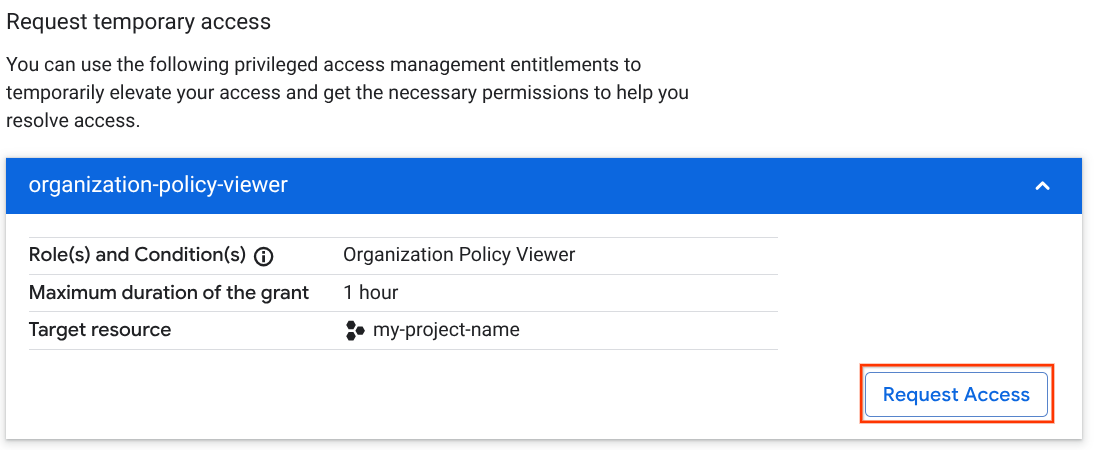
If no Request temporary access section is returned, then no entitlements contain the required permissions. In this case, you can ask an administrator to create a new entitlement.
Review the list of available entitlements and select the entitlement that you want to request a grant against.
Click the entitlement, then click Request access.
In the Request grant panel, enter the details for the request grant:
The duration required for the grant, up to the maximum duration set on the entitlement.
If required, a justification for the grant.
Optional: The email addresses to notify of the grant request. Google identities that are associated with approvers are automatically notified. However, you might want to notify a different set of email addresses, especially if you're using Workforce Identity Federation.
Click Request grant.
To see your grant history including approval statuses, go to the Privileged Access Manager page in the Google Cloud console, then click Grants > My grants.
gcloud
Search for available entitlements to find an entitlement with a role that has the required permissions.
If no entitlement is returned, then you can ask an administrator to create a new entitlement.
Optional: Check your grant request status.
REST
Search for available entitlements to find an entitlement with a role that has the required permissions.
If no entitlement is returned, then you can ask an administrator to create a new entitlement.
Optional: Check your grant request status.
Request a role
If the permission error is caused by an allow policy, then you can request that an administrator grant you a role with the required permissions to resolve the error.
If the error is caused by a different policy type or if you aren't sure which policy type is causing the error, then request the required permissions instead.
Console
In the Request a specific role section, review the list of recommended roles and choose the one that you want to request. You can click the roles to view more details about them. This section is only visible if the permission error is caused by an allow policy.
Click the role that you've chosen, then click Request role.
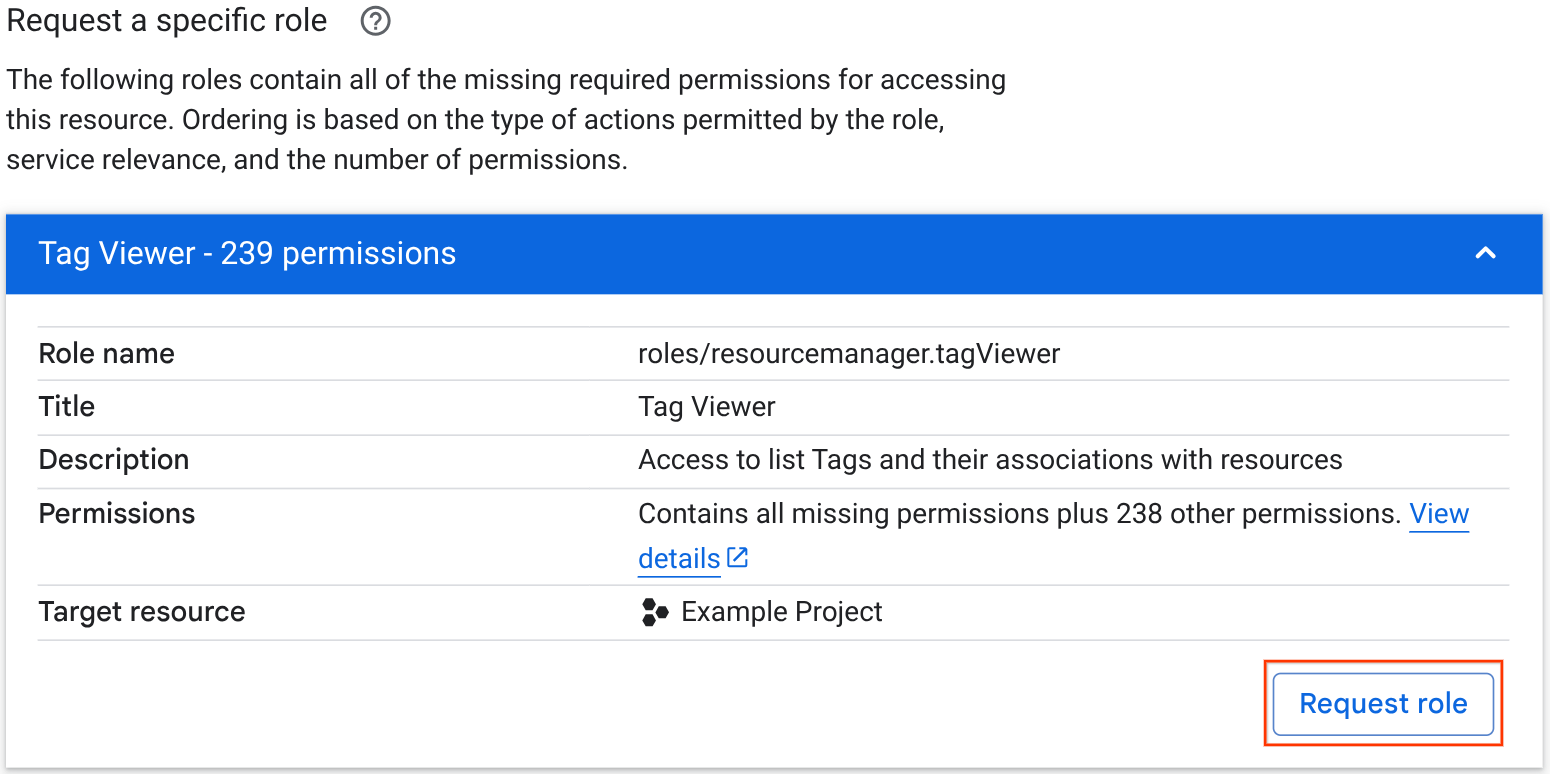
In the Request Access panel, choose one of the options for notifying your administrator:
If your organization supports Essential Contacts and allows auto-generated access request emails, then you can send an auto-generated email to your organization's technical Essential Contact. To send this email, do the following:
- Select Send auto-generated email.
- Add any context about the request that you want to include.
- Click Send request.
To copy the access request and paste it into your preferred request management system, do the following:
- If your organization supports Essential Contacts and allows auto-generated emails but you want to send the notification manually, select Notify manually.
- Add any context about the request that you want to include.
- Click Copy message.
- Paste the request into your preferred request management system.
Your administrator receives your access request, along with any additional context that you provided.
gcloud
Identify an IAM role that contains the missing permissions.
To see all of the roles that a given permission is included in, search for the permission in the IAM roles and permissions index, then click the permission name.
If no predefined roles match your use case, then you can create a custom role instead.
Use your preferred request management system to request that an administrator grant you the role.
REST
Identify an IAM role that contains the missing permissions.
To see all of the roles that a given permission is included in, search for the permission in the IAM roles and permissions index, then click the permission name.
If no predefined roles match your use case, then you can create a custom role instead.
Use your preferred request management system to request that an administrator grant you the role.
Self-grant a role in the Google Cloud console
If you encounter a permission error in the Google Cloud console and you have the permissions required to grant roles, then you can grant yourself a role directly from the permission error message:
In the Select a role to grant section, review the list of recommended roles and choose the one that you want to request. You can click the roles to view more details about them.
To grant the role that you've chosen, click the role, then click Grant access.
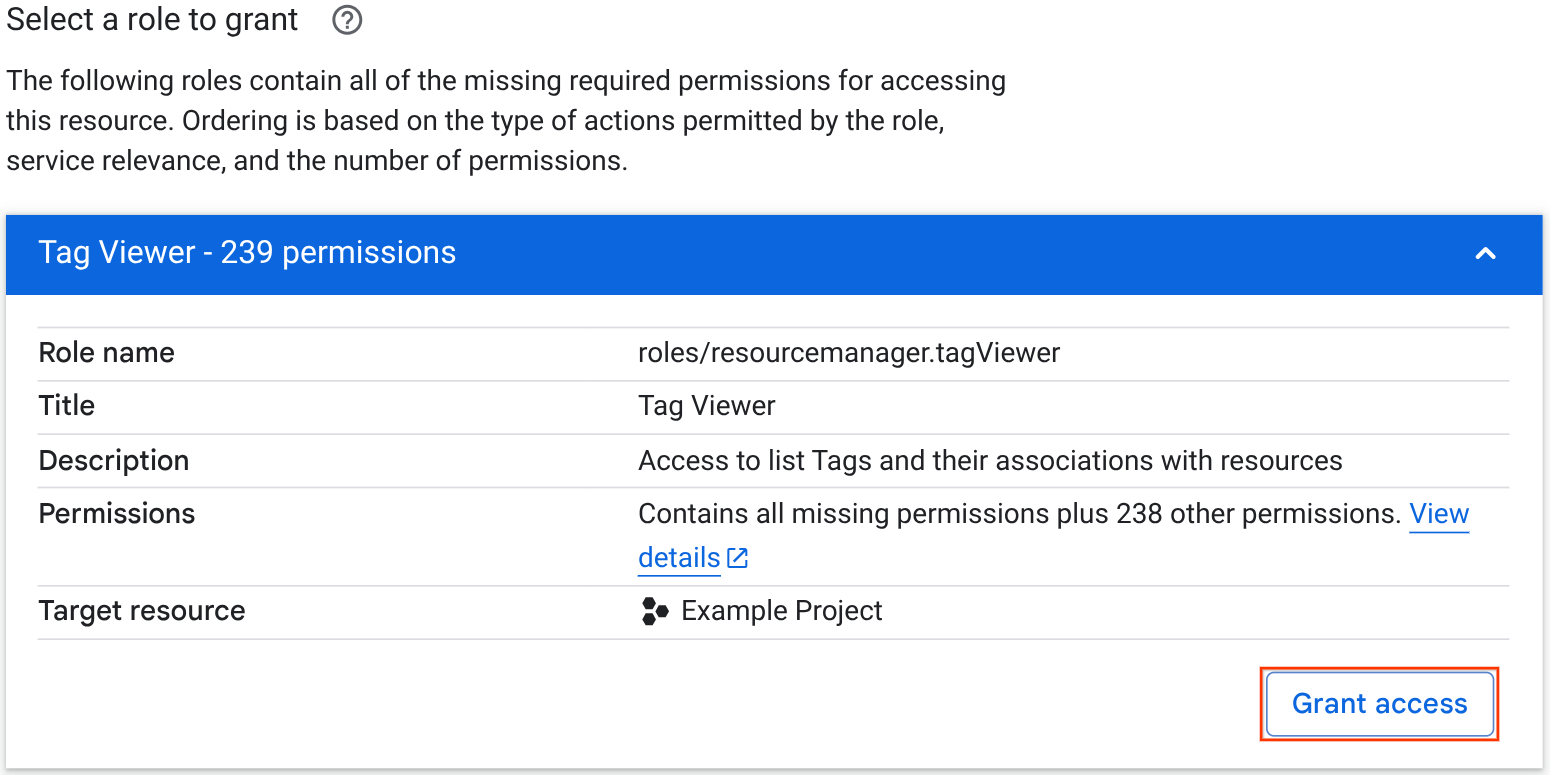
What's next
- If you have administrative permissions and need to resolve a user access request, see Resolve permission errors.