

The term agent can mean different things. In a Multi-Agent System, which forms a hierarchical agent tree, the entire agent tree is referred to as the agent application.
An agent application is composed of one or more agents, where each agent can be either the root agent or a sub-agent.
A root agent (also known as steering agent) acts as the primary entry point and orchestrator for the overall agent application. It typically handles the main interaction with the end-user, it is responsible for understanding the overall goals, and it delegates specific tasks to appropriate sub-agents.
A sub-agent (also known as child agent) is a more specialized agent designed to handle a specific task, domain, or capability. For example, a sub-agent could be tasked with searching a specific database or analyzing a particular type of data. Sub-agents promote modularity and reusability in your agent application.
Root agents can invoke sub-agents, and sub-agents can invoke other sub-agents.
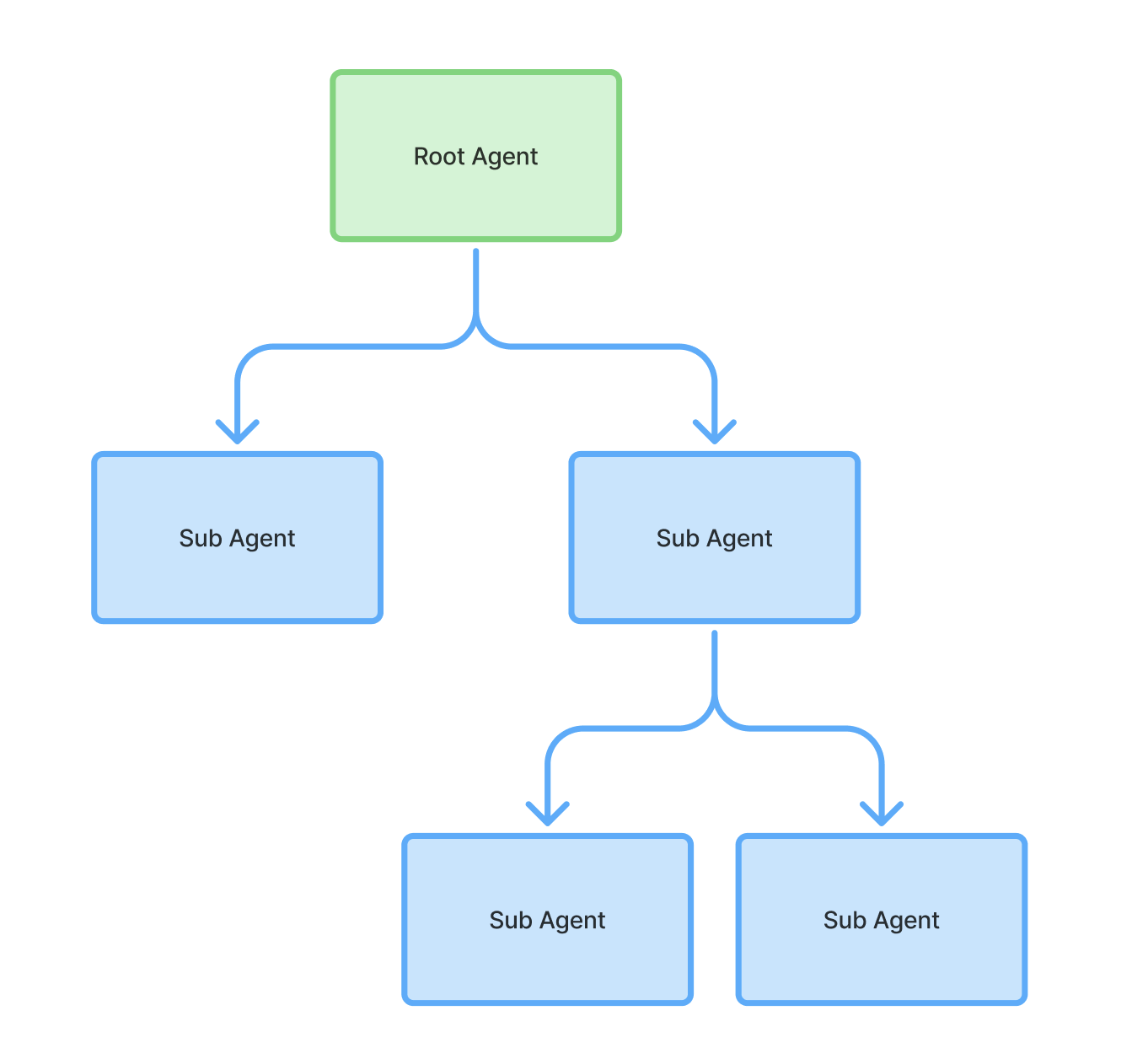
Create an agent application and root agent
To create an agent application and root agent:
- Open the CX Agent Studio console.
- Select your project.
- Click Create or Create agent.
- Provide an agent application name.
- Click Create. If this is the first agent application you have created for the project, creation may take 1-2 minutes. The agent builder is shown and, a root agent is created for you.
- Click the plus sign in the top right corner of the root agent.
- Click Add instructions to add instructions for the root agent.
- Click Add tool to add tools for the root agent.
Create a sub-agent
To create a sub-agent:
- Click the plus sign at the bottom of the root agent.
- Click Add sub-agent.
Manage agent applications
To manage agent applications for your project:
- Open the CX Agent Studio console.
- Select your project. The list of agent applications for your project are shown.
For each agent application, the following information and actions are available:
- Click the agent application name to open the application in the agent builder.
- Deployed to column shows the number of channels the application is deployed to.
- Sessions column shows the number of sessions in the past 24 hours that use a deployment channel.
- Escalation column shows the number of escalations in the past 24 hours that use a deployment channel.
- The latest update time for the agent application is shown.
- You can click the context menu for a particular agent application, then Import agent, Export agent, or Delete agent. For more information, see Export and import.
Language support
You should design your agents using English, but agents can automatically detect the language of end-user input, and they will automatically respond using the same language. For the list of supported languages, see the languages reference.
Model support
CX Agent Studio uses Gemini foundation models to power generative reasoning, instruction following, and multimodal capabilities. You can select a global model for the entire agent application or override it for specific sub-agents.
Models in CX Agent Studio are performance-tuned for customer experience, potentially differing from standard Vertex AI offerings.
For CX Agent Studio, the following models are supported:
| Model | Optimization | Launch stage |
|---|---|---|
gemini-2.5-flash |
Text Optimized | GA |
gemini-3-flash |
Text Optimized | Preview |
gemini-3.1-flash-live |
Voice Optimized | GA |
Agent application settings
See settings.
Agent settings
See settings.