

本教學課程說明如何設定全域網路防火牆政策,允許自訂虛擬私有雲網路中的 VM 子網路之間的內部流量。
目標
本教學課程將說明如何完成下列工作:- 建立包含兩個子網路的自訂虛擬私有雲網路。
- 在虛擬私有雲網路的不同子網路中,建立兩個沒有外部 IP 位址的 Linux VM 執行個體 (用戶端 VM 和伺服器 VM)。
- 最佳做法是建立 Cloud Router 和 Cloud NAT 閘道,以便下載軟體套件。
- 在伺服器 VM 上安裝 Apache 伺服器。
- 建立全域網路防火牆政策,並加入下列規則:
- 允許輸出流量傳送至任何目的地。
- 啟用防火牆記錄。
- 使用 Identity-Aware Proxy (IAP) 允許 SSH 連線至 VM。
- 允許用戶端 VM 連線至執行 Apache 伺服器的伺服器 VM。
- 測試連線。
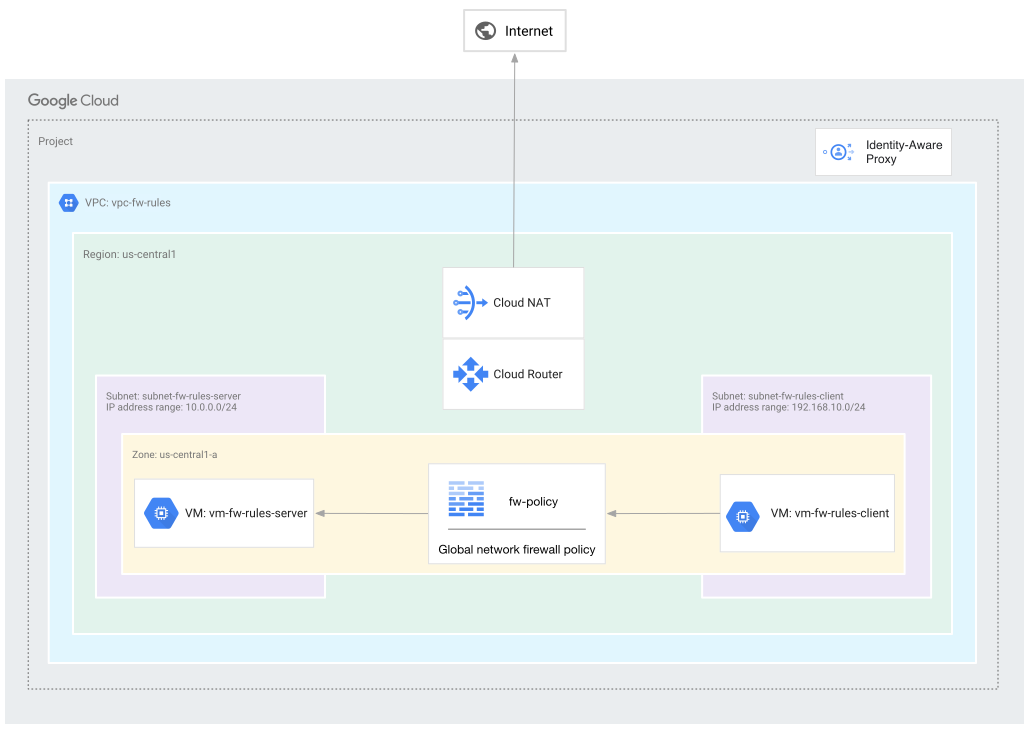
下圖顯示自訂 VPC 網路的子網路之間,在全域網路防火牆政策允許內部輸入流量後,流量的流向。
事前準備
- Sign in to your Google Cloud account. If you're new to Google Cloud, create an account to evaluate how our products perform in real-world scenarios. New customers also get $300 in free credits to run, test, and deploy workloads.
-
In the Google Cloud console, on the project selector page, select or create a Google Cloud project.
Roles required to select or create a project
- Select a project: Selecting a project doesn't require a specific IAM role—you can select any project that you've been granted a role on.
-
Create a project: To create a project, you need the Project Creator role
(
roles/resourcemanager.projectCreator), which contains theresourcemanager.projects.createpermission. Learn how to grant roles.
-
Verify that billing is enabled for your Google Cloud project.
-
In the Google Cloud console, on the project selector page, select or create a Google Cloud project.
Roles required to select or create a project
- Select a project: Selecting a project doesn't require a specific IAM role—you can select any project that you've been granted a role on.
-
Create a project: To create a project, you need the Project Creator role
(
roles/resourcemanager.projectCreator), which contains theresourcemanager.projects.createpermission. Learn how to grant roles.
-
Verify that billing is enabled for your Google Cloud project.
- 為專案啟用 Compute Engine API。
- 確認您具備 Compute 網路管理員 (
roles/compute.networkAdmin) Identity and Access Management 角色。 - 如果您希望透過指令列操作,請先安裝 Google Cloud CLI。如需該工具的概念與安裝資訊,請參閱 gcloud CLI 總覽。
注意:如果您先前沒有執行過 Google Cloud CLI,請先執行
gcloud init,將 gcloud CLI 目錄初始化。
建立含子網路的自訂虛擬私有雲網路
在本節中,您會建立包含兩個 IPv4 子網路的自訂模式虛擬私有雲網路。
控制台
前往 Google Cloud 控制台的「VPC Networks」(虛擬私有雲網路) 頁面。
按一下「建立虛擬私有雲網路」。
在「Name」(名稱) 中輸入
vpc-fw-rules。在「說明」中輸入
VPC network for the firewall rules tutorial。在「子網路建立模式」部分,選取「自訂」。
在「New subnet」(新子網路) 部分,指定子網路的以下設定參數:
- Name (名稱):
subnet-fw-rules-server - Region (區域):
us-central1 (Iowa) - IPv4 範圍:
10.0.0.0/24 - Private Google Access:開啟
- Name (名稱):
按一下 [完成]。
按一下「Add subnet」(新增子網路),然後指定下列設定參數:
- Name (名稱):
subnet-fw-rules-client - Region (區域):
us-central1 (Iowa) - IPv4 範圍:
192.168.10.0/24 - Private Google Access:開啟
- Name (名稱):
按一下 [完成]。
點選「建立」。
gcloud
如要建立 VPC 網路,請執行下列指令:
gcloud compute networks create vpc-fw-rules \
  --subnet-mode=custom \
  --description="VPC network for the firewall rules tutorial"
選用:在「授權 Cloud Shell」對話方塊中,按一下「授權」。
如要建立子網路,請執行下列指令:
gcloud compute networks subnets create subnet-fw-rules-server \
  --network=vpc-fw-rules \
  --region=us-central1 \
  --range=10.0.0.0/24 \
  --enable-private-ip-google-access
如要建立另一個子網路,請執行下列指令:
gcloud compute networks subnets create subnet-fw-rules-client \
  --network=vpc-fw-rules \
  --region=us-central1 \
  --range=192.168.10.0/24 \
  --enable-private-ip-google-access
根據預設,虛擬私有雲網路有兩項隱含 IPv4 規則:
- 目的地為
0.0.0.0/0且優先順序為最低 (65535) 的allowegress 規則,可允許任何執行個體傳送流量到任何目的地,但 Google Cloud封鎖的流量除外。 - 優先順序最低 (65535) 的
deny輸入規則,來源為0.0.0.0/0,可封鎖傳入所有執行個體的連線,保護這些執行個體。
詳情請參閱「隱含規則」。
建立用戶端和伺服器 VM
在本節中,您會在上一節建立的虛擬私有雲網路子網路中,建立兩個沒有外部 IP 位址的 Linux VM。
建立伺服器 VM
控制台
如要建立伺服器 VM,請按照下列步驟操作:
前往 Google Cloud 控制台的「Create an instance」(建立執行個體) 頁面。
在「機器設定」窗格中,執行下列操作:
- 在「Name」(名稱) 中輸入
vm-fw-rules-server。 - 在「Region」(區域) 中選取
us-central1 (Iowa)。
- 在「Name」(名稱) 中輸入
在導覽選單中,按一下「Networking」(網路)。
- 在「Network interfaces」(網路介面) 部分,按一下
default,然後指定下列設定參數:- 「Network」(網路):
vpc-fw-rules - 「Subnetwork」(子網路):
subnet-fw-rules-server IPv4 (10.0.0.0/24) - 外部 IPv4 位址:無
- 「Network」(網路):
- 按一下 [完成]。
- 在「Network interfaces」(網路介面) 部分,按一下
點選「建立」。
gcloud
如要建立伺服器 VM,請執行下列指令:
gcloud compute instances create vm-fw-rules-server \
    --network=vpc-fw-rules \
    --zone=us-central1-a \
    --subnet=subnet-fw-rules-server \
    --stack-type=IPV4_ONLY \
    --no-address
建立用戶端 VM
控制台
如要建立用戶端 VM,請按照下列步驟操作:
前往 Google Cloud 控制台的「Create an instance」(建立執行個體) 頁面。
在「機器設定」窗格中,執行下列操作:
- 在「Name」(名稱) 中輸入
vm-fw-rules-client。 - 在「Region」(區域) 中選取
us-central1 (Iowa)。
- 在「Name」(名稱) 中輸入
在導覽選單中,按一下「Networking」(網路)。
- 在「Network interfaces」(網路介面) 部分,按一下
default,然後指定下列設定參數:- 「Network」(網路):
vpc-fw-rules - 「Subnetwork」(子網路):
subnet-fw-rules-client IPv4 (192.168.10.0/24) - 外部 IPv4 位址:無
- 「Network」(網路):
- 按一下 [完成]。
- 在「Network interfaces」(網路介面) 部分,按一下
點選「建立」。
gcloud
如要建立用戶端 VM,請執行下列指令:
gcloud compute instances create vm-fw-rules-client \
    --network=vpc-fw-rules \
    --zone=us-central1-a \
    --subnet=subnet-fw-rules-client \
    --stack-type=IPV4_ONLY \
    --no-address
建立 Cloud Router 和 Cloud NAT 閘道
在上一節中,您建立了兩個沒有公開 IPv4 位址的 Linux VM。如要允許這些 VM 存取公用網際網路,請建立 Cloud Router 和 Cloud NAT 閘道。
控制台
前往 Google Cloud 控制台的「Cloud NAT」頁面。
按一下「開始使用」或「建立 Cloud NAT 閘道」。
在「Gateway name」(閘道名稱) 中輸入
gateway-fw-rules。在「NAT type」(NAT 類型) 中,選取「Public」(公開)。
在「Select Cloud Router」部分,指定下列設定參數:
- 「Network」(網路):
vpc-fw-rules - 區域:
us-central1 - Cloud Router:建立新的路由器。
- 在「Name」(名稱) 中輸入
router-fw-rules。 - 點選「建立」。
- 在「Name」(名稱) 中輸入
- 「Network」(網路):
點選「建立」。
gcloud
如要建立 Cloud Router,請執行下列指令:
gcloud compute routers create router-fw-rules \
  --network=vpc-fw-rules \
  --region=us-central1
如要建立 Cloud NAT 閘道,請執行下列指令:
gcloud compute routers nats create gateway-fw-rules \
  --router=router-fw-rules \
  --region=us-central1 \
  --auto-allocate-nat-external-ips \
  --nat-all-subnet-ip-ranges
建立全域網路防火牆政策
在本節中,您將建立全域網路防火牆政策,並進行下列操作:
- 目的地為
0.0.0.0./0的輸出規則。 記錄功能已啟用。您可以根據防火牆規則記錄,進一步稽核、驗證及分析防火牆規則的成效。
控制台
前往 Google Cloud 控制台的「Firewall policies」(防火牆政策) 頁面。
按一下「建立防火牆政策」。
在「設定政策」部分,於「政策名稱」輸入
fw-policy。在「部署範圍」部分,選取「全域」,然後按一下「繼續」。
如要為政策建立規則,請在「新增規則」部分中,按一下「新增規則」。
- 在「Priority」(優先順序) 中輸入
65534。 - 在「Direction of traffic」(流量方向) 中選取「Egress」(輸出)。
- 將「記錄」設為「開啟」。
- 在「目標」部分中,針對「目標類型」選取「網路中的所有執行個體」。
- 在「Destination」(目的地) 區段中,在「IP ranges」(IP 範圍) 輸入
0.0.0.0/0。 - 在「通訊協定和通訊埠」部分,選取「全部允許」。
- 點選「建立」。
- 在「Priority」(優先順序) 中輸入
按一下「繼續」。
如要將虛擬私有雲網路與政策建立關聯,請在「將政策與虛擬私有雲網路建立關聯」部分中,按一下「建立關聯」。
勾選
vpc-fw-rules核取方塊,然後按一下「關聯」。按一下「繼續」。
點選「建立」。
gcloud
如要建立防火牆政策,請執行下列指令:
gcloud compute network-firewall-policies create fw-policy \
    --global
如要建立防火牆規則,允許流量傳輸至所有目的地並啟用記錄,請執行下列指令:
gcloud compute network-firewall-policies rules create 65534 \
    --firewall-policy=fw-policy \
    --direction=EGRESS \
    --action=ALLOW \
    --dest-ip-ranges=0.0.0.0/0 \
    --layer4-configs=all \
    --global-firewall-policy \
    --enable-logging
如要將防火牆政策與虛擬私有雲網路建立關聯,請執行下列指令:
gcloud compute network-firewall-policies associations create \
    --firewall-policy=fw-policy \
    --network=vpc-fw-rules \
    --name=pol-association-fw-rules \
    --global-firewall-policy
新增 IAP 防火牆規則
在上一個部分中,您建立了沒有外部 IP 位址的 Linux VM。在本節中,您將啟用 Identity-Aware Proxy (IAP),允許管理員存取沒有外部 IP 位址的 VM 執行個體。
如要允許 IAP 連線至您的 VM 執行個體,請根據以下條件建立防火牆規則:
- 套用至所有您希望能透過 IAP 存取的 VM 執行個體。
- 允許來自 IP 範圍「
35.235.240.0/20」的輸入流量。這個範圍包含 IAP 用於 TCP 轉送的所有 IP 位址。如果是 IPv6 VM,請使用以下 IP 範圍:
2600:2d00:1:7::/64。 - 允許連線至您希望透過 IAP TCP 轉送功能存取的所有通訊埠,例如適用於 SSH 的通訊埠「
22」,及適用於 RDP 的通訊埠「3389」。
控制台
如要允許透過遠端桌面協定和安全殼層存取 vpc-fw-rules 網路中的所有 VM 執行個體,請按照下列步驟操作:
前往 Google Cloud 控制台的「Firewall policies」(防火牆政策) 頁面。
在「網路防火牆政策」部分,按一下
fw-policy。按一下「建立規則」。
在「Priority」(優先順序) 中輸入
500。在「Direction of traffic」(流量方向) 中選取 [Ingress] (輸入)。
將「記錄」設為「開啟」。
在「目標」部分中,針對「目標類型」選取「網路中的所有執行個體」。
在「來源」部分中,於「IP 範圍」輸入
35.235.240.0/20。在「Protocols and ports」(通訊協定和通訊埠) 部分,選取「Specified protocols and ports」(指定的通訊協定和通訊埠)。
勾選「TCP」核取方塊,然後在「Ports」(通訊埠) 中輸入
22和3389(以半形逗號分隔)。點選「建立」。
gcloud
如要允許透過 RDP 和 SSH 存取 vpc-fw-rules 網路中的所有 VM 執行個體,請執行下列指令:
gcloud compute network-firewall-policies rules create 500 \
    --firewall-policy=fw-policy \
    --direction=INGRESS \
    --action=ALLOW \
    --src-ip-ranges=35.235.240.0/20 \
    --global-firewall-policy \
    --layer4-configs tcp:22,tcp:3389 \
    --enable-logging
安裝 Apache 伺服器
在本節中,您會在伺服器 VM 上安裝 Apache 伺服器。
前往 Google Cloud 控制台的「VM instances」(VM 執行個體) 頁面。
在
vm-fw-rules-serverVM 的「連線」欄中,按一下「SSH」。在「SSH-in-browser」(直接透過瀏覽器進行 SSH 連線) 對話方塊中,按一下「Authorize」(授權),然後等待連線建立。
如要安裝
apache2套件,請在命令提示字元中執行下列指令:sudo apt update && sudo apt -y install apache2
安裝 Apache 之後,作業系統會自動啟動 Apache 伺服器。
如要確認 Apache 是否正在執行,請執行下列指令:
sudo systemctl status apache2 --no-pager
如要覆寫 Apache 網路伺服器預設網頁,請執行下列指令:
echo '<!doctype html><html><body><h1>Hello World!</h1></body></html>' | sudo tee /var/www/html/index.html關閉「透過瀏覽器建立 SSH 連線」對話方塊。
測試連線
在伺服器 VM 上安裝 Apache 伺服器後,請使用伺服器 VM 的內部 IP 位址,從用戶端 VM 連線至伺服器 VM。
前往 Google Cloud 控制台的「VM instances」(VM 執行個體) 頁面。
從
vm-fw-rules-serverVM 的「Internal IP」(內部 IP) 欄中,複製 VM 的內部 IP 位址。在
vm-fw-rules-clientVM 的「連線」欄中,按一下「SSH」。在「SSH-in-browser」(直接透過瀏覽器進行 SSH 連線) 對話方塊中,按一下「Authorize」(授權),然後等待連線建立。
如要驗證連線,請執行下列指令:
curl INTERNAL_IP -m 2
將
INTERNAL_IP替換為vm-fw-rules-serverVM 的 IP 位址。由於每個 VM 都會建立拒絕所有流量的隱含輸入防火牆規則,因此會出現
Connection timed out訊息。如要允許流量,請在防火牆政策中新增輸入規則。關閉「透過瀏覽器建立 SSH 連線」對話方塊。
更新全域網路防火牆政策,允許內部流量
在本節中,您將更新全域網路防火牆政策,允許來自用戶端 VM 子網路的內部流量。
控制台
前往 Google Cloud 控制台的「Firewall policies」(防火牆政策) 頁面。
在「網路防火牆政策」部分,按一下
fw-policy。按一下「建立規則」。
在「Priority」(優先順序) 中輸入
501。在「Direction of traffic」(流量方向) 中選取 [Ingress] (輸入)。
將「記錄」設為「開啟」。
在「目標」部分中,針對「目標類型」選取「網路中的所有執行個體」。
在「來源」部分中,於「IP 範圍」輸入
192.168.10.0/24。請注意,IP 範圍
192.168.10.0/24會指派給 subnet-fw-rules-client。在「目的地」部分,將「IP 類型」選取為「IPv4」。在「IP ranges」(IP 範圍) 中,指定
10.0.0.0/24。請注意,IP 範圍
10.0.0.0/24已指派給 subnet-fw-rules-server。點選「建立」。
gcloud
如要更新防火牆政策,請執行下列指令:
gcloud compute network-firewall-policies rules create 501 \
    --firewall-policy=fw-policy \
    --direction=INGRESS \
    --action=ALLOW \
    --src-ip-ranges=192.168.10.0/24 \
    --dest-ip-ranges=10.0.0.0/24 \
    --layer4-configs=all \
    --global-firewall-policy \
    --enable-logging
測試連線
建立防火牆政策後,請使用伺服器 VM 的內部 IP 位址,從用戶端 VM 連線至伺服器 VM。
前往 Google Cloud 控制台的「VM instances」(VM 執行個體) 頁面。
從
vm-fw-rules-serverVM 的「Internal IP」(內部 IP) 欄中,複製 VM 的內部 IP 位址。在
vm-fw-rules-clientVM 的「連線」欄中,按一下「SSH」。在「SSH-in-browser」(直接透過瀏覽器進行 SSH 連線) 對話方塊中,按一下「Authorize」(授權),然後等待連線建立。
如要驗證連線,請執行下列指令:
curl INTERNAL_IP -m 2
將
INTERNAL_IP替換為vm-fw-rules-serverVM 的 IP 位址。預期訊息為
<!doctype html><html><body><h1>Hello World!</h1></body></html>。關閉「透過瀏覽器建立 SSH 連線」對話方塊。
如要查看防火牆記錄,請參閱「查看記錄」。
清除所用資源
為避免因為本教學課程所用資源,導致系統向 Google Cloud 帳戶收取費用,請刪除含有相關資源的專案,或者保留專案但刪除個別資源。
在本節中,您將刪除在本教學課程中建立的資源。
刪除防火牆政策
控制台
前往 Google Cloud 控制台的「Firewall policies」(防火牆政策) 頁面。
在「網路防火牆政策」部分,按一下
fw-policy名稱。按一下「關聯項目」分頁標籤。
勾選
vpc-fw-rules核取方塊,然後按一下「移除關聯」。在「Remove a firewall policy association」(移除防火牆政策連結關係) 對話方塊中,按一下「Remove」(移除)。
按一下「
fw-policy」標題旁邊的「刪除」。在「刪除防火牆政策」對話方塊中,按一下「刪除」。
刪除政策後,控制台會顯示「防火牆政策」頁面。 Google Cloud
gcloud
移除防火牆政策與 VPC 網路之間的關聯。
gcloud compute network-firewall-policies associations delete \
  --name=pol-association-fw-rules \
  --firewall-policy=fw-policy \
  --global-firewall-policy
如果您透過 Google Cloud 控制台設定防火牆政策與 VPC 網路之間的關聯,請勿使用 gcloud CLI 指令移除該關聯。如果您不記得建立關聯的方式,或執行指令時收到
The network firewall
policy does not have an association with pol-association-fw-rules.
錯誤,請使用 Google Cloud 控制台移除關聯。刪除防火牆政策。
gcloud compute network-firewall-policies delete fw-policy \
    --global
刪除 VM
控制台
前往 Google Cloud 控制台的「VM instances」(VM 執行個體) 頁面。
勾選
vm-fw-rules-client和vm-fw-rules-serverVM 的核取方塊。按一下「Delete」(刪除)。
在「Delete 2 instances?」(要刪除 2 個執行個體嗎?) 對話方塊中,按一下「Delete」(刪除)。
gcloud
如要刪除 vm-fw-rules-client 和 vm-fw-rules-server VM,請執行下列指令:
gcloud compute instances delete vm-fw-rules-client vm-fw-rules-server \
    --zone=us-central1-a
系統提示時,請按下 Y 確認,然後按下 Enter 鍵。
刪除 Cloud NAT 閘道和 Cloud Router
控制台
前往 Google Cloud 控制台的「Cloud Router」頁面。
勾選「
router-fw-rules」核取方塊。按一下「Delete」(刪除)。
在「Delete router-fw-rules」(刪除路由器防火牆規則) 對話方塊中,按一下「Delete」(刪除)。
刪除 Cloud Router 時,相關聯的 Cloud NAT 閘道也會一併刪除。
gcloud
如要刪除 router-fw-rules Cloud Router,請執行下列指令:
gcloud compute routers delete router-fw-rules \
    --region=us-central1
系統提示時,請按下 Y 確認,然後按下 Enter 鍵。
刪除 Cloud Router 時,相關聯的 Cloud NAT 閘道也會一併刪除。
刪除虛擬私有雲網路和子網路
控制台
前往 Google Cloud 控制台的「VPC Networks」(虛擬私有雲網路) 頁面。
在「Name」(名稱) 欄中,按一下
vpc-fw-rules。按一下「刪除虛擬私有雲網路」。
在「刪除網路」對話方塊中,按一下「刪除」。
刪除 VPC 時,系統也會一併刪除子網路。
gcloud
如要刪除
vpc-fw-rulesVPC 網路的子網路,請執行下列指令:gcloud compute networks subnets delete subnet-fw-rules-client subnet-fw-rules-server \ --region=us-central1系統提示時,請按下 Y 確認,然後按下 Enter 鍵。
如要刪除
vpc-fw-rules虛擬私有雲網路,請執行下列指令:gcloud compute networks delete vpc-fw-rules
系統提示時,請按下 Y 確認,然後按下 Enter 鍵。