


使用 Error Reporting 檢查當機的應用程式是否有錯誤
您可以使用 Error Reporting 查看、分類及排解應用程式當機問題,協助團隊在問題影響使用者前找出並解決錯誤。
在本快速入門導覽中,您將模擬專案中的錯誤狀況、在 Google Cloud 控制台中查看錯誤詳細資料,並設定通知,以便在發生新錯誤時收到快訊。 Google Cloud
如要直接在 Google Cloud 控制台中,按照這項工作的逐步指南操作,請按一下「Guide me」(逐步引導):
事前準備
- 登入 Google Cloud 帳戶。如果您是 Google Cloud新手,歡迎 建立帳戶,親自評估產品在實際工作環境中的成效。新客戶還能獲得價值 $300 美元的免費抵免額,可用於執行、測試及部署工作負載。
-
In the Google Cloud console, on the project selector page, select or create a Google Cloud project.
Roles required to select or create a project
- Select a project: Selecting a project doesn't require a specific IAM role—you can select any project that you've been granted a role on.
-
Create a project: To create a project, you need the Project Creator role
(
roles/resourcemanager.projectCreator), which contains theresourcemanager.projects.createpermission. Learn how to grant roles.
-
Verify that billing is enabled for your Google Cloud project.
-
In the Google Cloud console, on the project selector page, select or create a Google Cloud project.
Roles required to select or create a project
- Select a project: Selecting a project doesn't require a specific IAM role—you can select any project that you've been granted a role on.
-
Create a project: To create a project, you need the Project Creator role
(
roles/resourcemanager.projectCreator), which contains theresourcemanager.projects.createpermission. Learn how to grant roles.
-
Verify that billing is enabled for your Google Cloud project.
- 開啟專案的 Cloud Shell。 Google Cloud 啟動時,您會看見「正在連線」訊息。
- 將電子郵件地址設為支援的通知管道。
模擬錯誤
如要產生 11 個範例錯誤,請在 Cloud Shell 中執行下列指令碼:
  COUNTER=0
  while [  $COUNTER -lt 11 ]; do
      gcloud beta error-reporting events report --service tutorial --service-version v$((COUNTER/10+1)) \
          --message "java.lang.RuntimeException: Error rendering template $COUNTER
            at com.example.TestClass.test(TestClass.java:51)
            at com.example.AnotherClass(AnotherClass.java:25)
            at javax.servlet.http.HttpServlet.service (HttpServlet.java:617)
            at javax.servlet.http.HttpServlet.service (HttpServlet.java:717)"
      if [ $COUNTER -eq 10 ]; then
        echo "All sample errors reported."
      fi
      let COUNTER=COUNTER+1
  done
指令碼產生完所有錯誤後,即會列印以下這行:
All sample errors reported.
在 Error Reporting 中查看錯誤
-
前往 Google Cloud 控制台的「Error Reporting」頁面:
您也可以透過搜尋列找到這個頁面。
Error Reporting 資訊主頁會顯示系統發現的所有錯誤的摘要清單,以及每個錯誤發生的次數。開啟「自動重新載入」後,Error Reporting 會每 10 秒自動重新載入錯誤清單。
以下螢幕截圖顯示了錯誤回報頁面的範例:
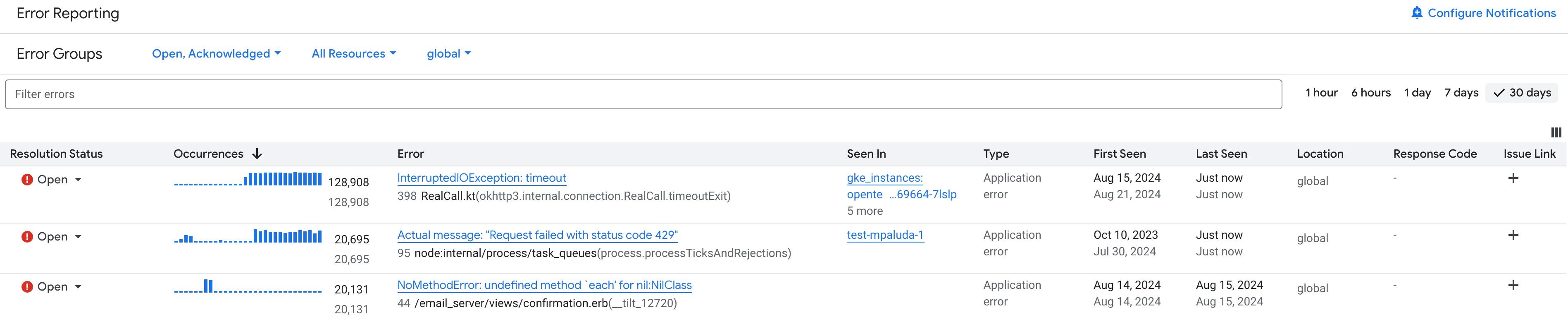
按一下錯誤名稱,即可查看錯誤詳細資料頁面,其中含有所有與錯誤相關的可用資訊。如果專案已啟用 Gemini,您可以使用 Gemini 取得疑難排解建議。
設定通知
您可以設定 Error Reporting,讓它在出現新型錯誤時通知您。若是先前已出現過的錯誤,系統就不會傳送通知:
-
前往 Google Cloud 控制台的「Error Reporting」頁面:
您也可以透過搜尋列找到這個頁面。
如要啟用電子郵件通知,請點選「設定通知」。
在「Notification channels」(通知管道) 選單中選取電子郵件地址,然後選取「Save」(儲存)。
如要產生新的錯誤類型,請按一下 terminal「Activate Cloud Shell」(啟用 Cloud Shell),然後執行下列指令碼:
  COUNTER=0
  while [ $COUNTER -lt 3 ]; do
     gcloud beta error-reporting events report --service tutorial --service-version v1 \
        --message "java.lang.ArrayIndexOutOfBoundsException: $COUNTER
           at com.example.AppController.createUser(AppController.java:42)
           at com.example.User(User.java:31)
           at javax.servlet.http.HttpServlet.service (HttpServlet.java:617)
           at javax.servlet.http.HttpServlet.service (HttpServlet.java:717)"
     let COUNTER=COUNTER+1
  done
  echo "All sample errors reported."
指令碼產生完所有錯誤後,即會列印以下這行:
All sample errors reported.檢查是否收到「Stackdriver 通知」訊息的電子郵件。
從 App Engine 應用程式產生錯誤訊息
先前指令碼產生的範例訊息會模擬錯誤情況。 如要從專案中執行的即時服務產生錯誤,請按照本節的步驟操作。 Google Cloud
部署應用程式
如要下載應用程式並部署至 App Engine,請按照下列步驟操作:
從 GitHub 專案 python-docs-samples 下載及設定應用程式:
複製專案至 Cloud Shell:
git clone https://github.com/GoogleCloudPlatform/python-docs-samples
Git 會傳回類似以下的訊息:
git clone https://github.com/GoogleCloudPlatform/python-docs-samples
Cloning into 'python-docs-samples'...
建立獨立的 Python 環境,並啟動該環境:
cd python-docs-samples/appengine/standard_python3/hello_world
virtualenv env -p python3
source env/bin/activate
安裝依附元件:
pip install -r requirements.txt
確認應用程式安裝及設定是否成功:
執行應用程式:
python main.py
如要在本機網頁上查看應用程式,請按一下 Cloud Shell 中顯示的連結。網頁會顯示
Hello World!。如要停止執行應用程式,請在 Cloud Shell 中輸入
Ctrl-C。
將您的應用程式上傳至 App Engine:
gcloud app deploy
如果系統提示選取部署地區,請選擇您附近的地區。當系統詢問您是否要繼續時,請輸入
Y。經過一段時間後,上傳就會完成。在 Cloud Shell 中執行下列指令,您就可以在瀏覽器中查看應用程式:
gcloud app browse
如果 Google Cloud CLI 找不到您的瀏覽器,先前的指令就會顯示錯誤訊息和一個連結。請按一下顯示的連結。瀏覽器中會顯示「Hello, World!」訊息
Hello, World!。
產生錯誤
如要建立錯誤,讓 Error Reporting 擷取並顯示,請執行下列操作:
編輯
main.py並變更return 'Hello World!
至
return 'Hello World!' + 1000
執行時,這項變更會導致 Python
TypeError例外狀況,因為字串和整數不能連在一起。上傳修改後的應用程式至 App Engine:
gcloud app deploy
返回包含執行中應用程式的瀏覽器分頁,接著重新載入頁面。這項變更不會讓頁面顯示「
Hello, World!」,而是顯示錯誤訊息:Internal Server Error The server encountered an internal error and was unable to complete your request. Either the server is overloaded or there is an error in the application.
如果沒有顯示上方訊息,請稍後再重新載入一次。系統可能需要一些時間才能啟用新版本。
在 Error Reporting 中查看錯誤
如要查看錯誤,請按照上一節「在 Error Reporting 中查看錯誤」的指示操作。
清除所用資源
為了避免系統向您的 Google Cloud 帳戶收取本頁面所用資源的費用,請按照下列步驟操作。
- 前往 Google Cloud 控制台的「Manage resources」(管理資源) 頁面。
- 在專案清單中選取要刪除的專案,然後點選「Delete」(刪除)。
- 在對話方塊中輸入專案 ID,然後按一下 [Shut down] (關閉) 以刪除專案。