


部署由 Cloud Endpoints 管理的 API
本快速入門導覽課程會逐步引導您部署 Cloud Endpoints 管理的 API 範例。程式碼範例包括:
- 可透過查詢機場的 IATA 代碼 (三個字母) 而找到機場名稱的 REST API。
- 可將 API 設定上傳至 Endpoints 的指令碼。
- 可部署託管 API 範例的 App Engine 彈性環境後端的指令碼。
傳送要求給 API 範例後,您可以在Google Cloud 主控台中查看 Endpoints 活動圖表和 Google Cloud Observability 記錄。這些工具可讓您監控 API 並深入分析各 API 的使用情形。
本快速入門導覽課程使用指令碼來簡化設定步驟,以便您快速瞭解活動圖表和記錄的實務應用。要瞭解如何設定和部署 API 範例,請選擇其中一個 API 架構的教學課程:
事前準備
- 登入 Google Cloud 帳戶。如果您是 Google Cloud新手,歡迎 建立帳戶,親自評估產品在實際工作環境中的成效。新客戶還能獲得價值 $300 美元的免費抵免額,可用於執行、測試及部署工作負載。
-
In the Google Cloud console, on the project selector page, select or create a Google Cloud project.
Roles required to select or create a project
- Select a project: Selecting a project doesn't require a specific IAM role—you can select any project that you've been granted a role on.
-
Create a project: To create a project, you need the Project Creator role
(
roles/resourcemanager.projectCreator), which contains theresourcemanager.projects.createpermission. Learn how to grant roles.
-
If you're using an existing project for this guide, verify that you have the permissions required to complete this guide. If you created a new project, then you already have the required permissions.
-
Verify that billing is enabled for your Google Cloud project.
-
In the Google Cloud console, on the project selector page, select or create a Google Cloud project.
Roles required to select or create a project
- Select a project: Selecting a project doesn't require a specific IAM role—you can select any project that you've been granted a role on.
-
Create a project: To create a project, you need the Project Creator role
(
roles/resourcemanager.projectCreator), which contains theresourcemanager.projects.createpermission. Learn how to grant roles.
-
If you're using an existing project for this guide, verify that you have the permissions required to complete this guide. If you created a new project, then you already have the required permissions.
-
Verify that billing is enabled for your Google Cloud project.
必要的角色
如要取得部署及管理 API 所需的權限,請要求系統管理員在專案中授予您下列 IAM 角色:
-
部署 Endpoints 設定:
Service Management 管理員 (
roles/servicemanagement.admin) -
啟用必要服務:
服務使用情形管理員 (
roles/serviceusage.serviceUsageAdmin) -
建立 App Engine 應用程式:
App Engine 建立者 (
roles/appengine.appCreator) -
將範例 API 部署至 App Engine:
- App Engine 部署者 (
roles/appengine.deployer) - Cloud Build 編輯者 (
roles/cloudbuild.builds.editor) - Storage 物件使用者 (
roles/storage.objectUser) - 服務帳戶使用者 (
roles/iam.serviceAccountUser)
- App Engine 部署者 (
如要進一步瞭解如何授予角色,請參閱「管理專案、資料夾和組織的存取權」。
啟動 Cloud Shell
在 Google Cloud 控制台中,確認您位於要用於 API 範例的專案內。
開啟 Cloud Shell。
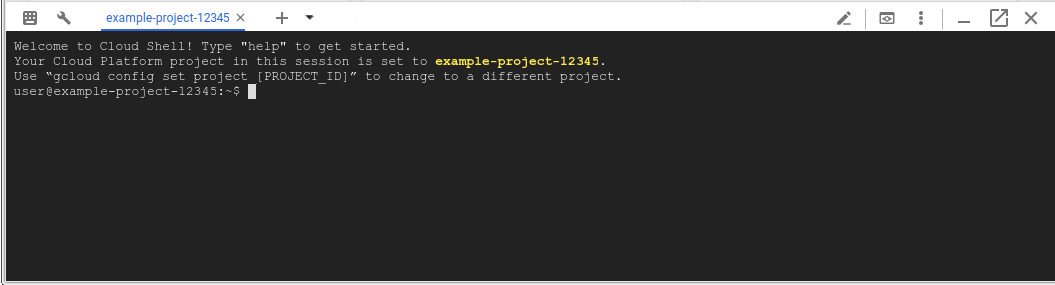
系統會在控制台底部的新頁框中開啟 Cloud Shell 工作階段,並顯示指令列提示。Google Cloud 工作階段可能需要幾秒鐘的時間才能完成初始化。
如果您是使用現有的專案,請確認所有已安裝的
gcloud元件皆已安裝最新版本:gcloud components update
取得程式碼範例
- 在 Cloud Shell 中,輸入下列指令以取得 API 範例和指令碼:
git clone https://github.com/GoogleCloudPlatform/endpoints-quickstart
- 變更為包含程式碼範例的目錄:
cd endpoints-quickstart
部署端點配置
如要將 REST API 發佈至 Endpoints,您需要說明該 API 的 OpenAPI 設定檔。API 範例隨附一個名為 openapi.yaml 的預先設定 OpenAPI 檔案。
Endpoints 使用 Service Management 這個Google Cloud 基礎架構服務來建立和管理 API 與服務。如要使用 Endpoints 來管理 API,請將 API 的 OpenAPI 設定檔部署至 Service Management。
如何部署 Endpoints 設定:
- 在 Cloud Shell 的
endpoints-quickstart目錄中,輸入下列指令:
cd scripts
- 執行範例中包含的以下指令碼:
./deploy_api.sh
Endpoints 使用 OpenAPI 設定檔中的 host 欄位來識別服務。deploy_api.sh 指令碼會將Google Cloud 專案的 ID 設定為 host 欄位中設定的名稱的一部分。當您為自己的服務準備 OpenAPI 設定檔時,必須手動執行此操作。
指令碼接著會使用下列指令將 OpenAPI 設定部署至 Service Management:gcloud endpoints services deploy openapi.yaml
Service Management 在建立和設定服務時,會將資訊輸出至 Google Cloud 控制台。您可以放心忽略 openapi.yaml 檔案中路徑不需要 API 金鑰的警告。成功完成後,您將會看到類似下列包含服務設定 ID 和服務名稱的一行文字:
Service Configuration [2017-02-13-r2] uploaded for service [airports-api.endpoints.example-project.cloud.goog]
啟用必要服務
Endpoints 至少需要啟用下列 Google 服務:
| 名稱 | 標題 |
|---|---|
servicecontrol.googleapis.com |
Service Control API |
servicemanagement.googleapis.com |
Service Management API |
在大多數情況下,部署 Endpoints 設定會啟用這些必要服務。
使用下列指令確認必要服務已啟用:
gcloud services list
如果必要的服務並未列出,請執行下列指令加以啟用:
gcloud services enable servicemanagement.googleapis.com
gcloud services enable servicecontrol.googleapis.com
同時啟用 Endpoints 服務:
gcloud services enable YOUR-PROJECT-ID.appspot.com
如要進一步瞭解 gcloud 指令,請參閱 gcloud 服務。
部署 API 後端
到目前為止,您已經將 OpenAPI 設定部署到 Service Management,但還沒有部署程式碼來提供 API 後端。範例中包含的 deploy_app.sh 指令碼會建立 App Engine 彈性環境來託管 API 後端,然後該指令碼會將 API 部署至 App Engine。
如何部署 API 後端:
- 在 Cloud Shell 的
endpoints-quickstart/scripts目錄中,執行下列指令碼:
./deploy_app.sh
該指令碼會執行下列指令,以在 us-central 區域中建立 App Engine 彈性環境:
gcloud app create --region="$REGION"
建立 App Engine 彈性環境後端需要幾分鐘的時間。建立應用程式後,輸出結果如下:
Success! The app is now created.
接下來,指令碼會執行 gcloud app deploy 指令,將 API 範例部署至 App Engine。
輸出內容會如下所示:
Deploying ../app/app_template.yaml...You are about to deploy the following services:
將 API 部署至 App Engine 需要幾分鐘的時間。API 成功部署至 App Engine 後,輸出結果如下:
Deployed service [default] to [https://example-project.appspot.com]
傳送要求至 API
- 在 Cloud Shell 中,部署範例 API 後,您可以執行以下指令碼傳送要求:
./query_api.sh
該指令碼會回應它用來傳送要求至 API 的 curl 指令,然後顯示結果。輸出內容會如下所示:
curl "https://example-project.appspot.com/airportName?iataCode=SFO"
San Francisco International Airport
該 API 需要一個設定到有效 IATA 機場代碼 (例如 SEA 或 JFK) 的查詢參數 iataCode。例如:
./query_api.sh JFK
注意:App Engine 可能需要幾分鐘的時間才能成功回應要求。如果您在傳送要求後收到 HTTP 502、503 或其他伺服器錯誤,請稍後再重新提出要求。
您已在 Endpoints 中部署並測試了 API!
追蹤 API 活動
使用 Endpoints 部署 API 後,您就可以在 Google Cloud 主控台中監控關鍵作業的指標數據,並運用 Cloud Logging 深入瞭解使用者與他們的使用情形。
- 在 Cloud Shell 中,執行流量產生指令碼以填入圖形和記錄:
./generate_traffic.sh
Note: This script generates requests in a loop and automatically times out
in 5 minutes. To end the script sooner, enter `Control+C` in
Cloud Shell.
在 Google Cloud 控制台中,查看 API 的活動圖表。
要求可能需要一些時間才能反映在圖表中。 等待資料顯示時:
如果「Permissions」(權限) 側邊面板未開啟,請點選 [+Permissions] (+權限)。 「Permissions」(權限) 面板可讓您控制誰有權存取 API,並控制這些人員的存取層級。
按一下 [Deployment history] (部署記錄)。此分頁會顯示您的 API 部署記錄,包括部署時間和部署變更的人員。
按一下 [Overview] (總覽)。您會看到流量進來。在流量產生指令碼執行一分鐘後,您應該會在「Total latency」(總延遲時間) 圖表上看到三行資料 (第 50、第 95 和第 98 百分位數)。您可使用此資料預估回應時間。
在圖表下方,點按「Links」(連結) 下的「View Logs」(查看記錄),即可查看「GET/airportName」的記錄。「Logs Explorer」(記錄探索器) 頁面會顯示該 API 的要求記錄。
開啟 Cloud Shell。
如要停止指令碼,請輸入
Control+C。
新增配額至 API
Endpoints 可讓您透過設定配額控管應用程式呼叫您的 API 的頻率。您可以使用配額保護 API,避免單一用戶端的過多使用量。
- 在 Cloud Shell 中,部署具有配額的 Endpoints 設定。
./deploy_api.sh ../openapi_with_ratelimit.yaml
After you deploy an updated Endpoints configuration, it
becomes active within a minute.
前往 Google Cloud 控制台的「憑證」頁面。
依序按一下 [Create credentials] (建立憑證) > [API key] (API 金鑰)。新的 API 金鑰會顯示在畫面上。
按一下「複製」圖示 file_copy。
在 Cloud Shell 中輸入以下指令。將
YOUR_API_KEY改為您剛建立的 API 金鑰。
export API_KEY=YOUR_API_KEY
- 使用您剛產生的 API 金鑰傳送要求至您的 API。
./query_api_with_key.sh $API_KEY
The output is similar to the following:
curl -H 'x-api-key: AIzeSyDbdQdaSdhPMdiAuddd_FALbY7JevoMzAB' "https://example-project.appspot.com/airportName?iataCode=SFO"
San Francisco International Airport
- API 現在有每分鐘 5 個要求的限制。請執行以下指令以傳送流量至該 API,並觸發配額限制。
./generate_traffic_with_key.sh $API_KEY
執行指令碼 5 到 10 秒後,請輸入
Control+C停止指令碼。傳送另一個通過驗證的要求至 API。
./query_api_with_key.sh $API_KEY
The output is similar to the following:
{
    "code": 8,
    "message": "Insufficient tokens for quota 'airport_requests' and limit 'limit-on-airport-requests' of service 'example-project.appspot.com' for consumer     'api_key:AIzeSyDbdQdaSdhPMdiAuddd_FALbY7JevoMzAB'.",
    "details": [
    {
    "@type": "type.googleapis.com/google.rpc.DebugInfo",
    "stackEntries": [],
    "detail": "internal"
    }
    ]
}
如果收到不同的回應,請重新執行 generate_traffic_with_key.sh 指令碼,然後再試一次。
恭喜!您已成功為 API 加上頻率限制。您也可以在不同的 API 方法上設定不同的限制、建立多種配額,以及追蹤哪些消費者使用了哪些 API。
詳情請參閱關於配額一文。
清除所用資源
為了避免系統向您的 Google Cloud 帳戶收取本頁面所用資源的費用,請按照下列步驟操作。
如要避免支付費用,您可以刪除 Google Cloud 專案,這樣系統就會停止對該專案使用的所有資源計費。
- 前往 Google Cloud 控制台的「Manage resources」(管理資源) 頁面。
- 在專案清單中選取要刪除的專案,然後點選「Delete」(刪除)。
- 在對話方塊中輸入專案 ID,然後按一下 [Shut down] (關閉) 以刪除專案。
後續步驟
如需 Endpoints 總覽:
如要瞭解 Endpoints 支援的不同 API 架構:
要瞭解如何設定和部署範例 API,請選擇下列其中一個 API 架構教學課程: