


許多應用程式需要工作階段管理功能,才能進行驗證和使用者偏好設定。ASP.NET Core 隨附中介軟體,可將工作階段儲存在分散式快取中。
ASP.NET 的預設分散式快取實際上並非分散式。並將工作階段資料儲存在網路伺服器的記憶體中。如果只有一個網路伺服器提供網站服務,這個策略就沒問題。但如果許多網路伺服器都提供網站服務,網站使用者可能會遇到錯誤並遺失資料。
為避免發生錯誤和遺失資料,ASP.NET 應用程式必須使用分散式快取,將資料儲存在永久資料儲存庫中。本教學課程說明如何在 Cloud Run 上管理工作階段,方法是將工作階段儲存在 Firestore 中,並使用 Cloud Key Management Service 加密 Cookie。
目標
- 將應用程式部署至 Cloud Run。
費用
在本文件中,您會使用下列 Google Cloud的計費元件:
如要根據預測用量估算費用,請使用 Pricing Calculator。
完成本文所述工作後,您可以刪除建立的資源,避免繼續計費,詳情請參閱「清除所用資源」。
事前準備
- 登入 Google Cloud 帳戶。如果您是 Google Cloud新手,歡迎 建立帳戶,親自評估產品在實際工作環境中的成效。新客戶還能獲得價值 $300 美元的免費抵免額,可用於執行、測試及部署工作負載。
-
In the Google Cloud console, on the project selector page, select or create a Google Cloud project.
Roles required to select or create a project
- Select a project: Selecting a project doesn't require a specific IAM role—you can select any project that you've been granted a role on.
-
Create a project: To create a project, you need the Project Creator role
(
roles/resourcemanager.projectCreator), which contains theresourcemanager.projects.createpermission. Learn how to grant roles.
-
Verify that billing is enabled for your Google Cloud project.
Enable the Firestore, Cloud Run, Cloud Key Management Service, and Cloud Storage APIs, if any are not already enabled.
Roles required to enable APIs
To enable APIs, you need the
serviceusage.services.enablepermission. If you created the project, then you likely already have this permission through the Owner role (roles/owner). Otherwise, you can get this permission through the Service Usage Admin role (roles/serviceusage.serviceUsageAdmin). Learn how to grant roles.-
In the Google Cloud console, on the project selector page, select or create a Google Cloud project.
Roles required to select or create a project
- Select a project: Selecting a project doesn't require a specific IAM role—you can select any project that you've been granted a role on.
-
Create a project: To create a project, you need the Project Creator role
(
roles/resourcemanager.projectCreator), which contains theresourcemanager.projects.createpermission. Learn how to grant roles.
-
Verify that billing is enabled for your Google Cloud project.
Enable the Firestore, Cloud Run, Cloud Key Management Service, and Cloud Storage APIs, if any are not already enabled.
Roles required to enable APIs
To enable APIs, you need the
serviceusage.services.enablepermission. If you created the project, then you likely already have this permission through the Owner role (roles/owner). Otherwise, you can get this permission through the Service Usage Admin role (roles/serviceusage.serviceUsageAdmin). Learn how to grant roles.- 如要以原生模式建立 Firestore 資料庫,請完成下列步驟:
-
前往 Google Cloud 控制台的「Firestore 檢視器」頁面。
前往「Firestore 檢視器」 - 按一下「選取 Firestore 模式」畫面中的 [選取原生模式]。
- 選取 Firestore 資料庫的位置。您所設定的位置會是 Google Cloud 專案的預設 Google Cloud 資源位置 。這個位置會用於 Google Cloud 專案中 Google Cloud 需要位置設定的服務,特別是預設 Cloud Storage 值區和 App Engine 應用程式。
- 按一下 [建立資料庫]。
-
前往 Google Cloud 控制台的「Firestore 檢視器」頁面。
-
在 Cloud Shell 中開啟應用程式的原始碼。
前往 Cloud ShellCloud Shell 可讓您直接在瀏覽器中使用指令列工具存取 Google Cloud 資源。
- 如要將程式碼範例和變更下載到應用程式目錄中,請按一下 [繼續]。
-
在 Cloud Shell 中,將 gcloud CLI 設為使用新的 Google Cloud 專案:
# Configure gcloud for your project
gcloud config set project PROJECT_ID
將
PROJECT_ID替換為您使用 Google Cloud 控制台建立的 Google Cloud 專案 ID。Google Cloud CLI 是您透過指令列與 Google Cloud 資源互動的主要方式。在本教學課程中,您將使用 gcloud CLI 部署及監控應用程式。
檢查原始碼
下圖說明 Firestore 如何處理 Cloud Run 應用程式的工作階段。
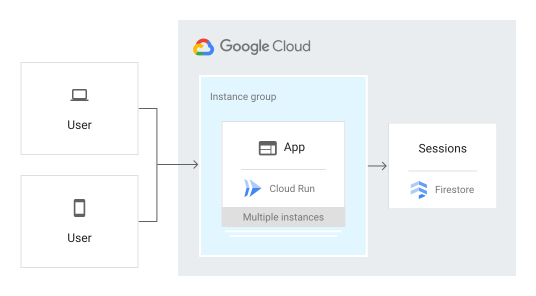
Startup.cs 檔案中的 ConfigureServices 方法會設定應用程式,以使用 Cloud KMS 進行加密,並使用 Cloud Storage 儲存加密金鑰。
-
在 Cloud Shell 中點選
 啟動編輯器,並檢查
 Startup.cs檔案。
設定 Google Cloud 專案
-
在 Cloud Shell 編輯器中,編輯
appsettings.json檔案,並將YOUR-PROJECT-ID的兩個執行個體替換為您的 Google Cloud 專案 ID。儲存檔案。 -
建立名為
dataprotectionprovider的新 Cloud Key Management Service 金鑰環:gcloud kms keyrings create dataprotectionprovider --location global
-
建立名為
masterkey的新 Cloud Key Management Service 金鑰:gcloud kms keys create masterkey --location global --keyring dataprotectionprovider --purpose=encryption
-
建立 Cloud Storage bucket 來儲存加密金鑰:
gcloud storage buckets create gs://PROJECT_ID-bucket
在 Cloud Run 部署及執行
您可以使用 Cloud Run 建構及部署應用程式,即使是處在高負載和大量資料的情況下,應用程式仍會穩定可靠地執行。
本教學課程使用 Cloud Run 部署伺服器。
在 Cloud Shell 中發布應用程式:
dotnet publish -c Release使用 Cloud Build 建構 Docker 容器並發布至 Container Registry:
gcloud builds submit --tag gcr.io/PROJECT_ID/sessions bin/Release/netcoreapp2.1/publish
使用 Cloud Run 執行容器:
gcloud beta run deploy sessions --region us-central1 --platform managed --image gcr.io/PROJECT_ID/sessions --allow-unauthenticated
記下輸出內容中的網址:
Service [sessions] revision [sessions-00003-xiz] has been deployed and is serving
100 percent of traffic at https://sessions-r3f3em7nuq-uc.a.run.app
如要查看即時應用程式,請前往上一步複製的網址。
刪除工作階段
您可以透過 Google Cloud 控制台刪除工作階段資料,也可以實作自動刪除策略。如果您使用 Memcache 或 Redis 這類工作階段儲存解決方案,則會自動刪除過期的工作階段。
應用程式偵錯
如果無法連線至 Cloud Run 應用程式,請檢查下列事項:
- 檢查
gcloud部署指令是否順利完成,且未輸出任何錯誤。如果發生錯誤 (例如message=Build failed),請修正錯誤,並再次嘗試部署 Cloud Run 應用程式。 - 請參閱 Cloud Run 記錄檔查看指南。
清除所用資源
刪除專案
- 前往 Google Cloud 控制台的「Manage resources」(管理資源) 頁面。
- 在專案清單中選取要刪除的專案,然後點選「Delete」(刪除)。
- 在對話方塊中輸入專案 ID,然後按一下 [Shut down] (關閉) 以刪除專案。