


本教學課程說明如何使用 Azure Pipelines、Google Kubernetes Engine (GKE) 和 Google Container Registry,為 ASP.NET MVC 網頁應用程式建立持續整合/持續部署 (CI/CD) 管道。在本教學課程中,您可以選取下列兩個範例應用程式:
- 使用.NET 6 .0 且在 Linux 上執行的 ASP.NET Core 網頁應用程式
- 使用.NET Framework 4 的 ASP .NET MVC 網頁應用程式,且在 Windows 上執行
CI/CD 管道會使用兩個不同的 GKE 叢集,一個用於開發,另一個用於生產,如下圖所示。
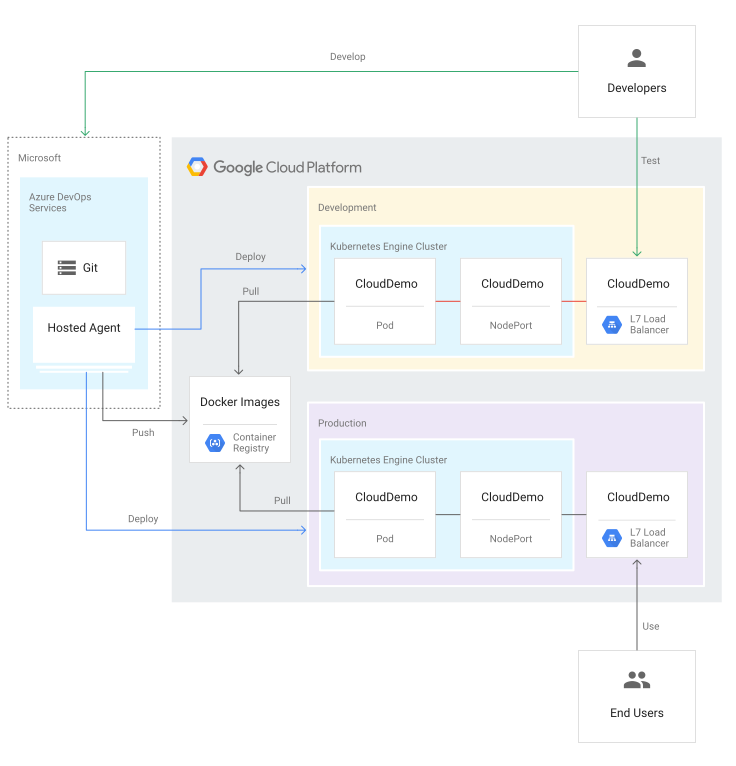
在管道的開頭,開發人員會將變更提交至範例程式碼集。這個動作會觸發管道建立版本,並將版本部署至開發叢集。接著,版本管理員可以升級版本,再將版本部署至實際工作環境叢集中。
本教學課程適用於開發人員和 DevOps 工程師。本文假設您具備 Microsoft .NET、Azure Pipelines 和 GKE 的基礎知識。此外,您也必須具備 Azure DevOps 帳戶的管理員存取權,才能完成本教學課程。
目標
- 將 Google Container Registry 連線至 Azure Pipelines,發布 Docker 映像檔。
- 準備.NET 範例應用程式,以便部署至 GKE。
- 安全地驗證 GKE,無須使用舊版驗證。
- 使用 Azure Pipelines 版本管理來自動化調度管理 GKE 部署。
不在範圍內
本教學課程不會說明如何將 Azure Pipelines 連線至私人 GKE 叢集,或連線至私人授權網路。
費用
在本文件中,您將使用下列 Google Cloud計費元件:
- GKE
- Cloud Load Balancing
- Cloud Storage (for Container Registry)
如要根據預測用量估算費用,請使用 Pricing Calculator。
完成本文所述工作後,您可以刪除建立的資源,避免繼續計費,詳情請參閱「清除所用資源」一節。
如要瞭解使用 Azure DevOps 可能產生的費用,請參閱 Azure DevOps 定價頁面。
事前準備
通常建議您為開發和生產工作負載使用不同的專案,以便個別授予 Identity and Access Management (IAM) 角色和權限。為了簡化操作,本教學課程在一個專案上同時使用兩個 GKE 叢集,其中一個用於開發環境,另一個用於實際工作環境。
-
在 Google Cloud 控制台的專案選擇器頁面中,選取或建立 Google Cloud 專案。
選取或建立專案所需的角色
- 選取專案:選取專案時,不需要具備特定 IAM 角色,只要您在專案中獲派角色,即可選取該專案。
-
建立專案:如要建立專案,您需要專案建立者角色 (
roles/resourcemanager.projectCreator),其中包含resourcemanager.projects.create權限。瞭解如何授予角色。
- 請確認您擁有 Azure DevOps 帳戶,並具備管理員存取權。 如果還沒有 Azure DevOps 帳戶,請前往 Azure DevOps 首頁註冊。
建立 Azure DevOps 專案
您可以使用 Azure DevOps 管理原始碼、執行建構和測試,以及協調部署至 GKE 的作業。首先,請在 Azure DevOps 帳戶中建立專案。
- 前往 Azure DevOps 首頁 (https://dev.azure.com/YOUR_AZURE_DEVOPS_ACCOUNT_NAME)。
- 按一下「New Project」。
- 輸入專案名稱,例如
CloudDemo。 - 將「Visibility」設為 [Private],然後按一下 [Create]。
- 建立專案後,按一下左選單中的「Repos」。
- 按一下「Import」(匯入),從 GitHub 建立
dotnet-docs-samples存放區分支,然後設定下列值:- 存放區類型:
Git - 複製網址:
https://github.com/GoogleCloudPlatform/dotnet-docs-samples.git
- 存放區類型:
按一下「匯入」。
匯入程序完成後,您會看到
dotnet-docs-samples存放區的原始碼。
將 Azure Pipelines 連線至 Google Container Registry
如要為 CloudDemo 應用程式設定持續整合,請先將 Azure Pipelines 連線至 Container Registry。Azure Pipelines 可透過這個連線將容器映像檔發布至 Container Registry。
設定用於發布圖片的服務帳戶
在專案中建立Google Cloud 服務帳戶:
開啟 Google Cloud 控制台。
-
在 Google Cloud 控制台中啟用 Cloud Shell。
為了節省輸入專案 ID 和 Compute Engine 區域選項的時間,請執行下列指令,以設定預設的設定值:
gcloud config set project PROJECT_ID
gcloud config set compute/zone us-central1-a
將
PROJECT_ID替換為專案的專案 ID。在專案中啟用 Container Registry API:
gcloud services enable containerregistry.googleapis.com建立 Azure Pipelines 用來發布 Docker 映像的服務帳戶:
gcloud iam service-accounts create azure-pipelines-publisher \
    --display-name="Azure Pipelines Publisher"
將 Artifact Registry 管理員 IAM 角色 (
roles/artifactregistry.admin) 授予服務帳戶,允許 Azure Pipelines 推送至 Container Registry:AZURE_PIPELINES_PUBLISHER=azure-pipelines-publisher@$GOOGLE_CLOUD_PROJECT.iam.gserviceaccount.com gcloud projects add-iam-policy-binding $GOOGLE_CLOUD_PROJECT \ --member serviceAccount:$AZURE_PIPELINES_PUBLISHER \ --role roles/artifactregistry.admin產生服務帳戶金鑰:
gcloud iam service-accounts keys create azure-pipelines-publisher.json \
    --iam-account $AZURE_PIPELINES_PUBLISHER

tr -d '\n' < azure-pipelines-publisher.json > azure-pipelines-publisher-oneline.json
查看服務帳戶金鑰檔案的內容:
echo $(<azure-pipelines-publisher-oneline.json)您會在後續步驟中用到服務帳戶金鑰。
為 Google Container Registry 建立服務連線
在 Azure Pipelines 中,為 Container Registry 建立新的服務連線:
- 在 Azure DevOps 選單中,依序選取「專案設定」和「Pipelines」 >「Service connections」。
- 按一下「建立服務連線」。
- 從清單中選取 Docker Registry,然後按一下 下一步。
- 在對話方塊中,輸入下列欄位的值:
- 登記類型:其他
- Docker Registry:
https://gcr.io/PROJECT_ID,將PROJECT_ID替換為專案名稱 (例如https://gcr.io/azure-pipelines-test-project-12345)。 - Docker ID:
_json_key - 密碼:貼上
azure-pipelines-publisher-oneline.json的內容。 - 服務連線名稱:
gcr-tutorial
- 按一下「儲存」即可建立連結。
持續建構
您現在可以使用 Azure Pipelines 設定持續整合。每當有任何提交推送至 Git 存放區,Azure Pipelines 就會建構程式碼,並將建構構件封裝至 Docker 容器。然後將容器發布至 Container Registry。
存放區已包含下列 Dockerfile:
.NET/Linux
.NET Framework/Windows
現在,請使用 YAML 語法建立新的管道:
- 使用 Visual Studio 或指令列
git用戶端,複製新的 Git 存放區,並查看main分支。 - 在存放區的根目錄中,建立名為
azure-pipelines.yml的檔案。 將下列程式碼複製到檔案中:
.NET/Linux
resources:
- repo: self
  fetchDepth: 1
pool:
  vmImage: ubuntu-20.04
trigger:
- main
variables:
  TargetFramework: 'net6.0'
  BuildConfiguration: 'Release'
  DockerImageName: 'PROJECT_ID/clouddemo'
steps:
- task: DotNetCoreCLI@2
  displayName: Publish
  inputs:
    projects: 'applications/clouddemo/netcore/CloudDemo.MvcCore.sln'
    publishWebProjects: false
    command: publish
    arguments: '--configuration $(BuildConfiguration) --framework=$(TargetFramework)'
    zipAfterPublish: false
    modifyOutputPath: false
- task: CmdLine@1
  displayName: 'Lock image version in deployment.yaml'
  inputs:
    filename: /bin/bash
    arguments: '-c "awk ''{gsub(\"CLOUDDEMO_IMAGE\", \"gcr.io/$(DockerImageName):$(Build.BuildId)\", $0); print}'' applications/clouddemo/netcore/deployment.yaml > $(build.artifactstagingdirectory)/deployment.yaml"'
- task: PublishBuildArtifacts@1
  displayName: 'Publish Artifact'
  inputs:
    PathtoPublish: '$(build.artifactstagingdirectory)'
- task: Docker@2
  displayName: 'Login to Artifact Registry'
  inputs:
    command: login
    containerRegistry: 'gcr-tutorial'
- task: Docker@2
  displayName: 'Build and push image'
  inputs:
    Dockerfile: 'applications/clouddemo/netcore/Dockerfile'
    command: buildAndPush
    repository: '$(DockerImageName)'
.NET Framework/Windows
resources:
- repo: self
  fetchDepth: 1
pool:
  vmImage: windows-2019     # Matches WINDOWS_LTSC in GKE
  demands:
  - msbuild
  - visualstudio
trigger:
- master
variables:
  Solution: 'applications/clouddemo/net4/CloudDemo.Mvc.sln'
  BuildPlatform: 'Any CPU'
  BuildConfiguration: 'Release'
  DockerImageName: 'PROJECT_ID/clouddemo'
steps:
- task: NuGetCommand@2
  displayName: 'NuGet restore'
  inputs:
    restoreSolution: '$(Solution)'
- task: VSBuild@1
  displayName: 'Build solution'
  inputs:
    solution: '$(Solution)'
    msbuildArgs: '/p:DeployOnBuild=true /p:PublishProfile=FolderProfile'
    platform: '$(BuildPlatform)'
    configuration: '$(BuildConfiguration)'
- task: PowerShell@2
  displayName: 'Lock image version in deployment.yaml'
  inputs:
    targetType: 'inline'
    script: '(Get-Content applications\clouddemo\net4\deployment.yaml) -replace "CLOUDDEMO_IMAGE","gcr.io/$(DockerImageName):$(Build.BuildId)" | Out-File -Encoding ASCII $(build.artifactstagingdirectory)\deployment.yaml'
- task: PublishBuildArtifacts@1
  displayName: 'Publish Artifact'
  inputs:
    PathtoPublish: '$(build.artifactstagingdirectory)'
- task: Docker@2
  displayName: 'Login to Artifact Registry'
  inputs:
    command: login
    containerRegistry: 'gcr-tutorial'
- task: Docker@2
  displayName: 'Build and push image'
  inputs:
    Dockerfile: 'applications/clouddemo/net4/Dockerfile'
    command: buildAndPush
    repository: '$(DockerImageName)'
將
PROJECT_ID替換為專案名稱,然後儲存檔案。提交變更並推送至 Azure Pipelines。
Visual Studio
- 開啟 Team Explorer,然後按一下「首頁」圖示。
- 按一下 [Changes] (變更)。
- 輸入修訂訊息,例如
Add pipeline definition。 - 按一下 [Commit All and Push] (全部認可並推送)。
指令列
暫存所有已修改的檔案:
git add -A將變更提交至本機存放區:
git commit -m "Add pipeline definition"將變更推送至 Azure DevOps:
git push
在 Azure DevOps 選單中選取「Pipelines」(管線),然後按一下「Create Pipeline」(建立管線)。
選取「Azure Repos Git」。
選取存放區。
在「Review your pipeline YAML」(檢查管道 YAML) 頁面中,按一下「Run」(執行)。
系統會觸發新的建構程序。建構作業大約需要 6 分鐘才能完成。
如要確認映像檔已發布至 Container Registry,請在 Google Cloud 控制台中切換至您的專案,依序選取「Container Registry」 >「映像檔」,然後按一下「clouddemo」。
畫面上會顯示單一圖片和該圖片的標記。這個標記對應於在 Azure Pipelines 中執行的建構版本數字 ID。
持續部署
Azure Pipelines 已可自動建構程式碼並為每個修訂版本發佈 Docker 映像檔。因此,您現在可以專注在部署上。
與其他持續整合系統不同,Azure Pipelines 會區分建構和部署作業,並提供一組標示為「發布管理」的專用工具,用於處理所有部署相關工作。
Azure Pipelines Release Management 是根據下列概念建構而成:
- 發行版本是指構成特定應用程式版本的構件組合,通常是建構程序的結果。
- 「部署」是指建立版本,並將它部署至特定環境中的過程。
- 部署作業會執行一組工作,這些工作可以分組為工作。
- 階段可讓您區隔管道,並用於協調部署至多個環境 (例如開發和測試環境)。
CloudDemo 建構程序產生的主要構件是 Docker 映像檔。不過,由於 Docker 映像檔發布至 Container Registry,因此該映像檔不在 Azure Pipelines 的範圍內。因此,這張圖片無法充分定義發行內容。
如要部署至 Kubernetes,您也需要一份「資訊清單」,這與物料清單類似。資訊清單不僅定義 Kubernetes 應建立及管理的資源,也指定了要使用的 Docker 映像檔確切版本。Kubernetes 資訊清單非常適合做為定義 Azure Pipelines Release Management 中版本的構件。
設定 Kubernetes Deployment
如要在 Kubernetes 中執行 CloudDemo,您需要下列資源:
- Deployment,定義執行建構作業所產生 Docker 映像檔的單一 Pod。
- 一個「NodePort」服務,讓負載平衡器能夠存取 Pod。
- Ingress:使用 Cloud HTTP(S) 負載平衡器將應用程式公開至網際網路。
存放區已包含下列 Kubernetes 資訊清單,用於定義這些資源:
.NET/Linux
.NET Framework/Windows
設定開發和正式環境
返回 Azure Pipelines Release Management 之前,您必須建立 GKE 叢集。
建立 GKE 叢集
返回 Cloud Shell 執行個體。
為您的專案啟用 GKE API:
gcloud services enable container.googleapis.com
使用下列指令建立開發叢集。請注意,這項作業可能需要幾分鐘的時間才能完成:
.NET/Linux
gcloud container clusters create azure-pipelines-cicd-dev --enable-ip-alias
.NET Framework/Windows
gcloud container clusters create azure-pipelines-cicd-dev --enable-ip-alias

gcloud container node-pools create azure-pipelines-cicd-dev-win \
    --cluster=azure-pipelines-cicd-dev \
    --image-type=WINDOWS_LTSC \
    --no-enable-autoupgrade \
    --machine-type=n1-standard-2
使用下列指令建立實際工作環境叢集。請注意,這項作業可能需要幾分鐘的時間才能完成:
.NET/Linux
gcloud container clusters create azure-pipelines-cicd-prod --enable-ip-alias
.NET Framework/Windows
gcloud container clusters create azure-pipelines-cicd-prod --enable-ip-alias

gcloud container node-pools create azure-pipelines-cicd-prod-win \
    --cluster=azure-pipelines-cicd-prod \
    --image-type=WINDOWS_LTSC \
    --no-enable-autoupgrade \
    --machine-type=n1-standard-2
將 Azure Pipelines 連線至開發叢集
正如同您可以使用 Azure Pipelines 連結至外部 Docker 註冊資料庫 (如 Container Registry) 一樣,Azure Pipelines 也支援整合外部 Kubernetes 叢集。
您可以使用Google Cloud 服務帳戶向 Container Registry 進行驗證,但 Azure Pipelines 不支援使用 Google Cloud 服務帳戶向 GKE 進行驗證。您必須改用 Kubernetes 服務帳戶。
因此,如要將 Azure Pipelines 連結至開發叢集,您必須先建立 Kubernetes 服務帳戶。
在 Cloud Shell 中,連結至開發叢集:
gcloud container clusters get-credentials azure-pipelines-cicd-dev
為 Azure Pipelines 建立 Kubernetes 服務帳戶:
kubectl create serviceaccount azure-pipelines-deploy
建立 Kubernetes Secret,內含 Azure Pipelines 的權杖憑證:
kubectl create secret generic azure-pipelines-deploy-token --type=kubernetes.io/service-account-token --dry-run -o yaml \
  | kubectl annotate --local -o yaml -f - kubernetes.io/service-account.name=azure-pipelines-deploy \
  | kubectl apply -f -
建立叢集角色繫結,將
cluster-admin角色指派給服務帳戶:kubectl create clusterrolebinding azure-pipelines-deploy --clusterrole=cluster-admin --serviceaccount=default:azure-pipelines-deploy
判定叢集的 IP 位址:
gcloud container clusters describe azure-pipelines-cicd-dev --format=value\(endpoint\)
您稍後將會用到這個位址。
在 Azure DevOps 選單中,依序選取「專案設定」和「Pipelines」 >「Service connections」。
按一下 [New service connection]。
選取「Kubernetes」,然後點選「下一步」。
進行下列設定:
- 驗證方式:服務帳戶。
- 伺服器網址:
https://PRIMARY_IP。 將PRIMARY_IP替換為您先前判斷的 IP 位址。 - Secret:您先前建立的 Kubernetes Secret。如要取得密鑰,請執行下列指令、複製密鑰,然後將密鑰複製到 Azure 頁面。
kubectl get secret azure-pipelines-deploy-token -o yaml
- 服務連線名稱:
azure-pipelines-cicd-dev。
按一下 [儲存]。
將 Azure Pipelines 連線至正式環境叢集
如要將 Azure Pipelines 連結至實際工作環境叢集,您可以按照相同的方法操作。
在 Cloud Shell 中,連結至實際工作環境叢集。
gcloud container clusters get-credentials azure-pipelines-cicd-prod
為 Azure Pipelines 建立 Kubernetes 服務帳戶:
kubectl create serviceaccount azure-pipelines-deploy
建立叢集角色繫結,將
cluster-admin角色指派給服務帳戶:kubectl create clusterrolebinding azure-pipelines-deploy --clusterrole=cluster-admin --serviceaccount=default:azure-pipelines-deploy
判定叢集的 IP 位址:
gcloud container clusters describe azure-pipelines-cicd-prod --format=value\(endpoint\)
您稍後將會用到這個位址。
在 Azure DevOps 選單中,依序選取「專案設定」和「Pipelines」 >「Service connections」。
按一下 [New service connection]。
選取「Kubernetes」,然後點選「下一步」。
進行下列設定:
- 驗證方式:服務帳戶。
- 伺服器網址:
https://PRIMARY_IP。 將PRIMARY_IP替換為您先前判斷的 IP 位址。 - 密碼:在 Cloud Shell 中執行下列指令,並複製輸出內容:
kubectl get secret $(kubectl get serviceaccounts azure-pipelines-deploy -o custom-columns=":secrets[0].name") -o yaml
- 服務連線名稱:
azure-pipelines-cicd-prod。
按一下 [儲存]。
設定發布管道
設定 GKE 基礎架構之後,您將返回 Azure Pipelines 以自動化部署作業,這包含了:
- 部署至開發環境。
- 在啟動部署至正式環境之前,要求人工核准。
- 部署至正式環境。
建立發布定義
第一步是建立新的發行定義。
- 在 Azure DevOps 選單中,選取 [Pipelines] > [Releases]。
- 按一下 [New pipeline]。
- 從範本清單中選取 [Empty job]。
- 系統提示您輸入階段名稱時,請輸入
Development。 - 在畫面頂端將版本命名為 CloudDemo-KubernetesEngine。
- 在管道圖的 [Artifacts] 旁,按一下 [Add]。
選取 [Build],並新增下列設定:
- 來源類型:建構
- 「Source (build pipeline)」:選取建構定義 (應該只有一個選項)
- 預設版本:
Latest - 來源別名:
manifest
按一下「新增」。
在「構件」方塊中,按一下「持續部署觸發條件」 (閃電圖示),新增部署觸發條件。
在「持續部署觸發條件」下方,將切換鈕設為「已啟用」。
按一下 [儲存]。
視需要輸入註解,然後按一下 [OK] 確認。
管道會顯示類似以下的內容。
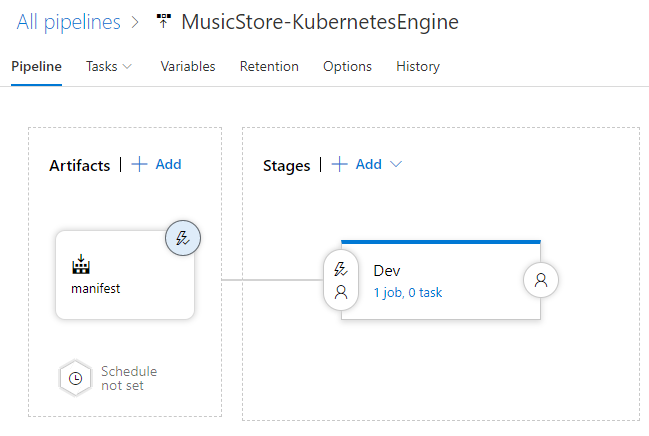
部署至開發叢集
建立發行定義之後,您現在可以將部署設定至 GKE 開發叢集。
- 在選單中切換至「工作」分頁。
按一下「代理程式作業」,然後設定下列項目:
- 代理程式集區:Azure Pipelines
- 代理程式規格:ubuntu-18.04
在「代理工作」旁邊,按一下「將工作新增至代理工作」 ,即可在階段中新增步驟。
選取 [Deploy to Kuberetes] 工作,然後按一下 [Add]。
按一下新增的工作,然後進行下列設定:
- 顯示名稱:
Deploy - 動作:deploy
- 「Kubernetes service connection」:[azure-pipelines-cicd-dev]
- 命名空間:
default - 策略:無
- 資訊清單:
manifest/drop/deployment.yaml
- 顯示名稱:
按一下 [儲存]。
視需要輸入註解,然後按一下 [OK] 確認。
部署至正式叢集
最後,將部署設定至 GKE 實際工作環境叢集。
- 在選單中,切換至「Pipeline」分頁標籤。
- 在「階段」方塊中,依序選取「新增」 >「新階段」。
- 從範本清單中選取 [Empty job]。
- 系統提示您輸入階段名稱時,請輸入
Production。 - 按一下新建立階段的閃電圖示。
進行下列設定:
- 選取觸發條件:After stage
- 階段:Dev
- 「Pre-deployment approvals」(部署前核准):(啟用)
- 核准者:選取自己的使用者名稱。
管道現在看起來會像這樣:
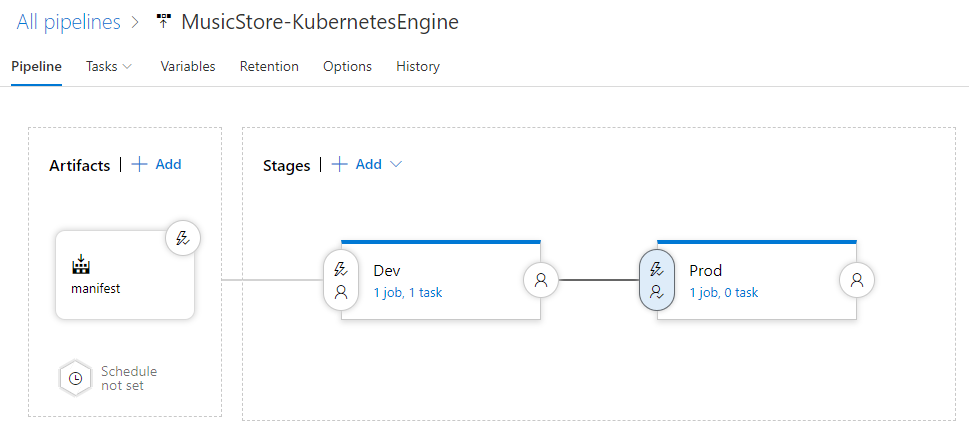
切換至「Tasks」分頁標籤。
將滑鼠游標懸停在「工作」分頁標籤上,然後依序選取「工作」 >「製作」。
按一下「代理程式作業」,然後設定下列項目:
- 代理程式集區:Azure Pipelines
- 代理程式規格:ubuntu-18.04
按一下「將工作新增至代理程式工作」 ,即可在階段中新增步驟。
選取 [Deploy to Kuberetes] 工作,然後按一下 [Add]。
按一下新增的工作,然後進行下列設定:
- 顯示名稱:
Deploy - 動作:deploy
- 「Kubernetes service connection」:[azure-pipelines-cicd-prod]
- 命名空間:
default - 策略:無
- 資訊清單:
manifest/drop/deployment.yaml
- 顯示名稱:
按一下 [儲存]。
視需要輸入註解,然後按一下 [OK] 確認。
執行管道
您已設定整個管道,現在可以變更原始碼來測試管道:
在本機上開啟您先前複製的 Git 存放區中的
Index.cshtml檔案:.NET/Linux
這個檔案位於
applications\clouddemo\netcore\CloudDemo.MvcCore\Views\Home\.NET Framework/Windows
這個檔案位於
applications\clouddemo\net4\CloudDemo.Mvc\Views\Home\在第 26 行中,將
ViewBag.Title的值從Home Page變更為This app runs on GKE。提交變更,然後推送至 Azure Pipelines。
Visual Studio
- 開啟 Team Explorer,然後按一下「首頁」圖示。
- 按一下 [Changes] (變更)。
- 輸入修訂訊息,例如
Change site title。 - 按一下 [Commit All and Push] (全部認可並推送)。
指令列
暫存所有已修改的檔案:
git add -A將變更提交至本機存放區:
git commit -m "Change site title"將變更推送至 Azure Pipelines:
git push
在 Azure DevOps 選單中,選取「Pipelines」。系統會觸發建構作業。
建構完成後,依序選取「Pipelines」 >「Releases」。啟動發布程序。
按一下「Release-1」開啟詳細資料頁面,並等待「Development」階段的狀態切換為「Succeeded」。
在 Google Cloud 控制台中,依序選取「Kubernetes Engine」 >「Services & Ingress」 >「Ingress」。
找到 azure-pipelines-cicd-dev 叢集的輸入服務,然後等待其狀態變成「Ok」。這可能需要幾分鐘的時間。
開啟同一列「前端」欄中的連結。您一開始可能會看到錯誤,因為負載平衡器需要幾分鐘的時間才能變為可用。準備就緒後,請觀察 CloudDemo 是否已部署,並使用自訂標題。
在 Azure Pipelines 中,按一下「Prod」階段下方的「Approve」按鈕,將部署作業升級至正式環境。
如果畫面上沒有按鈕,您可能需要先核准或拒絕先前的發行版本。
視需要輸入註解,然後按一下 [Approve] 確認。
等候「Prod」環境的狀態變成「Succeeded」。您可能需要在瀏覽器中手動重新整理頁面。
在 Google Cloud 控制台中,重新整理「Services & Ingress」(服務與輸入) 頁面。
找出 azure-pipelines-cicd-prod 叢集的 Ingress 服務,然後等待狀態切換為「Ok」。這可能需要幾分鐘的時間。
開啟同一列「前端」欄中的連結。同樣地,您一開始可能會看到錯誤,因為負載平衡器需要過幾分鐘才能使用。準備就緒後,您會再次看到 CloudDemo 應用程式,這次是以自訂標題在正式環境叢集中執行。
清除所用資源
為避免在本教學課程完成後產生額外費用,請刪除您建立的實體。
刪除 Azure Pipelines 專案
如要刪除 Azure Pipelines 專案,請參閱 Azure DevOps Services 說明文件。刪除 Azure Pipelines 專案會導致所有原始碼變更遺失。
刪除 Google Cloud 開發項目和專案
- 前往 Google Cloud 控制台的「Manage resources」(管理資源) 頁面。
- 在專案清單中選取要刪除的專案,然後點選「Delete」(刪除)。
- 在對話方塊中輸入專案 ID,然後按一下 [Shut down] (關閉) 以刪除專案。
後續步驟
- 設定 Artifact Registry 的精細存取權控管機制。
- 瞭解如何在 Compute Engine 上部署高可用性 SQL Server 群組。
- 請參閱 .NET on Google Cloud Platform。
- 探索 Google Cloud 的參考架構、圖表和最佳做法。歡迎瀏覽我們的 Cloud Architecture Center。