


Form Parser 可提取键值对 (KVP)、表格、选择标记(如复选框)、通用字段和文本,以增强文档处理能力并实现自动化。
如果使用场景涉及以下情况,则可以考虑使用 Form Parser 而不是其他解析器:
- 处理结构化表单:Form Parser 擅长从定义明确的表单中提取 KVP,这些表单看起来像带有标签的空白字段的传统表单,例如
name: __。Form Parser 的预训练模型可针对常见字段(例如姓名、日期和地址)提供高准确率。 - 需要灵活的表格提取:Form Parser 可从看起来像表格的简单表格(没有跨行或跨列的单元格)中提取数据。无需(也无法)进行训练。对于经过训练的表格提取,可以将自定义提取器与包含列(单元格)子字段的父字段一起使用。
- 需要提高效率:避免构建和维护提取解析器,尤其是在处理大量且形式各异的提取任务时。
数据提取功能
Form Parser 功能包括:
KVP :这是文档中的两项内容,即标签或键及其对应的数据(值)。您可以直接使用 KVP(如果键一致),也可以构建自定义逻辑,将各种键解析为一致的结构化信息。
通用实体 :开箱即可解析文档中的 11 个不同字段。其中包括:
emailphoneurldate_timeaddresspersonorganizationquantitypriceidpage_number
文本和布局 :使用我们最新的 OCR 引擎提取文本和布局信息。这包括来自数字 PDF(仅限 v2.1)的嵌入文本或来自图片的文本。
表格 :检测和提取图片和 PDF 中的表格。
复选框 :高质量的选择标记检测器,可将图片和 PDF 输出中的复选框提取为 KVP,使用复选框附近最近的文本,并使用
valueType指示复选框是否已选中。
语言和区域
模型版本
以下处理器版本与此功能兼容。如需了解更多 信息,请参阅管理处理器版本。
限制
不支持对 TIFF 进行之前的 JPEG 压缩。JPEG 封装类型由 TIFF 版本 6.0 规范定义。
复选框模型不支持解析单选按钮。某些检测到的复选框可能没有对应的键。
该模型无法可靠地解析具有未填充值的 KVP,例如空白表单。
对于某些语言的文档,KVP 解析的质量可能低于拉丁语。
使用 Form Parser 处理文档
本快速入门介绍 Document AI 中的 Form Parser 功能。在本快速入门中,您将使用 Google Cloud 控制台设置 Google Cloud 项目和授权,创建 Form Parser,然后请求 Document AI 处理 PDF 表单。
了解如何:
在 Google Cloud 项目中启用 Document AI。
创建一个 Form Parser 处理器,该处理器可以从多种类型的文档识别和提取文本、键值对、表和通用实体。
使用处理器为示例文档添加注解。
如需在 Google Cloud 控制台中直接遵循有关此任务的分步指导,请点击操作演示:
- 登录您的 Google Cloud 账号。如果您是 Google Cloud新手, 请创建一个账号来评估我们的产品在 实际场景中的表现。新客户还可获享 $300 赠金,用于 运行、测试和部署工作负载。
-
In the Google Cloud console, on the project selector page, select or create a Google Cloud project.
Roles required to select or create a project
- Select a project: Selecting a project doesn't require a specific IAM role—you can select any project that you've been granted a role on.
-
Create a project: To create a project, you need the Project Creator role
(
roles/resourcemanager.projectCreator), which contains theresourcemanager.projects.createpermission. Learn how to grant roles.
-
Verify that billing is enabled for your Google Cloud project.
Enable the Document AI API.
Roles required to enable APIs
To enable APIs, you need the
serviceusage.services.enablepermission. If you created the project, then you likely already have this permission through the Owner role (roles/owner). Otherwise, you can get this permission through the Service Usage Admin role (roles/serviceusage.serviceUsageAdmin). Learn how to grant roles.-
In the Google Cloud console, on the project selector page, select or create a Google Cloud project.
Roles required to select or create a project
- Select a project: Selecting a project doesn't require a specific IAM role—you can select any project that you've been granted a role on.
-
Create a project: To create a project, you need the Project Creator role
(
roles/resourcemanager.projectCreator), which contains theresourcemanager.projects.createpermission. Learn how to grant roles.
-
Verify that billing is enabled for your Google Cloud project.
Enable the Document AI API.
Roles required to enable APIs
To enable APIs, you need the
serviceusage.services.enablepermission. If you created the project, then you likely already have this permission through the Owner role (roles/owner). Otherwise, you can get this permission through the Service Usage Admin role (roles/serviceusage.serviceUsageAdmin). Learn how to grant roles.
创建表单解析器处理器
使用 Google Cloud 控制台创建 Form Parser 处理器。如需了解详情,请参阅创建和管理处理器。
在 Google Cloud 控制台导航菜单中,点击 Document AI 并选择处理器库。
在处理器库中,
搜索 表单解析器,然后选择创建。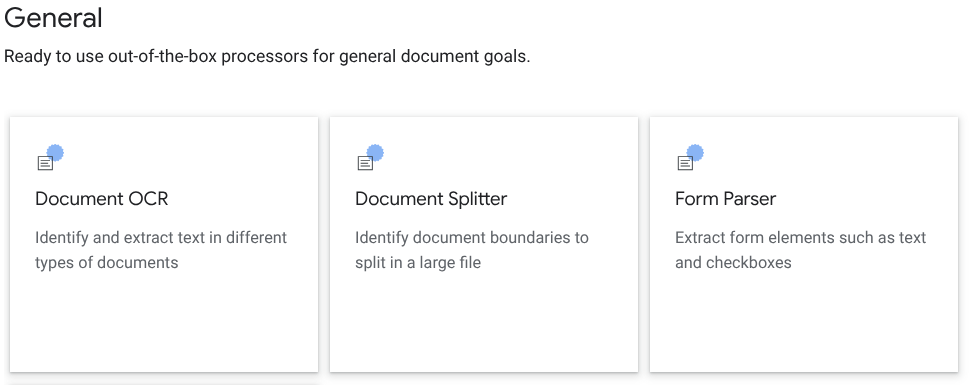
在侧边窗口中,输入处理器名称,例如
quickstart-form-processor。选择离您最近的区域。
点击创建按钮。
系统会将您转到新表单解析器处理器的处理器详情页面。
测试处理器
创建处理器后,您可以向该处理器发送注解请求。
-
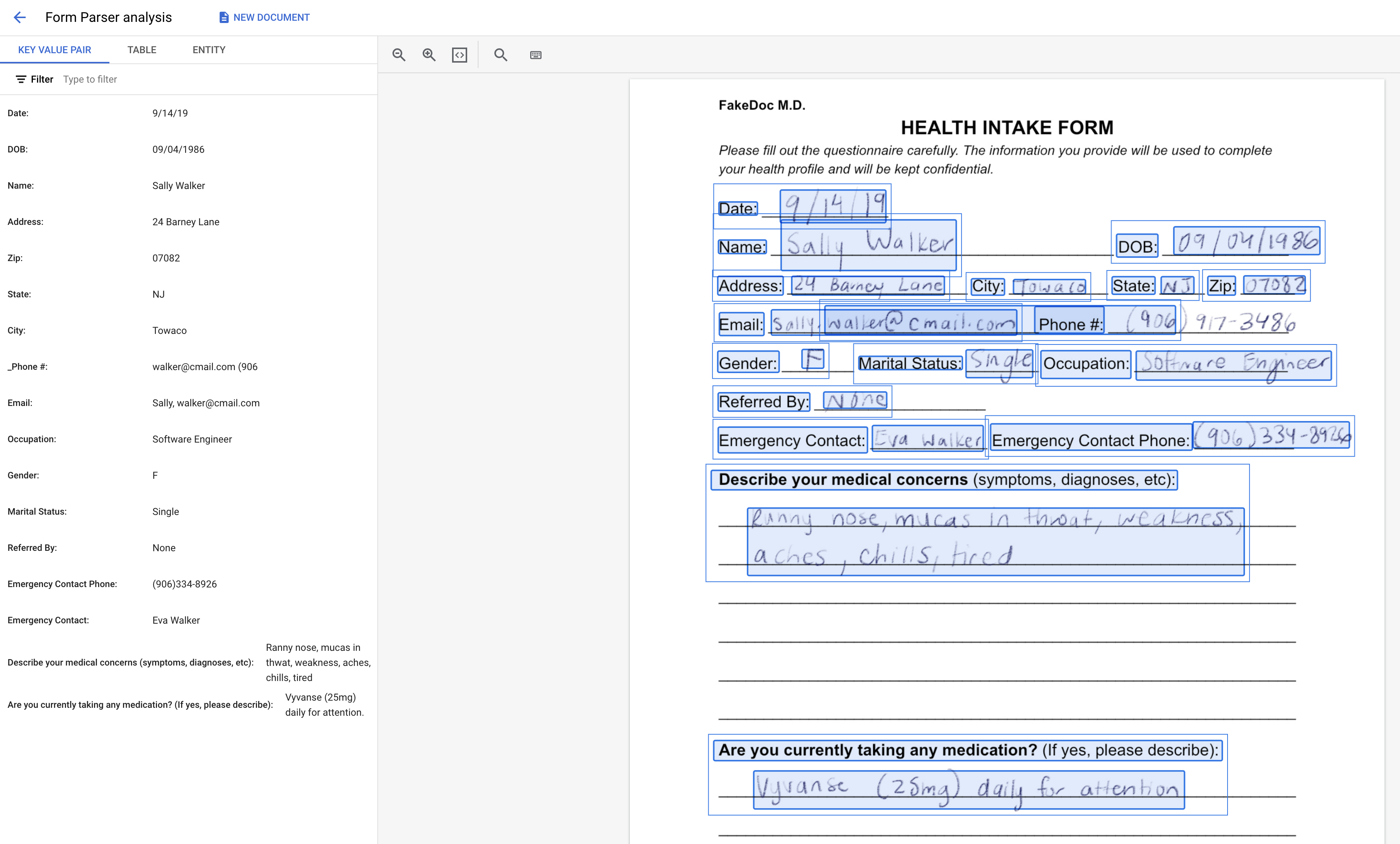
它是一个 PDF 文件,其中包含手写的医疗登记表示例。此文档存储在可公开访问的 Cloud Storage 存储桶中。
点击
上传测试文档 按钮,然后选择您刚刚下载的文档。您现在看到的应该是表单解析器分析页面。您可以查看从文档中提取的 OCR 检测到的文本、键值对、表和通用实体。
清理
为避免产生不必要的 Google Cloud 费用,请使用 Google Cloud console 删除不再需要的处理器和项目。
后续步骤
- 查看处理器列表。