

Committed use discount (CUD) recommendations help you optimize the resource costs of the projects in your Cloud Billing account. CUD recommendations are automatically generated using a formula that analyzes historical and recent usage metrics gathered by Cloud Billing, and includes usage covered by existing commitments. You can apply these recommendations to purchase additional commitments and further optimize your Google Cloud costs.
Recommendations are available for a subset of resource-based commitments and a subset of spend-based commitments for eligible products , including Compute flexible commitments.
Refer to the guides on this page to learn about the following tasks:
- Understand commitment recommendations
- Set permissions to access recommendations
- View recommendations
- Interpret the recommendation summary
- Simulate scenarios for spend-based CUDs savings
- Apply recommendations to purchase additional commitments
- Dismiss recommendations
- Configure recommendation settings
For more information about the Recommender service, see the Recommender overview.
Understand commitment recommendations
Committed use discount recommendations let you identify spending and usage patterns in your Google Cloud projects. Your spending patterns generate recommendations for spend-based commitments, including Compute flexible commitments, and your usage patterns on Compute Engine generate recommendations for resource-based commitments. The recommendations for resource-based commitments also account for your use of custom machine types on Compute Engine. Purchasing the recommended commitments helps you optimize your Google Cloud costs.
How recommendations are calculated
Google Cloud analyzes your usage history over the previous 30 days to generate commitment recommendations. The recommendations are based on two logical model types that analyze your consumption:
- Recommendations for stable usage: Calculates the recommended commitment quantity by analyzing resources that were continuously active over the 30-day period. These commitments cover steady-state workloads.
- Recommendations for optimal savings: Calculates the recommended commitment quantity to maximize overall net savings. This model also considers periods of bursting or intermittent usage. This model recommends commitments for usage periods that exceed a financial break-even threshold, which represents the point where your discount outweighs the commitment cost compared to standard rates. For example, if a commitment offers a 30% discount, then an instance needs to run for more than 70% of the month to break even. Because this model maximizes overall net savings, recommended commitment quantities might sometimes exceed your uncommitted usage on specific days or hours.
Usage is considered uncommitted and eligible if the following is true:
- The instance's uptime during the 30-day period met or exceeded the financial break-even threshold.
- The resource belongs to a machine series or resource type that is eligible for resource-based CUDs.
- The resource belongs to a machine series or resource type that supports CUD recommendations.
- The instance's usage was not already covered by an existing commitment.
You can view commitment recommendations on the FinOps hub or the Recommendations page. For detailed steps on accessing these pages, see View recommendations. After you select a specific recommendation, you can also create a scenario to simulate specific conditions and customize your recommendation.
Limitations
- Spend-based CUD recommendations are available only on the Google Cloud console. However, you can view resource-based CUD recommendations by using the Google Cloud console, Cloud Billing data export to BigQuery, and the Recommender API.
- CUD recommendations are not available for the A3 Ultra, A4, A4X, and A4X Max machine series.
- CUD recommendations are not available for Cloud TPUs.
Supported resources and services
This section describes the resources and services for which you can receive CUD recommendations.
Resource-based CUD recommendations
Resource-based CUDs are available only for Compute Engine. These CUDs are available for both hardware resources (such as vCPUs, memory, GPUs, and Local SSD disks) as well as software resources (such as OS licenses). Resource-based CUD recommendations are available for the following hardware and software resources:
Hardware resources
The following table lists the hardware various Compute Engine machine series, resource types, and commitment types for which you get CUD recommendations.
For all GPU types and most Local SSD disks, you must manually create and attach reservations when you purchase the recommended resource-based commitments. For more information, see Combine reservations with commitments.
| Supported machine series | Supported commitment type | Supported resources |
|---|---|---|
| C3 | General-purpose C3 | vCPUs, memory, and Local SSD disks |
| C3D | General-purpose C3D | vCPUs, memory, and Local SSD disks |
| C4 | General-purpose C4 | vCPUs, memory, and Local SSD disks |
| C4A | General-purpose C4A | vCPUs, memory, and Local SSD disks |
| C4D | General-purpose C4D | vCPUs, memory, and Local SSD disks |
| E2 | General-purpose E2 | vCPUs and memory |
| N1 | General-purpose N1 | vCPUs, memory, GPUs, and Local SSD disks |
| N2 | General-purpose N2 | vCPUs, memory, and Local SSD disks |
| N2D | General-purpose N2D | vCPUs, memory, and Local SSD disks |
| N4 | General-purpose N4 | vCPUs and memory |
| N4A | General-purpose N4A | vCPUs and memory |
| N4D | General-purpose N4D | vCPUs and memory |
| Tau T2D | General-purpose Tau T2D | vCPUs and memory |
| C2 | Compute-optimized C2 | vCPUs, memory, and Local SSD disks |
| C2D | Compute-optimized C2D | vCPUs, memory, and Local SSD disks |
| H3 | Compute-optimized H3 | vCPUs and memory |
| H4D | Compute-optimized H4D | vCPUs, memory, and Local SSD disks |
| M1, M2 | Memory-optimized M1/M2 | vCPUs, memory, and Local SSD disks (M2 only) |
| M3 | Memory-optimized M3 | vCPUs, memory, and Local SSD disks |
| M4 |
|
vCPUs and memory |
| X4 |
|
vCPUs and memory |
| A2 | Accelerator-optimized A2 | vCPUs, memory, GPUs, and Local SSD disks |
| G2 | Graphics-optimized G2 | vCPUs, memory, GPUs, and Local SSD disks |
| G4 | Graphics-optimized G4 | vCPUs, memory, GPUs, and Local SSD disks |
| Z3 | Storage-optimized Z3 | vCPUs, memory, and Local SSD disks |
For more information, see Hardware commitments.
Software resources
Compute Engine offers software resource-based CUDs for specific operating system (OS) licenses. Resource-based CUD recommendations are available for the following OS licenses:
- SUSE Linux Enterprise Server (SLES)
- SLES for SAP
- Red Hat Enterprise Linux (RHEL)
For more information, see Software license commitments.
Spend-based CUD recommendations
Spend-based CUD recommendations are available only for the following services:
- AlloyDB for PostgreSQL
- Backup and DR Service
- Dataflow Streaming CUD Subscription
- Memorystore
- Spanner
- Cloud SQL
- Compute flexible CUDs
- Google Cloud VMware Engine
- Google Cloud NetApp Volumes
For more information, see Spend-based commitments.
Permissions required to view and modify recommendations
Depending on your needs, ask your administrator to assign the following predefined IAM roles:
If your Cloud Billing account has resource-based CUD sharing enabled, then you need one of these roles on the Cloud Billing account:
- To view recommendations only, assign the Billing Account Viewer
(
roles/billing.viewer) role. - To view and modify recommendations, assign the
Billing Account Administrator (
roles/billing.admin) role.
Learn how to assign these roles to manage access to a Cloud Billing account.
- To view recommendations only, assign the Billing Account Viewer
(
If your Cloud Billing account does not have CUD sharing for resource-based commitments, you need one of these roles on each project attached to your Cloud Billing account that has purchased committed use discounts:
- To view recommendations only, assign the Viewer (
roles/viewer) role on the projects. - To view and modify recommendations, assign the Owner (
roles/owner) or Editor (roles/editor) role on the projects.
Learn how to assign these roles to manage access to projects.
- To view recommendations only, assign the Viewer (
If you are using custom roles, update the custom role to include the following individual permissions:
(Click to expand) Permissions required for custom roles
Permissions to simulate scenarios for CUD savings
- To simulate scenarios based on list prices, you need
billing.cudrecommendations.generateDefaultPriceSavingRecommendation - If you have a custom pricing contract, you need
billing.cudrecommendations.generateCustomPriceSavingRecommendationto simulate scenarios based on your custom prices.
Permissions to view recommendations
To view spend-based CUD recommendations:
recommender.spendBasedCommitmentRecommendations.getrecommender.spendBasedCommitmentRecommendations.listrecommender.spendBasedCommitmentInsights.getrecommender.spendBasedCommitmentInsights.listrecommender.spendBasedCommitmentRecommenderConfig.get
To view resource-based CUD recommendations:
recommender.usageCommitmentRecommendations.getrecommender.commitmentUtilizationInsights.getrecommender.usageCommitmentRecommendations.listrecommender.commitmentUtilizationInsights.list
Permissions to modify recommendations
To modify spend-based CUD recommendations:
recommender.spendBasedCommitmentRecommendations.updaterecommender.spendBasedCommitmentInsights.updaterecommender.spendBasedCommitmentRecommenderConfig.update
To modify resource-based CUD recommendations:
recommender.usageCommitmentRecommendations.updaterecommender.commitmentUtilizationInsights.update
View recommendations
There are different ways to view your committed use discount recommendations, depending on the commitment type:
- Spend-based CUD recommendations: Available only in the Google Cloud console.
- Resource-based CUD recommendations: Available in the Google Cloud console, through Cloud Billing data export to BigQuery, and through the Recommender API.
View recommendations in the Google Cloud console
Commitment recommendations are available on two pages in the Billing section of the Google Cloud console:
- FinOps hub: Displays only the top recommendations that yield the highest estimated savings, which are typically the optimal savings recommendations.
- Recommendations page: Displays all available recommendations, which includes both stable usage and optimal savings recommendations. You can also view commitment recommendations for specific services or projects.
To view the committed use discount recommendations for your Cloud Billing account, do one of the following:
| View recommendations for maximum savings | View all available recommendations | View recommendations for a specific service or project |
|---|---|---|
If you have Cloud Billing account permissions, you can view the commitment recommendations that provide the highest estimated savings on the FinOps hub page of the Google Cloud console. |
If you have Cloud Billing account permissions, you can view the complete list of available recommendations (both stable usage and optimal savings recommendations) by using the Recommendations page. You can access this page from either the CUD analysis page or the Committed use discounts page, as follows. |
If you have Cloud Billing account permissions, you can view the complete list of available recommendations (both stable usage and optimal savings recommendations) by using the Recommendations page. You can access this page from either the CUD analysis page or the Committed use discounts page, as follows. |
Interpret the recommendation summary
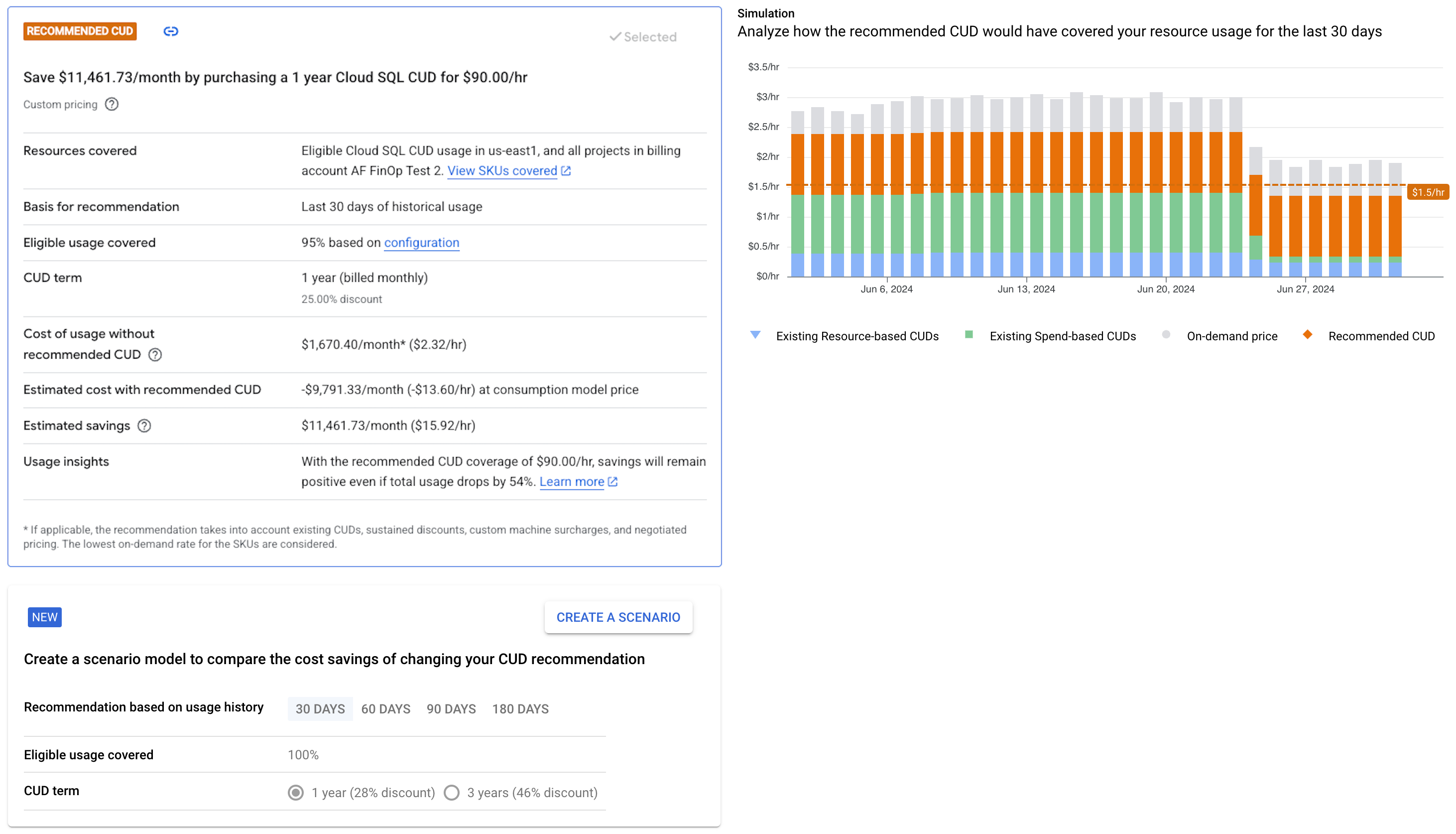
The following is an example of a recommendation summary for a spend-based CUD recommendation, with the chart that shows how the recommendation is calculated. At a high level, the recommendation is based on your resource utilization, how much of your usage you want to cover with CUDs, and your existing CUDs. The chart shows you the level of utilization at which you'll save costs by signing up for a commitment.
Estimate your optimal usage
Usage insights
For a brief explanation of how your spend-based recommendation was calculated, see the Usage insights section of the recommendation. Usage insights explains the break-even point for your commitment purchase. For example, your usage insight will look similar to this, depending on the details of your CUD recommendation:
"With the recommended CUD coverage of $90.00/hr, savings will remain positive even if eligible usage drops by 54%."
Example of how to calculate your optimal usage
To estimate the resource utilization at which you'll break even on your costs,
subtract the CUD discount percentage from 100. For example, if you get a
recommendation for a 1-year Cloud SQL CUD with a discount of 25%, the
resource utilization at which you'll break-even is 100% - 25% = 75%.
To understand the estimate, consider Cloud SQL usage of $100 at list
price. If your Cloud SQL instances run at 100% uptime, and you sign up
for a 1-year spend-based CUD at a 25% discount, you'll pay $100 - (25% of $100)
= $75 for your usage.
If the uptime for your Cloud SQL instances reduces to 80%, your list
price is $80, but with a commitment, you'd pay $75 for your usage, which still
gives you a ($80 - $75) / $80 = 0.0625 or a 6.25% discount on the list price.
Similarly, at 75% uptime, your costs are the same as if you were paying the list price, and at less than 75% uptime, you no longer save money by signing up for a commitment.
For a brief explanation of how your spend-based recommendation was calculated, see the Usage insights section of the recommendation.
Simulate scenarios for CUDs savings
In the FinOps hub, you can use a spend-based or resource-based CUD recommendation as a starting point to simulate various usage scenarios, and customize the recommendation to purchase a commitment that maximizes your savings. You can do the following as part of your scenario modeling:
- Toggle between 1-year and 3-year commitment terms.
- Adjust your coverage threshold.
- Choose a different usage period to calculate your recommendation.
- Opt to ignore atypical usage history.
Create a CUD scenario model
- To start customizing a recommendation in the FinOps hub, click the recommendation you want to model.
- On the recommendation's details page, click Create a scenario.
In the scenario modeling tool, use the options that best reflect your usage. Some of the ways you can customize the recommendation are as follows:
Recommendation based on usage history section: By default, the recommendation is based on the last 30 days of usage. To analyze your usage over a longer time, change the number of days of history to consider.
To exclude dates where you might have had atypical usage, such as a period where you had unusually high demand, enable Ignore usage history from specific days, and specify a time range.
The recommendation is recalculated based on the number of days that you select and the dates that you exclude.
Eligible usage covered section: You can model the amount of usage covered by a CUD, depending on the CUD type:
- For spend-based CUDs, you can set a percentage of spend per hour.
- For resource-based CUDs, you can set a number of resource units used.
To help you model your real-world usage more accurately, this section includes a message that shows your actual stable usage for the model's date range.
CUD term section: You can select a 1-year or 3-year term for the CUD scenario model. The recommendation is recalculated if you change the selected term.
For example, the following screenshot shows a CUD scenario model recommendation for the purchase of a 3-year Compute flexible commitment, based on the previous 30 days of usage.

Usage insights in the scenario model
In the CUD scenario model, the Usage insights section provides a brief explanation of how your spend-based recommendation was calculated. Usage insights for the scenario include your historical spending patterns for the recommended amount, and explains the break-even point for your commitment purchase. For example, your usage insights will look similar to this, depending on the details of your CUD scenario model:
- "With the CUD scenario model coverage of $0.07/hr, savings will remain positive even if eligible usage drops by 47%."
Share the CUD scenario model
To share the scenario's configuration with others, click Copy to clipboard to copy a link that you can share. When your recipients open the link, they see the scenario with the parameters that you chose, and with updated information about additional usage that occurs before they open the link.
Apply recommendations to purchase additional commitments
After you've reviewed the recommendation and selected the options that meet your needs, you can start the purchase process.
Review and purchase recommendations
To purchase a recommended commitment, open the recommendation's details page and do the following, depending on whether the recommendation is for resource-based or spend-based CUDs:
Spend-based
While viewing your commitment recommendations, click the recommendation that you want to purchase.
Click Review and purchase at the bottom of the page.
In the Purchase a committed use discount pane that appears, verify the pre-populated fields for accuracy.
If your Cloud Billing account is billed in non-USD currency, then your cost and savings estimates are displayed in both USD and your billing currency.
Review the information about eligible resource types, monthly fees, and and service specific terms.
To complete the purchase of your recommended commitment, click Purchase.
Learn more about spend-based commitments, including Compute flexible commitments.
Resource-based
While viewing your commitment recommendations, click the recommendation that you want to purchase.
Click Review and purchase at the bottom of the page.
You are redirected to the Compute Engine section of the Google Cloud console, where you can complete your purchase by using the Purchase a commitment page.
If prompted, select a project. This is the project where your recommended resource-based commitment is purchased. Make sure that you meet the following requirements:
- You enabled the Compute Engine API in the selected project.
- You have sufficient permissions on the project to purchase resource-based commitments.
- You have sufficient quota for the commitments and the committed resources.
On the Purchase a commitment page, verify that the prefilled values for the commitment properties are accurate:
Software license commitments: By default, Compute Engine preselects the latest available version of the license. If you need a different matching license, then you must manually update the selection.
For example, consider a commitment recommendation for SLES licenses that cover 1-2 vCPUs. For this recommendation, Compute Engine preselects SLES 15 for SAP as the license option. If you instead want to purchase the commitment for SLES 12 for SAP, then you must manually update the selection.
Hardware commitments: Verify the resource types and numbers.
If your CUD recommendation includes GPU or Local SSD disk usage, then carefully review the following requirements:
Commitments for GPUs: When you purchase a resource-based commitment for any GPU type, you must reserve those GPUs and attach the reservations to your commitment.
Commitments for Local SSD disks: For most machine series (and their corresponding commitment types), when you purchase resource-based commitments for Local SSD disks, you must reserve those disks and attach the reservations to your commitment.
This requirement doesn't apply to local Titanium SSD disks for use with C4, C4A, C4D, G4, H4D, or Z3 series. For commitment types in these machine series, you don't need to attach reservations for your committed disks. If your recommended commitment is for one of these commitment types, then Compute Engine pre-selects that commitment type for you.
However, this requirement applies to Local SSD disks for use with all other machine series. For commitment types in these machine series, you must reserve your committed disks and attach the reservations to your commitment. If your recommended commitment is for one of these commitment types, then Compute Engine pre-selects General-purpose N1 as the commitment type. You can update the commitment type as necessary.
Manually attach reservations: When you purchase commitments for GPUs or Local SSD disks from a recommendation, attached reservations for these commitments are not prefilled. You must manually attach new or existing reservations to your commitment. For detailed steps, see Attach reservations to your commitment.
In the Summary pane, review your commitment details and any potential quota limitations.
Review the Disclosures section that contains information about fees, discount eligibility, and terms and conditions.
To confirm your acceptance of the commitment price and service specific terms, select the checkbox.
To complete the purchase of your recommended commitment, click Purchase.
Learn more about resource-based commitments for Compute Engine.
Dismiss recommendations
To no longer see a particular recommendation, you can dismiss it. This prevents all users from seeing the recommendation in Cloud Billing FinOps hub or Active Assist pages.
To dismiss recommendations for your Cloud Billing account, follow these steps:
In the Google Cloud console, open the FinOps hub for your Cloud Billing account.
At the bottom of the Potential savings/month section, click View all recommendations.
In the list of recommendations, click Actions, then select Dismiss.
Configure your default CUD recommendation settings
To customize the CUD recommendations that you get, configure your recommendation settings using the following steps. Your configuration settings are applied within one business day.
Go to the Committed use discounts (CUDs) page in the Billing section of the Google Cloud console.
In the action bar, click CUD settings. The CUD settings page appears.
In the Get customized CUD recommendations to maximize your savings section, enter your preferred coverage threshold as a percentage.
Select your preferred commitment term duration(s).
Click Save.
To view your recommendations, visit the FinOps hub page.
Related topics
- Learn more about committed use discounts
- Analyze the effectiveness of your committed use discounts
- View the credits you are receiving in reports
- Understand your savings with cost breakdown reports