

Enable Cloud Logging for your agent
Activate Cloud Logging for your agent. This is essential for capturing data and diagnosing problems in real conversations.
Collect conversation IDs
When unexpected behavior occurs, collect the Dialogflow conversation IDs. These IDs, found in the Conversation History, provide a way to trace the execution path of a conversation and examine specific interactions.
API call gets permission denied
Issue
Received PERMISSION_DENIED response for API call.
Solution
Ensure you have set up (Dialogflow CX, Dialogflow ES) authentication and roles correctly. In particular, ensure you have done the following:
- Created a service account and did not accidentally delete it.
- Provided the service account with a role that grants permission to call the chosen method.
- Downloaded the service account private key file.
- Set the
GOOGLE_APPLICATION_CREDENTIALSenvironment variable to the private key file.
API call mentions unknown project
Issue
Received
Dialogflow API has not been used in project 32555940559
error for API call.
Solution
Ensure you have done the following:
- Set the
GOOGLE_APPLICATION_CREDENTIALSenvironment variable (seePERMISSION_DENIED). - Provided the correct project ID to the API call.
API call gets invalid authentication credentials error
Issue
Received
Request had invalid authentication credentials.
Expected OAuth 2 access token, login cookie
or other valid authentication credential.
response for API call.
Solution
This may be due to manually creating credentials with your client library while specifying a non-default region. See one of the following for guidance:
API call response requests a switch to a different host
Issue
Received
Please switch to 'REGION-dialogflow.googleapis.com' to access resources
located in 'REGION'
response for API call,
where REGION is a specific region ID.
Solution
This happens when you specify the region in the request, but not the endpoint. See one of the following for guidance:
Missing fields in the API call response
Issue
Some fields are missing in the API response.
Solution
If you expect a numeric value for a specific field in the API response, the field may be absent from the response if the returned value is 0.
For more information on the default value behavior (including non-numeric values), see:
Unable to delete project because of lien
Issue
When trying to delete a Google Cloud project, you get a notification that the project cannot be deleted because it has liens, and one of the liens is related to Dialogflow ES.
Solution
Make sure that you no longer need the Dialogflow ES agent associated with the project. If you get a notification that the agent doesn't exist, this means that it has already been deleted.
Dialogflow ES Console
Open https://dialogflow.cloud.google.com/#/agent/project-id/intents.
Note that this link differs from the link in the Google Cloud project deletion dialog.
Dialogflow API
Use the
searchmethod of theagenttype.Get the lien name.
gcloud
Use the gcloud alpha resource-manager liens list command, as described in the Listing liens on a project documentation.
API Explorer
Use the Try this API panel on the Method: liens.list page:
- Fill out the
parentfield, as suggested in the parameter description. - Click Execute.
- Fill out the
Delete the lien.
gcloud
Use the gcloud alpha resource-manager liens delete LIEN_NAME command, as described in the Removing liens from a project documentation.
API Explorer
Use the Try this API panel on the Method: liens.delete page:
- Fill out the
namefield with the lien name that you got in step 2. - Click Execute.
- Fill out the
Shut down the project.
Dialogflow CX webhook fails with deadline exceeded error
Issue
A webhook that was called from Dialogflow CX may fail with this error message:
Webhook call failed. Error: DEADLINE_EXCEEDED
This may happen because the webhook call exceeds the webhook timeout limit. These are possible reasons for the webhook call to exceed the timeout limit:
- Trying to trigger an inexistent intent.
- A cold start issue with the webhook backend (for example, Cloud Functions).
- The webhook calls other services, increasing the response time.
- No connection between agent and webhook backend (for example, misconfigured Load Balancer).
- Organization policy preventing ingress traffic or Dialogflow methods from being run.
Workaround
A webhook has a 5-second timeout limit by default. You can increase the webhook timeout limit when you create or edit the webhook resource, which would provide more time for the webhook to respond.
Console fails to set up project
Issue
Received Failed to set up GCP project error when creating an agent with the
console.
Solution
You may not have permission to create Google Cloud projects. Check if you can create a Google Cloud project directly from the console. If you cannot create a project, follow the recommendations provided in the error message.
Session parameter reference shown in the response
Issue
Responses returned from Dialogflow include the parameter references
instead of the values of the parameters.
For example:
Hello, $session.params.customer_name
The parameters won't be resolved, and the parameter reference will be shown if the parameter is not found in the current session or if the parameter is not being used according to its type.
Solution
This issue may appear due to the parameter used not being included in the conversation, having a typo, or having a different type than the used type.
Console fails agent creation when API has not been enabled
Issue
Received
Dialogflow API has not been enabled for the project. Code: FAILED_PRECONDITION
error when creating an agent with the console.
Solution
Follow the setup steps to enable the Dialogflow API.
When attempting to access console from organization account, received service error
Issue
Received You don't have access to this service error when attempting to access
the console from your organization account.
Solution
Contact your organization's system administrator and verify that your organization's settings provide access to the console. Otherwise, check if your migrated account from a different organization has been flagged as restricted by Google — this is likely the problem if other users in your organization can access the console, but you can't.
Alternatively, contact support to get assistance.
Cannot export agent in JSON format due to missing flow
Issue
Agent export as raw bytes completes successfully, but exporting the agent in JSON format fails with an error message similar to this:
Flow 'projects/PROJECT_ID/locations/LOCATION_ID/agents/AGENT_ID/flows/FLOW_ID' does not exist
in the agent
This issue can be caused by a test case referencing a flow that has been deleted.
Solution
To solve this issue, explore unused test cases to confirm if the flow referenced in the error message is being used in any test cases, then delete the confirmed test cases.
Phone gateway connectivity
Issue
When using a Phone Gateway, you get a busy signal or the call drops.
Solution
There are quotas and limits for this feature. If you receive a busy signal or the call drops, you may have exceeded your quota.
RESOURCE_EXHAUSTED error when trying to create a new phone number
Issue
When trying to create a new phone number in Dialogflow CX, Dialogflow ES, or Agent Assist,
a RESOURCE_EXHAUSTED error is returned.
Solution
This error means that you exceeded the limit of phone numbers per project. To create a new phone number, delete unused phone numbers associated with your project until you are below the limit.
If you created phone numbers in the Dialogflow CX Phone Gateway or Dialogflow ES Phone Gateway, you can delete them in the console. Note that deleting the agent without deleting the phone number doesn't delete the phone number associated with it.
Alternatively, you can use the API by performing the following steps.
Step 1. Identify all phone numbers associated with your project
To identify the phone numbers associated with your project, use the projects.phoneNumbers/list or projects.locations.phoneNumbers.list API method for all regions in which you may have created phone numbers.
For the
globalregion, use the following command:curl -X GET \ -H "Authorization: Bearer "$(gcloud auth print-access-token) \ -H "X-Goog-User-Project: PROJECT_ID" \ -H "Content-Type: application/json; charset=utf-8" \ https://dialogflow.googleapis.com/v2beta1/projects/PROJECT_ID/locations/global/phoneNumbersFor other regions, you need to specify the region in two places:
curl -X GET \
-H "Authorization: Bearer "$(gcloud auth print-access-token) \
-H "X-Goog-User-Project: PROJECT_ID" \
-H "Content-Type: application/json; charset=utf-8" \
https://REGION_ID-dialogflow.googleapis.com/v2beta1/projects/PROJECT_ID/locations/REGION_ID/phoneNumbers
Step 2. (Optional) Identify agents associated with the conversation profiles
Getting the Dialogflow CX agent ID associated with the phone number through the conversation profile could help you identify if the agent is still in use and if the phone number is still needed. You can do this by using the projects.conversationProfiles/get API method. You can find conversation profile IDs in the responses to the commands you ran in step 1.
For the
globalregion, use the following command:curl -X GET \ -H "Authorization: Bearer "$(gcloud auth print-access-token) \ -H "X-Goog-User-Project: PROJECT_ID" \ -H "Content-Type: application/json; charset=utf-8" \ https://dialogflow.googleapis.com/v2beta1/projects/PROJECT_ID/locations/global/conversationProfiles/CONVERSATION_PROFILE_IDFor other regions, specify the region in two places:
curl -X GET \
-H "Authorization: Bearer "$(gcloud auth print-access-token) \
-H "X-Goog-User-Project: PROJECT_ID" \
-H "Content-Type: application/json; charset=utf-8" \
https://REGION_ID-dialogflow.googleapis.com/v2beta1/projects/PROJECT_ID/locations/REGION_ID/conversationProfiles/CONVERSATION_PROFILE_ID
You can find the agent by its ID in the Dialogflow CX console by using the Search option on the View all agents page.
For Dialogflow ES, one project can be associated only with five agents maximum,
and one Dialogflow ES agent can be associated with one phone number. So you can
open the agent in the Dialogflow ES console through https://dialogflow.cloud.google.com/#/editAgent/PROJECT_ID/intents.
If no agent is found, you can still delete the phone number if you are sure it's no longer needed.
Step 3. Delete unused phone numbers
To delete phone numbers that are no longer needed, use the projects.phoneNumbers/delete or projects.locations.phoneNumbers.delete API method. You can find phone number IDs in the response to the commands you ran in step 1.
For the
globalregion, use the following command:curl -X DELETE \ -H "Authorization: Bearer "$(gcloud auth print-access-token) \ -H "X-Goog-User-Project: PROJECT_ID" \ -H "Content-Type: application/json; charset=utf-8" \ https://dialogflow.googleapis.com/v2beta1/PHONE_NUMBER_IDFor other regions, specify the region:
curl -X DELETE \
    -H "Authorization: Bearer "$(gcloud auth print-access-token) \
    -H "X-Goog-User-Project: PROJECT_ID" \
    -H "Content-Type: application/json; charset=utf-8" \
    https://REGION_ID-dialogflow.googleapis.com/v2beta1/PHONE_NUMBER_ID
Dialogflow CX Messenger no response
Issue
No agent response for Dialogflow CX Messenger interactions.
Solution
If you are not seeing any responses from Dialogflow CX Messenger, make sure that billing is enabled on the project and the Dialogflow API is enabled on the project. See the setup instructions.
Parameter value matched while not being an entity synonym
Issue
- General case: A parameter value is extracted at runtime, even though the entity corresponding to the parameter doesn't contain the matched value as a synonym.
- A more specific case: After a synonym has been deleted from an entity and the agent has been retrained, this synonym is still extracted as a parameter value for this entity.
Solution
- Use the search option to check if the matched value may be present in the agent as an implicit entity (Dialogflow CX, Dialogflow ES). Find all the intents that have annotations with this parameter and entity.
- Fix the annotations by making sure that none of these annotations are applied to the text representing the undesired matched value.
- Test the agent at runtime to verify if the issue is resolved.
- If the issue persists, make sure that Automatic expansion and Fuzzy matching options are unchecked in the advanced entity settings, and test the agent again.
Voice bot skips some responses
Issue
For an agent designed for both text and voice, the voice bot does not read some responses.
Solution
If at least one output audio text response is defined for a particular conversation turn, make sure that the output audio text option is consistently present throughout the agent's fulfillment and webhook responses at all steps for this conversation turn.
SSML tags don't take effect
Issue
SSML tags are defined in the agent fulfillment, but the voice bot reads the synthesized text without SSML effects.
Solution
Make sure that only one <speak></speak> pair is present per one response card
in the Dialogflow console, or per one response message object if responses
are supplied by the API or webhook.
Voice agent pronounces zero as letter O
Issue
For an agent designed for voice, the voice agent reads zeroes as letter O instead of zero.
Solution
- Change Agent says to use Output audio text dialogue option.
- Check SSML checkbox.
- Surround your text with an SSML tag:
<speak> <say-as interpret-as='verbatim'>YOUR_TEXT</say-as> </speak> - Save.
For example, credit card numbers zeroes will be spelled as zeroes:
   <speak>
      <say-as interpret-as='verbatim'>5177 7702 8500 4578</say-as>
   </speak>
Unexpected synthesized pronunciation
Issue
Synthesized pronunciation of agent responses (e.g., proper names, acronyms) is not as expected.
Solution
To guarantee particular pronunciations for not commonly known words, use the SSML say-as or phoneme tag in agent responses.
Reached the maximum allowed state machine execution steps
Issue
Received the following error message in the Dialogflow CX console or in the logs when sending runtime requests to the agent:
You have reached the maximum allowed state machine execution steps. You may consider simplifying your agent/flow design. Current execution steps are: [<array_of_objects>]
The array in the error message contains a list of execution steps for the request. The list may be incomplete if the number of steps is too large.
Solution
This error message usually indicates that the number of transitions for a single conversation turn is too large. A common example is transitioning to the same page, which creates an infinite loop.
To solve the issue:
- Copy the JSON array from the error message.
- (Optional) Format the copied array as pretty JSON for better readability. If the error message is truncated, search for the last "Step" object, delete the incomplete step object and the preceding comma, and add a closing array bracket before validating and prettifying the JSON.
- Look at the
"TriggeredTransitionRouteId"and"TargetPage"values for each step. In the case of infinite loop, the"TriggeredTransitionRouteId"and"TargetPage"fields have repeating values for most of the steps. - Modify your agent design to remove the infinite loop transitions or to reduce the number of transitions for a single conversation turn.
Regular expression match is too broad
Issue
Received an error Regular expression match is too broad when creating a regexp
entity (Dialogflow CX, Dialogflow ES).
Solution
Consider the following approach:
- Use
^and$in the regular expression to indicate the beginning and the end of text, respectively. - Use the regexp entity with a required parameter (Dialogflow CX, Dialogflow ES).
- Define the required parameter prompts to ask the end-user to provide only th entity value without any surrounding words.
Undesired non-alphanumerics inserted by speech recognition
Issue
When trying to match alphanumerics, undesired non-alphanumerics characters (spaces, dashes, etc.) are inserted by the speech recognizer, which results in the entity not being matched.
Solution
- If you use system entities for matching numbers, consider using regexp entities (Dialogflow CX, Dialogflow ES) instead.
- Follow all the recommendations from the section Inaccurate alphanumerics speech recognition by regexp entities.
- For matching numbers using telephony integrations, consider a DTMF option, in addition to voice recognition.
Empty transcripts for voice inputs
Issue
Dialogflow responses for voice inputs return empty transcripts. The requests are handled as no input or no match.
Solution
Listen to the audio recording to confirm that it contains speech.
Make sure that speech adaptation is enabled in the agent settings (Dialogflow CX, Dialogflow ES).
If enabling speech adaptation doesn't help, experiment with the following speech models in a non-production setup and use the one that renders the best results:
latest_shortphone_callcommand_and_search
For languages other than English, find the supported speech models in the Speech-to-Text supported languages documentation.
The way to specify a speech model depends on how you set up interactions with Dialogflow.
In the Dialogflow CX console, go to Agent settings > Speech and IVR > Speech-to-Text > Advanced speech settings and configure Model selection, or configure model selection in flow or page settings. To apply the console model instead of a model specified in a request or conversation profile, select Override request-level speech model.
For API requests, provide the model name in the
modelfield inInputAudioConfig(Dialogflow CX, Dialogflow ES).If you use Phone Gateway (Dialogflow CX, Dialogflow ES), you can update the speech model in the conversation profile that was created by Dialogflow when you enabled the integration:
Retrieve the conversation profile ID:
- Use the
conversationProfiles.listmethod to retrieve all conversation profiles linked to your project. - Find the conversation profile you'd like to update and copy the
namefield value.
For Dialogflow CX Phone Gateway, the conversation profile display name can be found in the integration settings. For Dialogflow ES Phone Gateway, the conversation profile display name corresponds to the agent name in which integration was enabled.
If you have multiple conversation profiles with the same display name, verify the agent ID in the
automatedAgentConfigfield from theconversationProfiles.listmethod response.- Use the
Use the
conversationProfiles.patchAPI method to update themodelfield inSpeechToTextConfig.
For Contact Center AI integrations, check with your telephony integrator on how to update the speech model for the integration or for individual requests.
Understanding playbook loop errors
Issue
When linking playbooks, you are encountering error
Playbook <playbookID> caused loop in playbook routes.
Solution
A loop can occur if you attempt to route to an "ancestor" playbook—one that directly or indirectly called the current one. To fix this, verify that your playbook routing is unidirectional and doesn't circle back to a parent playbook in the same conversational path.
Blank screen error 'File size exceeds 2MB' when comparing agent versions
Issue
When trying to compare two different agent versions, the screen turns blank with the error message:
File size exceeds 2MB
This issue is due to one of the files exceeding 2MB in size.
Solution
To compare agent versions where one of the files exceeds 2MB in size, it's recommended to use the API method compareVersion.
Inaccurate alphanumerics speech recognition by regexp entities
Issue
Received inaccurate transcripts for voice inputs of alphanumerics designed to be matched to a regexp entity (Dialogflow CX, Dialogflow ES).
Solution
- Make sure that speech adaptation is enabled in the agent settings (Dialogflow CX, Dialogflow ES).
- Make sure that at least one entity entry follows all the regex entry requirements (Dialogflow CX, Dialogflow ES).
- For specific patterns, use the most specific regular expressions. For
example, for an alphanumeric that starts with two letters followed by five
digits, use
[a-zA-Z]{2}\d{5}instead of[a-zA-Z0-9]{7}. - Make sure that your regexp entity allows for matching non-alphanumerics
(spaces, dashes, etc.) that may be inserted by the speech recognizer. To meet
the requirement 2 from this list, create multiple entity entries:
one entry to satisfy the requirements 2 of this list and another to account
for non-alphanumeric. For example, to match five digits and allow for
non-alphanumerics:
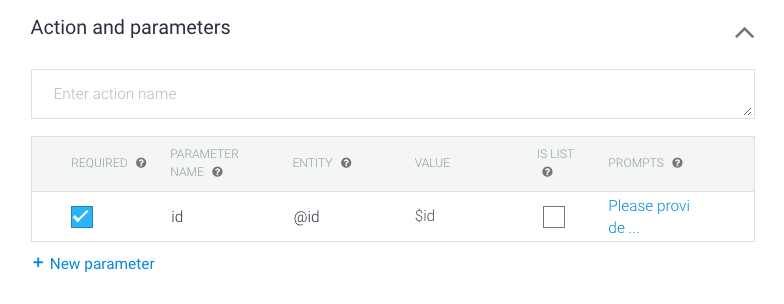
\d{5}(\d[^a-zA-Z0-9]*){5} - Make sure that your agent follows the parameter definition requirement
(Dialogflow CX,
Dialogflow ES).
Example for Dialogflow CX

Example for Dialogflow ES
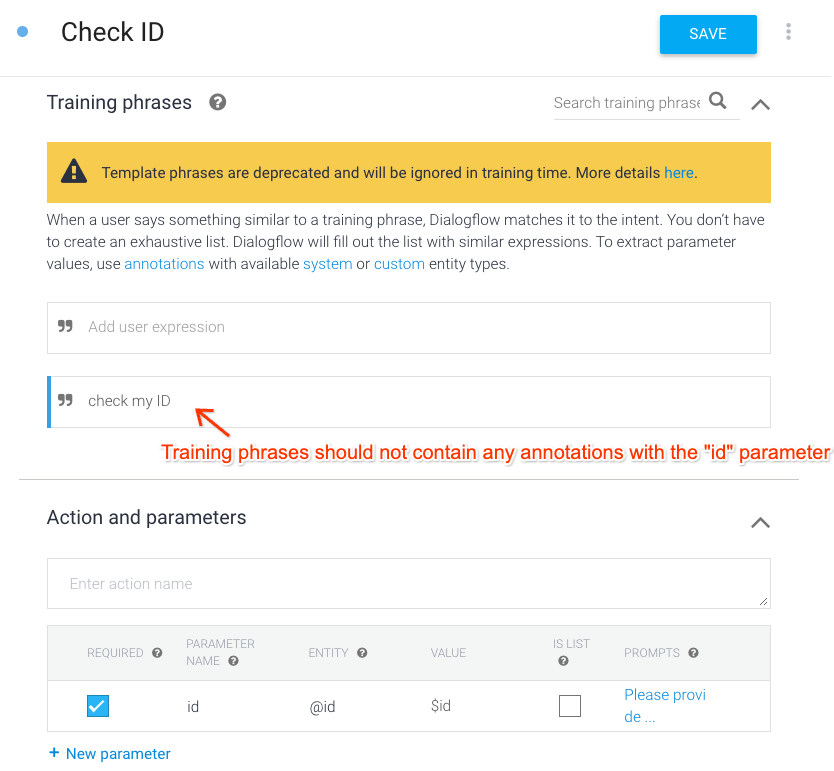
- Make sure that your agent follows the training phrases annotation
requirement
(Dialogflow CX,
Dialogflow ES).
Example for Dialogflow ES
- Make sure that your tests follow the testing guidelines (Dialogflow CX, Dialogflow ES).
- To remove non-alphanumeric characters that may have been inserted by
the speech recognizer, use the following:
- For Dialogflow CX: SUBSTITUTE system function or webhook
- For Dialogflow ES: webhook
- Check speech adaptation limitations (Dialogflow CX, Dialogflow ES).
Webhook fails with 403 Forbidden error for Cloud Run functions (2nd gen)
Issue
When calling a webhook hosted on Cloud Run functions (2nd gen) from Dialogflow CX, the webhook fails with an HTTP 403 Forbidden error or the following message in the function logs:
The request was not authenticated. Either allow unauthenticated invocations or set the proper Authorization header.
Cause
Unlike Cloud Run functions (1st gen) which feature built-in authentication for Dialogflow CX webhooks, Cloud Run functions (2nd gen) run on Cloud Run and require IAM invoker permissions. If the Dialogflow CX service agent account does not have permission to invoke the Cloud Run service, calls are rejected with an HTTP 403 error. For details on the differences between versions, see the Cloud Run functions version comparison.
Resolution
Grant the Cloud Run Invoker role to the Dialogflow CX service agent:
- Identify your
PROJECT_IDproject number. - In the Google Cloud console, go to the IAM page.
- Select the Include Google-provided role grants checkbox.
- Locate the Dialogflow CX service agent account:
service-PROJECT_NUMBER@gcp-sa-dialogflow.iam.gserviceaccount.com(replacePROJECT_NUMBERwith your project number). - Assign the Cloud Run Invoker (
roles/run.invoker) role to the service agent account. - Alternatively, configure the Cloud Run function to allow unauthenticated invocations if permitted by your organization policies.
GitHub integration error: Resource not accessible by personal access token
Issue
When attempting to push agent changes to or restore from GitHub in the Dialogflow CX console, the operation fails with the following error:
Received an error from GitHub: Resource not accessible by personal access token
Cause
The personal access token configured for the GitHub connection does not have the required repository permissions to push or restore agent files.
Resolution
Update the permissions for the GitHub personal access token:
- Fine-grained personal access tokens:
- In GitHub, go to your personal access token settings.
- Under Repository permissions, set Contents to Read and write.
- Verify that Metadata is set to Read-only (automatically selected when Contents permission is granted).
- Classic personal access tokens:
- Ensure the token has the
reposcope selected.
- Ensure the token has the
Additionally, verify that the specified repository and branch exist and that the account associated with the token has write access to the repository.
Webhook fails with Service Directory resolution or timeout error
Issue
When calling a private webhook using Service Directory from Dialogflow CX, the webhook fails with an error message similar to one of the following:
Failed to resolve Service Directory: [projects/PROJECT_ID/locations/LOCATION_ID/namespaces/NAMESPACE_ID/services/SERVICE_ID]DEADLINE_EXCEEDED ... URL_TIMEOUT ... Reason: TIMEOUT_WEB
Cause
- Missing permissions: The Dialogflow CX service agent account does not have the required IAM roles to access the Service Directory service or Private Service Connect.
- Disabled global access: For internal Application Load Balancers, global access is disabled, preventing Dialogflow CX from reaching the backend from regions outside the load balancer's region.
Resolution
- Identify your
PROJECT_IDproject number. - In the Google Cloud console, go to the IAM page for the project that hosts your Service Directory service.
- Select the Include Google-provided role grants checkbox.
- Locate the Dialogflow CX service agent account:
service-PROJECT_NUMBER@gcp-sa-dialogflow.iam.gserviceaccount.com(replacePROJECT_NUMBERwith the project number of your Dialogflow CX agent project). - Assign the following roles to the service agent account:
- Service Directory Viewer (
roles/servicedirectory.viewer) - Service Directory PSC Authorized Service (
roles/servicedirectory.pscAuthorizedService)
- Service Directory Viewer (
- If the Service Directory service resides in a different project than your Dialogflow CX agent, also ensure the service agent account has the Service Directory Viewer (
roles/servicedirectory.viewer) role in the agent's host project. - If using an internal Application Load Balancer and encountering timeout errors (
TIMEOUT_WEB), ensure that Global access is enabled on the load balancer frontend.
Text-to-Speech fails with invalid SSML error for Neural2 voices
Issue
When using Neural2 voices for Text-to-Speech in Dialogflow CX, agent responses fail to synthesize audio and the following error occurs:
While calling Cloud Text-to-Speech API: Invalid SSML. Newer voices like Neural2 require valid SSML.
Cause
Neural2 voices strictly enforce XML and SSML compliance. Unlike older voice tiers that tolerate unescaped characters or unquoted attributes, Neural2 rejects malformed SSML, such as missing quotes around attribute values (for example, <prosody rate=100%> instead of <prosody rate="100%">), unclosed tags (for example, missing <break /> or </prosody>), or unescaped XML special characters (&, <, >).
Resolution
- Ensure all SSML attribute values are enclosed in quotation marks. For example:
xml <speak> <break time="2s" /> <prosody rate="100%" pitch="-0.5st">Hello, how can I help you today?</prosody> </speak> - Verify that all elements are properly nested within the root
<speak>...</speak>element and have matching closing tags. - Escape XML special characters in dynamic parameter values and text prompts:
- Replace
&with& - Replace
<with< - Replace
>with>
- Replace
- Review the SSML reference for syntax requirements and supported tags.
GitHub integration error: Agent export or push fails due to 500-file limit
Issue
When attempting to export or push a Dialogflow CX agent to a GitHub repository, GitHub returns a server error.
Cause
The agent is too large to be exported directly to GitHub. GitHub restricts updates that contain more than 500 files in a single push. This scenario is most common when attempting to push an agent for the first time to an empty repository, as it generates and pushes the entire file set at once.
Resolution
- In the Dialogflow CX console, export the agent as a
.zipfile. - Upload the unzipped files to GitHub using the GitHub web interface or the Git CLI.
- Push subsequent changes directly from Dialogflow CX, assuming each future update modifies fewer than 500 files.
Generative agent fails with sys.agent-banned-phrase error
Issue
A generative agent or playbook repeatedly fails, triggering fallback routes or returning sys.agent-banned-phrase even when user inputs are benign:
Sorry, something went wrong.
Cause
A term configured in the agent's Banned phrases list is present in the agent's internal prompt configuration (such as playbook instructions, goals, examples, or data store tool prompts). Because the banned phrases guardrail evaluates the entire internal LLM prompt (including instructions, conversation history, and user input), any banned phrase present in the instructions triggers the safety filter automatically.
Resolution
- In the Dialogflow CX console, go to Agent settings > Banned phrases.
- Review the list of configured banned phrases.
- Check your playbook instructions, goals, examples, and data store prompt templates for any occurrences of those banned phrases.
- Remove or rephrase the matching terms in your internal instructions so they do not overlap with the banned phrases list.
Speech recognition fails with Phrases cannot be empty error
Issue
Voice interactions fail or calls drop unexpectedly with an INVALID_ARGUMENT error:
While calling Cloud Speech API: Phrases cannot be empty
This error can occur even when speech adaptation appears disabled in the Dialogflow CX console.
Cause
Residual speech adaptation settings remain in the page's underlying configuration. If manual speech adaptation was previously enabled, populated with biasing phrases, and subsequently disabled, empty phrase set blocks can persist in the page configuration and cause validation errors in Cloud Speech-to-Text models.
Resolution
Clear the residual speech adaptation settings in the Dialogflow CX console:
- Open the flow and navigate to the page where the error occurs.
- Temporarily enable Manual speech adaptation in the page settings.
- Delete any existing phrase sets and empty phrase entries.
- Click Save.
- Disable Manual speech adaptation.
- Click Save and test the agent.
diagnosticInfo missing from DetectIntentResponse in Cloud Logging
Issue
When inspecting DetectIntentResponse or QueryResult log entries in Cloud Logging, the diagnosticInfo field is missing from the logged response.
Cause
Cloud Logging has a log entry size limit of 256 KB. If the total response payload is large (for example, containing extensive session parameters, large webhook payloads, or detailed query results), Dialogflow CX truncates the diagnosticInfo field so the log entry does not exceed the 256 KB limit.
Resolution
To access diagnostic information or reduce log entry sizes:
- Capture
diagnosticInfodirectly from client-side API responses rather than relying solely on Cloud Logging. - In the Dialogflow CX console simulator, view the full un-truncated payload in the Original response tab.
- Reduce the size of webhook responses by returning only necessary parameters and fields in
WebhookResponse.
Permission denied error when connecting Avaya telephony integration
Issue
When attempting to connect the Avaya one-click telephony integration in the Dialogflow CX console (Integrations > One-click Telephony > Avaya > Connect), the request fails with the following error:
PERMISSION_DENIED: Policy update access denied
Cause
The user account attempting to enable the Avaya integration lacks permission to update IAM policies on the Google Cloud project. Connecting the Avaya integration requires granting permissions to the Avaya service account on the project.
Resolution
Grant the required IAM role to the user account configuring the integration:
- In the Google Cloud console, go to the IAM page.
- Ensure the user account has the Project IAM Admin (
roles/resourcemanager.projectIamAdmin) role or a custom role containing theresourcemanager.projects.setIamPolicypermission. - Once granted, reconnect the Avaya telephony integration in the Dialogflow CX console.
Webhook fails with target page does not exist error
Issue
When a webhook returns a transition response in Dialogflow CX, the runtime execution fails with the following error:
Page '<PageId>' does not exist in the agent.
This may also appear in Cloud Logging as:
BadRequestException: Page '<PageId>' does not exist in the agent.
Cause
The webhook returned a targetPage transition to a page that isn't in scope. In Dialogflow CX, page transitions are scoped to the current active flow. If targetPage specifies an invalid page ID, an unqualified page identifier, or a page that resides in a different flow, Dialogflow CX can't resolve the transition at runtime.
Resolution
- Verify that the target page exists within the same flow where the webhook is invoked.
- When constructing the
WebhookResponse, ensuretargetPagespecifies the full canonical resource name:projects/PROJECT_ID/locations/LOCATION_ID/agents/AGENT_ID/flows/FLOW_ID/pages/PAGE_ID - If you need to transition to a page in a different flow, use the
targetFlowfield instead to transition to the target flow.
Webhook URL or configuration changes missing from Audit Logs
Issue
A webhook URL or configuration was modified in Dialogflow CX, but there is no record of the change in the console Change History or Cloud Audit Logs.
Cause
By default, only Admin Activity audit logs are enabled in Google Cloud. Modifying webhook configurations or updating agent resource settings requires Data Access audit logs (specifically Data Write logs) to be captured in Cloud Logging.
Resolution
To ensure all future webhook modifications and configuration updates are recorded:
- In the Google Cloud console, go to the IAM & Admin > Audit Logs page.
- In the list of services, select Dialogflow API.
- In the configuration panel on the right, select the Data Write (and optionally Data Read) checkbox under Log Type.
- Click Save.
Incomplete audio playback on telephony integrations
Issue
During a phone call with a virtual agent on a third-party telephony platform (such as Genesys), the agent stops speaking before completing the message. The conversation transcript in the console displays the full text, but the caller only hears the first sentence or chunk.
Cause
Dialogflow CX returns fulfillment responses as an array of message objects in the responseMessages payload to support sequential speech, prompts, and barge-in. Some telephony integrations and AudioHook adapters only play the first message object in the array by default unless configured to iterate through the entire message array.
Resolution
- In your telephony integration or connector settings, ensure the integration is configured to process and play all message objects returned in the
responseMessagesarray. - Alternatively, in the Dialogflow CX console, consolidate multi-part responses into a single text or audio response card within the page fulfillment rather than splitting text across multiple response cards.
sys.no-input event handler doesn't trigger for text-based agents
Issue
A text-based chat agent doesn't trigger configured sys.no-input-default or sys.no-input-[1-6] event handlers after a period of user inactivity.
Cause
The sys.no-input-* event handlers rely on no speech timeout and voice activity detection (VAD), which are specific to streaming audio and telephony channels. Text-based channels (such as web chat or mobile messaging) don't have server-side idle timers; they only trigger sys.no-input if the client explicitly sends an empty text string (such as the user pressing Enter with no text).
Resolution
To implement an inactivity timeout in a text-based chat application:
- Track user idle time on the client side in your web or mobile chat frontend.
- If the user doesn't respond within the specified timeout period, have the client application call the
detectIntentAPI method with a custom event (such asUSER_INACTIVITY). - In your agent flow or page, add an event handler for the custom event to respond to the inactive user.
Agent simulator doesn't respond to DTMF keypress input
Issue
When testing an agent in the Dialogflow CX simulator, entering DTMF digits (for example, 1234#) produces no response or triggers a sys.no-match event, even though DTMF is enabled in the agent settings.
Cause
The parameter configured to capture the DTMF digits isn't marked as Required on the active page. Without a required parameter, the page doesn't enter form filling mode and doesn't listen for DTMF keypad input.
Resolution
- In the Dialogflow CX console, open the flow and select the page expecting DTMF input.
- Under Parameters, select the parameter intended to capture the DTMF input.
- Select the Required checkbox.
- In the parameter fulfillment, configure the prompt to request the DTMF digits from the user.
- Click Save and test the DTMF input again in the simulator.
Enabling CMEK fails with project not eligible error
Issue
When attempting to enable customer-managed encryption keys (CMEK) for a project or location in Dialogflow CX, the operation fails with an error similar to the following:
Project PROJECT_NUMBER is not eligible for CMEK, failed eligibility checker: DialogflowEligibilityChecker... Project already has resources in the following table(s): LocationSettings
Cause
Once any Dialogflow CX agent or LocationSettings resource is initialized in a project and region using default Google-owned and Google-managed encryption keys, that project and region combination can't retroactively be converted to CMEK.
Resolution
To use CMEK for your agents:
- Create a new Google Cloud project.
- Initialize CMEK in the selected region in the new project before creating any Dialogflow CX agents or resources in that region.
- Export your existing agents from the original project and restore them into the new CMEK-enabled project.
Agent latency on initial request after idle period (cold start)
Issue
When sending a request to a Dialogflow CX agent that hasn't received traffic for an extended period, the first request experiences noticeably higher latency, while subsequent requests process quickly.
Cause
When an agent receives no conversational traffic for an extended duration, the serving infrastructure offloads the agent's NLU model from active serving instances. When the next request arrives, the model must be initialized and loaded into memory across serving tasks (warm-up phase), causing initial latency.
Resolution
- In production environments with intermittent traffic, configure an automated monitoring job or Cloud Scheduler task to send periodic keep-alive requests (approximately 10–20 requests per hour) to keep the agent model warm.
- If your agent uses webhooks hosted on serverless platforms like Cloud Run, set the minimum number of instances to at least 1 (
min-instances = 1) to eliminate container cold start delays on the webhook backend.
Short or single-syllable voice utterances aren't recognized and trigger sys.no-input
Issue
During live voice calls, short or single-syllable utterances (such as "yes", "no", "car", or "pay") aren't captured and trigger a sys.no-input event instead of sys.no-match, while multi-syllable words and text inputs work as expected.
Cause
When using the default telephony speech model with single_utterance = true or aggressive endpointing, Speech-to-Text voice activity detection (VAD) can mistake brief audio bursts (around 300 ms) for background noise. When VAD drops the audio, Speech-to-Text returns an empty transcript (""), causing Dialogflow CX to interpret the turn as silence and trigger sys.no-input. Additionally, telephony integrations and custom API clients can send a request-level model in InputAudioConfig.model that takes precedence over the model selected in the console unless request-level overrides are disabled.
Resolution
- In the Dialogflow CX console, go to Agent settings > Speech and IVR > Speech-to-Text > Advanced speech settings and configure the following:
- Select Enable advanced speech settings.
- Under Model selection, change the speech model for the call language from
telephonytotelephony_short(orlatest_short). - Select Override request-level speech model so that a model sent by the telephony integration doesn't take precedence.
- Inspect Flow settings and Page settings for the active flow and page to verify they either inherit the agent-level speech settings or apply the same model and Override request-level speech model configuration.
- In Agent settings > Speech and IVR > Speech-to-Text > Advanced speech settings, review your endpointing settings:
- For short-form models (
telephony_shortorlatest_short), make sure Enable advanced timeout-based end of speech sensitivity isn't selected (it's required for long-form models such astelephonyorlatest_long, and the console automatically selects or clears this option based on the speech model you choose). - Adjust the End of speech sensitivity slider. This setting applies to all speech models: higher values cut off speech more aggressively to reduce end-to-end latency, so lowering the value helps prevent short utterances from being cut off prematurely.
- For short-form models (
- Add the affected single-syllable terms to Speech Adaptation at the page or agent level with a boost value of
10to15. - Update the agent prompt where feasible to elicit multi-word responses (for example,
"Say 'Yes, it is' or 'No, it isn't'").
Voice agent triggers unintended intents during silence
Issue
During a voice or IVR call, the agent triggers intents (such as human-agent escalation) when the caller provides no input, generating unexpected transcriptions during silence that match training phrases.
Cause
Background noise or high speech recognition sensitivity can translate silence or ambient noise into unexpected text transcriptions.
Resolution
- In the Dialogflow CX console, go to Agent settings > Speech and IVR.
- Disable Smart Endpointing and test whether the issue is mitigated.
- If the issue persists, disable Auto Speech Adaptation on the same settings page and click Save.
- If the issue continues, open a support case with Cloud Customer Care and provide sample conversation IDs along with Dialogflow CX audio recordings from an audio export bucket (not external telephony recordings) to evaluate additional noise-reduction options.
Bidirectional streaming calls drop, split sessions, or fail with Invalid recognition 'config'
Issue
During a telephony call over BidiStreamingAnalyzeContent, the call unexpectedly drops or splits into a new session ID mid-call and replays the welcome prompt, or fails with one of the following errors even after updating Agent settings > Speech and IVR:
While calling Cloud Speech API: Invalid recognition 'config': There's no enhanced model for this language and model combination
generic::cancelled: Stream was closed before request was received
Cause
Although Agent settings > Speech and IVR uses a Speech-to-Text V2 model (chirp_3 or telephony) with Override request-level speech model enabled, one or more pages still contain legacy page-level speech settings overrides (such as telephony_short, latest_short, or use_enhanced = true). Switching between Speech-to-Text V1 and Speech-to-Text V2 models mid-stream terminates the persistent bidirectional stream.
Resolution
- Export the agent as a JSON Package and search all flow and page JSON files for
"speechSettings"or"useEnhanced". - Remove the page-level speech settings overrides so that all pages uniformly inherit the agent-level Speech-to-Text V2 configuration.
Enabling DTMF-only mode disables speech detection across all agent languages
Issue
Selecting Disable speech detection in Agent settings > Speech and IVR disables speech input across all languages in the agent instead of a single language or DTMF-only menu.
Cause
The Disable speech detection option in Agent settings > Speech and IVR applies globally across every language configured in the agent.
Resolution
- In Agent settings > Speech and IVR, leave Disable speech detection unselected.
- Enable Disable speech detection in Flow settings or Page settings for the specific flow or page menu that requires DTMF-only input.
- Alternatively, to dynamically turn off speech recognition during a telephony session, set the
telephony_disable_voice_processingsession parameter totrue.
Restoring a JSON package fails with Invalid DTMF regex pattern or [ResourceName error]
Issue
When restoring an agent from a JSON package (or pushing through Git or Cloud Build), the operation fails with one of the following validation errors:
Invalid DTMF regex pattern '*' for entity value '*'
[ResourceName error] Path 'projects/PROJECT_ID/locations/LOCATION_ID/agents/AGENT_ID/flows' does not match template
Cause
Restoring an agent from a JSON package enforces strict schema and regular expression validation:
- Invalid DTMF regex pattern: JSON package restores validate
dtmfPatternfields as RE2 regular expressions, where an unescaped*character isn't valid (binary.blobrestores skip this check). - ResourceName error: A playbook JSON file in the package contains an orphaned or incomplete flow reference that's missing the trailing flow ID.
Resolution
- If the source agent is accessible, export the agent in binary
.blobformat and restore from the.blobfile instead, which doesn't enforce strict JSON package validation. - To resolve
Invalid DTMF regex pattern '*'in a JSON package, openentityTypes/ENTITY_NAME/entities/LANGUAGE_CODE.jsonand escape the asterisk as"dtmfPattern": "\\*". - To resolve
[ResourceName error]in a JSON package, search theplaybooks/directory for resource paths ending in/flowswithout a trailing flow UUID and remove the broken reference.
Exported agent ZIP file fails to open with invalid archive error
Issue
When opening an exported agent ZIP file on Windows or macOS, extraction fails with an error message similar to the following:
The Compressed (zipped) Folder is invalid
Cause
Built-in operating system archive utilities (such as Windows File Explorer and macOS Archive Utility) can fail to parse the streaming ZIP header generated when Dialogflow CX exports an agent.
Resolution
Extract the exported ZIP archive using one of the following tools instead:
- Command-line
unzip - PowerShell
Expand-Archive(Windows) - 7-Zip (Windows)
- The Unarchiver (macOS)
The $sys.func.SPLIT() system function doesn't split session parameters or period delimiters
Issue
When using the
$sys.func.SPLIT()
system function in Dialogflow CX, one of the following issues occurs:
- Passing a non-string session parameter (such as a date or number) outputs the
unevaluated expression (for example,
$sys.func.SPLIT(2026-05-25, "-")) instead of returning["2026", "05", "25"]. - Splitting a string on a period (
.) delimiter using$sys.func.SPLIT("2026.05.25", ".")returns an empty list ([]) instead of["2026", "05", "25"].
Cause
The $sys.func.SPLIT() function expects a string as its first argument and a
regular expression as its second argument:
- Non-string session parameters (such as numbers, dates, lists, or objects) don't meet the string input requirement unless converted first.
- In a regular expression delimiter, an unescaped
.matches any character rather than a literal period.
Resolution
Apply the following syntax adjustments based on your input:
- Wrap non-string session parameters in the
$sys.func.TO_TEXT()system function before passing them to$sys.func.SPLIT():none $sys.func.SPLIT($sys.func.TO_TEXT($session.params.date), "-") - Escape a literal period delimiter with double backslashes (
"\\."):none $sys.func.SPLIT("2026.05.25", "\\.")
Webhook response text messages aren't displayed in Dialogflow CX
Issue
When calling a standard webhook
from Dialogflow CX, text messages from the webhook aren't displayed to
the user even though the HTTP request returns 200 OK and no errors appear in
Cloud Logging. In the Dialogflow CX console simulator, the
Original response tab can show the following status in webhookStatuses:
webhookStatuses: [
  {
    code: 3,
    message: "Failed to parse webhook response: [ ]"
  }
]
Cause
The payload returned by the webhook service doesn't match the required
WebhookResponse JSON
format:
- If the webhook returns an empty, non-JSON, or malformed JSON body,
Dialogflow CX records
Failed to parse webhook responseinqueryResult.webhookStatuses. - If the webhook returns syntactically valid JSON with unrecognized field names
(for example, omitting
fulfillmentResponse.messages), Dialogflow CX ignores the unknown fields without triggering webhook errors or built-in error event handlers, resulting in an empty response.
Resolution
To ensure webhook messages are parsed and displayed, follow these steps:
- In the Dialogflow CX console simulator, inspect the Original
response tab for the affected turn and review
queryResult.webhookStatusesforFailed to parse webhook responsemessages. - Update your webhook service to return a valid JSON object formatted according
to the
WebhookResponseschema, placing fulfillment text responses insidefulfillmentResponse.messages.
Generative playbook fails with Token limit exceeded error or high multi-turn latency
Issue
A generative playbook fails with a FAILED_PRECONDITION error similar to the
following, or experiences compounding multi-turn latency and
DEADLINE_EXCEEDED or RESOURCE_EXHAUSTED errors:
Token limit exceeded: got TOKEN_COUNT, expected less than TOKEN_LIMIT Code: FAILED_PRECONDITION
Cause
Every playbook LLM call includes internal system instructions, playbook goals and instructions, playbook examples, and the accumulated conversation history (including full tool and data store outputs from earlier turns in the session). Verbose tool API payloads, large data store snippets, or long multi-turn conversations can exceed the configured input token limit or consume LLM token quotas. Chaining multiple LLM-dependent tool calls or playbook transitions sequentially within a single turn also compounds response latency.
Resolution
To reduce token consumption and multi-turn latency, follow these steps:
- In the Dialogflow CX console simulator Original response tab or
in Cloud Logging, inspect
conversationContextTokenCount,exampleTokenCount, andtotalInputTokenCountto identify which components consume the input token budget. - In the Dialogflow CX console, go to Agent settings > Generative
AI and review your token settings:
- Increase the Input token limit if supported by your selected model, keeping in mind that larger token limits can increase response latency.
- Where available, configure Context token limits (restricted access) to cap the percentage of the token budget reserved for conversation history.
- Make tool and data store outputs concise by returning only required fields from your backend APIs and avoiding large data store snippets.
- Trim unnecessary detail from tool outputs in your playbook examples.
- Avoid chaining multiple LLM-dependent tool calls or playbook transitions sequentially within a single turn, and request a quota increase if traffic exceeds on-demand LLM token limits.
Telephony integration ignores the agent's configured Text-to-Speech voice
Issue
During phone calls through a third-party telephony integration (such as Avaya
or Genesys) or a
ConversationProfile, the
agent speaks using a default or unexpected voice instead of the voice selected
in the Dialogflow CX console.
Cause
External telephony gateways, Session API requests, and
ConversationProfile.ttsConfig configurations often send a request-level
OutputAudioConfig.synthesizeSpeechConfig.voice parameter on every turn. By
default, request-level speech synthesis parameters take precedence over the
agent-level voice configured in the console.
Resolution
Enforce the console voice configuration at the agent level:
- In the Dialogflow CX console, go to Agent settings > Speech and IVR.
- In the Text-to-Speech section, select Override request-level synthesized speech configuration.
- Click Save.
Agent voice switches mid-call when using Chirp3-HD voices
Issue
During a voice call configured to use a Chirp3-HD voice, the agent
unexpectedly switches to a different voice (for example, changing gender or
reverting to a standard voice) on certain turns.
Cause
When using non-streaming (unary) Text-to-Speech synthesis,
Dialogflow CX can fall back from Chirp3-HD to a Neural2 or
standard voice on turns that exceed the Chirp3-HD synthesis latency
threshold, exhaust advanced voice request-per-minute
quotas, or encounter a transient synthesis error.
Resolution
To maintain a consistent Chirp3-HD voice across turns, take the following
steps:
- In the Google Cloud console, go to IAM & Admin > Quotas & System Limits and verify that your project isn't exhausting advanced voice query operations per minute; request a quota increase if needed.
- Shorten or split long agent prompts to reduce the audio synthesis duration per turn.
- If your project is approved for
streaming text-to-speech for
Chirp3-HDvoices, go to Agent settings > Speech and IVR and select Enable streaming text-to-speech to use streaming synthesis and reduce synthesis latency on longer responses.
SSML tags are ignored with streaming TTS or rejected with cloned voices and custom pronunciations
Issue
When configuring speech synthesis in Dialogflow CX, SSML tags are
ignored or synthesis fails with an INVALID_ARGUMENT error such as the
following:
INVALID_ARGUMENT: Voice cloning currently does not support SSML input
Custom pronunciations can also fail validation when combined with <speak>
SSML tags or standalone # symbols.
Cause
SSML and custom pronunciation support varies across synthesis modes:
- Streaming
Chirp3-HDsynthesis: When streaming text-to-speech is enabled, Dialogflow CX sends plain text and strips SSML tags because streaming synthesis doesn't accept SSML input. - Cloned voices: Voice cloning doesn't support SSML input and rejects requests containing SSML tags.
- Custom pronunciations: Text-to-Speech rejects
custom pronunciations
when combined with
<speak>SSML blocks, and rejects standalone#characters during pronunciation validation.
Resolution
Adjust your fulfillment text based on the voice configuration:
- When using streaming
Chirp3-HDsynthesis or cloned voices, provide plain text in your fulfillment responses without<speak>or other SSML tags. - When using custom pronunciations, omit
<speak>SSML tags from the response and replace standalone#characters in fulfillment text with the spoken word (such as"pound"or"numeral").
es-419 language code fails with unsupported TTS language error on V3 Session APIs
Issue
Calling DetectIntent or StreamingDetectIntent directly on the V3 Session
API with languageCode set to es-419 and audio output enabled fails with the
following error, even though telephony Participant API calls succeed:
INVALID_ARGUMENT: Dialogflow text-to-speech doesn't support language 'es-419'.
Cause
Participant APIs (AnalyzeContent, StreamingAnalyzeContent, and
BidiStreamingAnalyzeContent) normalize es-419 when selecting a Spanish
voice, whereas direct V3 Session API methods (DetectIntent and
StreamingDetectIntent) don't map es-419 to a regional
Text-to-Speech voice locale.
Resolution
In direct V3 DetectIntent and StreamingDetectIntent API requests that
enable synthesized audio output, pass a supported regional Spanish locale code
such as es-US or es-ES (see the
language reference) instead of
es-419.
Multilingual agent switches language unexpectedly on street addresses or short inputs
Issue
In a multilingual chat agent
with automatic language detection enabled, entering a street address
(@sys.location), proper noun, or short alphanumeric string causes the agent
to switch the session language unexpectedly (for example, responding in Spanish
during an English conversation).
Cause
Short inputs, proper nouns, and street addresses often lack context for language auto detection to classify the language reliably, which can trigger an unintended language switch during form parameter collection.
Resolution
To prevent unintended language switches, follow these steps:
- In the Dialogflow CX console, go to Agent settings > Languages, clear Enable language auto detection and switching, and click Save.
- Open each affected flow, go to Flow settings, clear Enable language auto detection and switching, and click Save.
- Route users to their preferred language explicitly (for example, by passing
queryInput.languageCodein API requests, using an initial language selection prompt, or configuring separate flows or agents per language).
Third-party telephony integration drops calls with CANCELLED: RPC cancelled
Issue
Voice calls through a third-party telephony platform (such as Cisco VVB, Genesys, or Avaya) drop or fail to connect, and the telephony client logs show an error similar to the following:
io.grpc.StatusRuntimeException: CANCELLED: RPC cancelled
Cause
A CANCELLED gRPC status indicates that the telephony client or an
intermediate network device (such as a firewall, proxy, or load balancer)
closed the HTTP/2 stream before Dialogflow CX finished returning the
response. Common causes include firewall SSL or HTTP/2 frame inspection
corrupting headers, client-side request timeouts shorter than the speech
recognition or webhook execution window, or connection pool exhaustion on the
telephony server.
Resolution
To isolate and resolve client-originated stream cancellations, follow these steps:
- Inspect Cloud Logging for the affected session ID to verify whether
queryInputandqueryResultturns completed withoutINTERNALor5xxerrors in Dialogflow CX. - Verify that enterprise firewalls and proxies between your telephony gateway
and
dialogflow.googleapis.com:443don't perform SSL interception or modify HTTP/2 frames. - Increase the request timeout and keepalive settings on your telephony connector so they exceed your agent's maximum speech recognition and webhook turn duration.
- Work with your telephony vendor and network team to review packet captures and client connection pool limits during peak call volume.
Generative playbook OpenAPI tool fails with 401 or 403 errors or YAML parsing errors
Issue
A generative playbook fails to invoke an OpenAPI tool or fails during a subsequent flow or tool action with one of the following errors in the simulator debug trace:
401 UNAUTHENTICATEDor403 FORBIDDEN(orService account authentication is only supported for Google APIs) when calling Cloud Run or Cloud Run functions.ACTION_INPUT_ERRORdue to OpenAPI schema validation mismatches.failed to parse its input as YAMLwhen passing strings containing colons (:) or quotation marks (").
Cause
Tool invocation and action parsing can fail for the following reasons:
- Authentication mismatch: Service account authentication on OpenAPI tools applies only to Google APIs, whereas authenticated Cloud Run and Cloud Run functions endpoints require a Dialogflow CX Service Agent ID token (or a Bearer token or API key stored in Secret Manager).
- Invalid OpenAPI schema: Missing or duplicate
operationIdfields, unsupported parameter types, or mismatchedapplication/jsonresponse schemas prevent tool execution. - Unquoted special characters: When tool or data store outputs contain
:or"characters, the LLM can generate unquoted multi-line action inputs that fail YAML parsing.
Resolution
Apply the fix matching the error in your simulator debug trace:
- For
401or403errors on Cloud Run or Cloud Run functions, configure Service Agent authentication with ID token on the tool, and grant the Cloud Run Invoker (roles/run.invoker) or Cloud Functions Invoker (roles/cloudfunctions.invoker) role toservice-PROJECT_NUMBER@gcp-sa-dialogflow.iam.gserviceaccount.com. For external APIs, use OAuth, API key, or Bearer token credentials stored in Secret Manager. - Validate your
OpenAPI schema to make
sure every operation defines a unique
operationIdand uses supportedpath,query, orheaderparameters withapplication/jsonbodies. - To prevent
failed to parse its input as YAMLerrors on strings containing:or", update your playbook examples to wrap string action inputs in single quotes so the model formats special characters safely.
Generative playbook returns BLOCKED_BY_RAI or false-positive sys.malicious-user-utterance
Issue
A generative playbook responds with a generic fallback message such as Sorry,
something went wrong, and the simulator execution trace shows BLOCKED_BY_RAI
(Blocked by categories) or triggers sys.malicious-user-utterance on benign
domain-specific or non-English user queries.
Cause
User inputs, tool outputs, or generated responses exceeded the configured Responsible AI (RAI) safety filter thresholds, or triggered the agent's Prompt security classifier before playbook instructions ran (for example, on short ambiguous queries or when a custom security prompt classifies domain-specific phrasing under malicious input definitions).
Resolution
Review and tune your generative safety settings in the Dialogflow CX console:
- Inspect the simulator execution trace for the affected turn to determine
whether the request was blocked by a specific RAI category (
Blocked by
categories
) or by prompt security (sys.malicious-user-utterance). - Go to Agent settings > Generative AI and review Safety filters for Hate speech, Dangerous content, Sexually explicit content, and Harassment, adjusting overly strict category thresholds (for example, to Block few) where appropriate for your use case.
- If benign queries trigger
sys.malicious-user-utterancewhen Prompt security is enabled:- Increase Input threshold so short, ambiguous queries aren't misclassified.
- Select Customize under Prompt security settings or Security prompt to clarify domain-specific queries that should be treated as safe, and verify that benign or ambiguous categories aren't listed under malicious input definitions.
Analytics dashboard shows recent conversations or live agent handoffs with a 4-hour delay
Issue
Recent user interactions—such as Live Agent Handoff escalations or abandoned sessions—appear in conversation history and Cloud Logging, but don't appear immediately in the Analytics panel (Manage > Analytics) and take approximately 4 hours to show up.
Cause
Although analytics statistics are aggregated hourly, the batch pipeline processes conversation data that's at least 2.5 hours old in 1-hour windows (covering 3.5 to 2.5 hours earlier) to ensure session data is complete. Combined with calendar-hour alignment and pipeline execution time, metrics typically take about 4 hours to appear in the console.
Resolution
To verify recent interactions and ensure analytics metrics populate as expected, follow these steps:
- To inspect recent conversations or escalations immediately, review Conversation history in the Dialogflow CX console or query Cloud Logging.
- In Agent settings > General, verify that Enable conversation history is selected, because the analytics pipeline relies on conversation history logs, and confirm that your selected date range filter in Manage > Analytics includes the conversation's date.
- Wait at least 4 hours after a conversation completes before reviewing hourly aggregated metrics in Manage > Analytics.
Restoring a data store agent into a blank agent fails with FAILED_PRECONDITION error
Issue
When restoring an exported data store agent into a blank Dialogflow CX
agent, the restore operation fails with the following FAILED_PRECONDITION
error:
Cannot restore data store references into an agent that is not associated with a
Vertex AI Search and Conversation app. If you'd like to manually re-configure
the connection later, please enable the default settings option.
Cause
Restoring an agent doesn't create or copy an associated
Vertex AI Agent Builder app
(GenAppBuilderSettings.engine) or the underlying data stores (see
Export and restore an agent). When
the exported agent contains data store references and the target blank agent
isn't associated with an app, Dialogflow CX rejects the restore unless
default settings are used.
Resolution
Choose one of the following options based on whether you need data store connections in the restored agent:
- Restore without data store references:
- Open the target blank agent in the Dialogflow CX console and select Restore from the agent options menu.
- Select Use default settings in the restore dialog and follow the instructions to complete the restore. Data store references aren't restored and must be reconfigured manually if needed later.
- Associate an app with the target agent before restoring:
- Open the target blank agent, go to Default Start Flow > Start Page, select Data store under Add state handler, and click Save.
- In the data store handler pane, create or associate an app in your Google Cloud project and configure the matching data stores.
- After the app is associated with the target agent, restore the exported agent.
Custom voice synthesis fails with Couldn't parse the project number, location, and model id error
Issue
When synthesizing speech with a
custom voice,
requests fail with an INVALID_ARGUMENT error similar to the following:
Couldn't parse the project number, location, and model id from projects/PROJECT_ID/locations/LOCATION_ID/models/MODEL_ID
Cause
The custom voice model resource string configured in Agent settings > Speech
and IVR (or passed in
OutputAudioConfig.synthesizeSpeechConfig.voice.customVoice.model) contains
unexpected whitespace, extra path segments, or trailing slashes, doesn't match
the required resource name pattern, or references a custom voice model that
isn't deployed in the specified region.
Resolution
To resolve custom voice model parsing and deployment errors, follow these steps:
- In the Dialogflow CX console, go to Agent settings > Speech and IVR, inspect the custom voice model field in the Languages and voices section, and remove any leading, trailing, or embedded whitespace or trailing slashes.
- Verify that the model resource string matches
projects/PROJECT_ID/locations/LOCATION_ID/models/MODEL_IDand confirm that the custom voice model is deployed in that region. - Confirm that the calling service account or Dialogflow Service Agent
(
service-PROJECT_NUMBER@gcp-sa-dialogflow.iam.gserviceaccount.com) is granted the AutoML Predictor role in the custom voice project, as described in Languages and voices.
Intent matching returns different results across environments with similar flow versions
Issue
Testing the same user utterance against two environments in the same agent (such as the draft environment and a custom QA or production environment) that run similar flow configurations matches different intents or returns different confidence scores.
Cause
Intent matching can differ across environments for the following reasons:
- Mismatched flow ML settings: The flow versions deployed to each environment use a different NLU type (Advanced NLU versus Standard NLU) or a different Classification threshold.
- Unused entities in the draft flow: The draft version of the Default Start Flow includes all agent entities during training, whereas saved flow versions include only entities referenced by intents or page parameters. Unreferenced entities in the draft can slightly shift confidence scores between closely overlapping intents.
- Different model training times: If an older flow version was trained before periodic NLU model updates, its saved model snapshot can behave slightly differently from a more recently trained version.
Resolution
To align intent matching across environments, follow these steps:
- Compare the flow settings and version details for both environments to verify that NLU type and Classification threshold match.
- Inspect your agent's Entities list, delete any unreferenced custom entities that aren't used in intents or page parameters, and then train the flows and save an updated flow version.
- If an environment runs an older flow version and you want both environments to use the same trained NLU model, retrain the affected flow (if training doesn't run without data changes, make and revert a minor edit such as adding and removing a training phrase) and deploy the updated version after testing its behavior.
Generative playbook returns generic errors on Free Trial projects
Issue
A generative playbook returns generic
fallback messages such as Sorry, something went wrong or Sorry something
went wrong, can you repeat? (especially when invoking external tools or
services), without displaying a specific quota error in client integrations
such as Dialogflow CX Messenger.
Cause
Projects linked to a Free Trial Cloud Billing account have resource, quota, and external service limitations that can restrict underlying LLM requests or external API calls without surfacing a Free Trial error message in the client response.
Resolution
To check for Free Trial restrictions and resolve the errors, follow these steps:
- In the Google Cloud console, go to the Billing page and verify whether the project is linked to a Free Trial Cloud Billing account.
- Inspect Cloud Logging for the affected session ID to review underlying quota or permission errors that aren't visible in client-side integrations.
- Upgrade to a paid Cloud Billing account to lift Free Trial restrictions on generative features and external service calls.
High perceived voice response latency from client audio buffering or silent fulfillments
Issue
Callers experience a long pause between finishing an utterance and hearing the
agent's spoken response during streaming voice calls (StreamingDetectIntent,
BidiStreamingDetectIntent, StreamingAnalyzeContent, or
BidiStreamingAnalyzeContent), even when speech recognition and webhook
execution complete within normal latency bounds.
Cause
Perceived turn-around delay without backend runtime slowness is commonly caused by two factors:
- Client-side audio buffering or uneven streaming: Instead of streaming captured audio in real time, the client integration buffers large chunks (for example, 500 ms to 1,000 ms) or transmits audio out of pace with elapsed time, adding buffering delay directly to end-of-turn latency.
- Silent intermediate fulfillments: A user utterance triggers a route or no-input handler whose fulfillment contains no audible text or audio response (see Voice bot skips some responses). Because the caller hears silence, they keep waiting across one or more turns until a subsequent handler produces audible output.
Resolution
To reduce perceived voice latency, follow these steps:
- Configure your streaming API client or third-party telephony integration to send captured user audio immediately in roughly equal-sized chunks of less than 200 ms (for example, approximately 100 ms chunks) so streaming duration matches actual audio duration.
- Inspect Cloud Logging for the
affected session (
jsonPayload.queryInputandjsonPayload.queryResult.responseMessages) to verify whether multiple turns occurred during the perceived delay and whether the initial turn returned empty response messages. - Update routes, page entry fulfillments, and no-input event handlers so intermediate turns don't emit unintended silent responses, or enable partial response when a long-running webhook delays the spoken reply.
Dialogflow CX Phone Gateway stops responding when playing prerecorded audio from Cloud Storage
Issue
During a Dialogflow CX Phone Gateway call, a fulfillment configured to play prerecorded audio from a Cloud Storage object plays no audio and the agent stops responding.
Cause
The Cloud Storage audio object is private or stored in a different Google Cloud project where Dialogflow CX Phone Gateway doesn't have permission to read it, or the audio file doesn't match the required telephony encoding format.
Resolution
To verify Cloud Storage access and audio format settings for the prerecorded file, follow these steps:
- Confirm whether the Cloud Storage object is stored in the same
Google Cloud project as your Dialogflow CX agent or configured for
public read access when
appropriate; if the bucket is private or hosted in another project, grant
the Storage Object Viewer (
roles/storage.objectViewer) role to the Dialogflow CX service agent (service-PROJECT_NUMBER@gcp-sa-dialogflow.iam.gserviceaccount.com). - Verify that the audio file meets the Dialogflow CX Phone Gateway prerecorded audio requirements (single-channel mono μ-law encoded audio at 8 kHz).
Design for controlled conversations
Build your agent with clearly defined conversation paths. Ensure that the agent can request the information needed to fulfill user requirements. Avoid overly broad conversational scope, which can lead to unpredictable behavior.
Analyze logs
The inputs and outputs of playbooks, tools, and data stores are captured in the logs. Use the collected conversation IDs to follow the chain of calls and identify where execution went wrong.
Experiment with prompting
If a specific set of instructions isn't working as expected, try rewording it. Alternatively, you can use Gemini to generate prompts (meta-prompting). This iterative approach can help to find the optimal phrasing for your use case.
Provide complete information to support
When opening a support case with Cloud Support, include the relevant conversation IDs and logs collected during your investigation. This information is critical for debugging issues efficiently.