

View data lineage to understand the relationships between your project's resources and the processes that created them. These relationships show how data assets, such as tables and datasets, are transformed by processes like queries and pipelines. This guide describes how to view data lineage details in the Google Cloud console or retrieve them by using the Data Lineage API.
Roles and permissions
Data lineage tracks lineage information automatically when you enable the Data Lineage API. You don't need any administrator or editor roles to capture lineage for your data assets.
To view data lineage, you need specific Identity and Access Management (IAM) permissions. Lineage information is captured across projects, so you need permissions in multiple projects.
When viewing lineage in Knowledge Catalog, BigQuery, or Vertex AI: you need permissions to view lineage information in the project where you are viewing it.
When viewing lineage that was recorded in other projects: you need permissions to view lineage information in those projects where it was recorded.
To get the permissions that you need to view data lineage, ask your administrator to grant you the following IAM roles:
- Data Lineage Viewer (
roles/datalineage.viewer) on the project where lineage is recorded, and the project where lineage is viewed -
View BigQuery table details:
BigQuery Data Viewer (
roles/bigquery.dataViewer) on the table's storage project -
View BigQuery job details:
BigQuery Resource Viewer (
roles/bigquery.resourceViewer) on the job's compute project -
View details for other cataloged assets:
Dataplex Catalog Viewer (
roles/dataplex.catalogViewer) on the project where catalog entries are stored
For more information about granting roles, see Manage access to projects, folders, and organizations.
These predefined roles contain the permissions required to view data lineage. To see the exact permissions that are required, expand the Required permissions section:
Required permissions
The following permissions are required to view data lineage:
-
View BigQuery table details:
bigquery.tables.get- the table's storage project -
View BigQuery job details:
bigquery.jobs.get- the job's compute project
You might also be able to get these permissions with custom roles or other predefined roles.
Types of data lineage views
You can view lineage information as an interactive graph or a structured list in the Google Cloud console.
For a detailed description of the graph elements (such as nodes, edges, process icons, and labels) and the columns available in the list views, see About data lineage visualization in Knowledge Catalog.
Enable data lineage
Enable data lineage to begin automatically tracking lineage information for supported systems. By default, enabling the API activates lineage tracking for most supported services. To control Managed Service for Apache Spark lineage ingestion, see Control lineage ingestion for a service.
The Data Lineage API is billed under the Knowledge Catalog Premium Processing SKU. For more information, see Knowledge Catalog pricing.
You must enable the Data Lineage API in both the project where you view lineage and the projects where lineage is recorded. For more information, see Project types.
- To capture lineage information, complete the following steps:
-
In the Google Cloud console, on the Project selector page, select the project where you want to record lineage.
Enable the Data Lineage API.
- Repeat the previous steps for each project where you want to record lineage.
-
In the project where you view lineage, enable the Data Lineage API and the Dataplex API.
Control lineage ingestion for a service
You can selectively enable or disable automatic lineage tracking for specific services at the project, folder, or organization level.
For details about how these configurations are applied hierarchically through the resource tree, see Control lineage ingestion.
View lineage
To track how data is transformed and moves across systems, you can view data lineage using the Google Cloud console or the API.
Console
You can access data lineage information in the Google Cloud console from various starting points:
- Knowledge Catalog: Go to the Knowledge Catalog Search page, select Knowledge Catalog as the search mode, search for the entry you want to view, and then click it. For more information, see Search for resources in Knowledge Catalog.
- BigQuery: Go to the BigQuery page and open the table for which you want to see the data lineage.
- Vertex AI: Go to the Datasets or Model Registry page, and click the dataset or model for which you want to see the data lineage.
To view the lineage graph, follow these steps:
Click the Lineage tab.
The default Graph view opens, showing table-level lineage across systems and regions. For more information, see Lineage graph view.
To manually explore the lineage graph, click Expand next to a node to load five more nodes at a time.
For more information, see Manually explore the lineage graph.
Click a node in the Graph view.
The Details panel opens with information about the asset, such as fully qualified name and type. For more information, see Node details.
Click an edge with a process icon in the Graph view.
The Query panel opens. For more information, see Inspect transformation logic and Audit and history of runs.
- To inspect transformation logic, click the Details tab.
- To see audit and history of runs, click the Runs tab.
In the Lineage explorer panel, select filter criteria—for example, Direction, Dependency type, or Time range—and then click Apply.
This opens a focused view within a specific region (Preview). This view automatically expands the graph up to three levels of nodes. For more information, see Apply filters for a focused lineage view.
In the focused Graph view, select a node, and then in the node's details panel, click Visualize Path to visualize the lineage path from the selected node back to the root entry (only in focused view).
For more information, see Lineage path visualization.
To view column-level lineage (only for BigQuery and Managed Service for Apache Spark jobs), do one of the following:
- In a focused Graph view, click the column icon on a table.
Column icon - In the Lineage explorer panel, filter by column name, and click Apply.
For more information, see Column-level lineage.
- In a focused Graph view, click the column icon on a table.
Click Reset.
This action removes all applied filters and takes you to the beginning of the graph view.
Click List to switch to the list view.
The List view offers simplified and detailed tabular representations of lineage for both table-level and column-level lineage, synchronized with the Graph view. By default, simplified list view is displayed, and you can toggle to detailed list view for analyzing individual source-target relationships. You can configure which columns are displayed and export lineage data. For more information, see Lineage list view.
Java
import com.google.api.gax.rpc.ApiException;
import com.google.cloud.datacatalog.lineage.v1.BatchSearchLinkProcessesRequest;
import com.google.cloud.datacatalog.lineage.v1.EntityReference;
import com.google.cloud.datacatalog.lineage.v1.EventLink;
import com.google.cloud.datacatalog.lineage.v1.LineageClient;
import com.google.cloud.datacatalog.lineage.v1.LineageEvent;
import com.google.cloud.datacatalog.lineage.v1.Link;
import com.google.cloud.datacatalog.lineage.v1.ListLineageEventsRequest;
import com.google.cloud.datacatalog.lineage.v1.ListRunsRequest;
import com.google.cloud.datacatalog.lineage.v1.LocationName;
import com.google.cloud.datacatalog.lineage.v1.ProcessLinks;
import com.google.cloud.datacatalog.lineage.v1.Run;
import com.google.cloud.datacatalog.lineage.v1.SearchLinksRequest;
import java.io.IOException;
import java.util.ArrayList;
import java.util.HashSet;
import java.util.LinkedList;
import java.util.List;
import java.util.Queue;
import java.util.Set;

public class ViewLineageExample {

  public static void main(String[] args) throws IOException {
    // TODO(developer): Replace these variables before running the sample.
    String projectId = "my-project-id";
    String location = "us";
    String targetFullyQualifiedName = "bigquery:my-project-id.my_dataset.my_table";
    int maxDepth = 3;

    viewLineage(projectId, location, targetFullyQualifiedName, maxDepth);
  }

  static class Node {
    String fqn;
    int depth;
    Node(String fqn, int depth) {
      this.fqn = fqn;
      this.depth = depth;
    }
  }

  public static void viewLineage(
      String projectId, String location, String targetFullyQualifiedName, int maxDepth)
      throws IOException {
    // Initialize client that will be used to send requests. This client only needs
    // to be created once, and can be reused for multiple requests.
    try (LineageClient client = LineageClient.create()) {
      String parent = LocationName.of(projectId, location).toString();

      Set<String> visitedNodes = new HashSet<>();
      Queue<Node> queue = new LinkedList<>();

      visitedNodes.add(targetFullyQualifiedName);
      queue.offer(new Node(targetFullyQualifiedName, 0));

      while (!queue.isEmpty()) {
        Node current = queue.poll();
        System.out.printf("\nExploring node (Depth %d): %s\n", current.depth, current.fqn);

        if (current.depth >= maxDepth) {
          continue;
        }

        EntityReference targetEntity =
            EntityReference.newBuilder().setFullyQualifiedName(current.fqn).build();
        SearchLinksRequest searchLinksRequest =
            SearchLinksRequest.newBuilder().setParent(parent).setTarget(targetEntity).build();

        List<String> linkNames = new ArrayList<>();
        try {
          // 1. Search for links related to the target entity
          for (Link link : client.searchLinks(searchLinksRequest).iterateAll()) {
            linkNames.add(link.getName());
          }
        } catch (ApiException e) {
          System.out.printf("  Failed to retrieve links for %s: %s\n", current.fqn, e.getMessage());
          continue;
        }

        if (linkNames.isEmpty()) {
          continue;
        }

        // 2. Batch search for processes in chunks of 100
        for (int i = 0; i < linkNames.size(); i += 100) {
          List<String> batch = linkNames.subList(i, Math.min(linkNames.size(), i + 100));
          BatchSearchLinkProcessesRequest batchSearchRequest =
              BatchSearchLinkProcessesRequest.newBuilder()
                  .setParent(parent)
                  .addAllLinks(batch)
                  .build();

          try {
            for (ProcessLinks processLinks :
                client.batchSearchLinkProcesses(batchSearchRequest).iterateAll()) {
              String processName = processLinks.getProcess();
              System.out.printf("  Process: %s\n", processName);

              // 3. List runs for the process
              ListRunsRequest runsRequest =
                  ListRunsRequest.newBuilder().setParent(processName).build();
              for (Run run : client.listRuns(runsRequest).iterateAll()) {
                System.out.printf("    Run: %s\n", run.getName());

                // 4. List events for the run
                ListLineageEventsRequest eventsRequest =
                    ListLineageEventsRequest.newBuilder().setParent(run.getName()).build();
                for (LineageEvent event : client.listLineageEvents(eventsRequest).iterateAll()) {
                  for (EventLink eventLink : event.getLinksList()) {
                    String sourceFqn = eventLink.getSource().getFullyQualifiedName();
                    // If exploring upstream, queue the source
                    if (!sourceFqn.isEmpty() && !visitedNodes.contains(sourceFqn)) {
                      visitedNodes.add(sourceFqn);
                      queue.offer(new Node(sourceFqn, current.depth + 1));
                    }
                  }
                }
              }
            }
          } catch (ApiException e) {
            System.out.printf("  Failed to retrieve processes/runs: %s\n", e.getMessage());
          }
        }
      }
    }
  }
}
Python
from google.cloud import datacatalog_lineage_v1
from google.api_core.exceptions import GoogleAPICallError

def view_lineage(project_id: str, location: str, target_fully_qualified_name: str, max_depth: int = 3):
    """Retrieves lineage for a given entity using a depth-limited search."""
    client = datacatalog_lineage_v1.LineageClient()
    parent = f"projects/{project_id}/locations/{location}"

    # Store visited nodes to avoid infinite loops in cyclic graphs
    visited_nodes = set([target_fully_qualified_name])
    queue = [(target_fully_qualified_name, 0)]

    while queue:
        current_node, current_depth = queue.pop(0)
        print(f"\nExploring node (Depth {current_depth}): {current_node}")

        if current_depth >= max_depth:
            continue

        target_entity = datacatalog_lineage_v1.EntityReference(
            fully_qualified_name=current_node
        )
        search_links_request = datacatalog_lineage_v1.SearchLinksRequest(
            parent=parent,
            target=target_entity,
        )

        try:
            links = list(client.search_links(request=search_links_request))
        except GoogleAPICallError as e:
            print(f"  Failed to retrieve links for {current_node}: {e.message}")
            continue

        if not links:
            continue

        # Extract link names to query processes in batches
        link_names = [link.name for link in links]

        # Batch max size is 100
        for i in range(0, len(link_names), 100):
            batch = link_names[i:i + 100]
            batch_request = datacatalog_lineage_v1.BatchSearchLinkProcessesRequest(
                parent=parent,
                links=batch
            )

            try:
                for process_links in client.batch_search_link_processes(request=batch_request):
                    process_name = process_links.process
                    print(f"  Process: {process_name}")

                    runs_request = datacatalog_lineage_v1.ListRunsRequest(parent=process_name)
                    for run in client.list_runs(request=runs_request):
                        print(f"    Run: {run.name}")

                        events_request = datacatalog_lineage_v1.ListLineageEventsRequest(parent=run.name)
                        for event in client.list_lineage_events(request=events_request):
                            for event_link in event.links:
                                source_fqn = event_link.source.fully_qualified_name

                                # If exploring upstream, queue the source
                                if source_fqn and source_fqn not in visited_nodes:
                                    visited_nodes.add(source_fqn)
                                    queue.append((source_fqn, current_depth + 1))

            except GoogleAPICallError as e:
                 print(f"  Failed to retrieve processes/runs: {e.message}")
Refine the lineage visualization
To refine the lineage visualization, you can use highlighting and filtering options in Lineage explorer:
To search for specific projects, datasets, or entity names, use the Filters panel.
After you apply filters, lineage nodes that match your filter criteria are considered matching nodes. You can refine how matching and non-matching nodes are displayed.
In the lineage graph, click the More actions icon located next to the Clear filters button to see display options.
Select one or both of the following options:
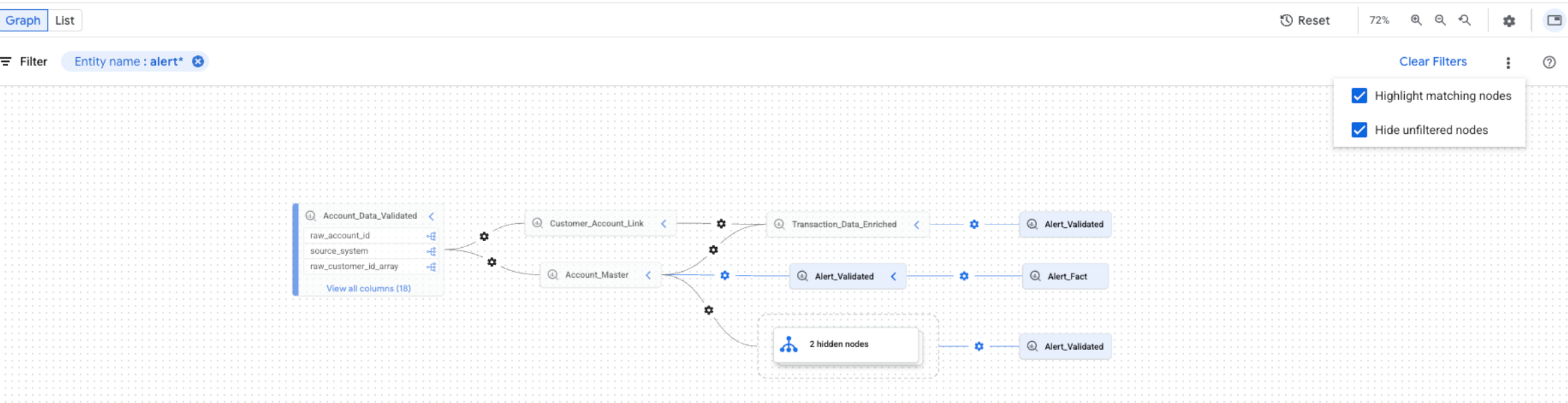
You can select both options at the same time. If both options are selected, unfiltered nodes are hidden, and matching nodes are highlighted in the filtered graph view.
Turn off data lineage
To stop tracking lineage and avoid data lineage charges, disable the
Data Lineage API (datalineage.googleapis.com) in each project where it is
enabled.
Disabling the Dataplex API does not turn off data lineage or stop its charges. You must disable the Data Lineage API.
To turn off data lineage, select one of the following tabs and complete the steps for each project where lineage tracking was enabled:
Console
In the Google Cloud console, go to the Enabled APIs & services page.
In the list of APIs, click Data Lineage API.
Click Disable API.
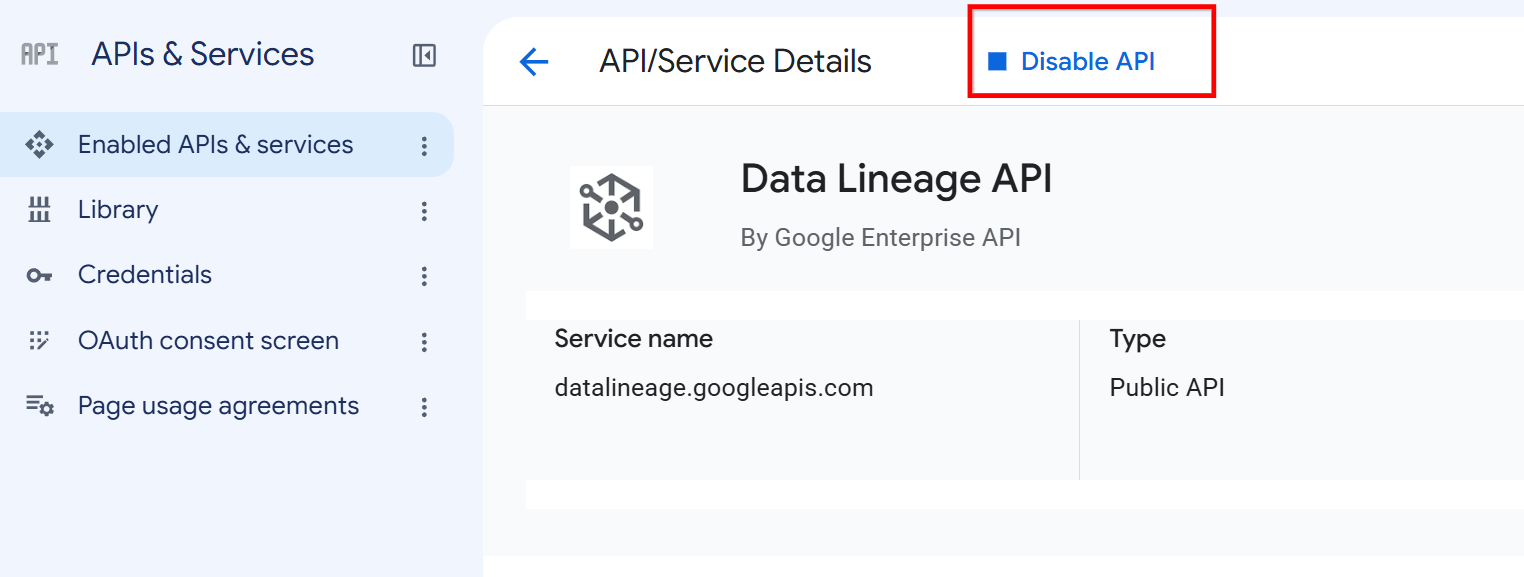
Disable API button on the Data Lineage API details page. When prompted, click Disable.
gcloud
To disable the Data Lineage API, use the
gcloud services disable command:
gcloud services disable datalineage.googleapis.com --project=PROJECT_ID
Replace the following:
PROJECT_ID: the ID of your Google Cloud project
If you want to stop lineage tracking for specific services without disabling the API completely, see Control lineage ingestion for a service.
What's next
- Track data lineage for a BigQuery table's copy and query jobs.
- Learn about data lineage information model.
- Learn about data lineage considerations and limitations.
- Learn about data lineage audit logging.
- Learn how to troubleshoot data lineage.
- Learn how to integrate with OpenLineage.
- Learn how to use data lineage with Managed Service for Apache Spark.