

This page provides guidance and recommendations for upgrading your streaming pipelines. For example, you might need to upgrade to a newer version of the Apache Beam SDK, or you might want to update your pipeline code. Different options are provided to suit different scenarios.
Whereas batch pipelines stop when the job is complete, streaming pipelines often run continuously in order to provide uninterrupted processing. Therefore, when you upgrade streaming pipelines, you need to account for the following considerations:
- You might need to minimize or avoid disruption to the pipeline. In some cases, you might be able to tolerate a temporary disruption to processing while a new version of a pipeline is deployed. In other cases, your application might not be able to tolerate any disruption.
- Pipeline update processes need to handle schema changes in a way that minimizes disruption to message processing and to other attached systems. For example, if the schema for messages in an event-processing pipeline changes, schema changes might also be necessary in downstream data sinks.
You can use one of the following methods to update streaming pipelines, depending on your pipeline and update requirements:
For more information about issues you might encounter during an update and how to prevent them, see Validate a replacement job and Job compatibility check.
Best practices
- Upgrade the Apache Beam SDK version separately from any pipeline code changes.
- Test your pipeline after each change before making additional updates.
- Regularly upgrade the Apache Beam SDK version that your pipeline uses.
- Use automated methods where possible, such as in-flight updates or automated parallel pipeline updates.
- Use Managed I/O when possible, to get the benefits of automatic upgrades of connector versions.
Perform in-flight updates
You can update some ongoing streaming pipelines without stopping the job. This scenario is called an in-flight job update. In-flight job updates are only available in limited circumstances:
- The job must use Streaming Engine.
- The job must be in the running state.
- You are only changing the number of workers that the job uses.
For more information, see Set the autoscaling range in the Horizontal Autoscaling page.
For instructions explaining how to perform an in-flight job update, see Update an existing pipeline.
Automatic create or update (upsert) for templates
When you launch pipelines by using a template (Classic Templates, Flex
Templates, Terraform, or Config Connector), you can use the create_or_update_job
experiment to let you use create or update (upsert) functionality.
When you specify create_or_update_job in the additional_experiments
parameter or the additional-experiments flag:
- If a running or draining job with the specified job name already exists, the templates service automatically launches the new job as an update to the existing job.
- If no active job with that name exists, the templates service launches the new job as a new job creation.
This experiment eliminates the need to determine programmatically whether to use the create or update API action when launching a template.
For Terraform and Config Connector code samples that use this experiment, see the following sections:
- Send an automated stop-and-replace update request
- Send an automated parallel pipeline update request
Launch a replacement job
If the updated job is compatible with the existing job, you can update your
pipeline by using the update option. When you replace an existing job, a new
job runs your updated pipeline code.
The Dataflow service retains the job name but runs the replacement
job with an updated Job ID. This process might cause downtime
while the existing job stops, the compatibility check runs, and the new job
starts. For more details, see
The effects of replacing a job.
Dataflow performs a compatibility check to make sure that the updated pipeline code can be safely deployed to the running pipeline. Certain code changes cause the compatibility check to fail, such as when side inputs are added to or removed from an existing step. When the compatibility check fails, you can't perform an in-place job update.
For instructions explaining how to launch a replacement job, see Launch a replacement job.
If the pipeline update is incompatible with the current job, you need to stop and replace the pipeline. If your pipeline can't tolerate downtime, run parallel pipelines.
Manual stop and replace
To perform a manual stop and replace, cancel or drain the pipeline, and then replace it with the updated pipeline. Canceling a pipeline causes Dataflow to immediately halt processing and shut down resources as quickly as possible, which can cause some loss of data that's being processed, known as in-flight data. To avoid data loss, in most cases, draining is the preferred action. You can also use Dataflow snapshots to save the state of a streaming pipeline, which lets you start a new version of your Dataflow job without losing state. For more information, see Use Dataflow snapshots.
Draining a pipeline immediately closes any in-process windows and fires all triggers. Although in-flight data isn't lost, draining might cause windows to have incomplete data. If this happens, in-process windows emit partial or incomplete results. For more information, see Effects of draining a job. After the existing job completes, launch a new streaming job that contains your updated pipeline code, which lets you resume processing.
With this method, you incur some downtime between the time when the existing streaming job stops and the time when the replacement pipeline is ready to resume processing data. However, canceling or draining an existing pipeline and then launching a new job with the updated pipeline is less complicated than running parallel pipelines.
For more information, see Drain a Dataflow job. After you drain the current job, start a new job with the same job name.
Automated stop and replace
Dataflow provides API support for launching an automated stop-and-replace update. This declarative-style workflow eliminates the manual procedural steps. You declare the job to replace, and the new job launches and coordinates the transition automatically.
When you use this workflow, new job resources are provisioned while the old job is still running. The old job then automatically receives a drain signal. After the old job finishes draining or reaches a user-specified timeout, the new job immediately begins processing data. Use this workflow for pipelines that can't tolerate duplicate data or partial aggregations, but can accept a brief processing pause while the old job drains.
Send an automated stop-and-replace update request
To use this workflow:
- You must set the
parallel_replace_job_max_stop_durationoption. - You must not set the
parallel_replace_job_min_parallel_pipelines_durationoption. Setting a parallel duration triggers the automated parallel pipeline updates workflow instead.
Launch an automated stop-and-replace update request using the following service options:
Java
Option 1: Update using the same job name
--update \
--dataflowServiceOptions="update_strategy_parallel_job_update" \
--dataflowServiceOptions="parallel_replace_job_max_stop_duration=DURATION"
- To perform an automated stop-and-replace update using the same name, use
the
--updateflag and theupdate_strategy_parallel_job_updateoption. - To perform an in-place update instead, use
update_strategy_in_place_update.
Option 2: Update using a different job name
--dataflowServiceOptions="parallel_replace_job_name=OLD_JOB_NAME" \
--dataflowServiceOptions="parallel_replace_job_max_stop_duration=DURATION"
- To specify the old job by ID instead of job name, use
--dataflowServiceOptions="parallel_replace_job_id=OLD_JOB_ID". - If you specify a new job name and use the
--updateflag, Dataflow searches for an existing job with the new name, which causes an error.
Optional: Disable auto-cancellation
Auto-cancellation is enabled by default when you specify the
parallel_replace_job_max_stop_duration option. To disable auto-cancellation,
set the parallel_replace_job_cancel_on_drain_timeout option to false.
--dataflowServiceOptions="parallel_replace_job_cancel_on_drain_timeout=false"
If you disable auto-cancellation and the old job gets stuck in the draining state, both the old and new jobs continue running in parallel.
Python
Option 1: Update using the same job name
--update \
--dataflow_service_options="update_strategy_parallel_job_update" \
--dataflow_service_options="parallel_replace_job_max_stop_duration=DURATION"
- To perform an automated stop-and-replace update using the same name, use
the
--updateflag and theupdate_strategy_parallel_job_updateoption. - To perform an in-place update instead, use
update_strategy_in_place_update.
Option 2: Update using a different job name
--dataflow_service_options="parallel_replace_job_name=OLD_JOB_NAME" \
--dataflow_service_options="parallel_replace_job_max_stop_duration=DURATION"
- To specify the old job by ID instead of job name, use
--dataflow_service_options="parallel_replace_job_id=OLD_JOB_ID". - If you specify a new job name and use the
--updateflag, Dataflow searches for an existing job with the new name, which causes an error.
Optional: Disable auto-cancellation
Auto-cancellation is enabled by default when you specify the
parallel_replace_job_max_stop_duration option. To disable auto-cancellation,
set the parallel_replace_job_cancel_on_drain_timeout option to false.
--dataflow_service_options="parallel_replace_job_cancel_on_drain_timeout=false"
If you disable auto-cancellation and the old job gets stuck in the draining state, both the old and new jobs continue running in parallel.
Go
Option 1: Update using the same job name
--update \
--dataflow_service_options="update_strategy_parallel_job_update" \
--dataflow_service_options="parallel_replace_job_max_stop_duration=DURATION"
- To perform an automated stop-and-replace update using the same name, use
the
--updateflag and theupdate_strategy_parallel_job_updateoption. - To perform an in-place update instead, use
update_strategy_in_place_update.
Option 2: Update using a different job name
--dataflow_service_options="parallel_replace_job_name=OLD_JOB_NAME" \
--dataflow_service_options="parallel_replace_job_max_stop_duration=DURATION"
- To specify the old job by ID instead of job name, use
--dataflow_service_options="parallel_replace_job_id=OLD_JOB_ID". - If you specify a new job name and use the
--updateflag, Dataflow searches for an existing job with the new name, which causes an error.
Optional: Disable auto-cancellation
Auto-cancellation is enabled by default when you specify the
parallel_replace_job_max_stop_duration option. To disable auto-cancellation,
set the parallel_replace_job_cancel_on_drain_timeout option to false.
--dataflow_service_options="parallel_replace_job_cancel_on_drain_timeout=false"
If you disable auto-cancellation and the old job gets stuck in the draining state, both the old and new jobs continue running in parallel.
gcloud
Option 1: Update using the same job name
--update \
--additional-experiments="update_strategy_parallel_job_update" \
--additional-experiments="parallel_replace_job_max_stop_duration=DURATION"
- To perform an automated stop-and-replace update using the same name, use
the
--updateflag and theupdate_strategy_parallel_job_updateoption. - To perform an in-place update instead, use
update_strategy_in_place_update.
Option 2: Update using a different job name
--additional-experiments="parallel_replace_job_name=OLD_JOB_NAME" \
--additional-experiments="parallel_replace_job_max_stop_duration=DURATION"
- To specify the old job by ID instead of job name, use
--additional-experiments="parallel_replace_job_id=OLD_JOB_ID". - If you specify a new job name and use the
--updateflag, Dataflow searches for an existing job with the new name, which causes an error.
Optional: Disable auto-cancellation
Auto-cancellation is enabled by default when you specify the
parallel_replace_job_max_stop_duration option. To disable auto-cancellation,
set the parallel_replace_job_cancel_on_drain_timeout option to false.
--additional-experiments="parallel_replace_job_cancel_on_drain_timeout=false"
If you disable auto-cancellation and the old job gets stuck in the draining state, both the old and new jobs continue running in parallel.
Optional: Upsert (create or update job)
To enable upsert (create or update job) behavior:
--additional-experiments="create_or_update_job"
Terraform
additional_experiments = [
  "parallel_replace_job_max_stop_duration=DURATION",
  "parallel_replace_job_cancel_on_drain_timeout=true",
  "update_strategy_parallel_job_update",
  "parallel_replace_job_preallocate_compute_resources=true",
  "create_or_update_job"
]
Config Connector
metadata:
  annotations:
    # Force to use only direct controller. Multiple controllers can cause a Dataflow job to enter into a continuous update loop.
    # https://docs.cloud.google.com/config-connector/docs/concepts/controller-types#underlying-controller-types
    alpha.cnrm.cloud.google.com/reconciler: direct
    # Optional but recommended: Dataflow batch jobs do not support the drain operation. But for Dataflow streaming jobs, prefer "drain" over "cancel" as an on-delete option.
    cnrm.cloud.google.com/on-delete: drain
    # Optional but recommended: Set deletion-policy to "abandon" to avoid accidental deletion, this will ignore the on-delete option.
    cnrm.cloud.google.com/deletion-policy: abandon
spec:
  ...
  additionalExperiments:
    - "parallel_replace_job_max_stop_duration=DURATION"
    - "parallel_replace_job_cancel_on_drain_timeout=true"
    - "update_strategy_parallel_job_update"
    - "parallel_replace_job_preallocate_compute_resources=true"
    - "create_or_update_job"
Replace the following variables:
- You must provide either
parallel_replace_job_nameorparallel_replace_job_idto identify the job to replace:OLD_JOB_NAME: The name of the job to be replaced.OLD_JOB_ID: The ID of the job to be replaced.
- You must provide the
parallel_replace_job_max_stop_durationvalue to activate automated stop and replace:DURATION: The maximum amount of time the new job waits for the old job to finish draining. The duration must be formatted as a string ending ins,m, orh(for example,30m,1h).
- Don't set the
parallel_replace_job_min_parallel_pipelines_durationoption when using this workflow. Setting this option triggers the automated parallel pipeline updates workflow instead. - Optional: Configure the
parallel_replace_job_cancel_on_drain_timeoutoption. Because auto-cancellation is enabled (defaults totrue) by default when theparallel_replace_job_max_stop_durationoption is set, you do not need to explicitly configure this option to enable it.- To keep the default behavior, omit this option or set it to
true. - To disable auto-cancellation, set this option to
false. If you set this option tofalseand the old job gets stuck in the draining state, both the old and new jobs continue running in parallel.
- To keep the default behavior, omit this option or set it to
- Optional: Define
parallel_replace_job_preallocate_compute_resourcesconfiguration:- Specifies whether workers are provisioned in advance for the new job
while the old job drains. Values:
true(default) orfalse. For Terraform and Config Connector, setting this option totrueis recommended to prevent resource provisioning timeouts. Whenparallel_replace_job_preallocate_compute_resourcesis set tofalse, the new job remains in a pending state until the old job drains.
- Specifies whether workers are provisioned in advance for the new job
while the old job drains. Values:
Message reprocessing with Pub/Sub Snapshot and Seek
In some situations, after you replace or cancel a drained pipeline, you might need to reprocess previously delivered Pub/Sub messages. For example, you might need to use updated business logic to reprocess data. Pub/Sub Seek is a feature that lets you replay messages from a Pub/Sub snapshot. You can use Pub/Sub Seek with Dataflow to reprocess messages from the time when the subscription snapshot is created.
During development and testing, you can also use Pub/Sub Seek to replay the known messages repeatedly to verify the output from your pipeline. When you use Pub/Sub Seek, don't seek a subscription snapshot when the subscription is being consumed by a pipeline. If you do, the seek can invalidate Dataflow's watermark logic and might impact the exactly-once processing of Pub/Sub messages.
A recommended gcloud CLI workflow for using Pub/Sub Seek with Dataflow pipelines in a terminal window is as follows:
To create a snapshot of the subscription, use the
gcloud pubsub snapshots createcommand:gcloud pubsub snapshots create SNAPSHOT_NAME --subscription=PIPELINE_SUBSCRIPTION_NAME
To drain or cancel the pipeline, use the
gcloud dataflow jobs draincommand or thegcloud dataflow jobs cancelcommand:gcloud dataflow jobs drain JOB_ID
or
gcloud dataflow jobs cancel JOB_ID
To seek to the snapshot, use the
gcloud pubsub subscriptions seekcommand:gcloud pubsub subscriptions seek SNAPSHOT_NAME
Deploy a new pipeline that consumes the subscription.
Run parallel pipelines
If you need to avoid disruption to your streaming pipeline during an update, you can run parallel pipelines. This approach lets you launch a new streaming job with your updated pipeline code and run it in parallel with the existing job. You can use Dataflow's automated parallel pipeline update deployment workflow, or you can perform the steps manually.
Parallel pipelines overview
When you create the new pipeline, use the same windowing strategy that you used for the existing pipeline. For the manual workflow, let the existing pipeline continue to run until its watermark exceeds the timestamp of the earliest complete window processed by the updated pipeline. Then, drain or cancel the existing pipeline. If using the automated workflow, this work is done for you. The updated pipeline continues to run in its place and effectively takes over processing on its own.
The following diagram illustrates this process.
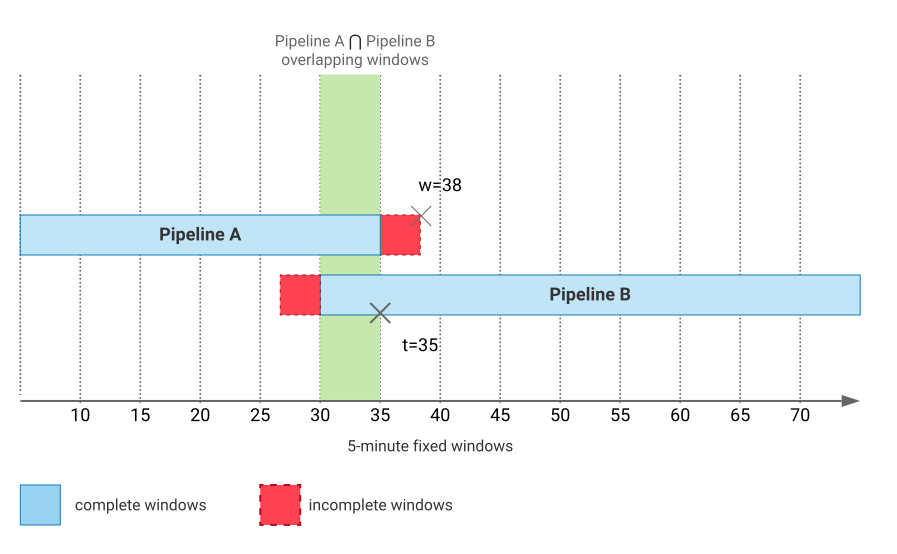
In the diagram, Pipeline B is the updated job that takes over from Pipeline A. The value t is the timestamp of the earliest complete window processed by Pipeline B. The value w is the watermark for Pipeline A. For simplicity, a perfect watermark is assumed with no late data. Processing and wall time are represented on the horizontal axis. Both pipelines use five-minute fixed (tumbling) windows. Results are triggered after the watermark passes the end of each window.
Because concurrent output occurs during the time period where the two pipelines overlap, configure the two pipelines to write results to different destinations. Downstream systems can then use an abstraction over the two destination sinks, such as a database view, to query the combined results. These systems can also use the abstraction to deduplicate results from the overlapping period. For more information, see Handle duplicated output.
Limitations
Using automated or manual parallel pipeline updates has the following limitations:
- Automated updates only: The new parallel job must be a Streaming Engine job.
- Concurrent jobs with the same name are disallowed. However, when performing an automated stop-and-replace or parallel pipeline update using the same job name, you can reuse the job name. In this case, the new job must start at least two minutes after the start of the previous job. This restriction prevents multiple parallel updates from repeated client library retries or out-of-date remote procedure calls.
- Running two pipelines in parallel on the same input may lead to duplicate data, partial aggregations, and potential ordering issues when data is inserted into the sink. The downstream system must be designed to anticipate and manage these outcomes.
- When reading from a Pub/Sub source, using the same subscription for multiple pipelines isn't recommended and can lead to correctness issues. However, in some use cases, like extract, transform, load (ETL) pipelines, using the same subscription across two pipelines might reduce duplication. Problems with autoscaling are likely any time you provide a non-zero value for the overlapping duration. This can be mitigated by using the in-flight job update feature. For more information, see Fine tune autoscaling for your Pub/Sub streaming pipelines.
- For Apache Kafka, you can minimize duplicates by enabling offset committing in Kafka. To enable offset committing in Kafka, see Committing back to Kafka.
Automated parallel pipeline updates
Dataflow provides API support for launching a parallel replacement job. This declarative-style API abstracts the manual work of running procedural steps. You declare the job you want to update, and a new job then runs in parallel with the old job. After the new job runs for the duration you specify, the old job is drained. This feature eliminates processing pauses during updates. It also reduces the operational effort needed to update incompatible pipelines.
This update method is best for pipelines that can tolerate some duplicates or
partial aggregations and don't require strict ordering while inserting data. It
is well-suited for ETL pipelines, as well as pipelines using at-least-once
streaming mode and the
Redistribute
transform with allow duplicates set to true.
Automated parallel pipeline service options
Use the following service options for automated parallel pipeline updates:
| Service option | Optional or required | Description | Dependencies or exclusions |
|---|---|---|---|
update_strategy_parallel_job_update |
Required (Option 1: Update using the same job name) | Command to perform a parallel update, which runs both pipelines concurrently to minimize downtime, when updating under the same job name. | Must be set alongside the --update flag and
parallel_replace_job_min_parallel_pipelines_duration.
|
update_strategy_in_place_update |
Optional | Alternative to parallel update. Performs a standard in-place job update. | Must be set alongside the --update flag.
Mutually exclusive with
When this option is set, other options related to parallel jobs are ignored. |
parallel_replace_job_min_parallel_pipelines_duration |
Required | Specifies the minimum duration the two pipelines run concurrently.
After this duration passes, a drain signal is sent to the old job.
Acceptable values range from 0s (recommended for zero
overlap) to 744h (31 days).
|
Must be paired with a way to target the old job. One of the following:
|
parallel_replace_job_name or
parallel_replace_job_id (choose one) |
Required (Option 2: Update using a different job name) | Identifies the old job either by name or ID to be replaced during a different-name update. | Requires parallel_replace_job_min_parallel_pipelines_duration
to be set.
Don't use the |
parallel_replace_job_max_stop_duration |
Optional | The maximum duration the old job is permitted to drain before
auto-cancellation is triggered. For example, 30m or
1h. |
Requires setting a parallel update workflow (Option 1 or Option 2). |
parallel_replace_job_cancel_on_drain_timeout |
Optional Defaults to |
Boolean option specifying whether to cancel the old job if its drain
duration exceeds parallel_replace_job_max_stop_duration. |
Used in conjunction with
parallel_replace_job_max_stop_duration.
Set to |
Send an automated parallel pipeline update request
To use the automated workflow, launch a new streaming job. You can update a job using either the same job name or a different job name.
Java
Option 1: Update using the same job name
--update \
--dataflowServiceOptions="update_strategy_parallel_job_update" \
--dataflowServiceOptions="parallel_replace_job_min_parallel_pipelines_duration=DURATION"
- To perform a parallel update using the same name, use the
--updateflag and theupdate_strategy_parallel_job_updateoption. - To perform an in-place update instead without removing options related to
parallel jobs, use
update_strategy_in_place_updateinstead ofupdate_strategy_parallel_job_update.
Option 2: Update using a different job name
--dataflowServiceOptions="parallel_replace_job_name=OLD_JOB_NAME" \
--dataflowServiceOptions="parallel_replace_job_min_parallel_pipelines_duration=DURATION"
- To specify the old job by ID instead of job name, use
--dataflowServiceOptions="parallel_replace_job_id=OLD_JOB_ID". - If you specify a new job name and use the
--updateflag, Dataflow searches for an existing job with the new name, which causes an error.
Optional: Configure drain timeout and auto-cancellation
You can append the following options to either configuration to set a drain timeout and automatically cancel the old job if it gets stuck.
--dataflowServiceOptions="parallel_replace_job_max_stop_duration=DRAIN_TIMEOUT_DURATION" \
--dataflowServiceOptions="parallel_replace_job_cancel_on_drain_timeout=true"
If you disable auto-cancellation and the old job gets stuck in the draining state, both the old and new jobs continue running in parallel.
Python
Option 1: Update using the same job name
--update \
--dataflow_service_options="update_strategy_parallel_job_update" \
--dataflow_service_options="parallel_replace_job_min_parallel_pipelines_duration=DURATION"
- To perform a parallel update using the same name, use the
--updateflag and theupdate_strategy_parallel_job_updateoption. - To perform an in-place update instead without removing options related to
parallel jobs, use
update_strategy_in_place_updateinstead ofupdate_strategy_parallel_job_update.
Option 2: Update using a different job name
--dataflow_service_options="parallel_replace_job_name=OLD_JOB_NAME" \
--dataflow_service_options="parallel_replace_job_min_parallel_pipelines_duration=DURATION"
- To specify the old job by ID instead of job name, use
--dataflow_service_options="parallel_replace_job_id=OLD_JOB_ID". - If you specify a new job name and use the
--updateflag, Dataflow searches for an existing job with the new name, which causes an error.
Optional: Configure drain timeout and auto-cancellation
You can append the following options to either configuration to set a drain timeout and automatically cancel the old job if it gets stuck.
--dataflow_service_options="parallel_replace_job_max_stop_duration=DRAIN_TIMEOUT_DURATION" \
--dataflow_service_options="parallel_replace_job_cancel_on_drain_timeout=true"
If you disable auto-cancellation and the old job gets stuck in the draining state, both the old and new jobs continue running in parallel.
Go
Option 1: Update using the same job name
--update \
--dataflow_service_options="update_strategy_parallel_job_update" \
--dataflow_service_options="parallel_replace_job_min_parallel_pipelines_duration=DURATION"
- To perform a parallel update using the same name, use the
--updateflag and theupdate_strategy_parallel_job_updateoption. - To perform an in-place update instead without removing options related to
parallel jobs, use
update_strategy_in_place_updateinstead ofupdate_strategy_parallel_job_update.
Option 2: Update using a different job name
--dataflow_service_options="parallel_replace_job_name=OLD_JOB_NAME" \
--dataflow_service_options="parallel_replace_job_min_parallel_pipelines_duration=DURATION"
- To specify the old job by ID instead of job name, use
--dataflow_service_options="parallel_replace_job_id=OLD_JOB_ID". - If you specify a new job name and use the
--updateflag, Dataflow searches for an existing job with the new name, which causes an error.
Optional: Configure drain timeout and auto-cancellation
You can append the following options to either configuration to set a drain timeout and automatically cancel the old job if it gets stuck.
--dataflow_service_options="parallel_replace_job_max_stop_duration=DRAIN_TIMEOUT_DURATION" \
--dataflow_service_options="parallel_replace_job_cancel_on_drain_timeout=true"
If you disable auto-cancellation and the old job gets stuck in the draining state, both the old and new jobs continue running in parallel.
gcloud
Option 1: Update using the same job name
--update \
--additional-experiments="update_strategy_parallel_job_update" \
--additional-experiments="parallel_replace_job_min_parallel_pipelines_duration=DURATION"
- To perform a parallel update using the same name, use the
--updateflag and theupdate_strategy_parallel_job_updateoption. - To perform an in-place update instead without removing options related to
parallel jobs, use
update_strategy_in_place_updateinstead ofupdate_strategy_parallel_job_update.
Option 2: Update using a different job name
--additional-experiments="parallel_replace_job_name=OLD_JOB_NAME" \
--additional-experiments="parallel_replace_job_min_parallel_pipelines_duration=DURATION"
- To specify the old job by ID instead of job name, use
--additional-experiments="parallel_replace_job_id=OLD_JOB_ID". - If you specify a new job name and use the
--updateflag, Dataflow searches for an existing job with the new name, which causes an error.
Optional: Configure drain timeout and auto-cancellation
You can append the following options to either configuration to set a drain timeout and automatically cancel the old job if it gets stuck.
--additional-experiments="parallel_replace_job_max_stop_duration=DRAIN_TIMEOUT_DURATION" \
--additional-experiments="parallel_replace_job_cancel_on_drain_timeout=true"
If you disable auto-cancellation and the old job gets stuck in the draining state, both the old and new jobs continue running in parallel.
Optional: Upsert (create or update job)
To enable upsert (create or update job) behavior:
--additional-experiments="create_or_update_job"
Terraform
additional_experiments = [
  "parallel_replace_job_min_parallel_pipelines_duration=DURATION",
  "parallel_replace_job_max_stop_duration=DRAIN_TIMEOUT_DURATION",
  "update_strategy_parallel_job_update",
  "create_or_update_job"
]
Config Connector
metadata:
  annotations:
    # Force to use only direct controller. Multiple controllers can cause a Dataflow job to enter into a continuous update loop.
    # https://docs.cloud.google.com/config-connector/docs/concepts/controller-types#underlying-controller-types
    alpha.cnrm.cloud.google.com/reconciler: direct
    # Optional but recommended: Dataflow batch jobs do not support the drain operation. But for Dataflow streaming jobs, prefer "drain" over "cancel" as an on-delete option.
    cnrm.cloud.google.com/on-delete: drain
    # Optional but recommended: Set deletion-policy to "abandon" to avoid accidental deletion, this will ignore the on-delete option.
    cnrm.cloud.google.com/deletion-policy: abandon
spec:
  ...
  additionalExperiments:
    - "parallel_replace_job_min_parallel_pipelines_duration=DURATION"
    - "parallel_replace_job_max_stop_duration=DRAIN_TIMEOUT_DURATION"
    - "update_strategy_parallel_job_update"
    - "create_or_update_job"
Replace the following variables:
- If you are updating using a different job name (Option 2), you must
provide either
parallel_replace_job_nameorparallel_replace_job_idto identify the job to replace. Updating using a different job name is not supported for Terraform or Config Connector.OLD_JOB_NAME: The name of the job to be replaced.OLD_JOB_ID: The ID of the job to be replaced.
DURATION: The minimum amount of time the two pipelines run in parallel as an integer or floating-point number. A duration of0sis recommended for zero overlap. After this duration passes, the old job is sent a drain signal.The duration must be between 0 seconds (
0s) and 31 days (744h). Uses,m, andhto specify seconds, minutes, and hours. For example,10mis 10 minutes.DRAIN_TIMEOUT_DURATION: Optional. The maximum amount of time the old job has to drain before auto-cancellation is triggered. The duration must be formatted as a string ending ins,m, orh(for example,30m,1h).parallel_replace_job_cancel_on_drain_timeout: Optional. Whether to cancel the previous job if it does not finish draining before the maximum stop duration. Defaults totrueif a drain timeout duration is provided. To disable auto-cancellation, set this option tofalse. If you set this option tofalseand the old job gets stuck in the draining state, both the old and new jobs continue running in parallel.
When you launch the new job, Dataflow waits for all workers to be provisioned before it begins processing data. To monitor the status of the deployment, check the Dataflow job logs.
Manually run parallel pipelines
For more complex scenarios, or when you need more control over the update process, you can manually run parallel pipelines. Let the existing pipeline continue to run until its watermark exceeds the timestamp of the earliest complete window processed by the updated pipeline. Then, drain or cancel the existing pipeline.
Handle duplicated output
The following example describes one approach to handling duplicated output. The two pipelines write output to different destinations, use downstream systems to query results, and deduplicate results from the overlapping period. This example uses a pipeline that reads input data from Pub/Sub, performs some processing, and writes the results to BigQuery.
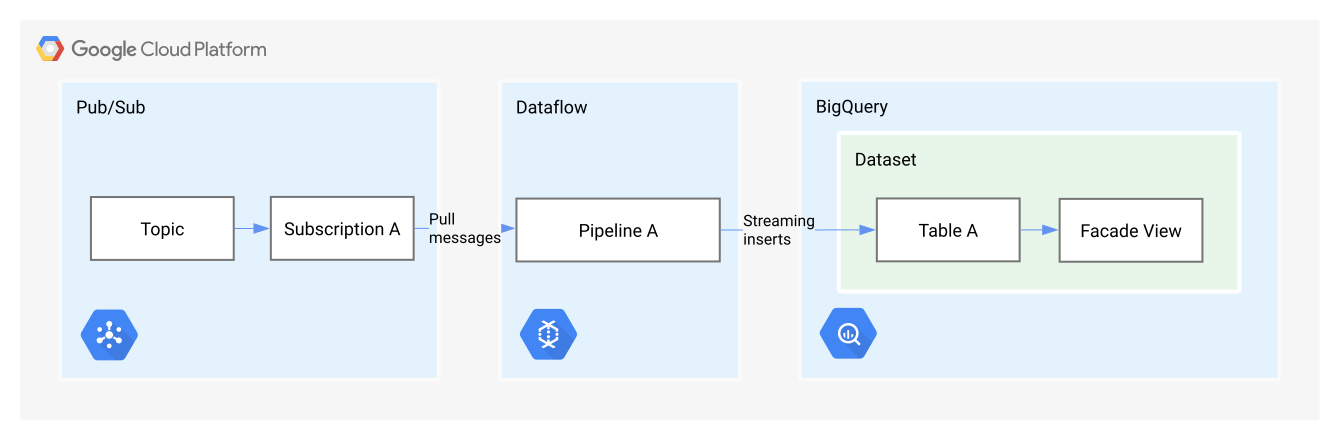
In the initial state, the existing streaming pipeline (Pipeline A) is running and reading messages from a Pub/Sub topic (Topic) by using a subscription (Subscription A). The results are written to a BigQuery table (Table A). Results are consumed through a BigQuery view, which acts as a façade to mask underlying table changes. This process is an application of a design method called the façade pattern. The following diagram shows the initial state.
Create a new subscription (Subscription B) for the updated pipeline. Deploy the updated pipeline (Pipeline B), which reads from the Pub/Sub topic (Topic) by using Subscription B and writes to a separate BigQuery table (Table B). The following diagram illustrates this flow.
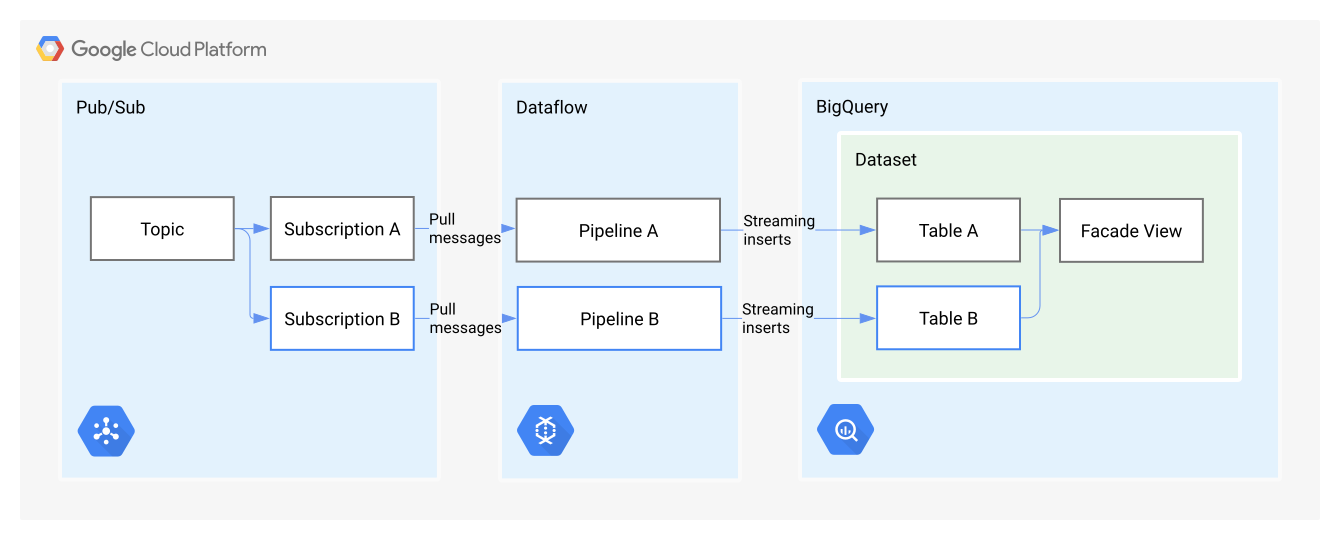
At this point, Pipeline A and Pipeline B are running in parallel and writing results to separate tables. You record time t as the timestamp of the earliest complete window processed by Pipeline B.
When the watermark of Pipeline A exceeds time t, drain Pipeline A. When you drain the pipeline, any open windows close, and processing for in-flight data completes. If the pipeline contains windows and complete windows are important (assuming no late data), before draining Pipeline A, let both pipelines to run until you have complete overlapping windows. Stop the streaming job for Pipeline A after all in-flight data is processed and written to Table A. The following diagram shows this stage.
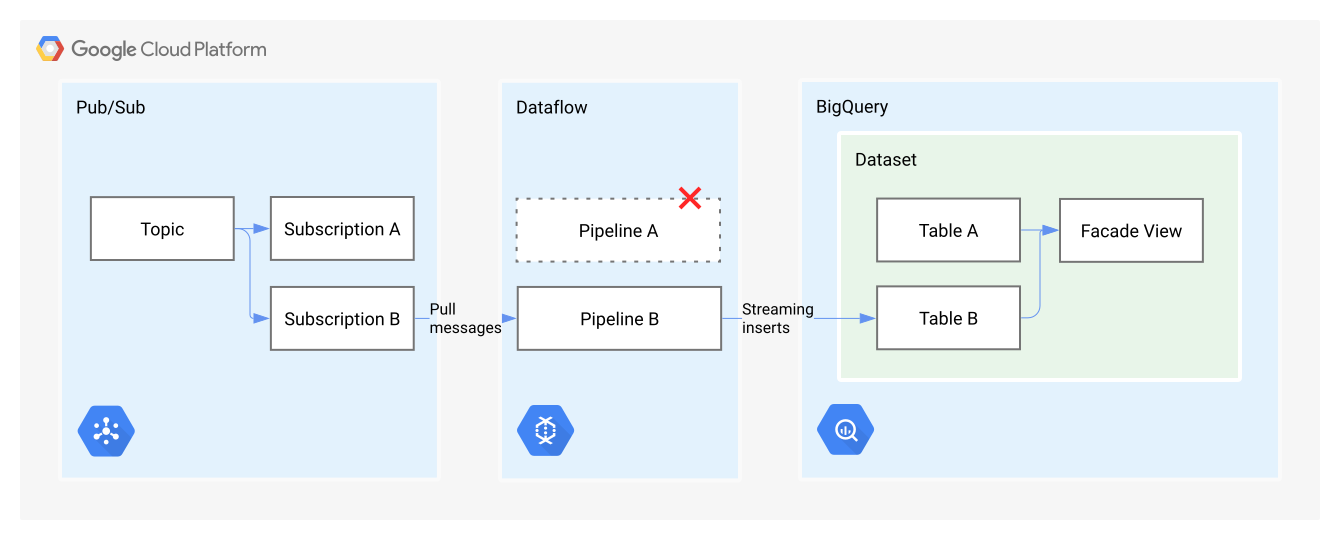
At this point, only Pipeline B is running. You can query from a BigQuery view (Façade View), which acts as a façade for Table A and Table B. For rows that have the same timestamp in both tables, configure the view to return the rows from Table B, or, if the rows don't exist in Table B, fall back to Table A. The following diagram shows the view (Façade View) reading from both Table A and Table B.
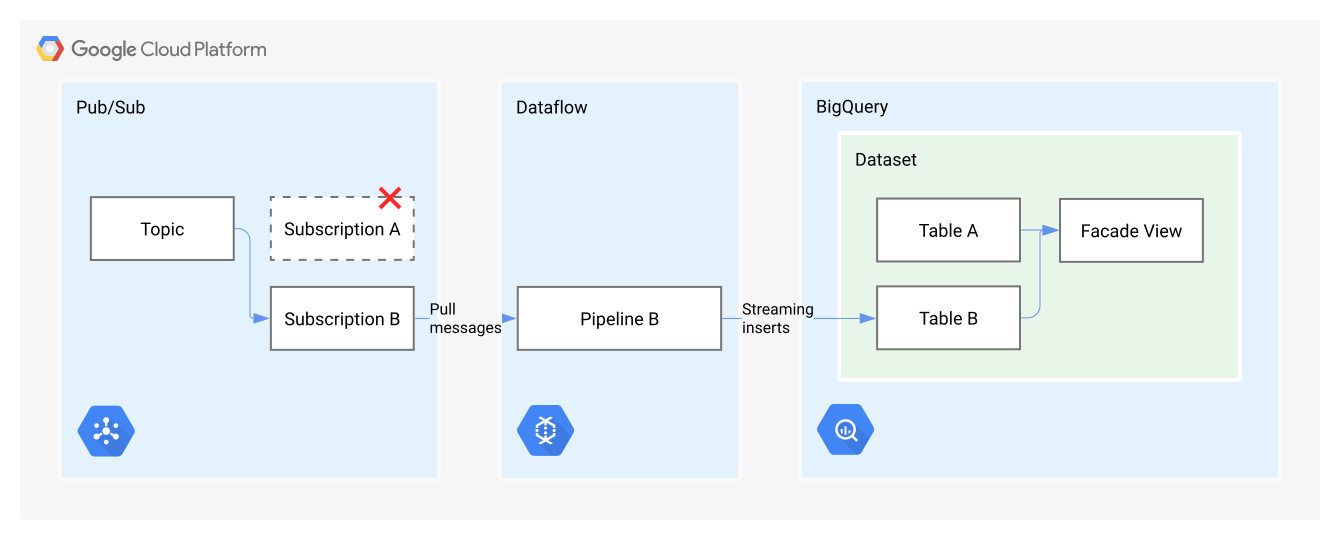
At this point, you can delete Subscription A.
When issues are detected with a new pipeline deployment, having parallel pipelines can simplify rollback. In this example, you might want to keep Pipeline A running while you monitor Pipeline B for correct operation. If any issues occur with Pipeline B, you can roll back to Pipeline A.
Handle schema mutations
Data-handling systems often need to accommodate schema mutations over time, sometimes due to changes in business requirements and other times for technical reasons. Applying schema updates typically requires careful planning and execution to avoid disruptions to business information systems.
Consider a pipeline that reads messages that contain JSON payloads from
a Pub/Sub topic. The pipeline converts each message into a
TableRow
instance and then writes the rows to a BigQuery table. The schema
of the output table is similar to messages that are processed by the pipeline.
In the following diagram, the schema is referred to as Schema A.

Over time, the message schema might mutate in non-trivial ways. For example, fields are added, removed, or replaced. Schema A evolves into a new schema. In the discussion that follows, the new schema is referred to as Schema B. In this case, Pipeline A needs to be updated, and the output table schema needs to support Schema B.
For the output table, you can perform some schema mutations without downtown.
For example, you can add new fields or relax
column modes,
such as changing REQUIRED to NULLABLE, without downtime.
These mutations don't usually impact existing queries. However, schema
mutations that modify or remove existing schema fields break queries or result
in other disruptions. The following approach accommodates changes without
requiring downtime.
Separate the data that's written by the pipeline into a principal table and into one or more staging tables. The principal table stores historic data written by the pipeline. Staging tables store the latest pipeline output. You can define a BigQuery façade view over the principal and staging tables, which lets consumers query both historic and up-to-date data.
The following diagram revises the previous pipeline flow to include a staging table (Staging Table A), a principal table, and a façade view.
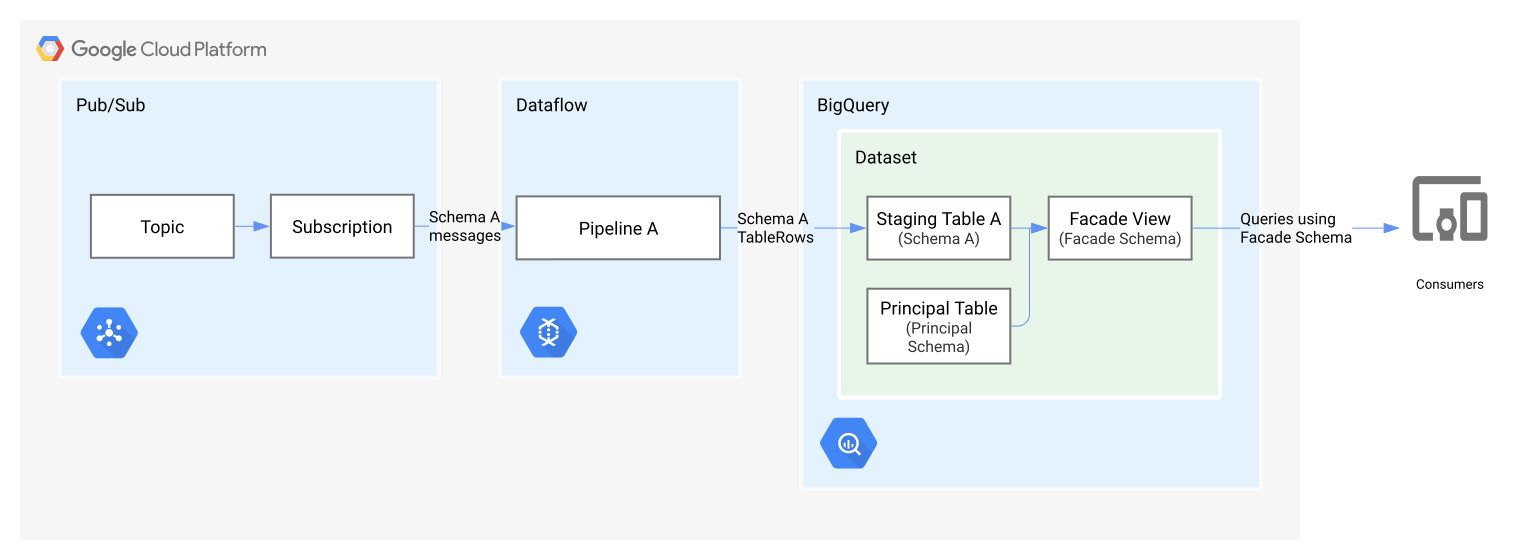
In the revised flow, Pipeline A processes messages that use Schema A and writes the output to Staging Table A, which has a compatible schema. The principal table contains historic data written by previous versions of the pipeline, as well as results that are periodically merged from the staging table. Consumers can query up-to-date data, including both historic and real-time data, by using the façade view.
When the message schema mutates from Schema A to Schema B, you might update the pipeline code to be compatible with messages that use Schema B. The existing pipeline needs to be updated with the new implementation. By running parallel pipelines, you can make sure that streaming data processing continues without disruption. Terminating and replacing pipelines results in a break in processing, because no pipeline is running for a period of time.
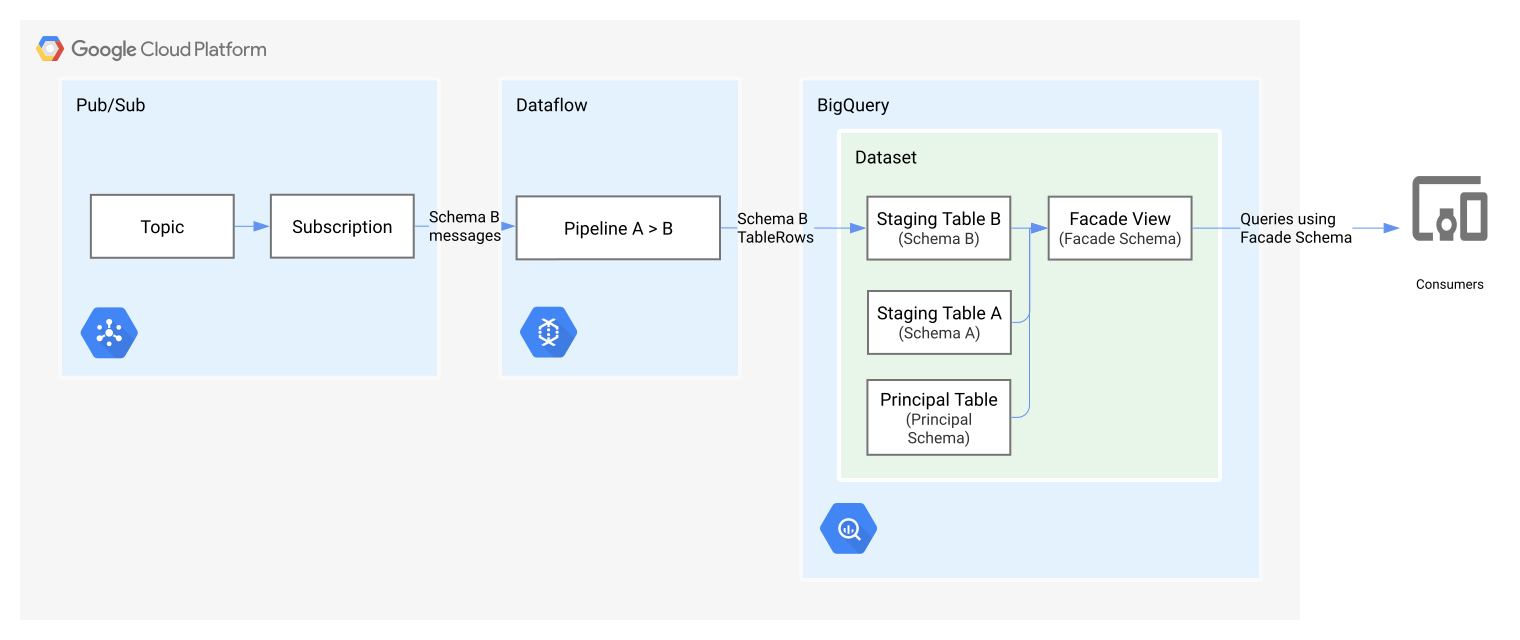
The updated pipeline writes to an additional staging table (Staging Table B) that uses Schema B. You can use an orchestrated workflow to create the new staging table before updating the pipeline. Update the façade view to include results from the new staging table, potentially using a related workflow step.
The following diagram shows the updated flow that shows Staging Table B with Schema B and how the façade view is updated to include content from the principal table and from both staging tables.
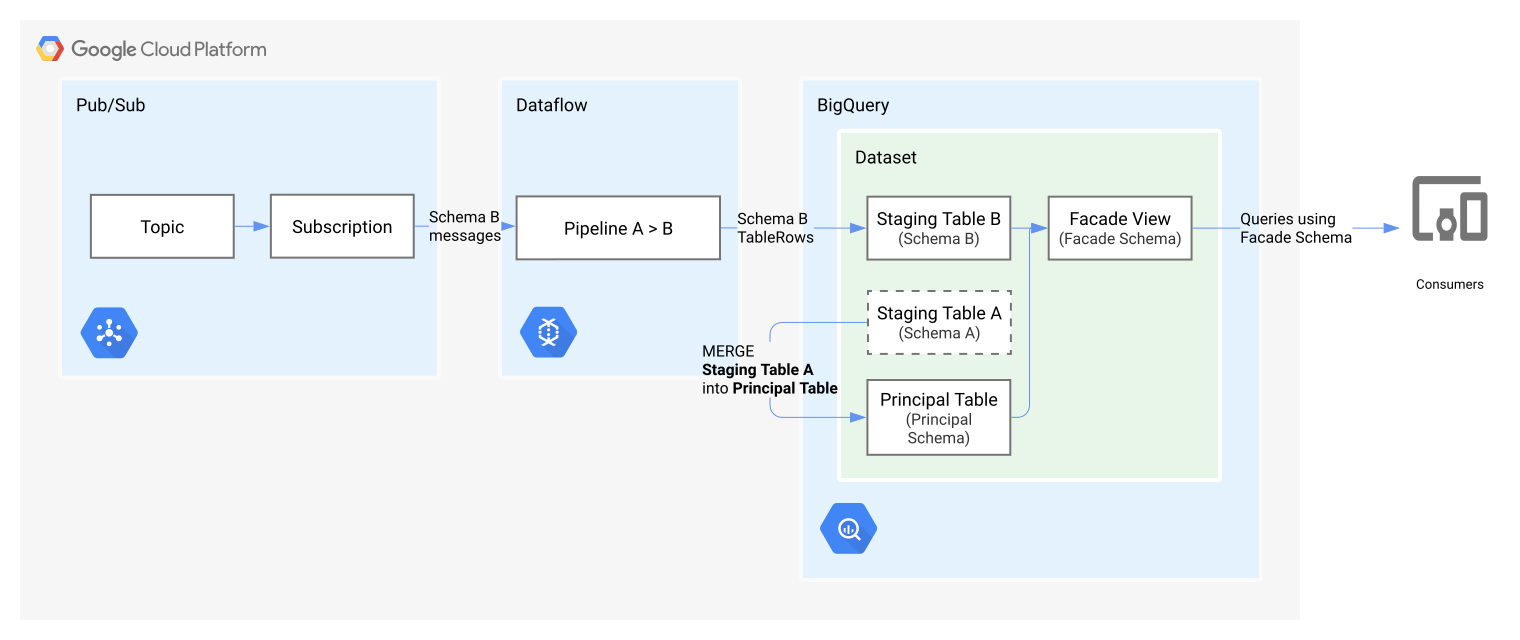
As a separate process from the pipeline update, you can merge the staging tables into the principal table, either periodically or as required. The following diagram shows how Staging Table A is merged into the principal table.
What's next
- Find detailed steps for updating an existing pipeline.