

Managed Airflow (Gen 3) | Managed Airflow (Gen 2) | Managed Airflow (Legacy Gen 1)
Managed Airflow Agent can help you understand, diagnose, and resolve issues with failed Airflow tasks and DAG runs.
Before you begin
- Conversational Analytics API that runs Managed Airflow Agent has its own data residency policy. Your conversation might be handled in a region different from your environment's location.
Investigate failed Airflow tasks or DAG runs
To investigate a failed Airflow task or DAG run:
In the Google Cloud console, go to the Environments page.
Select an environment to view its details.
On the Environment details page, go to the DAGs tab.
Click the name of a DAG.
On the DAG details page, go to the Run history tab.
Locate a failed DAG run. You can investigate a whole DAG run or a specific failed task:
To investigate a DAG run:
Click Investigate next to the failed DAG run name.
In the Investigate DAG run failure dialog, click Investigate.
To investigate an Airflow task:
Click the name of the failed DAG run to display a list of tasks.
In the State column of the failed Airflow task, click Investigate.
In the Investigate task failure dialog, click Investigate.
The Ask agent panel opens and Managed Airflow Agent starts invesitgating the DAG run failure. Wait until the agent finishes the analysis and then review the diagnostic report, which consists of several sections:
- Problem describes the root cause of the issue.
- Evidence points at specific artifacts that support the agent's conclusions.
- Recommendation provides specific steps for addressing the issue.
Example investigation
This example shows a process of analyzing a failing task.
On the Monitoring > DAG Statistics dashboard, observe failing DAG runs:
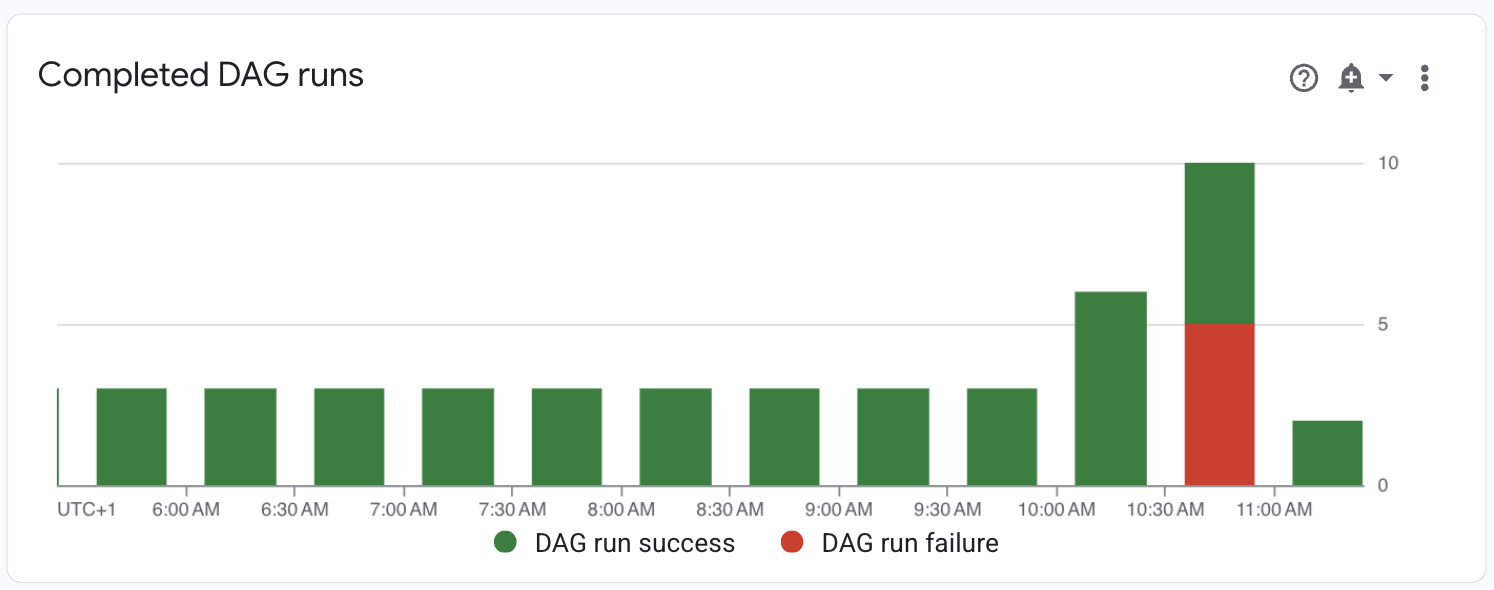
Figure 1. Completed DAG runs graph (click to enlarge) Navigate to the DAGs tab. The Failed runs (1h) column shows that the
create_large_txt_file_print_logsDAG had several failed runs in the past hour. Click the name of the DAG.
Figure 2. List of DAGs with DAG run statistics (click to enlarge) Click one of the failed DAG runs, then click Investigate next to the failed Airflow task entry.
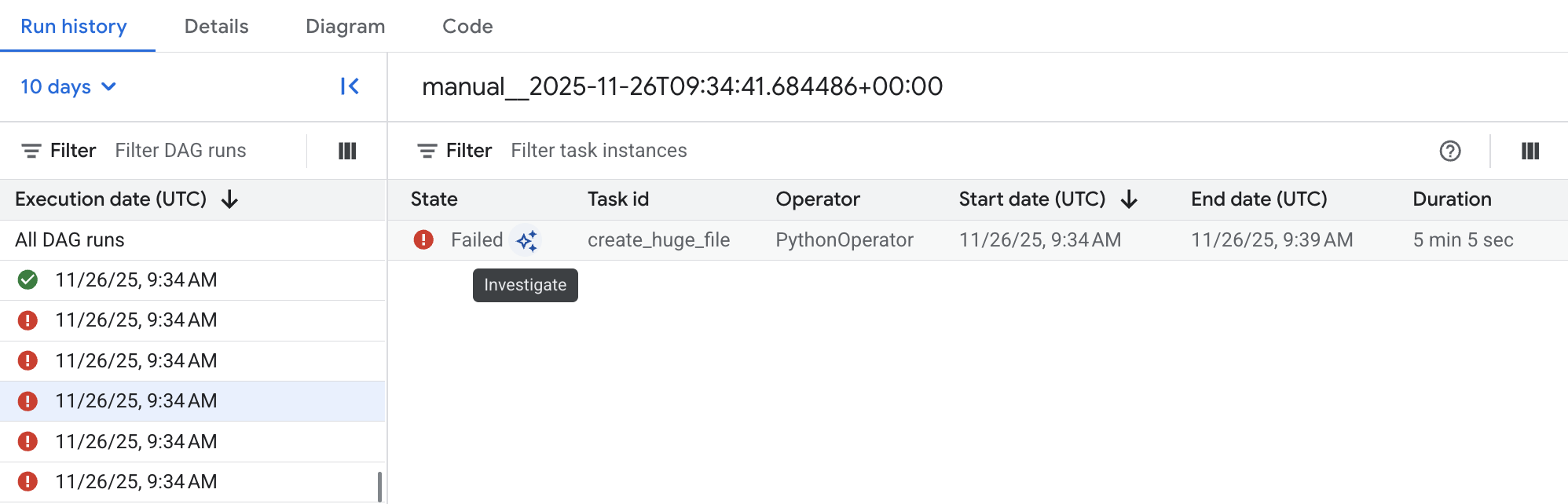
Figure 3. List of tasks in the failing DAGs (click to enlarge) Wait until the agent completes its report.
Review the diagnostic report. In this particular example, the task failed without generating logs, but Managed Airflow Agent was able to find the cause of the failure in the Airflow scheduler logs, where the task was terminated as a zombie:
### **1. Problem**

The task `create_huge_file` in DAG `dag_simulation` failed because the
Airflow worker executing it ran out of memory (OOM). This caused the task
container or process to be abruptly terminated, preventing it from sending
heartbeats to the scheduler. As a result, the scheduler detected it as a
zombie task and marked it as failed.

### **2. Evidence**

*  **Scheduler Log (Zombie Detection)**:
   Detected a task instance without a heartbeat:
   filepath='dag-simulation.py'
   bundle_name='dags-folder' bundle_version=None msg="{'DAG Id':
   'dag_simulation', 'Task Id': 'create_huge_file', 'Run Id':
   'manual__2026-11-25T12:42:50.190250+00:00', 'Hostname':
   'airflow-worker-2lxm2', 'External Executor Id':
   'cfc98619-0de6-4699-96e6-7ba8a5a581aa'}"

*  ...
Finally, check the proposed recommendations. Managed Airflow Agent summarizes the evidence and provides recommendations for fixing the issue. In this example, the task failed because an Airflow worker didn't have enough resources to process it. This is supported by evidence of the worker Pod being restarted multiple times with an OOM error, and the task being subsequently terminated by the scheduler as a zombie task.
### **3. Recommendation**
To resolve this issue, you must prevent the task from consuming unbound
memory. Depending on your workflow:

*  **Fix Code Logic (Highly Recommended)**: Avoid loading large datasets
   completely into worker memory. Implement chunk-based processing or
   streaming, or set up explicit safety limits. For example, if you need to
   limit memory allocation or process in bounded batches, do not keep
   references to old chunks in memory: ...

*  **Scale Worker Memory**: If processing massive datasets in memory is
   unavoidable, consider upgrading the resource limits (RAM/CPU) of your
   Airflow worker pools or offloading the heavy processing step to external
   services.