

This document describes how to manage Cloud Billing for each of your Google Cloud projects and teaches you how to link and unlink projects and Cloud Billing accounts.
To learn how to create, modify, or close your Cloud Billing account, visit Manage your Cloud Billing account.
A Google Cloud project is a top-level container for all your cloud resources, acting as the foundational element required to use any Google Cloud services. All service-level resources for Google Cloud, Google Maps Platform, Google AI Studio, and Firebase are parented by Google Cloud projects. A Cloud Billing account accrues and calculates costs for your usage of resources and services in each of the projects linked to the Cloud Billing account. The accrued costs are routed to a Google payments account to pay your bill.
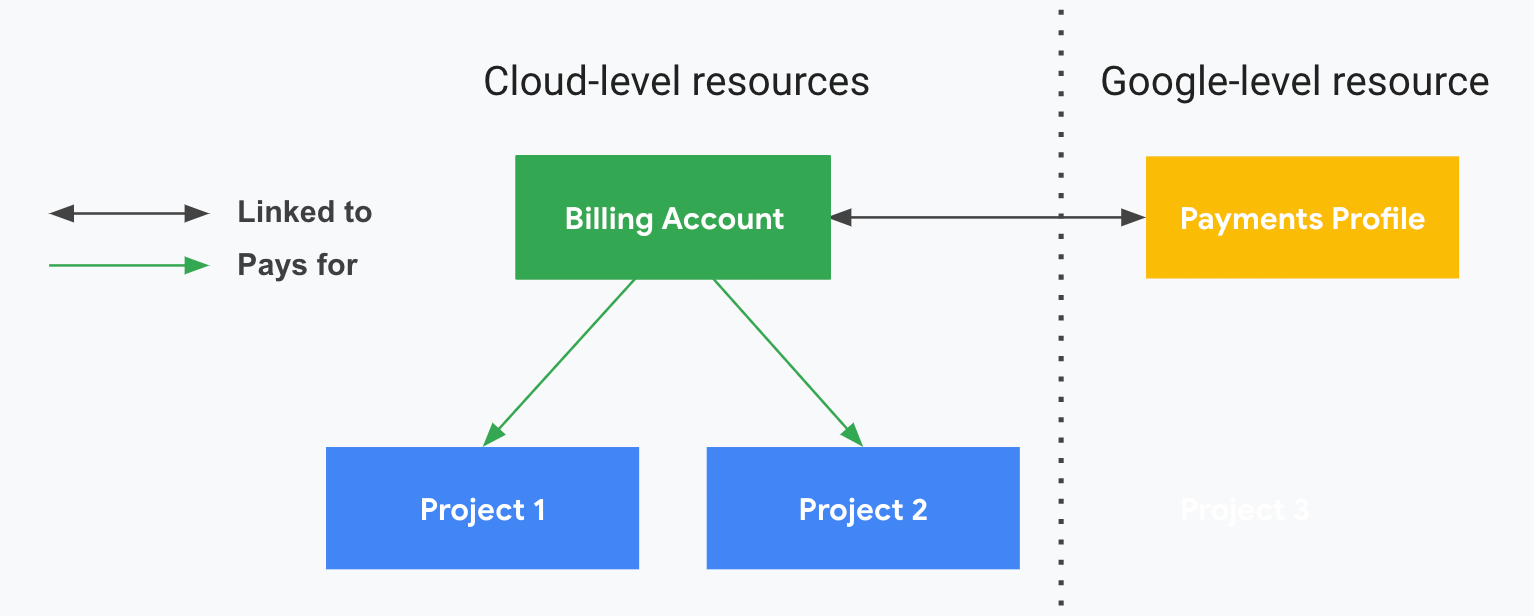
A Cloud Billing account defines who pays for a given set of resources, and it can be linked to one or more projects. Project usage costs are accrued by the linked Cloud Billing account and charged to the linked Google payments account.
If you create or have access to multiple Cloud Billing accounts, you can change the Cloud Billing account that a Google Cloud project is billed to. This document describes how to change the Cloud Billing account for your project, as well as how to enable and disable billing for a project.
In this document, you can learn how to:
- Check if billing is enabled on a project
- Change the Cloud Billing account linked to a project
- Enable billing for a new project
- Enable billing for an existing project
- Disable billing for a project
If you want to receive invoices by email, or you want to change who receives them, see Change payments contacts and notifications.
Required Permissions
The permissions required to accomplish the various tasks described in this document depend on the task and are noted at the start of each topic.
For more information about Cloud Billing permissions, see:
- Overview of access control
- Create custom roles for Cloud Billing
- Understanding predefined Identity and Access Management roles for Cloud Billing
Check if billing is enabled on a project
Billing is enabled on a project if the following are true:
- The project is linked to a Cloud Billing account.
- The linked Cloud Billing account is active and in good standing—that is, the billing account isn't closed or suspended.
See Verify the billing status of your projects to learn how to determine if billing is enabled on a project.
Change the Cloud Billing account linked to a project
Switching a project to a different Cloud Billing account shouldn't result in any service interruption or server downtime. However, your projects might be affected in the following ways:
Committed use discounts (CUDs): If you purchased resource-based commitments for Compute Engine resources in your project, then moving the project has the following effects on your CUDs:
For any commitments in the project that you're moving, you receive CUDs only in the destination Cloud Billing account.
If the destination Cloud Billing account doesn't have CUD sharing enabled, then CUDs from resource-based commitments in the project that you're moving apply to eligible usage only in that project. You can enable CUD sharing by updating the CUD scope for the destination Cloud Billing account.
If the destination Cloud Billing account already has CUD sharing enabled, then any resource-based CUDs from commitments in the project that you're moving apply to eligible usage across all projects in the destination Cloud Billing account.
Even if you enabled CUD sharing in the original Cloud Billing account, resource-based CUDs from the project that you're moving won't apply anymore to projects linked to that Cloud Billing account.
If you set up prioritized attribution for the commitment, you might need to update the prioritized attribution configuration after you change the project's Cloud Billing account.
Learn about setting up prioritized attribution for your commitments.
After you change the Cloud Billing account for the project, any resource-based CUDs start applying to the new Cloud Billing account at midnight in the US and Canadian Pacific Standard Time (UTC-8) time zone.
Some usage costs are owned by the Cloud Billing account and aren't included in a project (for example, Support costs). To identify these charges before you switch your projects to a different Cloud Billing account, view the Cost table report or cost Reports:
- Cost table report: View the report using the default report settings and then expand the hierarchical cost data in the [Charges not specific to a project] row.
- Cost Reports: Access the Reports page as a user with full Cloud Billing account permissions. Configure your report to group by SKU and filter by Projects, selecting only the [Charges not specific to a project] option.
Google Cloud Marketplace customers: If you've made purchases from Google Cloud Marketplace in your project, consider the following before you move a project to a different Cloud Billing account:
- If you have Google Cloud Marketplace purchases attached to a project, then you can't migrate that project until you transfer your purchases. Learn about the steps you must take to transfer your purchases. Follow the transfer steps to prevent your project from being disabled or losing data as a result of missing required resources.
- When switching Cloud Billing accounts, resources beyond those in Google Cloud Marketplace might also require your action to complete the migration.
- To learn about how you're billed for Cloud Marketplace purchases, see the Cloud Marketplace documentation.
Cloud Armor customers: If your Cloud Billing account is subscribed to Cloud Armor Enterprise Annual, and you migrate your project from that billing account to another, but your new Cloud Billing account isn't subscribed to Cloud Armor Enterprise Annual, your project reverts to Cloud Armor Standard after the migration completes. Learn how to keep your project in Cloud Armor Enterprise Annual without downtime.
Google AI Studio customers: If you change the Cloud Billing account that is linked to your project, you might be prompted to configure a Prepay account and buy credits before you can use Gemini API in AI Studio services.
Permissions required for this task
To change the Cloud Billing account for a project, you need to be able to move a project from one Cloud Billing account to another. To accomplish this task, you need permissions to unlink the project from the current Cloud Billing account AND to link the project to the target Cloud Billing account.
You need both project permissions and billing account permissions. These predefined roles have adequate permissions to perform this task:
| On the project | ||
|---|---|---|
| Project Billing Manager + Project Browser + Service Usage Viewer | OR | Project Owner |
AND
| On the current and target Cloud Billing accounts | ||
|---|---|---|
| Billing Account User + Billing Account Viewer | OR | Billing Account Administrator |
Specifically, to perform this task, you must have the following permissions.
| Action | Permission | Roles with permission | Resource |
|---|---|---|---|
| View projects and Cloud Billing account associations |
billing.resourceAssociations.list |
Billing Account Viewer, Billing Account Costs Manager, or Billing Account Administrator | Billing account |
| AND | |||
resourcemanager.projects.get |
Project Browser, Project Viewer, Project Editor, or Project Owner | Project | |
| Unlink project from its current Cloud Billing account |
billing.resourceAssociations.delete |
Billing Account Administrator | Current billing account |
| OR | |||
resourcemanager.projects.deleteBillingAssignment |
Project Billing Manager or Project Owner | Project | |
| Link project to the target Cloud Billing account |
billing.resourceAssociations.create |
Billing Account User or Billing Account Administrator | Target billing account |
| AND | |||
serviceusage.services.listserviceusage.effectivepolicy.get |
Service Usage Viewer, Project Viewer, Project Editor, or Project Owner | Project | |
resourcemanager.projects.createBillingAssignment |
Project Billing Manager or Project Owner | Project | |
How to change the project's billing account
To change the project's Cloud Billing account, do the following.
In the Billing section of the Google Cloud console, locate the project using one of the following methods:
Method 1: Start with your list of projects Method 2: Start with a billing account Access the My Projects page to view a list of all of your projects and their associated Cloud Billing account. This method works best if you have the Project Owner, Project Editor, Project Viewer, or Project Billing Manager IAM role on the project you want to manage.
To view a list of all of your projects and their associated Cloud Billing account, take the following steps:
- In the Google Cloud console, go to the My Projects page in the Billing section.
- From the list of projects, locate the project you want to manage.
Open the Account management page for a selected billing account to view the list of all the projects linked to the Cloud Billing account. This method works well when you have access to an active Cloud Billing account that you know by name.
To view the list of projects linked to a specific billing account, take the following steps:
- In the Google Cloud console, go to the Account management page for the Cloud Billing account.
- At the prompt, choose the Cloud Billing account you want to view.
- On the Account management page, from the list of projects, locate the project that you want to manage.
In the project row, open the Actions menu (), select Change billing, then choose the destination Cloud Billing account.
Click Set account.
(Optional) After you link a project to a billing account, you can lock the link to prevent the project from unintentionally being moved (linked) to a different billing account or the project link being deleted from the billing account.
About project charges after the billing account is changed
After you change the Cloud Billing account on a project, charges already incurred prior to moving the project are billed to the former Cloud Billing account. This can include charges that haven't yet been reported in the transaction history. Depending on the service, it might take up to two days for charges to be reported to the transaction history.
For example: If you move your project from Account A to Account B on May 15, charges incurred May 1 to May 15 will be billed to Account A (old), and charges incurred May 16 to May 31 will be billed to Account B (new).
Enable billing for a project
How you enable billing depends on whether you're creating a new project or you're enabling billing for an existing project, and which platform you are on when you enable billing.
Enable billing for a new project
Depending on which platform you are using when you create a new project, during the project creation process, you might be prompted to link a billing account to the project to enable billing.
| Project-creation platform | Billing account linked? | Description |
|---|---|---|
| Google Cloud console | Yes | From the Google Cloud console, when you create a new Google Cloud project for use with Google Cloud or Google Maps Platform products and services, you're prompted to choose which of your Cloud Billing accounts you want to link to the project. If you have only one Cloud Billing account, that account is automatically linked to your project. If you don't have a Cloud Billing account, you must create one and enable billing for your project before you can use many Google Cloud and Google Maps Platform services. To create a new Cloud Billing account and enable billing for your project, follow the instructions in Create a new Cloud Billing account. |
| Firebase console | No | From the Firebase console, when you create a new project to use for Firebase, you create a new Google Cloud project that isn't linked to a Cloud Billing account. By default, new projects that are created in the Firebase console are connected to the no-cost Spark plan, which provides full usage of free services, plus limited usage and quota for paid Firebase services. |
| Google AI Studio console | No | From the Google AI Studio console, when you create a new project for your Gemini API in AI Studio usage, you create a new Google Cloud project that isn't linked to a Cloud Billing account. By default, new projects begin on the Free tier, which allows access to certain models in the Gemini API in AI Studio, up to the models' rate limits. |
Enable billing for an existing project
To use Google Cloud and Google Maps Platform resources and services in a project, billing must be enabled on the project.
For Firebase, billing must be enabled on the project to upgrade to the pay-as-you-go Blaze plan, to access more services and higher usage levels.
For Google AI Studio, billing must be enabled on the project to upgrade to a paid tier, to access higher rate limits and use advanced Gemini API models.
Billing is enabled when the project is linked to an active Cloud Billing account in good standing. Billing can become disabled on a project for one of the following reasons:
- The project is unlinked from its billing account, disabling billing on the project.
- The Cloud Billing account that is linked to the project is closed or suspended.
- The project was shut down (deleted) and then restored within the 30-day recovery period.
If you have a project where billing has been disabled, for Google Cloud and Google Maps Platform, all billable services within that project are stopped; for Firebase and Google AI Studio, your usage is downgraded to the limited free use plans. Re-enable billing on the project to restart the resources or continue to access the elevated features of a paid plan.
- After billing is re-enabled, it might take up to 24 hours for the resources to start up again.
- Some services might need to be restarted manually. For more information, see Restarting Google Cloud Services.
- While billing is disabled on a project, some resources might be deleted and might not be fully recoverable. Learn about data deletion on Google Cloud.
Permissions required for this task
To enable billing for a project, you need permissions to link the project to the target Cloud Billing account.
You need both project permissions and billing account permissions. These predefined roles have adequate permissions to perform this task:
| On the project | ||
|---|---|---|
| Project Billing Manager + Project Browser + Service Usage Viewer | OR | Project Owner |
AND
| On the target Cloud Billing account | ||
|---|---|---|
| Billing Account User + Billing Account Viewer | OR | Billing Account Administrator |
Specifically, to perform this task, you must have the following permissions.
| Action | Permission | Roles with permission | Resource |
|---|---|---|---|
| View projects and Cloud Billing account associations |
billing.resourceAssociations.list |
Billing Account Viewer, Billing Account Costs Manager, or Billing Account Administrator | Billing account |
| AND | |||
resourcemanager.projects.get |
Project Browser, Project Viewer, Project Editor, or Project Owner | Project | |
| Link project to the target Cloud Billing account |
billing.resourceAssociations.create |
Billing Account User or Billing Account Administrator | Target billing account |
| AND | |||
serviceusage.services.listserviceusage.effectivepolicy.get |
Service Usage Viewer, Project Viewer, Project Editor, or Project Owner | Project | |
resourcemanager.projects.createBillingAssignment |
Project Billing Manager or Project Owner | Project | |
How to enable billing on an existing project
You can follow the procedure described here to access the Google Cloud console to enable billing on any of your Google Cloud projects.
Alternatively, for your Firebase and AI Studio projects, you can access those platforms directly to enable billing on your projects:
- Firebase: Enable billing to upgrade your project to the Blaze pricing plan
- Google AI Studio: Learn how to set up billing for your projects and API keys
In the Google Cloud console, to enable billing on a project, do the following:
Sign in to the Manage billing accounts page in the Google Cloud console.
Select the My projects tab to view a list of projects and the associated Cloud Billing account for each project.
From the list of projects, locate the project for which you want to re-enable billing. Tip: In the Billing account column, for projects that aren't linked to a billing account, look for "Billing is disabled".
In the project row, open the Actions menu (), select Change billing, then choose the destination Cloud Billing account.
Click Set account.
(Optional) After you link a project to a billing account, you can lock the link to prevent the project from unintentionally being moved (linked) to a different billing account or the project link being deleted from the billing account.
Error when attempting to re-enable billing
If you're re-enabling billing on a recently
restored project,
you might encounter an error similar to: User missing permission
'resourcemanager.projects.createBillingAssignment' to link a billing account to
project. The attempted action failed, please try again.
Due to latency issues during the project recovery process, it might take some time for the restored project to propagate to the Cloud Billing system. You can't successfully link a Cloud Billing account to a restored project until the project is fully propagated to the billing system.
If you receive an error message when attempting to link a billing account to a newly restored project, retry after about 10 minutes. If it still doesn't work, wait a few hours to assign billing. In rare instances, it might take up to 36 hours before you can re-enable billing on a restored project.
Disable billing for a project
To stop automatic payments for a project, you can disable billing for the project by unlinking the project from the billing account. You're still responsible for all outstanding charges for the project. Your listed form of payment on your Cloud Billing account is used to pay for any outstanding charges.
What's the impact of disabling billing on a project?
Your projects and services are impacted in different ways when you disable billing, based on the services in use in your projects.
Google Cloud and Google Maps Platform services:
- Limitation: You can't disable billing on a project if you have any active or pending committed-use discounts (CUDs) in that project.
- When you disable billing for a project, all of your Google Cloud and Google Maps Platform services are stopped and billing on that project stops.
- When billing is disabled for a project, some of your Google Cloud resources might be removed and become non-recoverable. We recommend backing up any data that you have in the project.
- If you disable billing for a project that hosts a Shared VPC, services in the service project which depend on the Shared VPC are also disabled. For example, if you have three service projects linked to the Shared VPC, all Compute Engine instances that use the Shared VPC as the network interface are shut down, which affects all three service projects.
Firebase services:
- When you disable billing on a Firebase project, the project is downgraded from the Blaze plan to the no-cost Spark plan, which provides full usage of free services, plus limited usage and quota for paid Firebase services.
- When you downgrade, you might find that you've exceeded your no-cost quota limits for a product, causing the project's usage of that specific product to be shut off for the remainder of the month. Learn more about the Spark plan limitations.
Gemini API in AI Studio services:
- When you disable billing on an AI Studio project, the project's billing tier is downgraded to the Free usage tier, which allows limited free access to certain Gemini API models.
- Learn more about Gemini API pricing.
Permissions required for this task
To disable billing for a project, you need permissions to unlink the project from the Cloud Billing account.
You need both project permissions and billing account permissions. These predefined roles have adequate permissions to perform this task:
| On the project | ||
|---|---|---|
| Project Billing Manager + Project Browser | OR | Project Owner |
AND
| On the target Cloud Billing account | ||
|---|---|---|
| Billing Account Viewer | OR | Billing Account Administrator |
Specifically, to perform this task, you must have the following permissions.
| Action | Permission | Roles with permission | Resource |
|---|---|---|---|
| View projects and Cloud Billing account associations |
billing.resourceAssociations.list |
Billing Account Viewer, Billing Account Costs Manager, or Billing Account Administrator | Billing account |
| AND | |||
resourcemanager.projects.get |
Project Browser, Project Viewer, Project Editor, or Project Owner | Project | |
| Unlink project from a Cloud Billing account |
billing.resourceAssociations.delete |
Billing Account Administrator | Billing account |
| OR | |||
resourcemanager.projects.deleteBillingAssignment |
Project Billing Manager or Project Owner | Project | |
How to disable billing for a project
To disable billing for a project, do the following:
In the Billing section of the Google Cloud console, locate the project using one of the following methods:
Method 1: Start with your list of projects Method 2: Start with a billing account Access the My Projects page to view a list of all of your projects and their associated Cloud Billing account. This method works best if you have the Project Owner, Project Editor, Project Viewer, or Project Billing Manager IAM role on the project you want to manage.
To view a list of all of your projects and their associated Cloud Billing account, take the following steps:
- In the Google Cloud console, go to the My Projects page in the Billing section.
- From the list of projects, locate the project you want to manage.
Open the Account management page for a selected Cloud Billing account to view the list of all the projects linked to the billing account. This method works well when you have access to an active Cloud Billing account that you know by name.
To view the list of projects linked to a specific billing account, take the following steps:
- In the Google Cloud console, go to the Account management page for the Cloud Billing account.
- At the prompt, choose the Cloud Billing account you want to view.
- On the Account management page, from the list of projects, locate the project that you want to manage.
In the project row, open the Actions menu (), and then select Disable billing. You're prompted to confirm that you want to disable billing for this project.
Click Disable billing.
About project charges after billing is disabled
After you disable billing on a project, usage charges that accrue prior to disabling billing on the project are billed to the previously linked Cloud Billing account. This can include charges that haven't yet been reported in the transaction history. Google Cloud and other eligible products such as Google Maps Platform, Google AI Studio, and Firebase report usage data to Cloud Billing at varying intervals. Due to the complexity of our billing and processing systems, it might take up to two days for usage charges in the project to be reported to the transaction history and billed to the previously linked Cloud Billing account.
Related topics
- View linked projects
- Create, modify, or close your Cloud Billing account
- Change payments contacts and notifications
- View your cost and payment history
- View your Cloud Billing reports and cost trends
Try it for yourself
If you're new to Google Cloud, create an account to evaluate how our products perform in real-world scenarios. New customers also get $300 in free credits to run, test, and deploy workloads.
Get started for free