

Learn how to send a few spend cap budget requests to the Cloud Billing Budget API.
For a full list of methods, see the REST API reference documentation.
Before you begin
You should do the following before reading this guide:
- Read Cloud Billing Budget API overview.
- Read Cloud Billing Budget API prerequisites.
- Perform setup steps.
Identify your Cloud Billing account ID
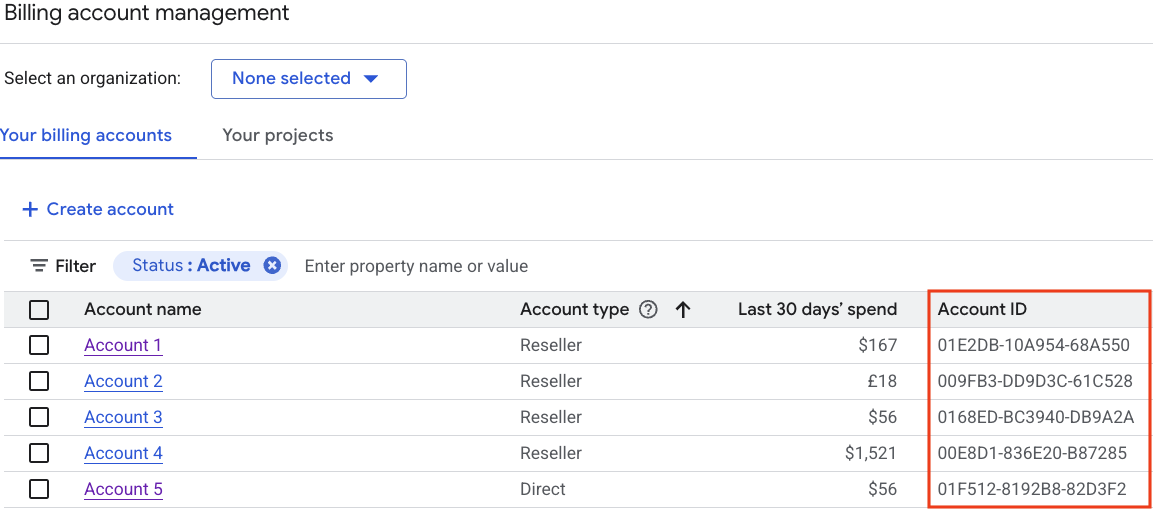
For every Cloud Billing Budget API call, you need your Cloud Billing account ID. Spend cap budgets are limited to first-party Google Cloud customers and Cloud Billing accounts. Reseller billing accounts are out of scope.
- Go to the Google Cloud console Manage billing accounts page.
- On the Your billing accounts tab, you see the list of Cloud Billing accounts by name and ID. Locate the Account ID value for the account where you manage budgets.
Key spend cap budget concepts and limitations
Spend cap budgets use gross, estimated costs to trigger alerts and enforce spend limits, blocking usage and cost accrual until the spend cap is lifted.
Spend cap budget field restrictions
When
spendCap
is set on a budget,
strict field restrictions
apply to the budget. See the field-level comments on
Filters,
BudgetAmount,
ThresholdRule,
NotificationsRule,
and
OwnershipScope.
- billing-account-id: Spend cap budgets are limited to first-party Google Cloud customers and Cloud Billing accounts. Reseller billing accounts are out of scope.
BudgetFiltersmust include the following parameters:- A spend cap budget is limited to budgets that are scoped (filtered) to a single Google Cloud project and a single eligible service.
- The budget period time range for a spend cap budget is limited to a
CalendarPeriodof aMONTH. - The cost calculations for spend caps are based on gross costs and don't
include savings and credits. You must set
creditTypesTreatmenttoEXCLUDE_ALL_CREDITS. - Other budget filters aren't supported for spend caps and must be empty,
including
resourceAncestors,credit_types,subaccounts, andlabels.
The
BudgetAmountmust use aspecifiedAmount. On input,currencyCodeis optional. If specified when creating a budget, the currency code must match the currency of the Cloud Billing account. ThecurrencyCodeis provided on output.ThresholdRulesmust contain exactly three rules withthresholdPercentvalues of0.5,0.8, and1.0(50%, 80%, and 100%), with aspendBasisset toCURRENT_SPENDorBASIS_UNSPECIFIED(FORECASTED_SPENDisn't supported for spend caps).NotificationsRulemust setenableProjectLevelRecipientstotrue. All otherNotificationsRuleparameters are unsupported.OwnershipScopemust be set toOWNERSHIP_SCOPE_UNSPECIFIEDorALL_USERS(BILLING_ACCOUNTisn't supported for spend caps).When creating a spend cap budget, the
inputStateparameter must be set toCONFIGURED.
How spend cap budgets work to help you control spend
Faster spend calculations using estimated costs: For faster enforcement of a spend cap amount, spend cap budgets use gross, estimated costs to trigger alerts and enforce the spend cap. The estimated costs are calculated based on the list price of services and don't include savings and credits.
Automatic pause of usage and cost accrual when the spend cap is triggered: In the specified project, when your gross, estimated usage costs for the specific service exceed your budget target amount, the spend cap is triggered and enforced for the remainder of the budget period. On the budget, the
outputStateparameter is set toENFORCED. While a spend cap is enforced, the following applies:- All new usage for the specific service in the specified project is paused, including on-demand, pay-as-you-go usage and usage covered by commitments such as Committed use discounts (CUDs) and Provisioned Throughput (PT).
- Any in-flight requests of the specified service are processed to completion, with charges accruing as applicable.
- Spend caps don't pause any on-going, fixed usage associated with persistent resources (such as compute and storage services), which remain active and continue to accrue charges.
- Important: While it's in an enforced state, you can't edit the settings of a spend cap budget or delete the budget. Before editing or deleting an enforced budget, you must first manually lift the spend cap.
Lift an enforced spend cap to restore services and spending: When a spend cap is enforced, usage of the specific service in the specified project is blocked until the spend cap is lifted. You can lift a spend cap in the following ways:
Automatically lift a spend cap: An enforced spend cap is automatically lifted at the start of the next budget period (typically the first day of the next month). When a spend cap is automatically lifted, the spend amount of the budget resets to zero, the spend cap state resets to
CONFIGURED, and the specified services are unblocked, restoring normal function to the API calls.Manually lift a spend cap: If you need to reverse a usage block during the same budget period when the spend cap is enforced, you can edit the budget to manually lift the spend cap. Manually lifting a spend cap has the following results:
- Manually lifting a spend cap restores normal function to the API calls.
- If you manually lift the spend cap by setting the
spend cap state
to
AWAITING_NEXT_PERIOD, the spend cap won't trigger again for the rest of the budget period, unless you subsequently edit the budget to increase the spend cap amount and set theinputStatetoCONFIGURED.
After a spend cap is lifted, services might take up to one hour to fully return to normal function.
Automatic reset of spend cap budgets: At the start of the next budget period (typically the first day of the next month), all spend cap budgets automatically reset, setting the gross, estimated spend amount to zero and the spend cap state to
CONFIGURED.
Quota limitation: Each individual Cloud Billing account can have several thousand budgets associated with it at a time. See Quotas and limits for current limits and additional information.
Calling the API
The following samples show how to send a few requests to the Cloud Billing Budget API to manage spend cap budgets.
Create a spend cap budget
This API method creates a Cloud Billing spend cap budget applied to a single project and eligible service.
REST
This sample shows how to create a spend cap budget for the use of the Gemini API service in a specific project. The budget is scoped (filtered) to a single Google Cloud project that you specify, a single eligible service, and set for a monthly budget amount of $100.
Before using any of the request data, make the following replacements:
projects/budget-scope-project-id: The Google Cloud project ID that you want to set as a budget scope (budgetFilter).services/eligible-service_id: One of the eligible service IDs that you want to set as a budget scope (budgetFilter). In the sample, we are using service IDAEFD-7695-64FAfor the Gemini API service.- billing-account-id: The Cloud Billing account ID this budget applies to. Spend cap budgets are limited to first-party Google Cloud customers and Cloud Billing accounts. Reseller billing accounts are out of scope.
- api-user-project-id: The Google Cloud project where the Cloud Billing Budget API is enabled.
HTTP method and URL:
POST https://billingbudgets.googleapis.com/v1/billingAccounts/billing-account-id/budgets
Request JSON body:
{
  "displayName": "My Gemini API Spend Cap",
  "budgetFilter": {
    "projects": [
      "projects/budget-scope-project-id"
    ],
    "services": [
      "services/AEFD-7695-64FA"
    ],
    "creditTypesTreatment": "EXCLUDE_ALL_CREDITS",
    "calendarPeriod": "MONTH"
 },
 "amount": {
   "specifiedAmount": {
     "units": "100",
     "nanos": 0
   }
 },
 "thresholdRules": [
   { "thresholdPercent": 0.5 },
   { "thresholdPercent": 0.8 },
   { "thresholdPercent": 1.0 }
 ],
 "notificationsRule": {
   "enableProjectLevelRecipients": true
 },
 "spendCap": {
   "inputState": "CONFIGURED"
 }
}
To send your request, expand one of these options:
You should receive a JSON response similar to the following:
{
  "name": "billingAccounts/000000-111111-222222/budgets/33333333-4444-5555-6666-777777777777",
  "displayName": "My Gemini API Spend Cap",
  "budgetFilter": {
    "projects": [
      "projects/123456789"
    ],
    "services": [
      "services/AEFD-7695-64FA"
    ],
    "creditTypesTreatment": "EXCLUDE_ALL_CREDITS",
    "calendarPeriod": "MONTH"
  },
  "amount": {
    "specifiedAmount": {
       "currencyCode": "USD",
       "units": "100"
     }
  },
  "thresholdRules": [
    {
      "thresholdPercent": 0.5,
      "spendBasis": "CURRENT_SPEND"
    },
    {
      "thresholdPercent": 0.8,
      "spendBasis": "CURRENT_SPEND"
    },
    {
      "thresholdPercent": 1,
      "spendBasis": "CURRENT_SPEND"
    }
  ],
  "notificationsRule": {
    "enableProjectLevelRecipients": true
  },
  "etag": "1790365289674138",
  "spendCap": {
    "outputState": "CONFIGURED"
  }
}
Lift a spend cap using PATCH
Use the PATCH API method to modify an
existing Cloud Billing spend cap budget
to manually lift an enforced spend cap.
REST
This sample shows how to manually lift an ENFORCED spend cap on
an existing budget by updating the
SpendCap.inputState parameter to AWAITING_NEXT_PERIOD.
Important:When the spend_cap.output_state is
ENFORCED, you must first lift the spend cap by sending an
UpdateBudget request to modify the
spend_cap.input_state, such as setting the
input_state to AWAITING_NEXT_PERIOD which will lift
the cap. If you attempt to modify any other budget field while the budget is in
an enforced state, the update request will fail with
FAILED_PRECONDITION.
To call this method, you need the budget-id of the
budget you want to update. You can get the budget ID from the
createBudget output when you create your budget, or
listBudgets output if you list all of your
budgets.
Before using any of the request data, make the following replacements:
- billing-account-id: The Cloud Billing account ID this budget applies to. Spend cap budgets are limited to first-party Google Cloud customers and Cloud Billing accounts. Reseller billing accounts are out of scope.
- budget-id: The ID of the budget you want to update.
- api-user-project-id: The Google Cloud project where the Cloud Billing Budget API is enabled.
HTTP method and URL:
PATCH https://billingbudgets.googleapis.com/v1/billingAccounts/billing-account-id/budgets/budget-id?updateMask=spendCap.inputState
Request JSON body:
{
  "spendCap": {
    "inputState": "AWAITING_NEXT_PERIOD"
 }
}
To send your request, expand one of these options:
You should receive a JSON response similar to the following:
{
  "name": "billingAccounts/000000-111111-222222/budgets/33333333-4444-5555-6666-777777777777",
  "displayName": "My Gemini API Spend Cap",
  "budgetFilter": {
    "projects": [
      "projects/123456789"
    ],
    "services": [
      "services/AEFD-7695-64FA"
    ],
    "creditTypesTreatment": "EXCLUDE_ALL_CREDITS",
    "calendarPeriod": "MONTH"
  },
  "amount": {
    "specifiedAmount": {
       "currencyCode": "USD",
       "units": "100"
     }
  },
  "thresholdRules": [
    {
      "thresholdPercent": 0.5,
      "spendBasis": "CURRENT_SPEND"
    },
    {
      "thresholdPercent": 0.8,
      "spendBasis": "CURRENT_SPEND"
    },
    {
      "thresholdPercent": 1,
      "spendBasis": "CURRENT_SPEND"
    }
  ],
  "notificationsRule": {
    "enableProjectLevelRecipients": true
  },
  "etag": "1790365289674138",
  "spendCap": {
    "outputState": "AWAITING_NEXT_PERIOD",
    "reconciling": true
  }
}
Update a spend cap budget using PATCH
Use this API method to modify an existing Cloud Billing spend cap budget to change the budget amount and the budget filters (budget scope).
REST
This sample shows how to update an existing spend cap budget to change the
budget amount. If the
spend cap state is AWAITING_NEXT_PERIOD, this sample also
shows how to reset a lifted spend cap by updating the
SpendCap.inputState parameter to CONFIGURED.
To call this method, you need the budget-id of the
budget you want to update. You can get the budget ID from the
createBudget output when you create your budget, or
listBudgets output if you list all of your
budgets.
Before using any of the request data, make the following replacements:
projects/budget-scope-project-id: The Google Cloud project ID you want to set as a budget scope (budgetFilter).services/eligible-service_id: One of the eligible service IDs that you want to set as a budget scope (budgetFilter). In the sample, we are using service IDAEFD-7695-64FAfor the Gemini API service.- billing-account-id: The Cloud Billing account ID this budget applies to. Spend cap budgets are limited to first-party Google Cloud customers and Cloud Billing accounts. Reseller billing accounts are out of scope.
- budget-id: The ID of the budget you want to update.
- api-user-project-id: The Google Cloud project where the Cloud Billing Budget API is enabled.
HTTP method and URL:
PATCH https://billingbudgets.googleapis.com/v1/billingAccounts/billing-account-id/budgets/budget-id?updateMask=amount.specifiedAmount,spendCap.inputState
Request JSON body:
{
  "displayName": "My Gemini API Spend Cap",
  "budgetFilter": {
    "projects": [
      "projects/budget-scope-project-id"
    ],
    "services": [
      "services/AEFD-7695-64FA"
    ],
    "creditTypesTreatment": "EXCLUDE_ALL_CREDITS",
    "calendarPeriod": "MONTH"
 },
 "amount": {
   "specifiedAmount": {
     "units": "500",
     "nanos": 0
   }
 },
 "thresholdRules": [
   { "thresholdPercent": 0.5 },
   { "thresholdPercent": 0.8 },
   { "thresholdPercent": 1.0 }
 ],
 "notificationsRule": {
   "enableProjectLevelRecipients": true
 },
 "spendCap": {
   "inputState": "CONFIGURED"
 }
}
To send your request, expand one of these options:
You should receive a JSON response similar to the following:
{
  "name": "billingAccounts/000000-111111-222222/budgets/33333333-4444-5555-6666-777777777777",
  "displayName": "My Gemini API Spend Cap",
  "budgetFilter": {
    "projects": [
      "projects/123456789"
    ],
    "services": [
      "services/AEFD-7695-64FA"
    ],
    "creditTypesTreatment": "EXCLUDE_ALL_CREDITS",
    "calendarPeriod": "MONTH"
  },
  "amount": {
    "specifiedAmount": {
       "currencyCode": "USD",
       "units": "500"
     }
  },
  "thresholdRules": [
    {
      "thresholdPercent": 0.5,
      "spendBasis": "CURRENT_SPEND"
    },
    {
      "thresholdPercent": 0.8,
      "spendBasis": "CURRENT_SPEND"
    },
    {
      "thresholdPercent": 1,
      "spendBasis": "CURRENT_SPEND"
    }
  ],
  "notificationsRule": {
    "enableProjectLevelRecipients": true
  },
  "etag": "1790365289674138",
  "spendCap": {
    "outputState": "CONFIGURED"
  }
}
List budgets
This API method lists all budgets available for a given Cloud Billing account.
REST
Before using any of the request data, make the following replacements:
- billing-account-id: The Cloud Billing account ID the budgets apply to. Spend cap budgets are limited to first-party Google Cloud customers and Cloud Billing accounts. Reseller billing accounts are out of scope.
- project-id: The Google Cloud project where the Cloud Billing Budget API is enabled.
HTTP method and URL:
GET https://billingbudgets.googleapis.com/v1/billingAccounts/billing-account-id/budgets
To send your request, expand one of these options:
You should receive a JSON response similar to the following:
{
  "budgets": [
   {
      "name": "billingAccounts/000000-111111-222222/budgets/33333333-4444-5555-6666-777777777777",
      "displayName": "Gemini API Spend Cap in My Project",
      "budgetFilter": {
        "projects": [
          "projects/987654321"
        ],
        "services": [
          "services/AEFD-7695-64FA"
        ],
        "creditTypesTreatment": "EXCLUDE_ALL_CREDITS",
        "calendarPeriod": "MONTH"
      },
      "amount": {
        "specifiedAmount": {
          "currencyCode": "USD",
          "units": "500"
        }
      },
      "thresholdRules": [
        {
          "thresholdPercent": 0.5,
          "spendBasis": "CURRENT_SPEND"
        },
        {
          "thresholdPercent": 0.8,
          "spendBasis": "CURRENT_SPEND"
        },
        {
          "thresholdPercent": 1,
          "spendBasis": "CURRENT_SPEND"
        }
      ],
      "notificationsRule": {
        "enableProjectLevelRecipients": true
      },
      "allUpdatesRule": {},
      "etag": "17fc365289f74138c",
      "spendCap": {
        "outputState": "ENFORCED"
      }
    }
  ]
}
Get budget
This API method gets the details for a particular budget.
REST
To call this method, you need the budget-id of the
budget you want to update. You can get the budget ID from the
createBudget output when you create your budget, or
listBudgets output if you list all of your
budgets.
Before using any of the request data, make the following replacements:
- billing-account-id: The Cloud Billing account ID this budget applies to. Spend cap budgets are limited to first-party Google Cloud customers and Cloud Billing accounts. Reseller billing accounts are out of scope.
- budget-id: The ID of the budget you want to get.
- project-id: The Google Cloud project where the Cloud Billing Budget API is enabled.
HTTP method and URL:
GET https://billingbudgets.googleapis.com/v1/billingAccounts/billing-account-id/budgets/budget-id
To send your request, expand one of these options:
You should receive a JSON response similar to the following:
{
  "name": "billingAccounts/000000-111111-222222/budgets/33333333-4444-5555-6666-777777777777",
  "displayName": "Cloud Run Spend Cap in My Project",
  "budgetFilter": {
    "projects": [
      "projects/987654321"
    ],
    "services": [
      "services/152E-C115-5142"
    ],
    "creditTypesTreatment": "EXCLUDE_ALL_CREDITS",
    "calendarPeriod": "MONTH"
  },
  "amount": {
    "specifiedAmount": {
       "currencyCode": "USD",
       "units": "450"
     }
  },
  "thresholdRules": [
    {
      "thresholdPercent": 0.5,
      "spendBasis": "CURRENT_SPEND"
    },
    {
      "thresholdPercent": 0.8,
      "spendBasis": "CURRENT_SPEND"
    },
    {
      "thresholdPercent": 1,
      "spendBasis": "CURRENT_SPEND"
    }
  ],
  "notificationsRule": {
    "enableProjectLevelRecipients": true
  },
  "allUpdatesRule": {},
  "etag": "c9d6c011f6fa6b5c",
  "spendCap": {
    "outputState": "CONFIGURED"
  }
}
Delete a budget
Use this API method to delete an existing Cloud Billing budget.
REST
To call this method, you need the budget-id of the
budget you want to update. You can get the budget ID from the
createBudget output when you create your budget, or
listBudgets output if you list all of your
budgets.
Before using any of the request data, make the following replacements:
- billing-account-id: The Cloud Billing account ID this budget applies to.
- budget-id: The ID of the budget you want to delete.
- project-id: The Google Cloud project where the Cloud Billing Budget API is enabled.
HTTP method and URL:
DELETE https://billingbudgets.googleapis.com/v1/billingAccounts/billing-account-id/budgets/budget-id
To send your request, expand one of these options:
You should receive a JSON response similar to the following:
{}