

You can configure Google Cloud Armor security policies to protect your services from denial-of-service (DoS) and web attacks. These policies use Google's global infrastructure to secure your applications and control traffic flowing through load balancers.
This document provides example security policy configurations for various types of load balancers.
Configure security policies for external Application Load Balancers
To configure Google Cloud Armor security policies to allow or deny traffic to a global external Application Load Balancer or a classic Application Load Balancer, you do the following :
- Create a Cloud Armor security policy.
- Add rules based on IP addresses, custom expressions, or preconfigured expression sets.
- Attach the security policy to a backend service.
- Update the security policy as required.
In this example, you create two Cloud Armor security policies and apply them to different backend services.
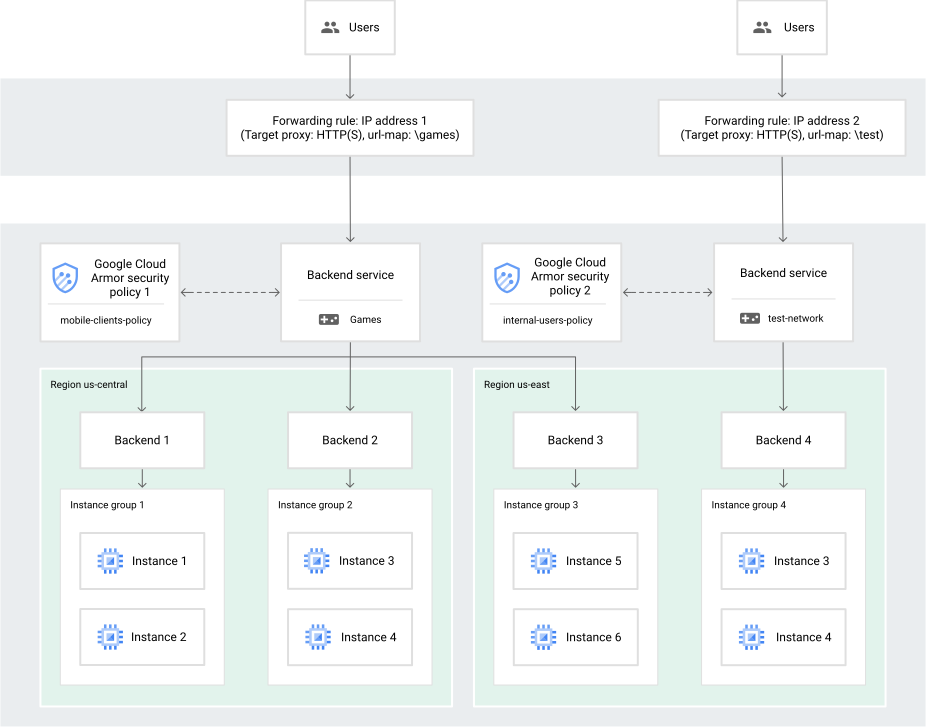
In the example, these are the Cloud Armor security policies:
mobile-clients-policyapplies to external users of yourgamesservices.internal-users-policyapplies to your organization'stest-networkteam.
You apply mobile-clients-policy to the games service, whose backend service
is called games, and you apply internal-users-policy to the internal test
service for the testing team, whose corresponding backend service is called
test-network.
If the backend instances for a backend service are in multiple regions,
the policy applies to instances in all regions. In this example,
mobile-clients-policy applies to instances 1, 2, 3, and 4 in us-central
and to instances 5 and 6 in us-east.
Create the example
Follow the steps in this section to create the example configuration discussed in the previous section.
Console
Configure the security policy for external users:
In the Google Cloud console, go to the Cloud Armor policies page.
Click Create policies.
In the Name field, enter
mobile-clients-policy.In the Description field, enter
Policy for external users.For Default rule action, select Deny.
For Deny status, select 404 (Not Found).
Click Next step.
Add more rules:
- Click Add rule.
- In the Description field, enter
allow traffic from 192.0.2.0/24. - For Mode, select Basic mode (IP addresses/ranges only).
- In the Match field, enter
192.0.2.0/24. - For Action, select Allow.
- In the Priority field, enter
1000. - Click Done.
- Click Next step.
Apply policy to targets:
- Click Add Target.
- In the Target list, select a target.
- Click Done.
- Click Create policy.
Optionally, enable Google Cloud Armor Adaptive Protection:
- To enable Adaptive Protection, select Enable.
Configure the security policy for internal users:
- Click Create policies.
- In the Name field, enter
internal-users-policy. - In the Description field, enter
Policy for internal test users. - For Default rule action, select Deny.
- For Deny status, select 502 (Bad Gateway).
- Click Next step.
Add more rules:
- Click Add rule.
- In the Description field, enter
allow traffic from 198.51.100.0/24. - For Mode, select Basic mode (IP addresses/ranges only).
- In the Match field, enter
198.51.100.0/24. - For Action, select Allow.
- For Preview only, select the Enable checkbox.
- In the Priority field, enter
1000. - Click Done.
- Click Next step.
Apply policy to targets:
- Click Add Target.
- In the Target list, select a target.
- Click Done.
- Click Create policy.
gcloud
Create the Cloud Armor security policies:
gcloud compute security-policies create mobile-clients-policy \
    --description "policy for external users"
gcloud compute security-policies create internal-users-policy \ --description "policy for internal test users"Update the default rules to the security policies to deny traffic:
gcloud compute security-policies rules update 2147483647 \
    --security-policy mobile-clients-policy \
    --action "deny-404"
gcloud compute security-policies rules update 2147483647 \ --security-policy internal-users-policy \ --action "deny-502"Add rules to the security policies:
gcloud compute security-policies rules create 1000 \
    --security-policy mobile-clients-policy \
    --description "allow traffic from 192.0.2.0/24" \
    --src-ip-ranges "192.0.2.0/24" \
    --action "allow"
gcloud compute security-policies rules create 1000 \ --security-policy internal-users-policy \ --description "allow traffic from 198.51.100.0/24" \ --src-ip-ranges "198.51.100.0/24" \ --action "allow"Attach the security policies to the backend services:
gcloud compute backend-services update games \
    --security-policy mobile-clients-policy
gcloud compute backend-services update test-network \ --security-policy internal-users-policyOptionally, enable Adaptive Protection:
 gcloud compute security-policies update mobile-clients-policy \
     --enable-layer7-ddos-defense
gcloud compute security-policies update internal-users-policy \ --enable-layer7-ddos-defense
Create security policies
Use the Google Cloud console or the gcloud CLI to create security policies. These instructions assume that you're configuring policies for an existing load balancer and backend service. For an example, see Create the example.
Console
To create rules and attach a security policy to a backend service, you do the following:
In the Google Cloud console, go to the Cloud Armor policies page.
Click Create policies.
In the Name field, enter the name of your policy.
Optional: Enter a description of the policy.
For Policy type choose Backend security policy or Edge security policy.
For Default rule action, select Allow to permit access by default, or select Deny to refuse access by default.
The default rule is the lowest priority rule that takes effect only if no other rule applies.
If you configure a Deny rule, select a deny status Response code. Cloud Armor returns this status code if a request is denied.
Click Next step.
Add more rules:
- Click Add rule.
- Optional: Enter a description for the rule.
Select the mode:
- Basic mode: allow or deny traffic based on IP addresses or IP ranges.
- Advanced mode: allow or deny traffic based on rule expressions.
In the Match field, specify the conditions that the rule applies to:
- Basic mode: enter IP addresses or IP ranges to match in the rule.
- Advanced mode: enter an expression to evaluate against incoming requests. See custom rules language attributes.
For Action, select Allow or Deny.
To enable preview mode, select Enable. In preview mode, Cloud Armor logs the rule's effect without enforcing it.
Enter the rule's Priority (0 to 2,147,483,646). See Rule evaluation order.
Click Done.
To add more rules, click Add rule. Otherwise, click Next step.
Apply policy to targets:
- Click Add Target.
- In the Target list, select a target.
- To add more targets, click Add Target.
- Click Done.
- Click Create policy.
gcloud
To create a Cloud Armor security policy, use the
gcloud compute security-policies createcommand.Use the
--typeflag to specifyCLOUD_ARMOR(backend) orCLOUD_ARMOR_EDGE(edge). If you omit the flag, Cloud Armor creates a backend security policy:gcloud compute security-policies create NAME \ [--type=CLOUD_ARMOR|CLOUD_ARMOR_EDGE] \ [--file-format=FILE_FORMAT | --description=DESCRIPTION] \ [--file-name=FILE_NAME]Replace the following:
NAME: the name of the security policyFILE_FORMAT: the format of the file specified in--file-name; specifyyamlorjsonDESCRIPTION: the description of the security policyFILE_NAME: the name of a file that contains either a YAML or JSON export of the security policy
The following command updates a policy, turns JSON parsing on, and changes the log level to
VERBOSE:gcloud compute security-policies update my-policy \ --json-parsing=STANDARD \ --log-level=VERBOSETo add rules to a security policy, use the
gcloud compute security-policies rules create PRIORITYcommand.gcloud compute security-policies rules create PRIORITY \ [--security-policy POLICY_NAME] \ [--description DESCRIPTION] \ --src-ip-ranges IP_RANGE,... | --expression EXPRESSION \ --action=[ allow | deny-403 | deny-404 | deny-502 ] \ [--preview]Replace the following:
PRIORITY: the rule priority. See Rule evaluation orderPOLICY_NAME: the name of your security policyDESCRIPTION: a description of the ruleIP_RANGE,...: a comma-separated list of IP address rangesEXPRESSION: a Cloud Armor rules language expression
For example, the following command adds a rule to block traffic from
192.0.2.0/24and198.51.100.0/24. The rule has priority 1000:gcloud compute security-policies rules create 1000 \ --security-policy my-policy \ --description "block traffic from 192.0.2.0/24 and 198.51.100.0/24" \ --src-ip-ranges "192.0.2.0/24","198.51.100.0/24" \ --action "deny-403"With the
--previewflag added, the rule is added to the policy, but not enforced, and any traffic that triggers the rule is only logged.gcloud compute security-policies rules create 1000 \ --security-policy my-policy \ --description "block traffic from 192.0.2.0/24 and 198.51.100.0/24" \ --src-ip-ranges "192.0.2.0/24","198.51.100.0/24" \ --action "deny-403" \ --previewUse the
--expressionflag to specify a custom condition. See custom rules language attributes. The following command adds a rule to allow traffic from the IP address1.2.3.4that contains the stringexamplein theUser-Agentheader:gcloud compute security-policies rules create 1000 \ --security-policy my-policy \ --expression "inIpRange(origin.ip, '1.2.3.4/32') && has(request.headers['user-agent']) && request.headers['user-agent'].contains('example')" \ --action allow \ --description "Block User-Agent 'example'"The following command adds a rule to block requests if the request's cookie contains a specific value:
 gcloud compute security-policies rules create 1000 \
     --security-policy my-policy \
     --expression "has(request.headers['cookie']) && request.headers['cookie'].contains('cookie_name=cookie_value')" \
     --action "deny-403" \
     --description "Cookie Block"
The following command adds a rule to block requests from the region
AU:gcloud compute security-policies rules create 1000 \ --security-policy my-policy \ --expression "origin.region_code == 'AU'" \ --action "deny-403" \ --description "AU block"The following command adds a rule to block requests from the region
AUthat are not in the specified IP range:gcloud compute security-policies rules create 1000 \ --security-policy my-policy \ --expression "origin.region_code == 'AU' && !inIpRange(origin.ip, '1.2.3.0/24')" \ --action "deny-403" \ --description "country and IP block"The following command adds a rule to block requests with a URI that matches a regular expression:
 gcloud compute security-policies rules create 1000 \
     --security-policy my-policy \
     --expression "request.path.matches('/example_path/')" \
     --action "deny-403" \
     --description "regex block"
The following command adds a rule to block requests if the Base64 decoded value of the
user-idheader contains a specific value:gcloud compute security-policies rules create 1000 \ --security-policy my-policy \ --expression "has(request.headers['user-id']) && request.headers['user-id'].base64Decode().contains('myValue')" \ --action "deny-403" \ --description "country and IP block"The following command adds a rule that uses a preconfigured expression set to mitigate SQLi attacks:
 gcloud compute security-policies rules create 1000 \
     --security-policy my-policy \
     --expression "evaluatePreconfiguredWaf('sqli-v422-stable')" \
     --action "deny-403"
The following command adds a rule that uses a preconfigured expression to allow access from all IP addresses on a named IP address list:
 gcloud compute security-policies rules create 1000 \
     --security-policy my-policy \
     --expression "evaluatePreconfiguredWaf('sourceiplist-fastly')" \
      --action "allow"
Configure security policies for regional external Application Load Balancers
Follow the steps in this section to configure regionally scoped Cloud Armor security policies for regional external Application Load Balancers.
Protect regionally load balanced workloads
Follow the steps in this section to configure a security policy for a regionally scoped backend service:
Create a regionally scoped security policy.
 gcloud compute security-policies create POLICY_NAME \
     --type=CLOUD_ARMOR \
     --region=REGION
Replace the following:
POLICY_NAME: the name of the security policyREGION: the region where to create the security policy
Attach the regionally scoped security policy to a regionally scoped backend service. Replace
BACKEND_NAMEwith the name of your existing regionally scoped backend service.gcloud compute backend-services update BACKEND_NAME \ --security-policy=POLICY_NAME \ --region=REGION
Example: apply a regionally scoped security policy
In this example, as a security administrator, you want to satisfy a residency requirement that all backend workloads and WAF rules are deployed in a specific region. Assume you have already met the following conditions:
- You created regionally scoped load-balanced backend services in the region.
- You disabled any existing globally scoped security policies in your deployment.
- You created and attached a regionally scoped security policy in the same region (as in the previous section).
You can add WAF rules and other advanced rules to your policy by using these commands:
Add a WAF rule to the policy:
gcloud compute security-policies rules create 1000 --action=deny-404 \
    --expression="evaluatePreconfiguredWaf('xss-v422-stable', ['owasp-crs-v042200-id941100-xss', 'owasp-crs-v042200-id941160-xss'])" \
    --security-policy=POLICY_NAME \
    --region=REGION
Replace the following:
POLICY_NAME: the name of the security policyREGION: the region of the security policy
Add an advanced rule to the policy:
gcloud compute security-policies rules create 1000 --action=allow \
    --expression="has(request.headers['cookie']) && request.headers['cookie'].contains('80=EXAMPLE')" \
    --security-policy=POLICY_NAME \
    --region=REGION
Add a rate limiting rule to the policy:
gcloud compute security-policies rules create 1000 --action=throttle \
    --src-ip-ranges="1.1.1.1/32" \
    --rate-limit-threshold-count=1000 \
    --rate-limit-threshold-interval-sec=120 \
    --conform-action="allow" \
    --exceed-action="deny-429" \
    --enforce-on-key=IP \
    --ban-duration-sec=999 \
    --ban-threshold-count=5000 \
    --ban-threshold-interval-sec=60 \
    --security-policy=POLICY_NAME \
    --region=REGION
Replace the following:
POLICY_NAME: the name of the security policyREGION: the region of the security policy
What's next
- Create and view Cloud Armor security policies
- Learn more about rate limiting.