

For information about how to use filtered vector search to refine your similarity searches, see Filtered vector search in AlloyDB Omni.
To learn how to perform a vector search with Vertex AI embeddings, see Getting started with Vector Embeddings with AlloyDB Omni AI.
Objectives
- Create an AlloyDB Omni cluster and primary instance.
- Connect to your database and install required extensions.
- Create a
productandproduct inventorytable. - Insert data to the
productandproduct inventorytables and perform a basic vector search. - Create a ScaNN index on the products table.
- Perform a basic vector search.
- Perform a complex vector search with a filter and a join.
Costs
In this document, you use the following billable components of Google Cloud:
To generate a cost estimate based on your projected usage, use the pricing calculator.
New Google Cloud users might be eligible for a free trial.
When you finish the tasks that are described in this document, you can avoid continued billing by deleting the resources that you created. For more information, see Clean up.
Prerequisites
Complete the following prerequisites before performing a vector search:
- Install AlloyDB AI in AlloyDB Omni
-
Run and connect to AlloyDB Omni
as the
postgresuser. -
Install the
vector,alloydb_scann, and thegoogle_ml_integrationextensions.CREATE EXTENSION IF NOT EXISTS vector; CREATE EXTENSION IF NOT EXISTS alloydb_scann; CREATE EXTENSION IF NOT EXISTS google_ml_integration CASCADE;
Insert product and product inventory data and perform a basic vector search
Run the following statement to create a
producttable that does the following:- Stores basic product information.
- Includes an
embeddingvector column that computes and stores an embedding vector for a product description of each product.
  CREATE TABLE product (
    id INT PRIMARY KEY,
    name VARCHAR(255) NOT NULL,
    description TEXT,
    category VARCHAR(255),
    color VARCHAR(255),
    embedding vector(768) GENERATED ALWAYS AS (embedding('text-embedding-005', description)) STORED
  );
If needed, you can view the logs and troubleshoot errors.
Run the following query to create a
product_inventorytable that stores information about available inventory and corresponding prices. Theproduct_inventoryandproducttables are used in this tutorial to run complex vector search queries.CREATE TABLE product_inventory ( id INT PRIMARY KEY, product_id INT REFERENCES product(id), inventory INT, price DECIMAL(10,2) );Run the following query to insert product data into the
producttable:INSERT INTO product (id, name, description,category, color) VALUES (1, 'Stuffed Elephant', 'Soft plush elephant with floppy ears.', 'Plush Toys', 'Gray'), (2, 'Remote Control Airplane', 'Easy-to-fly remote control airplane.', 'Vehicles', 'Red'), (3, 'Wooden Train Set', 'Classic wooden train set with tracks and trains.', 'Vehicles', 'Multicolor'), (4, 'Kids Tool Set', 'Toy tool set with realistic tools.', 'Pretend Play', 'Multicolor'), (5, 'Play Food Set', 'Set of realistic play food items.', 'Pretend Play', 'Multicolor'), (6, 'Magnetic Tiles', 'Set of colorful magnetic tiles for building.', 'Construction Toys', 'Multicolor'), (7, 'Kids Microscope', 'Microscope for kids with different magnification levels.', 'Educational Toys', 'White'), (8, 'Telescope for Kids', 'Telescope designed for kids to explore the night sky.', 'Educational Toys', 'Blue'), (9, 'Coding Robot', 'Robot that teaches kids basic coding concepts.', 'Educational Toys', 'White'), (10, 'Kids Camera', 'Durable camera for kids to take pictures and videos.', 'Electronics', 'Pink'), (11, 'Walkie Talkies', 'Set of walkie talkies for kids to communicate.', 'Electronics', 'Blue'), (12, 'Karaoke Machine', 'Karaoke machine with built-in microphone and speaker.', 'Electronics', 'Black'), (13, 'Kids Drum Set', 'Drum set designed for kids with adjustable height.', 'Musical Instruments', 'Blue'), (14, 'Kids Guitar', 'Acoustic guitar for kids with nylon strings.', 'Musical Instruments', 'Brown'), (15, 'Kids Keyboard', 'Electronic keyboard with different instrument sounds.', 'Musical Instruments', 'Black'), (16, 'Art Easel', 'Double-sided art easel with chalkboard and whiteboard.', 'Arts & Crafts', 'White'), (17, 'Finger Paints', 'Set of non-toxic finger paints for kids.', 'Arts & Crafts', 'Multicolor'), (18, 'Modeling Clay', 'Set of colorful modeling clay.', 'Arts & Crafts', 'Multicolor'), (19, 'Watercolor Paint Set', 'Watercolor paint set with brushes and palette.', 'Arts & Crafts', 'Multicolor'), (20, 'Beading Kit', 'Kit for making bracelets and necklaces with beads.', 'Arts & Crafts', 'Multicolor'), (21, '3D Puzzle', '3D puzzle of a famous landmark.', 'Puzzles', 'Multicolor'), (22, 'Race Car Track Set', 'Race car track set with cars and accessories.', 'Vehicles', 'Multicolor'), (23, 'RC Monster Truck', 'Remote control monster truck with oversized tires.', 'Vehicles', 'Green'), (24, 'Train Track Expansion Set', 'Expansion set for wooden train tracks.', 'Vehicles', 'Multicolor');Optional: Run the following query to verify that the data is inserted in the
producttable:SELECT * FROM product;Run the following query to insert inventory data into the
product_inventorytable:INSERT INTO product_inventory (id, product_id, inventory, price) VALUES (1, 1, 9, 13.09), (2, 2, 40, 79.82), (3, 3, 34, 52.49), (4, 4, 9, 12.03), (5, 5, 36, 71.29), (6, 6, 10, 51.49), (7, 7, 7, 37.35), (8, 8, 6, 10.87), (9, 9, 7, 42.47), (10, 10, 3, 24.35), (11, 11, 4, 10.20), (12, 12, 47, 74.57), (13, 13, 5, 28.54), (14, 14, 11, 25.58), (15, 15, 21, 69.84), (16, 16, 6, 47.73), (17, 17, 26, 81.00), (18, 18, 11, 91.60), (19, 19, 8, 78.53), (20, 20, 43, 84.33), (21, 21, 46, 90.01), (22, 22, 6, 49.82), (23, 23, 37, 50.20), (24, 24, 27, 99.27);Run the following vector search query that tries to find products that are similar to the word
music. This means that even though the wordmusicisn't explicitly mentioned in the product description, the result shows products that are relevant to the query:SELECT * FROM product ORDER BY embedding <=> embedding('text-embedding-005', 'music')::vector LIMIT 3;The result of the query is as follows:
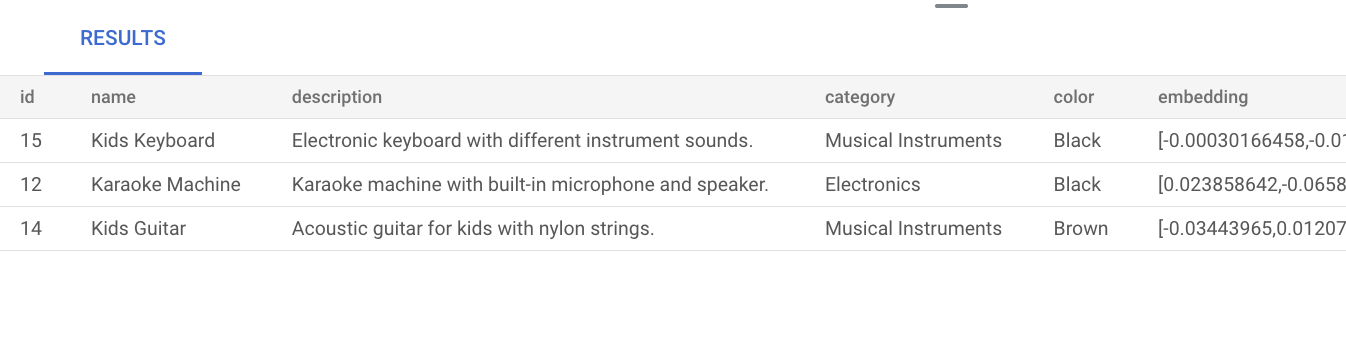
Performing a basic vector search without creating an index uses exact nearest neighbor search (KNN), which provides efficient recall. At scale, using KNN might impact performance. For a better query performance, we recommend that you use the ScaNN index for approximate nearest neighbor (ANN) search, which provides high recall with low latencies.
Without creating an index, AlloyDB Omni defaults to using exact nearest-neighbor search (KNN).
To learn more about using ScaNN at scale, see Getting started with Vector Embeddings with AlloyDB AI.
Create a manually-tuned ScaNN index on products table
Run the following query to create a product_index ScaNN index on the product
table:
CREATE INDEX product_index ON product
USING scann (embedding cosine)
WITH (mode='MANUAL', num_leaves=4);
For more information on creating a ScaNN index, see Create a ScaNN index.
Perform a vector search
Run the following vector search query that tries to find products that are similar to the natural
language query music. Even though the word music isn't included in the
product description, the result shows products that are relevant to the query:
SET LOCAL scann.num_leaves_to_search = 2;
SELECT * FROM product
ORDER BY embedding <=> embedding('text-embedding-005', 'music')::vector
LIMIT 3;
The query results are as follows:

The scann.num_leaves_to_search query parameter controls the number of leaf
nodes that are searched during a similarity search. The num_leaves and
scann.num_leaves_to_search parameter values help to achieve a balance of
performance and recall.
Perform a vector search that uses a filter and a join
You can run filtered vector search queries efficiently even when you use the ScaNN index. Run the following complex vector search query, which returns relevant results that satisfy the query conditions, even with filters:
SET LOCAL scann.num_leaves_to_search = 2;

SELECT * FROM product p
JOIN product_inventory pi ON p.id = pi.product_id
WHERE pi.price < 80.00
ORDER BY embedding <=> embedding('text-embedding-005', 'music')::vector
LIMIT 3;
Accelerate your filtered vector search
You can use the columnar engine content store to improve the performance of
vector similarity searches, specifically K-Nearest Neighbor (KNN) searches, when
combined with highly selective predicate filtering —for example, using
LIKE— in databases. In this section, you use the vector extension and
the AlloyDB Omni
google_columnar_engine extension.
For more information on how the columnar engine works, see
Columnar engine overview.
Performance improvements come from the columnar engine's built-in efficiency
in scanning large datasets and applying filters —such as LIKE
predicates— coupled with its ability, using vector support, to pre-filter
rows. This functionality reduces the number of data subsets required for
subsequent KNN vector distance calculations, and it helps to optimize complex
analytical queries involving standard filtering and vector search.
The columnar store offers two options to manage its content:
- Automatically manage the column store content: new AlloyDB Omni instances use auto-columnarization by default. Alternatively, you can manually run the auto columnarization functionality.
- Manage column store content manually: if you need to manually manage the columns in the column store for your workload, you can disable auto columnarization.
To compare the execution time of a KNN vector search filtered by a LIKE
predicate before and after you enable the columnar engine, follow these steps:
-
Enable the
vectorextension to support vector data types and operations. Run the following statements to create an example table (items) with an ID, a text description, and a 512-dimension vector embedding column.CREATE EXTENSION IF NOT EXISTS vector; CREATE TABLE items ( id SERIAL PRIMARY KEY, description TEXT, embedding VECTOR(512) );
-
Populate the data by running the following statements to insert 1 million rows into the example
itemstable.-- Simplified example of inserting matching (~0.1%) and non-matching data INSERT INTO items (description, embedding) SELECT CASE WHEN g % 1000 = 0 THEN 'product_' || md5(random()::text) || '_common' -- ~0.1% match ELSE 'generic_item_' || g || '_' || md5(random()::text) -- ~99.9% don't match END, (SELECT array_agg(random()) FROM generate_series(1, 512))::vector FROM generate_series(1, 999999) g;
-
Measure the baseline performance of the vector similarity search without the columnar engine.
SELECT id, description, embedding <-> '[...]' AS distance
FROM items
WHERE description LIKE '%product_%_common%'
ORDER BY embedding <-> '[...]'
LIMIT 100;
-
Enable columnar engine and vector support.
-
Enable the
google_columnar_engine.enabledandgoogle_columnar_engine.enable_vector_supportdatabase flags.ALTER SYSTEM SET google_columnar_engine.enabled = 'on'; ALTER SYSTEM SET google_columnar_engine.enable_vector_support = 'on';
-
Restart AlloyDB Omni
Docker
docker restart CONTAINER_NAMEDocker
docker restart CONTAINER_NAMEPodman
podman restart CONTAINER_NAMEPodman
podman restart CONTAINER_NAMEReplace
CONTAINER_NAMEwith the name of the container you created in Install AlloyDB Omni in containers.
-
-
Add the
itemstable to the columnar engine:SELECT google_columnar_engine_add('items');
-
Measure the performance of the vector similarity search using the columnar engine. You re-run the query that you previously ran to measure baseline performance.
SELECT id, description, embedding <-> '[...]' AS distance
FROM items
WHERE description LIKE '%product_%_common%'
ORDER BY embedding <-> '[...]'
LIMIT 100;
-
To check whether the query ran with the columnar engine, run the following command:
explain (analyze) SELECT id, description, embedding <-> '[...]' AS distance
FROM items
WHERE description LIKE '%product_%_common%'
ORDER BY embedding <-> '[...]'
LIMIT 100;
Clean up
To uninstall AlloyDB Omni, see Manage and monitor AlloyDB Omni.