


Pengenalan Karakter Optik (OCR)
Cloud Vision API memungkinkan Anda menggunakan kemampuan pengenalan karakter optik (OCR) untuk deteksi teks dari gambar. Artinya, Anda dapat menggunakan Cloud Vision untuk tugas computer vision seperti analisis gambar dan deteksi teks dokumen padat, termasuk ekstraksi tulisan tangan.
Cloud Vision API menyediakan dua fitur anotasi yang mendukung pengenalan karakter optik (OCR):
TEXT_DETECTIONmendeteksi dan mengekstrak teks dari gambar apa pun. Misalnya, foto mungkin berisi rambu jalan atau rambu lalu lintas. JSON mencakup seluruh string yang diekstrak, serta setiap kata, dan kotak pembatasnya.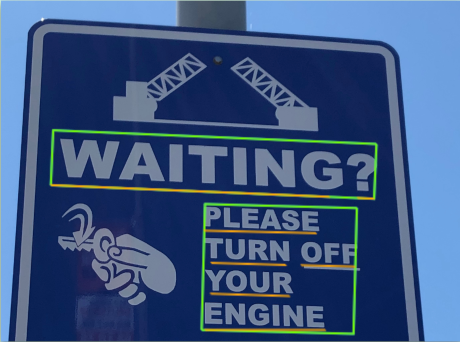
DOCUMENT_TEXT_DETECTIONjuga mengekstrak teks dari gambar, tetapi responsnya dioptimalkan untuk teks dan dokumen yang padat. JSON mencakup informasi halaman, blok, paragraf, kata, dan jeda.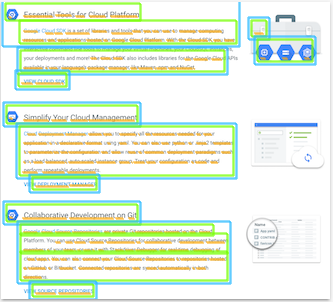
Pelajari lebih lanjut
DOCUMENT_TEXT_DETECTIONuntuk ekstraksi tulisan tangan dan ekstraksi teks dari file (PDF atau TIFF).
Coba sendiri
Jika Anda baru menggunakan Google Cloud, buat akun untuk mengevaluasi performa Cloud Vision dalam skenario dunia nyata. Pelanggan baru juga akan mendapatkan kredit gratis senilai $300 untuk menjalankan, menguji, dan men-deploy workload.
Coba Cloud Vision gratisPermintaan deteksi teks
Menyiapkan project dan autentikasi Google Cloud
Deteksi teks di gambar lokal
Anda dapat menggunakan Vision API untuk melakukan deteksi fitur pada file gambar lokal.
Untuk permintaan REST, kirim konten file gambar sebagai string yang berenkode base64 dalam isi permintaan Anda.
Untuk gcloud dan permintaan library klien, tentukan jalur ke image lokal dalam
permintaan Anda.
gcloud
Untuk melakukan deteksi teks, gunakan perintah gcloud ml vision
detect-text:
gcloud ml vision detect-text ./path/to/local/file.jpg
REST
Sebelum menggunakan salah satu data permintaan, buat penggantian berikut:
- BASE64_ENCODED_IMAGE: Representasi
base64 (string ASCII) dari data gambar biner Anda. String ini akan terlihat seperti
string berikut:
/9j/4QAYRXhpZgAA...9tAVx/zDQDlGxn//2Q==
- PROJECT_ID: Project ID Google Cloud Anda.
Metode HTTP dan URL:
POST https://vision.googleapis.com/v1/images:annotate
Meminta isi JSON:
{
  "requests": [
    {
      "image": {
        "content": "BASE64_ENCODED_IMAGE"
      },
      "features": [
        {
          "type": "TEXT_DETECTION"
        }
      ]
    }
  ]
}
Untuk mengirim permintaan Anda, pilih salah satu opsi berikut:
curl
Simpan isi permintaan dalam file bernama request.json,
dan jalankan perintah berikut:
curl -X POST \
     -H "Authorization: Bearer $(gcloud auth print-access-token)" \
     -H "x-goog-user-project: PROJECT_ID" \
     -H "Content-Type: application/json; charset=utf-8" \
     -d @request.json \
     "https://vision.googleapis.com/v1/images:annotate"
PowerShell
Simpan isi permintaan dalam file bernama request.json,
dan jalankan perintah berikut:
$cred = gcloud auth print-access-token
$headers = @{ "Authorization" = "Bearer $cred"; "x-goog-user-project" = "PROJECT_ID" }

Invoke-WebRequest `
    -Method POST `
    -Headers $headers `
    -ContentType: "application/json; charset=utf-8" `
    -InFile request.json `
    -Uri "https://vision.googleapis.com/v1/images:annotate" | Select-Object -Expand Content
Jika permintaan berhasil, server akan menampilkan kode status HTTP 200 OK dan
respons dalam format JSON.
Respons TEXT_DETECTION berisi frasa yang terdeteksi, kotak pembatasnya,
dan setiap kata serta kotak pembatasnya.
Go
Sebelum mencoba contoh ini, ikuti petunjuk penyiapan Go di Panduan memulai Vision menggunakan library klien. Untuk mengetahui informasi selengkapnya, lihat dokumentasi referensi Vision Go API.
Untuk melakukan autentikasi ke Vision, siapkan Kredensial Default Aplikasi. Untuk mengetahui informasi selengkapnya, lihat Menyiapkan autentikasi untuk lingkungan pengembangan lokal.
Java
Sebelum mencoba contoh ini, ikuti petunjuk penyiapan Java di Panduan Memulai Vision API Menggunakan Library Klien. Untuk mengetahui informasi selengkapnya, lihat dokumentasi referensi Java Vision API.
Node.js
Sebelum mencoba contoh ini, ikuti petunjuk penyiapan Node.js di Panduan memulai Vision menggunakan library klien. Untuk mengetahui informasi selengkapnya, lihat dokumentasi referensi Vision Node.js API.
Untuk melakukan autentikasi ke Vision, siapkan Kredensial Default Aplikasi. Untuk mengetahui informasi selengkapnya, lihat Menyiapkan autentikasi untuk lingkungan pengembangan lokal.
Python
Sebelum mencoba contoh ini, ikuti petunjuk penyiapan Python di Panduan memulai Vision menggunakan library klien. Untuk mengetahui informasi selengkapnya, lihat dokumentasi referensi Vision Python API.
Untuk melakukan autentikasi ke Vision, siapkan Kredensial Default Aplikasi. Untuk mengetahui informasi selengkapnya, lihat Menyiapkan autentikasi untuk lingkungan pengembangan lokal.
Bahasa tambahan
C#: Ikuti Petunjuk penyiapan C# di halaman library klien, lalu kunjungi Dokumentasi referensi Vision untuk .NET.
PHP: Ikuti Petunjuk penyiapan PHP di halaman library klien, lalu buka Dokumentasi referensi Vision untuk PHP.
Ruby: Ikuti Petunjuk penyiapan Ruby di halaman library klien, lalu buka Dokumentasi referensi Vision untuk Ruby.
Deteksi teks dalam gambar jarak jauh
Anda dapat menggunakan Vision API untuk melakukan deteksi fitur pada file gambar jarak jauh yang terletak di Cloud Storage atau di Web. Untuk mengirim permintaan file jarak jauh, tentukan URL Web atau Cloud Storage URI file dalam isi permintaan.
gcloud
Untuk melakukan deteksi teks, gunakan perintah gcloud ml vision
detect-text:
gcloud ml vision detect-text gs://cloud-samples-data/vision/ocr/sign.jpg
REST
Sebelum menggunakan salah satu data permintaan, buat penggantian berikut:
- CLOUD_STORAGE_IMAGE_URI: jalur ke file gambar
yang valid di bucket Cloud Storage. Anda setidaknya harus memiliki hak istimewa baca ke file tersebut.
Contoh:
gs://cloud-samples-data/vision/ocr/sign.jpg
- PROJECT_ID: Project ID Google Cloud Anda.
Metode HTTP dan URL:
POST https://vision.googleapis.com/v1/images:annotate
Meminta isi JSON:
{
  "requests": [
    {
      "image": {
        "source": {
          "imageUri": "CLOUD_STORAGE_IMAGE_URI"
        }
       },
       "features": [
         {
           "type": "TEXT_DETECTION"
         }
       ]
    }
  ]
}
Untuk mengirim permintaan Anda, pilih salah satu opsi berikut:
curl
Simpan isi permintaan dalam file bernama request.json,
dan jalankan perintah berikut:
curl -X POST \
     -H "Authorization: Bearer $(gcloud auth print-access-token)" \
     -H "x-goog-user-project: PROJECT_ID" \
     -H "Content-Type: application/json; charset=utf-8" \
     -d @request.json \
     "https://vision.googleapis.com/v1/images:annotate"
PowerShell
Simpan isi permintaan dalam file bernama request.json,
dan jalankan perintah berikut:
$cred = gcloud auth print-access-token
$headers = @{ "Authorization" = "Bearer $cred"; "x-goog-user-project" = "PROJECT_ID" }

Invoke-WebRequest `
    -Method POST `
    -Headers $headers `
    -ContentType: "application/json; charset=utf-8" `
    -InFile request.json `
    -Uri "https://vision.googleapis.com/v1/images:annotate" | Select-Object -Expand Content
Jika permintaan berhasil, server akan menampilkan kode status HTTP 200 OK dan
respons dalam format JSON.
Respons TEXT_DETECTION berisi frasa yang terdeteksi, kotak pembatasnya,
dan setiap kata serta kotak pembatasnya.
Go
Sebelum mencoba contoh ini, ikuti petunjuk penyiapan Go di Panduan memulai Vision menggunakan library klien. Untuk mengetahui informasi selengkapnya, lihat dokumentasi referensi Vision Go API.
Untuk melakukan autentikasi ke Vision, siapkan Kredensial Default Aplikasi. Untuk mengetahui informasi selengkapnya, lihat Menyiapkan autentikasi untuk lingkungan pengembangan lokal.
Java
Sebelum mencoba contoh ini, ikuti petunjuk penyiapan Java di Panduan Memulai Vision API Menggunakan Library Klien. Untuk mengetahui informasi selengkapnya, lihat dokumentasi referensi Java Vision API.
Node.js
Sebelum mencoba contoh ini, ikuti petunjuk penyiapan Node.js di Panduan memulai Vision menggunakan library klien. Untuk mengetahui informasi selengkapnya, lihat dokumentasi referensi Vision Node.js API.
Untuk melakukan autentikasi ke Vision, siapkan Kredensial Default Aplikasi. Untuk mengetahui informasi selengkapnya, lihat Menyiapkan autentikasi untuk lingkungan pengembangan lokal.
Python
Sebelum mencoba contoh ini, ikuti petunjuk penyiapan Python di Panduan memulai Vision menggunakan library klien. Untuk mengetahui informasi selengkapnya, lihat dokumentasi referensi Vision Python API.
Untuk melakukan autentikasi ke Vision, siapkan Kredensial Default Aplikasi. Untuk mengetahui informasi selengkapnya, lihat Menyiapkan autentikasi untuk lingkungan pengembangan lokal.
Bahasa tambahan
C#: Ikuti Petunjuk penyiapan C# di halaman library klien, lalu buka Dokumentasi referensi Vision untuk .NET.
PHP: Ikuti Petunjuk penyiapan PHP di halaman library klien, lalu kunjungi Dokumentasi referensi Vision untuk PHP.
Ruby: Ikuti Petunjuk penyiapan Ruby di halaman library klien, lalu buka Dokumentasi referensi Vision untuk Ruby.
Menentukan bahasa untuk deteksi teks OCR (opsional)
Kedua jenis permintaan OCR mendukung satu atau beberapa languageHints yang menentukan
bahasa teks apa pun dalam gambar. Namun, nilai kosong biasanya memberikan hasil terbaik,
karena menghapus nilai akan mengaktifkan deteksi bahasa otomatis. Untuk bahasa yang didasarkan pada alfabet
Latin, penyetelan languageHints tidak diperlukan. Dalam kasus yang jarang terjadi, jika bahasa
teks dalam
gambar diketahui, setelan petunjuk akan membantu mendapatkan hasil yang lebih baik (meskipun dapat menjadi penghalang yang signifikan
jika petunjuk salah). Deteksi teks akan menampilkan error jika satu atau beberapa
bahasa yang ditentukan bukan salah satu
bahasa yang didukung.
Jika Anda memilih untuk memberikan petunjuk bahasa, ubah isi permintaan Anda
(file request.json) untuk memberikan string dari salah satu bahasa yang didukung
di kolom imageContext.languageHints seperti yang ditunjukkan di contoh berikut:
{
  "requests": [
    {
      "image": {
        "source": {
          "imageUri": "IMAGE_URL"
        }
      },
      "features": [
        {
          "type": "DOCUMENT_TEXT_DETECTION"
        }
      ],
      "imageContext": {
        "languageHints": ["en-t-i0-handwrit"]
      }
    }
  ]
}
Dukungan multi-regional untuk OCR Vision API
Sekarang Anda dapat menentukan penyimpanan data tingkat benua dan pemrosesan OCR. Wilayah berikut saat ini didukung:
us: Khusus negara ASeu: Uni Eropa
Lokasi
Cloud Vision menawarkan Anda beberapa kontrol terkait lokasi penyimpanan dan pemrosesan resource untuk project Anda. Secara khusus, Anda dapat mengonfigurasi Cloud Vision untuk menyimpan dan memproses data hanya di Uni Eropa.
Secara default, Cloud Vision menyimpan dan memproses resource di lokasi Global, yang berarti bahwa Cloud Vision tidak menjamin resource Anda akan tetap berada dalam lokasi atau region tertentu. Jika Anda memilih lokasi Uni Eropa, Google akan menyimpan data Anda dan memprosesnya hanya di Uni Eropa. Anda dan pengguna Anda dapat mengakses data dari lokasi mana pun.
Menetapkan lokasi menggunakan API
Vision API mendukung endpoint API global (vision.googleapis.com) dan juga
dua endpoint berbasis region: endpoint Uni Eropa
(eu-vision.googleapis.com) dan endpoint Amerika Serikat
(us-vision.googleapis.com ). Gunakan endpoint ini untuk pemrosesan khusus
per region. Misalnya, untuk menyimpan dan memproses data Anda hanya di Uni Eropa, gunakan
URI eu-vision.googleapis.com sebagai pengganti vision.googleapis.com
untuk panggilan REST API Anda:
- https://eu-vision.googleapis.com/v1/projects/PROJECT_ID/locations/eu/images:annotate
- https://eu-vision.googleapis.com/v1/projects/PROJECT_ID/locations/eu/images:asyncBatchAnnotate
- https://eu-vision.googleapis.com/v1/projects/PROJECT_ID/locations/eu/files:annotate
- https://eu-vision.googleapis.com/v1/projects/PROJECT_ID/locations/eu/files:asyncBatchAnnotate
Untuk menyimpan dan memproses data Anda hanya di Amerika Serikat, gunakan endpoint AS
(us-vision.googleapis.com) dengan metode sebelumnya.
Menetapkan lokasi menggunakan library klien
Library klien Vision API mengakses endpoint API global
(vision.googleapis.com) secara default. Untuk menyimpan dan memproses data hanya di
Uni Eropa, Anda perlu menetapkan endpoint
(eu-vision.googleapis.com) secara eksplisit. Contoh kode berikut menunjukkan cara mengonfigurasi
setelan ini.
REST
Sebelum menggunakan salah satu data permintaan, lakukan penggantian berikut:
- REGION_ID: Salah satu ID lokasi
regional yang valid:
us: Khusus negara ASeu: Uni Eropa
- CLOUD_STORAGE_IMAGE_URI: jalur ke file gambar
yang valid di bucket Cloud Storage. Anda setidaknya harus memiliki hak istimewa baca ke file tersebut.
Contoh:
gs://cloud-samples-data/vision/ocr/sign.jpg
- PROJECT_ID: Project ID Google Cloud Anda.
Metode HTTP dan URL:
POST https://REGION_ID-vision.googleapis.com/v1/projects/PROJECT_ID/locations/REGION_ID/images:annotate
Meminta isi JSON:
{
  "requests": [
    {
      "image": {
        "source": {
          "imageUri": "CLOUD_STORAGE_IMAGE_URI"
        }
       },
       "features": [
         {
           "type": "TEXT_DETECTION"
         }
       ]
    }
  ]
}
Untuk mengirim permintaan Anda, pilih salah satu opsi berikut:
curl
Simpan isi permintaan dalam file bernama request.json,
dan jalankan perintah berikut:
curl -X POST \
     -H "Authorization: Bearer $(gcloud auth print-access-token)" \
     -H "x-goog-user-project: PROJECT_ID" \
     -H "Content-Type: application/json; charset=utf-8" \
     -d @request.json \
     "https://REGION_ID-vision.googleapis.com/v1/projects/PROJECT_ID/locations/REGION_ID/images:annotate"
PowerShell
Simpan isi permintaan dalam file bernama request.json,
dan jalankan perintah berikut:
$cred = gcloud auth print-access-token
$headers = @{ "Authorization" = "Bearer $cred"; "x-goog-user-project" = "PROJECT_ID" }

Invoke-WebRequest `
    -Method POST `
    -Headers $headers `
    -ContentType: "application/json; charset=utf-8" `
    -InFile request.json `
    -Uri "https://REGION_ID-vision.googleapis.com/v1/projects/PROJECT_ID/locations/REGION_ID/images:annotate" | Select-Object -Expand Content
Jika permintaan berhasil, server akan menampilkan kode status HTTP 200 OK dan
respons dalam format JSON.
Respons TEXT_DETECTION berisi frasa yang terdeteksi, kotak pembatasnya,
dan setiap kata serta kotak pembatasnya.
Go
Sebelum mencoba contoh ini, ikuti petunjuk penyiapan Go di Panduan memulai Vision menggunakan library klien. Untuk mengetahui informasi selengkapnya, lihat dokumentasi referensi Vision Go API.
Untuk melakukan autentikasi ke Vision, siapkan Kredensial Default Aplikasi. Untuk mengetahui informasi selengkapnya, lihat Menyiapkan autentikasi untuk lingkungan pengembangan lokal.
Java
Sebelum mencoba contoh ini, ikuti petunjuk penyiapan Java di Panduan Memulai Vision API Menggunakan Library Klien. Untuk mengetahui informasi selengkapnya, lihat dokumentasi referensi Java Vision API.
Node.js
Sebelum mencoba contoh ini, ikuti petunjuk penyiapan Node.js di Panduan memulai Vision menggunakan library klien. Untuk mengetahui informasi selengkapnya, lihat dokumentasi referensi Vision Node.js API.
Untuk melakukan autentikasi ke Vision, siapkan Kredensial Default Aplikasi. Untuk mengetahui informasi selengkapnya, lihat Menyiapkan autentikasi untuk lingkungan pengembangan lokal.
Python
Sebelum mencoba contoh ini, ikuti petunjuk penyiapan Python di Panduan memulai Vision menggunakan library klien. Untuk mengetahui informasi selengkapnya, lihat dokumentasi referensi Vision Python API.
Untuk melakukan autentikasi ke Vision, siapkan Kredensial Default Aplikasi. Untuk mengetahui informasi selengkapnya, lihat Menyiapkan autentikasi untuk lingkungan pengembangan lokal.
Mencoba fitur dengan Google APIs Explorer
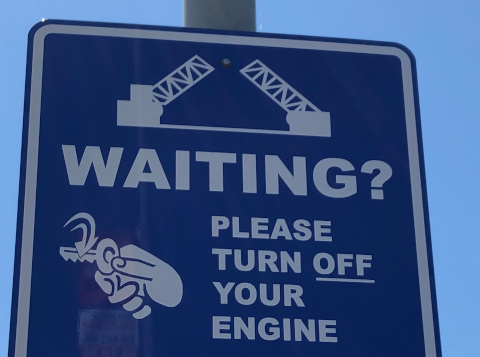
Coba deteksi teks dan deteksi teks dokumen menggunakan Google APIs Explorer. Anda dapat menggunakan gambar yang disediakan
(gs://cloud-samples-data/vision/ocr/sign.jpg) dengan mengklik
Execute, atau Anda dapat menentukan gambar Anda sendiri sebagai gantinya.
Untuk mencoba deteksi teks dokumen, perbarui nilai type menjadi
DOCUMENT_TEXT_DETECTION.
Isi permintaan:
{
  "requests": [
    {
      "features": [
        {
          "type": "TEXT_DETECTION"
        }
      ],
      "image": {
        "source": {
          "imageUri": "gs://cloud-samples-data/vision/ocr/sign.jpg"
        }
      }
    }
  ]
}
Buka Google APIs Explorer dan kirim permintaan
Untuk membuka Google APIs Explorer, klik Try it!.
Opsional. Ubah isi permintaan yang ada.
Untuk mengirim permintaan, klik Execute.