


Gemini Enterprise Agent Platform Vision 是一个 AI 赋能的平台,可用于注入、分析和存储视频 数据。借助 Gemini Enterprise Agent Platform Vision,您可以构建和部署 AI 应用。您可以利用 Gemini Enterprise Agent Platform Vision 与其他产品组件的集成,构建端到端的 Gemini Enterprise Agent Platform Vision 解决方案。
如需开始使用 Gemini Enterprise Agent Platform Vision 平台实现解决方案,请查看以下 Agent Platform Vision 概念和组件:
视频流:表示解决方案中的视频流式传输层。视频流来源可以是实时视频(例如 IP 摄像头)或视频文件(例如 MP4 文件)。
应用:实现视频流与 AI 处理器之间的连接,以对视频执行机器学习操作。例如,您可以将摄像头视频流连接到可统计摄像头前经过的人数的 AI 模型。
媒体仓库:将通过流注入的视频存储到Google Cloud 存储空间。将数据存储到此目的地后,您就可以查询分析输出和元数据,这些数据来自所摄取的数据流中使用的 AI 处理器。
目标
本教程介绍了如何执行以下操作:
- 创建入住人数统计应用。
- 部署应用以供使用。
- 设置远程计算机以播放视频。
- 将流式视频提取到应用中的流节点。
- 在 Gemini Enterprise Agent Platform Vision 的媒体仓库中搜索视频。
费用
在本文档中,您将使用 Google Cloud的以下收费组件:
- Agent Platform Vision (Streams - Data ingested, Streams - Data consumed, Models - Occupancy analytics suite, Warehouse - Video storage)
- Compute Engine
如需根据您的预计使用量来估算费用,请使用价格计算器。
完成本文档中描述的任务后,您可以通过删除所创建的资源来避免继续计费。如需了解详情,请参阅清理。
准备工作
- 登录您的 Google Cloud 账号。如果您是 Google Cloud新手,请 创建一个账号来评估我们的产品在实际场景中的表现。新客户还可获享 $300 赠金,用于运行、测试和部署工作负载。
-
In the Google Cloud console, on the project selector page, select or create a Google Cloud project.
Roles required to select or create a project
- Select a project: Selecting a project doesn't require a specific IAM role—you can select any project that you've been granted a role on.
-
Create a project: To create a project, you need the Project Creator role
(
roles/resourcemanager.projectCreator), which contains theresourcemanager.projects.createpermission. Learn how to grant roles.
-
Verify that billing is enabled for your Google Cloud project.
Enable the Compute Engine and Vision AI APIs, if any are not already enabled.
Roles required to enable APIs
To enable APIs, you need the
serviceusage.services.enablepermission. If you created the project, then you likely already have this permission through the Owner role (roles/owner). Otherwise, you can get this permission through the Service Usage Admin role (roles/serviceusage.serviceUsageAdmin). Learn how to grant roles.-
Create a service account:
-
Ensure that you have the Create Service Accounts IAM role
(
roles/iam.serviceAccountCreator) and the Project IAM Admin role (roles/resourcemanager.projectIamAdmin). Learn how to grant roles. -
In the Google Cloud console, go to the Create service account page.
Go to Create service account - Select your project.
-
In the Service account name field, enter a name. The Google Cloud console fills in the Service account ID field based on this name.
In the Service account description field, enter a description. For example,
Service account for quickstart. - Click Create and continue.
-
Grant the following roles to the service account: Vision AI > Vision AI Editor, Compute Engine > Compute Instance Admin (beta), Storage > Storage Object Viewer†.
To grant a role, find the Select a role list, then select the role.
To grant additional roles, click Add another role and add each additional role.
- Click Continue.
-
Click Done to finish creating the service account.
Do not close your browser window. You will use it in the next step.
-
Ensure that you have the Create Service Accounts IAM role
(
-
Create a service account key:
- In the Google Cloud console, click the email address for the service account that you created.
- Click Keys.
- Click Add key, and then click Create new key.
- Click Create. A JSON key file is downloaded to your computer.
- Click Close.
-
Install the Google Cloud CLI.
-
If you're using an external identity provider (IdP), you must first sign in to the gcloud CLI with your federated identity.
-
To initialize the gcloud CLI, run the following command:
gcloud init -
In the Google Cloud console, on the project selector page, select or create a Google Cloud project.
Roles required to select or create a project
- Select a project: Selecting a project doesn't require a specific IAM role—you can select any project that you've been granted a role on.
-
Create a project: To create a project, you need the Project Creator role
(
roles/resourcemanager.projectCreator), which contains theresourcemanager.projects.createpermission. Learn how to grant roles.
-
Verify that billing is enabled for your Google Cloud project.
Enable the Compute Engine and Vision AI APIs, if any are not already enabled.
Roles required to enable APIs
To enable APIs, you need the
serviceusage.services.enablepermission. If you created the project, then you likely already have this permission through the Owner role (roles/owner). Otherwise, you can get this permission through the Service Usage Admin role (roles/serviceusage.serviceUsageAdmin). Learn how to grant roles.-
Create a service account:
-
Ensure that you have the Create Service Accounts IAM role
(
roles/iam.serviceAccountCreator) and the Project IAM Admin role (roles/resourcemanager.projectIamAdmin). Learn how to grant roles. -
In the Google Cloud console, go to the Create service account page.
Go to Create service account - Select your project.
-
In the Service account name field, enter a name. The Google Cloud console fills in the Service account ID field based on this name.
In the Service account description field, enter a description. For example,
Service account for quickstart. - Click Create and continue.
-
Grant the following roles to the service account: Vision AI > Vision AI Editor, Compute Engine > Compute Instance Admin (beta), Storage > Storage Object Viewer†.
To grant a role, find the Select a role list, then select the role.
To grant additional roles, click Add another role and add each additional role.
- Click Continue.
-
Click Done to finish creating the service account.
Do not close your browser window. You will use it in the next step.
-
Ensure that you have the Create Service Accounts IAM role
(
-
Create a service account key:
- In the Google Cloud console, click the email address for the service account that you created.
- Click Keys.
- Click Add key, and then click Create new key.
- Click Create. A JSON key file is downloaded to your computer.
- Click Close.
-
Install the Google Cloud CLI.
-
If you're using an external identity provider (IdP), you must first sign in to the gcloud CLI with your federated identity.
-
To initialize the gcloud CLI, run the following command:
gcloud init
† 仅当您从 Cloud Storage 存储桶复制示例视频文件时才需要此角色。
创建入住人数统计应用
设置好环境后,第一步是创建用于处理数据的应用。应用可以看作是一个自动化的流水线,用于连接以下各项:
- 数据注入:将视频 Feed 注入到直播中。
- 数据分析:提取数据后,可以添加 AI 模型。可以对提取的视频信息执行任何计算机视觉操作。
- 数据存储:两个版本的视频 Feed(原始视频流和 AI 模型处理后的视频流)可以存储在媒体仓库中。
在 Google Cloud 控制台中,应用以图表形式表示。 此外,在 Gemini Enterprise Agent Platform Vision 中,应用图必须至少包含两个节点:一个视频源节点(流),以及至少一个其他节点(处理模型或输出目的地)。
创建空应用
在填充应用图之前,您必须先创建一个空应用。
控制台
在 Google Cloud 控制台中创建应用。
打开 Gemini Enterprise Agent Platform Vision 信息中心的应用标签页。
点击创建按钮。
输入
occupancy-count-app作为应用名称,然后选择您的区域。点击创建。
添加应用组件节点
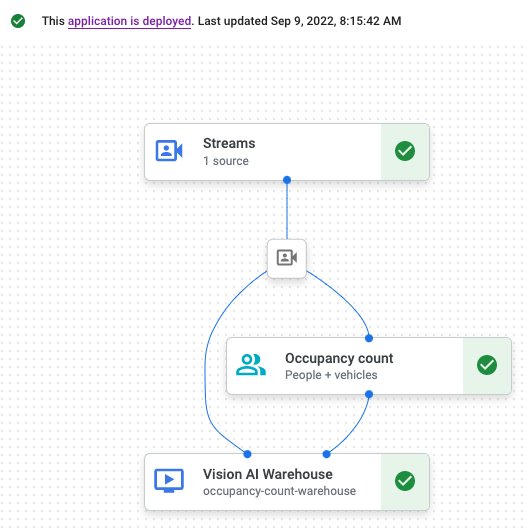
创建空应用后,您可以将这三个节点添加到应用图中:
- 注入节点:注入从您创建的 Compute Engine 虚拟机实例发送的数据的流资源。
- 处理节点:对提取的数据执行操作的入住率分析模型。
- 存储节点:用于存储已处理视频的媒体仓库,同时也是元数据存储区。该仓库可用于生成有关提取的视频数据的分析信息,以及存储 AI 模型根据数据推断出的信息。
控制台
在控制台中向应用添加组件节点。
打开 Gemini Enterprise Agent Platform Vision 信息中心的应用标签页。
在列表中,选择
occupancy-count-app应用名称旁边的 查看应用。这会转到处理流水线的图表可视化。
添加数据注入节点
如需添加输入视频流节点,请选择侧边菜单的连接器部分中的视频流选项。
在打开的视频流菜单的来源部分中,选择 添加视频流。
在添加视频流菜单中,选择 注册新的视频流,然后添加
occupancy-count-stream作为视频流名称。如需将视频流添加到应用图表中,请点击添加视频流。
添加数据处理节点
如需添加入住人数统计模型节点,请选择侧边菜单的专用模型部分中的入住分析选项。
保留默认选择 人员和 车辆。
添加数据存储节点
如需添加输出目标位置(存储)节点,请选择侧边菜单的连接器部分中的 Gemini Enterprise Agent Platform Vision 的媒体仓库选项。
在 Gemini Enterprise Agent Platform Vision 的媒体仓库菜单中,点击连接仓库。
在连接仓库菜单中,选择 创建新仓库。将仓库命名为
occupancy-count-warehouse,并将 TTL 时长保留为 14 天。点击创建按钮以添加仓库。
部署应用以供使用
在构建包含所有必需组件的端到端应用后,使用该应用的最后一步是部署它。控制台
打开 Gemini Enterprise Agent Platform Vision 信息中心的应用标签页。
在列表中的
occupancy-count-app应用名称旁边,选择 查看应用。在应用图表构建器页面中,点击部署按钮。
在随后的确认对话框中,选择部署。
部署操作可能需要几分钟才能完成。部署完成后,节点旁边会显示绿色对勾标记。
设置远程机器以流式传输视频
现在,您已部署了一个入住人数统计应用,该应用可以接收、处理和存储流式数据,接下来您必须将视频数据实际流式传输到该应用中。
在本教程中,您将创建一个托管视频的 Compute Engine 虚拟机实例,并从该虚拟机发送流式视频数据。
创建一个 Linux VM
从 Compute Engine 虚拟机实例发送视频的第一步是创建虚拟机实例。
控制台
设置虚拟机环境
虚拟机启动后,您可以使用控制台在浏览器中建立 SSH 连接。建立此连接后,您可以下载 vaictl 命令行工具,将视频注入到您的应用中。
控制台
与虚拟机建立 SSH 连接
在控制台中,打开虚拟机实例页面。
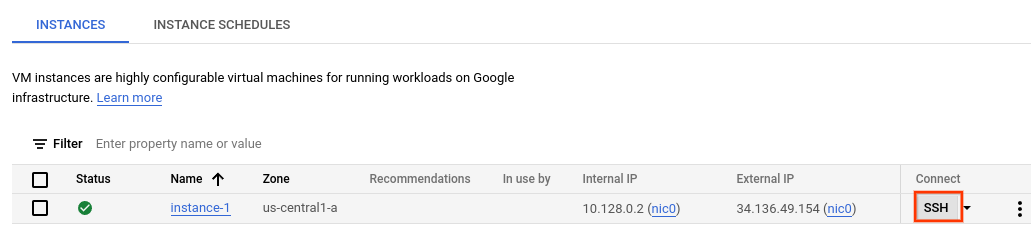
在您创建的实例行中的连接部分,点击 SSH。这将在新的浏览器窗口中打开 SSH 连接。
下载 vaictl 命令行工具
在浏览器中的 SSH 窗口中,使用以下命令下载 Gemini Enterprise Agent Platform Vision (
vaictl) 命令行工具:wget https://github.com/google/visionai/releases/download/v0.0.5/visionai_0.0-5_amd64.deb运行以下命令来安装命令行工具:
sudo apt install ./visionai_0.0-5_amd64.deb您可以运行以下命令来测试安装:
vaictl --help
将视频文件提取到应用中
设置虚拟机环境后,您可以复制示例视频文件,然后使用 vaictl 将视频数据流式传输到人数统计应用。
SSH-in-browser
将示例视频复制到虚拟机
- 在虚拟机的浏览器中的 SSH 窗口中,使用以下
gcloud storage cp命令复制示例视频。替换以下变量:- SOURCE:要使用的视频文件的位置。您可以使用自己的视频文件来源(例如
gs://BUCKET_NAME/FILENAME.mp4),也可以使用示例视频:
gcloud storage cp SOURCE .
- SOURCE:要使用的视频文件的位置。您可以使用自己的视频文件来源(例如
从虚拟机流式传输视频并将数据注入应用
- 如需将此本地视频文件发送到应用输入流,请使用以下命令。您必须进行以下变量替换:
- PROJECT_ID:您的 Google Cloud 项目 ID。
- LOCATION_ID:您的位置 ID。例如,
us-central1。如需了解详情,请参阅 Cloud 位置。 - LOCAL_FILE.EXT:本地视频文件的文件名。
例如,
my-video.mp4。 --loop标志:可选。循环播放文件数据以模拟流式传输。
此命令会将视频文件流式传输到流。如果您使用
--loop标志,视频将循环播放到直播中,直到您停止该命令:vaictl -p PROJECT_ID \ -l LOCATION_ID \ -c application-cluster-0 \ --service-endpoint visionai.googleapis.com \ send video-file to streams 'occupancy-count-stream' --file-path LOCAL_FILE.EXT --loop
从开始 vaictl 注入操作到视频显示在信息中心,可能需要大约 100 秒的时间。
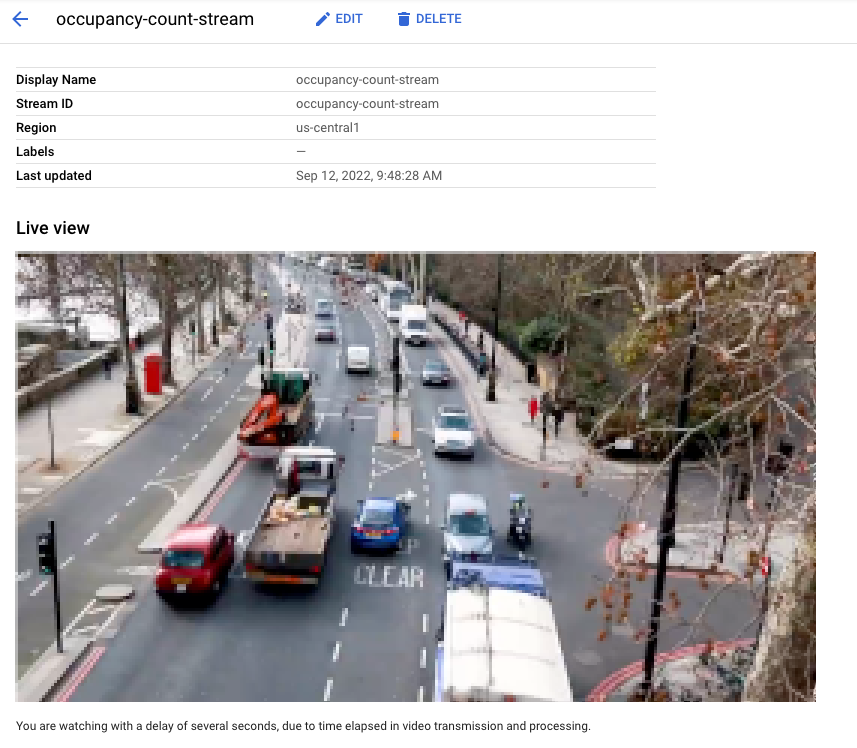
在流式注入可用后,您可以在 Gemini Enterprise Agent Platform Vision 信息中心的视频流标签页中选择 occupancy-count-stream 视频流,查看视频源。
搜索存储仓库中的视频内容
将视频数据注入处理应用后,您可以查看分析后的视频数据,并根据占用率分析信息搜索数据。
控制台
打开 Gemini Enterprise Agent Platform Vision 信息中心的仓库标签页。
在列表中找到
occupancy-count-warehouse仓库,然后点击 查看资产。在人数或车辆数部分中,将最小值设置为
1,并将最大值设置为5。如需过滤存储在 Gemini Enterprise Agent Platform Vision 的媒体仓库中的已处理视频数据,请点击搜索。

Google Cloud 控制台中与搜索条件匹配的已存储视频数据的视图。视频提供方:Pixabay 上的 Elizabeth Mavor(应用了搜索条件)。
清理
为避免因本教程中使用的资源导致您的 Google Cloud 账号产生费用,请删除包含这些资源的项目,或者保留项目但删除各个资源。
删除项目
- 在 Google Cloud 控制台中,前往管理资源页面。
- 在项目列表中,选择要删除的项目,然后点击删除。
- 在对话框中输入项目 ID,然后点击关闭以删除项目。
删除各个资源
删除 Compute Engine 虚拟机实例
- 在 Google Cloud 控制台中,前往虚拟机实例页面。
- 选中要删除的实例对应的复选框。
- 如需删除实例,请点击更多操作,点击删除,然后按照说明操作。
删除仓库
- 在 Google Cloud 控制台中,前往仓库页面。
-
找到
您的
occupancy-count-warehouse仓库。 - 如需删除仓库,请依次点击 操作和删除仓库,然后按照说明操作。
删除数据流
- 在 Google Cloud 控制台中,前往数据流页面。
-
找到
occupancy-count-stream数据流。 - 如需删除数据流,请依次点击 操作和删除数据流,然后按照说明操作。
删除应用
- 在 Google Cloud 控制台中,前往应用页面。
-
找到
您的
occupancy-count-app应用。 - 如需删除应用,请依次点击 操作和删除应用,然后按照说明操作。
后续步骤
- 详细了解 Responsible AI 实践。
- 如需了解可添加到应用中的其他组件,请参阅构建应用。
- 如需了解其他输出存储和处理选项,请参阅将应用输出连接到数据目标位置。
- 了解如何在控制台中搜索 Warehouse 数据。
- 探索有关 Google Cloud 的参考架构、图表和最佳做法。查看我们的 Cloud 架构中心。