


Gemini Enterprise Agent Platform Vision 是一項 AI 輔助平台,可供您擷取、分析及儲存影片 資料。Gemini Enterprise Agent Platform Vision 可讓您建構及部署 AI 應用程式。您可以運用 Gemini Enterprise Agent Platform Vision 與其他產品元件的整合功能,建構端對端 Gemini Enterprise Agent Platform Vision 解決方案。
如要開始使用 Gemini Enterprise Agent Platform Vision 平台實作解決方案,請先瞭解下列 Agent Platform Vision 概念和元件:
串流:代表解決方案中的影片串流層。串流來源可以是即時影像 (例如 IP 攝影機) 或影片檔案 (例如 MP4 檔案)。
應用程式:啟用串流與 AI 處理器之間的連結,對影片執行機器學習作業。舉例來說,您可以將攝影機串流影像連結至 AI 模型,計算攝影機前方經過的人數。
媒體倉儲:將串流擷取的影片儲存至Google Cloud 儲存空間。將資料儲存至這個目的地,即可查詢從擷取串流資料的 AI 處理器輸出和中繼資料,並進行分析。
目標
本教學課程說明如何執行下列操作:
- 建立資料輸入串流資源。
- 開始將影片資料串流至這個串流資源。
- 建立空白應用程式。
- 在應用程式中新增節點,即可串流、修改及儲存資料。
- 部署應用程式以供使用。
- 在 Google Cloud 控制台中查看已處理的資料輸出內容。
開始本教學課程前,您必須有串流影片資源,才能將資料傳送至 Gemini Enterprise Agent Platform Vision 應用程式。這項資源可以是本機影片或 RTSP 動態饋給。這項影片資料必須包含人臉,範例應用程式才能模糊處理。
費用
在本文件中,您會使用下列 Google Cloud的計費元件:
- Agent Platform Vision (Streams - Data ingested, Streams - Data consumed, Models - Person / face blur, Warehouse - Video storage)
如要根據預測用量估算費用,請使用 Pricing Calculator。
完成本文所述工作後,您可以刪除建立的資源,避免繼續計費,詳情請參閱「清除所用資源」。
事前準備
- 取得串流影片來源的位置,可以是本機 (例如
./sample_video.mp4),也可以是即時 RTSP 動態消息的 IP 位址 (例如rtsp://192.168.1.180:540)。建立串流資源後,你需要這項資訊才能開始將資料擷取至串流。 - 登入 Google Cloud 帳戶。如果您是 Google Cloud新手,歡迎 建立帳戶,親自評估產品在實際工作環境中的成效。新客戶還能獲得價值 $300 美元的免費抵免額,可用於執行、測試及部署工作負載。
-
In the Google Cloud console, on the project selector page, select or create a Google Cloud project.
Roles required to select or create a project
- Select a project: Selecting a project doesn't require a specific IAM role—you can select any project that you've been granted a role on.
-
Create a project: To create a project, you need the Project Creator role
(
roles/resourcemanager.projectCreator), which contains theresourcemanager.projects.createpermission. Learn how to grant roles.
-
Verify that billing is enabled for your Google Cloud project.
Enable the Vision AI API.
Roles required to enable APIs
To enable APIs, you need the
serviceusage.services.enablepermission. If you created the project, then you likely already have this permission through the Owner role (roles/owner). Otherwise, you can get this permission through the Service Usage Admin role (roles/serviceusage.serviceUsageAdmin). Learn how to grant roles.-
Create a service account:
-
Ensure that you have the Create Service Accounts IAM role
(
roles/iam.serviceAccountCreator) and the Project IAM Admin role (roles/resourcemanager.projectIamAdmin). Learn how to grant roles. -
In the Google Cloud console, go to the Create service account page.
Go to Create service account - Select your project.
-
In the Service account name field, enter a name. The Google Cloud console fills in the Service account ID field based on this name.
In the Service account description field, enter a description. For example,
Service account for quickstart. - Click Create and continue.
-
Grant the Vision AI > Vision AI Editor role to the service account.
To grant the role, find the Select a role list, then select Vision AI > Vision AI Editor.
- Click Continue.
-
Click Done to finish creating the service account.
Do not close your browser window. You will use it in the next step.
-
Ensure that you have the Create Service Accounts IAM role
(
-
Create a service account key:
- In the Google Cloud console, click the email address for the service account that you created.
- Click Keys.
- Click Add key, and then click Create new key.
- Click Create. A JSON key file is downloaded to your computer.
- Click Close.
-
Set the environment variable
GOOGLE_APPLICATION_CREDENTIALSto the path of the JSON file that contains your credentials. This variable applies only to your current shell session, so if you open a new session, set the variable again. -
安裝 Google Cloud CLI。
-
若您採用的是外部識別資訊提供者 (IdP),請先使用聯合身分登入 gcloud CLI。
-
執行下列指令,初始化 gcloud CLI:
gcloud init -
In the Google Cloud console, on the project selector page, select or create a Google Cloud project.
Roles required to select or create a project
- Select a project: Selecting a project doesn't require a specific IAM role—you can select any project that you've been granted a role on.
-
Create a project: To create a project, you need the Project Creator role
(
roles/resourcemanager.projectCreator), which contains theresourcemanager.projects.createpermission. Learn how to grant roles.
-
Verify that billing is enabled for your Google Cloud project.
Enable the Vision AI API.
Roles required to enable APIs
To enable APIs, you need the
serviceusage.services.enablepermission. If you created the project, then you likely already have this permission through the Owner role (roles/owner). Otherwise, you can get this permission through the Service Usage Admin role (roles/serviceusage.serviceUsageAdmin). Learn how to grant roles.-
Create a service account:
-
Ensure that you have the Create Service Accounts IAM role
(
roles/iam.serviceAccountCreator) and the Project IAM Admin role (roles/resourcemanager.projectIamAdmin). Learn how to grant roles. -
In the Google Cloud console, go to the Create service account page.
Go to Create service account - Select your project.
-
In the Service account name field, enter a name. The Google Cloud console fills in the Service account ID field based on this name.
In the Service account description field, enter a description. For example,
Service account for quickstart. - Click Create and continue.
-
Grant the Vision AI > Vision AI Editor role to the service account.
To grant the role, find the Select a role list, then select Vision AI > Vision AI Editor.
- Click Continue.
-
Click Done to finish creating the service account.
Do not close your browser window. You will use it in the next step.
-
Ensure that you have the Create Service Accounts IAM role
(
-
Create a service account key:
- In the Google Cloud console, click the email address for the service account that you created.
- Click Keys.
- Click Add key, and then click Create new key.
- Click Create. A JSON key file is downloaded to your computer.
- Click Close.
-
Set the environment variable
GOOGLE_APPLICATION_CREDENTIALSto the path of the JSON file that contains your credentials. This variable applies only to your current shell session, so if you open a new session, set the variable again. -
安裝 Google Cloud CLI。
-
若您採用的是外部識別資訊提供者 (IdP),請先使用聯合身分登入 gcloud CLI。
-
執行下列指令,初始化 gcloud CLI:
gcloud init - 安裝
vaictl工具,將資料擷取至串流 (作業系統:Debian GNU/Linux,CPU 架構:x86_64):- 下載必要套件:
wget https://github.com/google/visionai/releases/download/v0.0.5/visionai_0.0-5_amd64.deb
- 下載套件後,請在下載檔案的目錄中執行下列指令:
sudo apt install ./visionai_0.0-5_amd64.deb
- 驗證安裝項目:
vaictl --help
- 下載必要套件:
建立串流
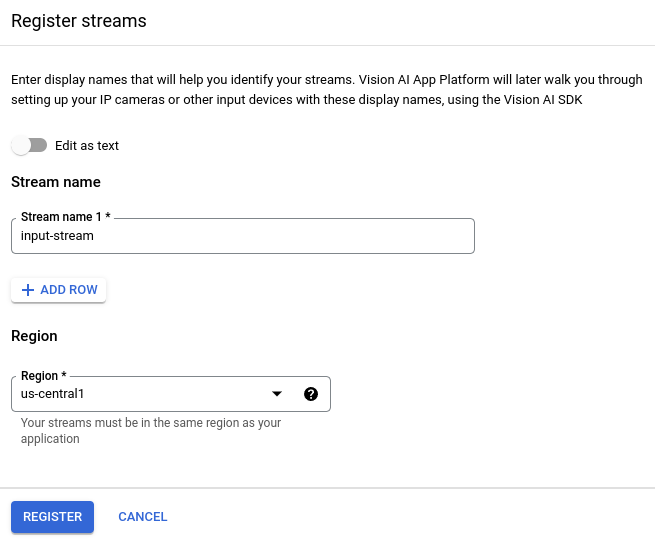
如要建立串流影片分析應用程式,請先建立並註冊串流資源。串流是從使用者接收影片資料的資源,因此使用 Gemini Enterprise Agent Platform Vision 建構任何情境時,都必須使用串流。控制台
如要在 Google Cloud 控制台中建立新串流,請按照下列步驟操作。
開啟 Gemini Enterprise Agent Platform Vision 資訊主頁的「Streams」(串流) 分頁。
按一下「註冊」。
輸入
input-stream做為串流名稱,並選取要建立串流的區域。按一下「註冊」即可建立一或多個串流。
將影片擷取到串流中
建立串流資源後,您可以使用 vaictl 指令列工具將影片資料傳送至串流。
IP 攝影機
如果使用即時 IP 攝影機進行測試,請取得攝影機的 IP 位址。您必須在要求中提供這項資訊,以及其他變數替代項目:
- PROJECT_ID: Google Cloud 專案 ID。
- LOCATION_ID:您的地區 ID。例如:
us-central1。詳情請參閱「Cloud 服務據點」。 - RTSP_ADDRESS:即時串流通訊協定 (RTSP) 動態消息的地址。例如:
rtsp://192.168.1.180:540。
這項指令會將 RTSP 動態饋給傳送至串流。您必須在可直接存取 RTSP 動態饋給的網路中執行這項指令。
vaictl -p PROJECT_ID \
       -l LOCATION_ID \
       -c application-cluster-0 \
       --service-endpoint visionai.googleapis.com \
send rtsp to streams input-stream --rtsp-uri RTSP_ADDRESS
如果指令執行成功,會取得下列輸出內容:
[...]
Waiting for long running operation projects/your-project/locations/us-central1/operations/operation-1651364156981-5dde82db7e4a9-dfb17ca5-1051eb20 ⠙
I20220430 21:16:28.024988 211449 gstvaisink.cc:417] cluster-id=application-cluster-0
I20220430 21:16:28.025032 211449 gstvaisink.cc:418] cluster-endpoint=c8khq35ftg78mn61ef50.us-central1.visionai.goog
I20220430 21:16:28.025040 211449 gstvaisink.cc:419] event-id=ev-1651364114183255223
I20220430 21:16:28.025048 211449 gstvaisink.cc:420] stream-id=input-stream
I20220430 21:16:28.025053 211449 gstvaisink.cc:421] series-id=ev-1651364114183255223--input-stream
I20220430 21:16:28.025060 211449 gstvaisink.cc:422] Sending data
本機影片檔案
你也可以將影片檔案資料傳送至串流,而非即時影像動態消息。如果無法存取 IP 攝影機,這個選項就非常實用。
這個選項與前者的唯一差別在於 vaictl 指令參數。請傳遞本機影片檔案的路徑,而非 IP 攝影機資訊。進行下列變數替換:
- PROJECT_ID: Google Cloud 專案 ID。
- LOCATION_ID:您的地區 ID。例如:
us-central1。更多資訊。 - LOCAL_FILE.EXT:本機影片檔案的檔案名稱。
例如:
my-video.mp4。 --loop旗標:選用。循環處理檔案資料,模擬串流。
這項指令會將影片檔案串流至串流。如果使用 --loop 旗標,影片會循環播放到串流中,直到您停止指令為止:
vaictl -p PROJECT_ID \
       -l LOCATION_ID \
       -c application-cluster-0 \
       --service-endpoint visionai.googleapis.com \
send video-file to streams 'input-stream' --file-path LOCAL_FILE.EXT --loop
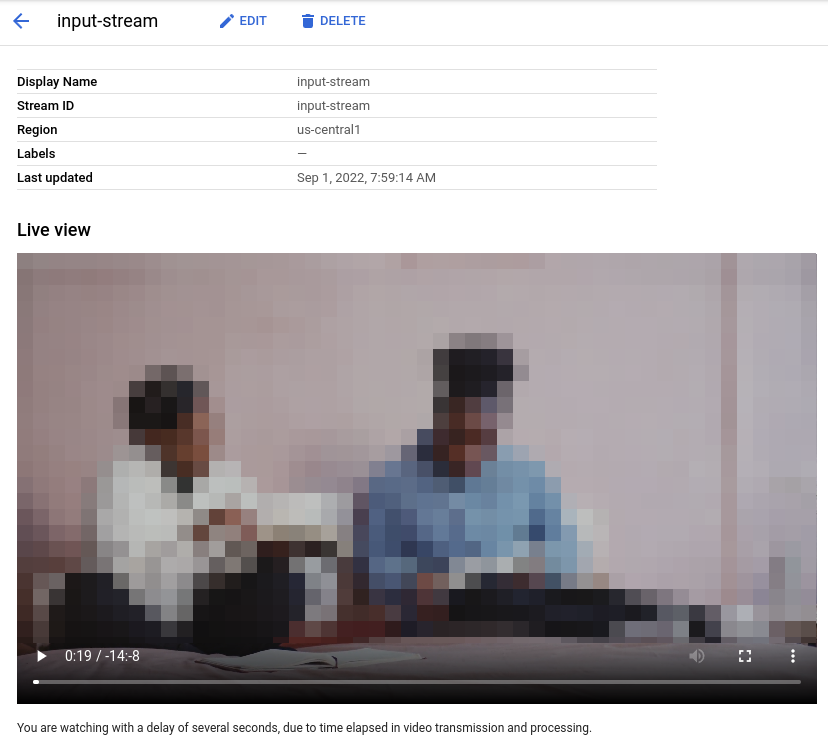
開始 vaictl 擷取作業後,影片可能需要約 100 秒才會顯示在資訊主頁中。
串流擷取功能推出後,選取 input-stream 串流,即可在 Gemini Enterprise Agent Platform Vision 資訊主頁的「串流」分頁中查看影片動態消息。
建立臉部模糊處理應用程式
建立串流並將資料擷取至串流後,即可建立 Gemini Enterprise Agent Platform Vision 應用程式來處理資料。應用程式可視為自動化管道,連結下列項目:
- 資料擷取:影片動態饋給會擷取至串流。
- 資料分析:擷取資料後,即可新增 AI 模型。您可以對擷取的影片資訊執行任何電腦視覺作業。
- 資料儲存:影片動態饋給的兩個版本 (原始串流和 AI 模型處理的串流) 可以儲存在媒體倉儲中。
在 Google Cloud 控制台中,應用程式會以圖表形式呈現。此外,在 Gemini Enterprise Agent Platform Vision 中,應用程式圖表必須至少有兩個節點:影片來源節點 (串流),以及至少一個節點 (處理模型或輸出目的地)。
建立空白應用程式
您必須先建立空白應用程式,才能填入應用程式圖表。控制台
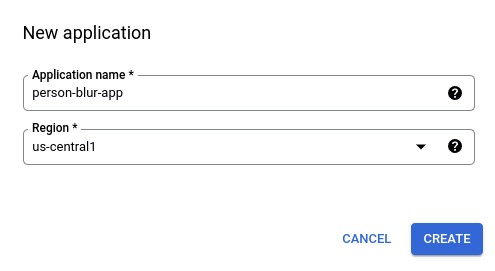
在 Google Cloud 控制台中建立應用程式。
開啟 Gemini Enterprise Agent Platform Vision 資訊主頁的「Applications」(應用程式) 分頁。
按一下「建立」按鈕。
輸入
person-blur-app做為應用程式名稱,然後選擇您所在的區域。點選「建立」。
新增應用程式元件節點
建立空白應用程式後,即可將三個節點新增至應用程式圖表:
- 擷取節點:已擷取資料的串流資源。
- 處理節點:對擷取資料執行動作的個人模糊處理模型。
- 儲存節點:儲存處理後影片的媒體倉儲,同時也是中繼資料儲存空間。資料倉儲可根據擷取的影片資料生成分析資訊,並儲存 AI 模型推斷的資料相關資訊。
控制台
在控制台將元件節點新增至應用程式。
開啟 Gemini Enterprise Agent Platform Vision 資訊主頁的「Applications」(應用程式) 分頁。
在清單中,選取
person-blur-app應用程式名稱旁的「查看應用程式」。系統會將您帶往處理管道的圖表視覺化畫面。
新增資料擷取節點
如要新增輸入串流節點,請在側邊選單的「Connectors」(連接器) 區段中選取「Streams」(串流) 選項。
在隨即開啟的「Stream」(串流) 選單中,選取「Source」(來源) 區段的 「Add Stream」(新增串流)。
在「新增串流」選單中,選擇「從現有串流選取」,然後從串流資源清單中選取
person-blur-app。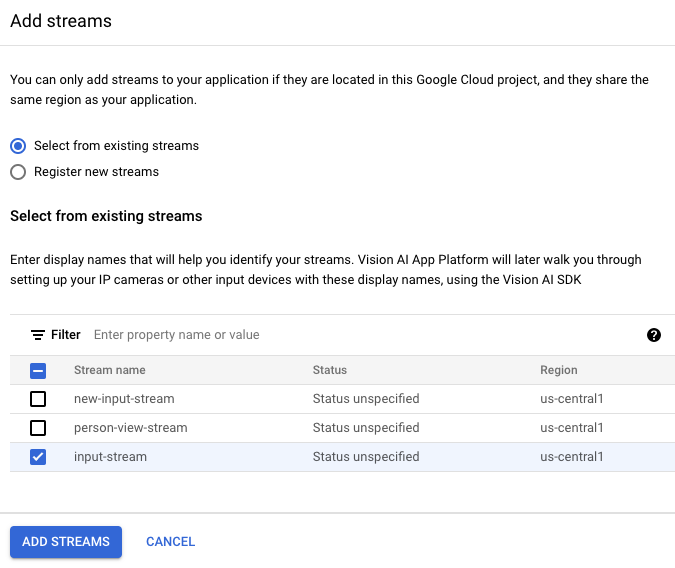
如要將串流新增至應用程式圖表,請按一下「新增串流」。
新增資料處理節點
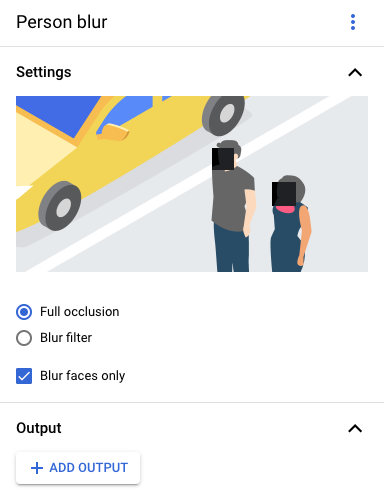
如要新增人物模糊處理模型節點,請在側邊選單的「General processors」(一般處理器) 區段中,選取「Person blur」(人物模糊處理) 選項。
在隨即開啟的「人物模糊處理」選項選單中,保留選取的「完全遮蓋」,然後啟用「只模糊處理臉部」選項。
新增資料儲存節點
如要新增輸出目的地 (儲存空間) 節點,請在側邊選單的「Connectors」(連接器) 區段中選取「Gemini Enterprise Agent Platform Vision's Media Warehouse」(Gemini Enterprise Agent Platform Vision 的媒體倉儲) 選項。
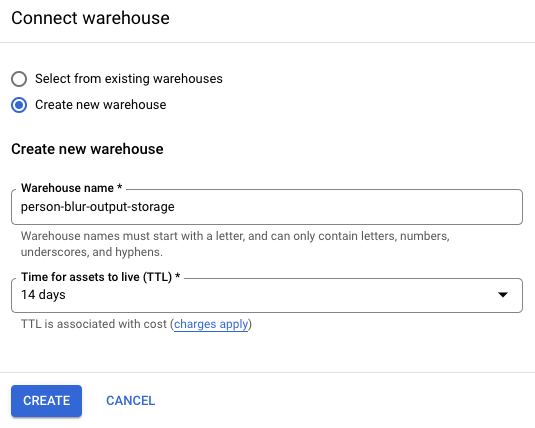
在「Gemini Enterprise Agent Platform Vision's Media Warehouse」(Gemini Enterprise Agent Platform Vision 的媒體倉儲) 選單中,按一下「Connect Warehouse」(連結倉儲)。
在「Connect Warehouse」(連結倉儲) 選單中,選取 「Create new warehouse」(新建倉儲)。將倉儲命名為
person-blur-app,並將 TTL 持續時間保留 14 天。如要新增倉儲,請按一下「建立」。
部署應用程式
使用所有必要元件建構端對端應用程式後,最後一個步驟就是部署應用程式。控制台
開啟 Gemini Enterprise Agent Platform Vision 資訊主頁的「Applications」(應用程式) 分頁。
在清單中找到您的
person-blur-app應用程式,然後選取名稱旁的「查看應用程式」。在應用程式圖表建構工具頁面中,按一下「部署」按鈕。
在隨即顯示的確認對話方塊中,選取「部署」。
部署作業可能需要幾分鐘才能完成。部署作業完成後,節點旁會顯示綠色勾號。

查看處理後的輸出資料
控制台
開啟 Gemini Enterprise Agent Platform Vision 資訊主頁的「Warehouses」(倉庫) 分頁。
在清單中找出
person-blur-output-storage倉庫,然後按一下「查看資產」。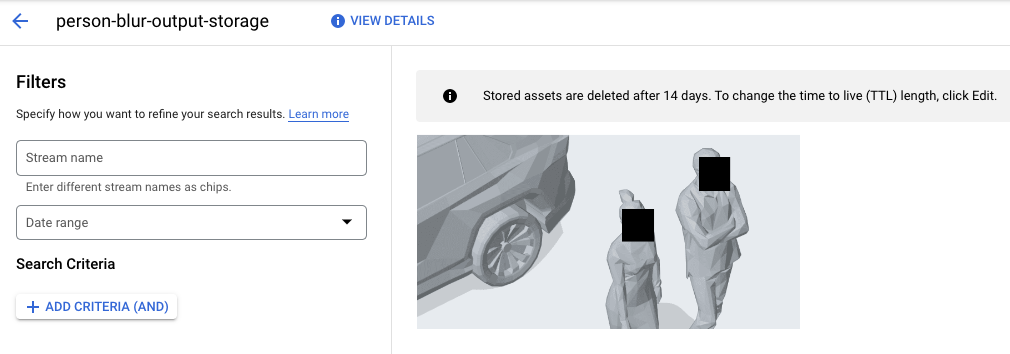
清除所用資源
為避免因為本教學課程所用資源,導致系統向 Google Cloud 收取費用,請刪除含有相關資源的專案,或者保留專案但刪除個別資源。
刪除專案
- 前往 Google Cloud 控制台的「Manage resources」(管理資源) 頁面。
- 在專案清單中選取要刪除的專案,然後點選「Delete」(刪除)。
- 在對話方塊中輸入專案 ID,然後按一下 [Shut down] (關閉) 以刪除專案。
刪除個別資源
刪除倉儲
- 前往 Google Cloud 控制台的「倉庫」頁面。
-
找到 倉庫。
person-blur-output-storage - 如要刪除倉庫,請依序點選 「動作」和「刪除倉庫」,然後按照指示操作。
刪除串流
- 前往 Google Cloud 控制台的「Streams」頁面。
-
找出 串流。
input-stream - 如要刪除串流,請依序點選 「動作」和「刪除串流」,然後按照指示操作。
刪除應用程式
- 前往 Google Cloud 控制台的「Applications」頁面。
-
找出
要刪除的
person-blur-app應用程式。 - 如要刪除應用程式,請依序點選 「Actions」(動作) 和「Delete application」(刪除應用程式),然後按照指示操作。
後續步驟
- 進一步瞭解負責任的 AI 做法。
- 如要瞭解可新增至應用程式的其他元件,請參閱「建構應用程式」。
- 如要瞭解其他輸出儲存空間和處理選項,請參閱「將應用程式輸出結果連結至資料目的地」一文。
- 請參閱這篇文章,瞭解如何在控制台中查看搜尋倉儲資料。
- 查看 Google Cloud 的參考架構、圖表和最佳做法。 歡迎瀏覽我們的 Cloud Architecture Center。