


כדי לאפשר לקוד האפליקציה להשתמש ב-Video Intelligence API, צריך להגדיר את פרטי הכניסה המתאימים לאפליקציה כדי לאמת את הזהות שלה בשירות ולקבל הרשאה לביצוע משימות. (המנגנונים האלה שקשורים לאישורים נקראים סכימות אימות).
בדרך כלל, אימות והרשאה של API (שמכונים בדרך כלל 'אימות') מתבצעים באמצעות חשבון שירות.Google Cloud חשבון שירות מאפשר לקוד שלכם לשלוח ישירות את פרטי הכניסה של האפליקציה אל Video Intelligence API. חשבון שירות, כמו חשבון משתמש, מיוצג על ידי כתובת אימייל. בניגוד לחשבון משתמש, חשבון שירות משויך רק לאפליקציה.
הפעלת ה-API
לפני שתוכלו לבצע אימות, אתם צריכים קודם להפעיל את Video Intelligence API.
- נכנסים לחשבון Google Cloud . אם אתם משתמשים חדשים ב- Google Cloud, צרו חשבון כדי שתוכלו להעריך את הביצועים של המוצרים שלנו בתרחישים מהעולם האמיתי. לקוחות חדשים מקבלים בחינם גם קרדיט בשווי 300$ להרצה, לבדיקה ולפריסה של עומסי העבודה.
-
In the Google Cloud console, on the project selector page, select or create a Google Cloud project.
Roles required to select or create a project
- Select a project: Selecting a project doesn't require a specific IAM role—you can select any project that you've been granted a role on.
-
Create a project: To create a project, you need the Project Creator role
(
roles/resourcemanager.projectCreator), which contains theresourcemanager.projects.createpermission. Learn how to grant roles.
-
Verify that billing is enabled for your Google Cloud project.
Enable the Cloud Video Intelligence API.
Roles required to enable APIs
To enable APIs, you need the
serviceusage.services.enablepermission. If you created the project, then you likely already have this permission through the Owner role (roles/owner). Otherwise, you can get this permission through the Service Usage Admin role (roles/serviceusage.serviceUsageAdmin). Learn how to grant roles.-
Create a service account:
-
Ensure that you have the Create Service Accounts IAM role
(
roles/iam.serviceAccountCreator) and the Project IAM Admin role (roles/resourcemanager.projectIamAdmin). Learn how to grant roles. -
In the Google Cloud console, go to the Create service account page.
Go to Create service account - Select your project.
-
In the Service account name field, enter a name. The Google Cloud console fills in the Service account ID field based on this name.
In the Service account description field, enter a description. For example,
Service account for quickstart. - Click Create and continue.
-
Click Done to finish creating the service account.
Do not close your browser window. You will use it in the next step.
-
Ensure that you have the Create Service Accounts IAM role
(
-
Create a service account key:
- In the Google Cloud console, click the email address for the service account that you created.
- Click Keys.
- Click Add key, and then click Create new key.
- Click Create. A JSON key file is downloaded to your computer.
- Click Close.
-
Set the environment variable
GOOGLE_APPLICATION_CREDENTIALSto the path of the JSON file that contains your credentials. This variable applies only to your current shell session, so if you open a new session, set the variable again. -
התקינו את ה-CLI של Google Cloud.
-
אם אתם משתמשים בספק זהויות חיצוני (IdP), קודם אתם צריכים להיכנס ל-CLI של gcloud באמצעות המאגר המאוחד לניהול זהויות.
-
כדי לאתחל את ה-CLI של gcloud, הריצו את הפקודה הבאה:
gcloud init -
In the Google Cloud console, on the project selector page, select or create a Google Cloud project.
Roles required to select or create a project
- Select a project: Selecting a project doesn't require a specific IAM role—you can select any project that you've been granted a role on.
-
Create a project: To create a project, you need the Project Creator role
(
roles/resourcemanager.projectCreator), which contains theresourcemanager.projects.createpermission. Learn how to grant roles.
-
Verify that billing is enabled for your Google Cloud project.
Enable the Cloud Video Intelligence API.
Roles required to enable APIs
To enable APIs, you need the
serviceusage.services.enablepermission. If you created the project, then you likely already have this permission through the Owner role (roles/owner). Otherwise, you can get this permission through the Service Usage Admin role (roles/serviceusage.serviceUsageAdmin). Learn how to grant roles.-
Create a service account:
-
Ensure that you have the Create Service Accounts IAM role
(
roles/iam.serviceAccountCreator) and the Project IAM Admin role (roles/resourcemanager.projectIamAdmin). Learn how to grant roles. -
In the Google Cloud console, go to the Create service account page.
Go to Create service account - Select your project.
-
In the Service account name field, enter a name. The Google Cloud console fills in the Service account ID field based on this name.
In the Service account description field, enter a description. For example,
Service account for quickstart. - Click Create and continue.
-
Click Done to finish creating the service account.
Do not close your browser window. You will use it in the next step.
-
Ensure that you have the Create Service Accounts IAM role
(
-
Create a service account key:
- In the Google Cloud console, click the email address for the service account that you created.
- Click Keys.
- Click Add key, and then click Create new key.
- Click Create. A JSON key file is downloaded to your computer.
- Click Close.
-
Set the environment variable
GOOGLE_APPLICATION_CREDENTIALSto the path of the JSON file that contains your credentials. This variable applies only to your current shell session, so if you open a new session, set the variable again. -
התקינו את ה-CLI של Google Cloud.
-
אם אתם משתמשים בספק זהויות חיצוני (IdP), קודם אתם צריכים להיכנס ל-CLI של gcloud באמצעות המאגר המאוחד לניהול זהויות.
-
כדי לאתחל את ה-CLI של gcloud, הריצו את הפקודה הבאה:
gcloud init
יצירת חשבון שירות במסוף Google Cloud
כדי ליצור חשבון שירות באמצעות מסוף Google Cloud :
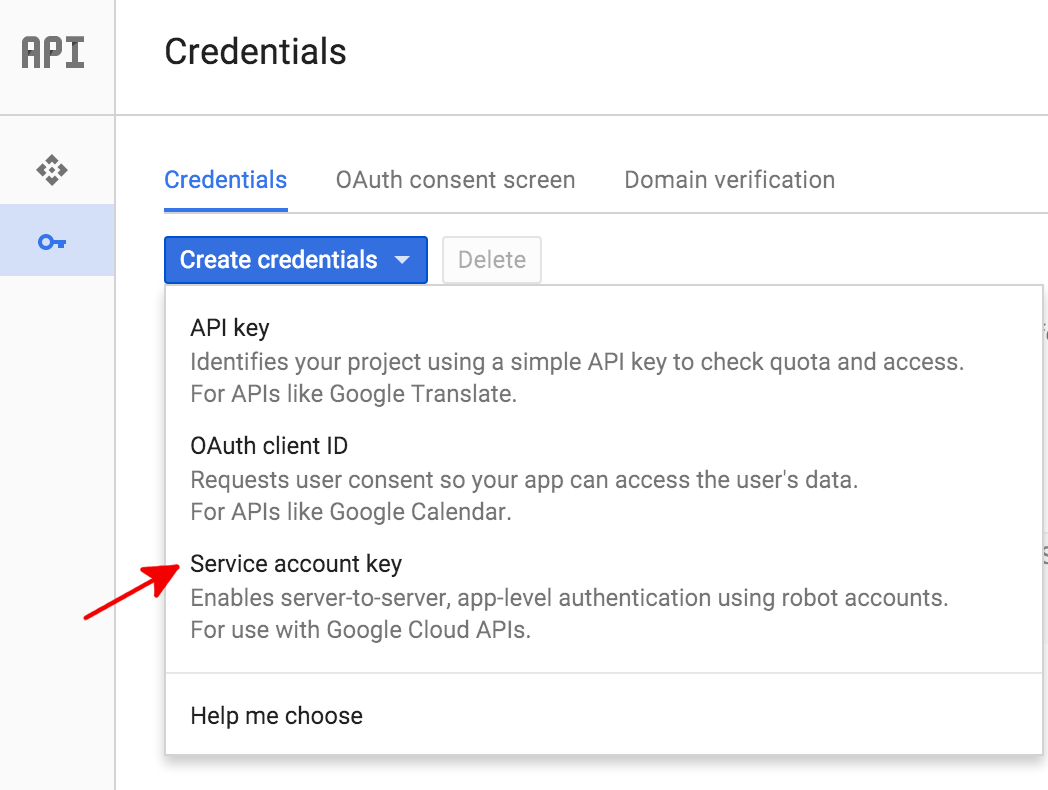
בדף Credentials במסוף Google Cloud , בוחרים באפשרות Create credentials > Service account key.
בקטע Service account בוחרים באפשרות New service account.
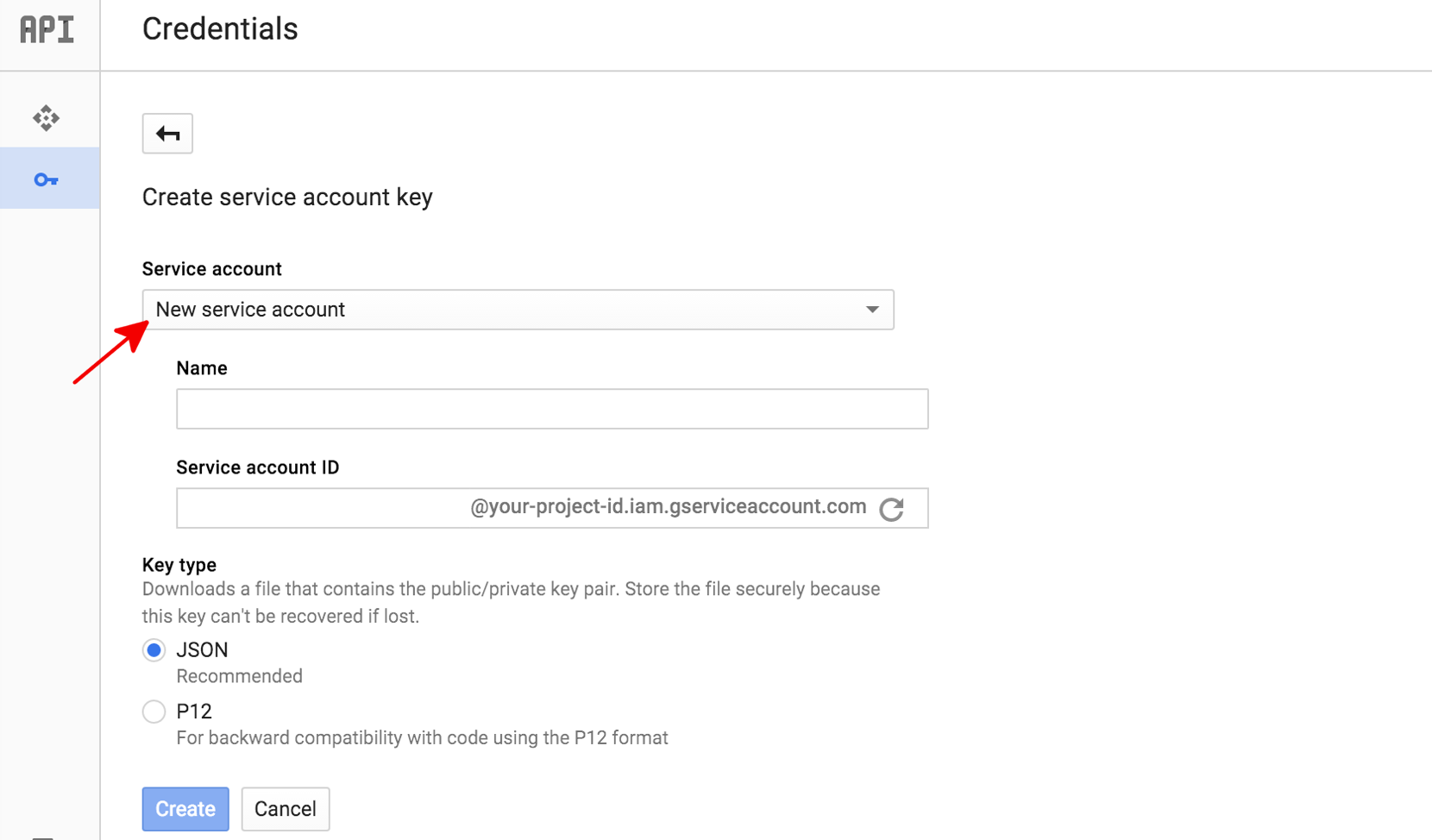
בתיבה Service account name, מזינים שם לחשבון השירות. השם הזה משמש כשם ברירת המחדל של מזהה חשבון השירות (החלק שמשמאל לסימן @ בכתובת של מזהה חשבון השירות שנוצר), אבל אפשר לשנות את השם הזה של מזהה חשבון השירות. השמות האלה שרירותיים, וחשוב רק שתזכרו אותם.
בקטע Key type (סוג מפתח), בוחרים באפשרות JSON לרוב הפרויקטים החדשים.
לוחצים על יצירה.
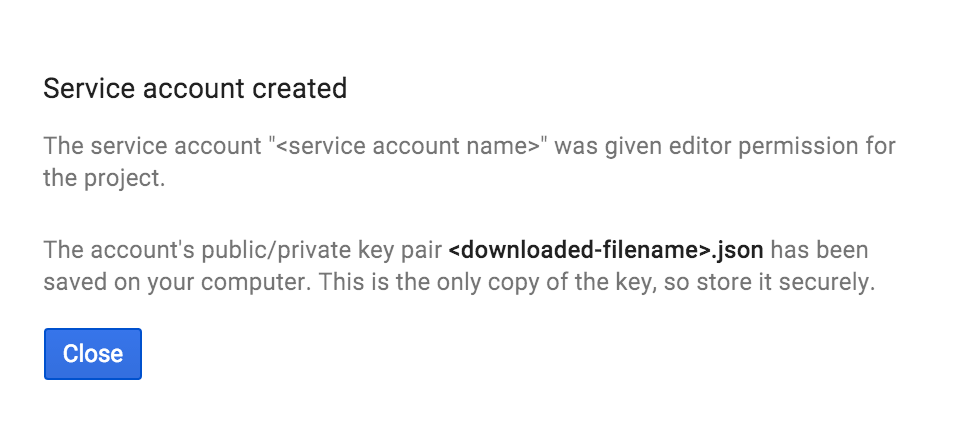
לאחר מכן, במסוף Google Cloud נוצר מפתח JSON (כקובץ טקסט .json), מוצגת בקשה להורדת הקובץ למחשב ומוצג תיבת הדו-שיח נוצר חשבון שירות.
מפתח ה-JSON שנוצר יהיה דומה לדוגמה הבאה של מפתח JSON:
{
  "type": "service_account",
  "project_id": "PROJECT_ID",
  "private_key_id": "SOME_NUMBER",
  "private_key": "-----BEGIN PRIVATE KEY-----\nPRIVATE_KEY\n-----END PRIVATE KEY-----\n",
  "client_email": "SERVICE_ACCOUNT_EMAIL",
  "client_id": "...",
  "auth_uri": "https://accounts.google.com/o/oauth2/auth",
  "token_uri": "https://accounts.google.com/o/oauth2/token",
  "auth_provider_x509_cert_url": "https://www.googleapis.com/oauth2/v1/certs",
  "client_x509_cert_url": "https://www.googleapis.com/robot/v1/metadata/x509/SERVICE_ACCOUNT_EMAIL"
}
חשוב לאחסן את קובץ ה-JSON הזה בצורה מאובטחת, כי הוא מכיל את המפתח הפרטי שלכם (והקובץ הזה הוא העותק היחיד של המפתח). כששולחים בקשות להערות ל-Video Intelligence API, צריך להפנות לקובץ המפתח של חשבון השירות הזה בקוד.
אימות באמצעות Application Default Credentials
הדרך הפשוטה ביותר לאמת אפליקציות ל-Video Intelligence API היא באמצעות Application Default Credentials (ADC).
שירותים שמשתמשים ב-ADC מחפשים קודם את פרטי הכניסה במשתנה הסביבה GOOGLE_APPLICATION_CREDENTIALS. אלא אם אתם צריכים ש-ADC ישתמש בפרטי כניסה אחרים (לדוגמה, פרטי כניסה של משתמש), אתם צריכים להגדיר את משתנה הסביבה הזה כך שיצביע על קובץ המפתח של חשבון השירות (קובץ .json שהורדתם כשנוצר מפתח לחשבון שירות).
$ export GOOGLE_APPLICATION_CREDENTIALS=PATH_TO_SERVICE_ACCOUNT_FILE