


本页面介绍如何将 Cloud Storage 存储桶装载到 Gemini Enterprise Agent Platform Workbench 实例的 JupyterLab 界面,以便您可以浏览存储在 Cloud Storage 中的文件。您还可以打开和修改与 JupyterLab 兼容的文件,例如文本文件和笔记本 (IPYNB) 文件。
概览
Agent Platform Workbench 实例包含 Cloud Storage 集成,可让您装载 Cloud Storage 存储桶。这意味着您可以在 JupyterLab 界面中浏览存储桶的内容并使用兼容的文件。
您可以访问您的实例在 Agent Platform Workbench 实例所属的项目中有权访问的任何 Cloud Storage 存储分区和文件。
准备工作
- 登录您的 Google Cloud 账号。如果您是 Google Cloud新手,请 创建一个账号来评估我们的产品在实际场景中的表现。新客户还可获享 $300 赠金,用于运行、测试和部署工作负载。
-
In the Google Cloud console, on the project selector page, select or create a Google Cloud project.
Roles required to select or create a project
- Select a project: Selecting a project doesn't require a specific IAM role—you can select any project that you've been granted a role on.
-
Create a project: To create a project, you need the Project Creator role
(
roles/resourcemanager.projectCreator), which contains theresourcemanager.projects.createpermission. Learn how to grant roles.
-
Verify that billing is enabled for your Google Cloud project.
Enable the Notebooks API, if it is not already enabled.
Roles required to enable APIs
To enable APIs, you need the
serviceusage.services.enablepermission. If you created the project, then you likely already have this permission through the Owner role (roles/owner). Otherwise, you can get this permission through the Service Usage Admin role (roles/serviceusage.serviceUsageAdmin). Learn how to grant roles.-
In the Google Cloud console, on the project selector page, select or create a Google Cloud project.
Roles required to select or create a project
- Select a project: Selecting a project doesn't require a specific IAM role—you can select any project that you've been granted a role on.
-
Create a project: To create a project, you need the Project Creator role
(
roles/resourcemanager.projectCreator), which contains theresourcemanager.projects.createpermission. Learn how to grant roles.
-
Verify that billing is enabled for your Google Cloud project.
Enable the Notebooks API, if it is not already enabled.
Roles required to enable APIs
To enable APIs, you need the
serviceusage.services.enablepermission. If you created the project, then you likely already have this permission through the Owner role (roles/owner). Otherwise, you can get this permission through the Service Usage Admin role (roles/serviceusage.serviceUsageAdmin). Learn how to grant roles.
所需的角色
如需获得将 Cloud Storage 存储桶装载到 Agent Platform Workbench 实例所需的权限,请让您的管理员为您授予以下 IAM 角色:
- 项目的 Notebooks Runner (
roles/notebooks.runner) 角色 - Agent Platform Workbench 实例的服务账号的 Storage Object User (
roles/storage.objectUser)
如需详细了解如何授予角色,请参阅管理对项目、文件夹和组织的访问权限。
启用共享存储空间装载所需的权限
如需在 Agent Platform Workbench 实例中启用共享存储空间装载,请让您的管理员为 Agent Platform Workbench 实例的服务账号授予项目的 storage.buckets.list 权限。
如需让装载共享存储空间按钮显示在 Agent Platform Workbench 实例的 JupyterLab 界面中,您必须拥有 storage.buckets.list 权限。
创建存储桶和 Agent Platform Workbench 实例
您必须有权访问 Agent Platform Workbench 实例所属项目中的至少一个 Cloud Storage 存储桶。- 如果您需要创建 Cloud Storage 存储桶,请参阅创建存储桶。
- 如果您还没有在 Cloud Storage 存储桶所属的项目中创建 Agent Platform Workbench 实例,请创建一个。
打开 JupyterLab
-
在 Google Cloud 控制台中,前往实例页面。
-
在 Agent Platform Workbench 实例名称旁边,点击打开 JupyterLab。
您的 Agent Platform Workbench 实例会打开 JupyterLab。
装载 Cloud Storage 存储桶
如需装载并访问 Cloud Storage 存储桶,请执行以下操作:
-
在 JupyterLab 中,确保选中 文件浏览器标签页。
-
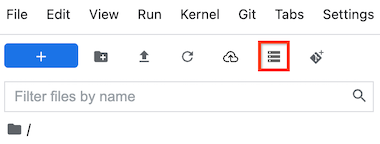
在左侧边栏中,点击 装载共享存储空间按钮。如果您没有看到该按钮,请拖动边栏的右侧以展开边栏,直到看到该按钮为止。
-
在存储桶名称字段中,输入要装载的 Cloud Storage 存储桶名称。
-
点击装载 (Mount)。
-
您的 Cloud Storage 存储桶在左侧边栏的文件浏览器标签页中显示为文件夹。双击该文件夹可将其打开并浏览其内容。
 装载共享存储空间按钮。如果您没有看到该按钮,请拖动边栏的右侧以展开边栏,直到看到该按钮为止。
问题排查
如需查找用于诊断和解决将 Cloud Storage 存储桶装载到实例的问题的方法,请参阅排查 Agent Platform Workbench 问题。
后续步骤
详细了解 Cloud Storage。