


이 페이지에서는 Cloud Storage에 저장된 파일을 둘러볼 수 있도록 Cloud Storage 버킷을 Gemini Enterprise Agent Platform Workbench 인스턴스의 JupyterLab 인터페이스에 마운트하는 방법을 보여줍니다. 텍스트 파일 및 노트북 (IPYNB) 파일과 같은 JupyterLab과 호환되는 파일을 열고 수정할 수도 있습니다.
개요
Agent Platform Workbench 인스턴스에는 Cloud Storage 버킷을 마운트할 수 있게 해주는 Cloud Storage 통합이 포함되어 있습니다. 즉, 버킷의 콘텐츠를 둘러보고 JupyterLab 인터페이스 내에서 호환되는 파일로 작업할 수 있습니다.
Agent Platform Workbench 인스턴스와 동일한 프로젝트 내에서 인스턴스가 액세스할 수 있는 모든 Cloud Storage 버킷과 파일에 액세스할 수 있습니다.
시작하기 전에
- 계정에 로그인합니다. Google Cloud 를 처음 사용하는 경우 계정을 만들고 Google 제품의 실제 성능을 평가해 보세요. Google Cloud신규 고객에게는 워크로드를 실행, 테스트, 배포하는 데 사용할 수 있는 $300의 무료 크레딧이 제공됩니다.
-
In the Google Cloud console, on the project selector page, select or create a Google Cloud project.
Roles required to select or create a project
- Select a project: Selecting a project doesn't require a specific IAM role—you can select any project that you've been granted a role on.
-
Create a project: To create a project, you need the Project Creator role
(
roles/resourcemanager.projectCreator), which contains theresourcemanager.projects.createpermission. Learn how to grant roles.
-
Verify that billing is enabled for your Google Cloud project.
Enable the Notebooks API.
Roles required to enable APIs
To enable APIs, you need the
serviceusage.services.enablepermission. If you created the project, then you likely already have this permission through the Owner role (roles/owner). Otherwise, you can get this permission through the Service Usage Admin role (roles/serviceusage.serviceUsageAdmin). Learn how to grant roles.-
In the Google Cloud console, on the project selector page, select or create a Google Cloud project.
Roles required to select or create a project
- Select a project: Selecting a project doesn't require a specific IAM role—you can select any project that you've been granted a role on.
-
Create a project: To create a project, you need the Project Creator role
(
roles/resourcemanager.projectCreator), which contains theresourcemanager.projects.createpermission. Learn how to grant roles.
-
Verify that billing is enabled for your Google Cloud project.
Enable the Notebooks API.
Roles required to enable APIs
To enable APIs, you need the
serviceusage.services.enablepermission. If you created the project, then you likely already have this permission through the Owner role (roles/owner). Otherwise, you can get this permission through the Service Usage Admin role (roles/serviceusage.serviceUsageAdmin). Learn how to grant roles.
필요한 역할
Cloud Storage 버킷을 Agent Platform Workbench 인스턴스에 마운트하는 데 필요한 권한을 얻으려면 관리자에게 다음 IAM 역할을 부여해 달라고 요청하세요.
- Notebooks 실행자 (
roles/notebooks.runner) 프로젝트에 대한 - Agent Platform Workbench 인스턴스의 서비스 계정에 대한 스토리지 객체 사용자 (
roles/storage.objectUser)
역할 부여에 대한 자세한 내용은 프로젝트, 폴더, 조직에 대한 액세스 관리를 참조하세요.
커스텀 역할이나 다른 사전 정의된 역할을 통해 필요한 권한을 얻을 수도 있습니다.
공유 스토리지 마운트를 사용 설정하는 데 필요한 권한
Agent Platform Workbench 인스턴스에서 공유 스토리지 마운트를 사용 설정하려면 관리자에게 Agent Platform Workbench 인스턴스의 서비스 계정에 프로젝트에 대한 storage.buckets.list 권한을 부여해 달라고 요청하세요.
Agent Platform Workbench 인스턴스의 JupyterLab 인터페이스에 공유 스토리지 마운트 버튼을 표시하려면 storage.buckets.list 권한이 필요합니다.
버킷 및 Agent Platform Workbench 인스턴스 만들기
Agent Platform Workbench 인스턴스와 동일한 프로젝트에서 Cloud Storage 버킷 최소 하나 이상에 액세스할 수 있는 권한이 있어야 합니다.- Cloud Storage 버킷을 만들어야 하는 경우 버킷 만들기를 참조하세요.
- Cloud Storage 버킷과 동일한 프로젝트에 아직 Agent Platform Workbench 인스턴스를 만들지 않았으면 인스턴스를 만듭니다.
JupyterLab 열기
-
Google Cloud 콘솔에서 인스턴스 페이지로 이동합니다.
-
Agent Platform Workbench 인스턴스 이름 옆에 있는 JupyterLab 열기를 클릭합니다.
Agent Platform Workbench 인스턴스가 JupyterLab을 엽니다.
Cloud Storage 버킷 마운트
Cloud Storage 버킷을 마운트하고 액세스하려면 다음을 수행합니다.
-
JupyterLab에서 파일 브라우저 탭이 선택되어 있는지 확인합니다.
-
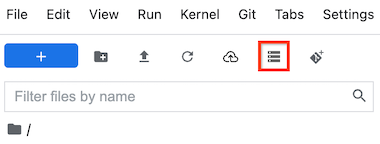
왼쪽 사이드바에서 공유 저장소 마운트 버튼을 클릭합니다. 버튼이 보이지 않으면 사이드바 오른쪽을 드래그하여 버튼이 표시될 때까지 사이드바를 확장합니다.
-
버킷 이름 필드에 마운트하려는 Cloud Storage 버킷 이름을 입력합니다.
-
마운트를 클릭합니다.
-
Cloud Storage 버킷은 왼쪽 사이드바의 파일 브라우저 탭에 폴더로 표시됩니다. 폴더를 더블클릭하여 열고 콘텐츠를 찾아봅니다.
 공유 저장소 마운트 버튼을 클릭합니다. 버튼이 보이지 않으면 사이드바 오른쪽을 드래그하여 버튼이 표시될 때까지 사이드바를 확장합니다.
문제 해결
Cloud Storage 버킷을 인스턴스에 마운트할 때 발생하는 문제를 진단하고 해결하는 방법은 Agent Platform Workbench 문제 해결을 참조하세요.
다음 단계
Cloud Storage에 대해 자세히 알아봅니다.
JupyterLab 내에서 BigQuery의 데이터를 쿼리하는 방법 알아보기