使用 Python 進行背景處理

許多應用程式都需要在網路要求內容之外執行背景處理。本教學課程會建立一個網頁應用程式,讓使用者輸入要翻譯的文字,然後顯示先前翻譯的清單。翻譯是在背景程序中完成,以避免妨礙使用者的要求。

下圖說明要求翻譯的過程。
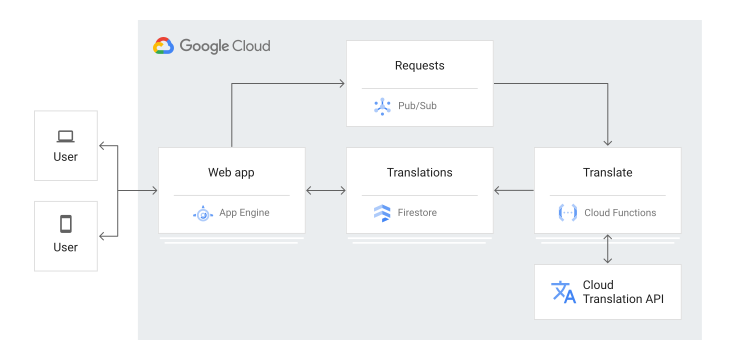
架構圖。

這是教學課程應用程式運作的事件順序:

  1. 前往網頁以查看 Firestore 儲存的先前翻譯清單。
  2. 輸入 HTML 表單以要求翻譯文字。
  3. 翻譯要求會發布至 Pub/Sub。
  4. 系統會觸發訂閱該 Pub/Sub 主題的 Cloud Run 函式。
  5. Cloud Run 函式會使用 Cloud Translation 翻譯文字。
  6. Cloud Run 函式會將結果儲存在 Firestore 中。

本教學課程的適用對象為有興趣瞭解如何使用 Google Cloud進行背景處理的人員。您無須具備使用 Pub/Sub、Firestore、App Engine 或 Cloud Run functions 的經驗。不過,如要瞭解所有程式碼,具備一些 Python、JavaScript 和 HTML 的使用經驗會有所幫助。

目標

  • 瞭解及部署 Cloud Run 函式。
  • 瞭解並部署 App Engine 應用程式。
  • 試用應用程式。

費用

在本文件中,您會使用下列 Google Cloud的計費元件:

如要根據預測用量估算費用,請使用 Pricing Calculator

初次使用 Google Cloud 的使用者可能符合免費試用期資格。

完成本文所述工作後,您可以刪除建立的資源,避免繼續計費,詳情請參閱「清除所用資源」。

事前準備

  1. 登入 Google Cloud 帳戶。如果您是 Google Cloud新手,歡迎 建立帳戶,親自評估產品在實際工作環境中的成效。新客戶還能獲得價值 $300 美元的免費抵免額,可用於執行、測試及部署工作負載。
  2. In the Google Cloud console, on the project selector page, select or create a Google Cloud project.

    Roles required to select or create a project

    • Select a project: Selecting a project doesn't require a specific IAM role—you can select any project that you've been granted a role on.
    • Create a project: To create a project, you need the Project Creator role (roles/resourcemanager.projectCreator), which contains the resourcemanager.projects.create permission. Learn how to grant roles.

    Go to project selector

  3. Verify that billing is enabled for your Google Cloud project.

  4. Enable the Firestore, Cloud Run functions, Pub/Sub, and Cloud Translation APIs.

    Roles required to enable APIs

    To enable APIs, you need the Service Usage Admin IAM role (roles/serviceusage.serviceUsageAdmin), which contains the serviceusage.services.enable permission. Learn how to grant roles.

    Enable the APIs

  5. In the Google Cloud console, on the project selector page, select or create a Google Cloud project.

    Roles required to select or create a project

    • Select a project: Selecting a project doesn't require a specific IAM role—you can select any project that you've been granted a role on.
    • Create a project: To create a project, you need the Project Creator role (roles/resourcemanager.projectCreator), which contains the resourcemanager.projects.create permission. Learn how to grant roles.

    Go to project selector

  6. Verify that billing is enabled for your Google Cloud project.

  7. Enable the Firestore, Cloud Run functions, Pub/Sub, and Cloud Translation APIs.

    Roles required to enable APIs

    To enable APIs, you need the Service Usage Admin IAM role (roles/serviceusage.serviceUsageAdmin), which contains the serviceusage.services.enable permission. Learn how to grant roles.

    Enable the APIs

  8. 前往 Google Cloud 控制台,並在 Cloud Shell 中開啟應用程式。

    前往 Cloud Shell

    Cloud Shell 可讓您直接在瀏覽器中使用指令列工具存取雲端資源。在瀏覽器中開啟 Cloud Shell 並按一下 [Proceed] (繼續),將程式碼範例和變更內容下載至應用程式目錄。

  9. 在 Cloud Shell 中,將 gcloud 工具設定為使用您的 Google Cloud 專案:
    # Configure gcloud for your project
    gcloud config set project YOUR_PROJECT_ID

瞭解 Cloud Run 函式

  • 該函式會先匯入數個依附元件,例如 Firestore 和 Translation。
    import base64
    import hashlib
    import json
    
    from google.cloud import firestore
    from google.cloud import translate_v2 as translate
  • 全域 Firestore 和 Translation 用戶端已初始化,因此可以在函式叫用之間重複使用。如此一來,您就不必為每次函式叫用初始化新的用戶端,可避免降低執行速度。
    # Get client objects once to reuse over multiple invocations.
    xlate = translate.Client()
    db = firestore.Client()
  • Translation API 會將字串翻譯成您選取的語言。
    def translate_string(from_string, to_language):
        """ Translates a string to a specified language.
    
        from_string - the original string before translation
    
        to_language - the language to translate to, as a two-letter code (e.g.,
            'en' for english, 'de' for german)
    
        Returns the translated string and the code for original language
        """
        result = xlate.translate(from_string, target_language=to_language)
        return result['translatedText'], result['detectedSourceLanguage']
  • Cloud Run 函式會先剖析 Pub/Sub 訊息,以取得要翻譯的文字和所需的目標語言。

    接著,Cloud Run 函式會翻譯文字並儲存在 Firestore 中,並使用交易確保沒有重複的翻譯。

    def document_name(message):
        """ Messages are saved in a Firestore database with document IDs generated
            from the original string and destination language. If the exact same
            translation is requested a second time, the result will overwrite the
            prior result.
    
            message - a dictionary with fields named Language and Original, and
                optionally other fields with any names
    
            Returns a unique name that is an allowed Firestore document ID
        """
        key = '{}/{}'.format(message['Language'], message['Original'])
        hashed = hashlib.sha512(key.encode()).digest()
    
        # Note that document IDs should not contain the '/' character
        name = base64.b64encode(hashed, altchars=b'+-').decode('utf-8')
        return name
    
    
    @firestore.transactional
    def update_database(transaction, message):
        name = document_name(message)
        doc_ref = db.collection('translations').document(document_id=name)
    
        try:
            doc_ref.get(transaction=transaction)
        except firestore.NotFound:
            return  # Don't replace an existing translation
    
        transaction.set(doc_ref, message)
    
    
    def translate_message(event, context):
        """ Process a pubsub message requesting a translation
        """
        message_data = base64.b64decode(event['data']).decode('utf-8')
        message = json.loads(message_data)
    
        from_string = message['Original']
        to_language = message['Language']
    
        to_string, from_language = translate_string(from_string, to_language)
    
        message['Translated'] = to_string
        message['OriginalLanguage'] = from_language
    
        transaction = db.transaction()
        update_database(transaction, message)

部署 Cloud Run 函式

  • 在 Cloud Shell 的 function 目錄中,部署具有 Pub/Sub 觸發條件的 Cloud Run 函式:

    gcloud functions deploy Translate --runtime=python37 \
    --entry-point=translate_message --trigger-topic=translate \
    --set-env-vars GOOGLE_CLOUD_PROJECT=YOUR_GOOGLE_CLOUD_PROJECT

    其中 YOUR_GOOGLE_CLOUD_PROJECT 是您的 Google Cloud 專案 ID。

瞭解應用程式

網頁應用程式有兩個主要元件:

  • 處理網路要求的 Python HTTP 伺服器。伺服器具有以下兩個端點:
    • /:列出所有現有譯文,並顯示使用者可用來提交新翻譯要求的表單。
    • /request-translation:系統會將提交的表單傳送到這個端點,並將要求發布到 Pub/Sub 以進行非同步翻譯。
  • 由 Python 伺服器填入現有譯文的 HTML 範本。

HTTP 伺服器

  • app 目錄中,main.py 會先匯入依附元件、建立 Flask 應用程式、初始化 Firestore 和 Translation 用戶端,並定義支援的語言清單:

    import json
    import os
    
    from flask import Flask, redirect, render_template, request
    from google.cloud import firestore, pubsub
    from markupsafe import escape
    
    
    app = Flask(__name__)
    
    # Get client objects to reuse over multiple invocations
    db = firestore.Client()
    publisher = pubsub.PublisherClient()
    
    # Keep this list of supported languages up to date
    ACCEPTABLE_LANGUAGES = ("de", "en", "es", "fr", "ja", "sw")
  • 索引處理常式 (/) 可從 Firestore 取得所有現有的譯文,並使用清單填入 HTML 範本:

    @app.route("/", methods=["GET"])
    def index():
        """The home page has a list of prior translations and a form to
        ask for a new translation.
        """
    
        doc_list = []
        docs = db.collection("translations").stream()
        for doc in docs:
            doc_list.append(doc.to_dict())
    
        return render_template("index.html", translations=doc_list)
    
    
  • 如要要求新的翻譯,請提交 HTML 表單。在 /request-translation 註冊的翻譯要求處理常式會剖析提交表單、驗證要求,並向 Pub/Sub 發布訊息:

    @app.route("/request-translation", methods=["POST"])
    def translate():
        """Handle a request to translate a string (form field 'v') to a given
        language (form field 'lang'), by sending a PubSub message to a topic.
        """
        source_string = request.form.get("v", "")
        to_language = escape(request.form.get("lang", ""))
    
        if source_string == "":
            return "Invalid request, you must provide a value.", 400
    
        if to_language not in ACCEPTABLE_LANGUAGES:
            return f"Unsupported language: {to_language}", 400
    
        message = {
            "Original": source_string,
            "Language": to_language,
            "Translated": "",
            "OriginalLanguage": "",
        }
    
        topic_name = (
            f"projects/{os.getenv('GOOGLE_CLOUD_PROJECT')}/topics/translate"
        )
        publisher.publish(
            topic=topic_name, data=json.dumps(message).encode("utf-8")
        )
        return redirect("/")


HTML 範本

HTML 範本是向使用者顯示 HTML 網頁的基礎,可讓使用者查看先前的翻譯內容並要求新的內容。範本是由 HTTP 伺服器填入現有的翻譯清單。

  • HTML 範本的 <head> 元素包括頁面的中繼資料、樣式表和 JavaScript:
    <html>
    
    <head>
        <meta charset="UTF-8">
        <meta name="viewport" content="width=device-width, initial-scale=1.0">
        <title>Translations</title>
    
        <link rel="stylesheet" href="https://fonts.googleapis.com/icon?family=Material+Icons">
        <link rel="stylesheet" href="https://code.getmdl.io/1.3.0/material.indigo-pink.min.css">
        <script defer src="https://code.getmdl.io/1.3.0/material.min.js"></script>
        <script src="https://ajax.googleapis.com/ajax/libs/jquery/1.9.1/jquery.min.js"></script>
        <script>
            $(document).ready(function() {
                $("#translate-form").submit(function(e) {
                    e.preventDefault();
                    // Get value, make sure it's not empty.
                    if ($("#v").val() == "") {
                        return;
                    }
                    $.ajax({
                        type: "POST",
                        url: "/request-translation",
                        data: $(this).serialize(),
                        success: function(data) {
                            // Show snackbar.
                            console.log(data);
                            var notification = document.querySelector('.mdl-js-snackbar');
                            $("#snackbar").removeClass("mdl-color--red-100");
                            $("#snackbar").addClass("mdl-color--green-100");
                            notification.MaterialSnackbar.showSnackbar({
                                message: 'Translation requested'
                            });
                        },
                        error: function(data) {
                            // Show snackbar.
                            console.log("Error requesting translation");
                            var notification = document.querySelector('.mdl-js-snackbar');
                            $("#snackbar").removeClass("mdl-color--green-100");
                            $("#snackbar").addClass("mdl-color--red-100");
                            notification.MaterialSnackbar.showSnackbar({
                                message: 'Translation request failed'
                            });
                        }
                    });
                });
            });
        </script>
        <style>
            .lang {
                width: 50px;
            }
            .translate-form {
                display: inline;
            }
        </style>
    </head>

    該頁面提取 Material Design Lite (MDL) CSS 和 JavaScript 資產。MDL 可讓您為網站加入質感設計外觀和風格。

    該頁面使用 JQuery 等待文件完成載入並設定表單提交處理常式。每次提交要求翻譯的表單時,頁面都會進行最低限度的表單驗證以檢查其中的值並非空白,然後將非同步要求發至 /request-translation 端點。

    最後會出現 MDL Snackbar,以表示要求為成功或發生錯誤。

  • 網頁的 HTML 內文會使用 MDL 版面配置和多個 MDL 元件來顯示翻譯清單,以及要求其他翻譯的表單:
    <body>
        <div class="mdl-layout mdl-js-layout mdl-layout--fixed-header">
            <header class="mdl-layout__header">
                <div class="mdl-layout__header-row">
                    <!-- Title -->
                    <span class="mdl-layout-title">Translate with Background Processing</span>
                </div>
            </header>
            <main class="mdl-layout__content">
                <div class="page-content">
                    <div class="mdl-grid">
                    <div class="mdl-cell mdl-cell--1-col"></div>
                        <div class="mdl-cell mdl-cell--3-col">
                            <form id="translate-form" class="translate-form">
                                <div class="mdl-textfield mdl-js-textfield mdl-textfield--floating-label">
                                    <input class="mdl-textfield__input" type="text" id="v" name="v">
                                    <label class="mdl-textfield__label" for="v">Text to translate...</label>
                                </div>
                                <select class="mdl-textfield__input lang" name="lang">
                                    <option value="de">de</option>
                                    <option value="en">en</option>
                                    <option value="es">es</option>
                                    <option value="fr">fr</option>
                                    <option value="ja">ja</option>
                                    <option value="sw">sw</option>
                                </select>
                                <button class="mdl-button mdl-js-button mdl-button--raised mdl-button--accent" type="submit"
                                    name="submit">Submit</button>
                            </form>
                        </div>
                        <div class="mdl-cell mdl-cell--8-col">
                            <table class="mdl-data-table mdl-js-data-table mdl-shadow--2dp">
                                <thead>
                                    <tr>
                                        <th class="mdl-data-table__cell--non-numeric"><strong>Original</strong></th>
                                        <th class="mdl-data-table__cell--non-numeric"><strong>Translation</strong></th>
                                    </tr>
                                </thead>
                                <tbody>
                                {% for translation in translations %}
                                    <tr>
                                        <td class="mdl-data-table__cell--non-numeric">
                                            <span class="mdl-chip mdl-color--primary">
                                                <span class="mdl-chip__text mdl-color-text--white">{{ translation['OriginalLanguage'] }} </span>
                                            </span>
                                        {{ translation['Original'] }}
                                        </td>
                                        <td class="mdl-data-table__cell--non-numeric">
                                            <span class="mdl-chip mdl-color--accent">
                                                <span class="mdl-chip__text mdl-color-text--white">{{ translation['Language'] }} </span>
                                            </span>
                                            {{ translation['Translated'] }}
                                        </td>
                                    </tr>
                                {% endfor %}
                                </tbody>
                            </table>
                            <br/>
                            <button class="mdl-button mdl-js-button mdl-button--raised" type="button" onClick="window.location.reload();">
                                Refresh
                            </button>
                        </div>
                    </div>
                </div>
                <div aria-live="assertive" aria-atomic="true" aria-relevant="text" class="mdl-snackbar mdl-js-snackbar" id="snackbar">
                    <div class="mdl-snackbar__text mdl-color-text--black"></div>
                    <button type="button" class="mdl-snackbar__action"></button>
                </div>
            </main>
        </div>
    </body>
    
    </html>

部署網頁應用程式

您可以使用 App Engine 標準環境以建構及部署應用程式,即使是處在高負載和大量資料的情況下,應用程式仍會穩定可靠地執行。

本教學課程使用 App Engine 標準環境來部署 HTTP 前端。

app.yaml 會設定 App Engine 應用程式:

runtime: python312
  • app.yaml 檔案所在的相同目錄中,將您的應用程式部署至 App Engine 標準環境:
    gcloud app deploy

測試應用程式

部署 Cloud Run 函式和 App Engine 應用程式後,請試著要求翻譯。

  1. 如要在瀏覽器中查看應用程式,請輸入下列網址:

    https://PROJECT_ID.REGION_ID.r.appspot.com

    更改下列內容:

    網頁上會包含空白翻譯清單及要求新翻譯的表單。

  2. 要翻譯的文字欄位中,輸入一些要翻譯的文字,例如 Hello, World
  3. 從下拉式清單中選取翻譯文字的目標語言。
  4. 按一下 [Submit] (提交)
  5. 如要重新整理頁面,請按一下「重新整理」圖示 。翻譯清單中會新增一列。如果未看到譯文,請等待幾秒鐘,然後再試一次。如果您還是沒看到譯文,請參閱下一節說明如何除錯應用程式。

應用程式除錯

如果您無法連線至您的 App Engine 應用程式,或是沒有看到新的譯文,請檢查下列事項:

  1. 檢查 gcloud 部署指令是否順利完成,且未輸出任何錯誤。如果發生錯誤,請修正錯誤,並再次嘗試部署 Cloud Run 函式App Engine 應用程式
  2. 前往 Google Cloud 控制台的「記錄檢視器」頁面。

    前往「Logs Viewer」(記錄檢視器) 頁面
    1. 在「Recently selected resources」(最近選取的資源) 下拉式清單中,按一下 [GAE Application] (GAE 應用程式),然後按一下 [All module_id] (所有 module_id)。系統隨即會顯示您造訪應用程式時的要求清單。如果您沒看見要求清單,請確認您已從下拉式清單中選取 [All module_id] (所有 module_id)。如果 Google Cloud 控制台顯示錯誤訊息,請檢查應用程式的程式碼是否與「瞭解應用程式」一節中的程式碼相符。
    2. 在「Recently selected resources」(最近選取的資源) 下拉式清單中,按一下 [Cloud Function] (Cloud 函式),然後按一下 [All function name] (所有函式名稱)。您會看到為每個翻譯要求所列出的函式。如果沒有列出,請檢查 Cloud Run 函式和 App Engine 應用程式是否使用相同的 Pub/Sub 主題:
      • background/main.py 檔案中,請查看 topic_name 是否為 "translate"
      • 在您部署 Cloud Run 函式時,請務必加上 --trigger-topic=translate 旗標。

清除所用資源

為避免因為本教學課程所用資源,導致系統向 Google Cloud 帳戶收取費用,請刪除含有相關資源的專案,或者保留專案但刪除個別資源。

刪除 Google Cloud 專案

  1. 前往 Google Cloud 控制台的「Manage resources」(管理資源) 頁面。

    前往「Manage resources」(管理資源)

  2. 在專案清單中選取要刪除的專案,然後點選「Delete」(刪除)
  3. 在對話方塊中輸入專案 ID,然後按一下 [Shut down] (關閉) 以刪除專案。

刪除 App Engine 執行個體

  1. 前往 Google Cloud 控制台的 App Engine「Versions」(版本) 頁面。

    前往「版本」

  2. 勾選您要刪除的非預設應用程式版本的核取方塊。
  3. 如要刪除應用程式版本,請按一下 「刪除」

刪除 Cloud Run 函式

  • 刪除您在本教學課程中建立的 Cloud Run 函式:
    gcloud functions delete Translate

後續步驟