Python を使用したバックグラウンド処理

多くのアプリでは、ウェブ リクエストのコンテキストの外部でバックグラウンド処理を行う必要があります。このチュートリアルでは、ユーザーが翻訳するテキストを入力した後、以前の翻訳のリストを表示するウェブアプリを作成します。翻訳は、ユーザーのリクエストをブロックしないようにバックグラウンド プロセスで行われます。

次の図は、翻訳リクエストのプロセスを示しています。
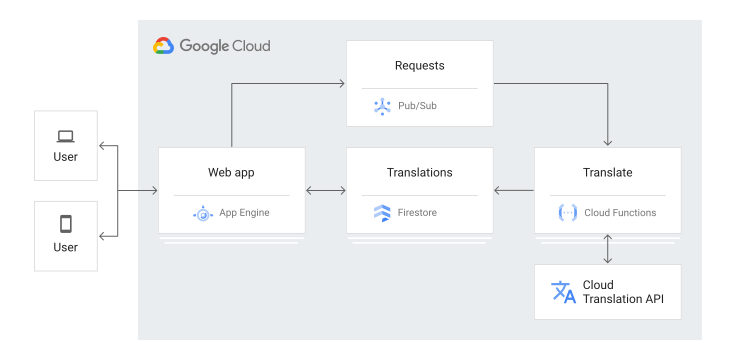
アーキテクチャの図

チュートリアル アプリが動作する際のイベントの順序は次のとおりです。

  1. ウェブページにアクセスすると、Firestore に保存されている以前の翻訳のリストが表示されます。
  2. HTML フォームに入力してテキストの翻訳をリクエストします。
  3. 翻訳リクエストは Pub/Sub にパブリッシュされます。
  4. その Pub/Sub トピックに登録されている Cloud Run 関数が起動されます。
  5. Cloud Run 関数は、Cloud Translation を使用してテキストを翻訳します。
  6. Cloud Run 関数は、その結果を Firestore に保存します。

このチュートリアルは、 Google Cloudでのバックグラウンド処理の詳細に関心をお持ちの方を対象としています。Pub/Sub、Firestore、App Engine、Cloud Run 関数についての経験は必須要件ではありません。ただし、Python、JavaScript、HTML の経験をお持ちであれば、すべてのコードを理解するうえで役立ちます。

目標

  • Cloud Run 関数を理解し、デプロイする。
  • App Engine アプリを理解し、デプロイします。
  • アプリを試してみます。

費用

このドキュメントでは、課金対象である次の Google Cloudコンポーネントを使用します。

料金計算ツールを使うと、予想使用量に基づいて費用の見積もりを生成できます。

新規の Google Cloud ユーザーは無料トライアルをご利用いただける場合があります。

このドキュメントに記載されているタスクの完了後、作成したリソースを削除すると、それ以上の請求は発生しません。詳細については、クリーンアップをご覧ください。

始める前に

  1. Google Cloud アカウントにログインします。 Google Cloudを初めて使用する場合は、 アカウントを作成して、実際のシナリオでの Google プロダクトのパフォーマンスを評価してください。新規のお客様には、ワークロードの実行、テスト、デプロイができる無料クレジット $300 分を差し上げます。
  2. In the Google Cloud console, on the project selector page, select or create a Google Cloud project.

    Roles required to select or create a project

    • Select a project: Selecting a project doesn't require a specific IAM role—you can select any project that you've been granted a role on.
    • Create a project: To create a project, you need the Project Creator role (roles/resourcemanager.projectCreator), which contains the resourcemanager.projects.create permission. Learn how to grant roles.

    Go to project selector

  3. Verify that billing is enabled for your Google Cloud project.

  4. Enable the Firestore, Cloud Run functions, Pub/Sub, and Cloud Translation APIs.

    Roles required to enable APIs

    To enable APIs, you need the Service Usage Admin IAM role (roles/serviceusage.serviceUsageAdmin), which contains the serviceusage.services.enable permission. Learn how to grant roles.

    Enable the APIs

  5. In the Google Cloud console, on the project selector page, select or create a Google Cloud project.

    Roles required to select or create a project

    • Select a project: Selecting a project doesn't require a specific IAM role—you can select any project that you've been granted a role on.
    • Create a project: To create a project, you need the Project Creator role (roles/resourcemanager.projectCreator), which contains the resourcemanager.projects.create permission. Learn how to grant roles.

    Go to project selector

  6. Verify that billing is enabled for your Google Cloud project.

  7. Enable the Firestore, Cloud Run functions, Pub/Sub, and Cloud Translation APIs.

    Roles required to enable APIs

    To enable APIs, you need the Service Usage Admin IAM role (roles/serviceusage.serviceUsageAdmin), which contains the serviceusage.services.enable permission. Learn how to grant roles.

    Enable the APIs

  8. Google Cloud コンソールで、Cloud Shell でアプリを開きます。

    Cloud Shell に移動

    Cloud Shell を使用すると、ブラウザからコマンドラインで直接クラウド リソースにアクセスできます。ブラウザで Cloud Shell を開き、[続行] をクリックしてサンプルコードをダウンロードし、アプリ ディレクトリに移動します。

  9. Cloud Shell で、gcloud ツールを構成して Google Cloud プロジェクトを使用します。
    # Configure gcloud for your project
    gcloud config set project YOUR_PROJECT_ID

Cloud Run 関数について

  • この関数は、Firestore や Translation のようないくつかの依存関係をインポートすることから始まります。
    import base64
    import hashlib
    import json
    
    from google.cloud import firestore
    from google.cloud import translate_v2 as translate
  • グローバル Firestore クライアントと Translation クライアントは、関数呼び出し間で再利用できるように初期化されます。これにより、実行速度の低下の要因となる、関数の呼び出しごとに新しいクライアントを初期化することが必要なくなります。
    # Get client objects once to reuse over multiple invocations.
    xlate = translate.Client()
    db = firestore.Client()
  • 翻訳 API は、選択した言語に文字列を翻訳します。
    def translate_string(from_string, to_language):
        """ Translates a string to a specified language.
    
        from_string - the original string before translation
    
        to_language - the language to translate to, as a two-letter code (e.g.,
            'en' for english, 'de' for german)
    
        Returns the translated string and the code for original language
        """
        result = xlate.translate(from_string, target_language=to_language)
        return result['translatedText'], result['detectedSourceLanguage']
  • Cloud Run 関数は、まず Pub/Sub メッセージを解析して、翻訳するテキストと該当するターゲット言語を取得します。

    次に、Cloud Run 関数はテキストを翻訳し、トランザクションを使用して重複する翻訳がないことを確認して、Firestore に保存します。

    def document_name(message):
        """ Messages are saved in a Firestore database with document IDs generated
            from the original string and destination language. If the exact same
            translation is requested a second time, the result will overwrite the
            prior result.
    
            message - a dictionary with fields named Language and Original, and
                optionally other fields with any names
    
            Returns a unique name that is an allowed Firestore document ID
        """
        key = '{}/{}'.format(message['Language'], message['Original'])
        hashed = hashlib.sha512(key.encode()).digest()
    
        # Note that document IDs should not contain the '/' character
        name = base64.b64encode(hashed, altchars=b'+-').decode('utf-8')
        return name
    
    
    @firestore.transactional
    def update_database(transaction, message):
        name = document_name(message)
        doc_ref = db.collection('translations').document(document_id=name)
    
        try:
            doc_ref.get(transaction=transaction)
        except firestore.NotFound:
            return  # Don't replace an existing translation
    
        transaction.set(doc_ref, message)
    
    
    def translate_message(event, context):
        """ Process a pubsub message requesting a translation
        """
        message_data = base64.b64decode(event['data']).decode('utf-8')
        message = json.loads(message_data)
    
        from_string = message['Original']
        to_language = message['Language']
    
        to_string, from_language = translate_string(from_string, to_language)
    
        message['Translated'] = to_string
        message['OriginalLanguage'] = from_language
    
        transaction = db.transaction()
        update_database(transaction, message)

Cloud Run 関数のデプロイ

  • Cloud Shell の function ディレクトリで、Pub/Sub トリガーを使用して Cloud Run 関数をデプロイします。

    gcloud functions deploy Translate --runtime=python37 \
    --entry-point=translate_message --trigger-topic=translate \
    --set-env-vars GOOGLE_CLOUD_PROJECT=YOUR_GOOGLE_CLOUD_PROJECT

    ここで、YOUR_GOOGLE_CLOUD_PROJECT は Google Cloud プロジェクト ID です。

アプリについて

ウェブアプリには主に次の 2 つのコンポーネントがあります。

  • ウェブ リクエストを処理する Python HTTP サーバー。サーバーには、次の 2 つのエンドポイントがあります。
    • /: 既存のすべての翻訳を一覧表示し、ユーザーが新しい翻訳をリクエストする際に送信できるフォームを表示します。
    • /request-translation: フォーム送信はこのエンドポイントに送信され、Pub/Sub へのリクエストがパブリッシュされ、翻訳は非同期で処理されます。
  • Python サーバーによって既存の翻訳が入力された HTML テンプレート。

HTTP サーバー

  • app ディレクトリで、main.py は依存関係のインポート、Flask アプリの作成、Firestore クライアントと Translation クライアントの初期化、サポートされる言語のリストの定義から開始します。

    import json
    import os
    
    from flask import Flask, redirect, render_template, request
    from google.cloud import firestore, pubsub
    from markupsafe import escape
    
    
    app = Flask(__name__)
    
    # Get client objects to reuse over multiple invocations
    db = firestore.Client()
    publisher = pubsub.PublisherClient()
    
    # Keep this list of supported languages up to date
    ACCEPTABLE_LANGUAGES = ("de", "en", "es", "fr", "ja", "sw")
  • インデックス ハンドラ(/)は、Firestore から既存の翻訳をすべて取得し、リストを使用して HTML テンプレートへの入力を行います。

    @app.route("/", methods=["GET"])
    def index():
        """The home page has a list of prior translations and a form to
        ask for a new translation.
        """
    
        doc_list = []
        docs = db.collection("translations").stream()
        for doc in docs:
            doc_list.append(doc.to_dict())
    
        return render_template("index.html", translations=doc_list)
    
    
  • 新しい翻訳をリクエストするには、HTML フォームを送信します。/request-translation に登録されているリクエスト翻訳ハンドラは、フォーム送信を解析してリクエストを検証し、メッセージを Pub/Sub にパブリッシュします。

    @app.route("/request-translation", methods=["POST"])
    def translate():
        """Handle a request to translate a string (form field 'v') to a given
        language (form field 'lang'), by sending a PubSub message to a topic.
        """
        source_string = request.form.get("v", "")
        to_language = escape(request.form.get("lang", ""))
    
        if source_string == "":
            return "Invalid request, you must provide a value.", 400
    
        if to_language not in ACCEPTABLE_LANGUAGES:
            return f"Unsupported language: {to_language}", 400
    
        message = {
            "Original": source_string,
            "Language": to_language,
            "Translated": "",
            "OriginalLanguage": "",
        }
    
        topic_name = (
            f"projects/{os.getenv('GOOGLE_CLOUD_PROJECT')}/topics/translate"
        )
        publisher.publish(
            topic=topic_name, data=json.dumps(message).encode("utf-8")
        )
        return redirect("/")


HTML テンプレート

HTML テンプレートはユーザーに表示される HTML ページの基礎となり、以前の翻訳を表示して新しい翻訳をリクエストできます。HTTP サーバーは、既存の翻訳のリストを使用してテンプレートへの入力を行います。

  • HTML テンプレートの <head> 要素には、ページのメタデータ、スタイルシート、JavaScript が含まれます。
    <html>
    
    <head>
        <meta charset="UTF-8">
        <meta name="viewport" content="width=device-width, initial-scale=1.0">
        <title>Translations</title>
    
        <link rel="stylesheet" href="https://fonts.googleapis.com/icon?family=Material+Icons">
        <link rel="stylesheet" href="https://code.getmdl.io/1.3.0/material.indigo-pink.min.css">
        <script defer src="https://code.getmdl.io/1.3.0/material.min.js"></script>
        <script src="https://ajax.googleapis.com/ajax/libs/jquery/1.9.1/jquery.min.js"></script>
        <script>
            $(document).ready(function() {
                $("#translate-form").submit(function(e) {
                    e.preventDefault();
                    // Get value, make sure it's not empty.
                    if ($("#v").val() == "") {
                        return;
                    }
                    $.ajax({
                        type: "POST",
                        url: "/request-translation",
                        data: $(this).serialize(),
                        success: function(data) {
                            // Show snackbar.
                            console.log(data);
                            var notification = document.querySelector('.mdl-js-snackbar');
                            $("#snackbar").removeClass("mdl-color--red-100");
                            $("#snackbar").addClass("mdl-color--green-100");
                            notification.MaterialSnackbar.showSnackbar({
                                message: 'Translation requested'
                            });
                        },
                        error: function(data) {
                            // Show snackbar.
                            console.log("Error requesting translation");
                            var notification = document.querySelector('.mdl-js-snackbar');
                            $("#snackbar").removeClass("mdl-color--green-100");
                            $("#snackbar").addClass("mdl-color--red-100");
                            notification.MaterialSnackbar.showSnackbar({
                                message: 'Translation request failed'
                            });
                        }
                    });
                });
            });
        </script>
        <style>
            .lang {
                width: 50px;
            }
            .translate-form {
                display: inline;
            }
        </style>
    </head>

    このページでは、Material Design Lite(MDL)の CSS アセットと JavaScript アセットを取得します。MDL によって、ウェブサイトに Material Design の外観を追加できます。

    ページは JQuery を使用してドキュメントの読み込みが完了するのを待ち、フォーム送信ハンドラを設定します。翻訳のリクエスト フォームが送信されるたびに、ページは最小限のフォームの検証を行い値が空でないことを確認してから、非同期リクエストを /request-translation エンドポイントに送信します。

    最後に、リクエストが成功したか、またはエラーが発生したかを示す MDL スナックバーが表示されます。

  • ページの HTML 本文は、MDL レイアウトといくつかの MDL コンポーネントを使用して、翻訳のリストと追加の翻訳をリクエストするフォームを表示します。
    <body>
        <div class="mdl-layout mdl-js-layout mdl-layout--fixed-header">
            <header class="mdl-layout__header">
                <div class="mdl-layout__header-row">
                    <!-- Title -->
                    <span class="mdl-layout-title">Translate with Background Processing</span>
                </div>
            </header>
            <main class="mdl-layout__content">
                <div class="page-content">
                    <div class="mdl-grid">
                    <div class="mdl-cell mdl-cell--1-col"></div>
                        <div class="mdl-cell mdl-cell--3-col">
                            <form id="translate-form" class="translate-form">
                                <div class="mdl-textfield mdl-js-textfield mdl-textfield--floating-label">
                                    <input class="mdl-textfield__input" type="text" id="v" name="v">
                                    <label class="mdl-textfield__label" for="v">Text to translate...</label>
                                </div>
                                <select class="mdl-textfield__input lang" name="lang">
                                    <option value="de">de</option>
                                    <option value="en">en</option>
                                    <option value="es">es</option>
                                    <option value="fr">fr</option>
                                    <option value="ja">ja</option>
                                    <option value="sw">sw</option>
                                </select>
                                <button class="mdl-button mdl-js-button mdl-button--raised mdl-button--accent" type="submit"
                                    name="submit">Submit</button>
                            </form>
                        </div>
                        <div class="mdl-cell mdl-cell--8-col">
                            <table class="mdl-data-table mdl-js-data-table mdl-shadow--2dp">
                                <thead>
                                    <tr>
                                        <th class="mdl-data-table__cell--non-numeric"><strong>Original</strong></th>
                                        <th class="mdl-data-table__cell--non-numeric"><strong>Translation</strong></th>
                                    </tr>
                                </thead>
                                <tbody>
                                {% for translation in translations %}
                                    <tr>
                                        <td class="mdl-data-table__cell--non-numeric">
                                            <span class="mdl-chip mdl-color--primary">
                                                <span class="mdl-chip__text mdl-color-text--white">{{ translation['OriginalLanguage'] }} </span>
                                            </span>
                                        {{ translation['Original'] }}
                                        </td>
                                        <td class="mdl-data-table__cell--non-numeric">
                                            <span class="mdl-chip mdl-color--accent">
                                                <span class="mdl-chip__text mdl-color-text--white">{{ translation['Language'] }} </span>
                                            </span>
                                            {{ translation['Translated'] }}
                                        </td>
                                    </tr>
                                {% endfor %}
                                </tbody>
                            </table>
                            <br/>
                            <button class="mdl-button mdl-js-button mdl-button--raised" type="button" onClick="window.location.reload();">
                                Refresh
                            </button>
                        </div>
                    </div>
                </div>
                <div aria-live="assertive" aria-atomic="true" aria-relevant="text" class="mdl-snackbar mdl-js-snackbar" id="snackbar">
                    <div class="mdl-snackbar__text mdl-color-text--black"></div>
                    <button type="button" class="mdl-snackbar__action"></button>
                </div>
            </main>
        </div>
    </body>
    
    </html>

ウェブアプリのデプロイ

App Engine スタンダード環境を使用すると、高負荷で大量のデータが存在する状況でも確実に動作するアプリをビルドしてデプロイできます。

このチュートリアルでは、App Engine スタンダード環境を使用して HTTP フロントエンドをデプロイします。

app.yaml は App Engine アプリを構成します。

runtime: python312
  • app.yaml ファイルと同じディレクトリから、App Engine スタンダード環境にアプリをデプロイします。
    gcloud app deploy

アプリをテストする

Cloud Run 関数と App Engine アプリをデプロイしたら、翻訳のリクエストを試行します。

  1. ブラウザでアプリを表示するには、次の URL を入力します。

    https://PROJECT_ID.REGION_ID.r.appspot.com

    次のように置き換えます。

    翻訳に関する空のリストと新しい翻訳をリクエストするためのフォームを掲載したページがあります。

  2. [翻訳するテキスト] フィールドに、翻訳するテキスト(Hello, World など)を入力します。
  3. テキストを翻訳する対象言語をプルダウン リストから選択します。
  4. [送信] をクリックします。
  5. ページを更新するには、[Refresh](更新)をクリックします。翻訳リストに新しい行が追加されます。翻訳が表示されない場合は、数秒待ってからもう一度お試しください。それでも翻訳が表示されない場合は、アプリのデバッグに関する次のセクションをご覧ください。

アプリのデバッグ

App Engine アプリに接続できない場合や、新しい翻訳が表示されない場合は、次の点をご確認ください。

  1. gcloud デプロイ コマンドが正常に終了して、エラーを出力しなかったことを確認します。エラーが発生した場合は、それらを修正してから、もう一度 Cloud Run 関数のデプロイApp Engine アプリを試みます。
  2. Google Cloud コンソールで、ログビューア ページに移動します。

    [ログビューア] ページに移動
    1. [最近選択したリソース] プルダウン リストで [GAE アプリケーション] をクリックし、[All module_id] をクリックします。アプリにアクセスした以降のリクエストのリストが表示されます。リクエストのリストが表示されない場合は、プルダウン リストで [All module_id ] が選択されていることを確認します。エラー メッセージが Google Cloud コンソールに出力された場合は、アプリのコードがアプリの理解に関するセクション内のコードと一致することを確認します。
    2. [最近選択したリソース] プルダウン リストで、[Cloud Function] をクリックしてから、[すべての関数名] をクリックします。リクエストされた翻訳ごとに関数が表示されます。表示されない場合は、Cloud Run 関数と App Engine アプリが同じ Pub/Sub トピックを使用していることを確認します。
      • background/main.py ファイルで、topic_name"translate" であることを確認します。
      • Cloud Run 関数をデプロイする場合は、必ず --trigger-topic=translate フラグを含める必要があります。

クリーンアップ

このチュートリアルで使用したリソースについて、Google Cloud アカウントに課金されないようにするには、リソースを含むプロジェクトを削除するか、プロジェクトを維持して個々のリソースを削除します。

Google Cloud プロジェクトを削除する

  1. Google Cloud コンソールで [リソースの管理] ページに移動します。

    [リソースの管理] に移動

  2. プロジェクト リストで、削除するプロジェクトを選択し、[削除] をクリックします。
  3. ダイアログでプロジェクト ID を入力し、[シャットダウン] をクリックしてプロジェクトを削除します。

App Engine インスタンスの削除

  1. Google Cloud コンソールで、App Engine の [バージョン] ページに移動します。

    [バージョン] に移動

  2. デフォルト以外で削除するアプリのバージョンのチェックボックスをオンにします。
  3. アプリのバージョンを削除するには、[削除] をクリックします。

Cloud Run 関数を削除する

  • このチュートリアルで作成した Cloud Run 関数を削除します。
    gcloud functions delete Translate

次のステップ