


בקשה לתיעוד
בדף הזה מוסבר איך להשתמש ב-Cloud Shell כדי להוריד ולהפעיל דוגמאות ממאגר golang-samples/profiler ב-GitHub. אפשר גם להריץ את הדוגמאות האלה מחוץ ל-Google Cloud. לשלבי ההגדרה הנוספים שנדרשים במקרה הזה, אפשר לעיין במאמר בנושא יצירת פרופילים של אפליקציות שפועלות מחוץ ל- Google Cloud.
אם תבחרו להריץ את התוכניות האלה, תוכלו ליצור במהירות נתוני פרופילים שתוכלו להשתמש בהם כדי לבדוק את היכולות של ממשק Cloud Profiler. אפשר גם לשנות את העותק של הדוגמאות האלה, ואז לפרוס מחדש ולנתח את ההשפעה של השינויים באמצעות הממשק של Cloud Profiler.
לפני שמתחילים
- נכנסים לחשבון Google Cloud . אם אתם משתמשים חדשים ב- Google Cloud, צרו חשבון כדי שתוכלו להעריך את הביצועים של המוצרים שלנו בתרחישים מהעולם האמיתי. לקוחות חדשים מקבלים בחינם גם קרדיט בשווי 300$ להרצה, לבדיקה ולפריסה של עומסי העבודה.
-
In the Google Cloud console, on the project selector page, select or create a Google Cloud project.
Roles required to select or create a project
- Select a project: Selecting a project doesn't require a specific IAM role—you can select any project that you've been granted a role on.
-
Create a project: To create a project, you need the Project Creator role
(
roles/resourcemanager.projectCreator), which contains theresourcemanager.projects.createpermission. Learn how to grant roles.
Enable the Cloud Profiler API.
Roles required to enable APIs
To enable APIs, you need the Service Usage Admin IAM role (
roles/serviceusage.serviceUsageAdmin), which contains theserviceusage.services.enablepermission. Learn how to grant roles.-
In the Google Cloud console, on the project selector page, select or create a Google Cloud project.
Roles required to select or create a project
- Select a project: Selecting a project doesn't require a specific IAM role—you can select any project that you've been granted a role on.
-
Create a project: To create a project, you need the Project Creator role
(
roles/resourcemanager.projectCreator), which contains theresourcemanager.projects.createpermission. Learn how to grant roles.
Enable the Cloud Profiler API.
Roles required to enable APIs
To enable APIs, you need the Service Usage Admin IAM role (
roles/serviceusage.serviceUsageAdmin), which contains theserviceusage.services.enablepermission. Learn how to grant roles.
הפעלת Cloud Shell
בחלק העליון של דף המסוף Google Cloud של הפרויקט, לוחצים על Activate Cloud Shell:

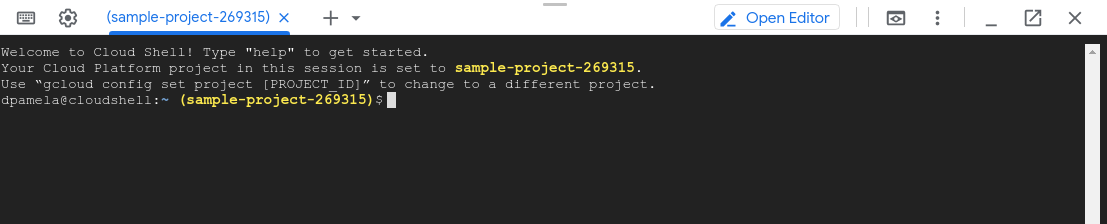
בחלק התחתון של המסוף ייפתח סשן של Cloud Shell בתוך מסגרת חדשה, ויוצגו שתי הודעות והנחיה של שורת הפקודה. בהודעה הראשונה מופיע Google Cloud הפרויקט של סשן Cloud Shell. בהודעה השנייה מוסבר איך לשנות את הפרויקט של הסשן. יכולות לעבור כמה שניות עד שהסשן של מעטפת הפקודות יופעל:
בחירת תוכנית ליצירת פרופיל
מ-Cloud Shell, מאחזרים את חבילת הדוגמאות של Go:
git clone https://github.com/GoogleCloudPlatform/golang-samples.git
התהליך של אחזור החבילה נמשך כמה רגעים.
profiler_quickstart
הדוגמה profiler_quickstart מוגדרת להפעלת השירות hello-profiler. התחלה מהירה של Profiler משתמשת בדוגמה הזו.
כדי להתחיל להשתמש ב-hello-profiler, צריך לבצע את הפעולות הבאות:
עוברים לספרייה
profiler_quickstart:cd ~/gopath/src/github.com/GoogleCloudPlatform/golang-samples/profiler/profiler_quickstartמפעילים את השירות באמצעות הפקודה הבאה:
go run main.go
ההודעה profiler has started מוצגת בסשן של Cloud Shell כמה שניות אחרי שמפעילים את השירות. הודעות חדשות מוצגות בכל פעם שמעלים פרופיל לפרויקט Google Cloud.
כדי להפסיק את השירות, מזינים Ctrl-C.
hotapp
בדוגמה hotapp נעשה שימוש בלולאה אינסופית שקוראת לשתי פונקציות, ואז למתזמן של Go. הדוגמה תומכת בהגדרת הדגל -local_work. כשהדגל הזה הוא true, עבודה, בצורה של לולאות for, מתווספת לפונקציות נפרדות. כברירת מחדל, הדגל הזה מוגדר לערך false.
כדי להריץ את הדוגמה hotapp:
עוברים לספרייה
hotapp:cd ~/gopath/src/github.com/GoogleCloudPlatform/golang-samples/profiler/hotappמפעילים את השירות באמצעות הפקודה הבאה:
go run main.goאם רוצים ליצור נתוני פרופיל שתואמים לנתונים שמוצגים במסמכי התיעוד של Cloud Profiler, צריך להשתמש בקריאה הבאה:
go run main.go -service=docdemo-service -local_work -skew=75 -version=1.75.0
ההודעה profiler has started מוצגת בסשן של Cloud Shell כמה שניות אחרי שמפעילים את השירות. הודעות חדשות מוצגות בכל פעם שמעלים פרופיל לפרויקט Google Cloud.
כדי להפסיק את השירות, מזינים Ctrl-C.
בקטע על השוואה בין פרופילים נעשה שימוש בשתי פריסות שונות של docdemo-service. בפריסה אחת, הערכים skew ו-version הוגדרו כמו שמתואר למעלה. בפריסה השנייה, הערך skew הוגדר ל-25 והערך version הוגדר ל-1.25.0.
פתרון בעיות
אם מופיעה הודעת שגיאה על כך שההרשאה נדחתה אחרי הפעלת השירות, אפשר להיעזר במאמר שגיאות בהגדרת הפרויקט. Google Cloud