


Tutorial ini menunjukkan cara memulai Compute Engine. Ikuti tutorial ini dengan men-deploy aplikasi web PHP Hello World ke Compute Engine. Untuk mendapatkan bantuan memulai App Engine, lihat lingkungan standar App Engine.
Tujuan
- Menggunakan Cloud Shell untuk mendownload dan men-deploy aplikasi contoh Hello World.
- Men-deploy aplikasi contoh Hello World ke satu instance Compute Engine.
Biaya
Dalam dokumen ini, Anda akan menggunakan komponen yang dapat ditagih berikut Google Cloud:
Untuk membuat perkiraan biaya berdasarkan proyeksi penggunaan Anda,
gunakan kalkulator harga.
Sebelum memulai
- Login keakun Anda. Google Cloud Jika Anda baru menggunakan Google Cloud, buat akun untuk mengevaluasi performa produk kami dalam skenario dunia nyata. Pelanggan baru juga mendapatkan kredit gratis senilai $300 untuk menjalankan, menguji, dan men-deploy workload.
-
In the Google Cloud console, on the project selector page, select or create a Google Cloud project.
Roles required to select or create a project
- Select a project: Selecting a project doesn't require a specific IAM role—you can select any project that you've been granted a role on.
-
Create a project: To create a project, you need the Project Creator role
(
roles/resourcemanager.projectCreator), which contains theresourcemanager.projects.createpermission. Learn how to grant roles.
-
Verify that billing is enabled for your Google Cloud project.
Enable the Compute Engine API, if it is not already enabled.
Roles required to enable APIs
To enable APIs, you need the
serviceusage.services.enablepermission. If you created the project, then you likely already have this permission through the Owner role (roles/owner). Otherwise, you can get this permission through the Service Usage Admin role (roles/serviceusage.serviceUsageAdmin). Learn how to grant roles.-
In the Google Cloud console, on the project selector page, select or create a Google Cloud project.
Roles required to select or create a project
- Select a project: Selecting a project doesn't require a specific IAM role—you can select any project that you've been granted a role on.
-
Create a project: To create a project, you need the Project Creator role
(
roles/resourcemanager.projectCreator), which contains theresourcemanager.projects.createpermission. Learn how to grant roles.
-
Verify that billing is enabled for your Google Cloud project.
Enable the Compute Engine API, if it is not already enabled.
Roles required to enable APIs
To enable APIs, you need the
serviceusage.services.enablepermission. If you created the project, then you likely already have this permission through the Owner role (roles/owner). Otherwise, you can get this permission through the Service Usage Admin role (roles/serviceusage.serviceUsageAdmin). Learn how to grant roles.-
Di Google Cloud konsol, buka aplikasi di Cloud Shell.
Cloud Shell menyediakan akses command line ke resource cloud langsung dari browser.
-
Jika Anda setuju untuk meng-clone repositori, klik Confirm untuk mendownload kode contoh dan mengubah ke direktori aplikasi.
-
Di Cloud Shell, konfigurasikan gcloud CLI untuk menggunakan
project baru Google Cloud Anda:
# Configure gcloud for your project
gcloud config set project YOUR_PROJECT_ID
Menjalankan aplikasi di Cloud Shell
Instal dependensi aplikasi Anda menggunakan
composer:composer installJalankan server web bawaan PHP:
php -S localhost:8080Di Cloud Shell, klik Web preview , lalu pilih Preview on port 8080. Tindakan ini akan membuka jendela baru dengan aplikasi yang sedang berjalan.
Untuk menghentikan server web lokal, tekan Control+C.
Men-deploy ke satu instance
Bagian ini akan memandu Anda menjalankan satu instance aplikasi di Compute Engine.
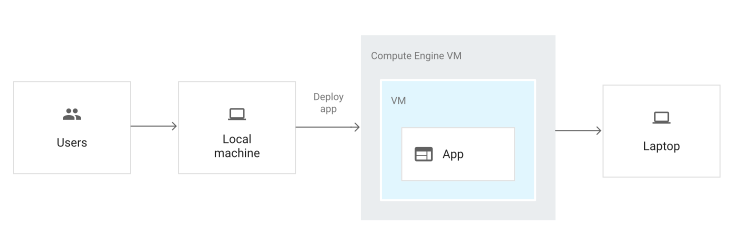
Dari Cloud Shell, Anda dapat men-deploy ke satu virtual machine (VM) instance Compute Engine yang menjalankan aplikasi Anda.
Menggunakan skrip startup untuk menginisialisasi instance
Anda memerlukan cara untuk menginstruksikan instance Anda mendownload dan menjalankan kode Anda. Instance dapat memiliki skrip startup yang berjalan setiap kali instance dimulai atau dimulai ulang.
Skrip startup melakukan tugas-tugas berikut:
Menginstal PHP 7 dan PHP 7 FPM.
Menginstal dan mengonfigurasi NGINX.
Mendownload Composer dan menjalankannya untuk kode aplikasi.
Menginstal agen Cloud Logging dan mengonfigurasinya untuk memantau log aplikasi. Artinya, logging yang dikonfigurasi pada langkah-langkah sebelumnya dalam tutorial ini akan diupload seperti saat Anda menggunakan App Engine.
Membuat dan mengonfigurasi instance Compute Engine
Buat instance Compute Engine:
Ganti zona dengan zona pengembangan, misalnya
us-central1-a. Untuk mengetahui informasi selengkapnya tentang region dan zona, lihat Geografi dan region.Tindakan ini akan membuat instance baru, mengizinkannya mengakses Google Cloud layanan, dan menjalankan skrip startup Anda. Nama instance-nya adalah
my-app-instance.Periksa progres pembuatan instance:
gcloud compute instances get-serial-port-output my-app-instance --zone YOUR_ZONE
Ganti
YOUR_ZONEdengan zona tempat Anda men-deploy instance.Setelah skrip startup selesai, Anda akan melihat pesan berikut:
startup-script: INFO Finished running startup scripts.
Buat aturan firewall untuk mengizinkan traffic ke instance Anda:
gcloud compute firewall-rules create default-allow-http-80 \
    --allow tcp:80 \
    --source-ranges 0.0.0.0/0 \
    --target-tags http-server \
    --description "Allow port 80 access to http-server"
Dapatkan alamat IP eksternal instance Anda:
gcloud compute instances listUntuk melihat aplikasi Anda berjalan, masukkan URL ini di browser Anda:
http://YOUR_INSTANCE_IP
Ganti
YOUR_INSTANCE_IPdengan alamat IP eksternal instance Anda.
Mengelola dan memantau instance
Anda dapat menggunakan Google Cloud konsol untuk memantau dan mengelola instance Anda.
- Di Google Cloud konsol, buka halaman VM instances.
- Di daftar instance virtual machine, klik SSH di baris instance yang ingin Anda hubungkan.
-
Untuk melihat semua log yang dihasilkan oleh resource Compute Engine Anda, buka halaman Logs Explorer.
Buka Logs ExplorerCloud Logging otomatis dikonfigurasi untuk mengumpulkan log dari berbagai layanan umum, termasuk
syslog.
Pembersihan
Agar tidak perlu membayar biaya pada akun Google Cloud Anda untuk resource yang digunakan dalam tutorial ini, hapus project yang berisi resource tersebut, atau simpan project dan hapus setiap resource.
Menghapus project
- Di Google Cloud konsol, buka halaman Manage resources.
- Pada daftar project, pilih project yang Anda ingin Anda hapus, lalu klik Delete.
- Pada dialog, ketik project ID, lalu klik Shut down untuk menghapus project.
Menghapus resource satu per satu
gcloud compute instances delete my-app-instance --zone=YOUR_ZONE --delete-disks=all
gcloud compute firewall-rules delete default-allow-http-80