


במדריך הזה מוסבר איך להתחיל להשתמש ב-Compute Engine. במדריך הזה נסביר איך לפרוס אפליקציית אינטרנט Hello World PHP ב-Compute Engine. לקבלת עזרה בתחילת העבודה עם App Engine, אפשר לעיין במאמר בנושא הסביבה הרגילה של App Engine.
מטרות
- שימוש ב-Cloud Shell להורדה ולפריסה של אפליקציית Hello World לדוגמה.
- פריסת אפליקציית Hello World לדוגמה במכונה וירטואלית אחת ב-Compute Engine.
עלויות
במסמך הזה משתמשים ברכיבים הבאים של Google Cloud, והשימוש בהם כרוך בתשלום:
כדי להעריך את ההוצאות בהתאם לתחזית השימוש שלכם, אתם יכולים להיעזר במחשבון העלויות.
לפני שמתחילים
- נכנסים לחשבון Google Cloud . אם אתם משתמשים חדשים ב- Google Cloud, צרו חשבון כדי שתוכלו להעריך את הביצועים של המוצרים שלנו בתרחישים מהעולם האמיתי. לקוחות חדשים מקבלים בחינם גם קרדיט בשווי 300$ להרצה, לבדיקה ולפריסה של עומסי העבודה.
-
In the Google Cloud console, on the project selector page, select or create a Google Cloud project.
Roles required to select or create a project
- Select a project: Selecting a project doesn't require a specific IAM role—you can select any project that you've been granted a role on.
-
Create a project: To create a project, you need the Project Creator role
(
roles/resourcemanager.projectCreator), which contains theresourcemanager.projects.createpermission. Learn how to grant roles.
-
Verify that billing is enabled for your Google Cloud project.
Enable the Compute Engine API, if it is not already enabled.
Roles required to enable APIs
To enable APIs, you need the
serviceusage.services.enablepermission. If you created the project, then you likely already have this permission through the Owner role (roles/owner). Otherwise, you can get this permission through the Service Usage Admin role (roles/serviceusage.serviceUsageAdmin). Learn how to grant roles.-
In the Google Cloud console, on the project selector page, select or create a Google Cloud project.
Roles required to select or create a project
- Select a project: Selecting a project doesn't require a specific IAM role—you can select any project that you've been granted a role on.
-
Create a project: To create a project, you need the Project Creator role
(
roles/resourcemanager.projectCreator), which contains theresourcemanager.projects.createpermission. Learn how to grant roles.
-
Verify that billing is enabled for your Google Cloud project.
Enable the Compute Engine API, if it is not already enabled.
Roles required to enable APIs
To enable APIs, you need the
serviceusage.services.enablepermission. If you created the project, then you likely already have this permission through the Owner role (roles/owner). Otherwise, you can get this permission through the Service Usage Admin role (roles/serviceusage.serviceUsageAdmin). Learn how to grant roles.-
במסוף Google Cloud , פותחים את האפליקציה ב-Cloud Shell.
Cloud Shell מספק גישה למשאבי הענן שלכם דרך שורת הפקודה ישירות מהדפדפן.
-
אם אתם מסכימים לשכפל את המאגר, לוחצים על אישור כדי להוריד את קוד הדוגמה ולעבור לספריית האפליקציה.
-
ב-Cloud Shell, מגדירים את ה-CLI של gcloud לשימוש בפרויקט החדש Google Cloud :
# Configure gcloud for your project
gcloud config set project YOUR_PROJECT_ID
הפעלת האפליקציה ב-Cloud Shell
מתקינים את יחסי התלות של האפליקציה באמצעות
composer:composer installמריצים את שרת האינטרנט המובנה של PHP:
php -S localhost:8080ב-Cloud Shell, לוחצים על תצוגה מקדימה באינטרנט ובוחרים באפשרות תצוגה מקדימה ביציאה 8080. ייפתח חלון חדש עם האפליקציה הפועלת.
כדי להפסיק את שרת האינטרנט המקומי, מקישים על Control+C.
פריסה למופע יחיד
בקטע הזה מוסבר איך להריץ מופע יחיד של האפליקציה ב-Compute Engine.
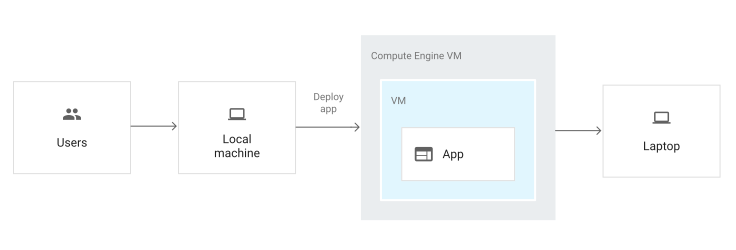
מ-Cloud Shell, אפשר לבצע פריסה למכונה וירטואלית (VM) של Compute Engine שבה האפליקציה פועלת.
שימוש בסקריפט לטעינה בזמן ההפעלה כדי לאתחל מכונה
צריך דרך להורות למופע להוריד ולהפעיל את הקוד. למופע יכול להיות סקריפט לטעינה בזמן ההפעלה שפועל בכל פעם שהמופע מופעל או מופעל מחדש.
סקריפט לטעינה בזמן ההפעלה מבצע את המשימות הבאות:
התקנה של PHP 7 ו-PHP 7 FPM.
התקנה והגדרה של NGINX.
מוריד את Composer ומריץ אותו עבור קוד האפליקציה.
הסקריפט מתקין את סוכן Cloud Logging ומגדיר אותו למעקב אחרי יומני האפליקציה. המשמעות היא שהרישום ביומן שהגדרתם בשלבים הקודמים של המדריך הזה מועלה בדיוק כמו שהיה קורה אם הייתם משתמשים ב-App Engine.
יצירה והגדרה של מכונה של Compute Engine
יצירת מכונה של Compute Engine:
מחליפים את האזור באזור פיתוח, למשל
us-central1-a. מידע נוסף על אזורים ותחומים זמין במאמר מיקום גיאוגרפי ואזורים.הפעולה הזו יוצרת מופע חדש, מאפשרת לו לגשת לשירותים של Google Cloud Google ומריצה את הסקריפט לטעינה בזמן ההפעלה. שם המכונה הוא
my-app-instance.בודקים את התקדמות יצירת המופע:
gcloud compute instances get-serial-port-output my-app-instance --zone YOUR_ZONE
מחליפים את
YOUR_ZONEבתחום (zone) שבו פרסתם את המכונה.בסיום סקריפט לטעינה בזמן ההפעלה, תוצג ההודעה הבאה:
startup-script: INFO Finished running startup scripts.
יוצרים כלל חומת אש שמאפשר תעבורת נתונים למופע:
gcloud compute firewall-rules create default-allow-http-80 \
    --allow tcp:80 \
    --source-ranges 0.0.0.0/0 \
    --target-tags http-server \
    --description "Allow port 80 access to http-server"
מקבלים את כתובת ה-IP החיצונית של המופע:
gcloud compute instances listכדי לראות את האפליקציה פועלת, מזינים את כתובת ה-URL הזו בדפדפן:
http://YOUR_INSTANCE_IP
מחליפים את הערך
YOUR_INSTANCE_IPבכתובת ה-IP החיצונית של המכונה.
ניהול של אירוע ומעקב אחריו
אתם יכולים להשתמש במסוף Google Cloud כדי לעקוב אחרי המופע ולנהל אותו.
- נכנסים לדף VM instances במסוף Google Cloud .
- ברשימת המכונות הווירטואליות, לוחצים על SSH בשורה של המכונה שרוצים להתחבר אליה.
-
כדי לראות את כל היומנים שנוצרו על ידי משאבי Compute Engine, עוברים לדף Logs Explorer.
כניסה לדף Logs ExplorerCloud Logging מוגדר באופן אוטומטי לאיסוף יומנים משירותים נפוצים שונים, כולל
syslog.
הסרת המשאבים
כדי להימנע מחיובים בחשבון Google Cloud בגלל השימוש במשאבים שנעשה במסגרת המדריך הזה, אפשר למחוק את הפרויקט שמכיל את המשאבים, או להשאיר את הפרויקט ולמחוק את המשאבים בנפרד.
מחיקת הפרויקט
- במסוף Google Cloud , נכנסים לדף Manage resources.
- ברשימת הפרויקטים, בוחרים את הפרויקט שרוצים למחוק ולוחצים על Delete.
- כדי למחוק את הפרויקט, כותבים את מזהה הפרויקט בתיבת הדו-שיח ולוחצים על Shut down.
מחיקת המשאבים הבודדים
gcloud compute instances delete my-app-instance --zone=YOUR_ZONE --delete-disks=all
gcloud compute firewall-rules delete default-allow-http-80