


網路安全整合服務會使用生產者-消費者模型檢查及監控資料。這項功能會使用頻外整合和封包鏡像技術,透過使用者管理的虛擬設備鏡像網路流量。
本教學課程說明如何建立及設定生產者和消費者資源,以設定頻外整合。
目標
本教學課程說明如何在專案中完成下列工作:
- 在同一個專案中,為生產者和消費者建立具有子網路的自訂虛擬私有雲 (VPC) 網路。
- 對於生產端,請建立及設定生產端資源和鏡像部署資源。生產者資源的例子是內部直通式網路負載平衡器。
- 對於消費者,請建立及設定用戶端和伺服器虛擬機器 (VM) 執行個體、鏡像端點資源和防火牆政策,以鏡像處理用戶端與伺服器之間的流量。
- 測試連線,並確認來自消費者 VM 的網路流量封包已鏡向至生產者鏡像資源。
下圖顯示供應商和用戶虛擬私有雲網路之間的流量流動。
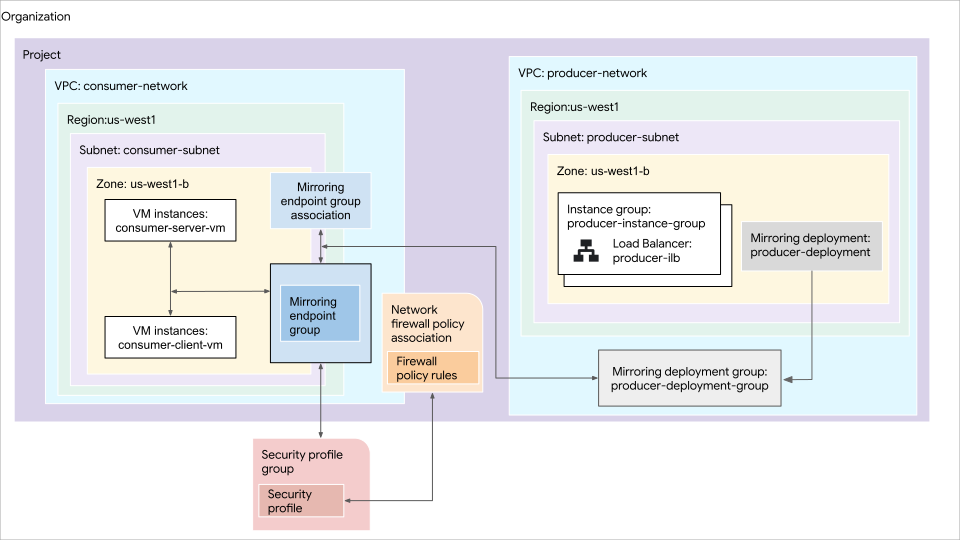
上圖顯示下列內容:
- 網路流量從消費者網路流向生產者網路,途經鏡像端點群組。
- 生產者網路包含 VM 執行個體、內部直通式網路負載平衡器和鏡像流量部署項目。
- 生產端網路的鏡像流量部署項目群組包含可用區鏡像流量部署項目。
- 消費網路包含用戶端和伺服器 VM 執行個體。消費者網路中的防火牆規則和政策會管理流量,而安全設定檔群組則與防火牆政策相關聯。
- 消費者網路會連結至鏡像端點群組關聯,將消費者網路連結至鏡像端點群組。
事前準備
- 登入 Google Cloud 帳戶。如果您是 Google Cloud新手,歡迎 建立帳戶,親自評估產品在實際工作環境中的成效。新客戶還能獲得價值 $300 美元的免費抵免額,可用於執行、測試及部署工作負載。
-
In the Google Cloud console, on the project selector page, select or create a Google Cloud project.
Roles required to select or create a project
- Select a project: Selecting a project doesn't require a specific IAM role—you can select any project that you've been granted a role on.
-
Create a project: To create a project, you need the Project Creator role
(
roles/resourcemanager.projectCreator), which contains theresourcemanager.projects.createpermission. Learn how to grant roles.
-
Verify that billing is enabled for your Google Cloud project.
-
In the Google Cloud console, on the project selector page, select or create a Google Cloud project.
Roles required to select or create a project
- Select a project: Selecting a project doesn't require a specific IAM role—you can select any project that you've been granted a role on.
-
Create a project: To create a project, you need the Project Creator role
(
roles/resourcemanager.projectCreator), which contains theresourcemanager.projects.createpermission. Learn how to grant roles.
-
Verify that billing is enabled for your Google Cloud project.
- 為專案啟用 Compute Engine API。
- 在要用於計費的 Google Cloud 專案中,啟用 Network Security API。
- 確認您在專案層級具備Compute 網路管理員角色 (
roles/compute.networkAdmin),且在機構層級具備安全設定檔管理員角色 (roles/networksecurity.securityProfileAdmin)。 - 如果您希望透過指令列操作,請先安裝 Google Cloud CLI。如需該工具的概念與安裝資訊,請參閱 gcloud CLI 總覽。
注意:如果您先前沒有執行過 Google Cloud CLI,請先執行
gcloud init,將 gcloud CLI 目錄初始化。 - 取得專案 ID。您需要這個 ID 才能建立鏡像和端點資源。如果您使用 gcloud CLI,可以替換
PROJECT_ID這裡或後續指令中的內容。 - 取得貴機構的 ID。您需要這個 ID 才能建立機構層級的資源,例如安全性設定檔和安全性設定檔群組。如果您使用 gcloud CLI,可以替換此處的
ORG_ID,或稍後在各自的指令中替換。
建立製作人資源
在本節中,您將為製作人建立下列資源:
- 具有子網路的自訂虛擬私有雲網路。
- 非代管執行個體群組,其中包含記錄傳入通用網路虛擬化封裝 (GENEVE) 封包的 VM 執行個體。
- 具有後端服務和轉送規則的內部直通式網路負載平衡器。
- 允許 Google Cloud 健康狀態檢查的防火牆規則。
- 鏡像部署群組和鏡像流量部署項目。
建立自訂虛擬私有雲網路
在本節中,您將建立具有子網路的虛擬私有雲網路。
控制台
前往 Google Cloud 控制台的「VPC Networks」(虛擬私有雲網路) 頁面。
按一下「建立虛擬私有雲網路」。
在「Name」(名稱) 中輸入
producer-network。在「說明」中輸入
Producer VPC network。在「Subnets」(子網路) 區段中,執行下列操作:
- 在「子網路建立模式」部分,選取「自訂」。
- 在「New subnet」(新的子網路) 區段中,輸入以下資訊:
- Name (名稱):
producer-subnet - Region (區域):
us-west1 - IP stack type (IP 堆疊類型):IPv4 (單一堆疊)
- IPv4 範圍:
10.10.0.0/16
- Name (名稱):
- 按一下 [完成]。
點選「建立」。
開啟 gcloud CLI 並執行下列指令,以增加控制台網路的最大傳輸單元 (MTU)。 Google Cloud
gcloud compute networks update producer-network \
    --mtu=1768
在指令中,請指定 1768 個位元組的 MTU,這是控制台網路的預設 MTU Google Cloud (1460 個位元組) 和網路安全整合服務 GENEVE 封裝負載 (308 個位元組) 的總和。
gcloud
建立虛擬私有雲網路。
gcloud compute networks create producer-network \
    --subnet-mode=custom \
    --mtu=1768 \
    --description="Producer VPC network"
在指令中,請指定 1768 個位元組的 MTU,這是控制台網路的預設 MTU Google Cloud (1460 個位元組) 和網路安全整合服務 GENEVE 封裝負載 (308 個位元組) 的總和。
在虛擬私有雲網路中建立子網路。
gcloud compute networks subnets create producer-subnet \
    --network=producer-network \
    --region=us-west1 \
    --range=10.10.0.0/16
建立非代管執行個體群組
在本節中,您將建立非代管執行個體群組。
控制台
前往 Google Cloud 控制台的「Instance groups」(執行個體群組) 頁面。
點選「建立執行個體群組」。
按一下「New unmanaged instance group」(新增非代管的執行個體群組)。
在「Name」(名稱) 中輸入
producer-instance-group。在「Location」(位置) 區段,為「Region」(區域) 選取
us-west1,然後為「Zone」(可用區) 選取us-west1-b。在「網路和執行個體」部分,執行下列操作:
- 在「Network」(網路) 中選取
producer-network。 - 在「Subnetwork」(子網路) 中,選取
producer-subnet。
- 在「Network」(網路) 中選取
點選「建立」。
gcloud
gcloud compute instance-groups unmanaged create producer-instance-group \
    --zone=us-west1-b
設定負載平衡器元件
在本節中,您將建立內部直通式網路負載平衡器的元件,包括後端服務和轉送規則。
控制台
開始設定
前往 Google Cloud 控制台的「Load balancing」(負載平衡) 頁面。
- 點選「建立負載平衡器」。
- 在「負載平衡器類型」部分,選取「網路負載平衡器 (TCP/UDP/SSL)」,然後點選「下一步」。
- 在「Proxy or passthrough」(直通或使用 Proxy) 部分,選取「Passthrough load balancer」(直通式負載平衡器),然後點選「Next」(下一步)。
- 在「公開或內部」部分,選取「內部」,然後點選「下一步」。
- 按一下 [設定]。
基本設定
在「建立內部直通式網路負載平衡器」頁面中,輸入下列資訊:
- 負載平衡器名稱:
producer-ilb - Region (區域):
us-west1 - Network (網路):
producer-network
設定後端
- 按一下「後端設定」。
- 在「通訊協定」部分選取「
UDP」。 - 在「健康狀態檢查」清單中,選取「建立健康狀態檢查」,輸入下列資訊,然後按一下「建立」。
- 名稱:
producer-health-check - 範圍:區域
- 通訊埠:
80 - Proxy 通訊協定:
NONE
- 名稱:
- 在「Backends」(後端) 的「New Backend」(新增後端) 區段中,為「IP stack type」(IP 堆疊類型)選擇「IPv4 (single-stack)」(IPv4 (單一堆疊))。
在「Instance group」(執行個體群組) 中,選取
producer-instance-group執行個體群組,然後按一下「Done」(完成)。繼續操作之前,請先驗證「Backend configuration」(後端設定) 旁是否有藍色勾號。
設定前端
- 在「New Frontend IP and port」(新增的前端 IP 和通訊埠) 區段中,輸入以下資訊,然後按一下「Done」(完成):
- 在「Name」(名稱) 中輸入
producer-ilb-fr。 - 在「Subnetwork」(子網路) 中,選取
producer-subnet。 - 在「Ports」(通訊埠) 中選取「Single」(單個),然後在「Port number」(通訊埠編號) 中輸入
6081。 - 在「進階設定」部分,針對「封包鏡像」,選取「為這個負載平衡器啟用封包鏡像」
- 繼續操作之前,請先驗證「Frontend configuration」(前端設定) 旁是否有藍色勾號。
- 在「Name」(名稱) 中輸入
檢查設定
- 按一下「檢查並完成」。
- 查看負載平衡器設定。
- 點選「建立」。
gcloud
建立地區健康狀態檢查。
gcloud compute health-checks create tcp producer-health-check \
    --region=us-west1 \
    --port=80
建立後端服務。
gcloud compute backend-services create producer-backend-service \
    --protocol=UDP \
    --region=us-west1 \
    --health-checks=producer-health-check \
    --health-checks-region=us-west1 \
    --load-balancing-scheme=INTERNAL
為後端服務建立轉送規則。
gcloud compute forwarding-rules create producer-ilb-fr \
    --backend-service=producer-backend-service \
    --region=us-west1 \
    --network=producer-network \
    --subnet=producer-subnet \
    --ip-protocol=UDP \
    --load-balancing-scheme=INTERNAL \
    --is-mirroring-collector \
    --ports=6081
建立 VM 執行個體並新增至執行個體群組
在本節中,您會建立 VM 執行個體,並使用開機指令碼設定記錄伺服器,以記錄 GENEVE 封裝的封包。建立 VM 執行個體前,請先取得子網路閘道的 IP 位址。您需要開機指令碼的 IP 位址。
控制台
取得子網路閘道的 IP 位址
前往 Google Cloud 控制台的「VPC Networks」(虛擬私有雲網路) 頁面。
按一下
producer-network虛擬私有雲網路。按一下「子網路」分頁標籤。
在「Subnets」(子網路) 區段中,記下「Gateway」(閘道) 欄中的閘道 IP 位址。
建立 VM 執行個體
前往 Google Cloud 控制台的「VM instances」(VM 執行個體) 頁面。
- 點選「建立執行個體」。
- 在「Name」(名稱) 中輸入
producer-instance。 - 在「Region」(區域) 中選取
us-west1。 - 在「Zone」(可用區) 中選取
us-west1-b。 - 將「Machine type」(機型) 設為「e2-micro」。
- 按一下「Networking」(網路),然後在「Network interfaces」(網路介面) 部分,按一下「Add a network interface」(新增網路介面),並設定下列項目:
- Network (網路):
producer-network - Subnet (子網路):
producer-subnet - 外部 IPv4 位址:無
- Network (網路):
點選「進階」,並在「開機指令碼」中輸入下列指令碼:
#!/bin/bash
# Log incoming packets from the gateway IP and the GENEVE 6081 port.
iptables -A INPUT -p udp -s '"$GW_IP"'/32 --dport 6081 -j LOG --log-prefix "[NSI MIRRORING] "

# Spin up a simple server for health checks on port 80.
nohup python3 -u -m http.server 80 &
更改下列內容:
GW_IP:子網路閘道的 IP 位址。
點選「建立」。
將 VM 執行個體新增至執行個體群組
前往 Google Cloud 控制台的「Instance groups」(執行個體群組) 頁面。
按一下「
producer-instance-group」。按一下 [編輯]。
在「VM instances」(VM 執行個體) 區段,從「Select VMs」(選取 VM) 清單中選取
producer-instanceVM。按一下 [儲存]。
gcloud
取得子網路閘道的 IP 位址。
GW_IP=$(gcloud compute networks subnets describe producer-subnet \
    --region=us-west1 \
    --format="get(gatewayAddress)")
建立 VM 執行個體。
gcloud compute instances create producer-instance \
    --image-project=debian-cloud \
    --image-family=debian-11 \
    --machine-type=e2-micro \
    --zone=us-west1-b \
    --network-interface="subnet=producer-subnet,no-address" \
    --metadata=startup-script='#!/bin/bash
     # Log incoming packets from the gateway IP and the GENEVE 6081 port.
     iptables -A INPUT -p udp -s '"$GW_IP"'/32 --dport 6081 -j LOG --log-prefix "[NSI MIRRORING] "

     # Spin up a simple server for health checks on port 80.
     nohup python3 -u -m http.server 80 &'
將 VM 執行個體新增至執行個體群組。
gcloud compute instance-groups unmanaged add-instances producer-instance-group \
    --instances=producer-instance \
    --zone=us-west1-b
將執行個體群組新增至後端服務。
gcloud compute backend-services add-backend producer-backend-service \
    --region=us-west1 \
    --instance-group=producer-instance-group \
    --instance-group-zone=us-west1-b
建立防火牆政策並新增防火牆規則
在本節中,您將建立防火牆政策並新增防火牆規則,允許 UDP 流量、 Google Cloud 健康狀態檢查和 SSH 連線,透過 Identity-Aware Proxy (IAP) 連至 Producer VM 執行個體。
控制台
前往 Google Cloud 控制台的「Firewall policies」(防火牆政策) 頁面。
按一下「建立防火牆政策」。
在「Name」(名稱) 欄位中,輸入
producer-firewall-policy。在「部署範圍」部分選取「全域」,然後按一下「繼續」。
為政策建立下列規則。
允許來自虛擬私有雲閘道 IP 位址的 UDP 流量 (使用 GENEVE 通訊埠)
- 點選「建立防火牆規則」,並設定下列欄位:
- Priority (優先順序):
100 - Direction of traffic (流量方向):「Ingress」(輸入)
- 「Action on match」(相符時執行的動作):允許
- 「Source filters」(來源篩選器) >「IP ranges」(IP 範圍):
GATEWAY_IP - 「通訊協定和通訊埠」:選取「指定的通訊協定和通訊埠」,勾選「UDP」核取方塊,然後在「通訊埠」中指定
6081。
- Priority (優先順序):
- 點選「建立」。
將
GATEWAY_IP替換為子網路閘道的 IP 位址。允許 Google Cloud 健康狀態檢查
點選「建立防火牆規則」,並設定下列欄位:
- Priority (優先順序):
101 - Direction of traffic (流量方向):「Ingress」(輸入)
- 「Action on match」(相符時執行的動作):允許
- IP 範圍:
35.191.0.0/16和130.211.0.0/22 - 「通訊協定和通訊埠」:選取「指定的通訊協定和通訊埠」,勾選「TCP」核取方塊,然後在「通訊埠」中指定
80。
- Priority (優先順序):
點選「建立」。
允許透過 Identity-Aware Proxy 連線至生產者 VM 執行個體的 SSH
- 點選「建立防火牆規則」,並設定下列欄位:
- Priority (優先順序):
102 - Direction of traffic (流量方向):「Ingress」(輸入)
- 「Action on match」(相符時執行的動作):允許
- IP 範圍:
35.235.240.0/20 - 「通訊協定和通訊埠」:選取「指定的通訊協定和通訊埠」,勾選「TCP」核取方塊,然後在「通訊埠」中指定
22。
- Priority (優先順序):
- 點選「建立」。
- 點選「建立防火牆規則」,並設定下列欄位:
如要將政策與聯播網建立關聯,請按一下「繼續」,然後按一下「建立關聯」。
勾選
producer-network核取方塊。按一下「繼續」。
點選「建立」。
gcloud
建立全域網路防火牆政策。
gcloud compute network-firewall-policies create producer-firewall-policy \
    --global
將防火牆政策與生產端網路建立關聯。
gcloud compute network-firewall-policies associations create \
    --name=producer-firewall-policy-assoc \
    --firewall-policy=producer-firewall-policy \
    --global-firewall-policy \
    --network=producer-network
建立防火牆規則,允許從 VPC 閘道 IP 位址建立與 GENEVE 連接埠的 UDP 連線。
gcloud compute network-firewall-policies rules create 100 \
    --firewall-policy=producer-firewall-policy \
    --global-firewall-policy \
    --action=allow \
    --direction=INGRESS \
    --layer4-configs=udp:6081 \
    --src-ip-ranges=$GW_IP/32
建立防火牆規則,允許 Google Cloud 健康狀態檢查。
gcloud compute network-firewall-policies rules create 101 \
    --firewall-policy=producer-firewall-policy \
    --global-firewall-policy \
    --action=allow \
    --direction=INGRESS \
    --layer4-configs=tcp:80 \
    --src-ip-ranges=35.191.0.0/16,130.211.0.0/22 # Google Cloud health check ranges
建立防火牆規則,允許透過 Identity-Aware Proxy 與 Producer VM 執行個體建立 SSH 連線。
gcloud compute network-firewall-policies rules create 102 \
    --firewall-policy=producer-firewall-policy \
    --global-firewall-policy \
    --action=allow \
    --direction=INGRESS \
    --layer4-configs=tcp:22 \
    --src-ip-ranges=35.235.240.0/20 # Google Cloud IAP range
建立製作人鏡像資源
在本節中,您將建立鏡像部署項目群組和鏡像流量部署項目。
控制台
前往 Google Cloud 控制台的「Deployment groups」(部署群組) 頁面。
按一下「建立部署群組」。
在「Name」(名稱) 中輸入
producer-deployment-group。在「Network」(網路) 中選取
producer-network。在「用途」部分,選取「頻帶外 NSI」。
在「Mirroring deployments」(鏡像部署) 專區中,按一下「Create mirroring deployment」(建立鏡像部署),指定下列欄位,然後按一下「Create」(建立):
- 名稱:
producer-deployment。 - 區域:
us-west1。 - 區域:
us-west1-b。 - 內部負載平衡器:
producer-ilb。
- 名稱:
點選「建立」。
gcloud
建立鏡像流量部署項目群組。
gcloud network-security mirroring-deployment-groups create producer-deployment-group \
    --location=global \
    --network=projects/PROJECT_ID/global/networks/producer-network \
    --no-async
將
PROJECT_ID替換為專案 ID。建立鏡像流量部署項目。
gcloud network-security mirroring-deployments create producer-deployment \
    --location=us-west1-b \
    --forwarding-rule=producer-ilb-fr \
    --forwarding-rule-location=us-west1 \
    --mirroring-deployment-group=projects/PROJECT_ID/locations/global/mirroringDeploymentGroups/producer-deployment-group \
    --no-async
建立消費者資源
在本節中,您將為消費者建立下列資源:
- 具有子網路的自訂虛擬私有雲網路
- 伺服器和用戶端 VM
- 防火牆政策和流量鏡像規則
- 鏡像端點群組和鏡像端點群組關聯
- 安全性設定檔和安全性設定檔群組
建立自訂虛擬私有雲網路
在本節中,您將建立具有子網路的虛擬私有雲網路。
控制台
前往 Google Cloud 控制台的「VPC Networks」(虛擬私有雲網路) 頁面。
按一下「建立虛擬私有雲網路」。
在「Name」(名稱) 中輸入
consumer-network。在「說明」中輸入
Consumer VPC network。在「Subnets」(子網路) 區段中,執行下列操作:
- 在「子網路建立模式」部分,選取「自訂」。
- 在「New subnet」(新的子網路) 區段中,輸入以下資訊:
- Name (名稱):
consumer-subnet - Region (區域):
us-west1 - IP stack type (IP 堆疊類型):IPv4 (單一堆疊)
- IPv4 範圍:
10.11.0.0/16
- Name (名稱):
- 按一下 [完成]。
點選「建立」。
gcloud
建立消費者虛擬私有雲網路。
gcloud compute networks create consumer-network \
    --subnet-mode=custom \
    --description="Consumer VPC network"
在虛擬私有雲網路中建立子網路。
gcloud compute networks subnets create consumer-subnet \
    --network=consumer-network \
    --region=us-west1 \
    --range=10.11.0.0/16
建立伺服器和用戶端 VM
在本節中,您將建立伺服器和用戶端 VM。
控制台
建立伺服器 VM
前往 Google Cloud 控制台的「VM instances」(VM 執行個體) 頁面。
點選「建立執行個體」。
將「Name」(名稱) 設定為
consumer-server-vm。將「區域」設為
us-west1。將「Zone」(區域) 設為
us-west1-b。將「Machine type」(機型) 設為「e2-micro」。
按一下「Networking」(網路),然後在「Network interfaces」(網路介面) 區段中,按一下「Add a network interface」(新增網路介面),並設定下列項目:
- Network (網路):
consumer-network - Subnet (子網路):
consumer-subnet - 外部 IPv4 位址:無
- Network (網路):
按一下「進階」,並在「開機指令碼」中輸入下列指令碼:
echo success > /tmp/connection_test && nohup python3 -u -m http.server --directory /tmp 8000 &
點選「建立」。
建立用戶端 VM
前往 Google Cloud 控制台的「VM instances」(VM 執行個體) 頁面。
點選「建立執行個體」。
將「Name」(名稱) 設定為
consumer-client-vm。將「區域」設為
us-west1。將「Zone」(區域) 設為
us-west1-b。將「Machine type」(機型) 設為「e2-micro」。
按一下「Networking」(網路),然後在「Network interfaces」(網路介面) 區段中,按一下「Add a network interface」(新增網路介面),並設定下列項目:
- Network (網路):
consumer-network - Subnet (子網路):
consumer-subnet - 外部 IPv4 位址:無
- Network (網路):
點選「建立」。
gcloud
建立伺服器 VM。
gcloud compute instances create consumer-server-vm \
    --image-project=debian-cloud \
    --image-family=debian-11 \
    --machine-type=e2-micro \
    --zone=us-west1-b \
    --network-interface="subnet=consumer-subnet,no-address" \
    --metadata=startup-script="echo success > /tmp/connection_test && nohup python3 -u -m http.server --directory /tmp 8000 &"
建立用戶端 VM。
gcloud compute instances create consumer-client-vm \
    --image-project=debian-cloud \
    --image-family=debian-11 \
    --machine-type=e2-micro \
    --zone=us-west1-b \
    --network-interface="subnet=consumer-subnet,no-address"
建立防火牆政策,允許輸入流量
在本節中,您將建立防火牆政策,並新增防火牆規則,允許輸入流量進入消費者 VM。
控制台
前往 Google Cloud 控制台的「Firewall policies」(防火牆政策) 頁面。
按一下「建立防火牆政策」。
在「Name」(名稱) 欄位中,輸入
consumer-firewall-policy。在「部署範圍」部分選取「全域」,然後按一下「繼續」。
點選「建立防火牆規則」,設定下列欄位,然後點選「建立」:
- Priority (優先順序):
101 - Direction of traffic (流量方向):「Ingress」(輸入)
- 「Action on match」(相符時執行的動作):允許
- 「Source filters」(來源篩選器) >「IP ranges」(IP 範圍):
35.235.240.0/20 - 「通訊協定和通訊埠」:選取「指定的通訊協定和通訊埠」,勾選「TCP」核取方塊,然後在「通訊埠」中指定
22。
IPv4 範圍「
35.235.240.0/20」包含 Identity-Aware Proxy 用於 TCP 轉送的所有 IP 位址。詳情請參閱「準備專案以進行 IAP TCP 轉送」。- Priority (優先順序):
如要允許伺服器 VM 接收 TCP 通訊埠
8000的流量,請按一下「建立防火牆規則」,然後設定下列欄位:- Priority (優先順序):
102 - Direction of traffic (流量方向):「Ingress」(輸入)
- 「Action on match」(相符時執行的動作):允許
- 「Source filters」(來源篩選器) >「IP ranges」(IP 範圍):
10.11.0.0/16 - 「通訊協定和通訊埠」:選取「指定的通訊協定和通訊埠」,勾選「TCP」核取方塊,然後在「通訊埠」中指定
8000。 - 按一下「Create」(建立)
- Priority (優先順序):
如要將政策與聯播網建立關聯,請按一下「繼續」,然後按一下「建立關聯」。
勾選
consumer-network核取方塊。按一下「繼續」。
點選「建立」。
gcloud
建立全域網路防火牆政策。
gcloud compute network-firewall-policies create consumer-firewall-policy \
    --global
將防火牆政策與消費者網路建立關聯。
gcloud compute network-firewall-policies associations create \
    --name=consumer-firewall-policy-assoc \
    --firewall-policy=consumer-firewall-policy \
    --global-firewall-policy \
    --network=consumer-network
建立 SSH 允許規則,允許透過 Identity-Aware Proxy 與用戶端 VM 執行個體建立 SSH 連線。
gcloud compute network-firewall-policies rules create 101 \
    --firewall-policy=consumer-firewall-policy \
    --global-firewall-policy \
    --action=allow \
    --direction=INGRESS \
    --layer4-configs=tcp:22 \
    --src-ip-ranges=35.235.240.0/20 # Google Cloud IAP range
IPv4 範圍「
35.235.240.0/20」包含 IAP 用於 TCP 轉送的所有 IP 位址。詳情請參閱「準備專案以進行 IAP TCP 轉送」。建立防火牆規則,允許 TCP 通訊埠
8000上的流量進入伺服器 VM。gcloud compute network-firewall-policies rules create 102 \ --firewall-policy=consumer-firewall-policy \ --global-firewall-policy \ --action=allow \ --direction=INGRESS \ --layer4-configs=tcp:8000 \ --src-ip-ranges=10.11.0.0/16
建立消費者端點群組
在本節中,您將建立鏡像端點群組和鏡像端點群組關聯。
控制台
前往 Google Cloud 控制台的「Endpoint groups」(端點群組) 頁面。
按一下「建立端點群組」。
在「Name」(名稱) 中輸入
consumer-endpoint-group。在「用途」部分,選取「頻帶外 NSI」。
在「Deployment group」部分,選取「In project」。
在「Deployment group name」(部署群組名稱) 中輸入
producer-deployment-group。按一下「繼續」。
按一下「新增端點群組關聯」。
在「Project」(專案) 部分,選取目前的專案。
在「Network」(網路) 中選取
consumer-network。點選「建立」。
gcloud
建立鏡像端點群組。
gcloud network-security mirroring-endpoint-groups create consumer-endpoint-group \
    --location=global \
    --mirroring-deployment-group=projects/PROJECT_ID/locations/global/mirroringDeploymentGroups/producer-deployment-group \
    --no-async
將
PROJECT_ID替換為專案 ID。建立鏡像端點群組關聯。
gcloud network-security mirroring-endpoint-group-associations create consumer-endpoint-group-association \
    --location=global \
    --mirroring-endpoint-group=projects/PROJECT_ID/locations/global/mirroringEndpointGroups/consumer-endpoint-group \
    --network=consumer-network \
    --no-async
建立安全性設定檔和安全性設定檔群組
建立安全性設定檔群組和自訂安全性設定檔,以鏡像處理流量。
控制台
建立自訂安全性設定檔
前往 Google Cloud 控制台的「Security profiles」(安全性設定檔) 頁面。
在專案選擇工具中選取機構。
在「安全性設定檔」分頁中,按一下「建立設定檔」。
在「Name」(名稱) 中輸入
consumer-security-profile。在「用途」部分,選取「頻帶外 NSI」。
在「Project」(專案) 部分,選取目前的專案。
在「端點群組」部分,選取
consumer-endpoint-group。點選「建立」。
建立安全性設定檔群組
前往 Google Cloud 控制台的「Security profile groups」(安全性設定檔群組) 頁面。
在專案選擇工具中選取機構。
在「安全性設定檔群組」分頁中,按一下「建立設定檔群組」。
在「Name」(名稱) 中輸入
consumer-security-profile-group。在「用途」部分,選取「頻帶外 NSI」。
在「自訂 mirroring 設定檔」部分,選取
consumer-security-profile。點選「建立」。
gcloud
建立自訂的鏡像安全性設定檔。
gcloud network-security security-profiles custom-mirroring create consumer-security-profile \
    --location=global \
    --organization=ORG_ID \
    --mirroring-endpoint-group=projects/PROJECT_ID/locations/global/mirroringEndpointGroups/consumer-endpoint-group \
    --billing-project=PROJECT_ID \
    --no-async
更改下列內容:
ORG_ID:貴機構的 ID。 安全性設定檔是組織層級的資源。如要建立這些設定,您必須具備組織層級的安全性設定檔管理員角色 (networksecurity.securityProfileAdmin)。PROJECT_ID:專案 ID。
建立鏡像安全性設定檔群組。
gcloud network-security security-profile-groups create consumer-security-profile-group \
    --location=global \
    --organization=ORG_ID \
    --custom-mirroring-profile=organizations/ORG_ID/locations/global/securityProfiles/consumer-security-profile \
    --billing-project=PROJECT_ID \
    --no-async
更改下列內容:
ORG_ID:貴機構的 ID。 安全性設定檔群組是組織層級的資源。如要建立這些設定檔,您必須具備機構層級的安全性設定檔管理員角色 (networksecurity.securityProfileAdmin)。PROJECT_ID:專案 ID。
建立防火牆政策規則,以鏡像處理流量
在本節中,您將建立鏡像規則來鏡像流量。
控制台
前往 Google Cloud 控制台的「Firewall policies」(防火牆政策) 頁面。
按一下「
consumer-firewall-policy」。按一下「鏡像規則」分頁標籤。
點選「建立鏡像規則」,並設定下列欄位:
- Priority (優先順序):
100 - Direction of traffic (流量方向):「Ingress」(輸入)
- 相符時執行的動作:鏡像
- 安全性設定檔群組:
consumer-security-profile-group - 來源:IPv4
- IP 範圍:
10.11.0.0/16 - 「通訊協定和通訊埠」:選取「指定的通訊協定和通訊埠」,勾選「TCP」核取方塊,然後在「通訊埠」中指定
8000。
- Priority (優先順序):
點選「建立」。
gcloud
新增防火牆規則,在伺服器 VM 的 TCP 通訊埠
8000上鏡像流量。gcloud compute network-firewall-policies mirroring-rules create 100 \ --firewall-policy=consumer-firewall-policy \ --global-firewall-policy \ --action=mirror \ --security-profile-group=organizations/ORG_ID/locations/global/securityProfileGroups/consumer-security-profile-group \ --direction=INGRESS \ --layer4-configs=tcp:8000 \ --src-ip-ranges=10.11.0.0/16將
ORG_ID替換為您的機構 ID。
測試連線
在本節中,您會將一些網路流量從消費者端用戶端 VM 執行個體傳送至消費者端伺服器 VM 執行個體,然後檢查生產者端 VM 執行個體的記錄,驗證鏡像。
執行下列指令,透過 SSH 連線至消費者端用戶端 VM 執行個體,並將要求傳送至消費者端伺服器 VM 執行個體。
gcloud compute ssh consumer-client-vm \
    --tunnel-through-iap \
    --zone=us-west1-b \
    --command="curl -m 3 -s http://consumer-server-vm:8000/connection_test || echo fail"
執行先前的指令時,你會看到
success訊息。 表示流量是從用戶端傳送至伺服器。執行下列指令,檢查 Producer VM 執行個體的記錄。
gcloud compute ssh producer-instance \
    --tunnel-through-iap \
    --zone=us-west1-b \
    --command="cat /var/log/syslog | grep 'NSI MIRRORING'"
您會看到類似
[NSI MIRRORING] IN=ens4
OUT= MAC=xx:xx:xx:xx:xx:xx:xx:xx:xx:xx:xx:xx:xx:xx SRC=10.10.0.1
DST=10.10.0.2 LEN=136 TOS=0x00 PREC=0x00 TTL=64 ID=0 DF PROTO=UDP SPT=45554
DPT=6081 LEN=116
的訊息。這表示用戶端/伺服器流量是由生產者 VM 執行個體鏡像處理。
清除所用資源
為避免因為本教學課程所用資源,導致系統向 Google Cloud 帳戶收取費用,請刪除含有相關資源的專案,或者保留專案但刪除個別資源。
刪除消費者資源
將防火牆政策與取用者網路取消關聯,然後刪除防火牆政策。
控制台
前往 Google Cloud 控制台的「Firewall policies」(防火牆政策) 頁面。
按一下
consumer-firewall-policy政策。按一下「關聯項目」分頁標籤。
勾選「
consumer-network關聯」核取方塊。按一下「移除關聯」。
按一下 [移除]。
按一下頁面頂端的 [Delete] (刪除)。
再按一下 [刪除] 加以確認。
gcloud
移除關聯。
gcloud compute network-firewall-policies associations delete \
    --name=consumer-firewall-policy-assoc \
    --firewall-policy=consumer-firewall-policy \
    --global-firewall-policy
刪除防火牆政策。
gcloud compute network-firewall-policies delete consumer-firewall-policy \
    --global
刪除安全性設定檔群組。
控制台
前往 Google Cloud 控制台的「Security profiles」(安全性設定檔) 頁面。
在專案選擇工具中選取機構。
在「安全性設定檔群組」分頁中,選取要刪除的安全性設定檔群組
consumer-security-profile-group,然後按一下「刪除」。再按一下 [刪除] 加以確認。
gcloud
gcloud network-security security-profile-groups delete consumer-security-profile-group \
    --location=global \
    --organization=ORG_ID \
    --billing-project=PROJECT_ID \
    --quiet
更改下列內容:
ORG_ID:您的機構 IDPROJECT_ID:專案 ID
刪除安全性設定檔。
控制台
前往 Google Cloud 控制台的「Security profiles」(安全性設定檔) 頁面。
在專案選擇工具中選取機構。
在「安全性設定檔」分頁中,選取
consumer-security-profile安全性設定檔,然後按一下「刪除」。再按一下 [刪除] 加以確認。
gcloud
gcloud network-security security-profiles custom-mirroring delete consumer-security-profile \
    --location=global \
    --organization=ORG_ID \
    --billing-project=PROJECT_ID \
    --quiet
刪除 Mirroring 端點群組關聯。
控制台
前往 Google Cloud 控制台的「Endpoint groups」(端點群組) 頁面。
按一下「
consumer-endpoint-group」。選取
consumer-network關聯,然後按一下「刪除」。再按一下 [刪除] 加以確認。
gcloud
gcloud network-security mirroring-endpoint-group-associations delete consumer-endpoint-group-association \
    --location=global \
    --no-async
刪除 Mirroring 端點群組。
控制台
前往 Google Cloud 控制台的「Endpoint groups」(端點群組) 頁面。
選取
consumer-endpoint-group,然後按一下「刪除」。再按一下 [刪除] 加以確認。
gcloud
gcloud network-security mirroring-endpoint-groups delete consumer-endpoint-group \
    --location=global \
    --no-async
刪除伺服器和用戶端 VM。
控制台
前往 Google Cloud 控制台的「VM instances」(VM 執行個體) 頁面。
勾選
consumer-client-vm和consumer-server-vm的核取方塊,然後按一下「刪除」。再按一下 [刪除] 加以確認。
gcloud
刪除用戶端 VM。
gcloud compute instances delete consumer-client-vm \
    --zone=us-west1-b \
    --quiet
刪除伺服器 VM。
gcloud compute instances delete consumer-server-vm \
    --zone=us-west1-b \
    --quiet
刪除消費者網路和子網路。
控制台
前往 Google Cloud 控制台的「VPC Networks」(虛擬私有雲網路) 頁面。
按一下「
consumer-network」。在「子網路」分頁中,勾選
consumer-subnet的核取方塊,然後按一下「刪除」。再按一下 [刪除] 加以確認。
按一下「刪除虛擬私有雲網路」。
在文字欄位中輸入
consumer-network,然後按一下「刪除」。
gcloud
刪除子網路。
gcloud compute networks subnets delete consumer-subnet \
    --region=us-west1 \
    --quiet
刪除虛擬私有雲網路。
gcloud compute networks delete consumer-network \
    --quiet
刪除製作人資源
將防火牆政策與生產者網路取消關聯,然後刪除防火牆政策。
控制台
前往 Google Cloud 控制台的「Firewall policies」(防火牆政策) 頁面。
按一下
producer-firewall-policy政策。按一下「關聯項目」分頁標籤。
勾選「
producer-network關聯」核取方塊。按一下「移除關聯」。
按一下 [移除]。
點選「刪除」。
再按一下 [刪除] 加以確認。
gcloud
移除關聯。
gcloud compute network-firewall-policies associations delete \
    --name=producer-firewall-policy-assoc \
    --firewall-policy=producer-firewall-policy \
    --global-firewall-policy
刪除防火牆政策。
gcloud compute network-firewall-policies delete producer-firewall-policy \
    --global
刪除鏡像流量部署項目和鏡像部署項目群組。
控制台
前往 Google Cloud 控制台的「Deployment groups」(部署群組) 頁面。
按一下「
producer-deployment-group」。刪除
producer-deployment。- 選取
producer-deployment核取方塊,然後按一下「刪除」。 - 再按一下 [刪除] 加以確認。
- 選取
按一下 [Delete] (刪除) 按鈕。
再按一下 [刪除] 加以確認。
gcloud
刪除鏡像流量部署項目。
gcloud network-security mirroring-deployments delete producer-deployment \
    --location=us-west1-b \
    --no-async
刪除鏡像流量部署項目群組。
gcloud network-security mirroring-deployment-groups delete producer-deployment-group \
    --location=global \
    --no-async
刪除負載平衡器資源。
控制台
前往 Google Cloud 控制台的「Load balancing」(負載平衡) 頁面。
勾選
producer-ilb核取方塊。點選頁面頂端的 [Delete] (刪除) 按鈕。
選取
producer-health-check核取方塊,然後按一下「Delete load balancer and the selected resources」(刪除負載平衡器和所選資源)。
gcloud
刪除轉送規則。
gcloud compute forwarding-rules delete producer-ilb-fr \
    --region=us-west1 \
    --quiet
移除後端服務。
gcloud compute backend-services delete producer-backend-service \
    --region=us-west1 \
    --quiet
刪除健康狀態檢查。
gcloud compute health-checks delete producer-health-check \
    --region=us-west1 \
    --quiet
刪除 Producer VM 執行個體。
控制台
前往 Google Cloud 控制台的「VM instances」(VM 執行個體) 頁面。
勾選
producer-instance的核取方塊,然後點選「Delete」(刪除)。再按一下 [刪除] 加以確認。
gcloud
gcloud compute instances delete producer-instance \
    --zone=us-west1-b \
    --quiet
刪除執行個體群組。
控制台
前往 Google Cloud 控制台的「Instance groups」(執行個體群組) 頁面。
勾選
producer-instance-group核取方塊。點選「刪除」。
按一下確認視窗中的 [Delete]。
gcloud
gcloud compute instance-groups unmanaged delete producer-instance-group \
    --zone=us-west1-b \
    --quiet
刪除製作人網路和子網路。
控制台
前往 Google Cloud 控制台的「VPC Networks」(虛擬私有雲網路) 頁面。
按一下「
producer-network」。在「子網路」分頁中,勾選
producer-subnet的核取方塊,然後按一下「刪除」。再按一下 [刪除] 加以確認。
按一下「刪除虛擬私有雲網路」。
在文字欄位中輸入
producer-network,然後按一下「刪除」。
gcloud
刪除子網路。
gcloud compute networks subnets delete producer-subnet \
    --region=us-west1 \
    --quiet
刪除網路。
gcloud compute networks delete producer-network \
    --quiet
後續步驟
- 鏡像流量部署項目群組總覽
- 部署項目鏡像總覽
- 鏡像端點群組總覽
- 安全性設定檔總覽
- 安全性設定檔群組總覽
- 查看 Google Cloud 的參考架構、圖表和最佳做法。 歡迎瀏覽我們的 Cloud Architecture Center。