

This article describes how to set up pricing for a private offer in Producer Portal.
Before you begin
Before you set up pricing for your offer, you must complete the following steps in Producer Portal:
Add customer and sales contact details to the offer.
Provide the Cloud Billing account
Under Billing account, add the Cloud Billing account for the offer.
If the Cloud Billing account is a resold customer subaccount, you must set up a private offer plan to transact with this customer. The plan can include a reseller discount.
Enter product and pricing details
Enter the following details for your offer:
Under Product, plan and pricing, select the product for the offer and the plan that you want to use.
Under Pricing model, select the pricing model for the plan. For more details, see Pricing models for private offers.
Enter payment details
To enter payment details for your offer, under Payment details, click Configure. In the panel that appears, enter the following payment details:
Under Offer acceptance deadline, set a deadline for your customer to accept the offer. The deadline must be within three months of the current date, no later than the offer's end date, and, for offers with multiple installments, before the start date of any installment after the first.
If you're replacing an existing offer, the deadline must also be before the existing offer's end date and, if the existing offer has installments, before the start date of the existing offer's next installment.
On the date that you select, the offer expires at 11:45 PM US and Canadian Pacific Time (UTC-8).
Under Frequency, use the Billing frequency menu to select a payment schedule. For more information about billing frequencies, see Billing frequencies for private offers.
If you selected Monthly for Billing frequency, use the Proration menu to select Proration On or Proration Off:
- Proration On: Cloud Marketplace prorates the charges for the first installment and starts subsequent installments on the first day of each month.
- Proration Off: Cloud Marketplace doesn't prorate charges and starts installments on the monthly anniversary date of the offer.
Proration isn't available for quarterly, annual, or custom billing frequencies, or for Usage only offers.
Specify additional pricing details based on your selected pricing model and billing frequency.
Under Offer start, select whether the offer should start on a specific scheduled start date. If you've turned on automatic offer approval for your product, you can select a scheduled start date for the offer's first installment, or choose to have the first installment's start date be the date that the customer accepts the offer.
If you enter a scheduled start date, that date must be in the future and within one year of the current date. The scheduled start date must also be later than the date that you entered as the offer acceptance deadline.
Under Offer end, specify the set end date or duration for the offer.
Under Auto-renew, click the toggle to turn on auto-renew for this offer, and specify the number of renewals that you want to allow. For details about auto-renew, visit Automatic renewal for private offers.
Review the Payment installment schedule, which Cloud Marketplace generates based on your previous inputs. If you chose Monthly, Quarterly, or Annually for your offer's billing frequency, you aren't able to edit the fields of the installment schedule. If you chose Custom for your offer's billing frequency, you can edit the fields of the installment schedule.
Specify whether you want unused commitment to roll over between installments of the contract, or to expire at the end of each installment of the contract.
If you want to vary the behavior from installment to installment, choose Custom. When you choose Custom, you click a checkbox to choose for each installment whether unused commitment remaining at the end of the installment rolls over to the next installment or expires. Every time unused commitment expires or rolls over at the end of an installment, all remaining unused commitment expires or rolls over, including any unused commitment that already had rolled over from previous installments.
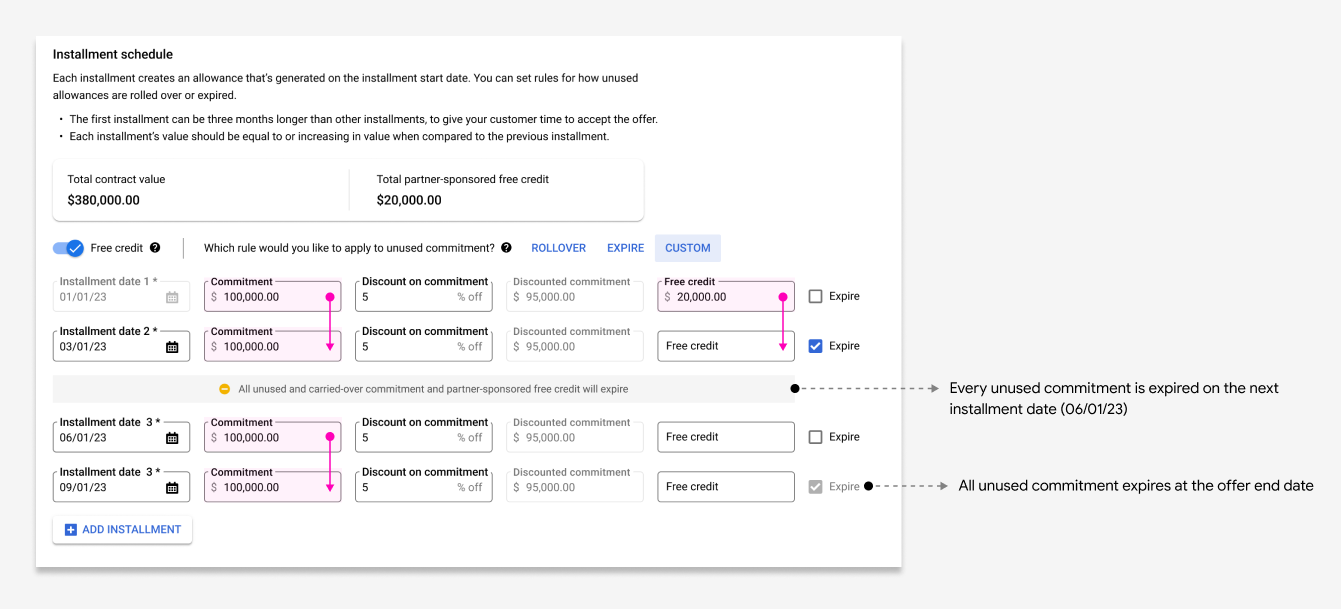
Optionally, for offers with custom billing frequencies, if you want to add partner-sponsored one-time credits to specific installments, use the Free credit toggle, and then add the amounts of the one-time credits that you want to sponsor to the installments that you want them to apply to. One-time credits expire or roll over according to the rules that you specified for the installments that they apply to.
Optionally, if you want to offer more granular discounts on usage metrics, under Metric discounts (optional), click the Apply discounts on individual metrics toggle. Expand the usage metrics that you want to discount, and enter your discount percentages.
Click Save.
What's next
After you've set up your private offer's pricing, you complete the following steps in Producer Portal:
Specify the end user license agreement (EULA) for your offer.
Review and publish your offer.