
This guide is for platform administrators who need to set up the connect gateway in a project that contains users who don't have Google identities and don't belong to Google Workspace. In this guide, these identities are referred to as "third-party identities". Before reading this guide, you should be familiar with the concepts in the connect gateway overview. To authorize individual Google accounts, see Setting up the connect gateway. For Google Groups support, refer to Setting up the connect gateway with Google Groups.
The setup in this guide lets users log in to fleet clusters using the Google Cloud CLI, the connect gateway, and the Google Cloud console.
Supported cluster types
You can set up access control with third-party identities through the connect gateway for the following cluster types:
- GKE on Google Cloud: all available versions. To set up the connect gateway, configure Google Groups for RBAC, and then grant IAM roles to Google Groups.
- Google Distributed Cloud (software only) on VMware and bare metal: all available versions.
- Google Distributed Cloud connected: all available versions.
- GKE attached clusters: version 1.28.0-gke.2 and later.
GKE on AWS and GKE on Azure: all available versions.
To use this feature with environments that aren't in the preceding list, contact Cloud Customer Care or the connect gateway team.
How it works
As described in the overview, users may be using identity providers that are not Google Workspace or Cloud Identity. By using Workforce Identity Federation, users can use their third-party identity providers, such as Okta or Azure Active Directory, to get access to their clusters through connect gateway. Unlike Google accounts, third-party users are represented by an Identity and Access Management (IAM) principal that follows the format:
principal://iam.googleapis.com/locations/global/workforcePools/WORKFORCE_POOL_ID/subject/SUBJECT_VALUE
The
WORKFORCE_POOL_IDis the name of the workforce pool that contains the relevant third-party identity provider.The
SUBJECT_VALUEis the mapping of the third-party identity to a Google subject.
For third-party groups, the IAM principal follows the format:
principal://iam.googleapis.com/locations/global/workforcePools/WORKFORCE_POOL_ID/group/GROUP_VALUE
The following diagram shows a typical flow for a third-party user authenticating to and running commands against a cluster with this service enabled. For this flow to be successful, a role-based access control (RBAC) policy needs to be applied on the cluster for either the user or a group.
For individual users, an RBAC policy that uses the full IAM principal name of the user must exist on the cluster.
If using group functionality, an RBAC policy that uses the full IAM principal name must exist on the cluster for a group that:
Contains the user
alice@example.comas a member.Is included in a mapping for an identity provider within a workforce pool that is in Alice's Google Cloud organization.
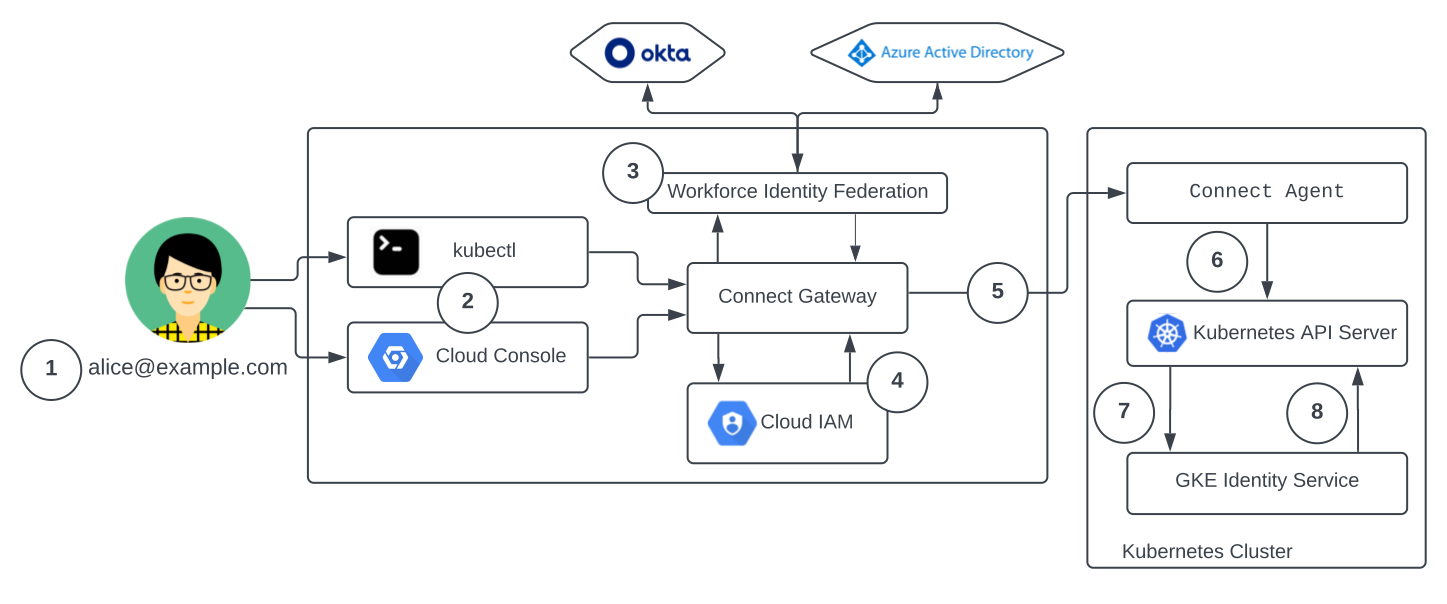
- The user
alice@example.comlogs in to gcloud CLI with their third-party identity, using the third-party browser-based sign in. To use the cluster from the command line, the user gets the cluster's gatewaykubeconfigas described in Using the connect gateway. - The user sends a request by running a
kubectlcommand or opening the Google Kubernetes Engine Workloads or Object Browser pages in the Google Cloud console. - The request is received by the connect gateway, which handles the third-party authentication using Workforce Identity Federation.
- The connect gateway performs an authorization check with IAM.
- The Connect service forwards the request to the Connect Agent running on the cluster. The request is accompanied with the user's credential information for use in authentication and authorization on the cluster.
- The Connect Agent forwards the request to the Kubernetes API server.
- The Kubernetes API server forwards the request to the identity service component in the cluster, which validates the request.
- The identity service component returns the third-party user and group information to the Kubernetes API server. The Kubernetes API server can then use this information to authorize the request based on the cluster's configured RBAC policies.
Before you begin
- Sign in to your Google Cloud account. If you're new to Google Cloud, create an account to evaluate how our products perform in real-world scenarios. New customers also get $300 in free credits to run, test, and deploy workloads.
-
Install the Google Cloud CLI.
-
If you're using an external identity provider (IdP), you must first sign in to the gcloud CLI with your federated identity.
-
To initialize the gcloud CLI, run the following command:
gcloud init -
Verify that you have the permissions required to complete this guide.
Enable the Connect Gateway, GKE Connect, GKE Hub, Anthos Identity Service, and Cloud Resource Manager APIs:
Roles required to enable APIs
To enable APIs, you need the
serviceusage.services.enablepermission. If you created the project, then you likely already have this permission through the Owner role (roles/owner). Otherwise, you can get this permission through the Service Usage Admin role (roles/serviceusage.serviceUsageAdmin). Learn how to grant roles.gcloud services enable connectgateway.googleapis.com
gkeconnect.googleapis.com gkehub.googleapis.com anthosidentityservice.googleapis.com cloudresourcemanager.googleapis.com -
Install the Google Cloud CLI.
-
If you're using an external identity provider (IdP), you must first sign in to the gcloud CLI with your federated identity.
-
To initialize the gcloud CLI, run the following command:
gcloud init -
Verify that you have the permissions required to complete this guide.
Enable the Connect Gateway, GKE Connect, GKE Hub, Anthos Identity Service, and Cloud Resource Manager APIs:
Roles required to enable APIs
To enable APIs, you need the
serviceusage.services.enablepermission. If you created the project, then you likely already have this permission through the Owner role (roles/owner). Otherwise, you can get this permission through the Service Usage Admin role (roles/serviceusage.serviceUsageAdmin). Learn how to grant roles.gcloud services enable connectgateway.googleapis.com
gkeconnect.googleapis.com gkehub.googleapis.com anthosidentityservice.googleapis.com cloudresourcemanager.googleapis.com - For clusters outside of Google Cloud, the authentication components in your cluster must call the Cloud Identity API. Check whether you have network policies that require egress traffic from your cluster to go through a proxy.
Required roles
To get the permissions that
you need to configure the connect gateway and your clusters,
ask your administrator to grant you the
Editor (roles/editor) IAM role on the project.
For more information about granting roles, see Manage access to projects, folders, and organizations.
You might also be able to get the required permissions through custom roles or other predefined roles.
Set up third-party identity attribute mappings using Workforce Identity Federation
Ensure there is a Workforce pool and identity provider set up for your Google Cloud organization by following the instructions corresponding to your identity provider:
Configure support for groups
The connect gateway uses authentication components in your cluster to retrieve group membership information. To enable the required components, see one of the following documents depending on your cluster type:
- GKE on Google Cloud: configure Google Groups for RBAC, and then skip to the Grant IAM roles to groups section.
- GKE attached clusters:
Google Distributed Cloud: enable support for groups by updating the ClientConfig custom resource in your cluster. Distributed Cloud automatically creates a ClientConfig named
defaultin thekube-publicnamespace in every cluster. To verify that this custom resource exists, run the following command:kubectl --kubeconfig CLUSTER_KUBECONFIG get ClientConfig default -n kube-publicReplace
CLUSTER_KUBECONFIGwith the path to the cluster's kubeconfig.
If your cluster or fleet is already configured for Google Groups support, there are no additional steps and you can skip to Grant IAM roles to third-party users and groups.
The following sections show you how to update the ClientConfig custom resource to enable group support. These sections apply only to Google Distributed Cloud clusters. For other types of clusters, such as GKE on Google Cloud; GKE on AWS; and GKE on Azure, skip to the Grant IAM roles to groups section.
For Distributed Cloud, you can configure support for groups for individual clusters or for a fleet. The type of cluster that you use determines how you configure groups support, as follows:
- Distributed Cloud connected: individual clusters only. Fleet-level configuration isn't supported.
- Google Distributed Cloud (software only) on VMware and bare metal: individual clusters or fleets.
Configure group support by using the GKE Fleet API
For Google Distributed Cloud (software only) on VMware and bare metal, you can configure group support at the fleet level. If you previously configured fleet-level authentication, such as for a different identity provider, group authentication is already enabled. However, if your network policy requires egress traffic to pass through a proxy, you must update the existing configuration with information about that proxy.
To configure group support at the fleet level, select one of the following options:
Console
In the Google Cloud console, go to the GKE Identity Service page.
Click Enable Identity Service.
Select the Google Distributed Cloud (software only) on VMware and bare metal clusters that you want to configure.
Click Update configuration. The Edit Identity Service Clusters Config pane opens.
In the Configure Identity Providers section, you can choose to retain, add, update, or remove an identity provider.
Click Continue to go to the next configuration step. If you've selected at least one eligible cluster for this setup, the Google Authentication section is displayed.
Select Enable to enable Google authentication for the selected clusters. If you need to access the Google identity provider through a proxy, enter the Proxy details.
Click Update Configuration. This applies the identity configuration on your selected clusters.
gcloud
- Enable the fleet-level identity service feature and configure the clusters, as described in Set up fleet-level authentication management.
In the
auth-config.yamlfile that contains your ClientConfig specification, add the following field:spec: authentication: - name: google-authentication-method google: disable: falseThe value of
falsein thegoogle.disablefield enables group support. To disable group support, modify this value totrue.Optional: If you need to access the Google identity provider through a proxy, add the
proxyfield to the preceding configuration:spec: authentication: - name: google-authentication-method google: disable: false proxy: PROXY_URLReplace
PROXY_URLwith the proxy server address to connect to the Google identity. For example:http://user:password@10.10.10.10:8888Apply the configuration to a cluster in your fleet:
gcloud container fleet identity-service apply \
--membership=CLUSTER_NAME \
--config=/path/to/auth-config.yaml
Replace
CLUSTER_NAMEwith your cluster's unique membership name within the fleet.
After you set up group support at the fleet level, the fleet controller manages the configuration. The fleet-level configuration overwrites any local changes that you make to the configuration in a specific cluster.
Configure group support for individual clusters
For all Distributed Cloud clusters, including
Distributed Cloud connected, enable group support by
updating the default ClientConfig in each cluster:
Get your cluster's membership details:
kubectl --kubeconfig USER_CLUSTER_KUBECONFIG get memberships membership -o yamlReplace
USER_CLUSTER_KUBECONFIGwith the path to the kubeconfig file for the cluster. If there are multiple contexts in the kubeconfig, the current context is used. You might need to reset the current context to the correct cluster before running the command.In the response, refer to the
spec.owner.idfield to retrieve the cluster's membership details. The membership identifier has the format//gkehub.googleapis.com/projects/PROJECT_NUMBER/locations/global/memberships/MEMBERSHIP.The output is similar to the following:
id: //gkehub.googleapis.com/projects/123456789/locations/global/memberships/xy-ab12cd34efOpen the
defaultClientConfig in your cluster for editing:kubectl --kubeconfig USER_CLUSTER_KUBECONFIG -n kube-public edit clientconfig defaultTo enable group support, add the
googlefield to thespec.authenticationfield:spec: internalServer: https://kubernetes.default.svc authentication: - google: audiences: - "CLUSTER_IDENTIFIER" name: google-authentication-methodReplace
CLUSTER_IDENTIFIERwith the membership details of your cluster.Ensure that the
internalServerfield has a value ofhttps://kubernetes.default.svc.Optional: If you need to access the Google identity provider through a proxy, add the
proxyfield to the preceding configuration:spec: internalServer: https://kubernetes.default.svc authentication: - google: audiences: - "CLUSTER_IDENTIFIER" name: google-authentication-method proxy: PROXY_URLReplace
PROXY_URLwith the proxy server address to connect to the Google identity. For example:http://user:password@10.10.10.10:8888
Grant IAM roles to third-party users and groups
Third-party identities need the following additional Google Cloud roles to interact with connected clusters through the gateway:
roles/gkehub.gatewayAdmin. This role allows users to access the connect gateway API.- If users only need read-only access to connected clusters,
roles/gkehub.gatewayReadercan be used instead. - If users need read/write access to connected clusters,
roles/gkehub.gatewayEditorcan be used instead.
- If users only need read-only access to connected clusters,
roles/gkehub.viewer. This role allows users to view registered cluster memberships.
The following shows you how to add the necessary roles to individual identities and mapped groups:
Single identities
To grant the necessary roles to a single identity
for project
PROJECT_ID, run the following command:
gcloud projects add-iam-policy-binding PROJECT_ID \
    --role=GATEWAY_ROLE \
    --member="principal://iam.googleapis.com/locations/global/workforcePools/WORKFORCE_POOL_ID/subject/SUBJECT_VALUE"

gcloud projects add-iam-policy-binding PROJECT_ID \
    --role=roles/gkehub.viewer \
    --member="principal://iam.googleapis.com/locations/global/workforcePools/WORKFORCE_POOL_ID/subject/SUBJECT_VALUE"
where
PROJECT_ID: is the ID of the project.GATEWAY_ROLEis one ofroles/gkehub.gatewayAdmin,roles/gkehub.gatewayReaderorgkehub.gatewayEditor.WORKFORCE_POOL_ID: is the workforce identity pool ID.SUBJECT_VALUE: is the user identity.
Groups
To grant the necessary roles to all identities within
a specific group for project PROJECT_ID,
run the following command:
gcloud projects add-iam-policy-binding PROJECT_ID \
    --role=GATEWAY_ROLE \
    --member="principalSet://iam.googleapis.com/locations/global/workforcePools/WORKFORCE_POOL_ID/group/GROUP_ID"

gcloud projects add-iam-policy-binding PROJECT_ID \
    --role=roles/gkehub.viewer \
    --member="principalSet://iam.googleapis.com/locations/global/workforcePools/WORKFORCE_POOL_ID/group/GROUP_ID"
where
PROJECT_ID: is the ID of the project.GATEWAY_ROLEis one ofroles/gkehub.gatewayAdmin,roles/gkehub.gatewayReaderorgkehub.gatewayEditor.WORKFORCE_POOL_ID: is the workforce pool ID.GROUP_ID: is a group in the mappedgoogle.groupsclaim.
Refer to the setup for your identity provider listed in Set up third-party mappings using Workforce Identity for more customizations, like specifying department attributes, when applying the RBAC policy.
You can find out more about granting IAM permissions and roles in Granting, changing, and revoking access to resources.
Configure role-based access control (RBAC) policies
Finally, each cluster's Kubernetes API server needs to be able to authorize kubectl commands that come through the gateway from your specified third-party user and groups. For each cluster, you need to add an RBAC permissions policy that specifies which permissions the subject has on the cluster.
The subjects in RBAC policies must use the same format as the IAM bindings, with third-party users starting with principal://iam.googleapis.com/ and third-party groups starting with principalSet://iam.googleapis.com/. If the cluster doesn't have authentication from external third-party identities configured, you will need impersonation policies in addition to roles/clusterroles for a third-party user. In that case, follow these RBAC setup steps, adding the third-party principal that starts with principal://iam.googleapis.com/ as the user.
The following example shows how to grant members of a third-party group cluster-admin permissions on a cluster where authentication from external third-party identities is configured. You can then save the policy file as /tmp/admin-permission.yaml and apply it to the cluster associated with the current context.
cat <<EOF > /tmp/admin-permission.yaml
apiVersion: rbac.authorization.k8s.io/v1
kind: ClusterRoleBinding
metadata:
  name: gateway-cluster-admin-group
subjects:
- kind: Group
  name: "principalSet://iam.googleapis.com/locations/global/workforcePools/WORKFORCE_POOL_ID/group/GROUP"
roleRef:
  kind: ClusterRole
  name: cluster-admin
  apiGroup: rbac.authorization.k8s.io
EOF
# Apply permission policy to the cluster.
kubectl apply --kubeconfig=KUBECONFIG_PATH -f /tmp/admin-permission.yaml
You can find out more about specifying RBAC permissions in Using RBAC authorization.
What's next?
- Learn how to use the Connect gateway to connect to clusters from the command line.
- See an example of how to use the Connect gateway as part of your DevOps automation in our Integrating with Cloud Build tutorial.