

App Topology lets you run queries to help you correlate data and answer questions about the health, performance, and security posture of your applications.
Types of topologies
App Topology supports queries for Google Cloud resources in a Google Cloud project and queries for App Hub applications in a project or an app-enabled folder. When you create App Hub applications in a folder, you can view resource relationships across projects in that folder when you run queries in App Topology.
In Cloud Hub, App Topology provides several domains for specific types of questions. Each domain lets you query a specific set of underlying data.
Health and troubleshooting - For Site Reliability Engineers (SREs) and other users who focus on the runtime health and reliability of services. You can view open alerts for deployment events, and analyze traffic between application components or agentic resources.
Deployments - For DevOps engineers who manage the software supply chain and infrastructure configuration. You can check build artifacts for known vulnerabilities before they are deployed, and trace provenance from source code to production.
Security - For security engineers and managers who audit access, vulnerabilities, and software supply chain risk. You can examine access paths and identify running services and infrastructure that are affected by vulnerabilities.
App Topology also provides topology graphs that are focused on specific uses in other areas of Google Cloud.
Use the following table to help you decide which topology tool to use:
| Topology tool | When to use it |
|---|---|
| App Topology API | Run queries to correlate observability, security, and deployment data using the Google Cloud CLI or the REST API. Agents can use the remote App Topology MCP server to query data. |
| App Topology in Cloud Hub | Analyze data relationships across observability, security, and
deployment domains.
|
| Application topology in Cloud Monitoring | View real-time observability data such as traffic, latency, and
service dependencies based on telemetry.
|
| Agent topology | Analyze observability, security, and deployment data for agents and AI applications.
|
Before you begin
Identify the Google Cloud project that you want to set up.
- Security and compliance data provided by Security Command Center is only available for projects and applications in a Google Cloud organization. If you want to migrate a project to an organization, see the migration instructions
- If you set up an app-enabled folder for App Hub applications, enable APIs and grant permissions described in these instructions on the folder's management project.
To view software supply chain data such as build provenance, configure Developer Connect insights.
Enable the App Topology, Cloud Asset Inventory, and Observability APIs, if any are not already enabled.
Roles required to enable APIs
To enable APIs, you need the
serviceusage.services.enablepermission. If you created the project, then you likely already have this permission through the Owner role (roles/owner). Otherwise, you can get this permission through the Service Usage Admin role (roles/serviceusage.serviceUsageAdmin). Learn how to grant roles.Optional: To view agent traffic, instrument your AI applications.
Optional: Set up Security Command Center for security and compliance data. Activate Security Command Center at the organization level and configure the features that you want to use. Querying data from Security Command Center is only available for Premium and Enterprise tiers.
Grant permissions to your users to query data and view topology graphs.
If you are protecting services in a VPC Service Controls perimeter, update the perimeter to include App Topology and services that provide underlying data. Learn more.
Required roles
The Cloud Hub Operator role includes the required permissions to view data for all domains in Cloud Hub as well as data for other Google Cloud topologies.
To get the permissions that
you need to query all domains in App Topology,
ask your administrator to grant you the
Cloud Hub Operator (roles/cloudhub.operator) IAM role on the project with your resources or the management project
for your applications.
For more information about granting roles, see Manage access to projects, folders, and organizations.
You might also be able to get the required permissions through custom roles or other predefined roles.
About queries
App Topology queries consist of several components:
Nodes - Discovered Google Cloud resources or resources registered in App Hub applications. Examples of nodes include
- A Compute Engine VM
- A container image in Artifact Registry
- An agent
- A Cloud Monitoring alert
- An App Hub application, service, or workload
- A vulnerability
The query builder groups nodes by service.
Where clause: a filter that's applied to a node to refine the query based on the specific properties of the node.
Connections: A directional relationship between two nodes. Connections are context-aware, and only valid relationships are available for a selected node type. Examples include:
contained insends traffic toownsdepends on
The following example query searches for deployments that have a specific vulnerability:
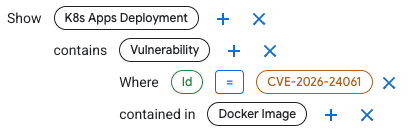
The query establishes the key nodes of the investigation:
- K8s Apps Deployment - A Google Kubernetes Engine (GKE) deployment
- Docker Image - A container image stored in Artifact Registry
- Vulnerability
The connections contains and contained in indicate the node
relationships:
K8s Apps Deployment contains VulnerabilityVulnerability contained in Docker Image
The Where clause filters vulnerability results to show a specific CVE.
Where Id = CVE-2026-24061
Limitations
Data availability:
- Trace connections show latency and error rate information from the most recent hour of data. You can't change the time range.
- Google Cloud Observability doesn't support telemetry for all App Hub services and workloads. For a list of supported infrastructure resources, see Application Monitoring supported infrastructure.
- When viewing a topology for an App Hub application, resources that can be shared across applications aren't included in the visualization.
- When you delete a Developer Connect insights event, the event might still appear in App Topology query results for a few days.
- For security and compliance data provided by Security Command Center:
- The provided data is in Preview
- Data is only available for projects and applications in a Google Cloud organization.
Run a query
You can use predefined queries, modify predefined queries, or create custom queries.
Use or customize a suggested query
App Topology provides query suggestions that you can use without any changes, or you can customize those suggestions to fit your specific requirements.
In the Google Cloud console, go to the App Topology page.
In the Create your query panel, select the tab for the domain you want to explore.
Under Quick Queries, click a query to see a preview of the query components.
To use the query, click Use suggestion. The query appears in the Show section.
Modify the query details in the editor to suit your needs.
- To add a component to the query, click the plus icon () next to the node.
- To remove a component, click the close icon .
- To change the value of a
Whereclause, click the value.
You can click Undo to revert a change or Redo to re-apply changes you reverted with Undo.
As you build your query, the available nodes, filters, and connections are updated.
For example, if you selected the Vulnerabilities in Kubernetes deployments query, the components are:
Application
  contains Workload
    depends on K8s Apps Deployment
       contains Vulnerability
          Where Id = Empty value
To use the query, you must specify a vulnerability to search for by replacing
Empty valuewith a CVE ID such asCVE-2026-24061.As an alternative, you can change the query to search for all application workloads that contain Docker images with a specific vulnerability:
Application
  contains Workload
    contains Deployment Event
      contains artifact Docker Image
        contains Vulnerability
          Where Id = CVE-2026-24061
When you are finished editing the query, click Run query. If the results of your query include Google Cloud discovered resources or resources registered in App Hub applications, a topology graph is displayed.
Graphs aren't available for query results that only include data types such as strings or counts.
Based on the results, you can edit the query and then click Run query to update the topology graph.
If there are no results, try refining your query.
Interact with the topology to learn about your resources and their relationships.
Create custom queries
To create a custom query, either start a new query or customize an existing suggested query using the following steps:
In the Google Cloud console, go to the App Topology page.
In the Create your query panel, select the tab for the domain you want to explore.
In the Show section, click and select a resource or finding as the primary node for your query, and then click Continue.
To refine your query, click the toggle for any filter or connection to enable it for the selected node. Define the value for each filter you enable.
To make additional changes to the query, you can add, edit, or remove components.
- To add a component to the query, click the plus icon () next to the node.
- To remove a component, click the close icon .
- To change the value of a
Whereclause, click the value.
You can click Undo to revert a change or Redo to re-apply a change you reverted with Undo.
As you build your query, the available nodes, filters, and connections are updated.
When you have finished editing the query, click Run query. If the results of your query include Google Cloud discovered resources or resources registered in App Hub applications, a topology graph is displayed.
Graphs aren't available for query results that only include data types such as strings or counts.
Based on the results, you can edit the query and then click Run query to update the topology graph.
If there are no results, try refining your query.
Interact with the topology to learn about your resources and their relationships.
Interact with a topology
A topology graph on the Graph tab displays resources and their relationships as nodes and connections.
- Icons represent nodes, discovered and registered resources and their resource type.
- Lines represent connections, the relationships between nodes.
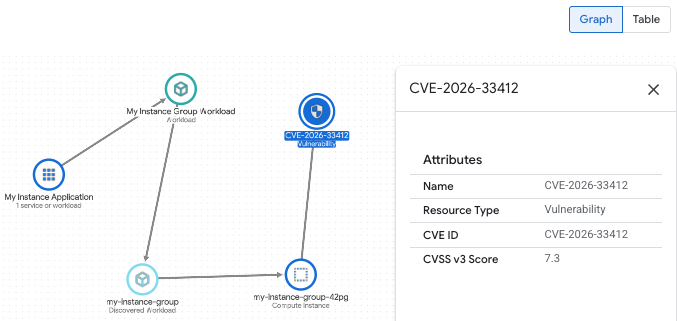
You can interact with a topology in the following ways:
- Change the visualization by zooming in or out or repositioning nodes.
- View the label for a connection by hovering over the connection line between two nodes.
- Get information about a node or connection by selecting it.
- Hide or show the query panel by clicking Toggle panel .
To view query results in a table, click the Table tab. You can change how data is displayed in the following ways:
- To select the columns that the table displays, click Column display options .
- To filter the table for specific properties, select the properties in the Filter field.
- You can also sort each column in ascending or descending order.